PDF

Nonlinear Transfer Impedance of a Tapered Orifice
Introduction
This model analyzes the nonlinear transfer impedance of a tapered orifice that can be part of a perforate or microperforated plate (MPP). The analysis is carried out for various degrees of tapering of the perforate and for a frequency range.
A linear analysis is first set up in the frequency domain using the Thermoviscous Acoustics, Frequency Domain interface as well as in the time domain using the Thermoviscous Acoustics, Transient interface (for the time domain, using only a few selected frequencies for comparison). A full nonlinear analysis is finally carried out in the time domain using the Thermoviscous Acoustics, Transient interface and the Nonlinear Thermoviscous Acoustics Contributions feature.
The results are compared with analytical and semi-analytical models in the simple straight cylindrical perforate configuration (circular orifice).
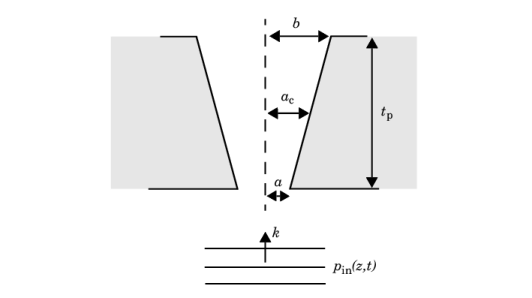
Figure 1: Schematic representation of the tapered orifice in the microperforated plate.
Model Definition
In this 2D axisymmetric model, a plane wave is incident normally on a microperforated plate (MPP) with a tapered orifice as depicted schematically in Figure 1. The wave is propagating in the positive axial z direction, and has the form
(1)
where k is the wavenumber and f0 the excitation frequency. The top radius is b, the orifice center radius is ac (0.4 mm in the model), the bottom radius is a, the taper ratio is a/b (the parameter ab in the model ranging from 0.5 to 1), and tp is the plate thickness (1 mm). In the model, the corners of the orifice include a small fillet of radius ac/50 in order to avoid any singularities at sharp edges.
An in-depth experimental and analytical analysis of the loss mechanisms and loss regimes in a microperforated plate is given in Temiz and others (Ref. 1), for the nontapered case when the taper ratio is 1. Some details or the modeling background are given in Ref. 2. In the linear regime, all losses are due to viscous dissipation in the Stokes layer (viscous boundary layer), which has the characteristic thickness
(2)
where μ is the dynamic viscosity, ω is the angular frequency, and ρ0 is the density. At 100 Hz in air, this characteristic viscous length is 0.22 mm. The ratio of the Stokes layer to the characteristic dimensions of the hole (the diameter d = 2a) is given by the Shear number
(3)
In an MPP, the Stokes layer spans almost the entire perforate such that Sh = O(1). Two cases can the be defined (Ref. 1):
To determine when vortices start to appear, the nondimensional Strouhal number Sr is introduced. It is defined as
(4)
where |ûp| is the absolute value of the averaged acoustic particle velocity in the center of the orifice. A large Strouhal number defines a regime where the particle displacement is small compared to the orifice diameter and no vortices will appear. For very small Strouhal numbers vortices are generated and convected away from the perforate. In between these two limits when Sr = O(1), local vortices appear near the sharp edges of the orifice (Ref. 1). In Temiz and others (equations 13 to 15 in Ref. 1), semi-analytical nonlinear corrections to the linear transfer impedance are given. These expressions are implemented as variables in the model under the Definitions node. An analytical expression for the linear transfer impedance is also set up; more details can be found in the Application Library model Transfer Impedance of a Perforate, as well as in the documentation for the Interior Perforated Plate feature in the Acoustics Module User’s Guide. The necessary time-averaged quantities that enter the analytical expressions are computed using the timeint() operator for integration in time, as well as spatial integration coupling operators.
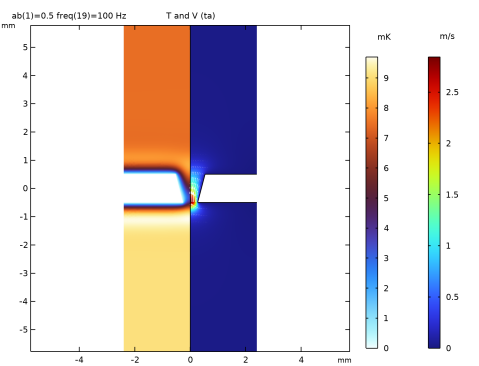
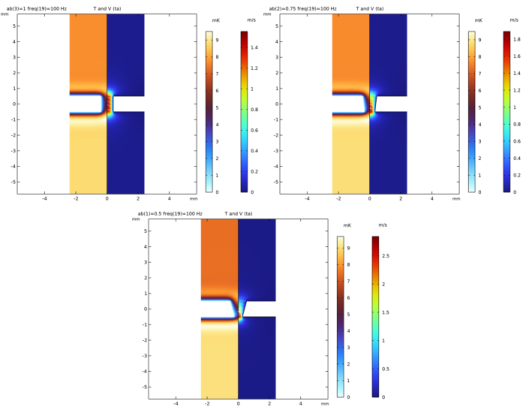
Figure 2: Acoustic temperature variation (left half) and acoustic particle velocity (right half) for the linear frequency domain model at 100 Hz. Showing the three tapering configurations with a/b set to 1, 0.75, and 0.5.
Results and Discussion
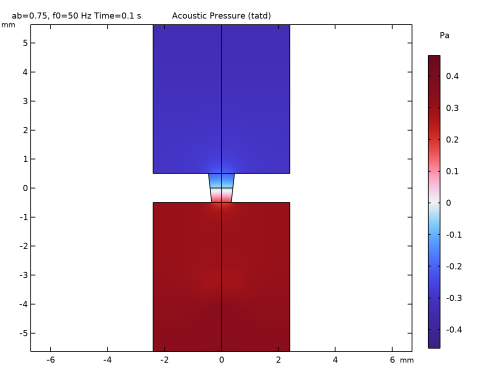
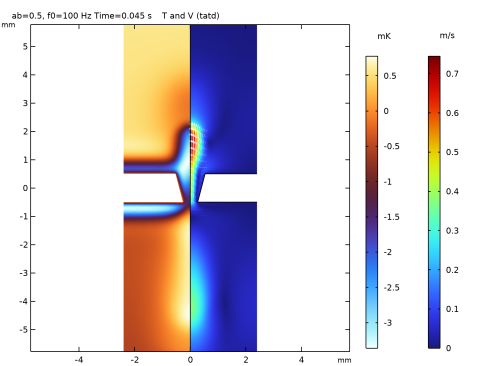
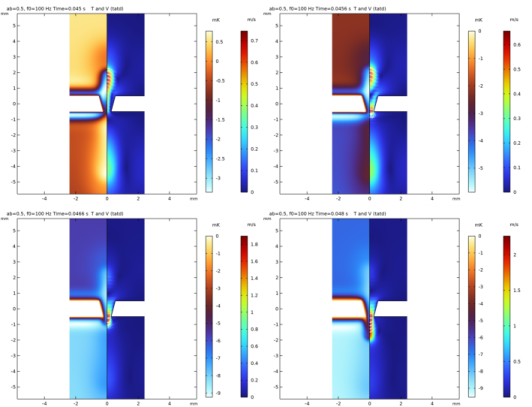
The temporal evolution of the acoustic (perturbation) fields are best visualized using an Animation in the user interface. As an example, acoustic temperature variation and the acoustic particle velocity is shown side by side in Figure 2 and Figure 3. In the first figure the (instantaneous) values are shown for the frequency domain simulation at 100 Hz for the three tapering configurations a/b equal to 1, 0.75, and 0.5. The time dependency is here given by the usual exp(iωt) and no nonlinear effects can be seen. In Figure 3 the time evolution from t = 0.045 s to 0.048 s is illustrated for the same 100 Hz excitation and for a/b equal to 0.5. The sequence of 4 images clearly shows local vortex shedding. Note that the vortex is highly damped as it moves away from the orifice, this is due to the chosen coarser mesh and the numerical stabilization. It is the dissipated energy in the orifice that dictates the transfer impedance magnitude.
Figure 3: Time evolution (from t = 0.045 s to 0.048 s) for the acoustic temperature variation (left half) and acoustic particle velocity (right half) for the nonlinear time domain simulation for the 100 Hz excitation and for a/b equal to 0.5.
The model implements and compares the COMSOL simulation results with an analytical linear and a semi-analytical nonlinear transfer impedance model. Some of the important results are given in the following Figure 4 to Figure 7.
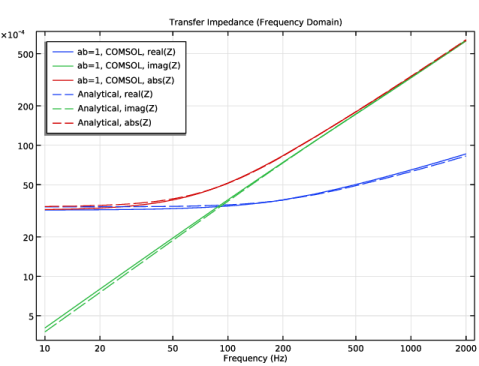
The linear analytical model (see Definitions > Variables 1 - Linear Analytical Model) is first compared to the (linear) frequency domain results for the straight pipe configuration
(a/b = 1). Figure 4 shows the real, imaginary, and absolute values of the transfer impedance as function of frequency. The results show good correlation.
Figure 4: Comparison of the simulated and analytical linear transfer impedance as function of frequency. Image showing the real, imaginary, and absolute value for the straight orifice configuration.
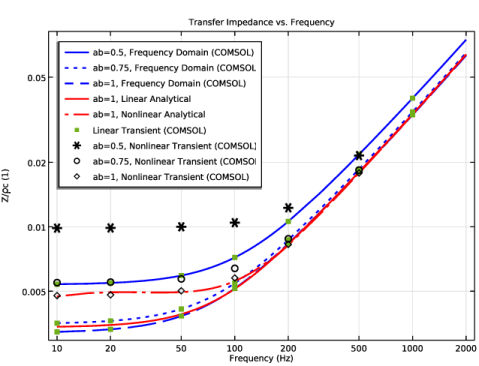
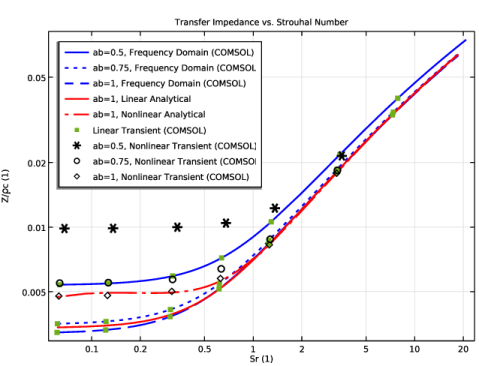
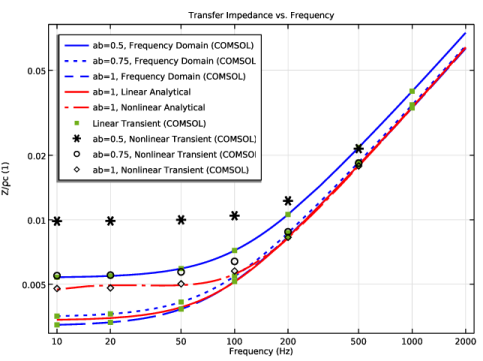
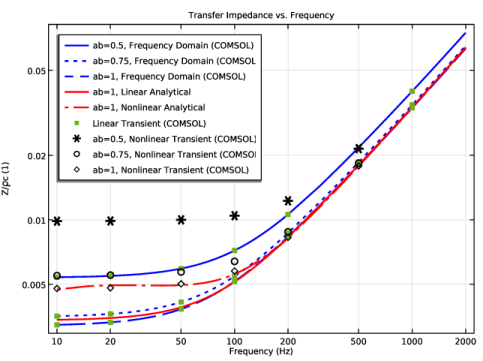
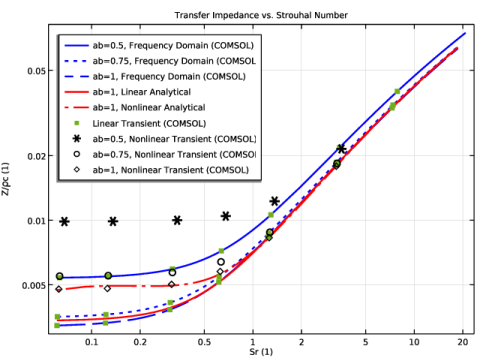
A comparison between all the transfer impedance models is shown in Figure 5 and Figure 6, as function of frequency and Strouhal Sr number, respectively. The figures show the analytical linear and analytical nonlinear (see Definitions > Variables 3 - Nonlinear Analytical Model) models for the straight pipe configuration (no analytical models exist for the tapered configurations). The figure also shows simulation results for the linear frequency domain and time domain, as well as the nonlinear time domain simulation results, all for the three tapering cases (a/b = 1, 0.75, and 0.5). The comparison between the linear frequency domain and time domain results is carried out to validate the computation procedure for the time domain transfer impedance. The results agree perfectly. The nonlinear time domain simulations results are seen to agree well with the semi analytical model from Ref. 1 (straight pipe configuration), validating the simulation method based on the Nonlinear Thermoviscous Acoustic setup. The method can be used to predict the linear and nonlinear acoustic behavior of any perforate configuration and geometry. As described above the nonlinear results deviate from the linear results for small Strouhal numbers (see Figure 6) where the dynamics exhibit stronger (local) nonlinear behavior, here local vortices are generated and shed from the orifice edges.
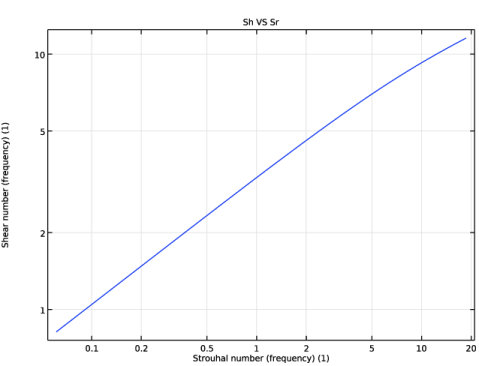
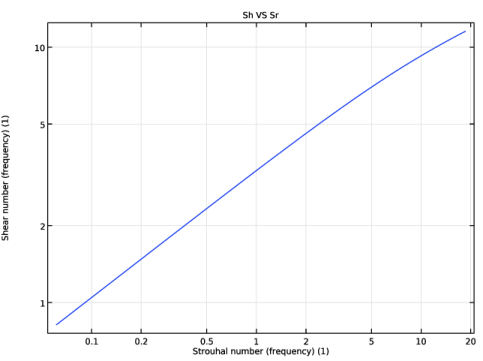
Finally, Figure 7 shows the relation between the Shear number Sh and Strouhal number Sr, for the range of studied frequencies (from 10 Hz to 500 Hz), for the frequency domain model.
Figure 5: Comparison of all the analytical and numerical simulation results. Analytical linear and nonlinear models for a/b = 1, simulation results showing the linear frequency and time domain (for a/b = 1, 0.75, and 0.5) and the nonlinear time-domain results (for a/b = 1, 0.75, and 0.5). Shown as function of frequency.
Figure 6: Comparison of all the analytical and numerical simulation results. Analytical linear and nonlinear models for a/b = 1, simulation results showing the linear frequency and time domain (for a/b = 1, 0.75, and 0.5) and the nonlinear time-domain results (for a/b = 1, 0.75, and 0.5). Shown as a function of the Strouhal number.
Figure 7: Shear number Sh versus Strouhal number Sr for all the studied frequencies from 10 Hz to 500 Hz, for the linear frequency-domain model.
References
1. M.A. Temiz, J. Tournadre, I.L. Arteaga, and A. Hirschberg, “Non-linear acoustic transfer impedance of micro-perforated plates with circular orifices,” J. Sound Vib., vol. 366, pp. 418–428, 2016.
2. M. Herring Jensen, “Simulation of Perforates: An Application of Nonlinear Thermoviscous Acoustics,” Acoustics Today, vol. 17, Summer 2021.
Application Library path: Acoustics_Module/Nonlinear_Acoustics/nonlinear_transfer_impedance
Modeling Instructions
From the File menu, choose New.
New
In the New window, click  Model Wizard.
Model Wizard
1
In the Model Wizard window, click  2D Axisymmetric.
2
In the Select Physics tree, select Acoustics > Thermoviscous Acoustics > Thermoviscous Acoustics, Frequency Domain (ta).
3
Click Add.
4
In the Select Physics tree, select Acoustics > Thermoviscous Acoustics > Thermoviscous Acoustics, Transient (tatd).
5
Click Add.
6
In the Select Physics tree, select Acoustics > Pressure Acoustics > Pressure Acoustics, Transient (actd).
7
Click Add.
8
Click  Study.
9
In the Select Study tree, select Preset Studies for Some Physics Interfaces > Frequency Domain.
10
Global Definitions
Parameters 1 - Geometry
1
In the Model Builder window, under Global Definitions click Parameters 1.
2
In the Settings window for Parameters, type Parameters 1 - Geometry in the Label text field.
3
Locate the Parameters section. Click  Load from File.
4
Browse to the model’s Application Libraries folder and double-click the file nonlinear_transfer_impedance_geometry_parameters.txt.
Parameters 2 - Model
1
In the Home toolbar, click  Parameters and choose Add > Parameters.
2
In the Settings window for Parameters, type Parameters 2 - Model in the Label text field.
3
Locate the Parameters section. Click  Load from File.
4
Geometry 1
1
In the Model Builder window, under Component 1 (comp1) click Geometry 1.
2
In the Settings window for Geometry, locate the Units section.
3
From the Length unit list, choose mm.
Polygon 1 (pol1)
1
In the Geometry toolbar, click  Polygon.
2
In the Settings window for Polygon, locate the Coordinates section.
3
4
Click  Build Selected.
Line Segment 1 (ls1)
1
In the Geometry toolbar, click  More Primitives and choose Line Segment.
2
In the Settings window for Line Segment, locate the Starting Point section.
3
From the Specify list, choose Coordinates.
4
Locate the Endpoint section. From the Specify list, choose Coordinates.
5
In the r text field, type ac.
6
Click  Build Selected.
Rectangle 1 (r1)
1
In the Geometry toolbar, click  Rectangle.
2
In the Settings window for Rectangle, locate the Size and Shape section.
3
In the Width text field, type NR*ac.
4
In the Height text field, type NH*ac.
5
Locate the Position section. In the z text field, type tp/2.
6
Click  Build Selected.
Rectangle 2 (r2)
1
In the Geometry toolbar, click  Rectangle.
2
In the Settings window for Rectangle, locate the Size and Shape section.
3
In the Width text field, type NR*ac.
4
In the Height text field, type NH*ac.
5
Locate the Position section. In the z text field, type tp/2-NH*ac-tp.
6
Click  Build Selected.
7
Click the  Zoom Extents button in the Graphics toolbar.
Union 1 (uni1)
1
In the Geometry toolbar, click  Booleans and Partitions and choose Union.
2
Click in the Graphics window and then press Ctrl+A to select all objects.
3
In the Settings window for Union, click  Build Selected.
Delete Entities 1 (del1)
1
In the Model Builder window, right-click Geometry 1 and choose Delete Entities.
2
On the object uni1, select Boundaries 4 and 8 only.
3
In the Settings window for Delete Entities, click  Build Selected.
Fillet 1 (fil1)
1
In the Geometry toolbar, click  Fillet.
2
On the object del1, select Points 6 and 8 only.
3
In the Settings window for Fillet, locate the Radius section.
4
In the Radius text field, type r0.
5
Click  Build Selected.
Rectangle 3 (r3)
1
In the Geometry toolbar, click  Rectangle.
2
In the Settings window for Rectangle, locate the Size and Shape section.
3
In the Width text field, type NR*ac.
4
In the Height text field, type NH*ac.
5
Locate the Position section. In the z text field, type tp/2+NH*ac.
6
Click  Build Selected.
Rectangle 4 (r4)
1
In the Geometry toolbar, click  Rectangle.
2
In the Settings window for Rectangle, locate the Size and Shape section.
3
In the Width text field, type NR*ac.
4
In the Height text field, type NH*ac.
5
Locate the Position section. In the z text field, type tp/2-NH*ac-tp-NH*ac.
6
Click  Build Selected.
Line Segment 2 (ls2)
1
In the Geometry toolbar, click  More Primitives and choose Line Segment.
2
In the Settings window for Line Segment, locate the Starting Point section.
3
Click to select the  Activate Selection toggle button for Start vertex.
4
On the object fil1, select Point 2 only.
5
Locate the Endpoint section. From the Specify list, choose Coordinates.
6
In the r text field, type a.
7
In the z text field, type -tp/2.
8
Click  Build Selected.
Line Segment 3 (ls3)
1
In the Geometry toolbar, click  More Primitives and choose Line Segment.
2
On the object fil1, select Point 4 only.
3
In the Settings window for Line Segment, locate the Endpoint section.
4
From the Specify list, choose Coordinates.
5
In the r text field, type b.
6
In the z text field, type tp/2.
7
Click  Build Selected.
Form Union (fin)
1
In the Model Builder window, click Form Union (fin).
2
In the Settings window for Form Union/Assembly, click  Build Selected.
Definitions
Variables 1 - Linear Analytical Model
1
In the Model Builder window, expand the Component 1 (comp1) > Definitions node.
2
Right-click Definitions and choose Variables.
3
In the Settings window for Variables, type Variables 1 - Linear Analytical Model in the Label text field.
4
Locate the Variables section. Click  Load from File.
5
Browse to the model’s Application Libraries folder and double-click the file nonlinear_transfer_impedance_linear_analytical_variables.txt.
Variables 2 - Material Parameters
1
Right-click Definitions and choose Variables.
2
In the Settings window for Variables, type Variables 2 - Material Parameters in the Label text field.
3
Locate the Variables section. Click  Load from File.
4
Variables 3 - Nonlinear Analytical Model
1
Right-click Definitions and choose Variables.
2
In the Settings window for Variables, type Variables 3 - Nonlinear Analytical Model in the Label text field.
3
Locate the Variables section. Click  Load from File.
4
Browse to the model’s Application Libraries folder and double-click the file nonlinear_transfer_impedance_nonlinear_analytical_variables.txt.
Variables 4 - Time Domain Impedance
1
Right-click Definitions and choose Variables.
2
In the Settings window for Variables, type Variables 4 - Time Domain Impedance in the Label text field.
3
Locate the Variables section. Click  Load from File.
4
Browse to the model’s Application Libraries folder and double-click the file nonlinear_transfer_impedance_time_domain_impedance_variables.txt.
Integration 1 (intop1)
1
In the Definitions toolbar, click  Nonlocal Couplings and choose Integration.
2
In the Settings window for Integration, type intop_mid in the Operator name text field.
3
Locate the Source Selection section. From the Geometric entity level list, choose Boundary.
4
Integration 2 (intop2)
1
In the Definitions toolbar, click  Nonlocal Couplings and choose Integration.
2
In the Settings window for Integration, type intop_in in the Operator name text field.
3
Locate the Source Selection section. From the Geometric entity level list, choose Boundary.
4
Integration 3 (intop3)
1
In the Definitions toolbar, click  Nonlocal Couplings and choose Integration.
2
In the Settings window for Integration, type intop_out in the Operator name text field.
3
Locate the Source Selection section. From the Geometric entity level list, choose Boundary.
4
Integration 4 (intop4)
1
In the Definitions toolbar, click  Nonlocal Couplings and choose Integration.
2
In the Settings window for Integration, type intop_pnt in the Operator name text field.
3
Locate the Source Selection section. From the Geometric entity level list, choose Point.
4
5
Locate the Advanced section. Clear the Compute integral in revolved geometry checkbox.
Add Material
1
In the Materials toolbar, click  Add Material to open the Add Material window.
2
Go to the Add Material window.
3
In the tree, select Built-in > Air.
4
Right-click and choose Add to Component 1 (comp1).
5
In the Materials toolbar, click  Add Material to close the Add Material window.
Thermoviscous Acoustics, Frequency Domain (ta)
Select Domains 2 and 3 only.
Wall 2
1
In the Physics toolbar, click  Boundaries and choose Wall.
2
3
In the Settings window for Wall, locate the Mechanical section.
4
From the Mechanical condition list, choose Slip (perfect).
5
Locate the Thermal section. From the Thermal condition list, choose Adiabatic.
Port 1
1
In the Physics toolbar, click  Boundaries and choose Port.
2
3
In the Settings window for Port, locate the Port Properties section.
4
From the Type of port list, choose Plane wave.
5
Locate the Incident Mode Settings section. In the Apin text field, type pin.
Port 2
1
In the Physics toolbar, click  Boundaries and choose Port.
2
3
In the Settings window for Port, locate the Port Properties section.
4
From the Type of port list, choose Plane wave.
Thermoviscous Acoustics, Transient (tatd)
1
In the Model Builder window, under Component 1 (comp1) click Thermoviscous Acoustics, Transient (tatd).
2
3
Click the  Show More Options button in the Model Builder toolbar.
4
In the Show More Options dialog, select Physics > Stabilization in the tree.
5
6
7
In the Settings window for Thermoviscous Acoustics, Transient, click to expand the Stabilization section.
8
From the Stabilization method list, choose Galerkin least-squares (GLS) stabilization.
9
Locate the Transient Solver and Mesh Settings section. In the fmax text field, type f0.
Wall 2
1
In the Physics toolbar, click  Boundaries and choose Wall.
2
3
In the Settings window for Wall, locate the Mechanical section.
4
From the Mechanical condition list, choose Slip (perfect).
5
Locate the Thermal section. From the Thermal condition list, choose Adiabatic.
Nonlinear Thermoviscous Acoustics Contributions 1
1
In the Physics toolbar, click  Domains and choose Nonlinear Thermoviscous Acoustics Contributions.
2
Pressure Acoustics, Transient (actd)
1
In the Model Builder window, under Component 1 (comp1) click Pressure Acoustics, Transient (actd).
2
3
In the Settings window for Pressure Acoustics, Transient, locate the Transient Solver and Mesh Settings section.
4
In the fmax text field, type f0.
Plane Wave Radiation 1
1
In the Physics toolbar, click  Boundaries and choose Plane Wave Radiation.
2
Incident Pressure Field 1
1
In the Physics toolbar, click  Attributes and choose Incident Pressure Field.
2
In the Settings window for Incident Pressure Field, locate the Incident Pressure Field section.
3
In the p0 text field, type pin.
4
From the c list, choose From material.
5
From the Material list, choose Air (mat1).
6
Specify the ek vector as
7
In the f0 text field, type f0.
Multiphysics
Proceed to set up the Multiphysics Coupling that couples the Pressure Acoustics, Transient (actd) and the Thermoviscous Acoustics, Transient (tatd).
Acoustic–Thermoviscous Acoustic Boundary 1 (atb1)
1
In the Physics toolbar, click  Multiphysics Couplings and choose Boundary > Acoustic–Thermoviscous Acoustic Boundary.
2
3
In the Settings window for Acoustic–Thermoviscous Acoustic Boundary, locate the Coupled Interfaces section.
4
From the Thermoviscous acoustics list, choose Thermoviscous Acoustics, Transient (tatd).
Mesh 1
In this model, the mesh is set up manually. Proceed by directly adding the desired mesh components.
Corner Refinement 1
1
In the Mesh toolbar, click  More Attributes and choose Corner Refinement.
2
In the Settings window for Corner Refinement, locate the Boundary Selection section.
3
Click to select the  Activate Selection toggle button.
4
Size
1
In the Model Builder window, click Size.
2
In the Settings window for Size, locate the Element Size section.
3
Click the Custom button.
In general, 5 to 6 second-order elements per wavelength are needed to resolve the waves. For more details, see Meshing (Resolving the Waves) in the Acoustics Module User’s Guide . In this model, use the orifice bottom radius as the maximum element size because it is the limiting distance. It is much smaller than the smallest wavelength corresponding to the maximum study frequency.
4
Locate the Element Size Parameters section. In the Maximum element size text field, type a.
5
In the Minimum element size text field, type 4.8E-6.
6
In the Maximum element growth rate text field, type 1.2.
Free Triangular 1
In the Mesh toolbar, click  Free Triangular.
Size 1
1
Right-click Free Triangular 1 and choose Size.
2
In the Settings window for Size, locate the Geometric Entity Selection section.
3
From the Geometric entity level list, choose Boundary.
4
5
Locate the Element Size section. Click the Custom button.
6
Locate the Element Size Parameters section.
7
Select the Maximum element size checkbox. In the associated text field, type a/7.
Size 2
1
In the Model Builder window, right-click Free Triangular 1 and choose Size.
2
In the Settings window for Size, locate the Geometric Entity Selection section.
3
From the Geometric entity level list, choose Domain.
4
5
Locate the Element Size section. Click the Custom button.
6
Locate the Element Size Parameters section.
7
Select the Maximum element size checkbox. In the associated text field, type a/3.
Size 3
1
Right-click Free Triangular 1 and choose Size.
2
In the Settings window for Size, locate the Geometric Entity Selection section.
3
From the Geometric entity level list, choose Boundary.
4
5
Locate the Element Size section. Click the Custom button.
6
Locate the Element Size Parameters section.
7
Select the Maximum element size checkbox. In the associated text field, type dvisc.
Boundary Layers 1
In the Mesh toolbar, click  Boundary Layers.
Boundary Layer Properties
1
In the Model Builder window, click Boundary Layer Properties.
2
3
In the Settings window for Boundary Layer Properties, locate the Layers section.
4
In the Number of layers text field, type 3.
5
From the Thickness specification list, choose First layer.
6
In the Thickness text field, type 0.1*dvisc.
7
Click  Build All.
Study 1 - Frequency Domain
1
In the Model Builder window, click Study 1.
2
In the Settings window for Study, locate the Study Settings section.
3
Clear the Generate default plots checkbox.
Turn off the generation of default plots for each study. If turned on all the default plots for each physics interface will be generated. In the following steps, some of the default plots will be added and slightly changed after the computation.
4
In the Label text field, type Study 1 - Frequency Domain.
Parametric Sweep
1
In the Study toolbar, click  Parametric Sweep.
2
In the Settings window for Parametric Sweep, locate the Study Settings section.
3
4
Step 1: Frequency Domain
1
In the Model Builder window, click Step 1: Frequency Domain.
2
In the Settings window for Frequency Domain, locate the Study Settings section.
3
Click  Range.
4
In the Range dialog, type 10 in the Start text field.
5
In the Step text field, type 5.
6
In the Stop text field, type 95.
7
Click Add.
8
In the Settings window for Frequency Domain, locate the Study Settings section.
9
Click  Range.
10
In the Range dialog, type 100 in the Start text field.
11
In the Step text field, type 10.
12
In the Stop text field, type 190.
13
Click Add.
14
In the Settings window for Frequency Domain, locate the Study Settings section.
15
Click  Range.
16
In the Range dialog, type 200 in the Start text field.
17
In the Step text field, type 100.
18
In the Stop text field, type 2000.
19
Click Add.
20
In the Settings window for Frequency Domain, locate the Physics and Variables Selection section.
21
In the Solve for column of the table, under Component 1 (comp1), clear the checkbox for Pressure Acoustics, Transient (actd).
22
In the Solve for column of the table, under Component 1 (comp1) > Multiphysics, clear the checkbox for Acoustic–Thermoviscous Acoustic Boundary 1 (atb1).
Solution 1 (sol1)
In the Study toolbar, click  Show Default Solver.
Add Study
1
In the Study toolbar, click  Add Study to open the Add Study window.
2
Go to the Add Study window.
3
Find the Studies subsection. In the Select Study tree, select Preset Studies for Some Physics Interfaces > Time Dependent.
4
Click the Add Study button in the window toolbar.
5
Click the Add Study button in the window toolbar.
6
In the Study toolbar, click  Add Study to close the Add Study window.
Study 2 - Time Domain Linear
1
In the Settings window for Study, type Study 2 - Time Domain Linear in the Label text field.
2
Locate the Study Settings section. Clear the Generate default plots checkbox.
Parametric Sweep
1
In the Study toolbar, click  Parametric Sweep.
2
In the Settings window for Parametric Sweep, locate the Study Settings section.
3
4
5
6
7
From the Sweep type list, choose All combinations.
Step 1: Time Dependent
1
In the Model Builder window, click Step 1: Time Dependent.
2
In the Settings window for Time Dependent, locate the Study Settings section.
3
Click  Range.
4
In the Range dialog, type T0 in the Step text field.
5
In the Stop text field, type 3*T0.
6
Click Replace.
7
In the Settings window for Time Dependent, locate the Study Settings section.
8
Click  Range.
9
In the Range dialog, type 4*T0 in the Start text field.
10
In the Step text field, type T0/50.
11
In the Stop text field, type 5*T0.
12
Click Add.
13
In the Settings window for Time Dependent, locate the Physics and Variables Selection section.
14
Select the Modify model configuration for study step checkbox.
15
In the tree, select Component 1 (comp1) > Thermoviscous Acoustics, Transient (tatd) > Nonlinear Thermoviscous Acoustics Contributions 1.
16
Solution 2 (sol2)
In the Study toolbar, click  Show Default Solver.
Study 3 - Time Domain Nonlinear
1
In the Model Builder window, click Study 3.
2
In the Settings window for Study, type Study 3 - Time Domain Nonlinear in the Label text field.
3
Locate the Study Settings section. Clear the Generate default plots checkbox.
Parametric Sweep
1
In the Study toolbar, click  Parametric Sweep.
2
In the Settings window for Parametric Sweep, locate the Study Settings section.
3
4
5
6
7
From the Sweep type list, choose All combinations.
Step 1: Time Dependent
1
In the Model Builder window, click Step 1: Time Dependent.
2
In the Settings window for Time Dependent, locate the Study Settings section.
3
Click  Range.
4
In the Range dialog, type T0 in the Step text field.
5
In the Stop text field, type 3*T0.
6
Click Replace.
7
In the Settings window for Time Dependent, locate the Study Settings section.
8
Click  Range.
9
In the Range dialog, type 4*T0 in the Start text field.
10
In the Step text field, type T0/50.
11
In the Stop text field, type 5*T0.
12
Click Add.
Solution 3 (sol3)
In the Study toolbar, click  Show Default Solver.
Study 1 - Frequency Domain
Click  Compute.
Study 2 - Time Domain Linear
Click  Compute.
Study 3 - Time Domain Nonlinear
Click  Compute.
Results
1
In the Model Builder window, expand the Results node.
First, datasets need to be defined to better analyze some of the results: the temperature and velocity for the linear and the nonlinear cases, the acoustic pressure and temperature for the Thermoviscous Acoustics, Transient case and for the 3D velocity representation. The three mirror datasets depend on the three corresponding studies’ results.
Mirror 2D - Frequency
1
In the Model Builder window, expand the Results > Datasets node.
2
Right-click Results > Datasets and choose More 2D Datasets > Mirror 2D.
3
In the Settings window for Mirror 2D, type Mirror 2D - Frequency in the Label text field.
4
Locate the Data section. From the Dataset list, choose Study 1 - Frequency Domain/Parametric Solutions 1 (sol4).
Mirror 2D - Linear
1
In the Results toolbar, click  More Datasets and choose Mirror 2D.
2
In the Settings window for Mirror 2D, type Mirror 2D - Linear in the Label text field.
3
Locate the Data section. From the Dataset list, choose Study 2 - Time Domain Linear/Parametric Solutions 2 (sol8).
Mirror 2D - Nonlinear
1
In the Results toolbar, click  More Datasets and choose Mirror 2D.
2
In the Settings window for Mirror 2D, type Mirror 2D - Nonlinear in the Label text field.
3
Locate the Data section. From the Dataset list, choose Study 3 - Time Domain Nonlinear/Parametric Solutions 3 (sol30).
Revolution 2D 1
1
In the Results toolbar, click  More Datasets and choose Revolution 2D.
2
In the Settings window for Revolution 2D, locate the Data section.
3
From the Dataset list, choose Study 3 - Time Domain Nonlinear/Parametric Solutions 3 (sol30).
4
Click to expand the Revolution Layers section. In the Revolution angle text field, type 130.
Result Templates
1
In the Results toolbar, click  Result Templates to open the Result Templates window.
2
Go to the Result Templates window.
3
In the tree, select Study 1 - Frequency Domain/Parametric Solutions 1 (sol4) > Thermoviscous Acoustics, Frequency Domain > Acoustic Pressure (ta).
4
Click the Add Result Template button in the window toolbar.
5
In the Results toolbar, click  Result Templates to close the Result Templates window.
Results
Acoustic Pressure (ta)
1
In the Settings window for 2D Plot Group, locate the Data section.
2
From the Parameter value (freq (Hz)) list, choose 200.
3
Locate the Plot Settings section. Clear the Plot dataset edges checkbox.
Surface
1
In the Model Builder window, expand the Acoustic Pressure (ta) node, then click Surface.
2
In the Settings window for Surface, locate the Coloring and Style section.
3
From the Scale list, choose Linear.
4
In the Acoustic Pressure (ta) toolbar, click  Plot.
Result Templates
1
In the Results toolbar, click  Result Templates to open the Result Templates window.
2
Go to the Result Templates window.
3
In the tree, select Study 1 - Frequency Domain/Parametric Solutions 1 (sol4) > Thermoviscous Acoustics, Frequency Domain > Acoustic Velocity (ta).
4
Click the Add Result Template button in the window toolbar.
5
In the Results toolbar, click  Result Templates to close the Result Templates window.
Results
Acoustic Velocity (ta)
1
In the Settings window for 2D Plot Group, locate the Data section.
2
From the Parameter value (freq (Hz)) list, choose 200.
3
Locate the Plot Settings section. Clear the Plot dataset edges checkbox.
4
In the Acoustic Velocity (ta) toolbar, click  Plot.
Temperature (ta)
1
In the Home toolbar, click  Add Plot Group and choose 2D Plot Group.
2
In the Settings window for 2D Plot Group, type Temperature (ta) in the Label text field.
3
Locate the Data section. From the Dataset list, choose Study 1 - Frequency Domain/Parametric Solutions 1 (sol4).
4
From the Parameter value (freq (Hz)) list, choose 200.
5
Locate the Plot Settings section. Clear the Plot dataset edges checkbox.
6
Locate the Color Legend section. Select the Show units checkbox.
Surface 1
1
In the Temperature (ta) toolbar, click  Surface.
2
In the Settings window for Surface, locate the Expression section.
3
In the Expression text field, type ta.T_t.
4
From the Unit list, choose mK.
5
Locate the Coloring and Style section. From the Color table list, choose ThermalWave.
6
In the Temperature (ta) toolbar, click  Plot.
T and V (ta)
1
In the Home toolbar, click  Add Plot Group and choose 2D Plot Group.
2
In the Settings window for 2D Plot Group, type T and V (ta) in the Label text field.
3
Locate the Data section. From the Dataset list, choose Study 1 - Frequency Domain/Parametric Solutions 1 (sol4).
4
From the Parameter value (ab) list, choose 0.5.
5
From the Parameter value (freq (Hz)) list, choose 100.
6
Click to expand the Title section. From the Title type list, choose Label.
7
Locate the Plot Settings section. Clear the Plot dataset edges checkbox.
8
Locate the Color Legend section. Select the Show units checkbox.
Surface 1
1
In the T and V (ta) toolbar, click  Surface.
2
In the Settings window for Surface, locate the Data section.
3
From the Dataset list, choose Mirror 2D - Frequency.
4
From the Solution parameters list, choose From parent.
5
Locate the Expression section. In the Expression text field, type ta.T_t.
6
From the Unit list, choose mK.
7
Locate the Coloring and Style section. From the Color table list, choose ThermalWave.
T and V (ta)
In the T and V (ta) toolbar, click  Surface.
Surface 2
1
In the Settings window for Surface, locate the Expression section.
2
In the Expression text field, type ta.v_inst.
T and V (ta)
In the T and V (ta) toolbar, click  Arrow Surface.
Arrow Surface 1
1
In the Settings window for Arrow Surface, locate the Arrow Positioning section.
2
Find the R grid points subsection. From the Entry method list, choose Coordinates.
3
Click  Range.
4
In the Range dialog, type 0 in the Start text field.
5
In the Step text field, type 0.06.
6
In the Stop text field, type 0.6.
7
Click Replace.
8
In the Settings window for Arrow Surface, locate the Arrow Positioning section.
9
Find the Z grid points subsection. From the Entry method list, choose Coordinates.
10
Click  Range.
11
In the Range dialog, type -1.2 in the Start text field.
12
In the Step text field, type 0.24.
13
In the Stop text field, type 1.2.
14
Click Replace.
15
In the Settings window for Arrow Surface, locate the Coloring and Style section.
16
Select the Scale factor checkbox. In the associated text field, type 0.15.
17
From the Color list, choose White.
Selection 1
1
In the T and V (ta) toolbar, click  Selection.
2
T and V (ta)
In the T and V (ta) toolbar, click  Line.
Line 1
1
In the Settings window for Line, locate the Expression section.
2
In the Expression text field, type 1.
3
Locate the Coloring and Style section. From the Coloring list, choose Uniform.
4
From the Color list, choose Black.
Selection 1
1
In the T and V (ta) toolbar, click  Selection.
2
3
In the T and V (ta) toolbar, click  Plot.
The instantaneous acoustic temperature fluctuations and the particle velocity of the linear (frequency domain) model at f = 100 Hz, should look like the following figure.
Transfer Impedance (Frequency Domain)
1
In the Home toolbar, click  Add Plot Group and choose 1D Plot Group.
2
In the Settings window for 1D Plot Group, type Transfer Impedance (Frequency Domain) in the Label text field.
3
Locate the Data section. From the Dataset list, choose None.
4
Locate the Plot Settings section.
5
Select the x-axis label checkbox. In the associated text field, type Frequency (Hz).
6
Click to expand the Title section. From the Title type list, choose Label.
7
Locate the Axis section. Select the x-axis log scale checkbox.
8
Select the y-axis log scale checkbox.
9
Locate the Legend section. From the Position list, choose Upper left.
Global 1
1
In the Transfer Impedance (Frequency Domain) toolbar, click  Global.
2
In the Settings window for Global, locate the Data section.
3
From the Dataset list, choose Study 1 - Frequency Domain/Parametric Solutions 1 (sol4).
4
From the Parameter selection (ab) list, choose Last.
5
Locate the y-Axis Data section. In the table, enter the following settings:
6
Locate the x-Axis Data section. From the Axis source data list, choose freq.
Transfer Impedance (Frequency Domain)
In the Transfer Impedance (Frequency Domain) toolbar, click  Global.
Global 2
1
In the Settings window for Global, locate the Data section.
2
From the Dataset list, choose Study 1 - Frequency Domain/Solution 1 (sol1).
3
Locate the y-Axis Data section. In the table, enter the following settings:
4
Click to expand the Coloring and Style section. Find the Line style subsection. From the Line list, choose Dashed.
5
From the Color list, choose Cycle (reset).
6
In the Transfer Impedance (Frequency Domain) toolbar, click  Plot.
Transfer Impedance vs. Frequency
1
In the Home toolbar, click  Add Plot Group and choose 1D Plot Group.
2
In the Settings window for 1D Plot Group, type Transfer Impedance vs. Frequency in the Label text field.
3
Locate the Data section. From the Dataset list, choose None.
4
Click to expand the Title section. From the Title type list, choose Label.
5
Locate the Plot Settings section.
6
Select the x-axis label checkbox. In the associated text field, type Frequency (Hz).
7
Select the y-axis label checkbox. In the associated text field, type Z/\rho c (1).
8
Locate the Axis section. Select the x-axis log scale checkbox.
9
Select the y-axis log scale checkbox.
10
Locate the Legend section. From the Position list, choose Upper left.
Global 1
1
In the Transfer Impedance vs. Frequency toolbar, click  Global.
2
In the Settings window for Global, locate the Data section.
3
From the Dataset list, choose Study 1 - Frequency Domain/Parametric Solutions 1 (sol4).
4
Locate the y-Axis Data section. In the table, enter the following settings:
5
Locate the x-Axis Data section. From the Axis source data list, choose freq.
6
Click to expand the Coloring and Style section. Find the Line style subsection. From the Line list, choose Cycle.
7
From the Color list, choose Blue.
8
From the Width list, choose 2.
9
Click to expand the Legends section. Find the Prefix and suffix subsection. In the Suffix text field, type , Frequency Domain (COMSOL).
Transfer Impedance vs. Frequency
In the Transfer Impedance vs. Frequency toolbar, click  Global.
Global 2
1
In the Settings window for Global, locate the Data section.
2
From the Dataset list, choose Study 1 - Frequency Domain/Parametric Solutions 1 (sol4).
3
From the Parameter selection (ab) list, choose Last.
4
Locate the y-Axis Data section. In the table, enter the following settings:
5
Locate the x-Axis Data section. From the Axis source data list, choose freq.
6
Locate the Coloring and Style section. Find the Line style subsection. From the Line list, choose Solid.
7
From the Color list, choose Red.
8
From the Width list, choose 2.
Transfer Impedance vs. Frequency
In the Transfer Impedance vs. Frequency toolbar, click  Global.
Global 3
1
In the Settings window for Global, locate the Data section.
2
From the Dataset list, choose Study 1 - Frequency Domain/Parametric Solutions 1 (sol4).
3
From the Parameter selection (ab) list, choose Last.
4
Locate the y-Axis Data section. In the table, enter the following settings:
5
Locate the x-Axis Data section. From the Axis source data list, choose freq.
6
Locate the Coloring and Style section. Find the Line style subsection. From the Line list, choose Dash-dot.
7
From the Color list, choose Red.
8
From the Width list, choose 2.
Transfer Impedance vs. Frequency
In the Transfer Impedance vs. Frequency toolbar, click  Global.
Global 4
1
In the Settings window for Global, locate the Data section.
2
From the Dataset list, choose Study 2 - Time Domain Linear/Parametric Solutions 2 (sol8).
3
From the Time selection list, choose First.
4
Locate the y-Axis Data section. In the table, enter the following settings:
5
Locate the x-Axis Data section. From the Axis source data list, choose Outer solutions.
6
From the Parameter list, choose Expression.
7
In the Expression text field, type f0.
8
Locate the Coloring and Style section. Find the Line style subsection. From the Line list, choose None.
9
From the Color list, choose Custom.
10
Click Define custom colors.
11
12
Click Add to custom colors.
13
Click Show color palette only or OK on the cross-platform desktop.
14
From the Width list, choose 2.
15
Find the Line markers subsection. From the Marker list, choose Point.
16
Locate the Legends section. From the Legends list, choose Manual.
17
Transfer Impedance vs. Frequency
In the Transfer Impedance vs. Frequency toolbar, click  Global.
Global 5
1
In the Settings window for Global, locate the Data section.
2
From the Dataset list, choose Study 3 - Time Domain Nonlinear/Parametric Solutions 3 (sol30).
3
From the Parameter selection (ab) list, choose First.
4
From the Time selection list, choose First.
5
Locate the y-Axis Data section. In the table, enter the following settings:
6
Locate the x-Axis Data section. From the Axis source data list, choose Outer solutions.
7
From the Parameter list, choose Expression.
8
In the Expression text field, type f0.
9
Locate the Coloring and Style section. Find the Line style subsection. From the Line list, choose None.
10
From the Color list, choose Black.
11
From the Width list, choose 2.
12
Find the Line markers subsection. From the Marker list, choose Cycle.
13
Locate the Legends section. From the Legends list, choose Manual.
14
Transfer Impedance vs. Frequency
In the Transfer Impedance vs. Frequency toolbar, click  Global.
Global 6
1
In the Settings window for Global, locate the Data section.
2
From the Dataset list, choose Study 3 - Time Domain Nonlinear/Parametric Solutions 3 (sol30).
3
From the Parameter selection (ab) list, choose From list.
4
In the Parameter values (ab) list box, select 0.75.
5
From the Time selection list, choose First.
6
Locate the y-Axis Data section. In the table, enter the following settings:
7
Locate the x-Axis Data section. From the Axis source data list, choose Outer solutions.
8
From the Parameter list, choose Expression.
9
In the Expression text field, type f0.
10
Locate the Coloring and Style section. Find the Line style subsection. From the Line list, choose None.
11
From the Color list, choose Black.
12
From the Width list, choose 2.
13
Find the Line markers subsection. From the Marker list, choose Cycle.
14
Locate the Legends section. From the Legends list, choose Manual.
15
Transfer Impedance vs. Frequency
In the Transfer Impedance vs. Frequency toolbar, click  Global.
Global 7
1
In the Settings window for Global, locate the Data section.
2
From the Dataset list, choose Study 3 - Time Domain Nonlinear/Parametric Solutions 3 (sol30).
3
From the Parameter selection (ab) list, choose Last.
4
From the Time selection list, choose First.
5
Locate the y-Axis Data section. In the table, enter the following settings:
6
Locate the x-Axis Data section. From the Axis source data list, choose Outer solutions.
7
From the Parameter list, choose Expression.
8
In the Expression text field, type f0.
9
Locate the Coloring and Style section. Find the Line style subsection. From the Line list, choose None.
10
From the Color list, choose Black.
11
From the Width list, choose 2.
12
Find the Line markers subsection. From the Marker list, choose Cycle.
13
Locate the Legends section. From the Legends list, choose Manual.
14
15
In the Transfer Impedance vs. Frequency toolbar, click  Plot.
The transfer impedance for all the setups, as a function of the frequency, should look like the following figure.
Transfer Impedance vs. Strouhal Number
1
In the Model Builder window, right-click Transfer Impedance vs. Frequency and choose Duplicate.
2
In the Model Builder window, click Transfer Impedance vs. Frequency 1.
3
In the Settings window for 1D Plot Group, type Transfer Impedance vs. Strouhal Number in the Label text field.
4
Locate the Plot Settings section. In the x-axis label text field, type Sr (1).
Global 1
1
In the Model Builder window, expand the Transfer Impedance vs. Strouhal Number node, then click Global 1.
2
In the Settings window for Global, locate the x-Axis Data section.
3
From the Parameter list, choose Expression.
4
In the Expression text field, type Sr.
Global 2
1
In the Model Builder window, click Global 2.
2
In the Settings window for Global, locate the x-Axis Data section.
3
From the Parameter list, choose Expression.
4
In the Expression text field, type Sr.
Global 3
1
In the Model Builder window, click Global 3.
2
In the Settings window for Global, locate the x-Axis Data section.
3
From the Parameter list, choose Expression.
4
In the Expression text field, type Sr.
Global 4
1
In the Model Builder window, click Global 4.
2
In the Settings window for Global, locate the x-Axis Data section.
3
In the Expression text field, type Sr2.
Global 5
1
In the Model Builder window, click Global 5.
2
In the Settings window for Global, locate the x-Axis Data section.
3
In the Expression text field, type Sr2.
Global 6
1
In the Model Builder window, click Global 6.
2
In the Settings window for Global, locate the x-Axis Data section.
3
In the Expression text field, type Sr2.
Global 7
1
In the Model Builder window, click Global 7.
2
In the Settings window for Global, locate the x-Axis Data section.
3
In the Expression text field, type Sr2.
4
In the Transfer Impedance vs. Strouhal Number toolbar, click  Plot.
The transfer impedance for all the setups, as a function of the Strouhal number, should look like the following figure.
Acoustic Pressure (tatd)
1
In the Home toolbar, click  Add Plot Group and choose 2D Plot Group.
2
In the Settings window for 2D Plot Group, type Acoustic Pressure (tatd) in the Label text field.
3
Locate the Data section. From the Dataset list, choose Mirror 2D - Nonlinear.
4
From the Parameter value (ab) list, choose 0.75.
5
From the Parameter value (f0 (Hz)) list, choose 50.
6
Click to expand the Title section. From the Title type list, choose Label.
7
Locate the Color Legend section. Select the Show units checkbox.
Surface 1
1
In the Acoustic Pressure (tatd) toolbar, click  Surface.
2
In the Settings window for Surface, locate the Expression section.
3
In the Expression text field, type tatd.p_t.
4
Locate the Coloring and Style section. From the Color table list, choose Wave.
Acoustic Pressure (tatd)
In the Acoustic Pressure (tatd) toolbar, click  Surface.
Surface 2
1
In the Settings window for Surface, locate the Expression section.
2
In the Expression text field, type actd.p_t.
3
Click to expand the Inherit Style section. From the Plot list, choose Surface 1.
Acoustic Pressure (tatd)
1
In the Model Builder window, click Acoustic Pressure (tatd).
2
In the Acoustic Pressure (tatd) toolbar, click  Plot.
T and V (tatd)
1
In the Home toolbar, click  Add Plot Group and choose 2D Plot Group.
2
In the Settings window for 2D Plot Group, type T and V (tatd) in the Label text field.
3
Locate the Data section. From the Dataset list, choose Study 3 - Time Domain Nonlinear/Parametric Solutions 3 (sol30).
4
From the Parameter value (ab) list, choose 0.5.
5
From the Parameter value (f0 (Hz)) list, choose 100.
6
From the Time (s) list, choose 0.045.
7
Click to expand the Title section. From the Title type list, choose Label.
8
Locate the Plot Settings section. Clear the Plot dataset edges checkbox.
9
Locate the Color Legend section. Select the Show units checkbox.
Surface 1
1
In the T and V (tatd) toolbar, click  Surface.
2
In the Settings window for Surface, locate the Data section.
3
From the Dataset list, choose Mirror 2D - Nonlinear.
4
From the Solution parameters list, choose From parent.
5
Locate the Expression section. In the Expression text field, type tatd.T_t.
6
From the Unit list, choose mK.
7
Locate the Coloring and Style section. From the Color table list, choose ThermalWave.
T and V (tatd)
In the T and V (tatd) toolbar, click  Surface.
Surface 2
1
In the Settings window for Surface, locate the Expression section.
2
In the Expression text field, type tatd.v_inst.
T and V (tatd)
In the T and V (tatd) toolbar, click  Arrow Surface.
Arrow Surface 1
1
In the Settings window for Arrow Surface, locate the Expression section.
2
In the R-component text field, type tatd.u_tr.
3
In the Z-component text field, type tatd.u_tz.
4
Locate the Arrow Positioning section. Find the R grid points subsection. From the Entry method list, choose Coordinates.
5
Click  Range.
6
In the Range dialog, type 0 in the Start text field.
7
In the Step text field, type 0.06.
8
In the Stop text field, type 0.6.
9
Click Replace.
10
In the Settings window for Arrow Surface, locate the Arrow Positioning section.
11
Find the Z grid points subsection. From the Entry method list, choose Coordinates.
12
Click  Range.
13
In the Range dialog, type -1.2 in the Start text field.
14
In the Step text field, type 3.2/15.
15
In the Stop text field, type 2.
16
Click Replace.
17
In the Settings window for Arrow Surface, locate the Coloring and Style section.
18
From the Color list, choose White.
Selection 1
1
In the T and V (tatd) toolbar, click  Selection.
2
T and V (tatd)
In the T and V (tatd) toolbar, click  Line.
Line 1
1
In the Settings window for Line, locate the Expression section.
2
In the Expression text field, type 1.
3
Locate the Coloring and Style section. From the Coloring list, choose Uniform.
4
From the Color list, choose Black.
Selection 1
1
In the T and V (tatd) toolbar, click  Selection.
2
T and V (tatd)
1
In the Model Builder window, under Results click T and V (tatd).
2
In the T and V (tatd) toolbar, click  Plot.
The instantaneous acoustic temperature fluctuations and the particle velocity of the nonlinear model, at t = 0.045 s and for f = 100 Hz, should look like the following figure.
Acoustic Temperature (tatd)
1
In the Home toolbar, click  Add Plot Group and choose 2D Plot Group.
2
In the Settings window for 2D Plot Group, type Acoustic Temperature (tatd) in the Label text field.
3
Locate the Data section. From the Dataset list, choose Mirror 2D - Nonlinear.
4
From the Parameter value (ab) list, choose 0.75.
5
From the Parameter value (f0 (Hz)) list, choose 20.
6
From the Time (s) list, choose 0.212.
7
Click to expand the Title section. From the Title type list, choose Label.
8
Locate the Plot Settings section. Clear the Plot dataset edges checkbox.
9
Locate the Color Legend section. Select the Show units checkbox.
Surface 1
1
In the Acoustic Temperature (tatd) toolbar, click  Surface.
2
In the Settings window for Surface, locate the Expression section.
3
In the Expression text field, type tatd.T_t.
4
From the Unit list, choose mK.
5
Locate the Coloring and Style section. From the Color table list, choose ThermalWave.
6
In the Acoustic Temperature (tatd) toolbar, click  Plot.
Acoustic Velocity 3D
1
In the Home toolbar, click  Add Plot Group and choose 3D Plot Group.
2
In the Settings window for 3D Plot Group, type Acoustic Velocity 3D in the Label text field.
3
Locate the Data section. From the Parameter value (f0 (Hz)) list, choose 100.
4
From the Time (s) list, choose 0.0484.
5
Click to expand the Title section. From the Title type list, choose Label.
6
Locate the Plot Settings section. Clear the Plot dataset edges checkbox.
7
Locate the Color Legend section. Select the Show units checkbox.
Surface 1
1
In the Acoustic Velocity 3D toolbar, click  Surface.
2
In the Settings window for Surface, locate the Expression section.
3
In the Expression text field, type tatd.v_inst.
Acoustic Velocity 3D
In the Acoustic Velocity 3D toolbar, click  Arrow Surface.
Arrow Surface 1
1
In the Settings window for Arrow Surface, locate the Expression section.
2
In the R-component text field, type tatd.u_tr.
3
In the PHI-component text field, type 0.
4
In the Z-component text field, type tatd.u_tz.
5
Locate the Arrow Positioning section. From the Placement list, choose Mesh vertices.
6
Locate the Coloring and Style section. From the Color list, choose White.
7
In the Acoustic Velocity 3D toolbar, click  Plot.
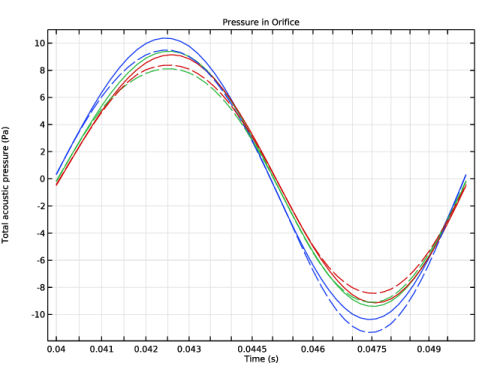
Pressure in Orifice
1
In the Home toolbar, click  Add Plot Group and choose 1D Plot Group.
2
In the Settings window for 1D Plot Group, type Pressure in Orifice in the Label text field.
3
Locate the Data section. From the Dataset list, choose None.
4
Click to expand the Title section. From the Title type list, choose Label.
5
Locate the Axis section. Select the x-axis log scale checkbox.
Point Graph 1
1
In the Pressure in Orifice toolbar, click  Point Graph.
2
In the Settings window for Point Graph, locate the Data section.
3
From the Dataset list, choose Study 2 - Time Domain Linear/Parametric Solutions 2 (sol8).
4
From the Parameter selection (ab) list, choose First.
5
From the Parameter selection (f0) list, choose From list.
6
In the Parameter values (f0 (Hz)) list box, select 100.
7
From the Time selection list, choose Manual.
8
Click  Range.
9
In the Integer Range dialog, type 5 in the Start text field.
10
In the Stop text field, type 55.
11
Click Add.
12
In the Settings window for Point Graph, locate the Selection section.
13
Click  Paste Selection.
14
In the Paste Selection dialog, type 3,4,5 in the Selection text field.
15
16
In the Settings window for Point Graph, locate the y-Axis Data section.
17
In the Expression text field, type tatd.p_t.
18
Locate the x-Axis Data section. From the Axis source data list, choose Time.
Pressure in Orifice
In the Pressure in Orifice toolbar, click  Point Graph.
Point Graph 2
1
In the Settings window for Point Graph, locate the Data section.
2
From the Dataset list, choose Study 3 - Time Domain Nonlinear/Parametric Solutions 3 (sol30).
3
From the Parameter selection (ab) list, choose First.
4
From the Parameter selection (f0) list, choose From list.
5
In the Parameter values (f0 (Hz)) list box, select 100.
6
From the Time selection list, choose Manual.
7
Click  Range.
8
In the Integer Range dialog, type 5 in the Start text field.
9
In the Stop text field, type 55.
10
Click Replace.
11
In the Settings window for Point Graph, locate the Selection section.
12
Click  Paste Selection.
13
In the Paste Selection dialog, type 3,4,5 in the Selection text field.
14
15
In the Settings window for Point Graph, locate the y-Axis Data section.
16
In the Expression text field, type tatd.p_t.
17
Locate the x-Axis Data section. From the Axis source data list, choose Time.
18
Click to expand the Coloring and Style section. Find the Line style subsection. From the Line list, choose Dashed.
19
From the Color list, choose Cycle (reset).
20
In the Pressure in Orifice toolbar, click  Plot.
Sh VS Sr
1
In the Home toolbar, click  Add Plot Group and choose 1D Plot Group.
2
In the Settings window for 1D Plot Group, type Sh VS Sr in the Label text field.
3
Click to expand the Title section. From the Title type list, choose Label.
4
Locate the Axis section. Select the x-axis log scale checkbox.
5
Select the y-axis log scale checkbox.
6
Locate the Legend section. Clear the Show legends checkbox.
Global 1
1
In the Sh VS Sr toolbar, click  Global.
2
In the Settings window for Global, locate the y-Axis Data section.
3
4
Locate the x-Axis Data section. From the Parameter list, choose Expression.
5
In the Expression text field, type Sr.
6
In the Sh VS Sr toolbar, click  Plot.
In the final plot group a nice model thumbnail image is set up. For the setup details see the plot in the model.