
PDF

Nonlinear Slit Resonator
Introduction
In many applications, acoustic waves interact with surfaces that have small perforations or slits. These can exist in muffler systems; in soundproofing structures; in liners for noise suppression in jet engines; or in grilles and meshes in front of, for example, miniature speakers in mobile devices.
At medium to high sound pressure levels, the local particle velocity in the narrow region of the perforate or slit can be so large that the linear assumptions of acoustics break down. Typically, vortex shedding takes place in the vicinity of that region. This leads to nonlinear losses and in audio applications also nonlinear distortion of the sound signal. The nonlinear effects are sometimes included through semiempirical parameters in analytical transfer impedance models for perforates.
In this tutorial, a narrow slit is located in front of a resonator volume. The model couples Pressure Acoustics, Transient and Thermoviscous Acoustics, Transient to model the nonlinear transient problem. The complex nonlinear losses associated with the vortex shedding and the viscous dissipation are captured using the Nonlinear Thermoviscous Acoustics Contributions feature. The incident acoustic field has an amplitude corresponding to 155 dB SPL.
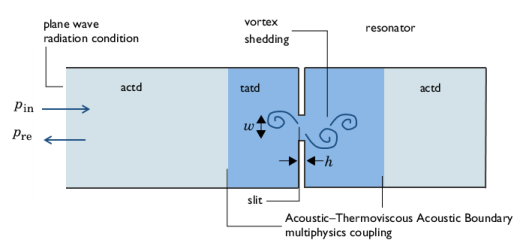
Figure 1: Sketch of the resonator system with annotations.
Model Definition
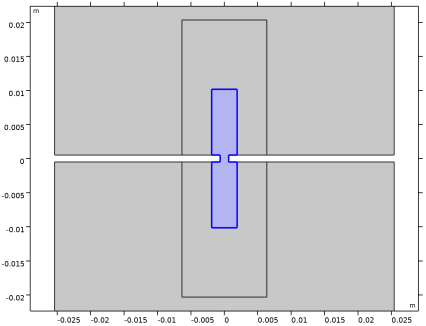
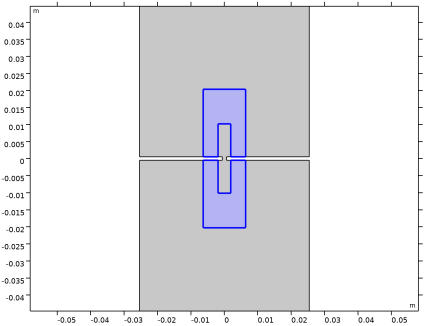
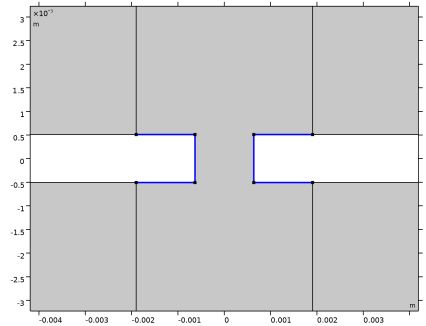
A sketch of the resonator system is depicted in Figure 1. It consists of a main duct leading to a narrow slit backed by a resonator. The slit has a height h of 1.02 mm (0.04 in) and a width w of 1.27 mm (0.05 in). The geometry and model parameters are taken from Ref. 1 (parallel slit P1, in the reference). The reference also contains results of the experimentally measured reflection coefficients (in figure 8 in the reference).
A harmonic signal pin(t) = p0·sin(2πf0t) is sent in at the left (note that the sketch is rotated compared to the model, where the signal enters the top). The signal interacts with the slit and the resonator, and is reflected. The reflected signal is called pre(t). The amplitude of the incident signal corresponds to 155 dB SPL. This leads to high local velocities in the slit region which lead to vortex shedding and distortion of the reflected harmonic signal (generation of higher harmonics) as the acoustics are nonlinear. The model is solved for f0 set to 500 Hz, 1 kHz, 1.5 kHz, and 2 kHz.
To model this in COMSOL, use the Thermoviscous Acoustics, Transient interface with the Nonlinear Thermoviscous Acoustic Contributions feature in a domain around the slit. The rest of the domains are modeled with Pressure Acoustics, Transient. The two physics are coupled using the Acoustic–Thermoviscous Acoustics Boundary multiphysics coupling. The nonlinear effects, captured by the nonlinear thermoviscous feature, are large and require that stabilization is enabled. To speed up the model, the discretization in the thermoviscous domain is switched to all linear.
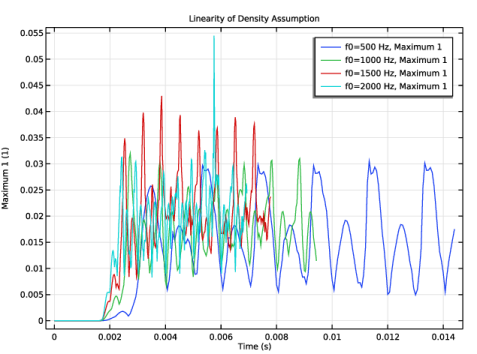
The Nonlinear Thermoviscous Acoustic Contributions feature also allow using a Second order density expansion. The nonlinearities in this model are dominated by the high particle velocity and vortex shedding (detachment). The default First order representation is adequate. The validity of the assumption is checked in Figure 6.
Results and Discussion
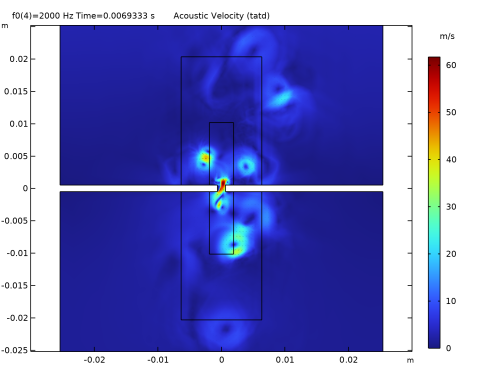
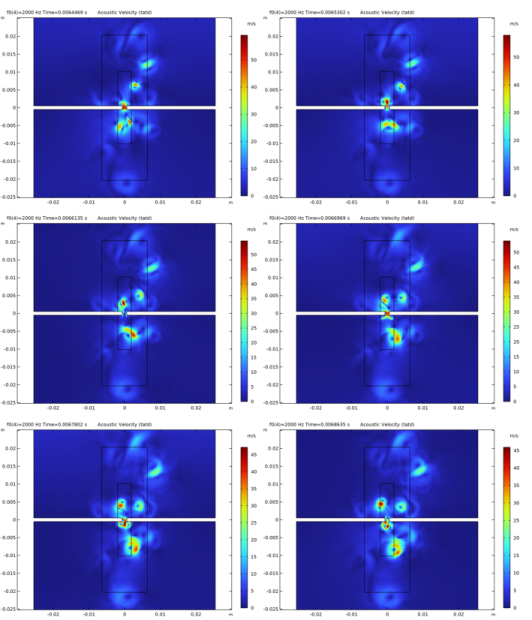
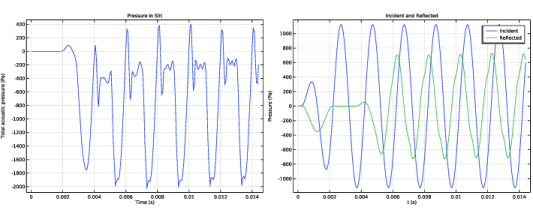
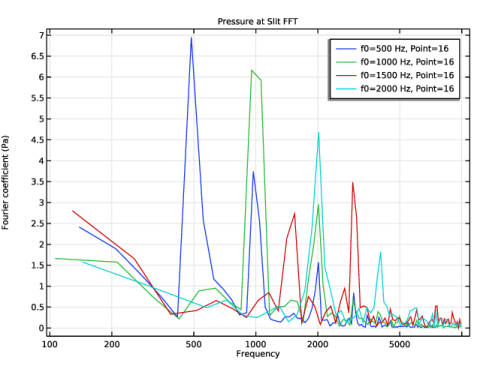
The evolution of the acoustic velocity for the 2 kHz excitation is shown at 6 time instances, for the last period simulated, in Figure 2. The model is run until the reflected signal hits the inlet/outlet (parameter Tstart) plus an additional 5 periods (of the incident harmonic signal). The pressure in the slit, as well as the incident and reflected pressure for the 500 Hz excitation, is depicted in Figure 3. An FFT of the pressure in the slit for all four excitation frequencies is depicted in Figure 4. The plot shows a large peak for the excitation frequencies and then the additional generated harmonics.
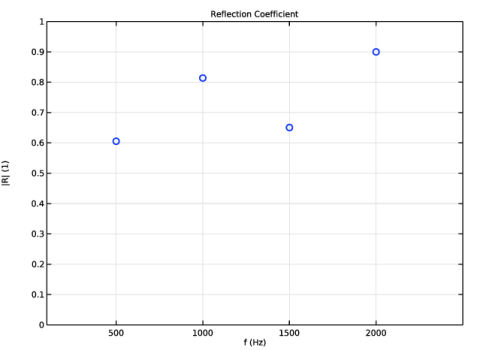
The absolute value of the reflection coefficient is computed using the timeint() operator in order to implement the expression for the reflection coefficient. The results are shown in Figure 5 and show good agreement with the experimental results reported in Ref. 1.
where Ts is the start time for the integration given as the moment where the reflected signal arrives back to the inlet/outlet. The time averaging is done over 4 periods.
Finally, to check the validity of the first order density expansion, the value
is plotted as function of time. ρt is the acoustic density fluctuation, evaluated with the variable tatd.rho_t. The maximum is taken over the thermoviscous domain using the maxop1() operator set up in the Definitions. The plot shows one peak up to 0.07 while most fluctuations are below 0.04, meaning that it is still adequate to assume that linearity applies as |ρt| << ρ0.
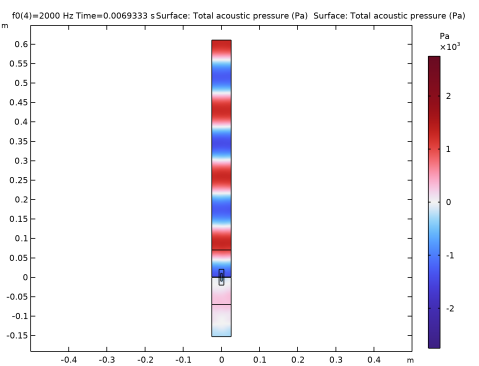
Figure 2: Evolution of the acoustic velocity fluctuations showing vortex shedding with six images over the last simulated period T0 = 1/f0, for f0 = 2 kHz.
Figure 3: (left) Pressure in the slit for the 500 Hz excitation and (right) the incident and reflected signal at the inlet/outlet.
Figure 4: FFT of the pressure signal measured in the slit for the four excitation frequencies.
Figure 5: Absolute value of the reflection coefficient for the four excitation frequencies.
Figure 6: Maximum absolute density fluctuation relative to the equilibrium density.
Reference
1. C. K. W. Tam, H. Ju, M G. Jones, W. R. Watson, and T. L. Parrot, “A computational and experimental study of slit resonators,” J. Sound. Vib., vol. 284, pp. 947-984, 2005.
Application Library path: Acoustics_Module/Nonlinear_Acoustics/nonlinear_slit_resonator
Modeling Instructions
From the File menu, choose New.
New
In the New window, click  Model Wizard.
Model Wizard
1
In the Model Wizard window, click  2D.
2
In the Select Physics tree, select Acoustics > Thermoviscous Acoustics > Thermoviscous Acoustics, Transient (tatd).
3
Click Add.
4
In the Select Physics tree, select Acoustics > Pressure Acoustics > Pressure Acoustics, Transient (actd).
5
Click Add.
6
Click  Study.
7
In the Select Study tree, select General Studies > Time Dependent.
8
Load the model parameters (source, frequency, harmonics to resolve, and so on) and the geometry parameters.
Global Definitions
Parameters 1 - Model
1
In the Model Builder window, under Global Definitions click Parameters 1.
2
In the Settings window for Parameters, type Parameters 1 - Model in the Label text field.
3
Locate the Parameters section. Click  Load from File.
4
Parameters 2 - Geometry
1
In the Home toolbar, click  Parameters and choose Add > Parameters.
2
In the Settings window for Parameters, type Parameters 2 - Geometry in the Label text field.
3
Locate the Parameters section. Click  Load from File.
4
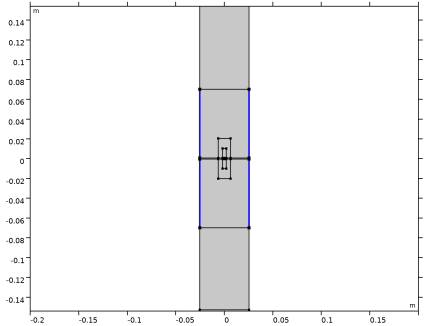
Build the geometry. It consists of several Rectangle features that are all parameterized. In the geometry several domains are created that will help meshing near the slit.
Geometry 1
Rectangle 1 (r1)
1
In the Geometry toolbar, click  Rectangle.
2
In the Settings window for Rectangle, locate the Size and Shape section.
3
In the Width text field, type w_tube.
4
In the Height text field, type h_tube.
5
Locate the Position section. From the Base list, choose Center.
6
In the y text field, type h_tube/2-(h_r+h_slit/2).
Rectangle 2 (r2)
1
In the Geometry toolbar, click  Rectangle.
2
In the Settings window for Rectangle, locate the Size and Shape section.
3
In the Width text field, type w_tube.
4
In the Height text field, type h_slit.
5
Locate the Position section. From the Base list, choose Center.
6
Click to expand the Layers section. In the table, enter the following settings:
7
Clear the Layers on bottom checkbox.
8
Select the Layers to the left checkbox.
9
Select the Layers to the right checkbox.
Rectangle 3 (r3)
1
In the Geometry toolbar, click  Rectangle.
2
In the Settings window for Rectangle, locate the Size and Shape section.
3
In the Width text field, type 10*w_slit.
4
In the Height text field, type 40*h_slit.
5
Locate the Position section. From the Base list, choose Center.
Rectangle 4 (r4)
1
In the Geometry toolbar, click  Rectangle.
2
In the Settings window for Rectangle, locate the Size and Shape section.
3
In the Width text field, type 3*w_slit.
4
In the Height text field, type 20*h_slit.
5
Locate the Position section. From the Base list, choose Center.
Rectangle 5 (r5)
1
In the Geometry toolbar, click  Rectangle.
2
In the Settings window for Rectangle, locate the Size and Shape section.
3
In the Width text field, type w_tube.
4
In the Height text field, type 0.14[m].
5
Locate the Position section. From the Base list, choose Center.
Union 1 (uni1)
1
In the Geometry toolbar, click  Booleans and Partitions and choose Union.
2
Click the  Select All button in the Graphics toolbar.
3
In the Settings window for Union, click  Build Selected.
Delete Entities 1 (del1)
1
In the Model Builder window, right-click Geometry 1 and choose Delete Entities.
2
In the Settings window for Delete Entities, locate the Entities or Objects to Delete section.
3
From the Geometric entity level list, choose Domain.
4
On the object uni1, select Domains 3, 7, 10, and 13–15 only.
Delete Entities 2 (del2)
1
Right-click Geometry 1 and choose Delete Entities.
2
On the object del1, select Boundaries 24 and 25 only.
3
In the Settings window for Delete Entities, click  Build All Objects.
Add Material
1
In the Materials toolbar, click  Add Material to open the Add Material window.
2
Go to the Add Material window.
3
In the tree, select Built-in > Air.
4
Click the Add to Component button in the window toolbar.
5
In the Materials toolbar, click  Add Material to close the Add Material window.
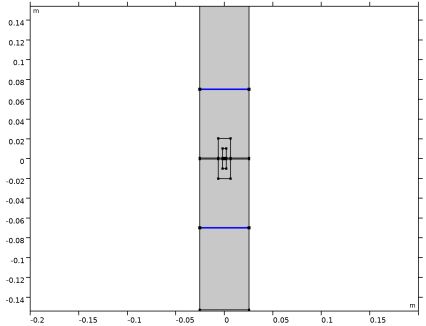
Set up several selections to simplify the model setup. Define an integral operator for the inlet as well as a maximum operator. Both will be used in postprocessing.
Definitions
Inlet
1
In the Model Builder window, expand the Component 1 (comp1) > Definitions node.
2
Right-click Definitions and choose Selections > Explicit.
3
In the Settings window for Explicit, type Inlet in the Label text field.
4
Locate the Input Entities section. From the Geometric entity level list, choose Boundary.
5
Thermoviscous Acoustics
1
In the Definitions toolbar, click  Explicit.
2
In the Settings window for Explicit, type Thermoviscous Acoustics in the Label text field.
3
Click in the Graphics window and then press Ctrl+A to select all domains.
4
Click the  Select All button in the Graphics toolbar.
5
Pressure Acoustics
1
In the Definitions toolbar, click  Explicit.
2
In the Settings window for Explicit, type Pressure Acoustics in the Label text field.
3
Integration 1 (intop1)
1
In the Definitions toolbar, click  Nonlocal Couplings and choose Integration.
2
In the Settings window for Integration, locate the Source Selection section.
3
From the Geometric entity level list, choose Boundary.
4
From the Selection list, choose Inlet.
Maximum 1 (maxop1)
1
In the Definitions toolbar, click  Nonlocal Couplings and choose Maximum.
2
In the Settings window for Maximum, locate the Source Selection section.
3
From the Selection list, choose Thermoviscous Acoustics.
Thermoviscous Acoustics, Transient (tatd)
1
In the Model Builder window, under Component 1 (comp1) click Thermoviscous Acoustics, Transient (tatd).
2
In the Settings window for Thermoviscous Acoustics, Transient, locate the Domain Selection section.
3
From the Selection list, choose Thermoviscous Acoustics.
For nonlinear transient models, it is important the set the Maximum frequency to resolve for the solver, taking the harmonic generation into account. In this model, include N0 harmonics, defined in the parameters as 6.
4
Locate the Transient Solver and Mesh Settings section. In the fmax text field, type N0*f0.
To speed up the solution time, it can also be advantageous to switch to an all linear discretization (P1-P1-P1). This is particularly true for nonlinear problems. Note that this is only possible if stabilization is used.
5
Click to expand the Discretization section. From the Element order for velocity list, choose Linear.
6
From the Element order for temperature list, choose Linear.
Turn on the stabilization as the problem solved is highly nonlinear and the model uses P1-P1-P1 discretization.
7
Click the  Show More Options button in the Model Builder toolbar.
8
In the Show More Options dialog, select Physics > Stabilization in the tree.
9
10
11
In the Settings window for Thermoviscous Acoustics, Transient, click to expand the Stabilization section.
12
From the Stabilization method list, choose Galerkin least-squares (GLS) stabilization.
Nonlinear Thermoviscous Acoustics Contributions 1
1
In the Physics toolbar, click  Domains and choose Nonlinear Thermoviscous Acoustics Contributions.
2
In the Settings window for Nonlinear Thermoviscous Acoustics Contributions, locate the Domain Selection section.
3
From the Selection list, choose Thermoviscous Acoustics.
Wall 2
1
In the Physics toolbar, click  Boundaries and choose Wall.
Use adiabatic and slip conditions on the walls away from the slit. This is also necessary to get a physically valid coupling to Pressure Acoustics.
2
In the Settings window for Wall, locate the Mechanical section.
3
From the Mechanical condition list, choose Slip (perfect).
4
Locate the Thermal section. From the Thermal condition list, choose Adiabatic.
5
Pressure Acoustics, Transient (actd)
1
In the Model Builder window, expand the Component 1 (comp1) > Pressure Acoustics, Transient (actd) node, then click Pressure Acoustics, Transient (actd).
2
In the Settings window for Pressure Acoustics, Transient, locate the Domain Selection section.
3
From the Selection list, choose Pressure Acoustics.
4
Locate the Transient Solver and Mesh Settings section. In the fmax text field, type N0*f0.
Plane Wave Radiation 1
1
In the Physics toolbar, click  Boundaries and choose Plane Wave Radiation.
2
In the Settings window for Plane Wave Radiation, locate the Boundary Selection section.
3
From the Selection list, choose Inlet.
Incident Pressure Field 1
1
In the Physics toolbar, click  Attributes and choose Incident Pressure Field.
2
In the Settings window for Incident Pressure Field, locate the Incident Pressure Field section.
3
In the p0 text field, type p0.
4
From the c list, choose From material.
5
From the Material list, choose Air (mat1).
6
In the f0 text field, type f0.
Multiphysics
Acoustic–Thermoviscous Acoustic Boundary 1 (atb1)
1
In the Physics toolbar, click  Multiphysics Couplings and choose Boundary > Acoustic–Thermoviscous Acoustic Boundary.
2
In the Settings window for Acoustic–Thermoviscous Acoustic Boundary, locate the Boundary Selection section.
3
From the Selection list, choose All boundaries.
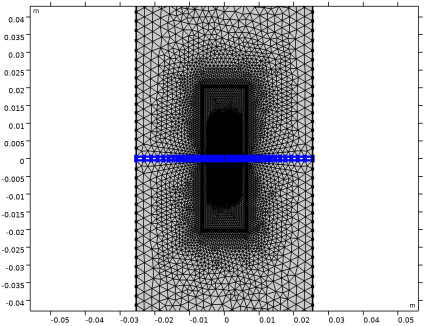
Create a mesh that resolves the characteristic length scales in the model. The mesh needs to be fine near the slit where vortex shedding occurs. The thickness of the thermal and viscous boundary layers (parameter dvisc) dictate the length scale. At the wall create a boundary layer mesh with a thickness that is a fraction of the boundary layer thickness (here using 0.1*dvisc). Remember that linear elements are used in the model.
Mesh 1
Free Triangular 1
In the Mesh toolbar, click  Free Triangular.
Size
1
In the Model Builder window, click Size.
2
In the Settings window for Size, locate the Element Size section.
3
Click the Custom button.
4
Locate the Element Size Parameters section. In the Maximum element size text field, type lam0/6.
5
In the Minimum element size text field, type dvisc/3.
6
In the Maximum element growth rate text field, type 1.1.
7
In the Resolution of narrow regions text field, type 3.
Size 1
1
In the Model Builder window, right-click Free Triangular 1 and choose Size.
2
In the Settings window for Size, locate the Geometric Entity Selection section.
3
From the Geometric entity level list, choose Domain.
4
5
Locate the Element Size section. Click the Custom button.
6
Locate the Element Size Parameters section.
7
Select the Maximum element size checkbox. In the associated text field, type 2.5*dvisc.
Size 2
1
Right-click Free Triangular 1 and choose Size.
2
In the Settings window for Size, locate the Geometric Entity Selection section.
3
From the Geometric entity level list, choose Domain.
4
5
Locate the Element Size section. Click the Custom button.
6
Locate the Element Size Parameters section.
7
Select the Maximum element size checkbox. In the associated text field, type 12*dvisc.
Size 3
1
Right-click Free Triangular 1 and choose Size.
2
In the Settings window for Size, locate the Geometric Entity Selection section.
3
From the Geometric entity level list, choose Boundary.
4
From the Selection list, choose Inlet.
5
Locate the Element Size section. Click the Custom button.
6
Locate the Element Size Parameters section.
7
Select the Maximum element size checkbox. In the associated text field, type w_tube/8.
Size 4
1
Right-click Free Triangular 1 and choose Size.
2
In the Settings window for Size, locate the Geometric Entity Selection section.
3
From the Geometric entity level list, choose Boundary.
4
5
Locate the Element Size section. Click the Custom button.
6
Locate the Element Size Parameters section.
7
Select the Maximum element size checkbox. In the associated text field, type dvisc.
8
Click  Build All.
Boundary Layers 1
1
In the Mesh toolbar, click  Boundary Layers.
2
In the Settings window for Boundary Layers, click to expand the Transition section.
3
Clear the Smooth transition to interior mesh checkbox.
Boundary Layer Properties
1
In the Model Builder window, click Boundary Layer Properties.
2
3
In the Settings window for Boundary Layer Properties, locate the Layers section.
4
In the Number of layers text field, type 3.
5
From the Thickness specification list, choose First layer.
6
In the Thickness text field, type 0.1*dvisc.
7
Click  Build All.
Study 1
Parametric Sweep
1
In the Study toolbar, click  Parametric Sweep.
2
In the Settings window for Parametric Sweep, locate the Study Settings section.
3
4
Step 1: Time Dependent
1
In the Model Builder window, click Step 1: Time Dependent.
2
In the Settings window for Time Dependent, locate the Study Settings section.
3
In the Output times text field, type range(0,T0/30,Tend).
4
In the Study toolbar, click  Compute.
Study the plots in the model. Switch between the excitation frequency values and step through the times. It is also useful to create an Animation to visualize the transient behavior in the model.
Results
Surface 2
1
In the Model Builder window, expand the Results > Acoustic Pressure (tatd) node.
2
Right-click Acoustic Pressure (tatd) and choose Surface.
3
In the Settings window for Surface, locate the Expression section.
4
In the Expression text field, type actd.p_t.
5
Click to expand the Inherit Style section. From the Plot list, choose Surface.
6
In the Acoustic Pressure (tatd) toolbar, click  Plot.
Acoustic Pressure (tatd)
1
In the Model Builder window, click Acoustic Pressure (tatd).
2
In the Settings window for 2D Plot Group, click to expand the Title section.
3
From the Title type list, choose Label.
Acoustic Velocity (tatd)
1
In the Model Builder window, click Acoustic Velocity (tatd).
2
In the Settings window for 2D Plot Group, click to expand the Selection section.
3
From the Geometric entity level list, choose Domain.
4
From the Selection list, choose Thermoviscous Acoustics.
5
Click to expand the Title section. From the Title type list, choose Label.
Arrow Surface 1
1
Right-click Acoustic Velocity (tatd) and choose Arrow Surface.
2
In the Settings window for Arrow Surface, locate the Arrow Positioning section.
3
Find the X grid points subsection. In the Points text field, type 100.
4
Find the Y grid points subsection. In the Points text field, type 200.
5
Locate the Coloring and Style section. From the Color list, choose Black.
6
In the Acoustic Velocity (tatd) toolbar, click  Plot.
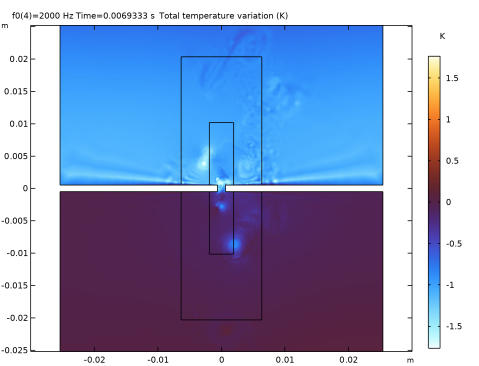
Temperature Variation (tatd)
1
In the Model Builder window, under Results click Temperature Variation (tatd).
2
In the Temperature Variation (tatd) toolbar, click  Plot.
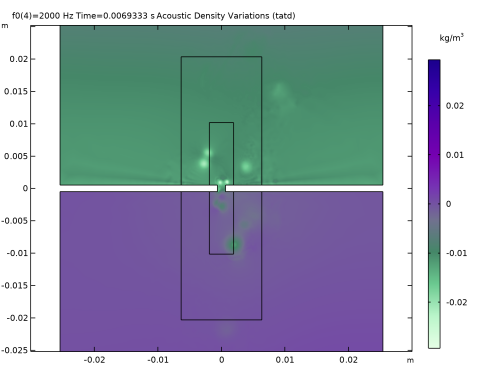
Acoustic Density Variations (tatd)
1
In the Results toolbar, click  2D Plot Group.
2
In the Settings window for 2D Plot Group, type Acoustic Density Variations (tatd) in the Label text field.
3
Locate the Data section. From the Dataset list, choose Study 1/Parametric Solutions 1 (sol2).
4
Locate the Title section. From the Title type list, choose Label.
5
Locate the Color Legend section. Select the Show units checkbox.
Surface 1
1
Right-click Acoustic Density Variations (tatd) and choose Surface.
2
In the Settings window for Surface, locate the Expression section.
3
In the Expression text field, type tatd.rho.
4
Locate the Coloring and Style section. From the Color table list, choose AuroraBorealis.
5
From the Scale list, choose Linear symmetric.
6
In the Acoustic Density Variations (tatd) toolbar, click  Plot.
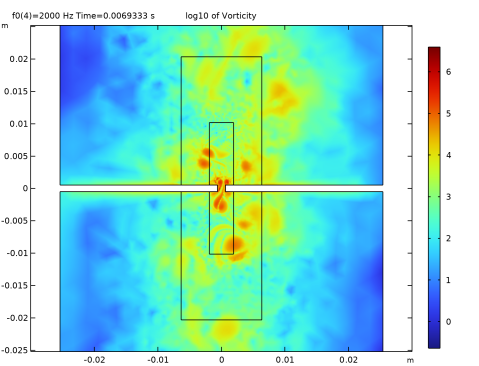
log10 of Vorticity
1
In the Results toolbar, click  2D Plot Group.
2
In the Settings window for 2D Plot Group, type log10 of Vorticity in the Label text field.
3
Locate the Data section. From the Dataset list, choose Study 1/Parametric Solutions 1 (sol2).
4
Click to expand the Title section. From the Title type list, choose Label.
Surface 1
1
Right-click log10 of Vorticity and choose Surface.
2
In the Settings window for Surface, locate the Expression section.
3
In the Expression text field, type log10(abs(uy-vx)).
4
In the log10 of Vorticity toolbar, click  Plot.
Proceed to create plots that analyze the pressure signal. All the plots are shown in the Results and Discussion section. Create a plot of the pressure in the slit and its FFT. Plot the incident and reflected wave signals. Compute the reflection coefficient and plot it as a function of the excitation frequency. Finally, plot the ratio of the maximum density variation to the equilibrium density.
Pressure in Slit
1
In the Results toolbar, click  1D Plot Group.
2
In the Settings window for 1D Plot Group, type Pressure in Slit in the Label text field.
3
Locate the Data section. From the Dataset list, choose Study 1/Parametric Solutions 1 (sol2).
4
From the Parameter selection (f0) list, choose First.
5
Click to expand the Title section. From the Title type list, choose Label.
Point Graph 1
1
Right-click Pressure in Slit and choose Point Graph.
2
3
In the Pressure in Slit toolbar, click  Plot.
Pressure at Slit FFT
1
In the Results toolbar, click  1D Plot Group.
2
In the Settings window for 1D Plot Group, type Pressure at Slit FFT in the Label text field.
3
Locate the Data section. From the Dataset list, choose Study 1/Parametric Solutions 1 (sol2).
4
Locate the Title section. From the Title type list, choose Label.
5
Locate the Legend section. From the Position list, choose Upper right.
Point Graph 1
1
Right-click Pressure at Slit FFT and choose Point Graph.
2
3
In the Settings window for Point Graph, locate the x-Axis Data section.
4
From the Parameter list, choose Discrete Fourier transform.
5
From the Show list, choose Frequency spectrum.
6
From the Scale list, choose Multiply by sampling period.
7
Select the Frequency range checkbox.
8
In the Minimum text field, type 100.
9
In the Maximum text field, type 10000.
10
Click to expand the Legends section. Select the Show legends checkbox.
11
In the Pressure at Slit FFT toolbar, click  Plot.
12
Click the  x-Axis Log Scale button in the Graphics toolbar.
The plot shows the FFT of the pressure response in the point.
Incident and Reflected
1
In the Results toolbar, click  1D Plot Group.
2
In the Settings window for 1D Plot Group, type Incident and Reflected in the Label text field.
3
Locate the Data section. From the Dataset list, choose Study 1/Parametric Solutions 1 (sol2).
4
From the Parameter selection (f0) list, choose First.
5
Click to expand the Title section. From the Title type list, choose Label.
6
Locate the Plot Settings section.
7
Select the x-axis label checkbox. In the associated text field, type t (s).
8
Select the y-axis label checkbox. In the associated text field, type Pressure (Pa).
Point Graph 1
1
Right-click Incident and Reflected and choose Point Graph.
2
3
In the Settings window for Point Graph, locate the y-Axis Data section.
4
In the Expression text field, type actd.p_i.
5
Click to expand the Legends section. Select the Show legends checkbox.
6
From the Legends list, choose Manual.
7
Point Graph 2
1
In the Model Builder window, right-click Incident and Reflected and choose Point Graph.
2
3
In the Settings window for Point Graph, locate the y-Axis Data section.
4
In the Expression text field, type actd.p_t-actd.p_i.
5
Locate the Legends section. Select the Show legends checkbox.
6
From the Legends list, choose Manual.
7
8
In the Incident and Reflected toolbar, click  Plot.
Reflection Coefficient
1
In the Results toolbar, click  1D Plot Group.
2
In the Settings window for 1D Plot Group, type Reflection Coefficient in the Label text field.
3
Locate the Data section. From the Dataset list, choose Study 1/Parametric Solutions 1 (sol2).
4
From the Time selection list, choose Last.
5
Locate the Title section. From the Title type list, choose Label.
6
Locate the Plot Settings section.
7
Select the x-axis label checkbox. In the associated text field, type f (Hz).
8
Select the y-axis label checkbox. In the associated text field, type |R| (1).
9
Locate the Axis section. Select the Manual axis limits checkbox.
10
In the x minimum text field, type 100.
11
In the x maximum text field, type 2500.
12
In the y minimum text field, type 0.
Point Graph 1
1
Right-click Reflection Coefficient and choose Point Graph.
2
3
In the Settings window for Point Graph, locate the y-Axis Data section.
4
In the Expression text field, type sqrt(timeint(Tstart,Tend-T0,(actd.p_t-actd.p_i)^2))/sqrt(timeint(Tstart,Tend-T0,actd.p_i^2)).
5
Locate the x-Axis Data section. From the Axis source data list, choose Outer solutions.
6
In the Reflection Coefficient toolbar, click  Plot.
7
Click to expand the Coloring and Style section. Find the Line style subsection. From the Line list, choose None.
8
From the Width list, choose 2.
9
Find the Line markers subsection. From the Marker list, choose Circle.
10
In the Reflection Coefficient toolbar, click  Plot.
Linearity of Density Assumption
1
In the Results toolbar, click  1D Plot Group.
2
In the Settings window for 1D Plot Group, type Linearity of Density Assumption in the Label text field.
3
Locate the Data section. From the Dataset list, choose Study 1/Parametric Solutions 1 (sol2).
4
Click to expand the Title section. From the Title type list, choose Label.
Global 1
1
Right-click Linearity of Density Assumption and choose Global.
2
In the Settings window for Global, locate the y-Axis Data section.
3
4
In the Linearity of Density Assumption toolbar, click  Plot.