
PDF

Lumped Receiver with Full Vibroacoustic Coupling
Introduction
When simulations are involved in the development of mobile devices, consumer electronics, hearing aids, or headsets, it is necessary to consider how the transducers interact with the rest of the system. Here, we will show the analysis of the interaction between a vibration isolation mounting and a miniature hearing aid transducer using a lumped representation of the transducer. The lumped model is simplified as an equivalent electroacoustic circuit. The vibration and acoustic characteristics of the lumped model are then coupled to a multiphysics model of the vibration isolation system to achieve a full system analysis.
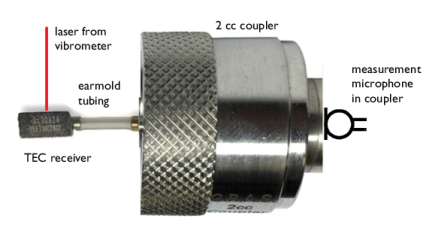
In this model, the miniature hearing aid transducer is a Knowles™ TEC-30033 balanced armature receiver, a miniature loudspeaker commonly used in high performance hearing aid packages. A common method of vibration isolation of a receiver is to attach it to the free end of a cantilevered tube. The tube channels the sound to the ear tips and the ear canal and at the same time it reduces the vibration energy transmitted back to the hearing aid package, see Figure 1. This model replicates a test setup that consists of a silicone tube of length 9 mm and inner diameter 1 mm that is attached to a 2 cc coupler, a common cavity of 2 cm3 utilized as an acoustic load. The setup is illustrated in Figure 5.
The receiver's internal electrical, magnetic, mechanical, and acoustic properties are linearized and represented with an electrical network topology1. The mechanical forces within the network are probed and applied as rigid body loads to the receiver. The output acoustic pressure and probed rigid body motion of the receiver are coupled to a finite element (FEM) model of the silicone tubing attachment and acoustic coupler. The thermoviscous losses in the narrow tubing are included using the homogenized approach offered by the Narrow Region Acoustics feature in the Pressure Acoustics, Frequency Domain interface.
The simulated acoustic response measured in the coupler and the vibration characteristics obtained in the model are compared to measurements. The acoustic response is obtained from the coupler microphone and the vibration characteristics from laser vibrometer measurements.
The model shows how to set up the coupling between the equivalent circuit model (a SPICE representation) and the rigid domain used to model the receiver. This approach allows a full system simulation of, for example, a hearing aid without the need of a detailed receiver model. This can be used to study the full vibroacoustic feedback path between the receiver (miniature loudspeaker) and microphones.
Note: This model is an extension of the Lumped Receiver Connected to Test Setup with a 0.4-cc Coupler tutorial where only the acoustics are considered. The current tutorial also considers a different model of balanced armature receiver.
Note: This model requires the Acoustics Module, the Structural Mechanics Module, and the AC/DC Module.
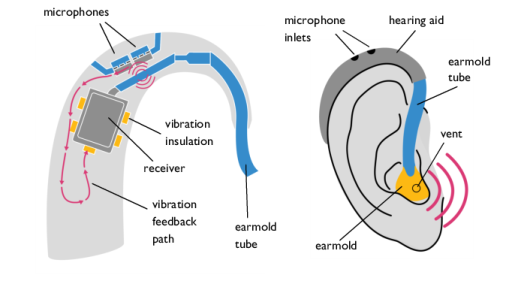
Figure 1: (left) Schematic representation of the vibration feedback path from the receiver (miniature loudspeaker) to the microphones in a behind-the-ear (BTE) hearing aid. (right) Schematic of how a BTE is placed on the human ear including the vent where sound leaks.
Model Definition
Miniature loudspeaker and other transducers are used in many modern consumer electronics products like smartphones, ear buds, tablets, and hearing aids. In most of these applications, it is desirable to optimize the sound quality and miniaturize the product. For certain applications, like hearing aids, the maximal output level is also important. In all cases, understanding the acoustic and vibrational behavior is important in order to prevent, for example, feedback effects. The specific example of the integration of a balanced armature receiver (or simply receiver, the name given for the miniature loudspeaker in hearing aids) into a behind-the-ear or BTE hearing aid is schematically depicted in Figure 1. The figure shows a cross section of the hearing aid, location of the transducers, earmold tubing, and the possible feedback path. The feedback path is generated by either the sound in the tubing (generating vibrations that couple to the microphones), directly as mechanical vibrations (red arrows), or by all acoustic when sound is transmitted through the earmold tube, ear canal, and vent to the microphones. These different feedback path need to be understood an possibly isolated.
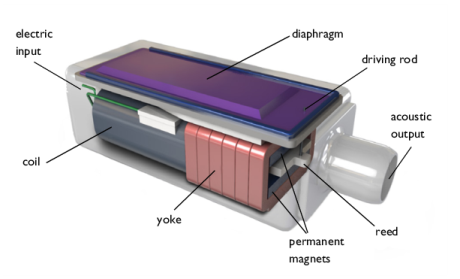
A fully detailed multiphysics vibroelectroacoustic model of a miniature transducer is in itself very complex. A rendering of a balanced armature receiver type transducer can be seen in Figure 2. This means that the task of understanding its system integration can easily become computationally expensive if all physics are modeled in detail with a FEM model. That is why a lumped representation of both the electroacoustic behavior and the vibration characteristics of the transducers is desirable to enable a full system simulation.
Specifically in this tutorial, a Knowles™ TEC-30033 receiver is modeled by a lumped equivalent circuit (see Figure 4) coupled to the motion of a rigid body domain with the mass properties of the transducer (see Figure 3). The rigid domain is characterized by its center of mass Xcm and moment of inertia I. Both can be extracted from a detailed CAD drawing of the transducer. In COMSOL, this can be done using the Mass Properties feature found under the Definitions node.
Figure 2: Rendering of the inner structure of a balanced armature receiver, © Knowles Electronics LLC. Detailed modeling of the system is very computationally demanding and requires coupling electromagnetic fields, structural vibrations and acoustics including thermoviscous losses. Image courtesy of Knowles Electronics LLC, Illinois USA.
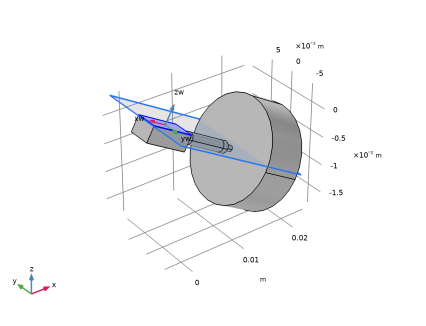
Since the orientation and location of the receiver can be arbitrary in a full system simulation, its mechanical properties are given with respect to the geometric center Xg of the receiver box and local orientation of the receiver. The geometric center of the rigid domain corresponding to the receiver is calculated in the model using the Mass Properties feature with a unit density expression. The orientation of the transducer is given by setting up a Base Vector System defined through a geometry Work Plane (placed on top of the receiver box). The work plane and local coordinate system can be seen in Figure 3. Using this approach, the location and orientation of the transducer is easily defined.
The location of the center of mass Xcm in the global coordinate system is then given by
(1)
where is the center-of-mass in the local receiver system of coordinates and is the coordinate transformation matrix. The transformation matrix is automatically defined by the Base Vector System feature. The components are given by the variables sys2.invT11, sys2.invT12, sys2.invT13, and so on. The center-of-mass coordinates are defined as variables under the Receiver Variables node in the Definitions.
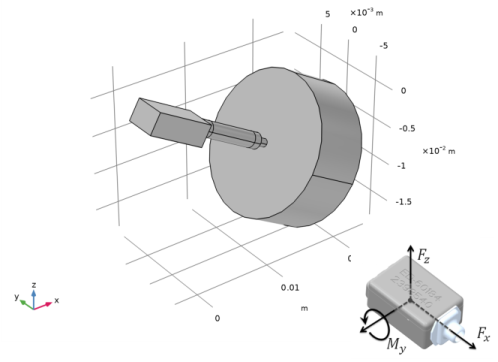
Figure 3: Local coordinate system defined by adding a work plane at the receiver box surface. In the inset, a schematic of the applied forces and moment on the receiver, © Knowles Electronics LLC. These are due to the movement of the armature and diaphragm (see Figure 2). Image courtesy of Knowles Electronics LLC, Illinois USA.
The circuit model topology of the transducer is depicted in Figure 4. The equivalent circuit network is imported as a Subcircuit Definition in the Electrical Circuit interface. Such a network is capable to capture the electroacoustic performance of most balanced armature receivers produced by Knowles. The network represents the electromagnetic, mechanical, and acoustic parts of the receiver (different colors in the diagram). The acoustics in the circuit are bidirectionally coupled to the finite element domain using the Circuit connection option of the Lumped Port condition.
Figure 4: Lumped circuit representation of the balanced armature receiver, © Knowles Electronics LLC. Note that the Karm component is a semi capacitor in this schematic. In the COMSOL implementation it is replaced by a resistor with a frequency dependent resistance. Image courtesy of Knowles Electronics LLC, Illinois USA.
The vibration characteristics of the receiver are modeled by applying a force and moment to the center of mass of the rigid domain. The mechanical vibration coupling is only active one way, since the influence of external vibrations is low under normal operating conditions. On the other hand, the acoustics has to be bidirectionally coupled. The applied forces and moment (in the local receiver coordinate system) can be seen in the inset of Figure 3. The values are given by the variables Fx, Fz, and My, also defined in the Receiver Variables. The values are defined by:
Fx = Fx1*cir.X1.LEFF.v+Fx2*cir.X1.LMECH2.v
Fz = Fz1*cir.X1.LEFF.v+Fz2*cir.X1.LMECH2.v
My = My1*cir.X1.LEFF.v+My2*cir.X1.LMECH2.v
They relate the voltages in the mechanical part of the spice system to the external forces and moment. The proportionality constants Fx1, Fx2, Fz1, Fz2, My1, and My2 are defined under the Parameters node and are unique to each receiver model.
Results and Discussion
The simulated system corresponds to the actual vibration isolation test setup depicted in Figure 5. The system consists of the TEC-30033 receiver, the flexible tubing, and the 2 cc coupler volume. In the experiment, the pressure response is measured by the measurement microphone in the coupler and the vibrations of the transducer are measured using a laser vibrometer. The simulated pressure and vibration response are compared with experimental data.
Figure 5: Experimental setup consisting of the TEC receiver, earmold tubing, and 2 cc coupler, © Knowles Electronics LLC. The acoustic response is measured by the microphone located in the coupler and the vibrations of the receiver are measured by a laser vibrometer. Image courtesy of Knowles Electronics LLC, Illinois USA.
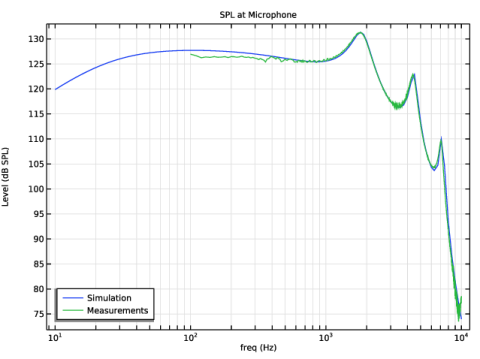
The sound pressure level response in the coupler is depicted in Figure 6. The agreement between the measurements and the COMSOL simulation is good. Note that the measurements only have been done from 100 Hz up to 10 kHz. Discrepancies at the highest frequencies are expected since the lumped transducer representation is not fully valid at the highest frequencies.
Figure 6: Sound pressure level at the microphone. Comparison of the simulation results (blue curve) and the measurements results (green curve).
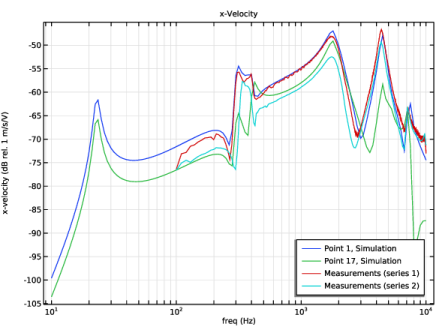
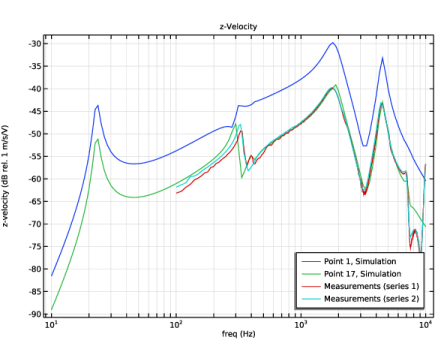
The vibration response, defined by the velocity amplitude in the local x and z directions, is depicted in Figure 7 and Figure 8. The measured data includes two measurement series that were performed independently by two groups in the hearing aid industry. The results show good agreement, but also indicate the sensitivity in the measurements. Small changes in the actual earmold tube length or variations the material properties of the silicone tubing, can change both the amplitude and the location of resonances. This type of sensitivity can be studied using simulations by changing the geometry or material parameters. The simulated velocity amplitudes are shown for two different points to demonstrate the sensitivity of where the measurements are performed. This is especially important for the velocity amplitude in the z direction.
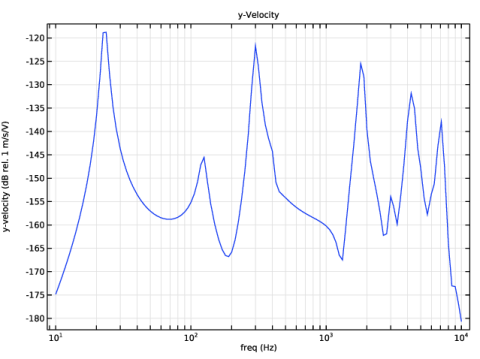
The velocity response in the local y direction is depicted in Figure 9. Because of the orientation of the model and the applied forces the values are considered to be numerical noise. Notice the low values in the dB scale.
Figure 7: Vibration velocity in the (local) x direction (see inset in Figure 3). Comparison between the simulation results and two independent measurements series.
Figure 8: Vibration velocity in the (local) z direction (see inset in Figure 3). Comparison between the simulation results and two independent measurements series.
Figure 9: Vibration velocity in the (local) y direction. The values are so low that this basically corresponds to numerical noise.
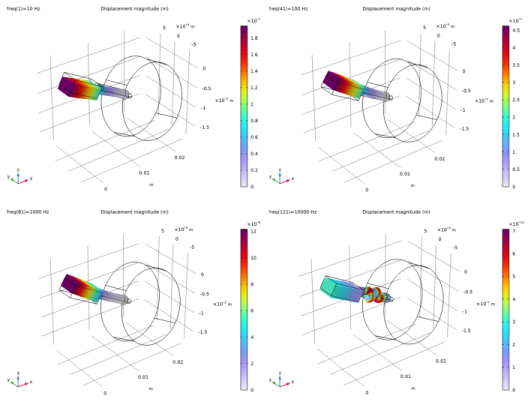
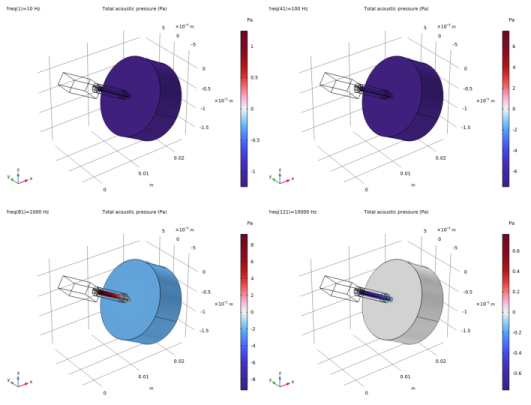
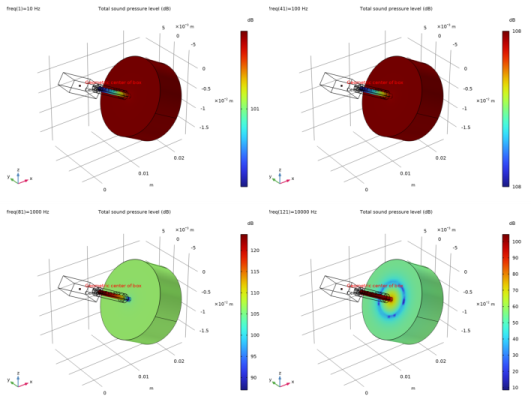
The displacement of the transducer and the earmold tubing, the pressure distribution in the earmold tubing and the coupler, as well as the sound pressure level distribution, is depicted at the frequencies 10 Hz, 100 Hz, 1 kHz, and 10 kHz in Figure 10, Figure 11, and Figure 12, respectively. Detailed analysis of the frequency characteristics at the other studied frequencies can be seen in the model where the system is solved from 10 Hz to 10 kHz in 1/12 th octave steps.
Figure 10: Displacement of the receiver and earmold tubing for 10 Hz, 100 Hz, 1 kHz, and 10 kHz.
Figure 11: Pressure distribution in the earmold tubing and coupler volume for 10 Hz, 100 Hz, 1 kHz, and 10 kHz.
Figure 12: Sound pressure level distribution in the earmold tubing and coupler volume for 10 Hz, 100 Hz, 1 kHz, and 10 kHz.
Notes About the COMSOL Implementation
In the lumped equivalent circuit model of the receiver, the effects of variation in the skin depth of eddy currents in the steel armature is approximated by a semi-capacitor, a special component with a complex admittance proportional to the square root of iω. In the imported SPICE circuit equivalent topology network list (in the model the file lumped_receiver_vibroacoustic_TEC30033.cir is imported), the value of this component, here a resistor, is temporarily set to 1, using:
RKarm KN020 KN040 1
Then the correct value for this component is entered manually, as a formula, to fit the COMSOL notation:
1[ohm]/(G_arm*sqrt(i*2*pi*freq[1/Hz]))
Where G_arm is a constant valued gain parameter.
Application Library path: Acoustics_Module/Electroacoustic_Transducers/lumped_receiver_vibroacoustic
Modeling Instructions
These are the modeling instructions for setting up the model, solving, and creating the postprocessing plots. The Geometry Modeling Instructions are located in the last section at the end of this document.
From the File menu, choose New.
New
In the New window, click  Model Wizard.
Model Wizard
1
In the Model Wizard window, click  3D.
2
In the Select Physics tree, select AC/DC > Electrical Circuit (cir).
3
Click Add.
4
In the Select Physics tree, select Structural Mechanics > Solid Mechanics (solid).
5
Click Add.
6
In the Select Physics tree, select Acoustics > Pressure Acoustics > Pressure Acoustics, Frequency Domain (acpr).
7
Click Add.
8
Click  Study.
9
In the Select Study tree, select General Studies > Frequency Domain.
10
Global Definitions
Parameters 1
1
In the Model Builder window, under Global Definitions click Parameters 1.
2
In the Settings window for Parameters, locate the Parameters section.
3
Click  Load from File.
4
Geometry 1
1
In the Geometry toolbar, click Insert Sequence and choose Insert Sequence.
2
3
In the Geometry toolbar, click  Build All.
Work Plane 3 (wp3)
1
In the Geometry toolbar, click  Work Plane.
2
In the Settings window for Work Plane, locate the Plane Definition section.
3
From the Plane type list, choose Face parallel.
4
Click the  Zoom Extents button in the Graphics toolbar.
5
On the object rot1(1), select Boundary 4 only.
6
Click to expand the Local Coordinate System section. In the Rotation text field, type 180.
7
Click  Build All Objects.
The geometry with the coordinate system created by the work plane is depicted in Figure 3. The local coordinate system is used for orienting the applied forces and moment on the receiver.
Proceed to the Definitions node and add variables, create selections, integration operators, and add the Mass Properties node. The last is used to calculate the geometric center of the receiver box. The center of mass and other quantities are defined relative to the geometric center.
Definitions
Main Variables
1
In the Model Builder window, expand the Component 1 (comp1) > Definitions node.
2
Right-click Definitions and choose Variables.
3
In the Settings window for Variables, type Main Variables in the Label text field.
4
Locate the Variables section. Click  Load from File.
5
Receiver Variables
1
Right-click Definitions and choose Variables.
2
In the Settings window for Variables, type Receiver Variables in the Label text field.
3
Locate the Variables section. Click  Load from File.
4
Browse to the model’s Application Libraries folder and double-click the file lumped_receiver_vibroacoustic_variables_receiver.txt.
Mass Properties 1 (mass1)
1
Right-click Definitions and choose Physics Utilities > Mass Properties.
2
In the Settings window for Mass Properties, locate the Source Selection section.
3
Click  Clear Selection.
4
Click the  Zoom Extents button in the Graphics toolbar.
5
6
Click the  Wireframe Rendering button in the Graphics toolbar.
Transducer
1
In the Definitions toolbar, click  Explicit.
2
In the Settings window for Explicit, type Transducer in the Label text field.
3
Inner Tube
1
In the Definitions toolbar, click  Explicit.
2
In the Settings window for Explicit, type Inner Tube in the Label text field.
3
Acoustic-Structure Interaction
1
In the Definitions toolbar, click  Explicit.
2
In the Settings window for Explicit, type Acoustic-Structure Interaction in the Label text field.
3
Locate the Input Entities section. From the Geometric entity level list, choose Boundary.
4
Inlet
1
In the Definitions toolbar, click  Explicit.
2
In the Settings window for Explicit, type Inlet in the Label text field.
3
Locate the Input Entities section. From the Geometric entity level list, choose Boundary.
4
Microphone
1
In the Definitions toolbar, click  Explicit.
2
In the Settings window for Explicit, type Microphone in the Label text field.
3
Locate the Input Entities section. From the Geometric entity level list, choose Boundary.
4
Silicone Tubing
1
In the Definitions toolbar, click  Explicit.
2
In the Settings window for Explicit, type Silicone Tubing in the Label text field.
3
Solid Domains
1
In the Definitions toolbar, click  Union.
2
In the Settings window for Union, type Solid Domains in the Label text field.
3
Locate the Input Entities section. Under Selections to add, click  Add.
4
In the Add dialog, in the Selections to add list, choose Transducer and Silicone Tubing.
5
Air Domains
1
In the Definitions toolbar, click  Explicit.
2
In the Settings window for Explicit, type Air Domains in the Label text field.
3
Integration 1 (intop1)
1
In the Definitions toolbar, click  Nonlocal Couplings and choose Integration.
2
In the Settings window for Integration, type intop_mic in the Operator name text field.
3
Locate the Source Selection section. From the Geometric entity level list, choose Boundary.
4
From the Selection list, choose Microphone.
Use the coordinates defined in Work Plane 3 to define a base vector coordinate system to be used in the physics. Then proceed to setting up the materials.
Base Vector System 2 (sys2)
1
In the Definitions toolbar, click  Coordinate Systems and choose Base Vector System.
2
In the Settings window for Base Vector System, locate the Relative to System from Geometry section.
3
From the Work plane list, choose Work Plane 3 (wp3).
Definitions
In the Model Builder window, collapse the Component 1 (comp1) > Definitions node.
Geometry 1
In the Model Builder window, collapse the Component 1 (comp1) > Geometry 1 node.
Add Material
1
In the Materials toolbar, click  Add Material to open the Add Material window.
2
Go to the Add Material window.
3
In the tree, select Built-in > Air.
4
Click the Add to Component button in the window toolbar.
Materials
Air (mat1)
1
In the Settings window for Material, locate the Geometric Entity Selection section.
2
From the Selection list, choose Air Domains.
Tubing (Silicone)
1
In the Model Builder window, right-click Materials and choose Blank Material.
2
In the Settings window for Material, type Tubing (Silicone) in the Label text field.
3
Locate the Geometric Entity Selection section. From the Selection list, choose Silicone Tubing.
4
Locate the Material Contents section. In the table, enter the following settings:
5
In the Materials toolbar, click  Add Material to close the Add Material window.
Proceed to setting up the physics. First, add the selections for the two domain physics (acoustics and solid mechanics) and note that the warning in materials node disappears. Then proceed to the detailed physics setup.
Solid Mechanics (solid)
1
In the Settings window for Solid Mechanics, locate the Domain Selection section.
2
From the Selection list, choose Solid Domains.
Pressure Acoustics, Frequency Domain (acpr)
1
In the Model Builder window, under Component 1 (comp1) click Pressure Acoustics, Frequency Domain (acpr).
2
In the Settings window for Pressure Acoustics, Frequency Domain, locate the Domain Selection section.
3
From the Selection list, choose Air Domains.
In the Electrical Circuit physics, set up the lumped model of the Knowles TEC-30033 receiver by loading its SPICE circuit. Then set up the voltage source driving the receiver and the external coupling to the acoustics, that is, the pressure at the outlet of the miniature loudspeaker.
Electrical Circuit (cir)
Subcircuit Definition TEC30033 (TEC30033)
1
In the Model Builder window, under Component 1 (comp1) right-click Electrical Circuit (cir) and choose Import SPICE Netlist.
2
Resistor RKARM (RKARM)
1
In the Model Builder window, expand the Subcircuit Definition TEC30033 (TEC30033) node, then click Resistor RKARM (RKARM).
2
In the Settings window for Resistor, locate the Device Parameters section.
3
In the R text field, type GKarm.
Subcircuit Definition TEC30033 (TEC30033)
In the Model Builder window, collapse the Subcircuit Definition TEC30033 (TEC30033) node.
Subcircuit Instance 1 (X1)
1
In the Electrical Circuit toolbar, click  Subcircuit Instance.
2
In the Settings window for Subcircuit Instance, locate the Node Connections section.
3
From the Subcircuit definition list, choose Subcircuit Definition TEC30033 (TEC30033).
4
Voltage Source 1 (V1)
1
In the Electrical Circuit toolbar, click  Voltage Source.
2
In the Settings window for Voltage Source, locate the Node Connections section.
3
4
Locate the Device Parameters section. In the vsrc text field, type V0.
External I vs. U 1 (IvsU1)
1
In the Electrical Circuit toolbar, click  External I vs. U.
Set up the external source that couples to the Lumped Port in pressure acoustics.
2
In the Settings window for External I vs. U, locate the Node Connections section.
3
Now, set up the Solid Mechanics physics. Add damping to the silicone earmold tube (and define its material property) and then proceed to setting up the Rigid Material properties. The transducer is modeled through rigid body motion with given center of mass and moment of inertia. The motion and vibration characteristics are given by coupling the lumped spice model to the rigid domain by applying forces and moment.
Solid Mechanics (solid)
Linear Elastic Material 1
In the Model Builder window, under Component 1 (comp1) > Solid Mechanics (solid) click Linear Elastic Material 1.
Damping 1
1
In the Physics toolbar, click  Attributes and choose Damping.
2
In the Settings window for Damping, locate the Damping Settings section.
3
From the Damping type list, choose Isotropic loss factor.
Materials
Tubing (Silicone) (mat2)
1
In the Model Builder window, under Component 1 (comp1) > Materials click Tubing (Silicone) (mat2).
2
In the Settings window for Material, locate the Material Contents section.
3
Solid Mechanics (solid)
Rigid Material 1
1
In the Physics toolbar, click  Domains and choose Rigid Material.
2
In the Settings window for Rigid Material, locate the Domain Selection section.
3
From the Selection list, choose Transducer.
4
Locate the Density section. From the ρ list, choose User defined. Locate the Center of Rotation section. From the list, choose User defined.
5
Specify the Xc vector as
Mass and Moment of Inertia 1
1
In the Physics toolbar, click  Attributes and choose Mass and Moment of Inertia.
2
In the Settings window for Mass and Moment of Inertia, locate the Coordinate System Selection section.
3
From the Coordinate system list, choose Base Vector System 2 (sys2).
4
Locate the Center of Mass section. From the list, choose User defined.
5
Specify the Xm vector as
6
Locate the Mass and Moment of Inertia section. In the m text field, type Mass.
7
8
Specify the I matrix as
Rigid Material 1
In the Model Builder window, click Rigid Material 1.
Applied Force 1
1
In the Physics toolbar, click  Attributes and choose Applied Force.
2
In the Settings window for Applied Force, locate the Coordinate System Selection section.
3
From the Coordinate system list, choose Base Vector System 2 (sys2).
4
Locate the Location section. From the list, choose User defined.
5
Specify the Xp vector as
6
Locate the Applied Force section. Specify the F vector as
Rigid Material 1
In the Model Builder window, click Rigid Material 1.
Applied Moment 1
1
In the Physics toolbar, click  Attributes and choose Applied Moment.
2
In the Settings window for Applied Moment, locate the Coordinate System Selection section.
3
From the Coordinate system list, choose Base Vector System 2 (sys2).
4
Locate the Applied Moment section. Specify the M vector as
Fixed Constraint 1
1
In the Physics toolbar, click  Boundaries and choose Fixed Constraint.
2
Set up the acoustics model. The Narrow Region Acoustics feature is used to model the thermoviscous losses in the narrow earmold tube. A simple RCL impedance condition could have been used to model the mechanical properties of the microphone located at the end of the 2 cc coupler. This is omitted here and the microphone is assumed rigid.
Pressure Acoustics, Frequency Domain (acpr)
In the Model Builder window, under Component 1 (comp1) click Pressure Acoustics, Frequency Domain (acpr).
Lumped Port 1
1
In the Physics toolbar, click  Boundaries and choose Lumped Port.
The Lumped Port has built-in functionality that couples the port boundary to the Electrical Circuit physics.
2
3
In the Settings window for Lumped Port, locate the Lumped Port Properties section.
4
From the Connection type list, choose Circuit.
Now, finalize the coupling between the port and the circuit.
Electrical Circuit (cir)
External I vs. U 1 (IvsU1)
1
In the Model Builder window, under Component 1 (comp1) > Electrical Circuit (cir) click External I vs. U 1 (IvsU1).
2
In the Settings window for External I vs. U, locate the External Device section.
3
From the V list, choose Voltage from lumped port (acpr/lport1).
Pressure Acoustics, Frequency Domain (acpr)
In the Model Builder window, under Component 1 (comp1) click Pressure Acoustics, Frequency Domain (acpr).
Narrow Region Acoustics 1
1
In the Physics toolbar, click  Domains and choose Narrow Region Acoustics.
2
In the Settings window for Narrow Region Acoustics, locate the Domain Selection section.
3
From the Selection list, choose Inner Tube.
4
Locate the Duct Properties section. From the Duct type list, choose Circular duct.
5
In the a text field, type Td/2.
Finally, set up the multiphysics coupling between acoustics and structure. Then proceed to meshing.
Multiphysics
Acoustic–Structure Boundary 1 (asb1)
1
In the Physics toolbar, click  Multiphysics Couplings and choose Boundary > Acoustic–Structure Boundary.
2
In the Settings window for Acoustic–Structure Boundary, locate the Boundary Selection section.
3
From the Selection list, choose Acoustic-Structure Interaction.
Mesh 1
In this model, the mesh is set up manually. Proceed by directly adding the desired mesh components. Use a swept mesh through the solids to make sure that there are at least elements through the thickness. This is done to make sure that the bending stiffness is correctly captured.
Mapped 1
1
In the Mesh toolbar, click  More Generators and choose Mapped.
2
Distribution 1
1
Right-click Mapped 1 and choose Distribution.
2
3
In the Settings window for Distribution, locate the Distribution section.
4
In the Number of elements text field, type 3.
Size
1
In the Model Builder window, under Component 1 (comp1) > Mesh 1 click Size.
2
In the Settings window for Size, locate the Element Size section.
3
Click the Custom button.
4
Locate the Element Size Parameters section. In the Maximum element size text field, type 2*Td.
5
In the Minimum element size text field, type Td/2.
Swept 1
1
In the Mesh toolbar, click  Swept.
2
In the Settings window for Swept, locate the Domain Selection section.
3
From the Geometric entity level list, choose Domain.
4
Size 1
1
Right-click Swept 1 and choose Size.
2
In the Settings window for Size, locate the Element Size section.
3
Click the Custom button.
4
Locate the Element Size Parameters section.
5
Select the Maximum element size checkbox. In the associated text field, type Td/2.
Free Tetrahedral 1
1
In the Mesh toolbar, click  Free Tetrahedral.
2
In the Model Builder window, right-click Mesh 1 and choose Build All.
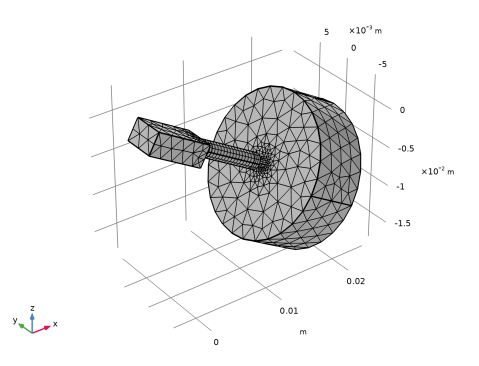
The mesh should look like this.
Study 1
Step 1: Frequency Domain
Some manual setup of the solver is necessary. The default for the current combination of physics is to use a segregated solution approach. In this model, it is necessary to use a fully coupled solver. Generate the default solver and then make a small change. The model is solved from 10 Hz to 10 kHz in steps of 1/12 octaves.
1
In the Model Builder window, under Study 1 click Step 1: Frequency Domain.
2
In the Settings window for Frequency Domain, locate the Study Settings section.
3
Click  Range.
4
In the Range dialog, choose ISO preferred frequencies from the Entry method list.
5
In the Start frequency text field, type 10.
6
In the Stop frequency text field, type fmax.
7
From the Interval list, choose 1/12 octave.
8
Click Replace.
9
In the Study toolbar, click  Compute.
Results
Displacement (solid)
Proceed to postprocessing the results. First, use the default plots and make some modifications to generate Figure 10, Figure 11, and Figure 12. If you zoom in on the Sound Pressure Level (acpr) plot you can see the location of the geometric center and the center of mass (added using the Annotation option). They are located close together. Change the frequency parameter to look at the solution for one of the solved frequencies.
Secondly, proceed to plotting the acoustic and vibration response and compare it with measurement data. This will recreate Figure 6, Figure 7, Figure 8, and Figure 9. The measurement data is imported as interpolation functions under the Definitions node.
1
In the Settings window for 3D Plot Group, type Displacement (solid) in the Label text field.
Volume 1
1
In the Model Builder window, expand the Displacement (solid) node, then click Volume 1.
2
In the Settings window for Volume, locate the Expression section.
3
In the Expression text field, type solid.disp.
4
In the Displacement (solid) toolbar, click  Plot.
Sound Pressure Level (acpr)
1
In the Model Builder window, under Results click Sound Pressure Level (acpr).
2
In the Sound Pressure Level (acpr) toolbar, click  Plot.
Annotation 1
1
Right-click Sound Pressure Level (acpr) and choose Annotation.
2
In the Settings window for Annotation, locate the Annotation section.
3
In the Text text field, type Center of mass.
4
Locate the Position section. In the x text field, type CMx.
5
In the y text field, type CMy.
6
In the z text field, type CMz.
Annotation 2
1
Right-click Sound Pressure Level (acpr) and choose Annotation.
2
In the Settings window for Annotation, locate the Annotation section.
3
In the Text text field, type Geometric center of box.
4
Locate the Position section. In the x text field, type mass1.CMX.
5
In the y text field, type mass1.CMY.
6
In the z text field, type mass1.CMZ.
7
Locate the Coloring and Style section. From the Color list, choose Red.
8
From the Anchor point list, choose Lower left.
9
In the Sound Pressure Level (acpr) toolbar, click  Plot.
Isosurface 1
1
In the Model Builder window, expand the Acoustic Pressure, Isosurfaces (acpr) node, then click Isosurface 1.
2
In the Settings window for Isosurface, locate the Levels section.
3
In the Total levels text field, type 20.
Acoustic Pressure, Isosurfaces (acpr)
1
In the Model Builder window, click Acoustic Pressure, Isosurfaces (acpr).
2
In the Settings window for 3D Plot Group, click to expand the Title section.
3
From the Title type list, choose Label.
Coordinate System Volume 1
1
In the Acoustic Pressure, Isosurfaces (acpr) toolbar, click  More Plots and choose Coordinate System Volume.
2
In the Settings window for Coordinate System Volume, locate the Coordinate System section.
3
From the Coordinate system list, choose Base Vector System 2 (sys2).
4
Locate the Positioning section. Find the x grid points subsection. From the Entry method list, choose Coordinates.
5
In the Coordinates text field, type CMx.
6
Find the y grid points subsection. From the Entry method list, choose Coordinates.
7
In the Coordinates text field, type CMy.
8
Find the z grid points subsection. From the Entry method list, choose Coordinates.
9
In the Coordinates text field, type CMz.
10
In the Acoustic Pressure, Isosurfaces (acpr) toolbar, click  Plot.
Global Definitions
Interpolation 1 (int1)
1
In the Home toolbar, click  Functions and choose Global > Interpolation.
2
In the Settings window for Interpolation, locate the Definition section.
3
From the Data source list, choose File.
4
Click  Browse.
5
6
Click  Import.
7
Locate the Data Column Settings section. In the table, click to select the cell at row number 2 and column number 1.
8
In the Name text field, type SPL_data.
Interpolation 2 (int2)
1
In the Home toolbar, click  Functions and choose Global > Interpolation.
2
In the Settings window for Interpolation, locate the Definition section.
3
From the Data source list, choose File.
4
Click  Browse.
5
6
Click  Import.
7
Locate the Data Column Settings section. In the table, enter the following settings:
8
In the Name text field, type xvel_real_01.
9
10
In the Name text field, type xvel_imag_01.
Interpolation 3 (int3)
1
In the Home toolbar, click  Functions and choose Global > Interpolation.
2
In the Settings window for Interpolation, locate the Definition section.
3
From the Data source list, choose File.
4
Click  Browse.
5
6
Click  Import.
7
In the Function name text field, type xvel_dB_02.
Interpolation 4 (int4)
1
In the Home toolbar, click  Functions and choose Global > Interpolation.
2
In the Settings window for Interpolation, locate the Definition section.
3
From the Data source list, choose File.
4
Click  Browse.
5
6
Click  Import.
7
Locate the Data Column Settings section. In the table, enter the following settings:
8
In the Name text field, type zvel_real_01.
9
10
In the Name text field, type zvel_imag_01.
Interpolation 5 (int5)
1
In the Home toolbar, click  Functions and choose Global > Interpolation.
2
In the Settings window for Interpolation, locate the Definition section.
3
From the Data source list, choose File.
4
Click  Browse.
5
6
Click  Import.
7
In the Function name text field, type zvel_dB_02.
Results
Grid 1D 1
1
In the Results toolbar, click  More Datasets and choose Grid > Grid 1D.
2
In the Settings window for Grid 1D, locate the Data section.
3
From the Source list, choose Function.
4
From the Function list, choose All.
5
Locate the Parameter Bounds section. In the Name text field, type f.
6
In the Minimum text field, type 100.
7
In the Maximum text field, type 10000.
SPL at Microphone
1
In the Results toolbar, click  1D Plot Group.
2
In the Settings window for 1D Plot Group, type SPL at Microphone in the Label text field.
3
Click to expand the Title section. From the Title type list, choose Label.
4
Locate the Plot Settings section.
5
Select the y-axis label checkbox. In the associated text field, type Level (dB SPL).
6
Locate the Axis section. Select the x-axis log scale checkbox.
7
Locate the Legend section. From the Position list, choose Lower left.
Global 1
1
Right-click SPL at Microphone and choose Global.
2
In the Settings window for Global, locate the y-Axis Data section.
3
Line Graph 1
1
In the Model Builder window, right-click SPL at Microphone and choose Line Graph.
2
In the Settings window for Line Graph, locate the Data section.
3
From the Dataset list, choose Grid 1D 1.
4
Locate the y-Axis Data section. In the Expression text field, type SPL_data(f).
5
Locate the x-Axis Data section. From the Parameter list, choose Expression.
6
In the Expression text field, type f[Hz/m].
7
Select the Description checkbox. In the associated text field, type freq.
8
Click to expand the Legends section. Select the Show legends checkbox.
9
From the Legends list, choose Manual.
10
11
In the SPL at Microphone toolbar, click  Plot.
x-Velocity
1
In the Results toolbar, click  1D Plot Group.
2
In the Settings window for 1D Plot Group, type x-Velocity in the Label text field.
3
Locate the Title section. From the Title type list, choose Label.
4
Locate the Plot Settings section.
5
Select the y-axis label checkbox. In the associated text field, type x-velocity (dB rel. 1 m/s/V).
6
Locate the Axis section. Select the x-axis log scale checkbox.
7
Locate the Legend section. From the Position list, choose Lower right.
Point Graph 1
1
Right-click x-Velocity and choose Point Graph.
2
3
In the Settings window for Point Graph, locate the y-Axis Data section.
4
In the Expression text field, type 20*log10(abs(vx_local)/V0).
5
Click to expand the Legends section. Select the Show legends checkbox.
6
Find the Prefix and suffix subsection. In the Prefix text field, type Point .
7
In the Suffix text field, type , Simulation.
Line Graph 1
1
In the Model Builder window, right-click x-Velocity and choose Line Graph.
2
In the Settings window for Line Graph, locate the Data section.
3
From the Dataset list, choose Grid 1D 1.
4
Locate the y-Axis Data section. In the Expression text field, type 20*log10(sqrt(xvel_real_01(f)^2+xvel_imag_01(f)^2)).
5
Locate the x-Axis Data section. From the Parameter list, choose Expression.
6
In the Expression text field, type f[Hz/m].
7
Select the Description checkbox. In the associated text field, type freq.
8
Locate the Legends section. Select the Show legends checkbox.
9
From the Legends list, choose Manual.
10
Line Graph 2
1
Right-click Line Graph 1 and choose Duplicate.
2
In the Settings window for Line Graph, locate the y-Axis Data section.
3
In the Expression text field, type xvel_dB_02(f).
4
Locate the Legends section. In the table, enter the following settings:
5
In the x-Velocity toolbar, click  Plot.
y-Velocity
1
In the Results toolbar, click  1D Plot Group.
2
In the Settings window for 1D Plot Group, type y-Velocity in the Label text field.
3
Locate the Title section. From the Title type list, choose Label.
4
Locate the Plot Settings section.
5
Select the y-axis label checkbox. In the associated text field, type y-velocity (dB rel. 1 m/s/V).
6
Locate the Axis section. Select the x-axis log scale checkbox.
Point Graph 1
1
Right-click y-Velocity and choose Point Graph.
2
3
In the Settings window for Point Graph, locate the y-Axis Data section.
4
In the Expression text field, type 20*log10(abs(vy_local)/V0).
5
In the y-Velocity toolbar, click  Plot.
z-Velocity
1
In the Results toolbar, click  1D Plot Group.
2
In the Settings window for 1D Plot Group, type z-Velocity in the Label text field.
3
Locate the Title section. From the Title type list, choose Label.
4
Locate the Plot Settings section.
5
Select the y-axis label checkbox. In the associated text field, type z-velocity (dB rel. 1 m/s/V).
6
Locate the Axis section. Select the x-axis log scale checkbox.
7
Locate the Legend section. From the Position list, choose Lower right.
Point Graph 1
1
Right-click z-Velocity and choose Point Graph.
2
3
In the Settings window for Point Graph, locate the y-Axis Data section.
4
In the Expression text field, type 20*log10(abs(vz_local)/V0).
5
Locate the Legends section. Select the Show legends checkbox.
6
Find the Prefix and suffix subsection. In the Prefix text field, type Point .
7
In the Suffix text field, type , Simulation.
Line Graph 1
1
In the Model Builder window, right-click z-Velocity and choose Line Graph.
2
In the Settings window for Line Graph, locate the Data section.
3
From the Dataset list, choose Grid 1D 1.
4
Locate the y-Axis Data section. In the Expression text field, type 20*log10(sqrt(zvel_real_01(f)^2+zvel_imag_01(f)^2)).
5
Locate the x-Axis Data section. From the Parameter list, choose Expression.
6
In the Expression text field, type f[Hz/m].
7
Select the Description checkbox. In the associated text field, type freq.
8
Locate the Legends section. Select the Show legends checkbox.
9
From the Legends list, choose Manual.
10
Line Graph 2
1
Right-click Line Graph 1 and choose Duplicate.
2
In the Settings window for Line Graph, locate the y-Axis Data section.
3
In the Expression text field, type zvel_dB_02(f).
4
Locate the Legends section. In the table, enter the following settings:
5
In the z-Velocity toolbar, click  Plot.
Geometry Modeling Instructions
From the File menu, choose New.
New
In the New window, click  Blank Model.
Global Definitions
Parameters 1
1
In the Model Builder window, under Global Definitions click Parameters 1.
2
In the Settings window for Parameters, locate the Parameters section.
3
Click  Load from File.
4
Browse to the model’s Application Libraries folder and double-click the file lumped_receiver_vibroacoustic_geom_sequence_parameters.txt.
Add Component
In the Home toolbar, click  Add Component and choose 3D.
Geometry 1
Block 1 (blk1)
1
In the Geometry toolbar, click  Block.
2
In the Settings window for Block, locate the Size and Shape section.
3
In the Width text field, type Lx.
4
In the Depth text field, type Ly.
5
In the Height text field, type Lz.
6
Locate the Position section. From the Base list, choose Center.
Cylinder 1 (cyl1)
1
In the Geometry toolbar, click  Cylinder.
2
In the Settings window for Cylinder, locate the Size and Shape section.
3
In the Radius text field, type Td/2.
4
In the Height text field, type TL.
5
Locate the Position section. In the x text field, type Lx/2.
6
In the z text field, type Th.
7
Locate the Axis section. From the Axis type list, choose x-axis.
Cylinder 2 (cyl2)
1
In the Geometry toolbar, click  Cylinder.
2
In the Settings window for Cylinder, locate the Size and Shape section.
3
In the Radius text field, type Td/2+Ttube.
4
In the Height text field, type Ltube.
5
Locate the Position section. In the x text field, type Lx/2+SToffset.
6
In the z text field, type Th.
7
Locate the Axis section. From the Axis type list, choose x-axis.
8
Click to expand the Layers section. In the table, enter the following settings:
Cylinder 3 (cyl3)
1
In the Geometry toolbar, click  Cylinder.
2
In the Settings window for Cylinder, locate the Size and Shape section.
3
In the Radius text field, type Td/2.
4
In the Height text field, type LtubeC.
5
Locate the Position section. In the x text field, type Lx/2+SToffset+Ltube-(LtubeC-CToffset).
6
In the z text field, type Th.
7
Locate the Axis section. From the Axis type list, choose x-axis.
Cylinder 4 (cyl4)
1
In the Geometry toolbar, click  Cylinder.
2
In the Settings window for Cylinder, locate the Size and Shape section.
3
In the Radius text field, type d_2cc/2.
4
In the Height text field, type L_2cc.
5
Locate the Position section. In the x text field, type Lx/2+SToffset+Ltube+CToffset.
6
In the z text field, type Th.
7
Locate the Axis section. From the Axis type list, choose x-axis.
Work Plane 1 (wp1)
1
In the Geometry toolbar, click  Work Plane.
2
In the Settings window for Work Plane, locate the Plane Definition section.
3
From the Plane type list, choose Face parallel.
4
Click the  Wireframe Rendering button in the Graphics toolbar.
5
On the object cyl1, select Boundary 4 only.
Work Plane 2 (wp2)
1
In the Geometry toolbar, click  Work Plane.
2
In the Settings window for Work Plane, locate the Plane Definition section.
3
From the Plane type list, choose Face parallel.
4
On the object cyl3, select Boundary 3 only.
Partition Objects 1 (par1)
1
In the Geometry toolbar, click  Booleans and Partitions and choose Partition Objects.
2
3
In the Settings window for Partition Objects, locate the Partition Objects section.
4
From the Partition with list, choose Work plane.
5
From the Work plane list, choose Work Plane 1 (wp1).
6
Click  Build Selected.
Partition Objects 2 (par2)
1
In the Geometry toolbar, click  Booleans and Partitions and choose Partition Objects.
2
3
In the Settings window for Partition Objects, locate the Partition Objects section.
4
From the Partition with list, choose Work plane.
5
Click  Build Selected.
Move 1 (mov1)
1
In the Geometry toolbar, click  Transforms and choose Move.
2
Click in the Graphics window and then press Ctrl+A to select all objects.
3
In the Settings window for Move, locate the Displacement section.
4
In the x text field, type 1[mm].
5
In the y text field, type 1[mm].
6
Click  Build Selected.
Rotate 1 (rot1)
1
In the Geometry toolbar, click  Transforms and choose Rotate.
2
Click in the Graphics window and then press Ctrl+A to select all objects.
3
In the Settings window for Rotate, locate the Rotation section.
4
In the Angle text field, type 30.
5
Locate the Point on Axis of Rotation section. In the x text field, type 1[mm].
6
In the y text field, type 1[mm].
7
Locate the Rotation section. From the Axis type list, choose y-axis.
8
Click  Build All Objects.
Form Union (fin)
1
In the Geometry toolbar, click  Build All.
2
Click the  Zoom Extents button in the Graphics toolbar.
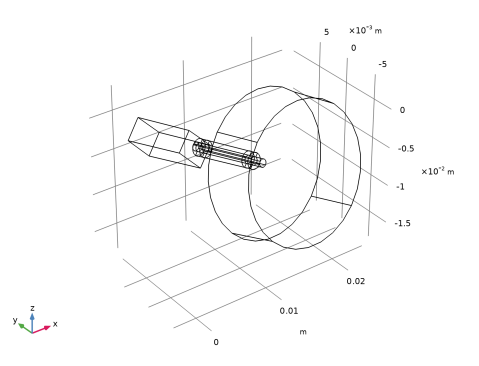
The finalized geometry should look like the figure below.
3
In the Model Builder window, click Form Union (fin).

1
This model was created based upon data provided by Knowles Electronics LLC, Illinois USA.