
PDF

Lumped Receiver Connected to Test Setup with a 0.4-cc Coupler
Introduction
When simulations are involved in the development of mobile devices, consumer electronics, hearing aids, or headsets, it is necessary to consider how the transducers interact with the rest of the system. For some tasks, such as analyzing the vibration isolation of an elastic mounting of the transducer, it may be necessary to include a fully detailed multiphysics model of the transducer itself. In applications where only the electroacoustic response of the device is of interest, a lumped parameter model of the transducer (an electroacoustic analogy as would be implemented in Spice) can be coupled with a multiphysics model of the rest of the system.
In this example a Knowles ED-23146 balanced armature receiver (miniature loudspeaker) is connected to a test setup consisting of a 50 mm (1 mm ID) tube into a generic 0.4-cc measurement coupler.1 This test setup represents the receiver in a behind-the-ear hearing aid driving an ear canal with a deeply inserted ear mold via a long narrow tube. Data collected when using the 0.4-cc coupler will give a more realistic assessment of acoustic data for deeply inserted devices compared to using the 711 coupler (see Ref. 1). The model shows how to connect a receiver modeled as a lumped Spice network to the acoustic system of the tube and a measurement coupler modeled in the finite element domain. The response at the measurement microphone in the coupler as well as the electric input impedance to the receiver are compared with measurements. The losses in the long narrow tube are in this model included using one of the equivalent fluid models of the Narrow Region Acoustics feature in the Pressure Acoustics, Frequency Domain interface.
Model Definition
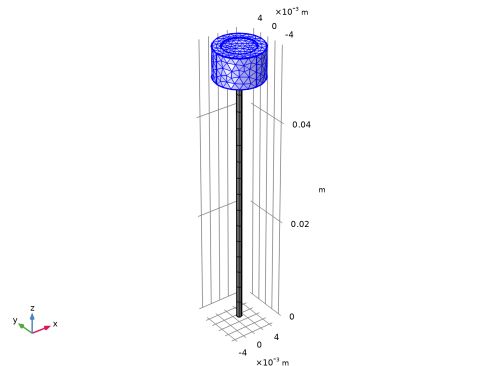
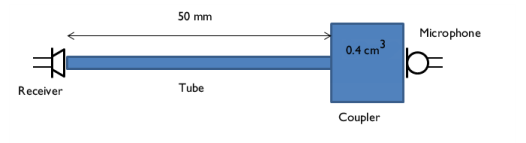
A sketch of the measurement set-up analyzed in this model is depicted in Figure 1. It consists of the Knowles ED-23146 receiver which is modeled as an electric Spice circuit using the Electrical Circuit interface. The tube has a length of 50 mm and a diameter of 1 mm and the 0.4-cc coupler is here simply represented by a cylinder with a volume close to 0.4 cm3 (and a small intrusion at one end representing the microphone location). Real measurement couplers have more complex geometries. The acoustics inside the tube and the coupler are modeled using the Pressure Acoustics, Frequency Domain interface.
Figure 1: Schematic representation of the modeled system consisting of receiver, tube, coupler, and measurement microphone. The blue domains are modeled using finite elements.
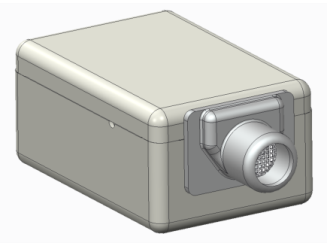
The actual receiver is depicted in Figure 2. It is of the balanced armature type. Knowles provides lumped models for all their transducers enabling engineers to model the devices where they are used.
Figure 2: Rendering of the Knowles ED-23146 balanced armature receiver. The device is roughly 4 mm wide, 6 mm deep, and 3 mm high. Image credit: Knowles, IL, USA.
In the Spice network used for the Knowles ED-23146 receiver, the current at the output corresponds to a volume flow (m3/s) and voltage over the output terminals corresponds to the pressure (Pa), as measured at the outlet of the transducer. See Ref. 2 and Ref. 3 for further details. The coupling between the lumped electric network and the finite element domain is made using the built-in Circuit connection option in the Lumped Port feature. In this way, there is a bidirectional coupling between the finite element domain and the Spice network.
At the boundary where the measurement microphone is normally located in the coupler, a normal impedance condition has been added to account for the compliance of the microphone diaphragm. In this model, the compliance Cmic is equivalent to a volume of 6 mm3. The acoustic mass Lmic and resistance Rmic of the diaphragm are set to typical values. The impedance is given by a simple RCL model
(1).
This is implemented by applying the built-in RCL option found in the impedance boundary condition.
Results and Discussion
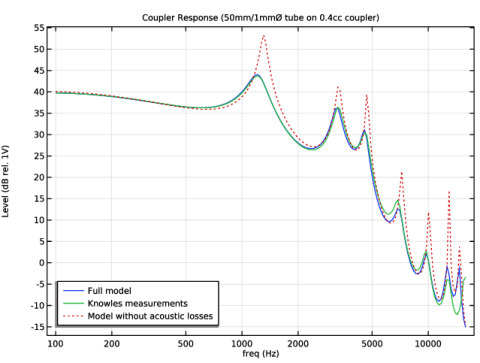
The response, as measured at the location of the microphone, is depicted in Figure 3. The model results are compared with measurements performed on an actual system and with results obtained without the viscous and thermal acoustics losses. The measurements are seen to agree well with the full model results. At high frequencies (above 14 kHz), the results start not to match well. Here, the wavelength becomes comparable to length scales of structures in the coupler (a quarter wavelength is 0.6 cm) that are not included in this simple cylinder representation, for example, the protective mesh of the microphone. In addition, of course, the lumped parameter model of the receiver is inexact at these high frequencies. Note that the model curves where no acoustic losses are added still show signs of damping. This is due to the losses included in the Spice model of the transducer.
Figure 3: The microphone response comparing the model including the thermal and viscous losses via the narrow region acoustics feature (blue curve), the model without acoustics losses (red dotted curve), and measurements (green curve). Measurement data provided by Knowles, IL, USA.
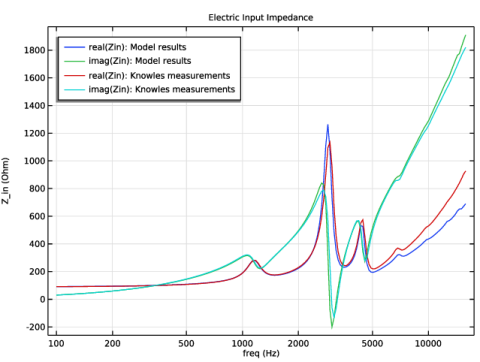
The frequency dependency of the electric input impedance (real and imaginary part) of the transducer are depicted in Figure 4. The results are compared with measurements and show good agreement.
Figure 4: The electric input impedance (real and imaginary part) as a function of the frequency comparing model results (blue and green curves) and measurements (red and cyan curves). Measurements data provided by Knowles, IL, USA.
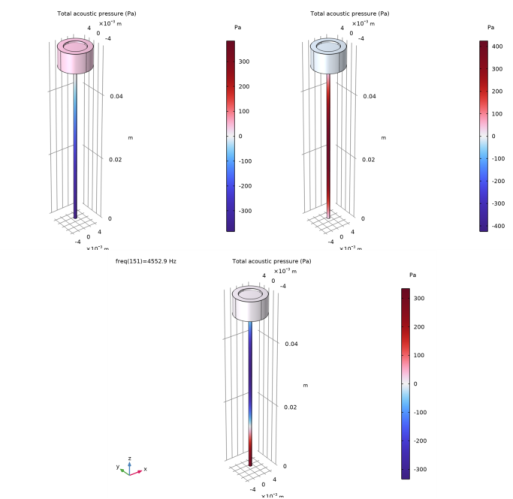
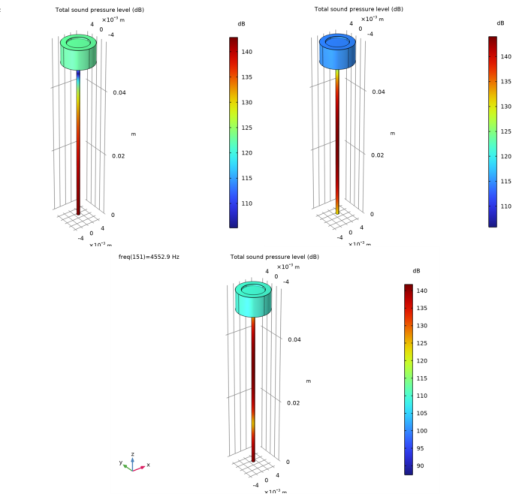
In Figure 5 and Figure 6, the pressure and sound pressure level distribution inside the tube and coupler system are depicted at three different frequencies (around 1200, 3200, and 4600 Hz). The evaluated frequencies correspond to the three first peaks in the response. They correspond to the quarter, half, and three quarter wave resonances of the tube-coupler system, respectively.
Figure 5: Pressure distribution (real part of the pressure) at frequencies close to f  = 1200, 3200, and 4600 Hz.
Figure 6: Sound pressure level at frequencies close to f  = 1200, 3200, and 4600 Hz.
Notes About the COMSOL Implementation
RKarm N0025 N0015 1
Then the correct value for this component is entered manually, as a formula, to fit the COMSOL notation:
1/(4.85e-11[1/ohm]*sqrt(i*2*pi*freq[1/Hz]))
The component is, in the unmodified Knowles Spice net-lists, included as an advanced voltage-controlled current source as:
GKarm N0025 N0015 laplace {V(N0025,N0015)}={4.85e-11*sqrt(s)}
This notation is not supported by the Spice import functionality of COMSOL.
References
1. Generic 711 Coupler: An Occluded Ear-Canal Simulator model in the Application Library of the Acoustics Module: Acoustics_Module/Electroacoustic_Transducers/generic_711_coupler.
2. J. Jensen, F.T. Agerkvist and J.M. Hart, “Nonlinear Time-Domain Modeling of Balanced Armature Receivers,” J. Audio Eng. Soc., vol. 59, pp. 91–101, 2011.
3. Lumped Loudspeaker Driver model in the Application Library of the Acoustics Module: Acoustics_Module/Electroacoustic_Transducers/lumped_loudspeaker_driver.
Application Library path: Acoustics_Module/Electroacoustic_Transducers/lumped_receiver_04cc
Modeling Instructions
From the File menu, choose New.
New
In the New window, click  Model Wizard.
Model Wizard
1
In the Model Wizard window, click  3D.
2
In the Select Physics tree, select AC/DC > Electrical Circuit (cir).
3
Click Add.
4
In the Select Physics tree, select Acoustics > Pressure Acoustics > Pressure Acoustics, Frequency Domain (acpr).
5
Click Add.
6
Click  Study.
7
In the Select Study tree, select General Studies > Frequency Domain.
8
Root
First, import the model parameters, import variables used in the model, and import the geometry. The instructions to the geometry can be found in the appendix at the end of this document.
Global Definitions
Parameters 1
1
In the Model Builder window, under Global Definitions click Parameters 1.
2
In the Settings window for Parameters, locate the Parameters section.
3
Click  Load from File.
4
Geometry 1
1
In the Geometry toolbar, click Insert Sequence and choose Insert Sequence.
2
Definitions
Integration 1 (intop1)
1
In the Definitions toolbar, click  Nonlocal Couplings and choose Integration.
2
In the Settings window for Integration, type intop_mic in the Operator name text field.
3
Locate the Source Selection section. From the Geometric entity level list, choose Boundary.
4
Add Material
1
In the Home toolbar, click  Add Material to open the Add Material window.
2
Go to the Add Material window.
3
In the tree, select Built-in > Air.
4
Right-click and choose Add to Component 1 (comp1).
5
In the Home toolbar, click  Add Material to close the Add Material window.
Now, set up the circuit model. It includes the driving voltage source, the subcircuit for the receiver (imported), and the coupling node to the acoustic domain.
Electrical Circuit (cir)
Subcircuit Definition ED23146 (ED23146)
1
In the Model Builder window, under Component 1 (comp1) right-click Electrical Circuit (cir) and choose Import SPICE Netlist.
2
3
In the Settings window for Subcircuit Definition, locate the Node Connections section.
4
The component RKARM needs special attention by manual editing as it is a nontrivial function of frequency. The imported Spice net-list is courtesy of Knowles, IL, USA.
Resistor RKARM (RKARM)
1
In the Model Builder window, expand the Subcircuit Definition ED23146 (ED23146) node, then click Resistor RKARM (RKARM).
2
In the Settings window for Resistor, locate the Device Parameters section.
3
In the R text field, type 1/(4.85e-11[1/ohm]*sqrt(i*2*pi*freq[1/Hz])).
Voltage Source 1 (V1)
1
In the Electrical Circuit toolbar, click  Voltage Source.
2
In the Settings window for Voltage Source, locate the Node Connections section.
3
4
Locate the Device Parameters section. In the vsrc text field, type V0.
Subcircuit Instance 1 (X1)
1
In the Electrical Circuit toolbar, click  Subcircuit Instance.
2
In the Settings window for Subcircuit Instance, locate the Node Connections section.
3
From the Subcircuit definition list, choose Subcircuit Definition ED23146 (ED23146).
4
External I vs. U 1 (IvsU1)
1
In the Electrical Circuit toolbar, click  External I vs. U.
Set up the external source that couples to the Lumped Port feature. You will need to get back to this feature after setting up the port.
2
In the Settings window for External I vs. U, locate the Node Connections section.
3
The electrical circuit has now been set up. Proceed and set up the pressure acoustics physics.
Global Definitions
Interpolation 1 (int1)
1
In the Home toolbar, click  Functions and choose Global > Interpolation.
2
In the Settings window for Interpolation, locate the Definition section.
3
From the Data source list, choose File.
4
Click  Browse.
5
6
Locate the Data Column Settings section. In the table, enter the following settings:
7
8
In the Unit text field, type Hz.
9
10
In the Name text field, type preal.
11
In the Unit text field, type [Omega].
12
13
In the Name text field, type pimag.
14
In the Unit text field, type [Omega].
15
16
In the Name text field, type Zreal.
17
In the Unit text field, type [Omega].
18
19
In the Name text field, type Zimag.
20
In the Unit text field, type [Omega].
21
Locate the Interpolation and Extrapolation section. From the Interpolation list, choose Piecewise cubic.
22
Locate the Definition section. Click  Import.
Pressure Acoustics, Frequency Domain (acpr)
Pressure Acoustics 1
1
In the Model Builder window, under Component 1 (comp1) > Pressure Acoustics, Frequency Domain (acpr) click Pressure Acoustics 1.
2
In the Settings window for Pressure Acoustics, locate the Model Input section.
3
In the T text field, type T0.
4
In the pA text field, type p0.
Narrow Region Acoustics 1
1
In the Physics toolbar, click  Domains and choose Narrow Region Acoustics.
2
3
In the Settings window for Narrow Region Acoustics, locate the Model Input section.
4
In the T text field, type T0.
5
In the pA text field, type p0.
6
Locate the Duct Properties section. From the Duct type list, choose Circular duct.
7
In the a text field, type a.
Narrow Region Acoustics 2
1
In the Physics toolbar, click  Domains and choose Narrow Region Acoustics.
2
3
In the Settings window for Narrow Region Acoustics, locate the Model Input section.
4
In the T text field, type T0.
5
In the pA text field, type p0.
6
Locate the Duct Properties section. From the Duct type list, choose Circular duct.
7
In the a text field, type a_cpl.
Impedance 1
1
In the Physics toolbar, click  Boundaries and choose Impedance.
2
3
In the Settings window for Impedance, locate the Impedance section.
4
From the Impedance model list, choose RCL.
5
In the Rac text field, type Rmic.
6
In the Cac text field, type Cmic.
7
In the Lac text field, type Lmic.
Lumped Port 1
1
In the Physics toolbar, click  Boundaries and choose Lumped Port.
The Lumped Port has built-in functionality that couples the port boundary to the Electrical Circuit physics.
2
3
In the Settings window for Lumped Port, locate the Lumped Port Properties section.
4
From the Connection type list, choose Circuit.
Now, finalize the coupling between the port and the circuit.
Electrical Circuit (cir)
External I vs. U 1 (IvsU1)
1
In the Model Builder window, under Component 1 (comp1) > Electrical Circuit (cir) click External I vs. U 1 (IvsU1).
2
In the Settings window for External I vs. U, locate the External Device section.
3
From the V list, choose Voltage from lumped port (acpr/lport1).
Now, mesh the geometry and then solve the model.
Mesh 1
Free Triangular 1
1
In the Mesh toolbar, click  More Generators and choose Free Triangular.
2
Size
1
In the Model Builder window, click Size.
2
In the Settings window for Size, locate the Element Size section.
3
Click the Custom button.
4
Locate the Element Size Parameters section. In the Maximum element size text field, type 3*a.
5
In the Minimum element size text field, type 0.1[mm].
Size 1
1
In the Model Builder window, right-click Free Triangular 1 and choose Size.
2
In the Settings window for Size, locate the Geometric Entity Selection section.
3
Click  Clear Selection.
4
5
Locate the Element Size section. Click the Custom button.
6
Locate the Element Size Parameters section.
7
Select the Maximum element size checkbox. In the associated text field, type a.
8
Click  Build Selected.
Swept 1
1
In the Mesh toolbar, click  Swept.
2
In the Settings window for Swept, locate the Domain Selection section.
3
From the Geometric entity level list, choose Domain.
4
Distribution 1
1
Right-click Swept 1 and choose Distribution.
2
In the Settings window for Distribution, locate the Distribution section.
3
In the Number of elements text field, type 15.
4
Click  Build Selected.
Free Tetrahedral 1
1
In the Mesh toolbar, click  Free Tetrahedral.
2
In the Settings window for Free Tetrahedral, click  Build All.
Solve the model. First, solve the full model including the equivalent acoustic loss model. Secondly, solve the model without the losses. Do this by deactivating the Narrow Region Acoustics domain features in the second study.
Study 1 - Narrow Region
1
In the Model Builder window, click Study 1.
2
In the Settings window for Study, type Study 1 - Narrow Region in the Label text field.
3
Locate the Study Settings section. Clear the Generate default plots checkbox.
Step 1: Frequency Domain
1
In the Model Builder window, under Study 1 - Narrow Region click Step 1: Frequency Domain.
2
In the Settings window for Frequency Domain, locate the Study Settings section.
3
In the Frequencies text field, type 10^{range(2,2.2/199,4.2)}.
4
In the Study toolbar, click  Compute.
Add Study
1
In the Home toolbar, click  Add Study to open the Add Study window.
2
Go to the Add Study window.
3
Find the Studies subsection. In the Select Study tree, select General Studies > Frequency Domain.
4
Click the Add Study button in the window toolbar.
5
In the Home toolbar, click  Add Study to close the Add Study window.
Study 2 - Lossless Acoustics
1
In the Settings window for Study, type Study 2 - Lossless Acoustics in the Label text field.
2
Locate the Study Settings section. Clear the Generate default plots checkbox.
1
In the Model Builder window, under Study 2 - Lossless Acoustics click Step 1: Frequency Domain.
2
In the Settings window for Frequency Domain, locate the Study Settings section.
3
In the Frequencies text field, type 10^{range(2,2.2/199,4.2)}.
4
Locate the Physics and Variables Selection section. Select the Modify model configuration for study step checkbox.
5
In the tree, select Component 1 (comp1) > Pressure Acoustics, Frequency Domain (acpr) > Narrow Region Acoustics 1.
6
Click  Disable.
7
In the tree, select Component 1 (comp1) > Pressure Acoustics, Frequency Domain (acpr) > Narrow Region Acoustics 2.
8
Click  Disable.
9
In the Study toolbar, click  Compute.
Results
Microphone Response
1
In the Model Builder window, expand the Results node.
2
Right-click Results and choose 1D Plot Group.
3
In the Settings window for 1D Plot Group, type Microphone Response in the Label text field.
4
Click to expand the Title section. From the Title type list, choose Manual.
5
In the Title text area, type Coupler Response (50mm/1mmØ tube on 0.4cc coupler).
6
Locate the Plot Settings section.
7
Select the y-axis label checkbox. In the associated text field, type Level (dB rel. 1V).
8
Locate the Legend section. From the Position list, choose Lower left.
Global 1
1
Right-click Microphone Response and choose Global.
2
In the Settings window for Global, locate the y-Axis Data section.
3
Global 2
1
In the Model Builder window, right-click Microphone Response and choose Global.
2
In the Settings window for Global, locate the Data section.
3
From the Dataset list, choose Study 2 - Lossless Acoustics/Solution 2 (sol2).
4
Locate the y-Axis Data section. In the table, enter the following settings:
5
In the Microphone Response toolbar, click  Plot.
6
Click to expand the Coloring and Style section. Find the Line style subsection. From the Line list, choose Dotted.
7
Click the  x-Axis Log Scale button in the Graphics toolbar.
The modeled and measured microphone response are depicted in Figure 3.
Electric Input Impedance
1
In the Results toolbar, click  1D Plot Group.
2
In the Settings window for 1D Plot Group, type Electric Input Impedance in the Label text field.
3
Locate the Title section. From the Title type list, choose Label.
4
Locate the Plot Settings section.
5
Select the y-axis label checkbox. In the associated text field, type Z_in (Ohm).
6
Click to collapse the Legend section. Click to expand the Legend section. From the Position list, choose Upper left.
Global 1
1
Right-click Electric Input Impedance and choose Global.
2
In the Settings window for Global, locate the y-Axis Data section.
3
4
In the Electric Input Impedance toolbar, click  Plot.
5
Click the  x-Axis Log Scale button in the Graphics toolbar.
The electric input impedance graph is depicted in Figure 4.
Result Templates
1
In the Results toolbar, click  Result Templates to open the Result Templates window.
2
Go to the Result Templates window.
3
In the tree, select Study 1 - Narrow Region/Solution 1 (sol1) > Pressure Acoustics, Frequency Domain > Acoustic Pressure (acpr).
4
Click the Add Result Template button in the window toolbar.
5
In the Results toolbar, click  Result Templates to close the Result Templates window.
Change the evaluation frequency and plot the pressure at the desired frequencies. The pressure is depicted in Figure 5 at the first three resonance peaks.
6
In the Results toolbar, click  Result Templates to open the Result Templates window.
7
Go to the Result Templates window.
8
In the tree, select Study 1 - Narrow Region/Solution 1 (sol1) > Pressure Acoustics, Frequency Domain > Sound Pressure Level (acpr).
9
Click the Add Result Template button in the window toolbar.
10
In the Results toolbar, click  Result Templates to close the Result Templates window.
Change the evaluation frequency and plot the sound pressure level at the desired frequencies. The sound pressure level is depicted in Figure 6 at the first three resonance peaks.
Appendix: Geometry Sequence Instructions
Add Component
In the Home toolbar, click  Add Component and choose 3D.
Geometry 1
Cylinder 1 (cyl1)
1
In the Geometry toolbar, click  Cylinder.
2
In the Settings window for Cylinder, locate the Selections of Resulting Entities section.
3
Select the Resulting objects selection checkbox.
4
Locate the Size and Shape section. In the Radius text field, type 0.5[mm].
5
In the Height text field, type 49[mm].
Cylinder 2 (cyl2)
1
In the Geometry toolbar, click  Cylinder.
2
In the Settings window for Cylinder, locate the Selections of Resulting Entities section.
3
Select the Resulting objects selection checkbox.
4
Locate the Size and Shape section. In the Radius text field, type 4.72[mm].
5
In the Height text field, type 5.7[mm].
6
Locate the Position section. In the z text field, type 49[mm].
Cylinder 3 (cyl3)
1
In the Geometry toolbar, click  Cylinder.
2
In the Settings window for Cylinder, locate the Size and Shape section.
3
In the Radius text field, type 3.175[mm].
4
In the Height text field, type 0.5[mm].
5
Locate the Position section. In the z text field, type 54.2[mm].
Difference 1 (dif1)
1
In the Geometry toolbar, click  Booleans and Partitions and choose Difference.
2
3
In the Settings window for Difference, locate the Difference section.
4
Click to select the  Activate Selection toggle button for Objects to subtract.
5
Form Union (fin)
1
In the Model Builder window, click Form Union (fin).
2
In the Settings window for Form Union/Assembly, click  Build Selected.
Normal Acceleration
1
In the Geometry toolbar, click  Selections and choose Explicit Selection.
2
In the Settings window for Explicit Selection, type Normal Acceleration in the Label text field.
3
Locate the Entities to Select section. From the Geometric entity level list, choose Boundary.
4
On the object fin, select Boundary 10 only.
Impedance
1
In the Geometry toolbar, click  Selections and choose Explicit Selection.
2
In the Settings window for Explicit Selection, type Impedance in the Label text field.
3
Locate the Entities to Select section. From the Geometric entity level list, choose Boundary.
4
On the object fin, select Boundary 7 only.
5
In the Geometry toolbar, click  Build All.
 

1
This model was created based upon data provided by Knowles, IL, USA.