

PDF

Lumped Loudspeaker Driver Transient Analysis with Nonlinear Large-Signal Parameters
Introduction
This model shows how to include the nonlinear (large signal) behavior of certain lumped components in a simplified loudspeaker analysis in the time domain. The mechanical and electrical system is modeled using an equivalent electrical circuit (a Thiele–Small representation). The large signal compliance CMS(x) and force factor BL(x) are here nonlinear functions of the speaker location. Moreover, the mechanical damping RMS(v) is a function of the speaker velocity.
The nonlinear effects associated with the compliance and BL factor are especially important at lower frequencies. This is also where a lumped modeling approach of the electromechanical system has its main application. At higher frequencies the piston assumption, of the lumped model, is no longer valid and breakup can occur in the membrane and other mechanical components. The approach is in particular relevant for microtransducer modeling (and their implementation in larger system designs) as the lumped representation is valid in a larger frequency range, due to the small size.
The model uses the built-in coupling between the Interior Lumped Speaker Boundary (or Lumped Speaker Boundary, if the back volume is also lumped) feature in the Pressure Acoustics, Transient interface and an Electrical Circuit interface. The axial speaker location x and speaker membrane velocity v exist as predefined built-in variables.
Model Definition
The model definitions, geometry, and most details of the lumped model follow the setup in the frequency domain variant; the Lumped Loudspeaker Driver also found in the Acoustics Module Application Library. In the present model, only the open back volume configuration is modeled.
This model is solved in the time domain which changes the allowed structure of the circuit. All values of the components need to be real valued and cannot be a function of frequency. This limits the possibility to, for example, use frequency dependent component values to model certain loss types. The components values can, on the other hand, be given by time dependent quantities which allows the introduction of the large signal values: compliance CMS(x), force factor BL(x), and the mechanical damping RMS(v), where the time dependency is through x = x(t) and v = v(t). The axial location of the diaphragm (the mechanical system) x is defined through a predefined (global) variable actd.ilsb1.x_ax and the diaphragm velocity v is defined through a predefined (global) variable actd.ilsb1.v_ax. When using these, add the appropriate physics and feature tags.
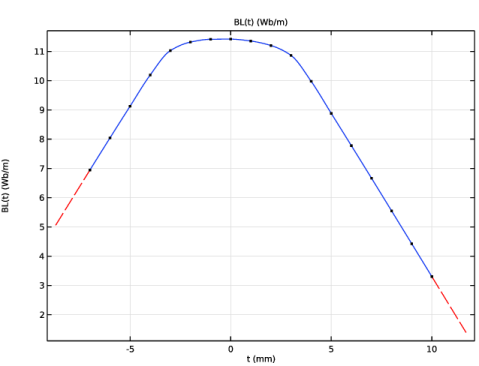
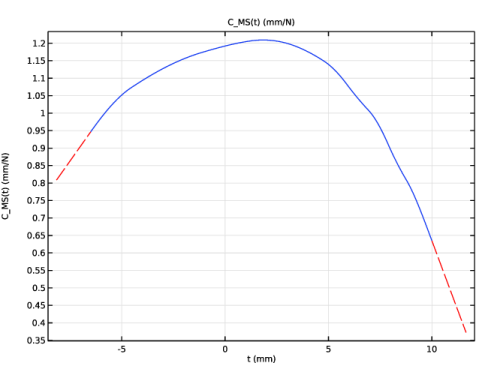
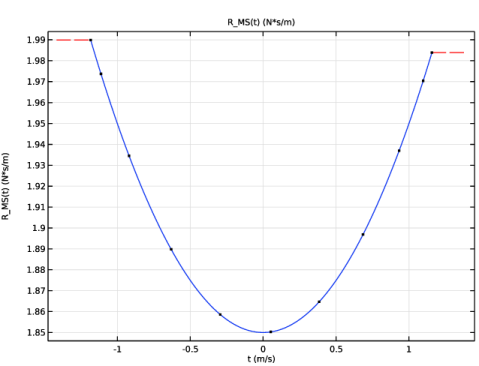
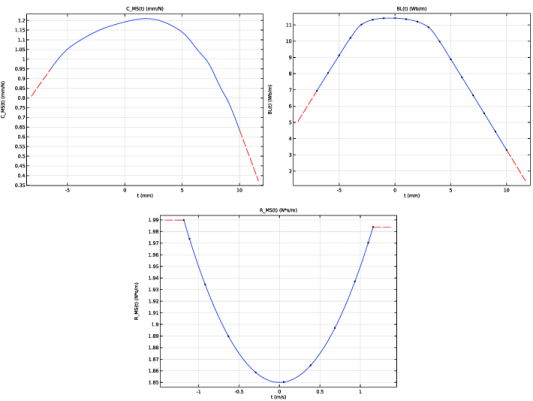
The large signal parameters are depicted in Figure 1. The values of the curves are taken to roughly correspond to properties extracted from the Loudspeaker Driver — Frequency-Domain Analysis and the Loudspeaker Driver — Transient Analysis tutorial models. The data is just an example for the purpose of demonstration in this model.
Figure 1: Large signal parameters used in the model, CMS(x), BL(x), and RMS(v).
In this model, the applied voltage (to the Voltage Source in the Electrical Circuit model) is a single frequency harmonic signal of the type
where the frequency f0 is set to 50 Hz and the signal amplitude V0 is 15 V. Both values can be found in the Parameters list and modified as necessary. The current input signal will allow for the evaluation of the total harmonic distortion (THD); the signal can be modified to any desired signal, for example, if inter modulation distortion (IMD) is of interest. Note that in the model a ramp is added to the signal to increase it smoothly over the first period. In the analysis of the results, the first two periods are skipped in order to avoid inclusion of any transients.
Results and Discussion
The model contains several plots that analyze the response of the speaker as well as the behavior and contribution of the large signal parameters. The contribution of each large signal parameter, to the overall nonlinear behavior of the speaker, can of course be studied by setting one or more of the parameters to constants.
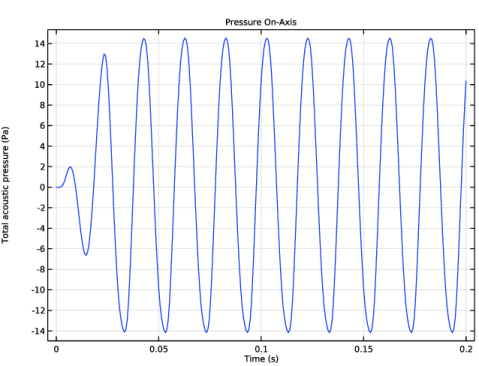
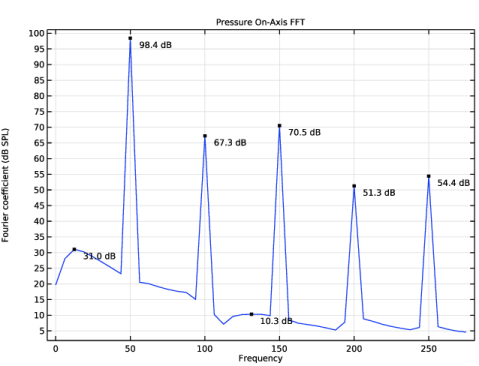
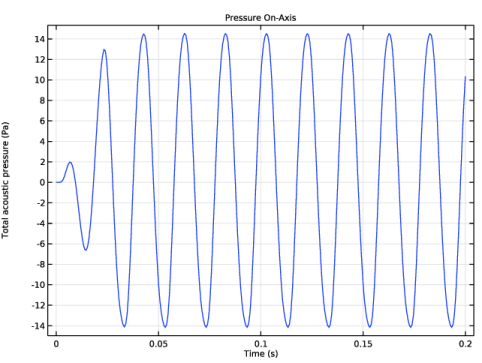
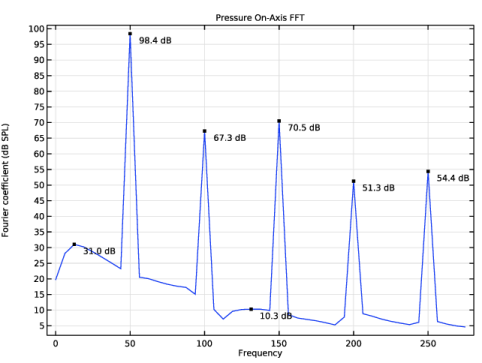
The pressure is evaluated in a point 20 cm in front of the speaker. The time signal is depicted in Figure 2. The frequency spectrum of the nonlinear periodic part of the signal (skipping the first two periods) is depicted in Figure 3. The peak values of the generated harmonics are also depicted. These can be used to evaluate the THD.
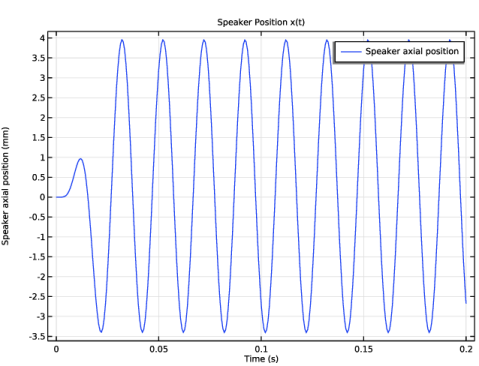
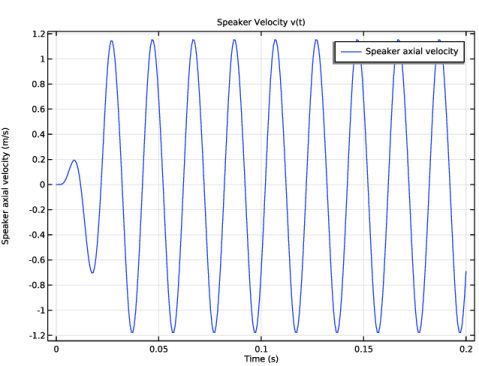
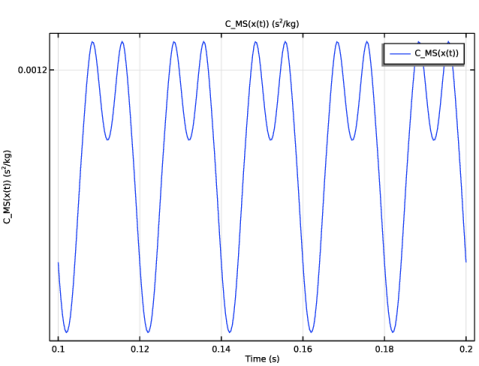
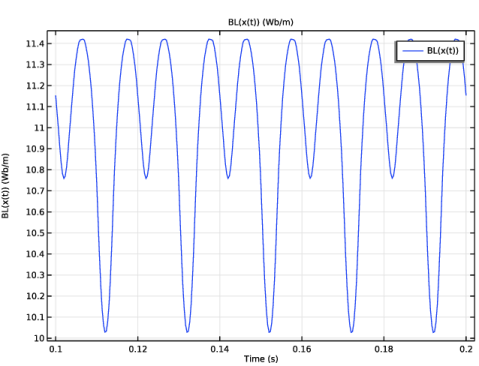
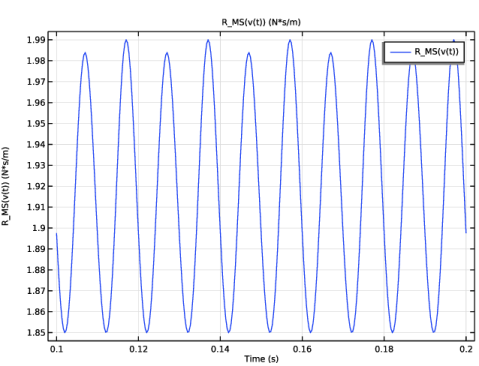
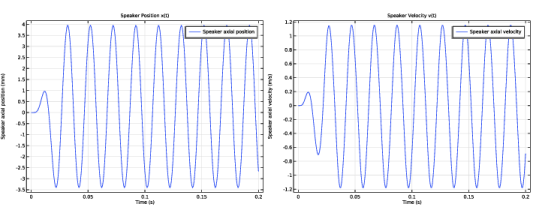
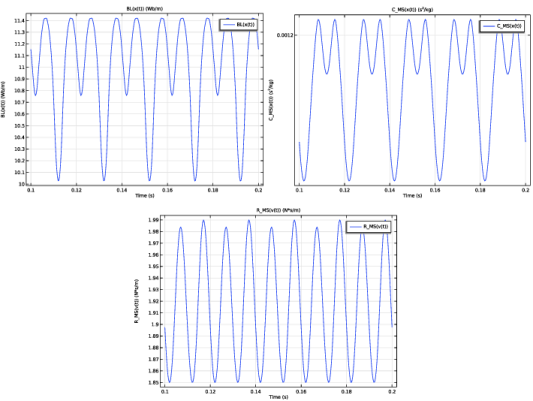
The speaker axial position and velocity as function of time are depicted in Figure 4. Finally, the variation of the large signal parameters over time is depicted in Figure 5.
Figure 2: Pressure as function of time.
Figure 3: Frequency spectrum of the nonlinear periodic part of the signal. Peak values shown for the generated harmonics.
Figure 4: Axial position and velocity as function of time.
Figure 5: The variation of the large signal parameters as function of time.
Notes About The COMSOL Implementation
In the Electrical Circuit interface the capacitor in the mechanical system (representing the compliance of the suspension) is modeled using a Voltage-Controlled Current Source device. This is in order to ensure that the time varying capacitance (the compliance) is taken fully into account. The compliance is time dependent in the model through the displacement: CMS = CMS(x) = CMS(x(t)). The setup ensures that the current–voltage relation for the device follows
(1)
such that the full time derivative is taken (chain-rule is automatically applied). Here, Q is the charge. The voltage V is described using the built-in variable sens.v, which measures the voltage difference between the two nodes defined in the Node Connections section.
The built-in capacitor device uses the simpler relation
(2).
Application Library path: Acoustics_Module/Electroacoustic_Transducers/lumped_loudspeaker_driver_transient
Modeling Instructions
From the File menu, choose New.
New
In the New window, click  Model Wizard.
Model Wizard
1
In the Model Wizard window, click  2D Axisymmetric.
2
In the Select Physics tree, select Acoustics > Pressure Acoustics > Pressure Acoustics, Transient (actd).
3
Click Add.
4
Click  Study.
5
In the Select Study tree, select General Studies > Time Dependent.
6
Global Definitions
Parameters 1
1
In the Model Builder window, under Global Definitions click Parameters 1.
2
In the Settings window for Parameters, locate the Parameters section.
3
Click  Load from File.
4
Interpolation 1 (int1)
1
In the Home toolbar, click  Functions and choose Global > Interpolation.
2
In the Settings window for Interpolation, locate the Definition section.
3
From the Data source list, choose File.
4
Click  Browse.
5
6
Click  Import.
7
In the Function name text field, type BL.
8
Locate the Interpolation and Extrapolation section. From the Interpolation list, choose Piecewise cubic.
9
From the Extrapolation list, choose Linear.
10
Locate the Units section. In the Function table, enter the following settings:
11
In the Argument table, enter the following settings:
Interpolation 2 (int2)
1
In the Home toolbar, click  Functions and choose Global > Interpolation.
2
In the Settings window for Interpolation, locate the Definition section.
3
From the Data source list, choose File.
4
Click  Browse.
5
6
Click  Import.
7
In the Function name text field, type C_MS.
8
Locate the Interpolation and Extrapolation section. From the Extrapolation list, choose Linear.
9
Locate the Units section. In the Function table, enter the following settings:
10
In the Argument table, enter the following settings:
Interpolation 3 (int3)
1
In the Home toolbar, click  Functions and choose Global > Interpolation.
2
In the Settings window for Interpolation, locate the Definition section.
3
From the Data source list, choose File.
4
Click  Browse.
5
6
Click  Import.
7
In the Function name text field, type R_MS.
8
Locate the Interpolation and Extrapolation section. From the Interpolation list, choose Cubic spline.
9
Locate the Units section. In the Function table, enter the following settings:
10
In the Argument table, enter the following settings:
Definitions
Ramp 1 (rm1)
1
In the Definitions toolbar, click  More Functions and choose Ramp.
2
In the Settings window for Ramp, locate the Parameters section.
3
In the Location text field, type 0.1*T0.
4
In the Slope text field, type 1/T0.
5
Select the Cutoff checkbox.
6
Click to expand the Smoothing section.
7
Select the Size of transition zone at start checkbox. In the associated text field, type 0.2*T0.
8
Select the Size of transition zone at cutoff checkbox. In the associated text field, type 0.2*T0.
Geometry 1
Circle 1 (c1)
1
In the Geometry toolbar, click  Circle.
2
In the Settings window for Circle, locate the Size and Shape section.
3
In the Radius text field, type 1[cm].
4
In the Sector angle text field, type 180.
5
Locate the Position section. In the r text field, type a.
Circle 2 (c2)
1
In the Geometry toolbar, click  Circle.
2
In the Settings window for Circle, locate the Size and Shape section.
3
In the Radius text field, type Rair+Rpml.
4
In the Sector angle text field, type 180.
5
Locate the Rotation Angle section. In the Rotation text field, type -90.
6
Click to expand the Layers section. In the table, enter the following settings:
Polygon 1 (pol1)
1
In the Geometry toolbar, click  Polygon.
2
In the Settings window for Polygon, locate the Object Type section.
3
From the Type list, choose Open curve.
4
Locate the Coordinates section. In the table, enter the following settings:
Polygon 2 (pol2)
1
In the Geometry toolbar, click  Polygon.
2
In the Settings window for Polygon, locate the Object Type section.
3
From the Type list, choose Open curve.
4
Locate the Coordinates section. In the table, enter the following settings:
5
Click  Build All Objects.
6
Click the  Zoom Extents button in the Graphics toolbar.
Quadratic Bézier 1 (qb1)
1
In the Geometry toolbar, click  More Primitives and choose Quadratic Bézier.
2
In the Settings window for Quadratic Bézier, locate the Control Points section.
3
In row 2, set r to 1.8[cm].
4
In row 3, set r to 3[cm].
5
In row 1, set z to -3[cm].
6
In row 2, set z to -3.1[cm].
7
In row 3, set z to -4[cm].
8
Locate the Weights section. In the 2 text field, type 1.5.
9
Click  Build All Objects.
Delete Entities 1 (del1)
1
In the Model Builder window, right-click Geometry 1 and choose Delete Entities.
2
On the object c1, select Boundaries 3 and 4 only.
3
In the Settings window for Delete Entities, click  Build Selected.
Polygon 3 (pol3)
1
In the Geometry toolbar, click  Polygon.
2
In the Settings window for Polygon, locate the Object Type section.
3
From the Type list, choose Open curve.
4
Locate the Coordinates section. In the table, enter the following settings:
5
Click  Build All Objects.
Definitions
Perfectly Matched Layer 1 (pml1)
1
In the Definitions toolbar, click  Perfectly Matched Layer.
2
3
In the Settings window for Perfectly Matched Layer, locate the Scaling section.
4
In the PML scaling curvature parameter text field, type 3.
Baffle (interior wall)
1
In the Definitions toolbar, click  Explicit.
2
In the Settings window for Explicit, type Baffle (interior wall) in the Label text field.
3
Locate the Input Entities section. From the Geometric entity level list, choose Boundary.
4
Speaker
1
In the Definitions toolbar, click  Explicit.
2
In the Settings window for Explicit, type Speaker in the Label text field.
3
Locate the Input Entities section. From the Geometric entity level list, choose Boundary.
4
Pressure Acoustics, Transient (actd)
Interior Sound Hard Boundary (Wall) 1
1
In the Physics toolbar, click  Boundaries and choose Interior Sound Hard Boundary (Wall).
2
In the Settings window for Interior Sound Hard Boundary (Wall), locate the Boundary Selection section.
3
From the Selection list, choose Baffle (interior wall).
Interior Lumped Speaker Boundary 1
1
In the Physics toolbar, click  Boundaries and choose Interior Lumped Speaker Boundary.
2
In the Settings window for Interior Lumped Speaker Boundary, locate the Boundary Selection section.
3
From the Selection list, choose Speaker.
Proceed and add the electrical circuit model for the speaker (the Thiele-Small representation). For the lumped mechanical part of the model, the units will be transformed from mechanical to electric; this is only to avoid the unit warning, the model solves nicely without the unit transform.
It is in the lumped model that the nonlinear parameters are used. The Interior Lumped Speaker Boundary defines variables for the axial position and the axial velocity; they are actd.ilsb1.x_ax and actd.ilsb1.v_ax, respectively.
Add Physics
1
In the Home toolbar, click  Add Physics to open the Add Physics window.
2
Go to the Add Physics window.
3
In the tree, select AC/DC > Electrical Circuit (cir).
4
Click the Add to Component 1 button in the window toolbar.
5
In the Home toolbar, click  Add Physics to close the Add Physics window.
Electrical Circuit (cir)
Voltage Source 1 (V1)
1
In the Electrical Circuit toolbar, click  Voltage Source.
2
In the Settings window for Voltage Source, locate the Node Connections section.
3
4
Locate the Device Parameters section. In the vsrc text field, type V0*sin(2*pi*f0*t)*nojac(rm1(t)).
Resistor 1 (R1)
1
In the Electrical Circuit toolbar, click  Resistor.
2
In the Settings window for Resistor, locate the Node Connections section.
3
4
Locate the Device Parameters section. In the R text field, type R_E.
Inductor 1 (L1)
1
In the Electrical Circuit toolbar, click  Inductor.
2
In the Settings window for Inductor, locate the Node Connections section.
3
4
Locate the Device Parameters section. In the L text field, type L_E.
Current-Controlled Voltage Source 1 (H1)
1
In the Electrical Circuit toolbar, click  Current-Controlled Voltage Source.
2
In the Settings window for Current-Controlled Voltage Source, locate the Node Connections section.
3
4
Locate the Current Measurement section. In the Gain text field, type BL(actd.ilsb1.x_ax)[m/Wb*ohm].
Current-Controlled Voltage Source 2 (H2)
1
In the Electrical Circuit toolbar, click  Current-Controlled Voltage Source.
2
In the Settings window for Current-Controlled Voltage Source, locate the Node Connections section.
3
4
Locate the Current Measurement section. From the Measure current for device list, choose Resistor 1 (R1).
5
In the Gain text field, type BL(actd.ilsb1.x_ax)[m/Wb*ohm].
Inductor 2 (L2)
1
In the Electrical Circuit toolbar, click  Inductor.
2
In the Settings window for Inductor, locate the Node Connections section.
3
4
Locate the Device Parameters section. In the L text field, type M_MD[H/kg].
Current-Controlled Voltage Source 1 (H1)
1
In the Model Builder window, click Current-Controlled Voltage Source 1 (H1).
2
In the Settings window for Current-Controlled Voltage Source, locate the Current Measurement section.
3
From the Measure current for device list, choose Inductor 2 (L2).
Resistor 2 (R2)
1
In the Electrical Circuit toolbar, click  Resistor.
2
In the Settings window for Resistor, locate the Node Connections section.
3
4
Locate the Device Parameters section. In the R text field, type R_MS(actd.ilsb1.v_ax)[ohm/kg*s].
Next set up a voltage controlled current source in order to define a generalized capacitor, where the capacitance (the compliance of the speaker) can be time dependent. The compliance depends on the position x, which depends on time t. This element will use the full time derivative, including chain-rule terms. See details in the main documentation. The effect of not including chain-rule terms can best be seen in this model by only retaining Cms(x) as large signal parameter.
Voltage-Controlled Current Source 1 - Generalized Capacitor
1
In the Electrical Circuit toolbar, click  Voltage-Controlled Current Source.
2
In the Settings window for Voltage-Controlled Current Source, type Voltage-Controlled Current Source 1 - Generalized Capacitor in the Label text field.
3
Locate the Node Connections section. In the table, enter the following settings:
4
Locate the Voltage Measurement section. From the Method list, choose Custom expression.
5
6
In the f(t,sens1.v,…,sensn.v) text field, type d(C_MS(actd.ilsb1.x_ax)*sens.v,t).
External I vs. U 1 (IvsU1)
1
In the Electrical Circuit toolbar, click  External I vs. U.
2
In the Settings window for External I vs. U, locate the Node Connections section.
3
4
Locate the External Device section. From the V list, choose Voltage from lumped speaker boundary (actd/ilsb1).
Pressure Acoustics, Transient (actd)
1
In the Model Builder window, under Component 1 (comp1) click Pressure Acoustics, Transient (actd).
2
In the Settings window for Pressure Acoustics, Transient, locate the Transient Solver and Mesh Settings section.
3
In the fmax text field, type N0*f0.
Add Material
1
In the Materials toolbar, click  Add Material to open the Add Material window.
2
Go to the Add Material window.
3
In the tree, select Built-in > Air.
4
Click the Add to Component button in the window toolbar.
5
In the Materials toolbar, click  Add Material to close the Add Material window.
Mesh 1
1
In the Model Builder window, under Component 1 (comp1) click Mesh 1.
2
In the Settings window for Mesh, locate the Physics-Controlled Mesh section.
3
In the table, clear the Use checkbox for Electrical Circuit (cir).
4
Click  Build All.
5
Click the  Zoom Extents button in the Graphics toolbar.
Study 1
Step 1: Time Dependent
1
In the Model Builder window, under Study 1 click Step 1: Time Dependent.
2
In the Settings window for Time Dependent, locate the Study Settings section.
3
In the Output times text field, type range(0,T0/30,10*T0).
4
In the Study toolbar, click  Compute.
Results
Pressure On-Axis
1
In the Results toolbar, click  1D Plot Group.
2
In the Settings window for 1D Plot Group, type Pressure On-Axis in the Label text field.
3
Click to expand the Title section. From the Title type list, choose Label.
Point Graph 1
1
Right-click Pressure On-Axis and choose Point Graph.
2
3
In the Pressure On-Axis toolbar, click  Plot.
Pressure On-Axis FFT
1
In the Results toolbar, click  1D Plot Group.
2
In the Settings window for 1D Plot Group, type Pressure On-Axis FFT in the Label text field.
3
Locate the Data section. From the Time selection list, choose Interpolated.
4
In the Times (s) text field, type range(2*T0,T0/100,10*T0).
The interpolation option is used to only use the solution after the initial transient ramp behavior. The sampling is also increased to get a higher frequency resolution in the FFT.
5
Locate the Title section. From the Title type list, choose Label.
6
Locate the Plot Settings section.
7
Select the y-axis label checkbox. In the associated text field, type Fourier coefficient (dB SPL).
Point Graph 1
1
Right-click Pressure On-Axis FFT and choose Point Graph.
2
3
In the Settings window for Point Graph, locate the x-Axis Data section.
4
From the Parameter list, choose Discrete Fourier transform.
5
From the Show list, choose Frequency spectrum.
6
From the Scale list, choose Multiply by sampling period.
7
Select the Frequency range checkbox.
8
In the Maximum text field, type (N0+1.5)*f0.
9
Select the In dB checkbox.
10
From the dB type list, choose 20log.
11
From the dB reference list, choose Manual.
12
In the Reference value text field, type 20e-6.
13
In the Pressure On-Axis FFT toolbar, click  Plot.
Graph Marker 1
1
In the Model Builder window, right-click Point Graph 1 and choose Graph Marker.
2
In the Settings window for Graph Marker, locate the Display section.
3
From the Display list, choose Max.
4
From the Scope list, choose Local.
5
Locate the Text Format section. In the Precision text field, type 3.
6
In the Suffix text field, type dB.
7
In the Pressure On-Axis FFT toolbar, click  Plot.
Speaker Position x(t)
1
In the Results toolbar, click  1D Plot Group.
2
In the Settings window for 1D Plot Group, type Speaker Position x(t) in the Label text field.
3
Locate the Title section. From the Title type list, choose Label.
Global 1
1
Right-click Speaker Position x(t) and choose Global.
2
In the Settings window for Global, click Replace Expression in the upper-right corner of the y-Axis Data section. From the menu, choose Component 1 (comp1) > Pressure Acoustics, Transient > Interior Lumped Speaker Boundary 1 > actd.ilsb1.x_ax - Speaker axial position - m.
3
Locate the y-Axis Data section. In the table, enter the following settings:
4
In the Speaker Position x(t) toolbar, click  Plot.
Speaker Velocity v(t)
1
In the Results toolbar, click  1D Plot Group.
2
In the Settings window for 1D Plot Group, type Speaker Velocity v(t) in the Label text field.
3
Locate the Title section. From the Title type list, choose Label.
Global 1
1
Right-click Speaker Velocity v(t) and choose Global.
2
In the Settings window for Global, click Replace Expression in the upper-right corner of the y-Axis Data section. From the menu, choose Component 1 (comp1) > Pressure Acoustics, Transient > Interior Lumped Speaker Boundary 1 > actd.ilsb1.v_ax - Speaker axial velocity - m/s.
3
In the Speaker Velocity v(t) toolbar, click  Plot.
C_MS(x(t))
1
In the Results toolbar, click  1D Plot Group.
2
In the Settings window for 1D Plot Group, type C_MS(x(t)) in the Label text field.
3
Locate the Data section. From the Time selection list, choose Interpolated.
4
In the Times (s) text field, type range(5*T0,T0/60,10*T0).
Global 1
1
Right-click C_MS(x(t)) and choose Global.
2
In the Settings window for Global, locate the y-Axis Data section.
3
4
In the C_MS(x(t)) toolbar, click  Plot.
BL(x(t))
1
In the Results toolbar, click  1D Plot Group.
2
In the Settings window for 1D Plot Group, type BL(x(t)) in the Label text field.
3
Locate the Data section. From the Time selection list, choose Interpolated.
4
In the Times (s) text field, type range(5*T0,T0/60,10*T0).
Global 1
1
Right-click BL(x(t)) and choose Global.
2
In the Settings window for Global, locate the y-Axis Data section.
3
4
In the BL(x(t)) toolbar, click  Plot.
R_MS(v(t))
1
In the Results toolbar, click  1D Plot Group.
2
In the Settings window for 1D Plot Group, type R_MS(v(t)) in the Label text field.
3
Locate the Data section. From the Time selection list, choose Interpolated.
4
In the Times (s) text field, type range(5*T0,T0/60,10*T0).
Global 1
1
Right-click R_MS(v(t)) and choose Global.
2
In the Settings window for Global, locate the y-Axis Data section.
3
4
In the R_MS(v(t)) toolbar, click  Plot.
Global Definitions
Interpolation 1 (BL)
1
In the Model Builder window, under Global Definitions click Interpolation 1 (BL).
2
In the Settings window for Interpolation, click  Create Plot.
Results
Interpolation Data: BL(x)
1
In the Settings window for 1D Plot Group, type Interpolation Data: BL(x) in the Label text field.
2
In the Interpolation Data: BL(x) toolbar, click  Plot.
Global Definitions
Interpolation 2 (C_MS)
1
In the Model Builder window, under Global Definitions click Interpolation 2 (C_MS).
2
In the Settings window for Interpolation, click  Create Plot.
Results
Interpolation Data: C_MS(x)
1
In the Settings window for 1D Plot Group, type Interpolation Data: C_MS(x) in the Label text field.
2
In the Interpolation Data: C_MS(x) toolbar, click  Plot.
Global Definitions
Interpolation 3 (R_MS)
1
In the Model Builder window, under Global Definitions click Interpolation 3 (R_MS).
2
In the Settings window for Interpolation, click  Create Plot.
Results
Interpolation Data: R_MS(v)
1
In the Settings window for 1D Plot Group, type Interpolation Data: R_MS(v) in the Label text field.
2
In the Interpolation Data: R_MS(v) toolbar, click  Plot.