PDF

Generic Nacelle with an Acoustic Liner
Introduction
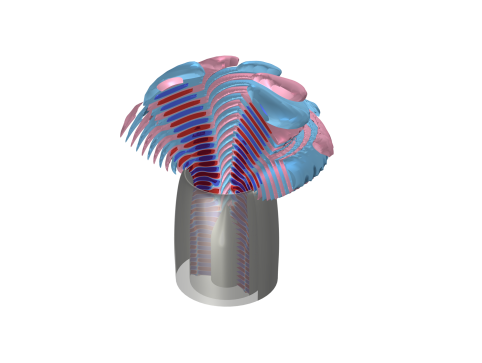
In this model, the sound propagation from a generic nacelle of an aircraft engine is modeled. This is an aeroacoustic problem with a background flow field through the nacelle. Two different modeling approaches are demonstrated in the model:
An acoustic liner is used to dampen the sound from the engine. It is modeled by an impedance on the boundary. In the model with the Linearized Potential Flow, there is no turbulent boundary layer in the background flow field. To include the effect of the turbulent boundary layer, the Brambley impedance boundary condition is used (see Ref. 1 and Ref. 2).
Model Definition
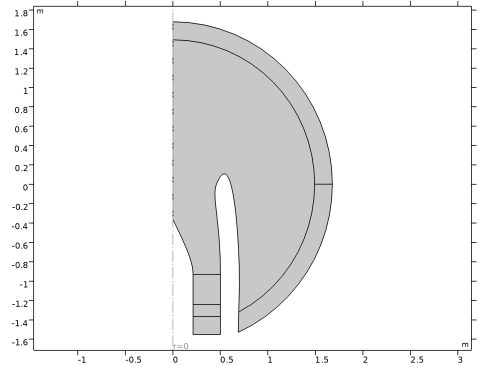
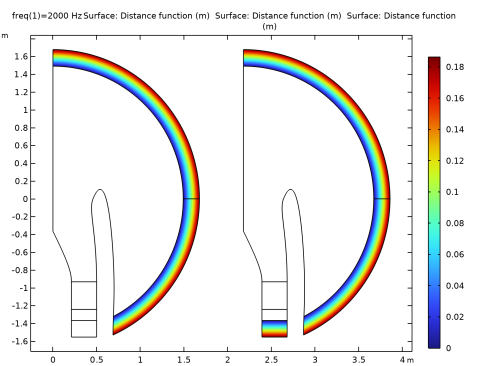
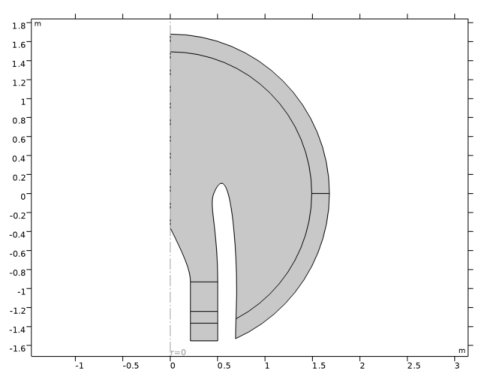
The model uses a 2D axisymmetric geometry of the air domain at the inlet of a generic nacelle from an aircraft engine; see Figure 1. In the acoustic simulations, a PML region is used to dampen the acoustic waves traveling away from the nacelle. The acoustic liner is placed on the inside of the outer nacelle wall.
Figure 1: Geometry of the air domain at the inlet of a generic nacelle.
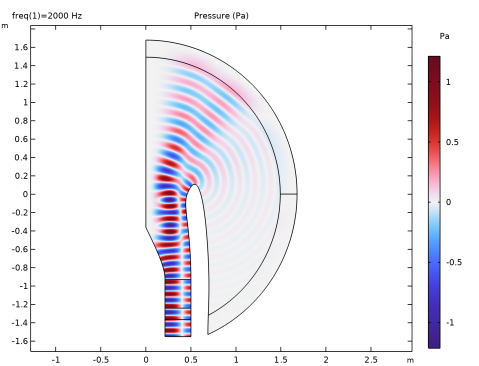
The mode investigated has an angular wavenumber m = 4 and a radial wavenumber of n = 1. In the Linearized Potential Flow interface, a Port feature is used to excite the mode, whereas in the Linearized Navier–Stokes interface, the propagating modes are calculated with a boundary-mode study and subsequently excited with a Background Flow Field feature.
In the Linearized Potential Flow, the impedance model used is the Brambley impedance model, which includes the effect of the turbulent boundary layer in the background flow field. The implemented impedance model assumes that the turbulent boundary layer is linear. The Brambley boundary condition can be seen as an extension to the classical Ingard–Myers impedance condition. The model compares the two methods and investigates the impact of an acoustic liner.
Results and Discussion
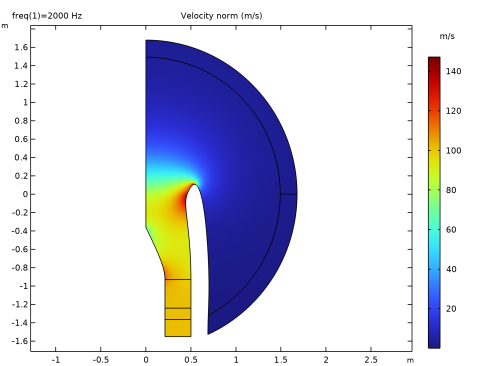
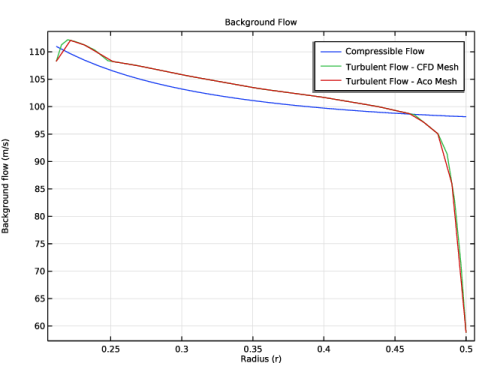
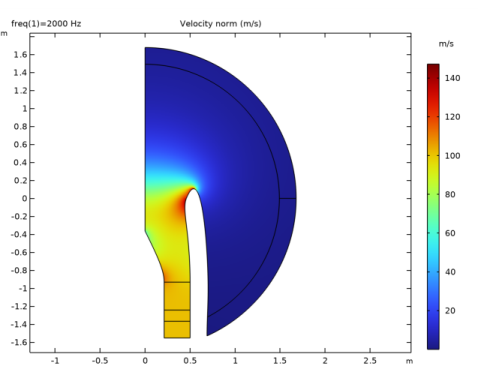
The background flow field modeled with a turbulent flow and a potential flow for the two models are slightly different. The most important difference is that the potential flow by definition does not have a turbulent boundary layer at the nacelle wall. There are slight differences in the maximum flow velocity but the total mass flow through the nacelle is the same. Figure 2 shows the background flow field modeled with the potential flow.
Figure 2: Background flow through the nacelle from Compressible Potential Flow.
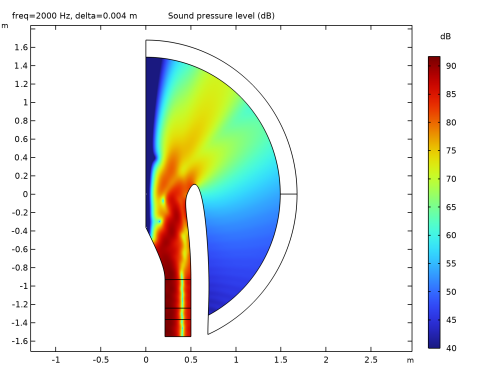
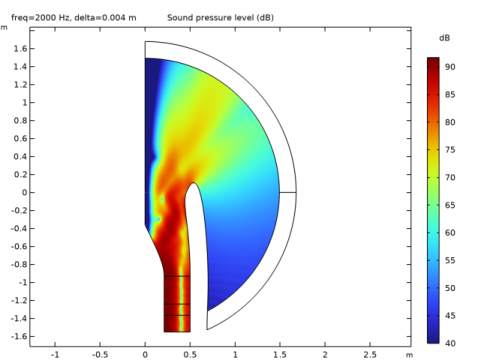
Figure 3 shows the sound pressure level for the excited mode at 2000 Hz for the Linearized Potential Flow. The excited mode has the azimuthal wavenumber m = 4 and radial wavenumber n = 1.
Figure 3: Sound pressure level of the mode m = 4 and n = 1 at 2000 Hz, modeled with Linearized Potential Flow.
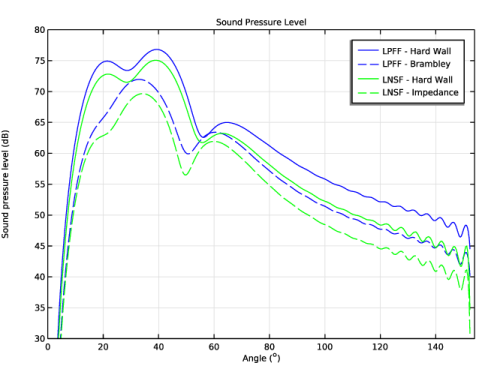
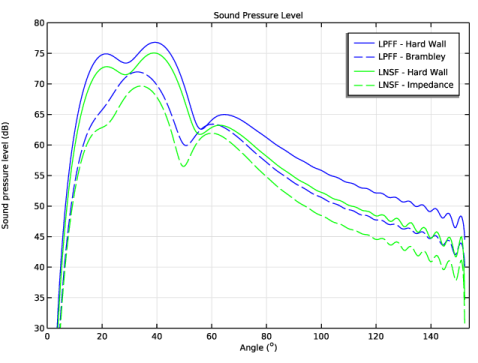
The transmitted sound pressure level is modeled for with and without an acoustic liner. Figure 4 shows the angle dependency of the transmitted sound for both setups. For the Brambley boundary condition the thickness of the turbulent boundary layer has to be estimated in this model. The best fit is for a boundary-layer thickness of 2.2 mm. In reality, the boundary-layer thickness is not constant across the acoustic liner.
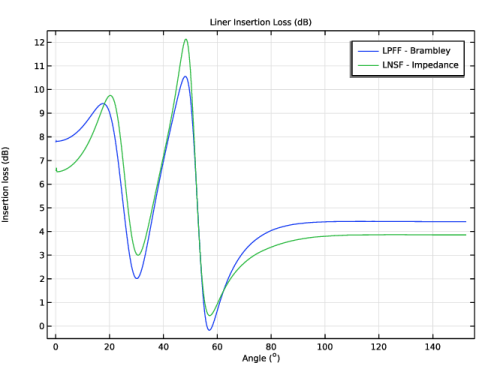
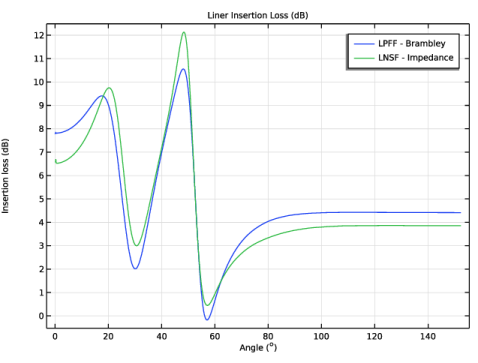
Figure 5 shows the angle-dependent insertion loss of the acoustic liner in the generic nacelle for both studies. Again a boundary layer thickness of 2.2 mm is used.
Figure 4: Angle-dependent sound pressure level of the acoustic fields. Results are shown for both modeling methods and with and without the inserted acoustic liner.
Figure 5: Angle-dependent insertion loss of the acoustic liner in dB.
Notes About the COMSOL Implementation
To excite the correct modes in Linearized Navier–Stokes, the modes are calculated with a boundary-mode study, whose solutions are subsequently used as a background-pressure field.
References
1. E. Brambley, “Well-Posed Boundary Condition for Acoustic Liners in Straight Ducts with Flow,” AIAA J., vol. 49, no. 6, pp. 1272–1282, 2011.
2. L.A. Seki, A.M. Spillere, and J.A. Cordioli, “Numerical implementation of an impedance boundary condition considering a finite boundary layer,” Proc. AIAA Aviation 2021 Forum, AIAA 2021-2168, 2021.
Application Library path: Acoustics_Module/Aeroacoustics_and_Noise/generic_nacelle_liner
Modeling Instructions
From the File menu, choose New.
New
In the New window, click  Model Wizard.
Model Wizard
1
In the Model Wizard window, click  2D Axisymmetric.
2
In the Select Physics tree, select Acoustics > Aeroacoustics > Compressible Potential Flow (cpf).
3
Click Add.
4
In the Select Physics tree, select Acoustics > Aeroacoustics > Linearized Potential Flow, Frequency Domain (lpff).
5
Click Add.
6
Click  Study.
7
In the Select Study tree, select Preset Studies for Some Physics Interfaces > Stationary.
8
Global Definitions
Parameters 1
1
In the Model Builder window, under Global Definitions click Parameters 1.
2
In the Settings window for Parameters, locate the Parameters section.
3
Click  Load from File.
4
Build the geometry using parametric curves.
Geometry 1
Parametric Curve 1 (pc1)
1
In the Model Builder window, expand the Component 1 (comp1) > Geometry 1 node.
2
Right-click Geometry 1 and choose More Primitives > Parametric Curve.
3
In the Settings window for Parametric Curve, locate the Expressions section.
4
In the r text field, type 1/2*(1-0.18453*s^2+0.10158*(exp(-11*(1-s))-exp(-11))/(1-exp(-11))).
5
In the z text field, type s*zi.
Parametric Curve 2 (pc2)
1
In the Geometry toolbar, click  More Primitives and choose Parametric Curve.
2
In the Settings window for Parametric Curve, locate the Expressions section.
3
In the r text field, type 1/2*(0.64212-sqrt(0.04777+0.98234*s^2)).
4
In the z text field, type s*zi.
5
Locate the Parameter section. In the Maximum text field, type 0.7.
Line Segment 1 (ls1)
1
In the Geometry toolbar, click  More Primitives and choose Line Segment.
2
In the Settings window for Line Segment, locate the Starting Point section.
3
From the Specify list, choose Coordinates.
4
In the z text field, type -zi.
5
Locate the Endpoint section. From the Specify list, choose Coordinates.
6
In the z text field, type zi.
Line Segment 2 (ls2)
1
In the Geometry toolbar, click  More Primitives and choose Line Segment.
2
In the Settings window for Line Segment, locate the Starting Point section.
3
Click to select the  Activate Selection toggle button for Start vertex.
4
On the object pc2, select Point 1 only.
5
Locate the Endpoint section. Click to select the  Activate Selection toggle button for End vertex.
6
On the object pc1, select Point 1 only.
Offset 1 (off1)
1
In the Geometry toolbar, click  Offset.
2
3
In the Settings window for Offset, locate the Options section.
4
In the Distance text field, type -zi/3.
5
Click  Build Selected.
Offset 2 (off2)
1
Right-click Offset 1 (off1) and choose Duplicate.
2
Line Segment 3 (ls3)
1
In the Geometry toolbar, click  More Primitives and choose Line Segment.
2
On the object ls2, select Point 1 only.
3
In the Settings window for Line Segment, locate the Endpoint section.
4
Click to select the  Activate Selection toggle button for End vertex.
5
On the object off2, select Point 1 only.
Line Segment 4 (ls4)
1
In the Geometry toolbar, click  More Primitives and choose Line Segment.
2
On the object ls2, select Point 2 only.
3
In the Settings window for Line Segment, locate the Endpoint section.
4
Click to select the  Activate Selection toggle button for End vertex.
5
On the object off2, select Point 2 only.
Line Segment 5 (ls5)
1
In the Geometry toolbar, click  More Primitives and choose Line Segment.
2
In the Settings window for Line Segment, locate the Starting Point section.
3
From the Specify list, choose Coordinates.
4
In the z text field, type -2/3*zi.
5
Locate the Endpoint section. From the Specify list, choose Coordinates.
6
In the z text field, type -2/3*zi.
7
In the r text field, type 1.5*zi.
Interpolation Curve 1 (ic1)
1
In the Geometry toolbar, click  More Primitives and choose Interpolation Curve.
2
In the Settings window for Interpolation Curve, locate the Interpolation Points section.
3
4
Locate the End Conditions section. From the Condition at endpoint list, choose Tangent direction.
5
In the r text field, type 0.
6
In the z text field, type -1.
Convert to Solid 1 (csol1)
1
In the Geometry toolbar, click  Conversions and choose Convert to Solid.
2
In the Settings window for Convert to Solid, locate the Input section.
3
From the Input objects list, choose All objects.
4
Click  Build All Objects.
Circle 1 (c1)
1
In the Geometry toolbar, click  Circle.
2
In the Settings window for Circle, locate the Size and Shape section.
3
In the Radius text field, type 1.8*zi.
4
In the Sector angle text field, type 180.
5
Locate the Position section. In the z text field, type zi.
6
Locate the Rotation Angle section. In the Rotation text field, type -90.
7
Click to expand the Layers section. In the table, enter the following settings:
Union 1 (uni1)
1
In the Geometry toolbar, click  Booleans and Partitions and choose Union.
2
In the Settings window for Union, locate the Union section.
3
From the Input objects list, choose All objects.
4
Click  Build Selected.
Delete Entities 1 (del1)
1
In the Model Builder window, right-click Geometry 1 and choose Delete Entities.
2
In the Settings window for Delete Entities, locate the Entities or Objects to Delete section.
3
From the Geometric entity level list, choose Domain.
4
On the object uni1, select Domains 1–3 and 9–11 only.
5
Click  Build Selected.
Move 1 (mov1)
1
In the Geometry toolbar, click  Transforms and choose Move.
2
3
In the Settings window for Move, locate the Displacement section.
4
In the z text field, type -zi.
5
Click  Build All Objects.
Offset 3 (off3)
1
In the Geometry toolbar, click  Offset.
2
In the Settings window for Offset, locate the Input section.
3
From the Geometric entity level list, choose Boundary.
4
On the object mov1, select Boundary 5 only.
5
Locate the Options section. In the Distance text field, type -0.2*zi.
6
Click  Build Selected.
Ignore Edges 1 (ige1)
1
In the Geometry toolbar, click  Virtual Operations and choose Ignore Edges.
2
On the object fin, select Boundary 19 only.
Form Union (fin)
1
In the Geometry toolbar, click  Build All.
2
In the Model Builder window, click Form Union (fin).
Add Material
1
In the Materials toolbar, click  Add Material to open the Add Material window.
2
Go to the Add Material window.
3
In the tree, select Built-in > Air.
4
Click the Add to Component button in the window toolbar.
5
In the Materials toolbar, click  Add Material to close the Add Material window.
Definitions
Perfectly Matched Layer 1 (pml1)
1
In the Model Builder window, expand the Component 1 (comp1) > Definitions node.
2
Right-click Definitions and choose Perfectly Matched Layer.
3
4
In the Settings window for Perfectly Matched Layer, locate the Scaling section.
5
From the Coordinate stretching type list, choose Rational.
6
Locate the Geometry section. From the Type list, choose User defined.
7
8
Locate the Scaling section. From the Typical wavelength from list, choose User defined.
9
In the Typical wavelength text field, type lam0.
10
In the PML scaling curvature parameter text field, type 3.
To set up the perfectly matched layer, use the user-defined option. Here, the distance function is written as a user defined expression.
Compressible Potential Flow (cpf)
1
In the Model Builder window, under Component 1 (comp1) click Compressible Potential Flow (cpf).
2
In the Settings window for Compressible Potential Flow, locate the Reference Values section.
3
In the vref text field, type Ma*c0.
Mass Flow 1
1
In the Physics toolbar, click  Boundaries and choose Mass Flow.
2
3
In the Settings window for Mass Flow, locate the Mass Flow section.
4
In the vn text field, type -cpf.vref.
Normal Flow 1
1
In the Physics toolbar, click  Boundaries and choose Normal Flow.
2
Multiphysics
Background Potential Flow Coupling 1 (pfc1)
In the Physics toolbar, click  Multiphysics Couplings and choose Global > Background Potential Flow Coupling.
Linearized Potential Flow, Frequency Domain (lpff)
1
In the Model Builder window, under Component 1 (comp1) click Linearized Potential Flow, Frequency Domain (lpff).
2
In the Settings window for Linearized Potential Flow, Frequency Domain, locate the Linearized Potential Flow Equation Settings section.
3
In the m text field, type m.
Port 1
1
In the Physics toolbar, click  Boundaries and choose Port.
Add a port feature to excite the desired mode. The mode has the radial wave number n and angular wave number m.
2
3
In the Settings window for Port, locate the Port Properties section.
4
From the Type of port list, choose Annular.
5
Locate the Port Incident Mode Settings section. From the Incident wave excitation at this port list, choose On.
6
Locate the Port Mode Settings section. In the n text field, type n.
7
Locate the Port Incident Mode Settings section. From the Define incident wave list, choose Amplitude (pressure).
8
In the Apin text field, type p0.
Impedance - Brambley
1
In the Physics toolbar, click  Boundaries and choose Impedance.
2
3
In the Settings window for Impedance, type Impedance - Brambley in the Label text field.
4
Locate the Impedance section. From the Impedance model list, choose Brambley (finite boundary layer).
5
In the Zn text field, type lpff.rho0*lpff.c0*Zrel.
6
In the δ text field, type delta.
Use the Brambley (finite boundary layer) option. It takes the specific impedance and the thickness of the turbulent boundary layer of the background flow as inputs.
Mesh 1
Distribution 1
1
In the Model Builder window, under Component 1 (comp1) right-click Mesh 1 and choose Distribution.
2
3
In the Settings window for Distribution, locate the Distribution section.
4
In the Number of elements text field, type 12.
Size
1
In the Model Builder window, click Size.
2
In the Settings window for Size, locate the Element Size section.
3
Click the Custom button.
4
Locate the Element Size Parameters section. In the Maximum element size text field, type 0.01.
Free Triangular 1
1
In the Mesh toolbar, click  Free Triangular.
2
In the Settings window for Free Triangular, locate the Domain Selection section.
3
From the Geometric entity level list, choose Domain.
4
5
Click  Build Selected.
Mapped 1
In the Mesh toolbar, click  Mapped.
Boundary Layers 1
In the Mesh toolbar, click  Boundary Layers.
Boundary Layer Properties
1
In the Model Builder window, click Boundary Layer Properties.
2
3
In the Settings window for Boundary Layer Properties, locate the Layers section.
4
In the Number of layers text field, type 1.
5
Click  Build All.
Study 1 - LPFF - Hard Wall
1
In the Model Builder window, click Study 1.
2
In the Settings window for Study, type Study 1 - LPFF - Hard Wall in the Label text field.
Step 2: Frequency Domain
1
In the Study toolbar, click  Frequency Domain.
Disable the impedance boundary condition in the study to model a sound hard wall.
2
In the Settings window for Frequency Domain, locate the Study Settings section.
3
In the Frequencies text field, type f0.
4
Locate the Physics and Variables Selection section. Select the Modify model configuration for study step checkbox.
5
In the tree, select Component 1 (comp1) > Linearized Potential Flow, Frequency Domain (lpff) > Impedance - Brambley.
6
Add Study
1
In the Home toolbar, click  Add Study to open the Add Study window.
2
Go to the Add Study window.
3
Find the Studies subsection. In the Select Study tree, select Preset Studies for Some Physics Interfaces > Stationary.
4
Click the Add Study button in the window toolbar.
5
In the Home toolbar, click  Add Study to close the Add Study window.
Study 2 - LPFF - Brambley
1
In the Settings window for Study, type Study 2 - LPFF - Brambley in the Label text field.
2
In the Study toolbar, click  Frequency Domain.
1
In the Settings window for Frequency Domain, locate the Study Settings section.
2
In the Frequencies text field, type f0.
3
Click to expand the Study Extensions section. Select the Auxiliary sweep checkbox.
4
5
6
7
Click  Range.
8
In the Range dialog, type 0 in the Start text field.
9
In the Step text field, type 0.2[mm].
10
In the Stop text field, type 4[mm].
11
Click Replace.
Add Component
In the Model Builder window, right-click Study 2 - LPFF - Brambley and choose 2D Axisymmetric.
Geometry 2
Import 1 (imp1)
1
In the Home toolbar, click  Import.
In Component 2, set up the same model with the physics interfaces Turbulent Flow and Linearized Navier–Stokes.
2
In the Settings window for Import, locate the Source section.
3
From the Source list, choose Geometry sequence.
4
From the Geometry list, choose Geometry 1.
5
Click Import.
6
Click  Build All Objects.
Add Material
1
In the Materials toolbar, click  Add Material to open the Add Material window.
2
Go to the Add Material window.
3
In the tree, select Built-in > Air.
4
Click the Add to Component button in the window toolbar.
5
In the Materials toolbar, click  Add Material to close the Add Material window.
Add Physics
1
In the Home toolbar, click  Add Physics to open the Add Physics window.
2
Go to the Add Physics window.
3
In the tree, select Fluid Flow > Single-Phase Flow > Turbulent Flow > Turbulent Flow, SST (spf).
4
Click the Add to Component 2 button in the window toolbar.
5
In the tree, select Acoustics > Aeroacoustics > Linearized Navier–Stokes, Frequency Domain (lnsf).
6
Click the Add to Component 2 button in the window toolbar.
7
In the tree, select Acoustics > Aeroacoustics > Linearized Navier–Stokes, Boundary Mode (lnsbm).
8
Click the Add to Component 2 button in the window toolbar.
9
In the Home toolbar, click  Add Physics to close the Add Physics window.
Linearized Navier–Stokes, Boundary Mode (lnsbm)
Add a Linearized Navier–Stokes, Boundary Mode interface, to model the correct modes to excite.
1
In the Settings window for Linearized Navier–Stokes, Boundary Mode, locate the Boundary Selection section.
2
Click  Clear Selection.
3
Turbulent Flow, SST (spf)
Inlet 1
1
In the Physics toolbar, click  Boundaries and choose Inlet.
2
3
In the Settings window for Inlet, locate the Boundary Condition section.
4
Outlet 1
1
In the Physics toolbar, click  Boundaries and choose Outlet.
2
3
In the Settings window for Outlet, locate the Boundary Condition section.
4
From the list, choose Fully developed flow.
5
Locate the Fully Developed Flow section. Click the Average velocity button.
6
In the Uav text field, type c0*Ma.
Multiphysics
Background Fluid Flow Coupling 1 (bffc1)
1
In the Physics toolbar, click  Multiphysics Couplings and choose Domain > Background Fluid Flow Coupling.
2
In the Settings window for Background Fluid Flow Coupling, locate the Domain Selection section.
3
From the Selection list, choose All domains.
4
Locate the Variables to Map section. Select the Map the turbulent viscosity checkbox.
Definitions (comp2)
Perfectly Matched Layer 2 (pml2)
1
In the Definitions toolbar, click  Perfectly Matched Layer.
2
3
In the Settings window for Perfectly Matched Layer, locate the Geometry section.
4
From the Type list, choose User defined.
5
6
Locate the Scaling section. From the Typical wavelength from list, choose User defined.
7
In the Typical wavelength text field, type lam0.
8
In the PML scaling curvature parameter text field, type 3.
Artificial Domains
Perfectly Matched Layer 3 (pml3)
1
In the Definitions toolbar, click  Perfectly Matched Layer.
2
3
In the Settings window for Perfectly Matched Layer, locate the Geometry section.
4
From the Type list, choose User defined.
5
6
Locate the Scaling section. From the Typical wavelength from list, choose User defined.
7
In the Typical wavelength text field, type lam0.
8
In the PML scaling curvature parameter text field, type 3.
Linearized Navier–Stokes, Frequency Domain (lnsf)
1
In the Model Builder window, under Component 2 (comp2) click Linearized Navier–Stokes, Frequency Domain (lnsf).
2
In the Settings window for Linearized Navier–Stokes, Frequency Domain, locate the Linearized Navier–Stokes Equation Settings section.
3
Select the Out-of-plane mode extension checkbox.
4
In the m text field, type m.
Linearized Navier–Stokes Model 1
1
In the Model Builder window, under Component 2 (comp2) > Linearized Navier–Stokes, Frequency Domain (lnsf) click Linearized Navier–Stokes Model 1.
2
In the Settings window for Linearized Navier–Stokes Model, locate the Model Input section.
3
In the T0 text field, type T0.
Wall 1
1
In the Model Builder window, click Wall 1.
2
In the Settings window for Wall, locate the Mechanical section.
3
From the Mechanical condition list, choose Slip (perfect).
4
Locate the Thermal section. From the Thermal condition list, choose Adiabatic.
Impedance 1
1
In the Physics toolbar, click  Boundaries and choose Impedance.
2
3
In the Settings window for Impedance, locate the Mechanical section.
4
In the Zn text field, type lnsf.rho0*lnsf.c0*Zrel.
Background Acoustic Fields 1
1
In the Physics toolbar, click  Domains and choose Background Acoustic Fields.
Use one of the propagating modes found with the boundary mode analysis.
2
3
In the Settings window for Background Acoustic Fields, locate the Background Acoustic Fields section.
4
In the pb text field, type withsol('sol8',genext1(p3)/maxop1(p3)*exp(-i*lnsbm.kn*z),setind(lambda,n+1))*p0.
5
Specify the ub vector as
6
In the Tb text field, type withsol('sol8',genext1(T2)/maxop1(p3)*exp(-i*lnsbm.kn*z),setind(lambda,n+1))*p0.
Definitions (comp2)
General Extrusion 1 (genext1)
1
In the Definitions toolbar, click  Nonlocal Couplings and choose General Extrusion.
2
In the Settings window for General Extrusion, locate the Source Selection section.
3
From the Geometric entity level list, choose Boundary.
4
5
Locate the Destination Map section. Clear the z-expression text field.
6
Locate the Source section. Select the Use source map checkbox.
7
Clear the zi-expression text field.
Maximum 1 (maxop1)
1
In the Definitions toolbar, click  Nonlocal Couplings and choose Maximum.
2
In the Settings window for Maximum, locate the Source Selection section.
3
From the Geometric entity level list, choose Boundary.
4
Linearized Navier–Stokes, Boundary Mode (lnsbm)
1
In the Model Builder window, under Component 2 (comp2) click Linearized Navier–Stokes, Boundary Mode (lnsbm).
2
In the Settings window for Linearized Navier–Stokes, Boundary Mode, locate the Linearized Navier–Stokes Equation Settings section.
3
Select the Out-of-plane mode extension checkbox.
4
In the m text field, type m.
Study 1 - LPFF - Hard Wall
In the Model Builder window, collapse the Study 1 - LPFF - Hard Wall node.
Study 2 - LPFF - Brambley
In the Model Builder window, collapse the Study 2 - LPFF - Brambley node.
Add Study
1
In the Home toolbar, click  Add Study to open the Add Study window.
2
Go to the Add Study window.
3
Find the Studies subsection. In the Select Study tree, select Preset Studies for Some Physics Interfaces > Stationary with Initialization.
4
Click the Add Study button in the window toolbar.
Study 3 - CFD
In the Settings window for Study, type Study 3 - CFD in the Label text field.
Mesh 2
1
In the Model Builder window, under Component 2 (comp2) click Mesh 2.
2
In the Settings window for Mesh, locate the Physics-Controlled Mesh section.
3
In the table, clear the Use checkboxes for Linearized Navier–Stokes, Frequency Domain (lnsf), Linearized Navier–Stokes, Boundary Mode (lnsbm), and Background Fluid Flow Coupling 1 (bffc1).
4
Click  Build All.
5
Click to collapse the Sequence Type section. Click to collapse the Physics-Controlled Mesh section. Click to expand the Sequence Type section. Click to expand the Physics-Controlled Mesh section. Locate the Sequence Type section. From the list, choose User-controlled mesh.
Free Triangular 1
1
In the Model Builder window, under Component 2 (comp2) > Mesh 2 click Free Triangular 1.
2
Click in the Graphics window and then press Ctrl+A to select all domains.
Boundary Layers 1
1
In the Model Builder window, click Boundary Layers 1.
2
Click in the Graphics window and then press Ctrl+A to select all domains.
Boundary Layer Properties 1
1
In the Model Builder window, expand the Boundary Layers 1 node, then click Boundary Layer Properties 1.
2
3
In the Settings window for Boundary Layer Properties, click  Build All.
4
In the Model Builder window, click Mesh 2.
5
In the Settings window for Mesh, type CFD Mesh in the Label text field.
Aco Mesh
1
In the Mesh toolbar, click Add Mesh and choose Add Mesh.
2
In the Settings window for Mesh, type Aco Mesh in the Label text field.
Distribution 1
1
Right-click Aco Mesh and choose Distribution.
2
3
In the Settings window for Distribution, locate the Distribution section.
4
In the Number of elements text field, type 16.
Free Triangular 1
1
In the Mesh toolbar, click  Free Triangular.
2
In the Settings window for Free Triangular, locate the Domain Selection section.
3
From the Geometric entity level list, choose Domain.
4
Mapped 1
In the Mesh toolbar, click  Mapped.
Size
1
In the Model Builder window, click Size.
2
In the Settings window for Size, locate the Element Size Parameters section.
3
In the Maximum element size text field, type 0.005.
4
Locate the Element Size section. Click the Predefined button.
5
From the Predefined list, choose Extremely fine.
6
Click  Build All.
7
Locate the Element Size Parameters section. In the Maximum element size text field, type 0.01.
8
Click  Build All.
Study 1 - LPFF - Hard Wall
Step 1: Stationary
1
In the Model Builder window, under Study 1 - LPFF - Hard Wall click Step 1: Stationary.
2
In the Settings window for Stationary, locate the Physics and Variables Selection section.
3
In the Solve for column of the table, clear the checkbox for Component 2 (comp2).
Step 2: Frequency Domain
1
In the Model Builder window, click Step 2: Frequency Domain.
2
In the Settings window for Frequency Domain, locate the Physics and Variables Selection section.
3
In the tree, select Component 2 (comp2).
4
Right-click and choose Disable in Solvers.
5
In the Study toolbar, click  Compute.
Study 2 - LPFF - Brambley
Step 1: Stationary
1
In the Model Builder window, expand the Study 2 - LPFF - Brambley node, then click Step 1: Stationary.
2
In the Settings window for Stationary, locate the Physics and Variables Selection section.
3
In the Solve for column of the table, clear the checkbox for Component 2 (comp2).
Step 2: Frequency Domain
1
In the Model Builder window, click Step 2: Frequency Domain.
2
In the Settings window for Frequency Domain, locate the Physics and Variables Selection section.
3
In the Solve for column of the table, clear the checkbox for Component 2 (comp2).
4
In the Study toolbar, click  Compute.
Study 3 - CFD
Step 1: Wall Distance Initialization
1
In the Model Builder window, under Study 3 - CFD click Step 1: Wall Distance Initialization.
2
In the Settings window for Wall Distance Initialization, locate the Physics and Variables Selection section.
3
Select the Modify model configuration for study step checkbox.
4
In the tree, select Component 2 (comp2) > Definitions > Artificial Domains > Perfectly Matched Layer 2 (pml2).
5
6
In the tree, select Component 2 (comp2) > Definitions > Artificial Domains > Perfectly Matched Layer 3 (pml3).
7
Step 2: Stationary
1
In the Model Builder window, click Step 2: Stationary.
2
In the Settings window for Stationary, locate the Physics and Variables Selection section.
3
In the Solve for column of the table, clear the checkbox for Component 1 (comp1).
4
Select the Modify model configuration for study step checkbox.
5
In the tree, select Component 2 (comp2) > Definitions > Artificial Domains > Perfectly Matched Layer 2 (pml2).
6
7
In the tree, select Component 2 (comp2) > Definitions > Artificial Domains > Perfectly Matched Layer 3 (pml3).
8
9
In the Study toolbar, click  Compute.
Add Study
1
Go to the Add Study window.
2
Find the Studies subsection. In the Select Study tree, select Preset Studies for Selected Multiphysics > Mapping.
3
Click the Add Study button in the window toolbar.
Study 4
Step 1: Mapping
1
In the Settings window for Mapping, locate the Data to Map section.
2
From the Source list, choose Study 3 - CFD, Stationary.
3
Click to expand the Destination Mesh Selection section. In the Model Builder window, click Study 4.
4
In the Settings window for Study, type Study 4 - Mapping in the Label text field.
5
In the Study toolbar, click  Compute.
Linearized Navier–Stokes, Boundary Mode (lnsbm)
Linearized Navier–Stokes Model 1
1
In the Model Builder window, under Component 2 (comp2) > Linearized Navier–Stokes, Boundary Mode (lnsbm) click Linearized Navier–Stokes Model 1.
2
In the Settings window for Linearized Navier–Stokes Model, locate the Model Input section.
3
From the u0 list, choose Mapped velocity (bffc1).
4
From the p0 list, choose Mapped pressure (bffc1).
5
In the T0 text field, type T0.
Wall 1
1
In the Model Builder window, click Wall 1.
2
In the Settings window for Wall, locate the Mechanical section.
3
From the Mechanical condition list, choose Slip (perfect).
4
Locate the Thermal section. From the Thermal condition list, choose Adiabatic.
Add Material
1
In the Materials toolbar, click  Add Material to open the Add Material window.
2
Go to the Add Material window.
3
In the tree, select Built-in > Air.
4
Click the Add to Component button in the window toolbar.
5
In the Materials toolbar, click  Add Material to close the Add Material window.
Materials
Air 1 (mat3)
1
In the Settings window for Material, locate the Geometric Entity Selection section.
2
From the Geometric entity level list, choose Boundary.
3
Add Study
1
Go to the Add Study window.
2
Find the Studies subsection. In the Select Study tree, select Preset Studies for Some Physics Interfaces > Mode Analysis.
3
Click the Add Study button in the window toolbar.
Study 5
Step 1: Mode Analysis
1
In the Settings window for Mode Analysis, locate the Study Settings section.
2
In the Mode analysis frequency text field, type f0.
3
From the Search method around shift list, choose Larger real part.
4
Select the Search for modes around shift checkbox.
5
Click to expand the Values of Dependent Variables section. Find the Values of variables not solved for subsection. From the Settings list, choose User controlled.
6
From the Method list, choose Solution.
7
From the Study list, choose Study 4 - Mapping, Mapping.
8
Click to expand the Filtering and Sorting section. Find the Sorting subsection. From the Ordering list, choose Descending.
9
In the Model Builder window, click Study 5.
10
In the Settings window for Study, type Study 5 - Boundary Mode in the Label text field.
11
In the Study toolbar, click  Compute.
Add Study
1
Go to the Add Study window.
2
Find the Studies subsection. In the Select Study tree, select Preset Studies for Some Physics Interfaces > Frequency Domain.
3
Click the Add Study button in the window toolbar.
Study 6
Step 1: Frequency Domain
1
In the Settings window for Frequency Domain, locate the Study Settings section.
2
In the Frequencies text field, type f0.
3
Locate the Physics and Variables Selection section. In the Solve for column of the table, clear the checkbox for Component 1 (comp1).
4
Select the Modify model configuration for study step checkbox.
5
In the tree, select Component 2 (comp2) > Linearized Navier–Stokes, Frequency Domain (lnsf) > Impedance 1.
6
7
Click to expand the Values of Dependent Variables section. Find the Values of variables not solved for subsection. From the Settings list, choose User controlled.
8
From the Method list, choose Solution.
9
From the Study list, choose Study 4 - Mapping, Mapping.
10
In the Model Builder window, click Study 6.
11
In the Settings window for Study, type Study 6 - LNS - Hard Wall in the Label text field.
12
In the Study toolbar, click  Compute.
Add Study
1
Go to the Add Study window.
2
Find the Studies subsection. In the Select Study tree, select Preset Studies for Some Physics Interfaces > Frequency Domain.
3
Click the Add Study button in the window toolbar.
Study 7 - LNS - Impedance
1
In the Settings window for Frequency Domain, locate the Study Settings section.
2
In the Frequencies text field, type f0.
3
Locate the Physics and Variables Selection section. In the Solve for column of the table, clear the checkbox for Component 1 (comp1).
4
Locate the Values of Dependent Variables section. Find the Values of variables not solved for subsection. From the Settings list, choose User controlled.
5
From the Method list, choose Solution.
6
From the Study list, choose Study 4 - Mapping, Mapping.
7
In the Model Builder window, click Study 7.
8
In the Settings window for Study, type Study 7 - LNS - Impedance in the Label text field.
9
In the Study toolbar, click  Compute.
Results
Acoustic Pressure (lpff), Acoustic Pressure (lpff) 1, Acoustic Pressure, 3D (lpff), Acoustic Pressure, 3D (lpff) 1, Mean Flow Velocity (cpf), Mean Flow Velocity (cpf) 1, Mean Flow Velocity, 3D (cpf), Mean Flow Velocity, 3D (cpf) 1, Sound Pressure Level (lpff), Sound Pressure Level (lpff) 1, Sound Pressure Level, 3D (lpff), Sound Pressure Level, 3D (lpff) 1
Right-click and choose Group.
Linearized Potential Flow
In the Settings window for Group, type Linearized Potential Flow in the Label text field.
Pressure (spf), Velocity (spf), Velocity, 3D (spf), Wall Resolution (spf)
1
In the Model Builder window, under Results, Ctrl-click to select Velocity (spf), Pressure (spf), Velocity, 3D (spf), and Wall Resolution (spf).
2
CFD
In the Settings window for Group, type CFD in the Label text field.
Acoustic Pressure (lnsbm), Acoustic Velocity (lnsbm), Background Mean Flow (lnsbm), Temperature Variation (lnsbm)
1
In the Model Builder window, under Results, Ctrl-click to select Acoustic Pressure (lnsbm), Acoustic Velocity (lnsbm), Temperature Variation (lnsbm), and Background Mean Flow (lnsbm).
2
Boundary Mode Analysis
In the Settings window for Group, type Boundary Mode Analysis in the Label text field.
Acoustic Pressure (lnsf), Acoustic Pressure (lnsf) 1, Acoustic Velocity (lnsf), Acoustic Velocity (lnsf) 1, Background Mean Flow (lnsf), Background Mean Flow (lnsf) 1, Temperature Variation (lnsf), Temperature Variation (lnsf) 1
1
In the Model Builder window, under Results, Ctrl-click to select Acoustic Pressure (lnsf), Acoustic Velocity (lnsf), Temperature Variation (lnsf), Background Mean Flow (lnsf), Acoustic Pressure (lnsf) 1, Acoustic Velocity (lnsf) 1, Temperature Variation (lnsf) 1, and Background Mean Flow (lnsf) 1.
2
Linearized Navier Stokes
In the Settings window for Group, type Linearized Navier Stokes in the Label text field.
Acoustic Pressure (lpff)
In the Model Builder window, under Results > Linearized Potential Flow click Acoustic Pressure (lpff).
Mean Flow Velocity (cpf)
In the Model Builder window, click Mean Flow Velocity (cpf).
Surface
1
In the Model Builder window, expand the Sound Pressure Level (lpff) 1 node, then click Surface.
2
In the Settings window for Surface, click to expand the Range section.
3
Select the Manual color range checkbox.
4
In the Minimum text field, type 40.
Sound Pressure Level (lpff) 1
1
In the Model Builder window, click Sound Pressure Level (lpff) 1.
2
In the Settings window for 2D Plot Group, click to expand the Selection section.
3
From the Geometric entity level list, choose Domain.
4
5
In the Sound Pressure Level (lpff) 1 toolbar, click  Plot.
Distance function - PML
1
In the Results toolbar, click  2D Plot Group.
2
In the Settings window for 2D Plot Group, type Distance function - PML in the Label text field.
3
Click to expand the Plot Array section. From the Array type list, choose Linear.
Surface 1
1
Right-click Distance function - PML and choose Surface.
2
In the Settings window for Surface, click Replace Expression in the upper-right corner of the Expression section. From the menu, choose Component 1 (comp1) > Definitions > Perfectly Matched Layer 1 > pml1.dDist - Distance function - m.
Distance function - PML
Right-click Surface 1 and choose Surface.
Surface 2
1
In the Settings window for Surface, locate the Data section.
2
From the Dataset list, choose Study 6 - LNS - Hard Wall/Solution 9 (18) (sol9).
3
Click Replace Expression in the upper-right corner of the Expression section. From the menu, choose Component 2 (comp2) > Definitions > Perfectly Matched Layer 2 > pml2.dDist - Distance function - m.
4
Click to expand the Inherit Style section. From the Plot list, choose Surface 1.
Distance function - PML
Right-click Results > Distance function - PML > Surface 2 and choose Surface.
Surface 3
1
In the Settings window for Surface, locate the Data section.
2
From the Dataset list, choose Study 6 - LNS - Hard Wall/Solution 9 (18) (sol9).
3
Click Replace Expression in the upper-right corner of the Expression section. From the menu, choose Component 2 (comp2) > Definitions > Perfectly Matched Layer 3 > pml3.dDist - Distance function - m.
4
Locate the Inherit Style section. From the Plot list, choose Surface 1.
5
Click to expand the Plot Array section. Select the Manual indexing checkbox.
6
In the Index text field, type 1.
7
In the Distance function - PML toolbar, click  Plot.
Sound Pressure Level
1
In the Results toolbar, click  1D Plot Group.
2
In the Settings window for 1D Plot Group, type Sound Pressure Level in the Label text field.
3
Click to expand the Title section. From the Title type list, choose Label.
4
Locate the Plot Settings section.
5
Select the x-axis label checkbox. In the associated text field, type Angle (\deg).
6
Select the y-axis label checkbox. In the associated text field, type Sound pressure level (dB).
7
Locate the Axis section. Select the Manual axis limits checkbox.
8
In the y minimum text field, type 30.
9
In the y maximum text field, type 80.
10
In the x minimum text field, type 0.
11
In the x maximum text field, type 154.
LPFF - Hard Wall
1
Right-click Sound Pressure Level and choose Line Graph.
2
In the Settings window for Line Graph, type LPFF - Hard Wall in the Label text field.
3
4
Locate the y-Axis Data section. In the Expression text field, type up(lpff.Lp).
5
Locate the x-Axis Data section. From the Parameter list, choose Expression.
6
In the Expression text field, type atan2(r,z).
7
From the Unit list, choose °.
8
Click to expand the Coloring and Style section. From the Color list, choose Blue.
9
Click to expand the Legends section. Select the Show legends checkbox.
10
Find the Include subsection. Select the Label checkbox.
11
Clear the Solution checkbox.
LPFF - Brambley
1
Right-click LPFF - Hard Wall and choose Duplicate.
2
In the Settings window for Line Graph, type LPFF - Brambley in the Label text field.
3
Locate the Data section. From the Dataset list, choose Study 2 - LPFF - Brambley/Solution 3 (5) (sol3).
4
From the Parameter selection (delta) list, choose From list.
5
In the Parameter values (delta (m)) list box, select 0.0022.
6
Locate the Coloring and Style section. Find the Line style subsection. From the Line list, choose Dashed.
LNSF - Hard Wall
1
Right-click LPFF - Brambley and choose Duplicate.
2
In the Settings window for Line Graph, type LNSF - Hard Wall in the Label text field.
3
Locate the Data section. From the Dataset list, choose Study 6 - LNS - Hard Wall/Solution 9 (18) (sol9).
4
Locate the Selection section. Click to select the  Activate Selection toggle button.
5
6
Locate the y-Axis Data section. In the Expression text field, type up(comp2.lnsf.Lp_t).
7
Locate the Coloring and Style section. From the Color list, choose Green.
8
Find the Line style subsection. From the Line list, choose Solid.
LNSF - Impedance
1
Right-click LNSF - Hard Wall and choose Duplicate.
2
In the Settings window for Line Graph, type LNSF - Impedance in the Label text field.
3
Locate the Data section. From the Dataset list, choose Study 7 - LNS - Impedance/Solution 10 (20) (sol10).
4
Locate the Coloring and Style section. Find the Line style subsection. From the Line list, choose Dashed.
5
In the Sound Pressure Level toolbar, click  Plot.
Liner Insertion Loss (dB)
1
In the Results toolbar, click  1D Plot Group.
2
In the Settings window for 1D Plot Group, type Liner Insertion Loss (dB) in the Label text field.
3
Locate the Data section. From the Dataset list, choose Study 2 - LPFF - Brambley/Solution 3 (5) (sol3).
4
From the Parameter selection (delta) list, choose From list.
5
In the Parameter values (delta (m)) list box, select 0.0022.
6
Click to expand the Title section. From the Title type list, choose Label.
7
Locate the Plot Settings section.
8
Select the x-axis label checkbox. In the associated text field, type Angle (\deg).
9
Select the y-axis label checkbox. In the associated text field, type Insertion loss (dB).
LPFF - Brambley
1
Right-click Liner Insertion Loss (dB) and choose Line Graph.
2
In the Settings window for Line Graph, type LPFF - Brambley in the Label text field.
3
4
Locate the y-Axis Data section. In the Expression text field, type withsol('sol1',up(lpff.Lp))-up(lpff.Lp).
5
Locate the x-Axis Data section. From the Parameter list, choose Expression.
6
In the Expression text field, type atan2(r,z).
7
From the Unit list, choose °.
8
Locate the Legends section. Select the Show legends checkbox.
9
Find the Include subsection. Select the Label checkbox.
10
Clear the Solution checkbox.
LNSF - Impedance
1
Right-click LPFF - Brambley and choose Duplicate.
2
In the Settings window for Line Graph, type LNSF - Impedance in the Label text field.
3
Locate the Data section. From the Dataset list, choose Study 7 - LNS - Impedance/Solution 10 (20) (sol10).
4
Locate the Selection section. Click to select the  Activate Selection toggle button.
5
6
Locate the y-Axis Data section. In the Expression text field, type withsol('sol9',up(comp2.lnsf.Lp_t))-up(comp2.lnsf.Lp_t).
7
In the Liner Insertion Loss (dB) toolbar, click  Plot.
Background Flow
1
In the Results toolbar, click  1D Plot Group.
2
In the Settings window for 1D Plot Group, type Background Flow in the Label text field.
3
Click to expand the Title section. From the Title type list, choose Label.
4
Locate the Plot Settings section.
5
Select the x-axis label checkbox. In the associated text field, type Radius (r).
6
Select the y-axis label checkbox. In the associated text field, type Background flow (m/s).
Compressible Flow
1
Right-click Background Flow and choose Line Graph.
2
In the Settings window for Line Graph, type Compressible Flow in the Label text field.
3
Locate the Data section. From the Dataset list, choose Study 1 - LPFF - Hard Wall/Solution 1 (1) (sol1).
4
5
Click Replace Expression in the upper-right corner of the y-Axis Data section. From the menu, choose Component 1 (comp1) > Compressible Potential Flow > cpf.normV - Velocity norm - m/s.
6
Locate the x-Axis Data section. From the Parameter list, choose Expression.
7
In the Expression text field, type r.
8
Locate the Legends section. Select the Show legends checkbox.
9
Find the Include subsection. Select the Label checkbox.
10
Clear the Solution checkbox.
Turbulent Flow - CFD Mesh
1
Right-click Compressible Flow and choose Duplicate.
2
In the Settings window for Line Graph, locate the Data section.
3
From the Dataset list, choose Study 3 - CFD/Solution 5 (10) (sol5).
4
Locate the Selection section. Click to select the  Activate Selection toggle button.
5
6
Click Replace Expression in the upper-right corner of the y-Axis Data section. From the menu, choose Component 2 (comp2) > Turbulent Flow, SST > Velocity and pressure > spf.U - Velocity magnitude - m/s.
7
In the Label text field, type Turbulent Flow - CFD Mesh.
Turbulent Flow - Aco Mesh
1
Right-click Turbulent Flow - CFD Mesh and choose Duplicate.
2
In the Settings window for Line Graph, locate the Data section.
3
From the Dataset list, choose Study 4 - Mapping/Solution 7 (14) (sol7).
4
Locate the Selection section. Click to select the  Activate Selection toggle button.
5
6
In the Label text field, type Turbulent Flow - Aco Mesh.
7
In the Background Flow toolbar, click  Plot.