PDF

Ultrasonic Flowmeter with Piezoelectric Transducers
Introduction
Ultrasonic flowmeters are used to determine the velocity of the fluid flowing through a pipe. The principle is to send an ultrasonic signal across the flow at a skew angle. In case of no flow, the transmitting time between the transmitter and the receiver is the same for the signals sent in the upstream and the downstream directions. Otherwise, the downstream traveling wave moves faster than the one traveling upstream. In many cases piezoelectric transducers are used to send and receive the ultrasonic wave.
This tutorial shows how to simulate an ultrasonic flowmeter with piezoelectric transducers in the presence of a background flow. The simulation approach is based on the discontinuous Galerkin (dG) method which is well suited for acoustically large transient problems. The model is a true multiphysics problem that involves acoustic-structure interaction in moving fluids and piezoelectric effect. The former is modeled with the Elastic Waves, Time Explicit and the Convected Wave Equation, Time Explicit physics interfaces coupled through the Pair Convected Acoustic–Structure Boundary, Time Explicit multiphysics feature. The latter is handled with the Piezoelectric Effect, Time Explicit multiphysics feature that couples the Elastic Waves, Time Explicit and the Electrostatics physics interfaces. The model takes advantage of a geometry assembly and a nonconforming mesh.
Model Definition
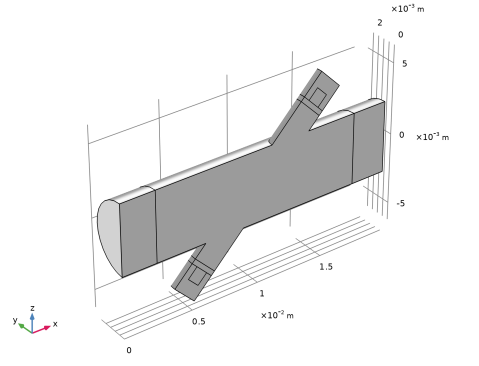
The flowmeter consists of a main pipe and a signal pipe of a smaller diameter. The signal tube is tilted to the main pipe at the angle α = 45°. The dimensions of the pipes used in this tutorial are the same as the ones given in the model Ultrasound Flowmeter with Generic Time-of-Flight Configuration. The pipe walls are considered rigid. There are two transducers placed at either end of the signal pipe. They operate as a transmitter and a receiver. Both transducers are identical and consist of a piezoelectric unit, a matching layer, and a damping block. An input voltage signal applied to the transmitter results in the mechanical deformation of the piezoelectric transducer, which is due to the inverse piezoelectric effect. The mechanical deformation in its turn generates an acoustic wave in the fluid. When the acoustic wave reaches the receiver, the inverse process takes place: the mechanical load is being converted into an electric signal because of the direct piezoelectric effect.
As previously mentioned, this model studies the propagation of the acoustic wave in the presence of a background flow. The details of the background flow computation and the flow speed estimation using the time-of-flight method are given in the model Ultrasound Flowmeter with Generic Time-of-Flight Configuration and thus not repeated here. The focus of this tutorial lies on the acoustic interaction between the fluid and the solid and the conversion input electric signal – acoustic wave in moving fluid – output electric signal. This model solves the full three-dimensional problem with the symmetry condition imposed on the sagittal plane of the structure.
The transmitter and the receiver can be used interchangeably; therefore, the principles of their construction are the same. The main part is a disk made of a piezoelectric material (here, PZT-5H) that is used for the conversion between the electric and the mechanical waves. Its thickness is taken to be 1/2 of the wavelength.
A direct propagation of the acoustic wave from the piezoelectric material to the fluid will result in significant reflections from the solid/fluid interface and, consequently, losses. This is due to the impedance mismatch: for water, the characteristic acoustic impedance  MRayl, and for PZT-5H,  MRayl. Therefore, a 1/4 wavelength thick matching layer is required to minimize the losses. Its impedance should be close to the geometric mean of those of the piezoelectric and the fluid materials, that is

MRayl.
The piezoelectric element is surrounded by a backing layer block (also called damping block) at the back. The damping block absorbs the waves radiated from the back face of the piezoelectric element. The properties of the used matching and damping materials are shown in Table 1.
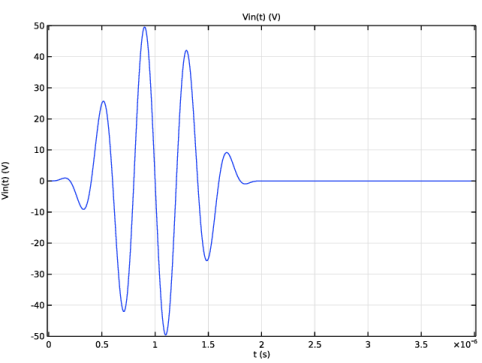
The input signal applied to the transmitter is a harmonic voltage pulse of the amplitude V0 = 50 V, the frequency f0 = 2.5 MHz, and duration of 2 μs. The voltage profile is depicted in Figure 1.
Figure 1: Input voltage applied to the transmitter.
Results and Discussion
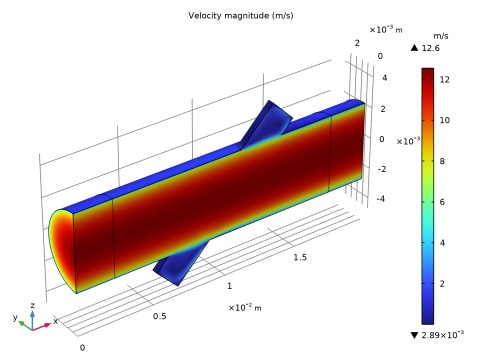
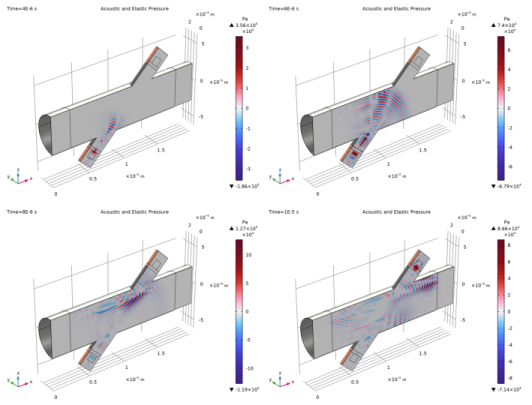
The computed background fluid flow and the profiles of the acoustic pressure wave in solid and fluid domains are shown in Figure 2 and Figure 3. The signal emitted by the transmitter propagates into the fluid at t = 4 μs (upper-left corner). The signal reaches the upper wall of the main pipe at t = 6 μs (upper-right corner) and propagates further in the signal pipe to the receiver at t = 8 μs (lower-left corner). The signal reaches the end of the signal tube and generates an elastic wave in the receiver at t = 10 μs (lower-right corner).
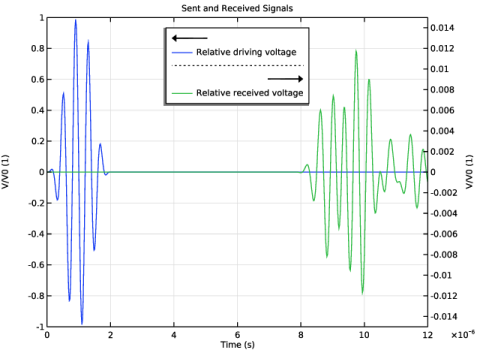
The elastic wave in the receiver piezoelectric element is converted into an electric signal. In Figure 4 you can see the profiles of the input voltage applied to the transducer and the output electric signal read on the receiver.
Figure 2: Background mean flow magnitude in the flowmeter.
Figure 3: Propagation of the acoustic pressure signal at four time steps.
Figure 4: Input and output electric signals as functions of time.
Notes About the COMSOL Implementation
Geometry and Mesh
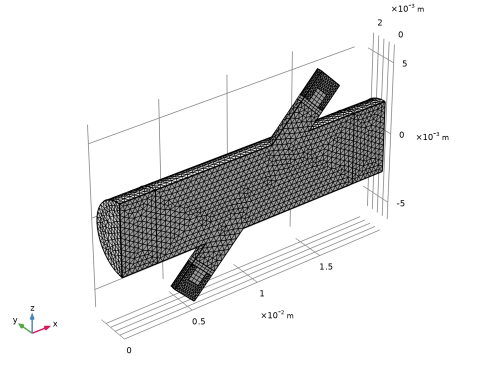
The model geometry is an assembly and therefore parts of the geometry are separated from one another and connected via Identity Boundary Pairs. The nodes of the generated mesh elements do not have to match on either side for the pairs thus making the mesh nonconformal. For wave propagation problems, feasible results are achieved when the mesh resolves the wavelengths of the propagating waves. In the solid domains, the minimal wavelength is given by the shear wave speed. Thus materials with lower speed of sound require finer mesh than those with higher speed of sound (compare the shear wave speeds for the matching and the damping material given in Table 1). The use of a nonconformal mesh in this tutorial makes it possible to reduce the number of DOFs solved for in the model.
Application Library path: Acoustics_Module/Ultrasound/flow_meter_piezoelectric_transducers
Modeling Instructions
From the File menu, choose New.
New
In the New window, click  Model Wizard.
Model Wizard
1
In the Model Wizard window, click  3D.
2
Geometry 1
Load the parameters that define the geometry and the physical properties of the system.
Global Definitions
Geometry Parameters
1
In the Model Builder window, under Global Definitions click Parameters 1.
2
In the Settings window for Parameters, locate the Parameters section.
3
Click  Load from File.
4
Browse to the model’s Application Libraries folder and double-click the file flow_meter_piezoelectric_transducers_geometry_parameters.txt.
5
In the Label text field, type Geometry Parameters.
Model Parameters
1
In the Home toolbar, click  Parameters and choose Add > Parameters.
2
In the Settings window for Parameters, locate the Parameters section.
3
Click  Load from File.
4
Browse to the model’s Application Libraries folder and double-click the file flow_meter_piezoelectric_transducers_model_parameters.txt.
5
In the Label text field, type Model Parameters.
Import the model geometry sequence from the geometry file. The instructions to the geometry are found in the appendix at the end of this document.
Geometry 1
1
In the Geometry toolbar, click  Insert Sequence.
2
Browse to the model’s Application Libraries folder and double-click the file flow_meter_piezoelectric_transducers_geom_sequence.mph.
3
In the Geometry toolbar, click  Build All.
4
In the Model Builder window, under Component 1 (comp1) click Geometry 1.
Specify the driving voltage signal applied to the transmitter.
Global Definitions
Rectangle 1 (rect1)
1
In the Home toolbar, click  Functions and choose Global > Rectangle.
2
In the Settings window for Rectangle, locate the Parameters section.
3
In the Lower limit text field, type 0.5e-6.
4
In the Upper limit text field, type 1.5e-6.
5
Click to expand the Smoothing section. In the Size of transition zone text field, type 1e-6.
6
Analytic 1 (an1)
1
In the Home toolbar, click  Functions and choose Global > Analytic.
2
In the Settings window for Analytic, type Vin in the Function name text field.
3
Locate the Definition section. In the Expression text field, type V0*sin(2*pi*f0*t)*rect1(t).
4
In the Arguments text field, type t.
5
Locate the Units section. In the Function text field, type V.
6
7
Locate the Plot Parameters section. In the table, enter the following settings:
8
The input electric signal should look like the one in Figure 1.
Create selections to simplify the model setup.
Definitions
Water
1
In the Definitions toolbar, click  Explicit.
2
3
In the Settings window for Explicit, type Water in the Label text field.
PZT
1
In the Definitions toolbar, click  Explicit.
2
3
In the Settings window for Explicit, type PZT in the Label text field.
Matching
1
In the Definitions toolbar, click  Explicit.
2
3
In the Settings window for Explicit, type Matching in the Label text field.
Backing
1
In the Definitions toolbar, click  Explicit.
2
3
In the Settings window for Explicit, type Backing in the Label text field.
Symmetry
1
In the Definitions toolbar, click  Explicit.
2
In the Settings window for Explicit, locate the Input Entities section.
3
From the Geometric entity level list, choose Boundary.
4
5
In the Label text field, type Symmetry.
Flow Inlet
1
In the Definitions toolbar, click  Explicit.
2
In the Settings window for Explicit, locate the Input Entities section.
3
From the Geometric entity level list, choose Boundary.
4
5
In the Label text field, type Flow Inlet.
Flow Outlet
1
In the Definitions toolbar, click  Explicit.
2
In the Settings window for Explicit, locate the Input Entities section.
3
From the Geometric entity level list, choose Boundary.
4
5
In the Label text field, type Flow Outlet.
Solid
1
In the Definitions toolbar, click  Union.
2
In the Settings window for Union, type Solid in the Label text field.
3
Locate the Input Entities section. Under Selections to add, click  Add.
4
In the Add dialog, in the Selections to add list, choose PZT, Matching, and Backing.
5
Define a coordinate system that corresponds to the piezoelectric material orientation: the Z-axis of the piezoelectric crystal points along the signal tube axis.
Transducer Coordinate System
1
In the Definitions toolbar, click  Coordinate Systems and choose Base Vector System.
2
In the Settings window for Base Vector System, locate the Base Vectors section.
3
4
Find the Simplifications subsection. Select the Assume orthonormal checkbox.
5
In the Label text field, type Transducer Coordinate System.
Now, proceed to setting up the physics. Note that the model geometry is an assembly and therefore each physics interface automatically imposes the Continuity boundary condition on all boundary pairs.
Add Physics
1
In the Home toolbar, click  Add Physics to open the Add Physics window.
2
Go to the Add Physics window.
3
In the tree, select Fluid Flow > Single-Phase Flow > Turbulent Flow > Turbulent Flow, k-ω (spf).
4
Click the Add to Selection button in the window toolbar.
Turbulent Flow, k-ω (spf)
1
In the Settings window for Turbulent Flow, k-ω, locate the Domain Selection section.
2
From the Selection list, choose Water.
Inlet 1
1
In the Physics toolbar, click  Boundaries and choose Inlet.
2
In the Settings window for Inlet, locate the Boundary Selection section.
3
From the Selection list, choose Flow Inlet.
4
Locate the Boundary Condition section. From the list, choose Fully developed flow.
5
Locate the Fully Developed Flow section. In the Uav text field, type Uin.
This boundary condition ensures a fully developed turbulent flow profile at the inlet.
Outlet 1
1
In the Physics toolbar, click  Boundaries and choose Outlet.
2
In the Settings window for Outlet, locate the Boundary Selection section.
3
From the Selection list, choose Flow Outlet.
Symmetry 1
1
In the Physics toolbar, click  Boundaries and choose Symmetry.
2
In the Settings window for Symmetry, locate the Boundary Selection section.
3
From the Selection list, choose Symmetry.
Flow Continuity 1
1
In the Model Builder window, click Flow Continuity 1.
2
In the Settings window for Flow Continuity, locate the Advanced section.
3
Select the Disconnect pair checkbox.
Add Physics
1
Go to the Add Physics window.
2
In the tree, select Acoustics > Ultrasound > Convected Wave Equation, Time Explicit (cwe).
3
Click the Add to Selection button in the window toolbar.
Convected Wave Equation, Time Explicit (cwe)
1
In the Settings window for Convected Wave Equation, Time Explicit, locate the Domain Selection section.
2
From the Selection list, choose Water.
3
In the Model Builder window, click Convected Wave Equation, Time Explicit (cwe).
Specific Acoustic Impedance (Isentropic) 1
1
In the Physics toolbar, click  Boundaries and choose Specific Acoustic Impedance (Isentropic).
2
Symmetry 1
1
In the Physics toolbar, click  Boundaries and choose Symmetry.
2
In the Settings window for Symmetry, locate the Boundary Selection section.
3
From the Selection list, choose Symmetry.
Add Physics
1
Go to the Add Physics window.
2
In the tree, select Acoustics > Elastic Waves > Elastic Waves, Time Explicit (elte).
3
Click the Add to Selection button in the window toolbar.
Elastic Waves, Time Explicit (elte)
1
In the Settings window for Elastic Waves, Time Explicit, locate the Domain Selection section.
2
From the Selection list, choose Solid.
Piezoelectric Material 1
Right-click Component 1 (comp1) > Elastic Waves, Time Explicit (elte) and choose Piezoelectric Material.
Elastic Waves, Time Explicit Model 1
1
In the Settings window for Elastic Waves, Time Explicit Model, locate the Linear Elastic Material section.
2
From the Specify list, choose Pressure-wave and shear-wave speeds.
Piezoelectric Material 1
1
In the Model Builder window, click Piezoelectric Material 1.
2
In the Settings window for Piezoelectric Material, locate the Domain Selection section.
3
From the Selection list, choose PZT.
4
Locate the Coordinate System Selection section. From the Coordinate system list, choose Transducer Coordinate System (sys2).
Low-Reflecting Boundary 1
1
In the Physics toolbar, click  Boundaries and choose Low-Reflecting Boundary.
2
Symmetry 1
1
In the Physics toolbar, click  Boundaries and choose Symmetry.
2
In the Settings window for Symmetry, locate the Boundary Selection section.
3
From the Selection list, choose Symmetry.
Elastic Waves, Time Explicit Model 1
In the Model Builder window, click Elastic Waves, Time Explicit Model 1.
Damping 1
1
In the Physics toolbar, click  Attributes and choose Damping.
2
In the Settings window for Damping, locate the Domain Selection section.
3
From the Selection list, choose Matching.
4
Locate the Damping Settings section. From the Input parameters list, choose Damping ratios.
5
In the f1 text field, type 0.99*f0.
6
In the ζ1 text field, type 0.01.
7
In the f2 text field, type 1.01*f0.
8
In the ζ2 text field, type 0.01.
Elastic Waves, Time Explicit Model 1
In the Model Builder window, click Elastic Waves, Time Explicit Model 1.
Damping 2
1
In the Physics toolbar, click  Attributes and choose Damping.
2
In the Settings window for Damping, locate the Domain Selection section.
3
From the Selection list, choose Backing.
4
Locate the Damping Settings section. From the Input parameters list, choose Damping ratios.
5
In the f1 text field, type 0.99*f0.
6
In the ζ1 text field, type 0.025.
7
In the f2 text field, type 1.01*f0.
8
In the ζ2 text field, type 0.025.
Piezoelectric Material 1
In the Model Builder window, under Component 1 (comp1) > Elastic Waves, Time Explicit (elte) click Piezoelectric Material 1.
Mechanical Damping 1
1
In the Physics toolbar, click  Attributes and choose Mechanical Damping.
2
In the Settings window for Mechanical Damping, locate the Damping Settings section.
3
From the Input parameters list, choose Damping ratios.
4
In the f1 text field, type 0.99*f0.
5
In the ζ1 text field, type 0.005.
6
In the f2 text field, type 1.01*f0.
7
In the ζ2 text field, type 0.005.
Add Physics
1
Go to the Add Physics window.
2
In the tree, select AC/DC > Electric Fields and Currents > Electrostatics (es).
3
Click the Add to Selection button in the window toolbar.
4
In the Physics toolbar, click  Add Physics to close the Add Physics window.
Electrostatics (es)
1
In the Settings window for Electrostatics, locate the Domain Selection section.
2
From the Selection list, choose PZT.
Charge Conservation, Piezoelectric 1
1
In the Physics toolbar, click  Domains and choose Charge Conservation, Piezoelectric.
2
In the Settings window for Charge Conservation, Piezoelectric, locate the Domain Selection section.
3
From the Selection list, choose PZT.
Ground 1
1
In the Physics toolbar, click  Boundaries and choose Ground.
2
Electric Potential 1
1
In the Physics toolbar, click  Boundaries and choose Electric Potential.
2
3
In the Settings window for Electric Potential, locate the Electric Potential section.
4
In the V0 text field, type Vin(t).
Floating Potential 1
1
In the Physics toolbar, click  Boundaries and choose Floating Potential.
2
3
In the Settings window for Floating Potential, locate the Floating Potential section.
4
Select the Floating potential group checkbox.
Symmetry Plane 1
1
In the Physics toolbar, click  Boundaries and choose Symmetry Plane.
2
In the Settings window for Symmetry Plane, locate the Boundary Selection section.
3
From the Selection list, choose Symmetry.
Add multiphysics coupling features.
Multiphysics
Piezoelectricity, Time Explicit 1 (pzete1)
In the Physics toolbar, click  Multiphysics Couplings and choose Domain > Piezoelectricity, Time Explicit.
Pair Convected Acoustic–Structure Boundary, Time Explicit 1 (cspte1)
1
In the Physics toolbar, click  Multiphysics Couplings and choose Boundary > Pair Convected Acoustic–Structure Boundary, Time Explicit.
2
In the Settings window for Pair Convected Acoustic–Structure Boundary, Time Explicit, locate the Pair Selection section.
3
4
In the Add dialog, in the Pairs list, choose Identity Boundary Pair 1 (ap1) and Identity Boundary Pair 2 (ap2).
5
Background Fluid Flow Coupling 1 (bffc1)
1
In the Physics toolbar, click  Multiphysics Couplings and choose Domain > Background Fluid Flow Coupling.
2
In the Settings window for Background Fluid Flow Coupling, locate the Domain Selection section.
3
From the Selection list, choose Water.
Now, set up the materials.
Add Material
1
In the Materials toolbar, click  Add Material to open the Add Material window.
2
Go to the Add Material window.
3
In the tree, select Built-in > Water, liquid.
4
Click the Add to Component button in the window toolbar.
5
In the tree, select Built-in > Lead Zirconate Titanate (PZT-5H).
6
Click the Add to Component button in the window toolbar.
7
In the Materials toolbar, click  Add Material to close the Add Material window.
Materials
Lead Zirconate Titanate (PZT-5H) (mat2)
1
In the Settings window for Material, locate the Geometric Entity Selection section.
2
From the Selection list, choose PZT.
Matching Material
1
In the Model Builder window, right-click Materials and choose Blank Material.
2
In the Settings window for Material, locate the Geometric Entity Selection section.
3
From the Selection list, choose Matching.
4
In the Label text field, type Matching Material.
5
Locate the Material Contents section. In the table, enter the following settings:
Damping Material
1
Right-click Materials and choose Blank Material.
2
In the Settings window for Material, locate the Geometric Entity Selection section.
3
From the Selection list, choose Backing.
4
In the Label text field, type Damping Material.
5
Locate the Material Contents section. In the table, enter the following settings:
Create a mesh for the CFD simulation.
Mesh 1 - CFD
1
In the Model Builder window, under Component 1 (comp1) click Mesh 1.
2
In the Settings window for Mesh, locate the Physics-Controlled Mesh section.
3
In the table, clear the Use checkboxes for Convected Wave Equation, Time Explicit (cwe), Elastic Waves, Time Explicit (elte), Electrostatics (es), Piezoelectricity, Time Explicit 1 (pzete1), Pair Convected Acoustic–Structure Boundary, Time Explicit 1 (cspte1), and Background Fluid Flow Coupling 1 (bffc1).
4
Click  Build All.
5
In the Model Builder window, click Mesh 1.
6
In the Label text field, type Mesh 1 - CFD.
Add Study
1
In the Home toolbar, click  Add Study to open the Add Study window.
2
Go to the Add Study window.
3
Find the Physics interfaces in study subsection. In the table, clear the Solve checkboxes for Convected Wave Equation, Time Explicit (cwe), Elastic Waves, Time Explicit (elte), and Electrostatics (es).
4
Find the Multiphysics couplings in study subsection. In the table, clear the Solve checkboxes for Piezoelectricity, Time Explicit 1 (pzete1), Pair Convected Acoustic–Structure Boundary, Time Explicit 1 (cspte1), and Background Fluid Flow Coupling 1 (bffc1).
5
Find the Studies subsection. In the Select Study tree, select General Studies > Stationary.
6
Click the Add Study button in the window toolbar.
7
In the Home toolbar, click  Add Study to close the Add Study window.
Study 1
Step 1: Stationary
1
In the Model Builder window, click Study 1.
2
In the Settings window for Study, locate the Study Settings section.
3
Clear the Generate default plots checkbox.
4
In the Label text field, type Study 1 - CFD.
5
In the Study toolbar, click  Compute.
The turbulent flow interface uses linear discretization for the dependent variables. This affects the order of the geometry shape approximation which is by default the same as the discretization order chosen in the first physics interface present in the model tree. On the other hand, a higher order discretization (quartic per default) is used for the acoustics simulation. The mismatch between the geometry and the dependent variables discretization can cause instabilities in the solution. Therefore, it is recommended that you manually increase the geometry shape approximation order to Quadratic Lagrange. Note that, if this change is not done a warning message is given when solving the model. In the present case, not changing the geometry shape order will also lead to numerical instabilities and incorrect results.
Component 1 (comp1)
1
In the Model Builder window, click Component 1 (comp1).
2
In the Settings window for Component, locate the Curved Mesh Elements section.
3
From the Geometry shape function list, choose Quadratic Lagrange.
Add absorbing layers (sponge layers) to truncate the computational domain.
Definitions
Absorbing Layer 1 (ab1)
1
In the Model Builder window, expand the Component 1 (comp1) node.
2
Right-click Component 1 (comp1) > Definitions and choose Absorbing Layer.
3
Create an acoustic mesh. The mesh should be fine enough to resolve the shortest wavelength in each material. Note that the mesh element nodes on one side of the boundary pairs do not match with those on the other side. As a result, the mesh elements adjacent to the pairs have different size, which helps to reduce the number of DOFs in the model.
Mesh 2 - Acoustics
1
In the Mesh toolbar, click Add Mesh and choose Add Mesh.
2
In the Settings window for Mesh, type Mesh 2 - Acoustics in the Label text field.
Free Triangular 1
1
In the Mesh toolbar, click  More Generators and choose Free Triangular.
2
Size 1
1
Right-click Free Triangular 1 and choose Size.
2
3
In the Settings window for Size, locate the Element Size section.
4
Click the Custom button.
5
Locate the Element Size Parameters section.
6
Select the Maximum element size checkbox. In the associated text field, type cs_pzt/f0/2.
Size 2
1
In the Model Builder window, right-click Free Triangular 1 and choose Size.
2
3
In the Settings window for Size, locate the Element Size section.
4
Click the Custom button.
5
Locate the Element Size Parameters section.
6
Select the Maximum element size checkbox. In the associated text field, type cs_match/f0/2.
Swept 1
1
In the Mesh toolbar, click  Swept.
2
In the Settings window for Swept, locate the Domain Selection section.
3
From the Geometric entity level list, choose Domain.
4
From the Selection list, choose PZT.
Distribution 1
1
Right-click Swept 1 and choose Distribution.
2
In the Settings window for Distribution, locate the Distribution section.
3
In the Number of elements text field, type 4.
Swept 2
1
In the Mesh toolbar, click  Swept.
2
In the Settings window for Swept, locate the Domain Selection section.
3
From the Geometric entity level list, choose Domain.
4
From the Selection list, choose Matching.
Distribution 1
1
Right-click Swept 2 and choose Distribution.
2
In the Settings window for Distribution, locate the Distribution section.
3
In the Number of elements text field, type 2.
Free Tetrahedral 1
1
In the Mesh toolbar, click  Free Tetrahedral.
When modeling using physics interfaces that are based on the DG method, it is important to avoid small mesh elements, since they control the time steps taken by the solver. Use the Element Quality Optimization functionality available for the tetrahedral mesh to avoid this. This step is very important.
2
In the Settings window for Free Tetrahedral, click to expand the Element Quality Optimization section.
3
From the Optimization level list, choose High.
4
Select the Avoid elements that are too small checkbox.
Size 1
1
Right-click Free Tetrahedral 1 and choose Size.
2
In the Settings window for Size, locate the Geometric Entity Selection section.
3
From the Geometric entity level list, choose Domain.
4
From the Selection list, choose Water.
5
Locate the Element Size section. Click the Custom button.
6
Locate the Element Size Parameters section.
7
Select the Maximum element size checkbox. In the associated text field, type lam0/1.5.
8
Select the Minimum element size checkbox. In the associated text field, type lam0/3.
Size 2
1
In the Model Builder window, right-click Free Tetrahedral 1 and choose Size.
2
In the Settings window for Size, locate the Geometric Entity Selection section.
3
From the Geometric entity level list, choose Domain.
4
From the Selection list, choose Backing.
5
Locate the Element Size section. Click the Custom button.
6
Locate the Element Size Parameters section.
7
Select the Maximum element size checkbox. In the associated text field, type cs_damp/f0/1.5.
8
In the Model Builder window, right-click Mesh 2 - Acoustics and choose Build All.
Add Study
1
In the Home toolbar, click  Add Study to open the Add Study window.
2
Go to the Add Study window.
3
Find the Physics interfaces in study subsection. In the table, clear the Solve checkboxes for Turbulent Flow, k-ω (spf), Convected Wave Equation, Time Explicit (cwe), Elastic Waves, Time Explicit (elte), and Electrostatics (es).
4
Find the Multiphysics couplings in study subsection. In the table, clear the Solve checkboxes for Piezoelectricity, Time Explicit 1 (pzete1) and Pair Convected Acoustic–Structure Boundary, Time Explicit 1 (cspte1).
5
Find the Studies subsection. In the Select Study tree, select Preset Studies for Selected Multiphysics > Mapping.
6
Click the Add Study button in the window toolbar.
7
In the Home toolbar, click  Add Study to close the Add Study window.
Study 2 - Mapping
1
In the Settings window for Study, type Study 2 - Mapping in the Label text field.
2
Locate the Study Settings section. Clear the Generate default plots checkbox.
Step 1: Mapping
1
In the Model Builder window, under Study 2 - Mapping click Step 1: Mapping.
2
In the Settings window for Mapping, locate the Data to Map section.
3
From the Source list, choose Study 1 - CFD, Stationary.
4
Click to expand the Destination Mesh Selection section. In the Study toolbar, click  Compute.
Add Study
1
In the Home toolbar, click  Add Study to open the Add Study window.
2
Go to the Add Study window.
3
Find the Physics interfaces in study subsection. In the table, clear the Solve checkbox for Turbulent Flow, k-ω (spf).
4
Find the Multiphysics couplings in study subsection. In the table, clear the Solve checkbox for Background Fluid Flow Coupling 1 (bffc1).
5
Find the Studies subsection. In the Select Study tree, select General Studies > Time Dependent.
6
Click the Add Study button in the window toolbar.
7
In the Home toolbar, click  Add Study to close the Add Study window.
Study 3 - Acoustics
1
In the Settings window for Study, locate the Study Settings section.
2
Clear the Generate default plots checkbox.
3
In the Label text field, type Study 3 - Acoustics.
Step 1: Time Dependent
1
In the Model Builder window, under Study 3 - Acoustics click Step 1: Time Dependent.
2
In the Settings window for Time Dependent, locate the Study Settings section.
3
In the Output times text field, type range(0, T0/5, 30*T0).
4
Click to expand the Values of Dependent Variables section. Find the Values of variables not solved for subsection. From the Settings list, choose User controlled.
5
From the Method list, choose Solution.
6
From the Study list, choose Study 2 - Mapping, Mapping.
7
Click to expand the Store in Output section. In the table, enter the following settings:
8
9
Under Selections, click  Add to store the results on the symmetry plane only.
10
In the Add dialog, select Symmetry in the Selections list.
11
12
In the Settings window for Time Dependent, locate the Store in Output section.
13
14
15
Under Selections, click  Add.
16
In the Add dialog, select Symmetry in the Selections list.
17
18
In the Settings window for Time Dependent, locate the Store in Output section.
19
20
21
Under Selections, click  Add.
22
In the Add dialog, select Symmetry in the Selections list.
23
24
In the Settings window for Time Dependent, locate the Store in Output section.
25
26
27
Under Selections, click  Add.
28
In the Add dialog, select Symmetry in the Selections list.
29
30
In the Study toolbar, click  Compute.
In the following postprocessing the Resolution is increased under the Quality section in all acoustics plots. This is due to the discretization used for the acoustics interfaces, which is 4th order per default. So in order to properly represent the solution, the resolution needs to be increased.
Results
Background Flow Velocity
1
In the Home toolbar, click  Add Plot Group and choose 3D Plot Group.
2
In the Settings window for 3D Plot Group, type Background Flow Velocity in the Label text field.
3
Locate the Color Legend section. Select the Show maximum and minimum values checkbox.
4
Select the Show units checkbox.
Surface 1
1
Right-click Background Flow Velocity and choose Surface.
2
In the Background Flow Velocity toolbar, click  Plot.
The background mean flow velocity amplitude plotted on the surface of the geometry should look like Figure 2.
Acoustic and Elastic Pressure
In the Results toolbar, click  3D Plot Group.
Plot the pressure in the fluid and solid domains and inspect the propagating acoustic signal at different times to get the results like the ones in Figure 3.
1
In the Settings window for 3D Plot Group, type Acoustic and Elastic Pressure in the Label text field.
2
Click to expand the Title section. From the Title type list, choose Label.
3
Locate the Data section. From the Dataset list, choose Study 3 - Acoustics/Solution 3 (sol3).
4
Locate the Color Legend section. Select the Show maximum and minimum values checkbox.
5
Select the Show units checkbox.
Surface 1
Right-click Acoustic and Elastic Pressure and choose Surface.
Surface 1
1
In the Model Builder window, expand the Results > Acoustic and Elastic Pressure node, then click Surface 1.
2
In the Settings window for Surface, locate the Expression section.
3
In the Expression text field, type p2.
4
Locate the Coloring and Style section. From the Color table list, choose Wave.
5
From the Scale list, choose Linear symmetric.
6
Click to expand the Quality section. From the Evaluation settings list, choose Manual.
7
From the Resolution list, choose Custom.
8
In the Element refinement text field, type 6.
9
From the Smoothing list, choose Inside geometry domains.
Selection 1
1
Right-click Surface 1 and choose Selection.
2
In the Settings window for Selection, locate the Selection section.
3
From the Selection list, choose Symmetry.
Surface 2
1
Right-click Surface 1 and choose Duplicate.
2
In the Settings window for Surface, click Replace Expression in the upper-right corner of the Expression section. From the menu, choose Component 1 (comp1) > Elastic Waves, Time Explicit > Stress > elte.p - Pressure - Pa.
3
Click to expand the Inherit Style section. From the Plot list, choose Surface 1.
Acoustic and Elastic Pressure
Right-click Surface 2 and choose Surface.
Surface 3
1
In the Settings window for Surface, locate the Expression section.
2
In the Expression text field, type 1.
Selection 1
1
Right-click Surface 3 and choose Selection.
2
Material Appearance 1
1
Right-click Surface 3 and choose Material Appearance.
2
In the Settings window for Material Appearance, locate the Appearance section.
3
From the Appearance list, choose Custom.
4
From the Material type list, choose Steel.
Acoustic and Elastic Pressure
Right-click Material Appearance 1 and choose Surface.
Surface 4
1
In the Settings window for Surface, locate the Expression section.
2
In the Expression text field, type 1.
Selection 1
Right-click Surface 4 and choose Selection.
Selection 1
1
In the Model Builder window, expand the Results > Acoustic and Elastic Pressure > Surface 4 node, then click Selection 1.
2
Material Appearance 1
1
In the Model Builder window, right-click Surface 4 and choose Material Appearance.
2
In the Settings window for Material Appearance, locate the Appearance section.
3
From the Appearance list, choose Custom.
4
From the Color list, choose Custom.
5
6
Click Define custom colors.
7
8
Click Add to custom colors.
9
Click Show color palette only or OK on the cross-platform desktop.
Plot the driving voltage applied to the transmitter and the voltage signal read on the receiver. The result should look like the one in Figure 4.
Sent and Received Signals
1
In the Results toolbar, click  1D Plot Group.
2
In the Settings window for 1D Plot Group, type Sent and Received Signals in the Label text field.
3
Locate the Data section. From the Dataset list, choose Study 3 - Acoustics/Solution 3 (sol3).
4
From the Time selection list, choose Interpolated.
5
In the Times (s) text field, type range(0, T0/20, 30*T0).
6
Click to expand the Title section. From the Title type list, choose Label.
Point Graph 1
1
Right-click Sent and Received Signals and choose Point Graph.
2
3
In the Settings window for Point Graph, locate the y-Axis Data section.
4
In the Expression text field, type V/V0.
5
Click to expand the Quality section. Click to expand the Legends section. Select the Show legends checkbox.
6
From the Legends list, choose Manual.
7
Point Graph 2
1
Right-click Point Graph 1 and choose Duplicate.
2
In the Settings window for Point Graph, locate the Selection section.
3
Click  Clear Selection.
4
5
Locate the Legends section. In the table, enter the following settings:
Sent and Received Signals
1
In the Model Builder window, click Sent and Received Signals.
2
In the Settings window for 1D Plot Group, locate the Plot Settings section.
3
Select the Two y-axes checkbox.
4
In the table, select the Plot on secondary y-axis checkbox for Point Graph 2.
5
Locate the Axis section. Select the Manual axis limits checkbox.
6
In the x minimum text field, type 0.
7
In the x maximum text field, type 30*T0.
8
In the y minimum text field, type -1.
9
In the y maximum text field, type 1.
10
In the Secondary y minimum text field, type -0.015.
11
In the Secondary y maximum text field, type 0.015.
12
Locate the Legend section. From the Position list, choose Upper middle.
13
In the Sent and Received Signals toolbar, click  Plot.
Appendix — Geometry Modeling Instructions
From the File menu, choose New.
New
In the New window, click  Model Wizard.
Model Wizard
1
In the Model Wizard window, click  3D.
2
Global Definitions
Geometry Parameters
1
In the Model Builder window, under Global Definitions click Parameters 1.
2
In the Settings window for Parameters, locate the Parameters section.
3
Click  Load from File.
4
Browse to the model’s Application Libraries folder and double-click the file flow_meter_piezoelectric_transducers_geometry_parameters.txt.
5
In the Label text field, type Geometry Parameters.
Model Parameters
1
In the Home toolbar, click  Parameters and choose Add > Parameters.
2
In the Settings window for Parameters, locate the Parameters section.
3
Click  Load from File.
4
Browse to the model’s Application Libraries folder and double-click the file flow_meter_piezoelectric_transducers_model_parameters.txt.
5
In the Label text field, type Model Parameters.
Geometry 1
Cylinder 1 (cyl1)
1
In the Geometry toolbar, click  Cylinder.
2
In the Settings window for Cylinder, locate the Axis section.
3
From the Axis type list, choose x-axis.
4
Locate the Size and Shape section. In the Radius text field, type D/2.
5
In the Height text field, type L.
6
Click to expand the Layers section. In the table, enter the following settings:
7
Clear the Layers on side checkbox.
8
Select the Layers on bottom checkbox.
9
Select the Layers on top checkbox.
Cylinder 2 (cyl2)
1
In the Geometry toolbar, click  Cylinder.
2
In the Settings window for Cylinder, locate the Size and Shape section.
3
In the Radius text field, type D_transducer/2.
4
In the Height text field, type L_transducer.
5
Locate the Position section. In the x text field, type L/2.
6
In the z text field, type -L_transducer/2.
Cylinder 3 (cyl3)
1
In the Geometry toolbar, click  Cylinder.
2
In the Settings window for Cylinder, locate the Size and Shape section.
3
In the Radius text field, type D_transducer/2.
4
In the Height text field, type L_matching.
5
Locate the Position section. In the x text field, type L/2.
6
In the z text field, type L_transducer/2.
Cylinder 4 (cyl4)
1
In the Geometry toolbar, click  Cylinder.
2
In the Settings window for Cylinder, locate the Size and Shape section.
3
In the Radius text field, type D_transducer/4.
4
In the Height text field, type L_piezo.
5
Locate the Position section. In the x text field, type L/2.
6
In the z text field, type L_transducer/2+L_matching.
Cylinder 5 (cyl5)
1
In the Geometry toolbar, click  Cylinder.
2
In the Settings window for Cylinder, locate the Size and Shape section.
3
In the Radius text field, type D_transducer/2.
4
In the Height text field, type 2*L_piezo.
5
Locate the Position section. In the x text field, type L/2.
6
In the z text field, type L_transducer/2+L_matching.
Difference 1 (dif1)
1
In the Geometry toolbar, click  Booleans and Partitions and choose Difference.
2
3
In the Settings window for Difference, locate the Difference section.
4
Click to select the  Activate Selection toggle button for Objects to subtract.
5
6
Select the Keep objects to subtract checkbox.
Copy 1 (copy1)
1
In the Geometry toolbar, click  Transforms and choose Copy.
2
Select the objects cyl3, cyl4, and dif1 only.
3
In the Settings window for Copy, locate the Displacement section.
4
In the z text field, type -L_transducer.
Mirror 1 (mir1)
1
In the Geometry toolbar, click  Transforms and choose Mirror.
2
Select the objects copy1(1), copy1(2), and copy1(3) only.
3
In the Settings window for Mirror, locate the Point on Plane of Reflection section.
4
In the z text field, type -L_transducer/2.
Rotate 1 (rot1)
1
In the Geometry toolbar, click  Transforms and choose Rotate.
2
Select the objects cyl2, cyl3, cyl4, dif1, mir1(1), mir1(2), and mir1(3) only.
3
In the Settings window for Rotate, locate the Rotation section.
4
From the Axis type list, choose y-axis.
5
In the Angle text field, type alpha.
6
Locate the Point on Axis of Rotation section. In the x text field, type L/2.
Work Plane 1 (wp1)
1
In the Geometry toolbar, click  Work Plane.
2
In the Settings window for Work Plane, locate the Plane Definition section.
3
From the Plane list, choose xz-plane.
Partition Objects 1 (par1)
1
In the Geometry toolbar, click  Booleans and Partitions and choose Partition Objects.
2
Click the  Select Box button in the Graphics toolbar.
3
Click in the Graphics window and then press Ctrl+A to select all objects.
4
In the Settings window for Partition Objects, locate the Partition Objects section.
5
From the Partition with list, choose Work plane.
Delete Entities 1 (del1)
1
In the Model Builder window, right-click Geometry 1 and choose Delete Entities.
2
In the Settings window for Delete Entities, locate the Entities or Objects to Delete section.
3
From the Geometric entity level list, choose Domain.
4
On the object par1(1), select Domains 1, 3, and 5 only.
5
On the object par1(2), select Domain 1 only.
6
On the object par1(3), select Domain 1 only.
7
On the object par1(4), select Domain 1 only.
8
On the object par1(5), select Domain 1 only.
9
On the object par1(6), select Domain 1 only.
10
On the object par1(7), select Domain 1 only.
11
On the object par1(8), select Domain 1 only.
Union 1 (uni1)
1
In the Geometry toolbar, click  Booleans and Partitions and choose Union.
2
Select the objects del1(1) and del1(2) only.
Delete Entities 2 (del2)
1
Right-click Geometry 1 and choose Delete Entities.
2
On the object uni1, select Boundaries 13, 14, 16, and 19 only.
Form Union (fin)
1
In the Model Builder window, under Component 1 (comp1) > Geometry 1 click Form Union (fin).
2
In the Settings window for Form Union/Assembly, locate the Form Union/Assembly section.
3
From the Action list, choose Form an assembly.
Make sure to select the Create imprints checkbox to create an assembly with still matching surface pairs. This will eliminate the use of fallback and thus increase the performance.
4
Select the Create imprints checkbox.
5
Click  Build Selected.
Ignore Edges 1 (ige1)
1
In the Geometry toolbar, click  Virtual Operations and choose Ignore Edges.
2
On the object fin, select Edges 19, 20, 23, and 27 only.
3
In the Settings window for Ignore Edges, click  Build Selected.