PDF

Flow Duct
Introduction
The modeling of aircraft-engine noise attenuation is a central problem in the field of computational aeroacoustics (CAA). In this example you simulate the harmonically time-varying acoustic field from a turbofan engine, under various background flow conditions (a convected acoustic simulation), and analyze the modal sound transmission loss made possible by introducing a layer of lining inside the engine duct. The source is generated by a single mode excitation at a boundary, the source plane, see Figure 2. Sources and nonreflecting conditions are applied using Port boundary conditions, with the built-in Annular and Circular port type options. These port types are based on analytical and semi-analytical solutions to the uniform flow and hard walled configuration. The model analysis is performed in two steps, first computing the background mean flow (compressible irrotational potential flow) and then solving the acoustic field in the flow duct with the linearized potential flow equations. Results are presented for situations with and without a background flow and for the cases of hard and lined duct walls.
Two other variants of the model exist:
Flow Duct — With Boundary Mode Analysis, where the hard walled port modes are computed using the boundary mode physics interface.
Flow Duct — Modes with Impedance Condition, where the mode computation includes the impedance conditions.
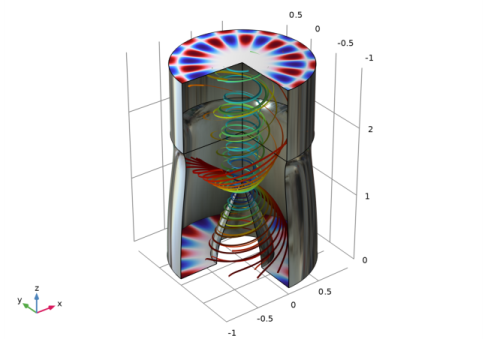
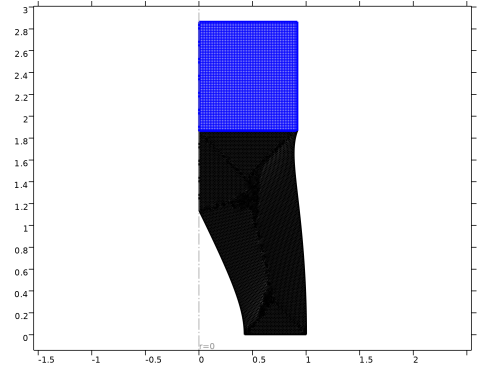
Figure 1: The flow duct configuration showing the intensity lines and selected port modes.
Model Definition
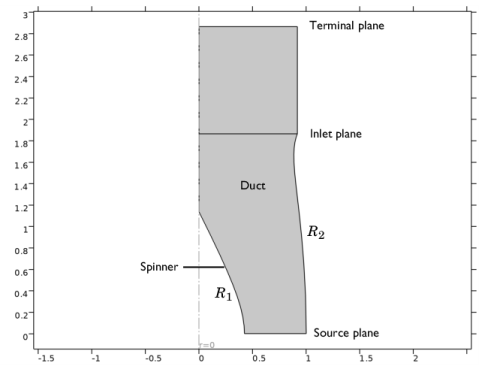
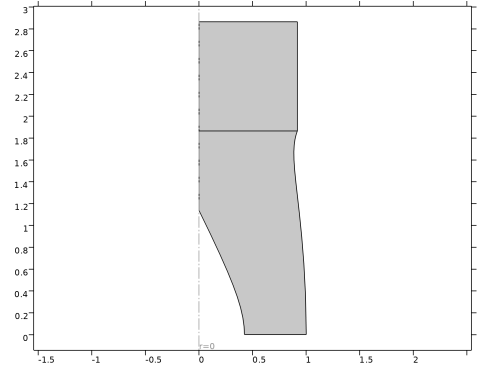
The 2D axisymmetric duct geometry representation used in this model, shown in Figure 2, is taken from Ref. 1. It is an approximate model of the inlet section of a turbofan engine in the very common CFM56 series.
Figure 2: The duct geometry including reference planes used in the model.
The spinner and duct-wall profiles are given, respectively, by the equations
where 0 ≤ z′ = z/L ≤ 1, and L = 1.86393 is the duct length. A noise source is imposed at  z′ = 0, henceforth referred to as the source plane. This is where the fan would be located in the actual engine geometry. The plane  z = L corresponds to the fore end of the engine and is referred to as the inlet plane. The attenuation of the liner for specific flow conditions is computed from the source plane to the inlet plane. A cylindrical domain, adjoined at the inlet plane and extending to the terminal plane, extends the modeling domain into a region where you can consider the mean flow as being uniform. This allows you to impose the simple boundary condition of a constant velocity potential and a vanishing tangential velocity for the background flow. For the acoustic problem, port boundary conditions are used at the source plane and the terminal plane to set up ideal nonreflecting conditions as well as imposing the source.
The model will analyze so-called modal sound transmission, where a single propagating mode is used as source. In this particular example the first radial mode is used as the source, see Ref. 1 for details. All propagating modes are used when setting up the ports to ensure good nonreflecting performance. The sound transmission loss is computed from the source plane to the inlet plane. The power of the incident mode is defined through a predefined variable and the power of the transmitted sound at the inlet plane is computed as the integral of the axial intensity.
Model Conditions
Assume that the flow in the axisymmetric duct is compressible, inviscid, perfectly isentropic, and irrotational. This is an assumption often used for the study of duct or engine acoustics. In this case the background mean flow is well described by the Compressible Potential Flow interface and the acoustic field is well described by the Linearized Potential Flow, Frequency Domain interface.
For more theory information on the governing equations, see the aeroacoustics theory chapter in the Acoustics Module User’s Guide.
Compressible Potential Flow
This study examines two cases for the mean-flow normal velocity component at the source plane Vz, which (owing to the choice of reference speed) alternatively can be referred to as the source-plane axial Mach number M = 0.5, approximately representative of a passenger aircraft at cruising speed, and M =  0.
The governing equations are nondimensionalized in the present study. For the reference quantities in this model, choose the duct radius, the mean-flow speed of sound, and the mean-flow density at the source plane. Hence, all three of these quantities take the value 1.
The remaining boundary conditions for the mean flow consist of a natural boundary condition specifying the mass-flow rate through the source plane via the normal velocity and the density; slip conditions (vanishing tangential velocity) at the duct wall and at the spinner; and axial symmetry at r = 0.
Linearized Potential Flow
For the aeroacoustic field, the model considers two different boundary conditions at the duct wall:
Sound hard — the normal component of the acoustic particle velocity vanishes at the boundary.
Impedance — the normal component of the acoustic particle velocity is related to the particle displacement through the equation
where Z is the impedance, u0 is the mean background flow, p is the acoustic pressure, and u is the acoustic velocity. This condition is often referred to as the Ingard–Myers impedance condition. This boundary condition, first derived by Myers (Ref. 2), was later recast in a weak form by Eversman (Ref. 3); it is this weak version, which is directly suitable for finite element modeling, that is implemented in the Acoustics Module’s Linearized Potential Flow, Frequency Domain interface. The impedance boundary condition represents a lined duct wall. In this model, following Ref. 1, the impedance is taken to be Z = 2 − i.
The spinner, in contrast, is always assumed to be acoustically hard.
One of the configurations from Ref. 1 is studied in this model. This is the case where the dimensionless angular frequency (nondimensionalized through division by R/c) is ω = 16, and the azimuthal mode number is m = 10. If you want to obtain a deeper understanding of the duct’s aeroacoustic characteristics, you can, of course, perform a systematic exploration of parameter space by varying these quantities independently. Several more cases are examined in the reference paper.
Results and Discussion
The Mean-Flow Field
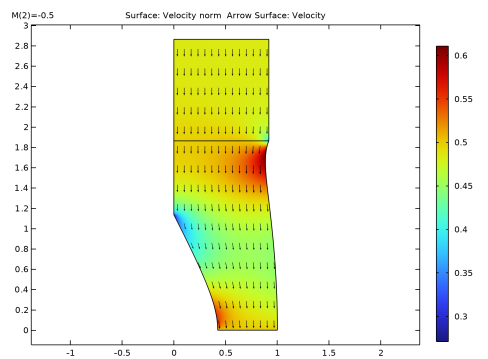
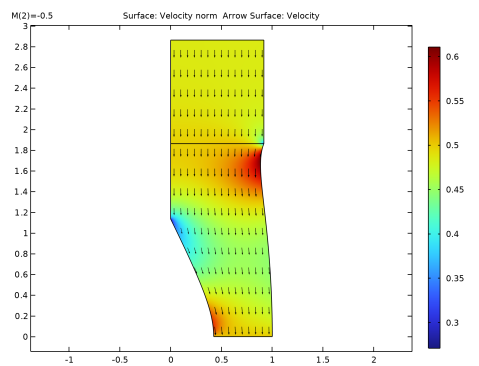
For the nontrivial case of a source-plane axial Mach number of M = −0.5, the resulting mean-flow field appears in Figure 3. Note that the velocity potential is uniform well beyond the terminal plane, thus justifying the boundary condition imposed there. Furthermore, as could be expected, deviations from the mean density value appear primarily near the nonuniformities of the duct geometry, such as at the tip of the spinner.
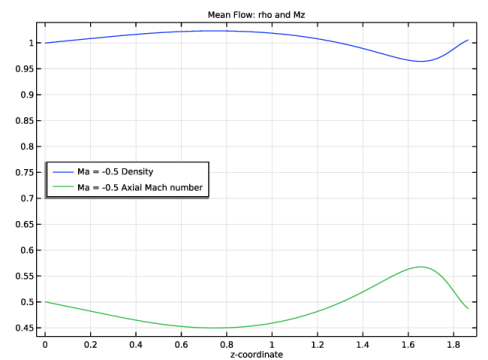
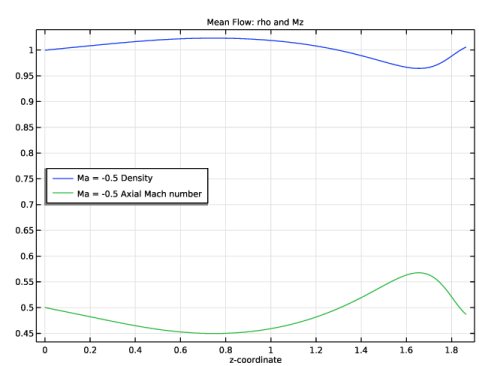
As a complement, a more quantitative picture of the variations of the mean-flow velocity and density profiles along the axial direction (for r = 0.8) appear in the cross-section plots in Figure 4.
Figure 3: Mean-flow velocity potential and density for source-plane Mach number M = 0.5.
Figure 4: Mean-flow cross section plot at a sample radius of  0.8.
The Aeroacoustic Field
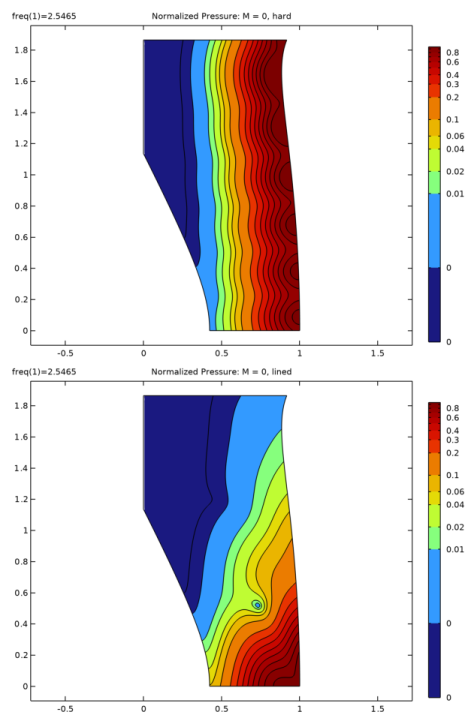
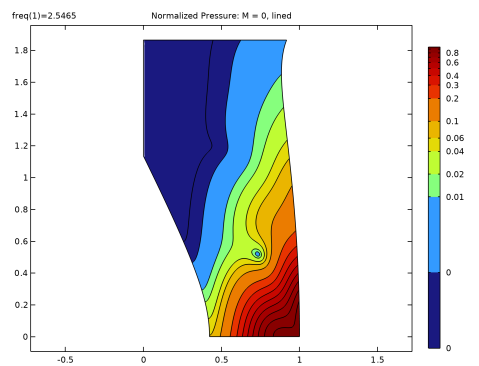
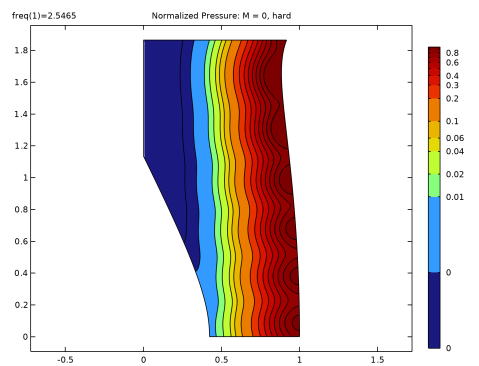
The normalized pressure fields for the case without a no background mean flow (M = 0), shown in Figure 5, very closely match those for the corresponding finite element model (FEM) solutions presented in Figure 6 of  Ref. 1. Similarly, the results for the attenuation between the source and inlet planes in the lined-wall case are in good agreement: 51.0 dB for the COMSOL Multiphysics solution versus 51.6 dB for the FEM solution, as shown in Table. 1 in Ref. 1.
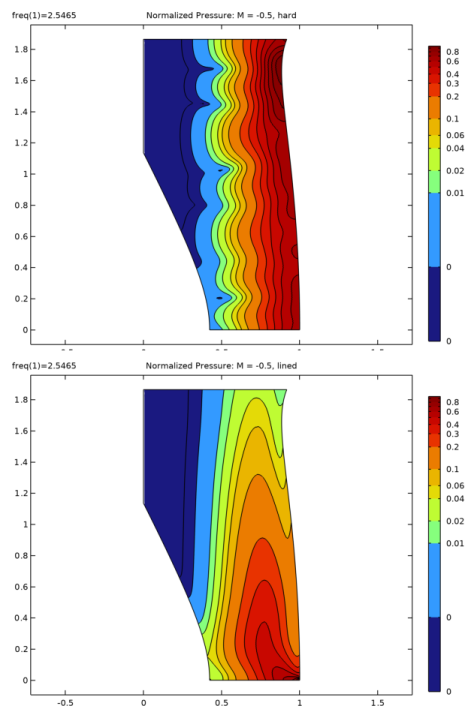
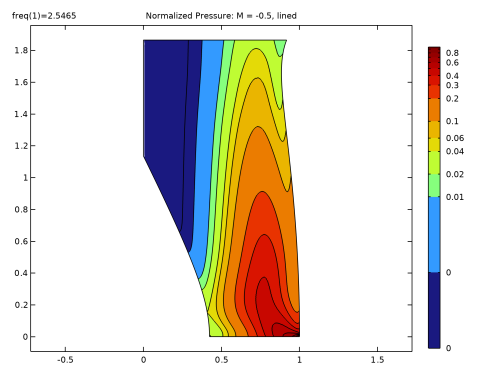
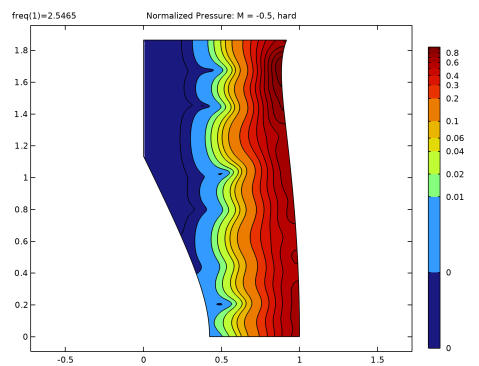
Turning to the case with a mean flow (M = 0.5), the pressure field for the hard-wall as well as the lined wall (soft wall) cases in Figure 6 closely resembles the FEM solution obtained by Rienstra and Eversman in Ref. 1. This observation extends to the attenuation, for which the calculated value of 28.3 dB is in good agreement with the value of 27.2 dB obtained in Ref. 1.
Note that the port modes (including the source) in the COMSOL Multiphysics calculation was derived for the case of a hard duct wall with uniform flow, whereas Rienstra and Eversman used a noise source adapted to the acoustic lining. However this fact does not seem to have a large influence on the solution for this particular problem. The propagating mode for the lined wall is actually a linear combination of the two hard-wall propagating modes. In the model Flow Duct — Modes with Impedance Condition the modes that match the impedance condition at the lined walls are computed and used when setting up the port conditions. In another variant of the Flow Duct model, the Flow Duct — With Boundary Mode Analysis model, the hard walled modes are computed using a boundary mode analysis. This has a small effect at the source plane, where the flow is not uniform.
Figure 5: Acoustic pressure field for the cases of hard (top) and lined (bottom) duct wall with no mean flow (M = 0); azimuthal mode number m = 10 and angular frequency ω = 16.
Figure 6: Acoustic pressure distribution for the cases of hard (top) and lined (bottom) duct wall with mean flow (M = 0.5); azimuthal mode number m = 10 and angular frequency ω = 16.
Notes About the COMSOL Implementation
Physics Interfaces
Compressible Potential Flow (cpf) — for modeling the background mean-flow velocity field as a potential flow (a lossless and irrotational flow).
Linearized Potential Flow, Frequency Domain (lpff) — for modeling the time-harmonic acoustic field in the duct for the various excitation and flow condition. The Port condition is used at the source and terminal planes using the built-in Annular and Circular port type options.
Modes Used at the Ports
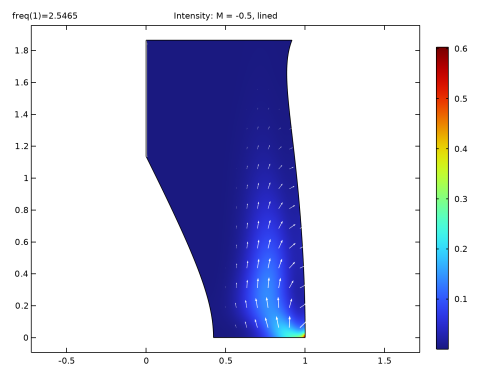
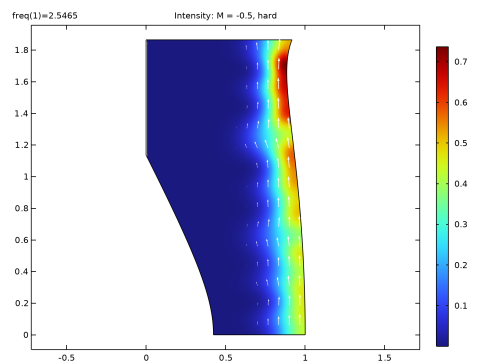
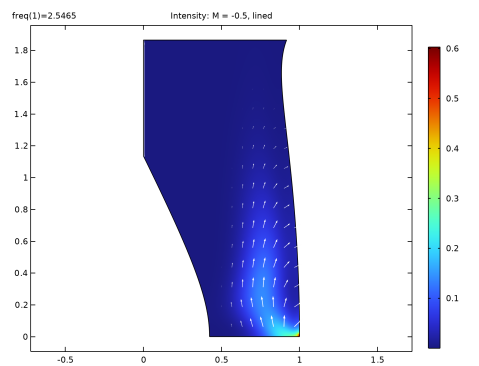
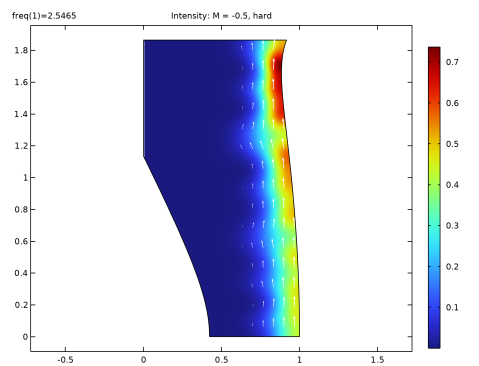
At the ports (the source and terminal planes) only the modes based on the hard walled and uniform flow configuration are used (the built-in semi-analytical options). In the lined case this results in a small numerical error near the wall. This can be visualized by plotting the intensity magnitude (lpff.I_mag) for the lined solutions, as seen in Figure 7. The intensity field for the hard walled configuration is seen in Figure 8.
Figure 7: Intensity field in the lined case.
Computing and using the correct modes, including the impedance (lining) is possible. An Impedance condition can be added to the Boundary Mode interfaces, and the numerically computed modes can be used at the ports. However, identifying and sorting the modes is more involved in this case. For an extension of the current model using impedance conditions see the Flow Duct — Modes with Impedance Condition library model.
Figure 8: Intensity field in the hard walled case.
References
1. S.W. Rienstra and W. Eversman, “A Numerical Comparison Between the Multiple-Scales and Finite-Element Solution for Sound Propagation in Lined Flow Ducts,” J. Fluid Mech., vol. 437, pp. 367–384, 2001.
2. M.K. Myers, “On the Acoustic Boundary Condition in the Presence of Flow,” J. Sound Vib., vol. 71, pp. 429–434, 1980.
3. W. Eversman, “The Boundary Condition at an Impedance Wall in a Non-Uniform Duct with Potential Mean Flow,” J. Sound Vib., vol. 246, pp. 63–69, 2001. Errata: ibid,  vol. 258, pp. 791–792, 2002.
Application Library path: Acoustics_Module/Aeroacoustics_and_Noise/flow_duct
Modeling Instructions
From the File menu, choose New.
New
In the New window, click  Model Wizard.
Model Wizard
1
In the Model Wizard window, click  2D Axisymmetric.
2
In the Select Physics tree, select Acoustics > Aeroacoustics > Compressible Potential Flow (cpf).
3
Click Add.
4
In the Select Physics tree, select Acoustics > Aeroacoustics > Linearized Potential Flow, Frequency Domain (lpff).
5
Click Add.
6
Click  Study.
7
In the Select Study tree, select Preset Studies for Some Physics Interfaces > Stationary.
8
Root
1
In the Model Builder window, click the root node.
2
In the root node’s Settings window, locate the Unit System section.
3
From the Unit system list, choose None.
This setting turns off all unit support in the model.
Global Definitions
Parameters 1
Load the parameters from a file. They define model, geometry, and physical properties including the liner impedance. Then proceed and create the geometry of the duct.
1
In the Model Builder window, under Global Definitions click Parameters 1.
2
In the Settings window for Parameters, locate the Parameters section.
3
Click  Load from File.
4
Proceed and draw the geometry of the engine duct. Use the Parametric Curve features to draw the shapes defined by the functions described in the main document.
Geometry 1
Parametric Curve 1 (pc1)
1
In the Geometry toolbar, click  More Primitives and choose Parametric Curve.
2
In the Settings window for Parametric Curve, locate the Expressions section.
3
In the r text field, type 1-0.18453*s^2+0.10158*(exp(-11*(1-s))-exp(-11))/(1-exp(-11)).
4
In the z text field, type s*zi.
Parametric Curve 2 (pc2)
1
In the Geometry toolbar, click  More Primitives and choose Parametric Curve.
2
In the Settings window for Parametric Curve, locate the Parameter section.
3
In the Maximum text field, type 0.7.
4
Locate the Expressions section. In the r text field, type 0.64212-sqrt(0.04777+0.98234*s^2).
5
In the z text field, type s*zi.
Line Segment 1 (ls1)
1
In the Geometry toolbar, click  More Primitives and choose Line Segment.
2
In the Settings window for Line Segment, locate the Starting Point section.
3
From the Specify list, choose Coordinates.
4
Locate the Endpoint section. From the Specify list, choose Coordinates.
5
In the z text field, type zi.
Union 1 (uni1)
1
In the Geometry toolbar, click  Booleans and Partitions and choose Union.
2
Select the objects ls1 and pc2 only.
Line Segment 2 (ls2)
1
In the Geometry toolbar, click  More Primitives and choose Line Segment.
2
In the Settings window for Line Segment, locate the Starting Point section.
3
Click to select the  Activate Selection toggle button for Start vertex.
4
On the object uni1, select Point 5 only.
5
Locate the Endpoint section. Click to select the  Activate Selection toggle button for End vertex.
6
On the object pc1, select Point 1 only.
Line Segment 3 (ls3)
1
In the Geometry toolbar, click  More Primitives and choose Line Segment.
2
On the object uni1, select Point 4 only.
3
In the Settings window for Line Segment, locate the Endpoint section.
4
Click to select the  Activate Selection toggle button for End vertex.
5
On the object pc1, select Point 2 only.
6
In the Geometry toolbar, click  Build All.
Delete Entities 1 (del1)
1
In the Model Builder window, right-click Geometry 1 and choose Delete Entities.
2
On the object uni1, select Boundaries 1 and 3 only.
3
In the Settings window for Delete Entities, click  Build Selected.
Convert to Solid 1 (csol1)
1
In the Geometry toolbar, click  Conversions and choose Convert to Solid.
2
Click in the Graphics window and then press Ctrl+D to clear all objects.
3
Click the  Select All button in the Graphics toolbar.
Rectangle 1 (r1)
1
In the Geometry toolbar, click  Rectangle.
2
In the Settings window for Rectangle, locate the Size and Shape section.
3
In the Width text field, type ri.
4
Locate the Position section. In the z text field, type zi.
Form Union (fin)
1
In the Geometry toolbar, click  Build All.
2
Click the  Zoom Extents button in the Graphics toolbar.
3
In the Model Builder window, click Form Union (fin).
Proceed and set up variables used for the results analysis. One is a normalized absolute pressure which uses a maximum operator over the domain. Define selections for the source, inlet and terminal planes. Finally, define an integration operator used to compute the power through the inlet plane.
Definitions
Variables 1
1
In the Model Builder window, under Component 1 (comp1) right-click Definitions and choose Variables.
2
In the Settings window for Variables, locate the Geometric Entity Selection section.
3
From the Geometric entity level list, choose Domain.
4
5
Locate the Variables section. In the table, enter the following settings:
Source Plane
1
In the Definitions toolbar, click  Explicit.
2
In the Settings window for Explicit, type Source Plane in the Label text field.
3
Locate the Input Entities section. From the Geometric entity level list, choose Boundary.
4
Inlet Plane
1
In the Definitions toolbar, click  Explicit.
2
In the Settings window for Explicit, type Inlet Plane in the Label text field.
3
Locate the Input Entities section. From the Geometric entity level list, choose Boundary.
4
Terminal Plane
1
In the Definitions toolbar, click  Explicit.
2
In the Settings window for Explicit, type Terminal Plane in the Label text field.
3
Locate the Input Entities section. From the Geometric entity level list, choose Boundary.
4
Maximum 1 (maxop1)
1
In the Definitions toolbar, click  Nonlocal Couplings and choose Maximum.
2
Integration 1 (intop1)
1
In the Definitions toolbar, click  Nonlocal Couplings and choose Integration.
2
In the Settings window for Integration, type intop_ip in the Operator name text field.
3
Locate the Source Selection section. From the Geometric entity level list, choose Boundary.
4
From the Selection list, choose Inlet Plane.
Now proceed and set up the physics for the Compressible Potential Flow.
Compressible Potential Flow (cpf)
1
In the Model Builder window, under Component 1 (comp1) click Compressible Potential Flow (cpf).
2
In the Settings window for Compressible Potential Flow, locate the Reference Values section.
3
In the pref text field, type cpf.rhoref^gamma/gamma.
4
In the ρref text field, type rho0.
5
In the vref text field, type M.
Compressible Potential Flow Model 1
1
In the Model Builder window, under Component 1 (comp1) > Compressible Potential Flow (cpf) click Compressible Potential Flow Model 1.
2
In the Settings window for Compressible Potential Flow Model, locate the Compressible Potential Flow Model section.
3
From the γ list, choose User defined. In the associated text field, type gamma.
Normal Flow 1
1
In the Physics toolbar, click  Boundaries and choose Normal Flow.
2
In the Settings window for Normal Flow, locate the Boundary Selection section.
3
From the Selection list, choose Terminal Plane.
Mass Flow 1
1
In the Physics toolbar, click  Boundaries and choose Mass Flow.
2
In the Settings window for Mass Flow, locate the Boundary Selection section.
3
From the Selection list, choose Source Plane.
Set up a fully user defined mesh for the computational domain.
Mesh 1
Free Triangular 1
1
In the Mesh toolbar, click  Free Triangular.
2
In the Settings window for Free Triangular, locate the Domain Selection section.
3
From the Geometric entity level list, choose Domain.
4
Size 1
1
Right-click Free Triangular 1 and choose Size.
2
In the Settings window for Size, locate the Element Size section.
3
Click the Custom button.
4
Locate the Geometric Entity Selection section. From the Geometric entity level list, choose Point.
5
6
Locate the Element Size Parameters section.
7
Select the Maximum element size checkbox. In the associated text field, type 0.005.
Size
1
In the Model Builder window, under Component 1 (comp1) > Mesh 1 click Size.
2
In the Settings window for Size, locate the Element Size section.
3
Click the Custom button.
4
Locate the Element Size Parameters section. In the Maximum element size text field, type 0.015.
5
In the Minimum element size text field, type 0.001.
Mapped 1
1
In the Mesh toolbar, click  Mapped.
2
In the Settings window for Mapped, click  Build All.
Now, first solve the background flow and look at the results. The flow is solved for two Mach numbers using a Parametric Sweep.
Study 1 - Background Flow
1
In the Model Builder window, click Study 1.
2
In the Settings window for Study, type Study 1 - Background Flow in the Label text field.
Parametric Sweep
1
In the Study toolbar, click  Parametric Sweep.
2
In the Settings window for Parametric Sweep, locate the Study Settings section.
3
4
5
In the Study toolbar, click  Compute.
Results
Arrow Surface 1
1
Right-click Mean Flow Velocity (cpf) and choose Arrow Surface.
2
In the Settings window for Arrow Surface, locate the Coloring and Style section.
3
From the Color list, choose Black.
4
In the Mean Flow Velocity (cpf) toolbar, click  Plot.
Cut Line 2D 1
1
In the Results toolbar, click  Cut Line 2D.
2
In the Settings window for Cut Line 2D, locate the Line Data section.
3
In row Point 1, set R to 0.8.
4
In row Point 2, set R to 0.8.
5
In row Point 2, set Z to zi.
Mean Flow: rho and Mz
1
In the Results toolbar, click  1D Plot Group.
2
In the Settings window for 1D Plot Group, type Mean Flow: rho and Mz in the Label text field.
3
Locate the Data section. From the Dataset list, choose Cut Line 2D 1.
4
From the Parameter selection (M) list, choose Last.
5
Click to expand the Title section. From the Title type list, choose Label.
6
Locate the Legend section. From the Position list, choose Middle left.
Line Graph 1
1
Right-click Mean Flow: rho and Mz and choose Line Graph.
2
In the Settings window for Line Graph, locate the y-Axis Data section.
3
In the Expression text field, type rho.
4
Locate the x-Axis Data section. From the Parameter list, choose Expression.
5
In the Expression text field, type z.
6
Click to expand the Legends section. Select the Show legends checkbox.
7
Find the Include subsection. Select the Description checkbox.
8
Find the Prefix and suffix subsection. In the Prefix text field, type Ma = .
9
In the Mean Flow: rho and Mz toolbar, click  Plot.
Line Graph 2
1
In the Model Builder window, right-click Mean Flow: rho and Mz and choose Line Graph.
2
In the Settings window for Line Graph, locate the y-Axis Data section.
3
In the Expression text field, type Mz.
4
Locate the x-Axis Data section. From the Parameter list, choose Expression.
5
In the Expression text field, type z.
6
Locate the Legends section. Select the Show legends checkbox.
7
Find the Include subsection. Select the Description checkbox.
8
Find the Prefix and suffix subsection. In the Prefix text field, type Ma = .
9
In the Mean Flow: rho and Mz toolbar, click  Plot.
Finally, set up the physics and boundary conditions for the Linearized Potential Flow, Frequency Domain physics interface. Of particular importance is the setup of the Port conditions. The ports are divided into those applied at the source and inlet planes.
At the source plane the Annular port option is used while at the terminal plane the Circular port option is used. These port type options automatically compute the mode shapes, based on analytical and semi-analytical expressions. Note that it is assumed that the walls are sound hard and that the flow is uniform. The flow is uniform at the terminal plane while being only nearly uniform at the source plane. Note also that the modes will not fulfill the impedance conditions in the lined configurations. This assumptions is often used in real systems where the engine source has been projected onto the hard-walled modes.
Linearized Potential Flow, Frequency Domain (lpff)
1
In the Model Builder window, under Component 1 (comp1) click Linearized Potential Flow, Frequency Domain (lpff).
2
In the Settings window for Linearized Potential Flow, Frequency Domain, locate the Linearized Potential Flow Equation Settings section.
3
In the m text field, type m.
4
Locate the Global Port Settings section. From the Mode shape normalization list, choose Power normalization.
Multiphysics
Background Potential Flow Coupling 1 (pfc1)
In the Physics toolbar, click  Multiphysics Couplings and choose Global > Background Potential Flow Coupling.
Linearized Potential Flow, Frequency Domain (lpff)
Impedance 1
1
In the Physics toolbar, click  Boundaries and choose Impedance.
2
3
In the Settings window for Impedance, locate the Impedance section.
4
In the Zn text field, type Zw.
Source Plane
1
In the Model Builder window, right-click Linearized Potential Flow, Frequency Domain (lpff) and choose Node Group.
2
In the Settings window for Group, type Source Plane in the Label text field.
Port 1
1
In the Physics toolbar, click  Boundaries and choose Port.
2
In the Settings window for Port, locate the Boundary Selection section.
3
From the Selection list, choose Source Plane.
4
Locate the Port Properties section. From the Type of port list, choose Annular.
5
Locate the Port Incident Mode Settings section. From the Incident wave excitation at this port list, choose On.
6
From the Define incident wave list, choose Mode scale.
7
In the Sin text field, type 1.
Only the first radial mode is exciting the system in this modal transmission loss analysis.
Port 2
1
In the Physics toolbar, click  Boundaries and choose Port.
2
In the Settings window for Port, locate the Boundary Selection section.
3
From the Selection list, choose Source Plane.
4
Locate the Port Properties section. From the Type of port list, choose Annular.
5
Locate the Port Mode Settings section. In the n text field, type 1.
Terminal Plane
1
Right-click Linearized Potential Flow, Frequency Domain (lpff) and choose Node Group.
2
In the Settings window for Group, type Terminal Plane in the Label text field.
Port 3
1
In the Physics toolbar, click  Boundaries and choose Port.
2
In the Settings window for Port, locate the Boundary Selection section.
3
From the Selection list, choose Terminal Plane.
4
Locate the Port Properties section. From the Type of port list, choose Circular.
Port 4
1
In the Physics toolbar, click  Boundaries and choose Port.
2
In the Settings window for Port, locate the Boundary Selection section.
3
From the Selection list, choose Terminal Plane.
4
Locate the Port Properties section. From the Type of port list, choose Circular.
5
Locate the Port Mode Settings section. In the n text field, type 1.
Solve the frequency domain model for the no-flow (M = 0) and flow (M = -0.5) cases as well as having a liner (finite impedance) and a sound hard configuration. Then analyze the results.
Add Study
1
In the Home toolbar, click  Add Study to open the Add Study window.
2
Go to the Add Study window.
3
Find the Physics interfaces in study subsection. In the table, clear the Solve checkbox for Compressible Potential Flow (cpf).
4
Find the Studies subsection. In the Select Study tree, select General Studies > Frequency Domain.
5
Click the Add Study button in the window toolbar.
Study 2 - Frequency Domain (M = 0, lined)
In the Settings window for Study, type Study 2 - Frequency Domain (M = 0, lined) in the Label text field.
Step 1: Frequency Domain
1
In the Model Builder window, under Study 2 - Frequency Domain (M = 0, lined) click Step 1: Frequency Domain.
2
In the Settings window for Frequency Domain, locate the Study Settings section.
3
In the Frequencies text field, type f.
4
Click to expand the Values of Dependent Variables section. Find the Values of variables not solved for subsection. From the Settings list, choose User controlled.
5
From the Method list, choose Solution.
6
From the Study list, choose Study 1 - Background Flow, Stationary.
7
From the Parameter value (M) list, choose 0.
8
In the Model Builder window, click Study 2 - Frequency Domain (M = 0, lined).
9
In the Settings window for Study, locate the Study Settings section.
10
Clear the Generate default plots checkbox.
11
In the Study toolbar, click  Compute.
Add Study
1
In the Home toolbar, click  Add Study to open the Add Study window.
2
Go to the Add Study window.
3
Find the Physics interfaces in study subsection. In the table, clear the Solve checkbox for Compressible Potential Flow (cpf).
4
Find the Studies subsection. In the Select Study tree, select General Studies > Frequency Domain.
5
Click the Add Study button in the window toolbar.
Study 3 - Frequency Domain (M = 0, hard)
In the Settings window for Study, type Study 3 - Frequency Domain (M = 0, hard) in the Label text field.
1
In the Model Builder window, under Study 3 - Frequency Domain (M = 0, hard) click Step 1: Frequency Domain.
2
In the Settings window for Frequency Domain, locate the Study Settings section.
3
In the Frequencies text field, type f.
4
Locate the Physics and Variables Selection section. Select the Modify model configuration for study step checkbox.
5
In the tree, select Component 1 (comp1) > Linearized Potential Flow, Frequency Domain (lpff) > Impedance 1.
6
Click  Disable.
7
Click to expand the Values of Dependent Variables section. Find the Values of variables not solved for subsection. From the Settings list, choose User controlled.
8
From the Method list, choose Solution.
9
From the Study list, choose Study 1 - Background Flow, Stationary.
10
From the Parameter value (M) list, choose 0.
11
In the Model Builder window, click Study 3 - Frequency Domain (M = 0, hard).
12
In the Settings window for Study, locate the Study Settings section.
13
Clear the Generate default plots checkbox.
14
In the Study toolbar, click  Compute.
Add Study
1
In the Home toolbar, click  Add Study to open the Add Study window.
2
Go to the Add Study window.
3
Find the Physics interfaces in study subsection. In the table, clear the Solve checkbox for Compressible Potential Flow (cpf).
4
Find the Studies subsection. In the Select Study tree, select General Studies > Frequency Domain.
5
Click the Add Study button in the window toolbar.
Study 4 - Frequency Domain (M = -0.5, lined)
In the Settings window for Study, type Study 4 - Frequency Domain (M = -0.5, lined) in the Label text field.
1
In the Model Builder window, under Study 4 - Frequency Domain (M = -0.5, lined) click Step 1: Frequency Domain.
2
In the Settings window for Frequency Domain, locate the Study Settings section.
3
In the Frequencies text field, type f.
4
Click to expand the Values of Dependent Variables section. Find the Values of variables not solved for subsection. From the Settings list, choose User controlled.
5
From the Method list, choose Solution.
6
From the Study list, choose Study 1 - Background Flow, Stationary.
7
From the Parameter value (M) list, choose -0.5.
8
In the Model Builder window, click Study 4 - Frequency Domain (M = -0.5, lined).
9
In the Settings window for Study, locate the Study Settings section.
10
Clear the Generate default plots checkbox.
11
In the Study toolbar, click  Compute.
Add Study
1
In the Home toolbar, click  Add Study to open the Add Study window.
2
Go to the Add Study window.
3
Find the Physics interfaces in study subsection. In the table, clear the Solve checkbox for Compressible Potential Flow (cpf).
4
Find the Studies subsection. In the Select Study tree, select General Studies > Frequency Domain.
5
Click the Add Study button in the window toolbar.
Study 5 - Frequency Domain (M = -0.5, hard)
In the Settings window for Study, type Study 5 - Frequency Domain (M = -0.5, hard) in the Label text field.
1
In the Model Builder window, under Study 5 - Frequency Domain (M = -0.5, hard) click Step 1: Frequency Domain.
2
In the Settings window for Frequency Domain, locate the Study Settings section.
3
In the Frequencies text field, type f.
4
Locate the Physics and Variables Selection section. Select the Modify model configuration for study step checkbox.
5
In the tree, select Component 1 (comp1) > Linearized Potential Flow, Frequency Domain (lpff) > Impedance 1.
6
Click  Disable.
7
Click to expand the Values of Dependent Variables section. Find the Values of variables not solved for subsection. From the Settings list, choose User controlled.
8
From the Method list, choose Solution.
9
From the Study list, choose Study 1 - Background Flow, Stationary.
10
From the Parameter value (M) list, choose -0.5.
11
In the Model Builder window, click Study 5 - Frequency Domain (M = -0.5, hard).
12
In the Settings window for Study, locate the Study Settings section.
13
Clear the Generate default plots checkbox.
14
In the Study toolbar, click  Compute.
Results
Normalized Pressure: M = 0, lined
1
In the Results toolbar, click  2D Plot Group.
2
In the Settings window for 2D Plot Group, type Normalized Pressure: M = 0, lined in the Label text field.
3
Locate the Data section. From the Dataset list, choose Study 2 - Frequency Domain (M = 0, lined)/Solution 2 (sol2).
4
Click to expand the Selection section. From the Geometric entity level list, choose Domain.
5
6
Select the Apply to dataset edges checkbox.
7
Click to expand the Title section. From the Title type list, choose Label.
Contour 1
1
Right-click Normalized Pressure: M = 0, lined and choose Contour.
2
In the Settings window for Contour, locate the Expression section.
3
In the Expression text field, type pabsn.
4
Locate the Levels section. From the Entry method list, choose Levels.
5
In the Levels text field, type 0.0001 0.001 0.01 0.02 0.04 0.06 0.1 0.2 0.3 0.4 0.5 0.6 0.7 0.8 0.9.
6
Locate the Coloring and Style section. From the Contour type list, choose Filled.
7
From the Scale list, choose Logarithmic.
8
In the Normalized Pressure: M = 0, lined toolbar, click  Plot.
Contour 2
1
Right-click Contour 1 and choose Duplicate.
2
In the Settings window for Contour, locate the Coloring and Style section.
3
From the Contour type list, choose Line.
4
From the Coloring list, choose Uniform.
5
From the Color list, choose Black.
6
Clear the Color legend checkbox.
Normalized Pressure: M = 0, lined
1
In the Model Builder window, click Normalized Pressure: M = 0, lined.
2
In the Normalized Pressure: M = 0, lined toolbar, click  Plot.
3
Click the  Zoom Extents button in the Graphics toolbar.
Normalized Pressure: M = 0, hard
1
Right-click Normalized Pressure: M = 0, lined and choose Duplicate.
2
In the Settings window for 2D Plot Group, type Normalized Pressure: M = 0, hard in the Label text field.
3
Locate the Data section. From the Dataset list, choose Study 3 - Frequency Domain (M = 0, hard)/Solution 3 (sol3).
4
In the Normalized Pressure: M = 0, hard toolbar, click  Plot.
Normalized Pressure: M = -0.5, lined
1
Right-click Normalized Pressure: M = 0, hard and choose Duplicate.
2
In the Settings window for 2D Plot Group, type Normalized Pressure: M = -0.5, lined in the Label text field.
3
Locate the Data section. From the Dataset list, choose Study 4 - Frequency Domain (M = -0.5, lined)/Solution 4 (sol4).
4
In the Normalized Pressure: M = -0.5, lined toolbar, click  Plot.
Normalized Pressure: M = -0.5, hard
1
Right-click Normalized Pressure: M = -0.5, lined and choose Duplicate.
2
In the Settings window for 2D Plot Group, type Normalized Pressure: M = -0.5, hard in the Label text field.
3
Locate the Data section. From the Dataset list, choose Study 5 - Frequency Domain (M = -0.5, hard)/Solution 5 (sol5).
4
In the Normalized Pressure: M = -0.5, hard toolbar, click  Plot.
Create two plots of the intensity magnitude and the intensity field. The plots are here for the flow case. The plots illustrate how the sound-hard modes introduce a small error at the inlet, as they do not match the lined condition.
Intensity: M = -0.5, lined
1
In the Results toolbar, click  2D Plot Group.
2
In the Settings window for 2D Plot Group, type Intensity: M = -0.5, lined in the Label text field.
3
Click to expand the Selection section. Locate the Data section. From the Dataset list, choose Study 4 - Frequency Domain (M = -0.5, lined)/Solution 4 (sol4).
4
Locate the Selection section. From the Geometric entity level list, choose Domain.
5
6
Select the Apply to dataset edges checkbox.
7
Click to expand the Title section. From the Title type list, choose Label.
Surface 1
1
Right-click Intensity: M = -0.5, lined and choose Surface.
2
In the Settings window for Surface, click Replace Expression in the upper-right corner of the Expression section. From the menu, choose Component 1 (comp1) > Linearized Potential Flow, Frequency Domain > Intensity > lpff.I_mag - Intensity magnitude - kg/s³.
Arrow Surface 1
1
In the Model Builder window, right-click Intensity: M = -0.5, lined and choose Arrow Surface.
2
In the Settings window for Arrow Surface, click Replace Expression in the upper-right corner of the Expression section. From the menu, choose Component 1 (comp1) > Linearized Potential Flow, Frequency Domain > Intensity > lpff.Ir,lpff.Iz - Intensity.
3
Locate the Coloring and Style section. From the Arrow length list, choose Logarithmic.
4
From the Color list, choose White.
5
In the Intensity: M = -0.5, lined toolbar, click  Plot.
6
Click the  Zoom Extents button in the Graphics toolbar.
Intensity: M = -0.5, hard
1
Right-click Intensity: M = -0.5, lined and choose Duplicate.
2
In the Settings window for 2D Plot Group, type Intensity: M = -0.5, hard in the Label text field.
3
Locate the Data section. From the Dataset list, choose Study 5 - Frequency Domain (M = -0.5, hard)/Solution 5 (sol5).
4
In the Intensity: M = -0.5, hard toolbar, click  Plot.
Create an evaluation group for computing the attenuation of the propagating mode when the liner is present in the model.
Evaluation Group: Attenuation
1
In the Results toolbar, click  Evaluation Group.
2
In the Settings window for Evaluation Group, type Evaluation Group: Attenuation in the Label text field.
3
Locate the Data section. From the Dataset list, choose None.
Global Evaluation 1
1
Right-click Evaluation Group: Attenuation and choose Global Evaluation.
2
In the Settings window for Global Evaluation, locate the Data section.
3
From the Dataset list, choose Study 2 - Frequency Domain (M = 0, lined)/Solution 2 (sol2).
4
Locate the Expressions section. In the table, enter the following settings:
Global Evaluation 2
1
In the Model Builder window, right-click Evaluation Group: Attenuation and choose Global Evaluation.
2
In the Settings window for Global Evaluation, locate the Data section.
3
From the Dataset list, choose Study 4 - Frequency Domain (M = -0.5, lined)/Solution 4 (sol4).
4
Locate the Expressions section. In the table, enter the following settings:
5
In the Evaluation Group: Attenuation toolbar, click  Evaluate.
The final plot generates a nice thumbnail image, look at the plot for the details of the setup. Three additional datasets are created for setting up the plot.