

PDF

Shape Optimization of an
Acoustic Demultiplexer
Introduction
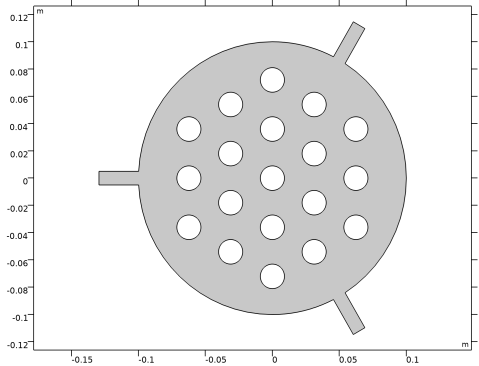
This model shows how shape optimization can be used to design an acoustic demultiplexer. A demultiplexer is a data distributing device, in this case it will distribute acoustic energy. The geometry consists of a circular domain with one input port and two output ports. The domain has the structure of a sonic crystal, it has 19 circular cavities which are deformed such that the energy goes to one output port for one frequency band and to another output port for another frequency band.
This model requires both the Acoustics Module and the Optimization Module.
Model Definition
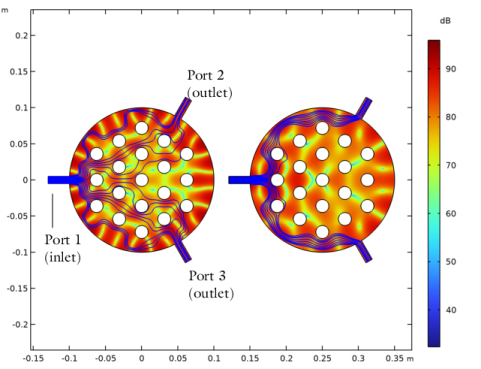
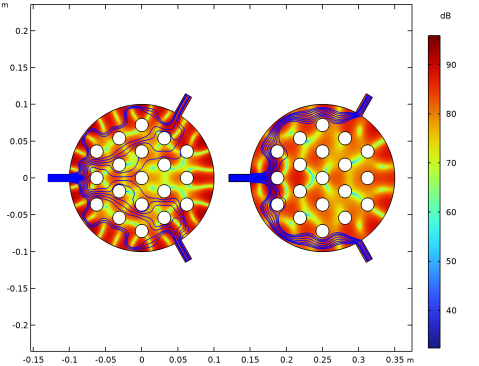
In this model all boundaries are modeled as sound hard except for the three ports as shown for the initial geometry in Figure 1. A number of circular cavities are introduced and it is the shape of these that will be optimized.
Figure 1: The sound pressure level distribution for the initial geometry is plotted together with blue lines, indicating the acoustic power flow from the input port to the left to the output ports to the right. The left figure is for 550 Hz and the right figure is for 750 Hz.
To set up the model, use the Pressure Acoustics, Frequency Domain interface together with the Free Shape Domain and Free Shape Boundary features.
Domain Equations
The default Pressure Acoustics feature models harmonic sound waves in the domain by means of the Helmholtz equation for sound pressure:
Here the acoustic pressure is a harmonic quantity, p = p0eiωt, and p is the pressure (SI unit: N/m2), ρc is the density (kg/m3), ω is the angular frequency (SI unit: rad/s), and c is the speed of sound (SI unit: m/s). Two frequency bands will be investigated as characterized by the three parameters shown in the table below.
f1
f2
df
Optimization setup
The cavities will be deformed using the Free Shape Boundary and Free Shape Domain features.
The objective function will be expressed as a MaxMin problem. This type of problem can be solved using the MMA optimization method.
Where Pport 2 and Pport 3 are the output port powers, which can be computed using the built in port variables acpr.port2.P_out and acpr.port3.P_out. Similarly freq can be used to get the frequency, f. The governing equations will be solved for 5 frequencies around f1 and f2 for a total of 10 inner solutions. For some problems like this one, GCMMA can converge slowly. The number of maximum optimization iterations has been limited to 25 to limit the run time. A larger number of iterations will produce a better design but will increase the run time.
Results and Discussion
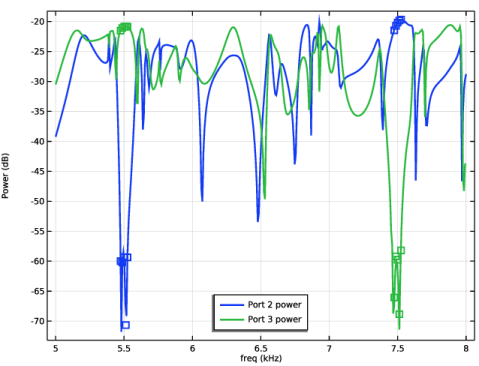
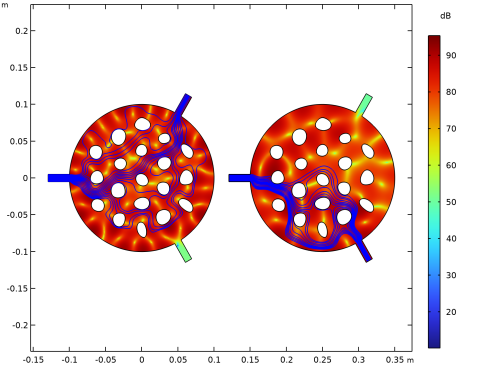
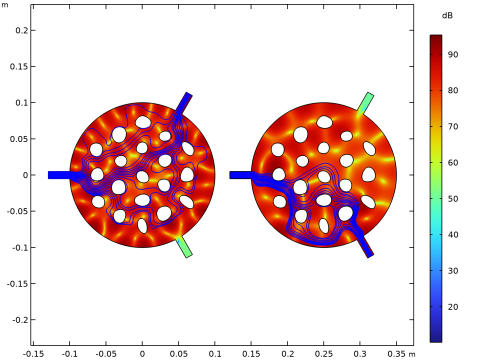
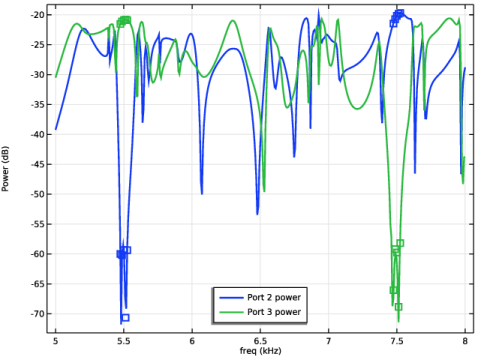
Figure 2 displays the sound pressure level (SPL) distribution for the optimized geometry at the center of both frequency bands (left 550 Hz and right 750 Hz). The figure also shows the power flow by plotting streamlines (blue lines) of the acoustic intensity field. This plot is made using the raw optimization results, but these can be verified by generating a mesh in the deformed configuration and running the simulation again as shown by means of a spectrum in Figure 3. This shows that we can achieve 35 dB power difference between the two ports across both frequency bands.
Figure 2: The intensity is plotted at the center of both frequency bands. The blue lines indicate the acoustic power flow.
Looking at the intensity streamlines in Figure 2 and the spectrum in Figure 3, it is clear that a node in the wave field is moved to the port for which no power is desired. This makes the performance of the design specific to the considered frequency bands and one can thus expect the minimum power ratio to decrease, if the bandwidth is increased.
Figure 3: Spectrum for the two ports using the optimization mesh (points) and a finer mesh generated in the deformed configuration (lines).
Application Library path: Acoustics_Module/Optimization/demultiplexer_shape_optimization
Modeling Instructions
From the File menu, choose New.
New
In the New window, click  Model Wizard.
Model Wizard
1
In the Model Wizard window, click  2D.
2
In the Select Physics tree, select Acoustics > Pressure Acoustics > Pressure Acoustics, Frequency Domain (acpr).
3
Click Add.
4
Click  Study.
5
In the Select Study tree, select General Studies > Frequency Domain.
6
Global Definitions
Parameters 1
You can import the table contents from demultiplexer_shape_optimization_parameters.txt.
1
In the Model Builder window, under Global Definitions click Parameters 1.
2
In the Settings window for Parameters, locate the Parameters section.
3
Geometry 1
Create the geometry. To simplify this step, insert a prepared geometry sequence.
1
In the Geometry toolbar, click Insert Sequence and choose Insert Sequence.
2
3
In the Geometry toolbar, click  Build All.
4
Click the  Zoom Extents button in the Graphics toolbar.
5
In the Model Builder window, under Component 1 (comp1) click Geometry 1.
The geometry should now look like that in Figure 1.
6
In the Model Builder window, collapse the Geometry 1 node.
Add Material
1
In the Materials toolbar, click  Add Material to open the Add Material window.
2
Go to the Add Material window.
3
In the tree, select Built-in > Air.
4
Click the Add to Component button in the window toolbar.
5
In the Materials toolbar, click  Add Material to close the Add Material window.
Pressure Acoustics, Frequency Domain (acpr)
Port 1
1
In the Physics toolbar, click  Boundaries and choose Port.
2
In the Settings window for Port, locate the Boundary Selection section.
3
From the Selection list, choose Port 1.
4
Locate the Port Properties section. From the Type of port list, choose Slit.
5
Locate the Incident Mode Settings section. In the Apin text field, type 1.
Port 2
1
In the Physics toolbar, click  Boundaries and choose Port.
2
In the Settings window for Port, locate the Boundary Selection section.
3
From the Selection list, choose Port 2.
4
Locate the Port Properties section. From the Type of port list, choose Slit.
Port 3
1
In the Physics toolbar, click  Boundaries and choose Port.
2
In the Settings window for Port, locate the Boundary Selection section.
3
From the Selection list, choose Port 3.
4
Locate the Port Properties section. From the Type of port list, choose Slit.
Mesh 1
Size 1
In the Model Builder window, under Component 1 (comp1) right-click Mesh 1 and choose Size.
Size
1
In the Settings window for Size, click to expand the Element Size Parameters section.
2
In the Maximum element size text field, type meshsz.
3
In the Minimum element size text field, type meshsz/2.
Size 1
1
In the Model Builder window, click Size 1.
2
In the Settings window for Size, locate the Geometric Entity Selection section.
3
From the Geometric entity level list, choose Boundary.
4
From the Selection list, choose All boundaries.
5
Locate the Element Size section. Click the Custom button.
6
Locate the Element Size Parameters section.
7
Select the Maximum element size checkbox. In the associated text field, type meshsz/2.
Free Triangular 1
1
In the Mesh toolbar, click  Free Triangular.
2
In the Settings window for Free Triangular, click  Build All.
Study 1: Initial Design
1
In the Model Builder window, click Study 1.
2
In the Settings window for Study, type Study 1: Initial Design in the Label text field.
Step 1: Frequency Domain
1
In the Model Builder window, under Study 1: Initial Design click Step 1: Frequency Domain.
2
In the Settings window for Frequency Domain, locate the Study Settings section.
3
In the Frequencies text field, type f1 f2.
4
In the Study toolbar, click  Compute.
Definitions
Next define an objective function based on the power ratio between the two ports to the right.
Port powers
1
In the Model Builder window, under Component 1 (comp1) right-click Definitions and choose Variables.
2
In the Settings window for Variables, type Port powers in the Label text field.
3
Locate the Variables section. In the table, enter the following settings:
Next define a shape optimization problem using the Free Shape Domain and Free Shape Boundary functionality.
Component 1 (comp1)
Free Shape Domain 1
In the Physics toolbar, click  Optimization and choose Shape Optimization.
Free Shape Boundary 1
1
In the Shape Optimization toolbar, click  Free Shape Boundary.
2
In the Settings window for Free Shape Boundary, locate the Boundary Selection section.
3
From the Selection list, choose Circles.
4
Locate the Control Variable Settings section. In the text field, type 0.5*Rhole.
5
Locate the Filtering section. From the Rmin list, choose Medium.
Root
Add a 2nd study for the optimization.
Add Study
1
In the Home toolbar, click  Add Study to open the Add Study window.
2
Go to the Add Study window.
3
Find the Studies subsection. In the Select Study tree, select General Studies > Frequency Domain.
4
Click the Add Study button in the window toolbar.
5
In the Home toolbar, click  Add Study to close the Add Study window.
Study 2: Optimization
In the Settings window for Study, type Study 2: Optimization in the Label text field.
Shape Optimization
1
In the Study toolbar, click  Optimization and choose Shape Optimization.
2
In the Settings window for Shape Optimization, locate the Optimization Solver section.
3
Clear the Move limits checkbox.
4
Click Add Expression in the upper-right corner of the Objective Function section. From the menu, choose Component 1 (comp1) > Definitions > Variables > comp1.obj - Objective.
5
Locate the Objective Function section. From the Solution list, choose Maximum of objectives.
Step 1: Frequency Domain
1
In the Model Builder window, click Step 1: Frequency Domain.
2
In the Settings window for Frequency Domain, locate the Study Settings section.
3
In the Frequencies text field, type range(f1-0.5*df,df/(dfN-1),f1+0.5*df) range(f2-0.5*df,df/(dfN-1),f2+0.5*df).
4
In the Study toolbar, click  Get Initial Value.
Results
Arrow Line 1
1
In the Model Builder window, expand the Shape Optimization node, then click Arrow Line 1.
2
In the Settings window for Arrow Line, locate the Arrow Positioning section.
3
From the Placement list, choose Mesh vertices.
Study 2: Optimization
Shape Optimization
1
In the Model Builder window, under Study 2: Optimization click Shape Optimization.
2
In the Settings window for Shape Optimization, click to expand the Output section.
3
Select the Plot checkbox.
4
From the Plot group list, choose Shape Optimization.
5
Locate the Optimization Solver section. In the Maximum number of iterations text field, type 25.
6
In the Study toolbar, click  Compute.
Results
Study 2: Optimization/Solution 2 (sol2)
Add a 2nd mesh generated in the deformed configuration and use it in two verification studies. The first verification study will only solve at f1 and f2, while the 2nd will solve for many frequencies, but only save the data on the ports.
1
In the Model Builder window, expand the Results > Datasets node.
2
Right-click Results > Datasets > Study 2: Optimization/Solution 2 (sol2) and choose Remesh Deformed Configuration.
Mesh 2
Size 1
1
In the Model Builder window, expand the Deformed Configuration 1 (frommesh1) node.
2
Right-click Component 1 (comp1) > Meshes > Deformed Configuration 1 (frommesh1) > Mesh 2 and choose Size.
Size
1
In the Settings window for Size, locate the Element Size section.
2
Click the Custom button.
3
Locate the Element Size Parameters section. In the Maximum element size text field, type meshsz/2.
4
In the Minimum element size text field, type meshsz/4.
Size 1
1
In the Model Builder window, click Size 1.
2
In the Settings window for Size, locate the Geometric Entity Selection section.
3
From the Geometric entity level list, choose Boundary.
4
From the Selection list, choose Circles.
5
Locate the Element Size section. Click the Custom button.
6
Locate the Element Size Parameters section.
7
Select the Maximum element size checkbox. In the associated text field, type meshsz/4.
Free Triangular 1
In the Mesh toolbar, click  Free Triangular.
Reference 1
In the Model Builder window, right-click Reference 1 and choose Disable.
Add Study
1
In the Home toolbar, click  Add Study to open the Add Study window.
2
Go to the Add Study window.
3
Find the Studies subsection. In the Select Study tree, select General Studies > Frequency Domain.
4
Click the Add Study button in the window toolbar twice.
Study 3
Step 1: Frequency Domain
1
In the Settings window for Frequency Domain, locate the Study Settings section.
2
In the Frequencies text field, type f1 f2.
3
Locate the Physics and Variables Selection section. In the Solve for column of the table, under Component 1 (comp1), clear the checkbox for Deformed Geometry.
4
Click to expand the Values of Dependent Variables section. Find the Values of variables not solved for subsection. From the Settings list, choose User controlled.
5
From the Method list, choose Solution.
6
From the Study list, choose Study 2: Optimization, Frequency Domain.
7
In the Model Builder window, click Study 3.
8
In the Settings window for Study, locate the Study Settings section.
9
Clear the Generate default plots checkbox.
10
In the Label text field, type Study 3: Verification (f1,f2).
11
In the Study toolbar, click  Compute.
Verification (mesh2)
1
In the Model Builder window, under Study 4 click Step 1: Frequency Domain.
2
In the Settings window for Frequency Domain, locate the Study Settings section.
3
Click  Range.
4
In the Range dialog, choose Number of values from the Entry method list.
5
In the Start text field, type f1-10*df.
6
In the Stop text field, type f2+10*df.
7
In the Number of values text field, type 401.
8
Click Replace.
9
In the Settings window for Frequency Domain, locate the Physics and Variables Selection section.
10
In the Solve for column of the table, under Component 1 (comp1), clear the checkbox for Deformed Geometry.
11
Locate the Values of Dependent Variables section. Find the Values of variables not solved for subsection. From the Settings list, choose User controlled.
12
From the Method list, choose Solution.
13
From the Study list, choose Study 2: Optimization, Frequency Domain.
14
Click to expand the Store in Output section. In the table, enter the following settings:
15
16
Under Selections, click  Add.
17
In the Add dialog, select Ports in the Selections list.
18
19
In the Settings window for Frequency Domain, locate the Store in Output section.
20
21
22
Under Selections, click  Add.
23
In the Add dialog, select Ports in the Selections list.
24
25
In the Model Builder window, click Study 4.
26
In the Settings window for Study, locate the Study Settings section.
27
Clear the Generate default plots checkbox.
28
In the Label text field, type Verification (mesh2).
29
In the Study toolbar, click  Compute.
Results
Add a 1D plot group showing the optimized spectrum on both meshes.
Spectrum
1
In the Results toolbar, click  1D Plot Group.
2
In the Settings window for 1D Plot Group, type Spectrum in the Label text field.
3
Locate the Data section. From the Dataset list, choose Verification (mesh2)/Solution 4 (sol4).
4
Click to expand the Title section. From the Title type list, choose None.
5
Locate the Plot Settings section.
6
Select the y-axis label checkbox. In the associated text field, type Power (dB).
7
Locate the Legend section. From the Position list, choose Lower middle.
Global 1
1
Right-click Spectrum and choose Global.
2
In the Settings window for Global, click Add Expression in the upper-right corner of the y-Axis Data section. From the menu, choose Component 1 (comp1) > Definitions > Variables > power2 - Port 2 power.
3
Click Add Expression in the upper-right corner of the y-Axis Data section. From the menu, choose Component 1 (comp1) > Definitions > Variables > power3 - Port 3 power.
4
Locate the x-Axis Data section. From the Unit list, choose kHz.
5
Click to expand the Coloring and Style section. From the Width list, choose 2.
Global 2
1
Right-click Global 1 and choose Duplicate.
2
In the Settings window for Global, locate the Data section.
3
From the Dataset list, choose Study 2: Optimization/Solution 2 (sol2).
4
Locate the y-Axis Data section. In the table, enter the following settings:
5
Locate the Coloring and Style section. Find the Line style subsection. From the Line list, choose None.
6
From the Color list, choose Cycle (reset).
7
Find the Line markers subsection. From the Marker list, choose Square.
8
Click to expand the Legends section. Clear the Show legends checkbox.
9
In the Spectrum toolbar, click  Plot.
10
Click the  Zoom Extents button in the Graphics toolbar.
Modify the 4th plot group to animate the pressure for both frequencies.
Study 3: Verification (f1,f2)/Solution 3 (sol3)
1
In the Model Builder window, under Results > Datasets click Study 3: Verification (f1,f2)/Solution 3 (sol3).
2
In the Settings window for Solution, locate the Solution section.
3
From the Frame list, choose Spatial  (x, y, z).
Animation
1
In the Model Builder window, under Results click Acoustic Pressure (acpr) 1.
2
In the Settings window for 2D Plot Group, type Animation in the Label text field.
3
Click to expand the Title section. From the Title type list, choose None.
4
Locate the Plot Settings section. From the Frame list, choose Spatial  (x, y, z).
Surface 2
1
Right-click Animation and choose Surface.
2
In the Settings window for Surface, locate the Expression section.
3
In the Expression text field, type with(1,acpr.p_t).
4
Click to expand the Inherit Style section. From the Plot list, choose Surface 1.
Transformation 1
1
Right-click Surface 2 and choose Transformation.
2
In the Settings window for Transformation, locate the Transformation section.
3
In the X text field, type 1.25*L.
4
In the Animation toolbar, click  Plot.
Surface 1
1
In the Model Builder window, under Results > Animation click Surface 1.
2
In the Settings window for Surface, click to expand the Range section.
3
Select the Manual color range checkbox.
4
In the Minimum text field, type -1.
5
In the Maximum text field, type 1.
Line 1
1
In the Model Builder window, right-click Animation and choose Line.
2
In the Settings window for Line, locate the Coloring and Style section.
3
From the Coloring list, choose Uniform.
4
From the Color list, choose Black.
Transformation 1
1
Right-click Line 1 and choose Transformation.
2
In the Settings window for Transformation, locate the Transformation section.
3
In the X text field, type 1.25*L.
4
In the Animation toolbar, click  Plot.
5
Animation 1
1
In the Results toolbar, click  Animation and choose Player.
2
In the Settings window for Animation, locate the Scene section.
3
From the Subject list, choose Animation.
4
Locate the Animation Editing section. From the Sequence type list, choose Dynamic data extension.
5
Click the  Play button in the Graphics toolbar.
6
Locate the Playing section. From the Repeat list, choose Forever.
Modify the 5th plot group to show the intensity for both frequencies.
Surface 2
1
In the Model Builder window, expand the Sound Pressure Level (acpr) 1 node.
2
Right-click Results > Sound Pressure Level (acpr) 1 > Surface 1 and choose Duplicate.
3
In the Settings window for Surface, locate the Expression section.
4
In the Expression text field, type with(1,acpr.Lp_t).
5
Locate the Inherit Style section. From the Plot list, choose Surface 1.
Transformation 1
1
Right-click Surface 2 and choose Transformation.
2
In the Settings window for Transformation, locate the Transformation section.
3
In the X text field, type 1.25*L.
4
In the Sound Pressure Level (acpr) 1 toolbar, click  Plot.
Sound Pressure Level (acpr) 1
1
In the Model Builder window, under Results click Sound Pressure Level (acpr) 1.
2
In the Settings window for 2D Plot Group, locate the Title section.
3
From the Title type list, choose None.
4
Locate the Plot Settings section. From the Frame list, choose Spatial  (x, y, z).
Streamline 1
1
Right-click Sound Pressure Level (acpr) 1 and choose Streamline.
2
In the Settings window for Streamline, click Replace Expression in the upper-right corner of the Expression section. From the menu, choose Component 1 (comp1) > Pressure Acoustics, Frequency Domain > Intensity > acpr.Ix,acpr.Iy - Intensity (spatial and material frames).
3
Locate the Selection section. From the Selection list, choose Port 1.
4
Locate the Coloring and Style section. Find the Point style subsection. From the Color list, choose Blue.
Streamline 2
1
Right-click Streamline 1 and choose Duplicate.
2
In the Settings window for Streamline, locate the Expression section.
3
In the X-component text field, type with(1,acpr.Ix).
4
In the Y-component text field, type with(1,acpr.Iy).
Transformation 1
1
Right-click Streamline 2 and choose Transformation.
2
In the Settings window for Transformation, locate the Transformation section.
3
In the X text field, type 1.25*L.
4
In the Sound Pressure Level (acpr) 1 toolbar, click  Plot.
Line 1
1
In the Model Builder window, right-click Sound Pressure Level (acpr) 1 and choose Line.
2
In the Settings window for Line, locate the Coloring and Style section.
3
From the Coloring list, choose Uniform.
4
From the Color list, choose Black.
Transformation 1
1
Right-click Line 1 and choose Transformation.
2
In the Settings window for Transformation, locate the Transformation section.
3
In the X text field, type 1.25*L.
4
In the Sound Pressure Level (acpr) 1 toolbar, click  Plot.
5
6
Click the  Zoom Extents button in the Graphics toolbar.
Study 1: Initial Design
Step 1: Frequency Domain
1
In the Model Builder window, under Study 1: Initial Design click Step 1: Frequency Domain.
2
In the Settings window for Frequency Domain, locate the Physics and Variables Selection section.
3
In the Solve for column of the table, under Component 1 (comp1), clear the checkbox for Deformed Geometry.
Geometry Modeling Instructions
If you want to create the geometry yourself, follow these steps.
Global Definitions
Parameters 1
1
In the Model Builder window, under Global Definitions click Parameters 1.
2
In the Settings window for Parameters, locate the Parameters section.
3
Add Component
In the Home toolbar, click  Add Component and choose 2D.
Geometry 1
Circle 1 (c1)
1
In the Geometry toolbar, click  Circle.
2
In the Settings window for Circle, locate the Size and Shape section.
3
In the Radius text field, type L/2.
Rectangle 1 (r1)
1
In the Geometry toolbar, click  Rectangle.
2
In the Settings window for Rectangle, locate the Size and Shape section.
3
In the Width text field, type 3*L1.
4
In the Height text field, type L1.
5
Locate the Position section. From the Base list, choose Center.
6
In the x text field, type -L/2-L1*1.45.
7
Locate the Selections of Resulting Entities section. Select the Resulting objects selection checkbox.
Rotate 1 (rot1)
1
In the Geometry toolbar, click  Transforms and choose Rotate.
2
In the Settings window for Rotate, locate the Input section.
3
From the Input objects list, choose Rectangle 1.
4
Select the Keep input objects checkbox.
5
Locate the Rotation section. In the Angle text field, type 120 -120.
6
Click  Build Selected.
Union 1 (uni1)
1
In the Geometry toolbar, click  Booleans and Partitions and choose Union.
2
In the Settings window for Union, locate the Union section.
3
Clear the Keep interior boundaries checkbox.
4
Locate the Selections of Resulting Entities section. Select the Resulting objects selection checkbox.
5
Click in the Graphics window and then press Ctrl+A to select all objects.
Circle 2 (c2)
1
In the Geometry toolbar, click  Circle.
2
In the Settings window for Circle, locate the Size and Shape section.
3
In the Radius text field, type Rhole.
4
Locate the Selections of Resulting Entities section. Select the Resulting objects selection checkbox.
Move 1 (mov1)
1
In the Geometry toolbar, click  Transforms and choose Move.
2
In the Settings window for Move, locate the Input section.
3
From the Input objects list, choose Circle 2.
4
Select the Keep input objects checkbox.
5
Locate the Displacement section. In the x text field, type 2*Lperiod*sin(pi/3).
6
In the y text field, type 2*Lperiod*cos(pi/3).
Array 1 (arr1)
1
In the Geometry toolbar, click  Transforms and choose Array.
2
In the Settings window for Array, locate the Input section.
3
From the Input objects list, choose Circle 2.
4
Locate the Size section. In the x size text field, type round(0.5*L/Lperiod).
5
In the y size text field, type round(0.5*L/Lperiod).
6
Locate the Displacement section. In the x text field, type 4*Lperiod*sin(pi/3).
7
In the y text field, type 2*Lperiod.
Mirror 1 (mir1)
1
In the Geometry toolbar, click  Transforms and choose Mirror.
2
In the Settings window for Mirror, locate the Input section.
3
From the Input objects list, choose Circle 2.
4
Select the Keep input objects checkbox.
Mirror 2 (mir2)
1
In the Geometry toolbar, click  Transforms and choose Mirror.
2
In the Settings window for Mirror, locate the Input section.
3
From the Input objects list, choose Circle 2.
4
Select the Keep input objects checkbox.
5
Locate the Normal Vector to Line of Reflection section. In the x text field, type 0.
6
In the y text field, type 1.
Disk Selection 1 (disksel1)
1
In the Geometry toolbar, click  Selections and choose Disk Selection.
2
In the Settings window for Disk Selection, locate the Input Entities section.
3
From the Entities list, choose From selections.
4
5
In the Add dialog, select Circle 2 in the Selections list.
6
7
In the Settings window for Disk Selection, locate the Size and Shape section.
8
In the Outer radius text field, type Inf.
9
In the Inner radius text field, type L/2-Rhole.
Delete Entities 1 (del1)
1
In the Model Builder window, right-click Geometry 1 and choose Delete Entities.
2
In the Settings window for Delete Entities, locate the Entities or Objects to Delete section.
3
From the Geometric entity level list, choose Domain.
4
From the Selection list, choose Disk Selection 1.
Difference 1 (dif1)
1
In the Geometry toolbar, click  Booleans and Partitions and choose Difference.
2
In the Settings window for Difference, locate the Difference section.
3
From the Objects to add list, choose Union 1.
4
From the Objects to subtract list, choose Circle 2.
Ports
1
In the Geometry toolbar, click  Selections and choose Disk Selection.
2
In the Settings window for Disk Selection, type Ports in the Label text field.
3
Locate the Geometric Entity Level section. From the Level list, choose Boundary.
4
Locate the Size and Shape section. In the Outer radius text field, type Inf.
5
In the Inner radius text field, type L*0.51.
6
Locate the Output Entities section. From the Include entity if list, choose Entity inside disk.
Circles
1
Right-click Ports and choose Duplicate.
2
In the Settings window for Disk Selection, type Circles in the Label text field.
3
Locate the Size and Shape section. In the Inner radius text field, type 0.
4
In the Outer radius text field, type L*0.49.
Port 1
1
In the Geometry toolbar, click  Selections and choose Box Selection.
2
In the Settings window for Box Selection, type Port 1 in the Label text field.
3
Locate the Geometric Entity Level section. From the Level list, choose Boundary.
4
Locate the Input Entities section. From the Entities list, choose From selections.
5
6
In the Add dialog, select Ports in the Selections list.
7
8
In the Settings window for Box Selection, locate the Box Limits section.
9
In the x maximum text field, type 0.
Port 2
1
In the Geometry toolbar, click  Selections and choose Box Selection.
2
In the Settings window for Box Selection, type Port 2 in the Label text field.
3
Locate the Geometric Entity Level section. From the Level list, choose Boundary.
4
Locate the Input Entities section. From the Entities list, choose From selections.
5
6
In the Add dialog, select Ports in the Selections list.
7
8
In the Settings window for Box Selection, locate the Box Limits section.
9
In the y minimum text field, type 0.
10
Locate the Output Entities section. From the Include entity if list, choose Entity inside box.
Port 3
1
In the Geometry toolbar, click  Selections and choose Box Selection.
2
In the Settings window for Box Selection, type Port 3 in the Label text field.
3
Locate the Geometric Entity Level section. From the Level list, choose Boundary.
4
Locate the Input Entities section. From the Entities list, choose From selections.
5
6
In the Add dialog, select Ports in the Selections list.
7
8
In the Settings window for Box Selection, locate the Box Limits section.
9
In the y maximum text field, type 0.
10
Locate the Output Entities section. From the Include entity if list, choose Entity inside box.
11
In the Geometry toolbar, click  Build All.
12
Click the  Zoom Extents button in the Graphics toolbar.
The model geometry is now complete.