
PDF

Thin Conductive Layer Using the Transition Boundary Condition
Introduction
In electromagnetic simulations, such as transformers and converter stations, one often needs to include geometrically thin conductive layers. Explicitly meshing these thin layers can be computationally expensive and numerically challenging, especially when the layer thickness is much smaller than the wavelength of electromagnetic waves or the characteristic mesh size.
In COMSOL Multiphysics, you can approximate conductive layers by using the Transition Boundary Condition (TBC) or the Impedance Boundary Condition (IBC) features. Both the TBC and IBC features support not only frequency domain analysis but also time domain analysis. This example focuses on the TBC and demonstrates that it can produce accurate results in both time- and frequency-domain simulations. The model geometry used in this example was first proposed in Ref. 1, where a frequency-domain analysis is performed.
Model Definition
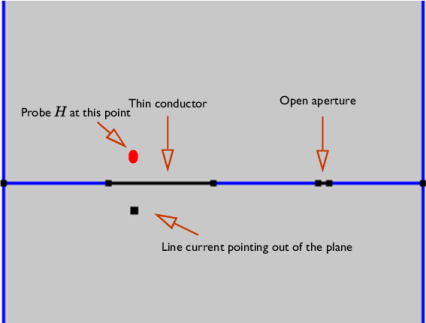
The 2D model shown in Figure 1 is a conducting layer consisting of two apertures. The aperture on the left is a conductor with a conductivity σ, whereas the right one is a small open aperture. The boundaries in blue are magnetically insulated. The excitation of the magnetic field is an oscillating line current, pointing out of the plane.
Figure 1: The geometry of the full-fidelity 2D model.
A layer being geometrically thin does not necessarily mean it is electrically thin under the external magnetic field. One needs to compare the layer’s geometrical size with the characteristic skin depth to determine the layer’s electrical type. There are 3 types of layers in EM simulations, depending on the ratio of the skin depth and the layer’s geometric thickness ds. One can classify the electrical thickness of the layer according to the following definition: electrically very thin layer (ds/δ < 0.5), electrically thin layer (0.5 ≤ ds/δ ≤ 20), and electrically thick layer (20 < ds).
To benchmark the simulation results using the TBC, one can compare them with the results from a model in which the interior of the layer is explicitly meshed and the skin effect is fully resolved, which will be referred to as the full-fidelity model.
First, a frequency-domain simulation is performed to calculate the magnetic field H at a point slightly above the layer, as indicated by the red dot in Figure 1. Next, a corresponding time-domain simulation is carried out by exciting the model with a time-dependent oscillating current. As will be demonstrated by this example, in both scenarios, the TBC produces accurate and reliable results.
Results (Frequency Domain)
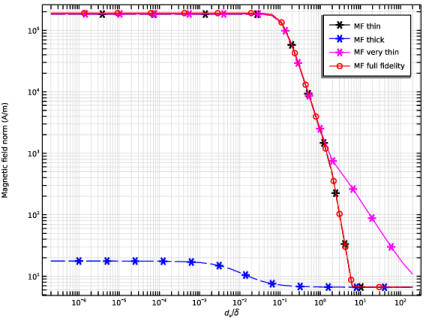
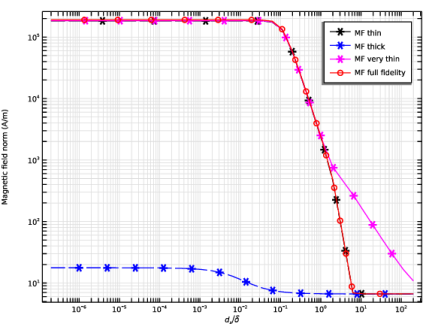
The electrical thickness of the layer can be tuned by varying its conductivity σ. A parameter sweep over σ at a fixed frequency fc=100 Hz is performed and for each σ, the norm of the magnetic field is calculated at a point located 2 mm above the layer.
As shown in Figure 2, for small values of ds the results from both the electrically very thin and electrically thin layer models agree well with those from the full-fidelity model. As the conductivity increases, the layer transitions from electrically very thin regime to electrically thin regime. In this transition region, one can observe a drop in the magnitude of H.
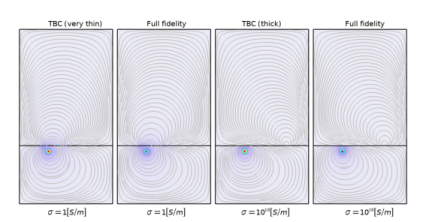
When the conductivity is increased further, the layer effectively becomes electrically thick, thereby preventing the magnetic field from penetrating through it. This occurs because the skin depth becomes small for a highly conductive layer. In the thick-layer regime, the magnetic field in the shielding region is mainly due to leakage through the small open aperture. This is also illustrated in Figure 3: for small conductivities, the magnetic field in the region between the conducting layer and the line source has a nonzero component perpendicular to the layer. However, for large conductivities, the field lines near the conductor are almost entirely parallel to the layer, and the magnetic field in the shielding region originates solely from the open aperture, as expected.
Figure 2: Magnetic field norm measured above the conductive layer as a function of ds/δ.
Figure 3: Magnetic field distribution (contour plots) for the thin- and thick-layer cases obtained with the TBC model, shown alongside their full-fidelity counterparts.
Results (Time Domain)
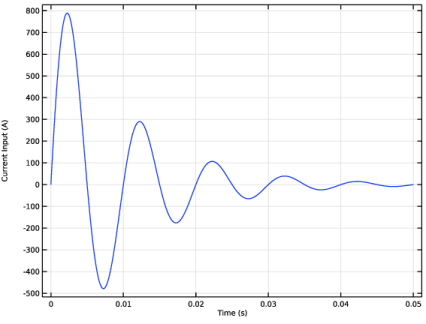
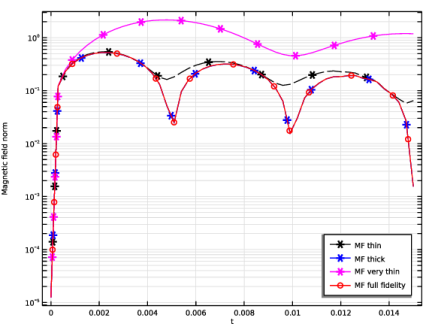
In the time-domain simulation, the model is excited with a time-dependent current I(t) = 1000*sin(2*pi*fc*t)*exp(-t*fc), which is plotted in as a function of t in Figure 4.
Figure 4: Current as a function of time.
Note that, to use the electrically thick layer in the TBC feature in the time domain, the Compute Approximation button must first be clicked before solving the model. This step computes a partial-fraction fit for the real and imaginary parts of the surface admittance Ys for a wide range of frequencies, which is required for time-domain analysis. The accuracy of the partial-fraction fit (High, Normal, or Low) can be adjusted according to the user’s needs. For electrically thin or very thin layers, the partial-fraction fit is unnecessary, as the approximation is precalculated automatically. For time-domain studies, a characteristic or center frequency (fc) must be specified when choosing the electrically thick layer.
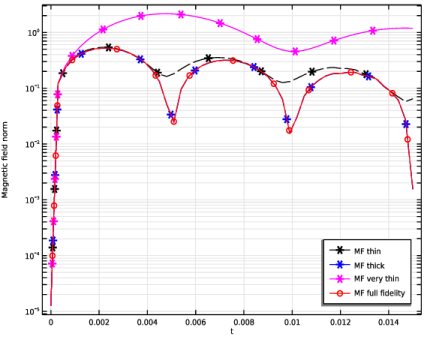
In Figure 5, the magnetic field H(t) on the shielding side of the thick layer is probed at different points in time. The parameter used for Figure 5 is chosen such that ds/δ = 48 > 20. Good agreement between the TBC (thick layer) and the full-fidelity model is found, whereas the very thin layer (magenta) and the thin layer (black) options show clear deviations, as expected. This shows that choosing the correct type of layer is important.
Figure 5: The magnitude of H(t) probed above the electrically thick conductive layer.
Reference
1. G. Eriksson, “Efficient 3D simulation of thin conducting layers of arbitrary thickness,” in 2007 IEEE International Symposium on Electromagnetic Compatibility, pp. 1–6, IEEE, 2007.
Application Library path: ACDC_Module/Verifications/thin_conductive_layer
Modeling Instructions
From the File menu, choose New.
New
In the New window, click  Model Wizard.
Model Wizard
1
In the Model Wizard window, click  2D.
2
In the Select Physics tree, select AC/DC > Electromagnetic Fields > Magnetic Fields (mf).
3
Click Add.
4
Click  Study.
5
In the Select Study tree, select General Studies > Frequency Domain.
6
Global Definitions
Parameters 1
1
In the Model Builder window, under Global Definitions click Parameters 1.
2
In the Settings window for Parameters, locate the Parameters section.
3
Current Input Time
1
In the Home toolbar, click  Functions and choose Global > Analytic.
2
In the Settings window for Analytic, type Current Input Time in the Label text field.
3
Locate the Definition section. In the Expression text field, type sin(2*pi*fc*t)*exp(-t/period)*1000.
4
In the Arguments text field, type t.
5
In the Function name text field, type current_input_time.
6
Geometry 1
Upper Plane
1
In the Model Builder window, expand the Component 1 (comp1) > Geometry 1 node.
2
Right-click Geometry 1 and choose Rectangle.
3
In the Settings window for Rectangle, type Upper Plane in the Label text field.
4
Locate the Size and Shape section. In the Width text field, type width_whole.
5
In the Height text field, type height_upperplane.
6
Locate the Selections of Resulting Entities section. Select the Resulting objects selection checkbox.
Conductor
1
In the Geometry toolbar, click  Rectangle.
2
In the Settings window for Rectangle, type Conductor in the Label text field.
3
Locate the Size and Shape section. In the Width text field, type width_whole.
4
In the Height text field, type height_conductor.
5
Locate the Position section. In the y text field, type -height_conductor.
6
Locate the Selections of Resulting Entities section. Select the Resulting objects selection checkbox.
Line Segment 1 (ls1)
1
In the Geometry toolbar, click  More Primitives and choose Line Segment.
2
In the Settings window for Line Segment, locate the Starting Point section.
3
From the Specify list, choose Coordinates.
4
In the x text field, type width_shift.
5
Locate the Endpoint section. From the Specify list, choose Coordinates.
6
In the x text field, type width_aperture_big+width_shift.
7
Locate the Selections of Resulting Entities section. Select the Resulting objects selection checkbox.
Line Segment 2 (ls2)
1
In the Geometry toolbar, click  More Primitives and choose Line Segment.
2
In the Settings window for Line Segment, locate the Starting Point section.
3
From the Specify list, choose Coordinates.
4
In the x text field, type width_shift*3.
5
Locate the Endpoint section. From the Specify list, choose Coordinates.
6
In the x text field, type width_aperture+width_shift*3.
7
Locate the Selections of Resulting Entities section. Select the Resulting objects selection checkbox.
Point 1 (pt1)
1
In the Geometry toolbar, click  Point.
2
In the Settings window for Point, locate the Point section.
3
In the x text field, type 2.5[mm].
4
In the y text field, type -0.5[mm].
5
Locate the Selections of Resulting Entities section. Select the Resulting objects selection checkbox.
Form Union (fin)
1
In the Geometry toolbar, click  Build All.
2
Click the  Zoom Extents button in the Graphics toolbar.
TBC in the Frequency Domain
1
In the Model Builder window, click Component 1 (comp1).
2
In the Settings window for Component, type TBC in the Frequency Domain in the Label text field.
Thin Layer
1
In the Model Builder window, under TBC in the Frequency Domain (comp1) click Magnetic Fields (mf).
2
In the Settings window for Magnetic Fields, type Thin Layer in the Label text field.
3
Click to expand the Discretization section.
Transition Boundary Condition 1
1
In the Physics toolbar, click  Boundaries and choose Transition Boundary Condition.
2
3
In the Settings window for Transition Boundary Condition, locate the Transition Boundary Condition section.
4
From the εrb list, choose User defined. From the μrb list, choose User defined. In the associated text field, type mur.
5
From the σb list, choose User defined. In the associated text field, type conductivity.
6
In the ds text field, type height_layer.
Line Current (Out-of-Plane) 1
1
In the Physics toolbar, click  Points and choose Line Current (Out-of-Plane).
2
3
In the Settings window for Line Current (Out-of-Plane), locate the Line Current (Out-of-Plane) section.
4
In the I0 text field, type current_input.
Magnetic Insulation 2
1
In the Physics toolbar, click  Boundaries and choose Magnetic Insulation.
2
3
In the Model Builder window, right-click Thin Layer (mf) and choose Copy.
Thick Layer
1
In the Model Builder window, right-click TBC in the Frequency Domain (comp1) and choose Paste Magnetic Fields.
2
In the Messages from Paste dialog, click OK.
3
In the Settings window for Magnetic Fields, type Thick Layer in the Label text field.
Transition Boundary Condition 1
1
In the Model Builder window, expand the TBC in the Frequency Domain (comp1) > Thick Layer (mf2) node, then click Transition Boundary Condition 1.
2
In the Settings window for Transition Boundary Condition, locate the Transition Boundary Condition section.
3
From the Type list, choose Electrically thick layer.
4
Locate the Time Domain and Eigenfrequency section. In the fc text field, type fc.
5
From the Accuracy list, choose High.
6
Click Approximation in the upper-right corner of the Time Domain and Eigenfrequency section. From the menu, choose Compute Approximation.
Thin Layer (mf)
In the Model Builder window, under TBC in the Frequency Domain (comp1) right-click Thin Layer (mf) and choose Copy.
Very Thin Layer
1
In the Model Builder window, right-click TBC in the Frequency Domain (comp1) and choose Paste Magnetic Fields.
2
In the Messages from Paste dialog, click OK.
3
In the Settings window for Magnetic Fields, type Very Thin Layer in the Label text field.
1
In the Model Builder window, expand the TBC in the Frequency Domain (comp1) > Very Thin Layer (mf3) node, then click Transition Boundary Condition 1.
2
In the Settings window for Transition Boundary Condition, locate the Transition Boundary Condition section.
3
From the Type list, choose Electrically very thin layer.
Add Component
In the Model Builder window, right-click the root node and choose Add Component > 2D.
Geometry 2
Whole Layer
1
In the Geometry toolbar, click  Rectangle.
2
In the Settings window for Rectangle, type Whole Layer in the Label text field.
3
Locate the Size and Shape section. In the Width text field, type width_whole.
4
In the Height text field, type height_layer.
Big Aperture
1
In the Geometry toolbar, click  Rectangle.
2
In the Settings window for Rectangle, type Big Aperture in the Label text field.
3
Locate the Size and Shape section. In the Width text field, type width_aperture_big.
4
In the Height text field, type height_layer.
5
Locate the Position section. In the x text field, type width_shift.
Aperture
1
In the Geometry toolbar, click  Rectangle.
2
In the Settings window for Rectangle, type Aperture in the Label text field.
3
Locate the Size and Shape section. In the Width text field, type width_aperture.
4
In the Height text field, type height_layer.
5
Locate the Position section. In the x text field, type width_shift*3.
Upper Plane
1
In the Geometry toolbar, click  Rectangle.
2
In the Settings window for Rectangle, type Upper Plane in the Label text field.
3
Locate the Size and Shape section. In the Width text field, type width_whole.
4
In the Height text field, type height_upperplane.
Conductor
1
In the Geometry toolbar, click  Rectangle.
2
In the Settings window for Rectangle, type Conductor in the Label text field.
3
Locate the Size and Shape section. In the Width text field, type width_whole.
4
In the Height text field, type height_conductor.
5
Locate the Position section. In the y text field, type -height_conductor.
Point 1 (pt1)
1
In the Geometry toolbar, click  Point.
2
In the Settings window for Point, locate the Point section.
3
In the x text field, type 2.5[mm].
4
In the y text field, type -0.5[mm].
5
Locate the Selections of Resulting Entities section. Select the Resulting objects selection checkbox.
6
Click  Build All Objects.
7
Click the  Zoom Extents button in the Graphics toolbar.
Big Aperture (r2)
Click the  Zoom Extents button in the Graphics toolbar.
Upper Plane (r4)
1
In the Model Builder window, click Upper Plane (r4).
2
In the Settings window for Rectangle, click  Build All Objects.
3
In the Geometry toolbar, click  Build All.
Fully Resolved Layer in the Frequency Domain
1
In the Model Builder window, collapse the Component 2 (comp2) node.
2
In the Model Builder window, click Component 2 (comp2).
3
In the Settings window for Component, type Fully Resolved Layer in the Frequency Domain in the Label text field.
Add Physics
1
In the Home toolbar, click  Add Physics to open the Add Physics window.
2
Go to the Add Physics window.
3
In the tree, select Recently Used > Magnetic Fields (mf).
4
Click the Add to Fully Resolved Layer in the Frequency Domain button in the window toolbar.
5
In the Home toolbar, click  Add Physics to close the Add Physics window.
Fully Resolved Layer
1
In the Settings window for Magnetic Fields, type Fully Resolved Layer in the Label text field.
2
Laminated Core 1
1
In the Physics toolbar, click  Domains and choose Laminated Core.
2
In the Settings window for Laminated Core, locate the Constitutive Relation B-H section.
3
From the Magnetization model list, choose Relative permeability.
4
5
From the μr list, choose User defined. In the associated text field, type mur.
6
Locate the Stabilization section. From the σstab list, choose User defined. In the associated text field, type conductivity.
Line Current (Out-of-Plane) 1
1
In the Physics toolbar, click  Points and choose Line Current (Out-of-Plane).
2
3
In the Settings window for Line Current (Out-of-Plane), locate the Line Current (Out-of-Plane) section.
4
In the I0 text field, type current_input.
Mesh 2
Boundary Layers 1
In the Mesh toolbar, click  Boundary Layers.
Boundary Layer Properties
1
In the Model Builder window, click Boundary Layer Properties.
2
In the Settings window for Boundary Layer Properties, locate the Boundary Selection section.
3
From the Selection list, choose All boundaries.
4
Locate the Layers section. In the Number of layers text field, type 4.
Thin Layer (mf)
1
In the Model Builder window, under TBC in the Frequency Domain (comp1) click Thin Layer (mf).
2
In the Settings window for Magnetic Fields, locate the Discretization section.
3
From the Magnetic vector potential list, choose Cubic.
Thick Layer (mf2)
1
In the Model Builder window, under TBC in the Frequency Domain (comp1) click Thick Layer (mf2).
2
In the Settings window for Magnetic Fields, locate the Discretization section.
3
From the Magnetic vector potential list, choose Cubic.
Very Thin Layer (mf3)
1
In the Model Builder window, under TBC in the Frequency Domain (comp1) click Very Thin Layer (mf3).
2
In the Settings window for Magnetic Fields, locate the Discretization section.
3
From the Magnetic vector potential list, choose Cubic.
Fully Resolved Layer (mf4)
1
In the Model Builder window, under Fully Resolved Layer in the Frequency Domain (comp2) click Fully Resolved Layer (mf4).
2
In the Settings window for Magnetic Fields, locate the Discretization section.
3
From the Magnetic vector potential list, choose Cubic.
Fully Resolved Layer in the Frequency Domain (comp2), TBC in the Frequency Domain (comp1)
Next, create time-domain studies by copying the TBC and fully resolved layer in the frequency domain.
1
In the Model Builder window, Ctrl-click to select TBC in the Frequency Domain (comp1) and Fully Resolved Layer in the Frequency Domain (comp2).
2
TBC in the Frequency Domain 1 (comp3)
In the Model Builder window, right-click the root node and choose Paste Multiple Items.
TBC in the Time Domain
1
In the Messages from Paste dialog, click OK.
2
In the Settings window for Component, type TBC in the Time Domain in the Label text field.
Fully Resolved Layer in the Time Domain
1
In the Model Builder window, click Fully Resolved Layer in the Frequency Domain 1 (comp4).
2
In the Settings window for Component, type Fully Resolved Layer in the Time Domain in the Label text field.
Thin Layer (mf5)
In the Model Builder window, expand the Thin Layer (mf5) node.
Thin Layer (mf5)
Line Current (Out-of-Plane) 1
1
In the Model Builder window, expand the TBC in the Time Domain (comp3) > Thick Layer (mf6) node, then click TBC in the Time Domain (comp3) > Thin Layer (mf5) > Line Current (Out-of-Plane) 1.
2
In the Settings window for Line Current (Out-of-Plane), locate the Line Current (Out-of-Plane) section.
3
In the I0 text field, type current_input_time(t).
Thick Layer (mf6)
1
In the Model Builder window, expand the TBC in the Time Domain (comp3) > Very Thin Layer (mf7) node, then click TBC in the Time Domain (comp3) > Thick Layer (mf6) > Line Current (Out-of-Plane) 1.
2
In the Settings window for Line Current (Out-of-Plane), locate the Line Current (Out-of-Plane) section.
3
In the I0 text field, type current_input_time(t).
Very Thin Layer (mf7)
1
In the Model Builder window, expand the Fully Resolved Layer in the Time Domain (comp4) > Fully Resolved Layer (mf8) node, then click TBC in the Time Domain (comp3) > Very Thin Layer (mf7) > Line Current (Out-of-Plane) 1.
2
In the Settings window for Line Current (Out-of-Plane), locate the Line Current (Out-of-Plane) section.
3
In the I0 text field, type current_input_time(t).
Fully Resolved Layer (mf8)
1
In the Model Builder window, under Fully Resolved Layer in the Time Domain (comp4) > Fully Resolved Layer (mf8) click Line Current (Out-of-Plane) 1.
2
In the Settings window for Line Current (Out-of-Plane), locate the Line Current (Out-of-Plane) section.
3
In the I0 text field, type current_input_time(t).
Study 1
Step 1: Frequency Domain
1
In the Model Builder window, under Study 1 click Step 1: Frequency Domain.
2
In the Settings window for Frequency Domain, locate the Study Settings section.
3
From the Frequency unit list, choose GHz.
4
In the Frequencies text field, type fc.
Parametric Sweep
1
In the Study toolbar, click  Parametric Sweep.
2
In the Settings window for Parametric Sweep, locate the Study Settings section.
3
4
Step 1: Frequency Domain
1
In the Model Builder window, click Step 1: Frequency Domain.
2
In the Settings window for Frequency Domain, locate the Physics and Variables Selection section.
3
In the Solve for column of the table, clear the checkboxes for TBC in the Time Domain (comp3) and Fully Resolved Layer in the Time Domain (comp4).
Add Study
1
In the Study toolbar, click  Add Study to open the Add Study window.
2
Go to the Add Study window.
3
Find the Studies subsection. In the Select Study tree, select General Studies > Time Dependent.
4
Click the Add Study button in the window toolbar.
5
In the Study toolbar, click  Add Study to close the Add Study window.
Study 2
Time-Domain Study
1
In the Settings window for Time Dependent, type Time-Domain Study in the Label text field.
2
Locate the Physics and Variables Selection section. In the Solve for column of the table, clear the checkboxes for TBC in the Frequency Domain (comp1) and Fully Resolved Layer in the Frequency Domain (comp2).
3
Locate the Study Settings section. In the Output times text field, type range(0, 0.03*period, 1.5*period).
Sweep over Layer Conductivity
1
In the Model Builder window, click Study 1.
2
In the Settings window for Study, type Sweep over Layer Conductivity in the Label text field.
Time-Domain Study
1
In the Model Builder window, click Study 2.
2
In the Settings window for Study, type Time-Domain Study in the Label text field.
Sweep over Layer Conductivity
In the Study toolbar, click  Compute.
Time-Domain Study
Click  Compute.
Results
Cut Point 2D 1
Now "measure" the magnetic field at the point (2.5 mm, 2 mm), which is slightly above the layer for each calculation.
1
In the Results toolbar, click  Cut Point 2D.
2
In the Settings window for Cut Point 2D, locate the Point Data section.
3
In the x text field, type 2.5[mm].
4
In the y text field, type 2[mm].
Cut Point 2D 2
1
Right-click Cut Point 2D 1 and choose Duplicate.
2
In the Settings window for Cut Point 2D, locate the Data section.
3
From the Dataset list, choose Sweep over Layer Conductivity/Solution 1 (2) (sol1).
Cut Point 2D 3
1
Right-click Cut Point 2D 2 and choose Duplicate.
2
In the Settings window for Cut Point 2D, locate the Data section.
3
From the Dataset list, choose Time-Domain Study/Solution 2 (7) (sol2).
Cut Point 2D 4
1
In the Results toolbar, click  Cut Point 2D.
2
In the Settings window for Cut Point 2D, locate the Point Data section.
3
In the x text field, type 2.5[mm].
4
In the y text field, type 2[mm].
5
Locate the Data section. From the Dataset list, choose Time-Domain Study/Solution 2 (8) (sol2).
6
H vs. h/Delta
1
In the Results toolbar, click  1D Plot Group.
2
In the Settings window for 1D Plot Group, type H vs. h/Delta in the Label text field.
3
Locate the Data section. From the Dataset list, choose Cut Point 2D 1.
MF Thin
1
Right-click H vs. h/Delta and choose Point Graph.
2
In the Settings window for Point Graph, type MF Thin in the Label text field.
3
Locate the Data section. From the Dataset list, choose Cut Point 2D 1.
4
Click Replace Expression in the upper-right corner of the y-Axis Data section. From the menu, choose TBC in the Frequency Domain (comp1) > Thin Layer > Magnetic > mf.normH - Magnetic field norm - A/m.
5
In the H vs. h/Delta toolbar, click  Plot.
6
Click the  y-Axis Log Scale button in the Graphics toolbar.
7
Click the  x-Axis Log Scale button in the Graphics toolbar.
MF Thick
1
Right-click MF Thin and choose Duplicate.
2
In the Settings window for Point Graph, click Replace Expression in the upper-right corner of the y-Axis Data section. From the menu, choose TBC in the Frequency Domain (comp1) > Thick Layer > Magnetic > mf2.normH - Magnetic field norm - A/m.
3
In the Label text field, type MF Thick.
4
In the H vs. h/Delta toolbar, click  Plot.
MF Very Thin
1
In the Model Builder window, right-click H vs. h/Delta and choose Point Graph.
2
In the Settings window for Point Graph, locate the y-Axis Data section.
3
In the Expression text field, type mf3.normH.
4
Locate the Data section. From the Dataset list, choose Cut Point 2D 1.
5
From the Solution parameters list, choose From parent.
6
In the H vs. h/Delta toolbar, click  Plot.
7
In the Label text field, type MF Very Thin.
8
In the H vs. h/Delta toolbar, click  Plot.
9
MF Fully Resolved Layer
1
Right-click H vs. h/Delta and choose Point Graph.
2
In the Settings window for Point Graph, locate the Data section.
3
From the Dataset list, choose Cut Point 2D 2.
4
Click Replace Expression in the upper-right corner of the y-Axis Data section. From the menu, choose Fully Resolved Layer in the Frequency Domain (comp2) > Fully Resolved Layer > Magnetic > mf4.normH - Magnetic field norm - A/m.
5
In the H vs. h/Delta toolbar, click  Plot.
6
In the Label text field, type MF Fully Resolved Layer.
7
In the H vs. h/Delta toolbar, click  Plot.
MF Thin
1
In the Model Builder window, click MF Thin.
2
In the Settings window for Point Graph, locate the x-Axis Data section.
3
From the Parameter list, choose Expression.
4
In the Expression text field, type height_layer/sqrt(2/(mur*mu0_const*conductivity*fc*2*pi)).
5
Click to expand the Legends section. From the Legends list, choose Manual.
6
7
Select the Show legends checkbox.
8
Click to expand the Coloring and Style section. Find the Line style subsection. From the Line list, choose Dashed.
9
From the Color list, choose Black.
10
Find the Line markers subsection. From the Marker list, choose Asterisk.
11
From the Positioning list, choose Interpolated.
12
In the Number text field, type 10.
MF Thick
1
In the Model Builder window, click MF Thick.
2
In the Settings window for Point Graph, locate the x-Axis Data section.
3
From the Parameter list, choose Expression.
4
In the Expression text field, type height_layer/sqrt(2/(mur*mu0_const*conductivity*fc*2*pi)).
5
Locate the Coloring and Style section. Find the Line style subsection. From the Line list, choose Dashed.
6
From the Color list, choose Blue.
7
Find the Line markers subsection. From the Marker list, choose Asterisk.
8
From the Positioning list, choose Interpolated.
9
In the Number text field, type 12.
10
Locate the Legends section. From the Legends list, choose Manual.
11
Select the Show legends checkbox.
12
MF Very Thin
1
In the Model Builder window, click MF Very Thin.
2
In the Settings window for Point Graph, locate the x-Axis Data section.
3
From the Parameter list, choose Expression.
4
In the Expression text field, type height_layer/sqrt(2/(mur*mu0_const*conductivity*fc*2*pi)).
5
Locate the Legends section. Select the Show legends checkbox.
6
From the Legends list, choose Manual.
7
8
Locate the Coloring and Style section. From the Color list, choose Magenta.
9
Find the Line markers subsection. From the Marker list, choose Asterisk.
10
From the Positioning list, choose Interpolated.
11
In the Number text field, type 14.
MF Fully Resolved Layer
1
In the Model Builder window, click MF Fully Resolved Layer.
2
In the Settings window for Point Graph, locate the x-Axis Data section.
3
From the Parameter list, choose Expression.
4
In the Expression text field, type height_layer/sqrt(2/(mur*mu0_const*conductivity*fc*2*pi)).
5
Locate the Legends section. From the Legends list, choose Manual.
6
7
Select the Show legends checkbox.
8
Locate the Coloring and Style section. Find the Line markers subsection. From the Marker list, choose Circle.
9
From the Positioning list, choose Interpolated.
10
In the Number text field, type 16.
11
From the Color list, choose Red.
H vs. h/Delta
1
In the Model Builder window, click H vs. h/Delta.
2
In the Settings window for 1D Plot Group, locate the Plot Settings section.
3
Select the x-axis label checkbox. In the associated text field, type \[d_{s}/\delta\].
4
In the H vs. h/Delta toolbar, click  Plot.
H vs. h/Delta 1
1
Right-click H vs. h/Delta and choose Duplicate.
2
In the Model Builder window, click H vs. h/Delta 1.
3
In the Settings window for 1D Plot Group, locate the Data section.
4
From the Dataset list, choose Cut Point 2D 3.
5
Locate the Plot Settings section. In the x-axis label text field, type t.
MF Thin
1
In the Model Builder window, click MF Thin.
2
In the Settings window for Point Graph, locate the Data section.
3
From the Dataset list, choose Cut Point 2D 3.
4
Locate the y-Axis Data section. In the Expression text field, type mf5.normH.
5
Locate the Data section. From the Solution parameters list, choose From parent.
6
Locate the x-Axis Data section. From the Parameter list, choose Time.
MF Thick
1
In the Model Builder window, click MF Thick.
2
In the Settings window for Point Graph, locate the y-Axis Data section.
3
In the Expression text field, type mf6.normH.
4
Locate the Data section. From the Dataset list, choose Cut Point 2D 3.
5
From the Solution parameters list, choose From parent.
6
Locate the x-Axis Data section. From the Parameter list, choose Time.
MF Very Thin
1
In the Model Builder window, click MF Very Thin.
2
In the Settings window for Point Graph, locate the y-Axis Data section.
3
In the Expression text field, type mf7.normH.
4
Locate the Data section. From the Dataset list, choose Cut Point 2D 3.
5
Locate the x-Axis Data section. From the Parameter list, choose Time.
MF Fully Resolved Layer
1
In the Model Builder window, click MF Fully Resolved Layer.
2
In the Settings window for Point Graph, locate the y-Axis Data section.
3
In the Expression text field, type mf8.normH.
4
Locate the Data section. From the Dataset list, choose Cut Point 2D 4.
5
From the Solution parameters list, choose From parent.
6
Locate the x-Axis Data section. From the Parameter list, choose Time.
7
In the H vs. h/Delta 1 toolbar, click  Plot.
H vs. t
1
In the Model Builder window, under Results click H vs. h/Delta 1.
2
In the Settings window for 1D Plot Group, type H vs. t in the Label text field.
3
Locate the Axis section. Clear the x-axis log scale checkbox.
4
Locate the Plot Settings section.
5
Select the y-axis label checkbox. In the associated text field, type Magnetic field norm.
6
Locate the Legend section. From the Position list, choose Lower right.
MF Thin
1
In the Model Builder window, under Results > H vs. h/Delta click MF Thin.
2
In the Settings window for Point Graph, click to expand the Title section.
3
From the Title type list, choose None.
MF Thick
1
In the Model Builder window, click MF Thick.
2
In the Settings window for Point Graph, locate the Title section.
3
From the Title type list, choose None.
MF Very Thin
1
In the Model Builder window, click MF Very Thin.
2
In the Settings window for Point Graph, locate the Title section.
3
From the Title type list, choose None.
MF Fully Resolved Layer
1
In the Model Builder window, click MF Fully Resolved Layer.
2
In the Settings window for Point Graph, locate the Title section.
3
From the Title type list, choose None.
MF Thin
1
In the Model Builder window, under Results > H vs. t click MF Thin.
2
In the Settings window for Point Graph, locate the Title section.
3
From the Title type list, choose None.
MF Thick
1
In the Model Builder window, click MF Thick.
2
In the Settings window for Point Graph, locate the Title section.
3
From the Title type list, choose None.
MF Very Thin
1
In the Model Builder window, click MF Very Thin.
2
In the Settings window for Point Graph, locate the Title section.
3
From the Title type list, choose None.
MF Fully Resolved Layer
1
In the Model Builder window, click MF Fully Resolved Layer.
2
In the Settings window for Point Graph, locate the Title section.
3
From the Title type list, choose None.
With the above steps, you have finished building and running the model. You can now compare your results with the figures shown above.