
|
|
|












|
1
|
|
2
|
|
3
|
Click Add.
|
|
4
|
|
5
|
Click Add.
|
|
6
|
|
7
|
Click Add.
|
|
8
|
Click
 Done. Done. |
|
1
|
|
2
|
|
3
|
Click
 Load from File. Load from File. |
|
4
|
Browse to the model’s Application Libraries folder and double-click the file quadrupole_mass_spectrometer_parameters.txt.
|
|
1
|
|
2
|
|
3
|
|
4
|
Click
 Go to Plane Geometry. Go to Plane Geometry. |
|
1
|
|
2
|
|
3
|
|
4
|
|
1
|
|
2
|
|
3
|
|
4
|
|
1
|
|
2
|
|
3
|
|
4
|
|
1
|
|
2
|
|
3
|
|
4
|
|
5
|
|
6
|
|
1
|
In the Model Builder window, under Component 1 (comp1) > Geometry 1 right-click Work Plane 1 (wp1) and choose Extrude.
|
|
2
|
|
4
|
Click
 Build All Objects. Build All Objects. |
|
5
|
|
1
|
|
2
|
|
3
|
|
4
|
|
5
|
Click
 Go to Plane Geometry. Go to Plane Geometry. |
|
1
|
|
2
|
|
3
|
|
1
|
|
2
|
|
3
|
|
1
|
|
2
|
|
3
|
|
4
|
|
5
|
|
1
|
In the Model Builder window, under Component 1 (comp1) > Geometry 1 right-click Work Plane 2 (wp2) and choose Extrude.
|
|
2
|
|
4
|
Click
 Build All Objects. Build All Objects. |
|
1
|
|
2
|
Select the object ext2 only.
|
|
3
|
|
4
|
|
5
|
Select the object ext1 only.
|
|
6
|
Click
 Build All Objects. Build All Objects. |
|
7
|
|
1
|
|
2
|
|
3
|
|
4
|
|
1
|
|
2
|
|
3
|
|
1
|
|
2
|
|
3
|
|
4
|
|
1
|
|
2
|
|
3
|
|
4
|
|
1
|
|
3
|
|
4
|
|
1
|
|
2
|
|
3
|
|
4
|
|
1
|
|
2
|
|
3
|
|
4
|
|
1
|
|
3
|
|
4
|
|
1
|
In the Model Builder window, under Component 1 (comp1) > Charged Particle Tracing (cpt) click Particle Properties 1.
|
|
2
|
|
3
|
|
4
|
|
1
|
|
3
|
|
4
|
|
5
|
|
6
|
|
7
|
|
8
|
|
9
|
|
10
|
|
11
|
Click Replace.
|
|
12
|
|
13
|
|
1
|
|
2
|
|
3
|
|
4
|
|
1
|
|
2
|
|
3
|
|
4
|
|
5
|
|
1
|
|
2
|
Go to the Add Material window.
|
|
3
|
|
4
|
Click the Add to Component button in the window toolbar.
|
|
5
|
|
1
|
|
1
|
|
2
|
|
3
|
|
4
|
Click to expand the Element Size Parameters section. Locate the Element Size section. Click the Custom button.
|
|
5
|
|
6
|
Select the Minimum element size checkbox.
|
|
7
|
|
8
|
Click
 Build All. Build All. |
|
1
|
|
2
|
|
3
|
|
1
|
|
2
|
|
3
|
|
4
|
|
5
|
|
6
|
Click
 Build All. Build All. |
|
7
|
|
1
|
|
2
|
|
3
|
|
1
|
|
2
|
|
1
|
|
2
|
Go to the Add Study window.
|
|
3
|
Find the Studies subsection. In the Select Study tree, select Preset Studies for Some Physics Interfaces > Stationary.
|
|
4
|
Click the Add Study button in the window toolbar.
|
|
5
|
|
1
|
|
2
|
In the Solve for column of the table, under Component 1 (comp1), clear the checkbox for Electric Currents (ec).
|
|
3
|
|
4
|
|
5
|
Click OK.
|
|
1
|
|
2
|
Go to the Add Study window.
|
|
3
|
Find the Studies subsection. In the Select Study tree, select Preset Studies for Some Physics Interfaces > Frequency Domain.
|
|
4
|
Click the Add Study button in the window toolbar.
|
|
5
|
|
1
|
|
2
|
|
3
|
Locate the Physics and Variables Selection section. In the Solve for column of the table, under Component 1 (comp1), clear the checkbox for Electrostatics (es).
|
|
4
|
Click to expand the Values of Dependent Variables section. Find the Values of variables not solved for subsection. From the Settings list, choose User controlled.
|
|
5
|
|
6
|
|
7
|
|
8
|
|
9
|
Click OK.
|
|
1
|
|
2
|
Go to the Add Study window.
|
|
3
|
|
4
|
Click the Add Study button in the window toolbar.
|
|
5
|
|
1
|
|
2
|
In the Solve for column of the table, under Component 1 (comp1), clear the checkboxes for Electrostatics (es) and Electric Currents (ec).
|
|
3
|
Click to expand the Values of Dependent Variables section. Find the Values of variables not solved for subsection. From the Settings list, choose User controlled.
|
|
4
|
|
5
|
|
6
|
|
7
|
Click
 Range. Range. |
|
8
|
|
9
|
|
10
|
|
11
|
Click OK.
|
|
1
|
|
1
|
Click
 Compute. Compute. |
|
1
|
Click
 Compute. Compute. |
|
1
|
|
2
|
|
1
|
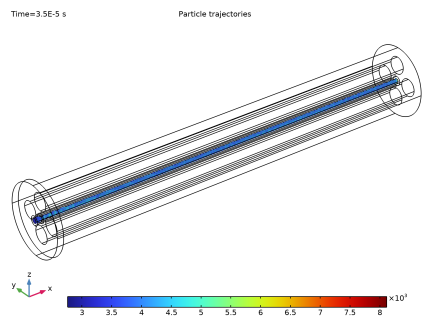
In the Model Builder window, expand the Particle Trajectories (cpt) node, then click Particle Trajectories 1.
|
|
2
|
|
3
|
|
4
|
|
5
|
|
6
|
|
1
|
|
2
|
|
3
|
Clear the Show grid checkbox.
|
|
1
|
|
2
|
|
3
|
|
1
|
|
2
|
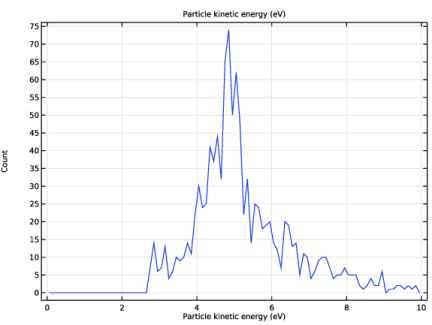
In the Settings window for 1D Plot Group, type Ion Energy Distribution Function in the Label text field.
|
|
3
|
|
4
|
|
1
|
|
2
|
In the Settings window for Histogram, click Replace Expression in the upper-right corner of the Expression section. From the menu, choose Component 1 (comp1) > Charged Particle Tracing > Velocity and energy > cpt.Ep - Particle kinetic energy - J.
|
|
3
|
|
4
|
|
5
|
Click
 Range. Range. |
|
6
|
|
7
|
|
8
|
|
9
|
|
10
|
Click Replace.
|


