|
|
|

|
1
|
|
2
|
In the Select Physics tree, select AC/DC > Electromagnetics and Mechanics > Rotating Machinery, Magnetic (rmm).
|
|
3
|
Click Add.
|
|
4
|
Click
 Study. Study. |
|
5
|
|
6
|
Click
 Done. Done. |
|
1
|
|
2
|
|
1
|
|
2
|
In the Part Libraries window, select AC/DC Module > Rotating Machinery 2D > Rotors > Internal > surface_mounted_magnet_internal_rotor_2d in the tree.
|
|
3
|
Click
 Add to Geometry. Add to Geometry. |
|
1
|
In the Model Builder window, under Component 1 (comp1) > Geometry 1 click Internal Rotor – Surface Mounted Magnets 1 (pi1).
|
|
2
|
|
4
|
Click to expand the Domain Selections section. In the table, enter the following settings:
|
|
5
|
Click to expand the Boundary Selections section. In the table, enter the following settings:
|
|
1
|
|
2
|
|
3
|
In the Part Libraries window, select AC/DC Module > Rotating Machinery 2D > Stators > External > slotted_external_stator_2d in the tree.
|
|
4
|
Click
 Add to Geometry. Add to Geometry. |
|
1
|
In the Model Builder window, under Component 1 (comp1) > Geometry 1 click External Stator – Slotted 1 (pi2).
|
|
2
|
|
4
|
Locate the Domain Selections section. In the table, enter the following settings:
|
|
1
|
|
2
|
|
3
|
|
4
|
|
5
|
|
6
|
|
1
|
|
2
|
|
3
|
|
4
|
In the Add dialog, in the Selections to add list, choose Rotor iron (Internal Rotor – Surface Mounted Magnets 1) and Stator iron (External Stator – Slotted 1).
|
|
5
|
|
1
|
|
2
|
Go to the Add Material window.
|
|
3
|
|
4
|
Click the Add to Component button in the window toolbar.
|
|
5
|
|
6
|
Click the Add to Component button in the window toolbar.
|
|
7
|
|
8
|
Click the Add to Component button in the window toolbar.
|
|
9
|
In the tree, select AC/DC > Hard Magnetic Materials > Sintered NdFeB Grades (Chinese Standard) > N54 (Sintered NdFeB).
|
|
10
|
Click the Add to Component button in the window toolbar.
|
|
11
|
|
12
|
Click the Add to Component button in the window toolbar.
|
|
13
|
|
1
|
|
2
|
|
1
|
|
2
|
|
3
|
|
4
|
Locate the Material Contents section. In the table, enter the following settings:
|
|
1
|
|
2
|
|
3
|
|
1
|
|
2
|
|
3
|
|
1
|
|
2
|
|
3
|
|
4
|
|
5
|
|
1
|
|
2
|
|
3
|
|
1
|
|
2
|
|
3
|
|
4
|
Locate the Lamination Model section. From the Lamination model list, choose Out-of-plane lamination.
|
|
1
|
|
2
|
|
3
|
|
4
|
|
5
|
|
1
|
|
1
|
|
1
|
|
2
|
|
3
|
|
4
|
|
5
|
|
6
|
|
7
|
|
8
|
|
9
|
Locate the Multiphase Winding section. From the Winding layout configuration list, choose Automatic three phase.
|
|
10
|
|
11
|
|
12
|
|
13
|
Click Add Phases.
|
|
1
|
|
1
|
|
2
|
|
3
|
Click Replace Expression in the upper-right corner of the Expression section. From the menu, choose Component 1 (comp1) > Rotating Machinery, Magnetic > Mechanical > rmm.Tark_1 - Axial torque - N·m.
|
|
1
|
|
2
|
|
3
|
Click
 Create Selection. Create Selection. |
|
4
|
|
5
|
Click OK.
|
|
6
|
|
7
|
Click
 Create Selection. Create Selection. |
|
8
|
|
9
|
Click OK.
|
|
1
|
|
2
|
|
3
|
|
4
|
|
5
|
|
6
|
Click OK.
|
|
1
|
|
2
|
|
3
|
|
4
|
|
5
|
|
6
|
Locate the Element Size Parameters section.
|
|
7
|
|
1
|
|
2
|
|
3
|
|
4
|
|
5
|
|
6
|
Locate the Element Size Parameters section.
|
|
7
|
|
8
|
Click
 Build All. Build All. |
|
1
|
|
2
|
In the Settings window for Study, type Study 1: Initial Electrical Angle Sweep in the Label text field.
|
|
1
|
In the Model Builder window, under Study 1: Initial Electrical Angle Sweep click Step 1: Stationary.
|
|
2
|
|
3
|
Select the Auxiliary sweep checkbox.
|
|
4
|
Click
 Add. Add. |
|
6
|
|
7
|
|
1
|
|
2
|
|
1
|
|
2
|
|
3
|
|
4
|
|
5
|
|
1
|
|
2
|
|
3
|
Locate the Plot Settings section.
|
|
4
|
|
5
|
|
1
|
|
2
|
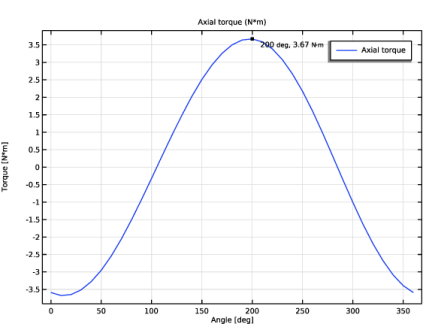
In the Settings window for 1D Plot Group, type Torque Initial Electrical Angle Sweep in the Label text field.
|
|
3
|
Locate the Plot Settings section.
|
|
4
|
|
5
|
|
1
|
|
2
|
|
1
|
|
2
|
|
3
|
Select the Show x-coordinate checkbox.
|
|
4
|
Select the Include unit checkbox.
|
|
5
|
|
6
|
|
7
|
|
1
|
|
2
|
|
1
|
|
2
|
Go to the Add Study window.
|
|
3
|
|
4
|
Click the Add Study button in the window toolbar.
|
|
5
|
|
1
|
|
2
|
|
3
|
|
1
|
|
2
|
|
3
|
Click
 Compute. Compute. |
|
1
|
|
2
|
|
3
|
|
4
|
|
5
|
|
6
|
|
7
|
|
8
|
|
9
|
|
10
|
|
1
|
|
2
|
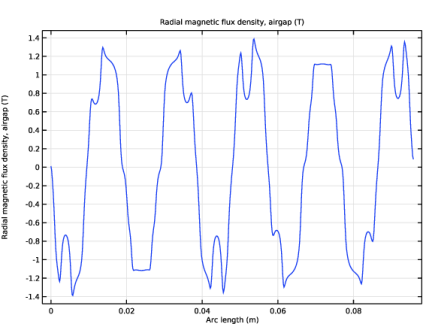
In the Settings window for 1D Plot Group, type Air Gap Radial Magnetic Flux Density in the Label text field.
|
|
3
|
Locate the Data section. From the Dataset list, choose Study 2: Synchronous Rotation/Solution 2 (sol2).
|
|
4
|
|
1
|
|
2
|
|
3
|
|
4
|
|
5
|
|
1
|
|
2
|
Go to the Add Study window.
|
|
3
|
Find the Studies subsection. In the Select Study tree, select Preset Studies for Selected Physics Interfaces > Time-to-Frequency Losses.
|
|
4
|
Click the Add Study button in the window toolbar.
|
|
5
|
|
1
|
In the Model Builder window, under Study 3: Time Average Loss Calculation click Step 1: Time-to-Frequency Losses.
|
|
2
|
|
3
|
|
4
|
|
5
|
|
1
|
|
2
|
|
3
|
|
4
|
|
1
|
|
2
|
|
1
|
|
2
|
|
3
|
|
4
|
|
5
|
|
1
|
|
2
|
|
3
|
|
4
|
|
5
|
Locate the Plot Settings section.
|
|
6
|
|
1
|
|
2
|
|
3
|
|
4
|
|
5
|
|
6
|
|
7
|
Click to expand the Preprocessing section. Find the x-axis column subsection. From the Transformation list, choose Linear.
|
|
8
|
|
9
|
|
10
|