
PDF

Permanent Magnet Motor with Campbell Diagram
Introduction
In this modeling example, noise emitted from an electrical motor due to electromagnetic forces is studied. A simplified motor structure is first analyzed to find its natural frequencies and eigenmodes. Following this a time periodic electromagnetic simulation is performed to establish the magnitude and frequency of electromagnetic forces occurring in the motor. Finally the electromagnetic force harmonics are applied as load to determine the resulting structural vibration and surrounding acoustical emission of the motor. From this a Campbell diagram can be generated that provides insight into which harmonics of the electromagnetic forces are causing the most prominent noise.
Model Definition
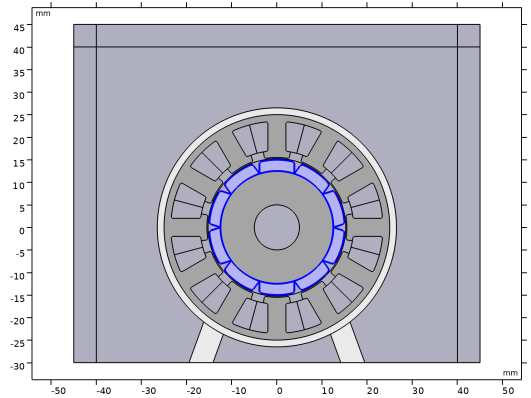
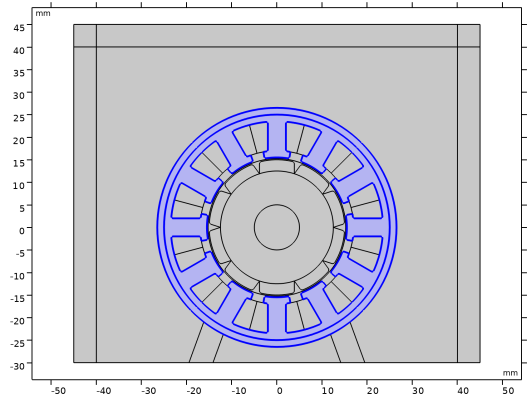
The focus of this example is on demonstrating the most straightforward way of coupling electromagnetic forces with an acoustic–structural model and postprocessing relevant results. As such a very simple 2D geometry is used for all physics to minimize the level of complexity not directly related to the multiphysics coupling.
Figure 1: A simple geometry of an electrical motor structure and near surrounding space.
For a more practical case it is normally necessary to model the motor structure and acoustical environment in 3D while electromagnetically a 2D representation can still cover many cases. In such a configuration the main difference from this example would be that the electromagnetic forces are extruded into 3D space with an extrusion coupling operator.
Structural Considerations
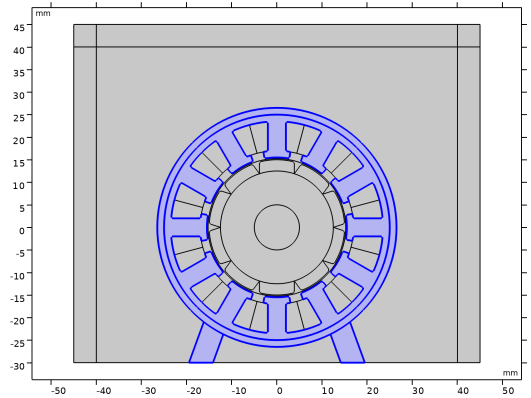
The Solid Mechanics interface is applied to the stator core, motor housing and foot mounts only.
Figure 2: Solid Mechanics domains.
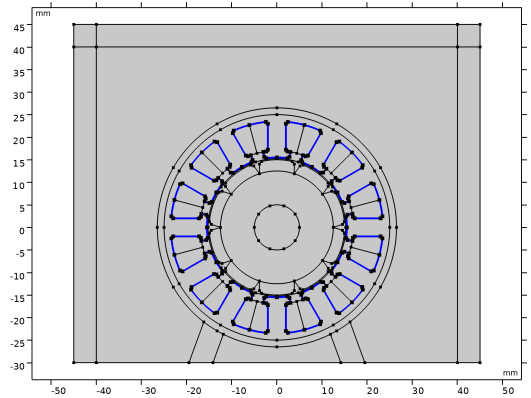
The lower horizontal boundaries of foot mounts are constrained with zero displacement. Electromagnetic forces are applied to all interior boundaries of the stator core.
.
Figure 3: Boundaries at which the electromagnetic forces are applied.
The harmonics of a distributed magnetic force output by the Magnetic Machinery Time Periodic interface can be accessed by calling the Fourier component of the Maxwell surface stress tensor in its operator form. As an example, the x-component can be specified as mmtp.nTX_1_fft(freq/f_el), where freq is the swept variable of the frequency domain study and f_el is the fundamental electrical frequency. When freq is swept over n values, all being a multiple of f_el, the ratio freq/f_el refers to 1st, 2nd, 3rd, …, nth Fourier component of the Maxwell surface stress tensor.
When not doing a sweep over several frequencies, or for other reasons, a specific Fourier component of magnetic force can be accessed directly by using the same variable in its standard form; mmtp.nTX_1_fft0, mmtp.nTX_1_fft1, mmtp.nTX_1_fft2, …, mmtp.nTX_1_fftn, where n would be one less half the number of time frames solved for.
Acoustical Considerations
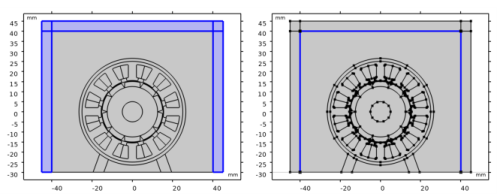
The acoustical domain in this example is everything outside the motor housing. Perfectly Matched Layer feature is used on outer domains to absorb outgoing wave energy and thus simulating the emission of acoustic noise in an open space without reflections. On boundaries between the Perfectly Matched Layer and the air surrounding the motor housing, an Exterior Field Calculation is applied in order to calculate the sound pressure level at any distance outside the geometry.
Figure 4: Domains defined by Perfectly Matched Layer and boundaries where Exterior Field Calculation is applied.
The Acoustic-Structure Boundary Multiphysics feature automatically couples the Pressure Acoustics with Solid Mechanics at their common boundaries.
Electromagnetic Considerations
Apart from the normal steps of configuring the motor model detailed in step-by-step instructions below, two aspects are highlighted here.
Firstly, in order to generate the computation of Maxwell surface stress tensors a Force Calculation feature must be defined on the domains representing the solid for which boundary forces are required.
Figure 5: Force Calculation applied to stator core.
The solid components should all be surrounded by air or its equivalent, and not be adjacent to any soft or hard magnetic material. In this case the coils are adjacent stator core but these pose no issue as magnetically they are equivalent to air. A boundary layer mesh is applied to the tips of stator teeth to improve the accuracy of Maxwell surface stress tensor calculation in this area where the magnetic forces are concentrated.
The second matter of extra consideration is the temporal resolution of the electromagnetic simulation. The cogging torque or torque due to reluctance variations as the rotor magnets are passing by stator teeth, will occur on the 12th harmonic of the fundamental electrical frequency.
(1)
Here Ns and Np are the number of slots and poles, and gcd() determines the greatest common divisor of these two integers.
In this example it is assumed for the sake of simplicity and moderate solution time that the impact of induced currents is negligible and the electromagnetic part is solved at the nominal current and shaft speed over one electrical period. Resolving the highest frequency of interest, for example the cogging torque, with six time frames ensures sufficient temporal resolution.
In cases where the impact of induced currents is expected to be significant, it would be necessary to ensure that both excitation and induced currents are periodic over the time period solved for. Furthermore, the electromagnetic problem would need to be solved for at all speeds to be investigated.
Results and Discussion
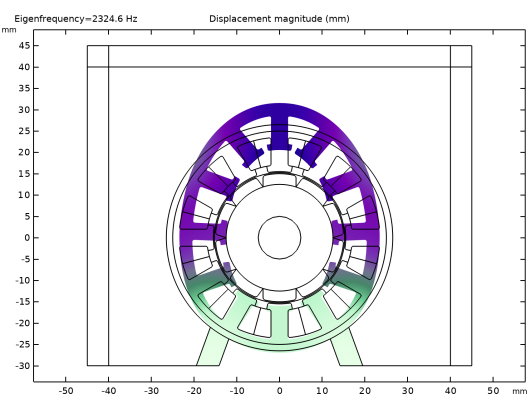
Figure 6 shows the eigenmode of the second natural frequency of the motor structure.
Figure 6: Eigenmode of second natural frequency.
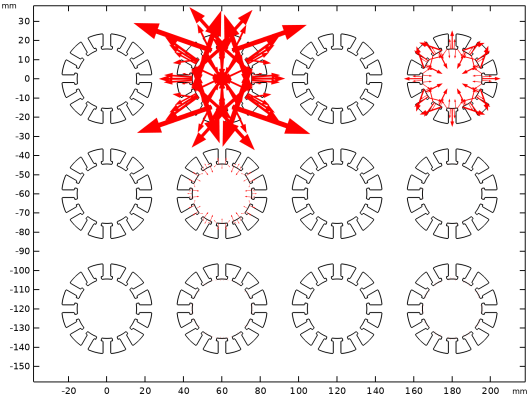
In Figure 7, the 12 first force harmonics are plotted with same scale providing a qualitative comparison. It can be seen the second, fourth and sixth harmonics are the most prominent.
Figure 7: Qualitative evaluation of magnetic force harmonics with the first at top left and 12'th bottom right.
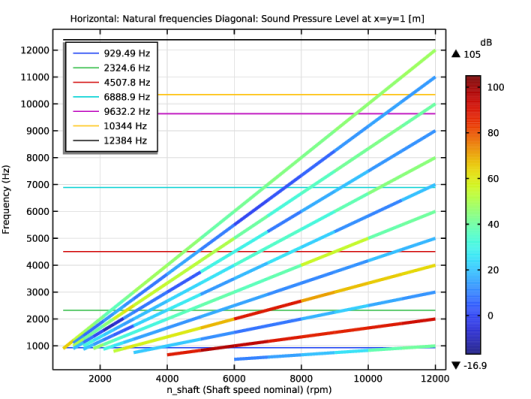
Figure 8 shows the Campbell diagram resulting from the final study. The horizontal lines represent the natural frequencies found in first study. Each of the diagonal lines represent a force harmonic as function of the rotor speed, with the first harmonic to the bottom right. Force harmonics at frequencies below a set limit are not solved for to conserve solution time. The coloring of the diagonal lines represent the sound pressure level measured at point x = y = 1 m.
Figure 8: Campbell diagram.
It is clear that the second and fourth are the force harmonics causing the most noise emission. Interestingly the fourth harmonic does not excite the first natural frequency as much as the second, and likewise the sixth harmonic does not excite the second natural frequency as much as the fourth harmonic.
Magnetic forces will have twice the frequency of the magnetic fields that produce them. As such the presence of second and sixth force harmonics are expected being produced by the fundamental electrical frequency and three phase excitation of the stator winding correspondingly. With this understanding the prominence of the fourth harmonic might come as a surprise as it suggests there is a component of the magnetic field varying with twice the fundamental electrical frequency. Although not immediately obvious, one can see this variation on the outer stator core when playing back the animation which is generated at the end of the step-by-step instructions below.
Application Library path: ACDC_Module/Devices,_Motors_and_Generators/pm_motor_2d_campbell_diagram
Modeling Instructions
From the File menu, choose New.
New
In the New window, click  Model Wizard.
Model Wizard
1
In the Model Wizard window, click  2D.
2
In the Select Physics tree, select Structural Mechanics > Solid Mechanics (solid).
3
Click Add.
4
In the Select Physics tree, select Acoustics > Pressure Acoustics > Pressure Acoustics, Frequency Domain (acpr).
5
Click Add.
6
In the Select Physics tree, select AC/DC > Electromagnetics and Mechanics > Magnetic Machinery, Rotating, Time Periodic (mmtp).
7
Click Add.
8
Geometry 1
1
In the Model Builder window, under Component 1 (comp1) click Geometry 1.
2
In the Settings window for Geometry, locate the Units section.
3
From the Length unit list, choose mm.
4
In the Geometry toolbar, click Insert Sequence and choose Insert Sequence.
5
6
In the Geometry toolbar, click  Build All.
7
In the Model Builder window, collapse the Geometry 1 node.
Global Definitions
Parameters 1
1
In the Model Builder window, under Global Definitions click Parameters 1.
2
In the Settings window for Parameters, locate the Parameters section.
3
Definitions
Perfectly Matched Layer 1 (pml1)
1
In the Definitions toolbar, click  Perfectly Matched Layer.
2
3
In the Settings window for Perfectly Matched Layer, locate the Scaling section.
4
From the Physics list, choose Pressure Acoustics, Frequency Domain (acpr).
Disk 1
1
In the Model Builder window, under Component 1 (comp1) right-click Definitions and choose Selections > Disk.
Next steps will create a few selections handy for configuring physics and mesh later on.
2
In the Settings window for Disk, locate the Geometric Entity Level section.
3
From the Level list, choose Boundary.
4
Locate the Size and Shape section. In the Outer radius text field, type 16.3.
5
In the Inner radius text field, type 15.1.
Adjacent 1
1
In the Definitions toolbar, click  Adjacent.
2
In the Settings window for Adjacent, locate the Input Entities section.
3
Under Input selections, click  Add.
4
In the Add dialog, select Stator iron (External Stator – Slotted 1) in the Input selections list.
5
Disk 2
1
In the Model Builder window, right-click Selections and choose Disk.
2
In the Settings window for Disk, locate the Geometric Entity Level section.
3
From the Level list, choose Boundary.
4
Locate the Input Entities section. From the Entities list, choose From selections.
5
Under Selections, click  Add.
6
In the Add dialog, select Adjacent 1 in the Selections list.
7
8
In the Settings window for Disk, locate the Size and Shape section.
9
In the Outer radius text field, type 24.
Definitions
In the Model Builder window, collapse the Component 1 (comp1) > Definitions node.
Add Material
1
In the Materials toolbar, click  Add Material to open the Add Material window.
2
Go to the Add Material window.
3
In the tree, select Built-in > Air.
4
Click the Add to Component button in the window toolbar.
5
In the tree, select Built-in > Steel AISI 4340.
6
Click the Add to Component button in the window toolbar.
7
In the tree, select AC/DC > Soft Iron (Without Losses).
8
Click the Add to Component button in the window toolbar.
9
In the tree, select AC/DC > Hard Magnetic Materials > Sintered NdFeB Grades (Chinese Standard) > N42 (Sintered NdFeB).
10
Click the Add to Component button in the window toolbar.
11
In the Materials toolbar, click  Add Material to close the Add Material window.
Materials
Steel AISI 4340 (mat2)
1
In the Settings window for Material, locate the Geometric Entity Selection section.
2
Click  Paste Selection.
3
In the Paste Selection dialog, type 10, 27,36 in the Selection text field.
4
Soft Iron (Without Losses) (mat3)
1
In the Model Builder window, click Soft Iron (Without Losses) (mat3).
2
3
In the Settings window for Material, locate the Material Contents section.
4
N42 (Sintered NdFeB) (mat4)
The electric conductivity of magnets is zeroed out to exclude any effects of induced currents.
1
In the Model Builder window, click N42 (Sintered NdFeB) (mat4).
2
In the Settings window for Material, locate the Geometric Entity Selection section.
3
From the Selection list, choose Rotor Magnets (Internal Rotor – Surface Mounted Magnets 1).
4
Locate the Material Contents section. In the table, enter the following settings:
5
Click the  Colors button in the Graphics toolbar.
6
In the Graphics window toolbar, clicknext to  Colors, then choose Show Material Color and Texture.
Solid Mechanics (solid)
1
In the Model Builder window, under Component 1 (comp1) click Solid Mechanics (solid).
2
In the Settings window for Solid Mechanics, locate the Domain Selection section.
3
From the Selection list, choose Structural domains.
4
Locate the Thickness section. In the d text field, type L.
Fixed Constraint 1
1
In the Physics toolbar, click  Boundaries and choose Fixed Constraint.
2
Pressure Acoustics, Frequency Domain (acpr)
1
In the Model Builder window, under Component 1 (comp1) click Pressure Acoustics, Frequency Domain (acpr).
2
In the Settings window for Pressure Acoustics, Frequency Domain, locate the Domain Selection section.
3
From the Selection list, choose Acoustic domains.
Exterior Field Calculation 1
1
In the Physics toolbar, click  Boundaries and choose Exterior Field Calculation.
2
3
In the Settings window for Exterior Field Calculation, locate the Exterior Field Calculation section.
4
From the Condition in the y = y0 plane list, choose Symmetric/Infinite sound hard boundary.
5
In the y0 text field, type -30[mm].
Magnetic Machinery, Rotating, Time Periodic (mmtp)
1
In the Model Builder window, under Component 1 (comp1) click Magnetic Machinery, Rotating, Time Periodic (mmtp).
2
In the Settings window for Magnetic Machinery, Rotating, Time Periodic, locate the Domain Selection section.
3
From the Selection list, choose Electromagnetic domains.
4
Locate the Thickness section. In the d text field, type L.
5
Locate the Time Periodic Settings section. In the fTP text field, type f_el.
6
In the nTP text field, type Nframes.
7
Locate the Motion Settings section. In the npoles text field, type Np.
Rotational Magnetic Continuity 1
In the Physics toolbar, click  Pairs and choose Rotational Magnetic Continuity.
Rotating Domain 1
The Rotating Domain feature will by default select all domains on one side of the Rotational Continuity Pair, which in this case are the rotor domains as wanted. Further the default Time periodic rotation will ensure rotation through an angle corresponding to a pole pair or one period of the fundamental electrical frequency.
In the Physics toolbar, click  Domains and choose Rotating Domain.
Passive Conductor 1
1
In the Physics toolbar, click  Domains and choose Passive Conductor.
2
Laminated Core 1
1
In the Physics toolbar, click  Domains and choose Laminated Core.
2
Magnet 1
1
In the Physics toolbar, click  Domains and choose Magnet.
2
In the Settings window for Magnet, locate the Domain Selection section.
3
From the Selection list, choose Rotor Magnets (Internal Rotor – Surface Mounted Magnets 1).
4
Locate the Magnet section. From the Pattern type list, choose Circular pattern.
5
From the Type of periodicity list, choose Alternating.
North 1
1
In the Model Builder window, expand the Magnet 1 node, then click North 1.
2
South 1
1
In the Model Builder window, click South 1.
2
Multiphase Winding 1
1
In the Physics toolbar, click  Domains and choose Multiphase Winding.
2
In the Settings window for Multiphase Winding, locate the Domain Selection section.
3
From the Selection list, choose Stator slots (External Stator – Slotted 1).
4
Locate the Multiphase Winding section. In the Ipk text field, type Ipk.
5
In the αi text field, type init_ang.
The default Winding electrical frequency corresponds with the frequency of the Magnetic Machinery Time Periodic interface which is what is intended in this example. If solving for a longer period however, the Winding electrical frequency can be set explicitly here.
6
From the Winding layout configuration list, choose Automatic three phase.
7
In the nslots text field, type Ns.
8
Click Add Phases.
Force Calculation 1
1
In the Physics toolbar, click  Domains and choose Force Calculation.
2
Add Multiphysics
1
In the Home toolbar, click  Add Multiphysics to open the Add Multiphysics window.
2
Go to the Add Multiphysics window.
3
In the tree, select No Predefined Multiphysics Available for the Selected Physics Interfaces.
4
Find the Select the physics interfaces you want to couple subsection. In the table, clear the Couple checkbox for Magnetic Machinery, Rotating, Time Periodic (mmtp).
5
In the tree, select Acoustics > Acoustic–Structure Interaction > Acoustic–Solid Interaction, Frequency Domain.
6
Click the Add to Component button in the window toolbar.
7
In the Home toolbar, click  Add Multiphysics to close the Add Multiphysics window.
Mesh 1
1
In the Settings window for Mesh, locate the Physics-Controlled Mesh section.
2
In the table, clear the Use checkbox for Pressure Acoustics, Frequency Domain (acpr).
3
Right-click Component 1 (comp1) > Mesh 1 and choose Edit Physics-Induced Sequence.
Size
1
In the Model Builder window, under Component 1 (comp1) > Mesh 1 click Size.
2
In the Settings window for Size, locate the Element Size section.
3
Click the Custom button.
4
Locate the Element Size Parameters section. In the Maximum element size text field, type 2.5.
5
In the Curvature factor text field, type 0.5.
6
In the Resolution of narrow regions text field, type 0.3.
Size 1
1
In the Model Builder window, right-click Mesh 1 and choose Size.
2
Drag and drop Size 1 below Size.
3
In the Settings window for Size, locate the Geometric Entity Selection section.
4
From the Geometric entity level list, choose Domain.
5
6
Locate the Element Size section. Click the Custom button.
7
Locate the Element Size Parameters section.
8
Select the Maximum element size checkbox. In the associated text field, type 0.7.
Free Triangular 1
1
In the Model Builder window, click Free Triangular 1.
2
In the Settings window for Free Triangular, locate the Domain Selection section.
3
Click  Paste Selection.
4
In the Paste Selection dialog, type 3,5-15,17-33,36-49 in the Selection text field.
5
6
In the Settings window for Free Triangular, click  Build All.
Boundary Layers 1
1
In the Mesh toolbar, click  Boundary Layers.
2
In the Settings window for Boundary Layers, locate the Domain Selection section.
3
From the Geometric entity level list, choose Domain.
4
5
Click to expand the Transition section. Clear the Smooth transition to interior mesh checkbox.
Boundary Layer Properties
1
In the Model Builder window, click Boundary Layer Properties.
2
In the Settings window for Boundary Layer Properties, locate the Boundary Selection section.
3
From the Selection list, choose Disk 1.
4
Locate the Layers section. In the Number of layers text field, type 1.
5
In the Thickness adjustment factor text field, type 5.
Boundary Layer Properties 1
1
In the Mesh toolbar, click  More Attributes and choose Boundary Layer Properties.
2
3
In the Settings window for Boundary Layer Properties, locate the Layers section.
4
In the Number of layers text field, type 1.
5
In the Thickness adjustment factor text field, type 5.
Mapped 1
1
In the Mesh toolbar, click  Mapped.
2
In the Settings window for Mapped, locate the Domain Selection section.
3
From the Geometric entity level list, choose Domain.
4
Distribution 1
1
Right-click Mapped 1 and choose Distribution.
2
3
In the Settings window for Distribution, locate the Distribution section.
4
In the Number of elements text field, type 8.
5
Click  Build All.
Mesh 1
In the Model Builder window, collapse the Component 1 (comp1) > Mesh 1 node.
Add Study
1
In the Home toolbar, click  Add Study to open the Add Study window.
2
Go to the Add Study window.
3
Find the Studies subsection. In the Select Study tree, select Preset Studies for Some Physics Interfaces > Eigenfrequency.
4
Click the Add Study button in the window toolbar.
5
In the Select Study tree, select Preset Studies for Some Physics Interfaces > Stationary.
6
Click the Add Study button in the window toolbar.
7
In the Select Study tree, select General Studies > Frequency Domain.
8
Click the Add Study button in the window toolbar.
9
In the Home toolbar, click  Add Study to close the Add Study window.
Study 1 - Structural Modes
In the Settings window for Study, type Study 1 - Structural Modes in the Label text field.
Step 1: Eigenfrequency
1
In the Model Builder window, under Study 1 - Structural Modes click Step 1: Eigenfrequency.
2
In the Settings window for Eigenfrequency, locate the Study Settings section.
3
Select the Desired number of eigenfrequencies checkbox. In the associated text field, type 7.
4
Clear the Search for eigenfrequencies around shift checkbox.
5
Locate the Physics and Variables Selection section. In the Solve for column of the table, under Component 1 (comp1), clear the checkbox for Pressure Acoustics, Frequency Domain (acpr).
6
In the Solve for column of the table, under Component 1 (comp1) > Multiphysics, clear the checkbox for Acoustic–Structure Boundary 1 (asb1).
7
In the Study toolbar, click  Compute.
Results
Mode Shape (solid)
In the Settings window for 2D Plot Group, click  Plot Next.
Global Definitions
Parameters 1
1
In the Model Builder window, under Global Definitions click Parameters 1.
2
In the Settings window for Parameters, locate the Parameters section.
3
Study 2 - Electromagnetic Forces
1
In the Model Builder window, click Study 2.
2
In the Settings window for Study, type Study 2 - Electromagnetic Forces in the Label text field.
Step 1: Stationary
1
In the Model Builder window, under Study 2 - Electromagnetic Forces click Step 1: Stationary.
2
In the Settings window for Stationary, locate the Physics and Variables Selection section.
3
In the Solve for column of the table, under Component 1 (comp1), clear the checkbox for Solid Mechanics (solid).
4
In the Study toolbar, click  Compute.
Solid Mechanics (solid)
Boundary Load 1
1
In the Physics toolbar, click  Boundaries and choose Boundary Load.
2
In the Settings window for Boundary Load, locate the Boundary Selection section.
3
From the Selection list, choose Disk 2.
4
Locate the Force section. Specify the fA vector as
Study 3 - Vibrations and Noise
After having coupled the magnetic forces as a load in Solid Mechanics it is time to configure the final study to solve for the structural vibrations and acoustical noise for each force harmonic. Generally if the electromagnetic forces are dependent on rotor speed and contrary to this example, the Magnetic Machinery physics would be directly included in the following study (which makes away with Study 2).
1
In the Model Builder window, click Study 3.
2
In the Settings window for Study, type Study 3 - Vibrations and Noise in the Label text field.
Step 1: Frequency Domain
1
In the Model Builder window, under Study 3 - Vibrations and Noise click Step 1: Frequency Domain.
2
In the Settings window for Frequency Domain, locate the Physics and Variables Selection section.
3
In the Solve for column of the table, under Component 1 (comp1), clear the checkbox for Magnetic Machinery, Rotating, Time Periodic (mmtp).
4
Click to expand the Values of Dependent Variables section. Find the Values of variables not solved for subsection. From the Settings list, choose User controlled.
5
From the Method list, choose Solution.
6
From the Study list, choose Study 2 - Electromagnetic Forces, Stationary.
Parametric Sweep
1
In the Study toolbar, click  Parametric Sweep.
2
In the Settings window for Parametric Sweep, locate the Study Settings section.
3
The range of rotor speeds is configured to have a finer resolution at the lower end where most of the higher force harmonics are passing through the first natural frequencies.
4
5
Click to expand the Advanced Settings section. Select the Reuse solution from previous step checkbox.
Step 1: Frequency Domain
Instead of solving for all harmonics at all rotor speeds, it is possible to restrict the frequencies solved for to the ones that reach above a certain level, here freq_min. Typically, the lower harmonics do not reach the natural frequencies until higher speeds. If they are deemed uninteresting, they can be excluded from the analysis as follows.
1
In the Model Builder window, click Step 1: Frequency Domain.
2
In the Settings window for Frequency Domain, locate the Study Settings section.
3
In the Frequencies text field, type range(12,-1,floor(max(freq_min/f_el,1)))*f_el.
4
In the Study toolbar, click  Compute.
Results
Campbell diagram
1
In the Results toolbar, click  1D Plot Group.
2
In the Settings window for 1D Plot Group, type Campbell diagram in the Label text field.
Line Segments 1
1
Right-click Campbell diagram and choose Line Segments.
2
In the Settings window for Line Segments, locate the x-Coordinates section.
3
4
Click Add Expression in the upper-right corner of the y-Coordinates section. From the menu, choose Component 1 (comp1) > Solid Mechanics > Global > solid.freq - Frequency - Hz.
5
Click Add Expression in the upper-right corner of the y-Coordinates section. From the menu, choose solid.freq - Frequency - Hz.
6
Click to expand the Title section. From the Title type list, choose Manual.
7
In the Title text area, type Horizontal: Natural frequencies.
8
Click to expand the Legends section. Select the Show legends checkbox.
Global 1
1
In the Model Builder window, right-click Campbell diagram and choose Global.
2
In the Settings window for Global, locate the Data section.
3
From the Dataset list, choose Study 3 - Vibrations and Noise/Parametric Solutions 1 (sol4).
4
Click Add Expression in the upper-right corner of the y-Axis Data section. From the menu, choose Component 1 (comp1) > Solid Mechanics > Global > solid.freq - Frequency - Hz.
5
Locate the x-Axis Data section. From the Axis source data list, choose Outer solutions.
6
Click to expand the Coloring and Style section. From the Width list, choose 3.
7
Click to expand the Legends section. Clear the Show legends checkbox.
Color Expression 1
1
Right-click Global 1 and choose Color Expression.
2
In the Settings window for Color Expression, locate the Expression section.
3
In the Expression text field, type subst(acpr.efc1.Lp_pext,x,1[m],y,1[m]).
4
From the Unit list, choose dB.
Campbell diagram
1
In the Model Builder window, under Results click Campbell diagram.
2
In the Settings window for 1D Plot Group, locate the Legend section.
3
From the Position list, choose Upper left.
4
Locate the Color Legend section. Select the Show maximum and minimum values checkbox.
5
Select the Show units checkbox.
6
In the Campbell diagram toolbar, click  Plot.
Global 1
1
In the Model Builder window, click Global 1.
2
In the Settings window for Global, click to expand the Title section.
3
From the Title type list, choose Manual.
4
In the Title text area, type Diagonal: Sound Pressure Level at x=y=1 [m].
5
In the Campbell diagram toolbar, click  Plot.
Configure the default Exterior-Field plots to evaluate noise from the fourth harmonic of the electromagnetic forces at a rotational speed of 7000 rpm and at a radius of 1 m.
Exterior-Field Sound Pressure Level (acpr)
1
In the Model Builder window, under Results click Exterior-Field Sound Pressure Level (acpr).
2
In the Settings window for Polar Plot Group, locate the Data section.
3
From the Parameter selection (n_shaft) list, choose From list.
4
In the Parameter values (n_shaft (rpm)) list box, select 7000.
5
From the Parameter selection (freq) list, choose Manual.
6
In the Parameter indices (1-12) text field, type 9.
7
Locate the Axis section. From the Zero angle list, choose Up.
Radiation Pattern 1
1
In the Model Builder window, expand the Exterior-Field Sound Pressure Level (acpr) node, then click Radiation Pattern 1.
2
In the Settings window for Radiation Pattern, locate the Evaluation section.
3
Find the Angles subsection. From the Restriction list, choose Manual.
4
In the ϕ start text field, type -90.
5
In the ϕ range text field, type 180.
6
Find the Circle subsection. From the Circle list, choose Manual.
7
Find the Evaluation distance subsection. In the Radius text field, type 1[m].
8
In the Exterior-Field Sound Pressure Level (acpr) toolbar, click  Plot.
Exterior-Field Pressure (acpr)
1
In the Model Builder window, under Results click Exterior-Field Pressure (acpr).
2
In the Settings window for Polar Plot Group, locate the Data section.
3
From the Parameter selection (n_shaft) list, choose From list.
4
In the Parameter values (n_shaft (rpm)) list box, select 7000.
5
From the Parameter selection (freq) list, choose Manual.
6
In the Parameter indices (1-12) text field, type 9.
7
Locate the Axis section. From the Zero angle list, choose Up.
Radiation Pattern 1
1
In the Model Builder window, expand the Exterior-Field Pressure (acpr) node, then click Radiation Pattern 1.
2
In the Settings window for Radiation Pattern, locate the Evaluation section.
3
Find the Angles subsection. From the Restriction list, choose Manual.
4
In the ϕ start text field, type -90.
5
In the ϕ range text field, type 180.
6
Find the Circle subsection. From the Circle list, choose Manual.
7
Find the Evaluation distance subsection. In the Radius text field, type 1[m].
8
In the Exterior-Field Pressure (acpr) toolbar, click  Plot.
Magnetic Flux Density Norm (mmtp)
In the following a few modifications to the default plot of magnetic flux density are made to shorten time taken to generate animation.
Surface 1
1
In the Model Builder window, expand the Magnetic Flux Density Norm (mmtp) node, then click Surface 1.
2
In the Settings window for Surface, click Replace Expression in the upper-right corner of the Expression section. From the menu, choose Component 1 (comp1) > Magnetic Machinery, Rotating, Time Periodic > Magnetic > mmtp.normB_tpph - Magnetic flux density norm, function of phase - T.
Streamline 1
In the Model Builder window, right-click Streamline 1 and choose Disable.
Contour 1
1
In the Model Builder window, click Contour 1.
2
In the Settings window for Contour, click Replace Expression in the upper-right corner of the Expression section. From the menu, choose Component 1 (comp1) > Magnetic Machinery, Rotating, Time Periodic > Magnetic > mmtp.AZ_tpph - Magnetic vector potential out of plane, function of phase - Wb/m.
Animation 1
1
In the Magnetic Flux Density Norm (mmtp) toolbar, click  Animation and choose Player.
2
In the Settings window for Animation, locate the Animation Editing section.
3
From the Sequence type list, choose Dynamic data extension.
4
Locate the Frames section. In the Number of frames text field, type 36.
5
Locate the Playing section. From the Repeat list, choose Number of iterations.
6
In the Number of iterations text field, type 5.
7
Click to expand the Advanced section. Clear the Synchronize scales between frames checkbox.
8
Click the  Play button in the Graphics toolbar.
Magnetic force harmonics
The remainder of these instructions is a rather repetitive set of steps in order to reproduce Figure 7 in the Results and Discussion section, and is provided here for reference.
1
In the Results toolbar, click  2D Plot Group.
2
In the Settings window for 2D Plot Group, type Magnetic force harmonics in the Label text field.
3
Locate the Data section. From the Dataset list, choose Study 2 - Electromagnetic Forces/Solution 2 (sol2).
4
Locate the Plot Settings section. Clear the Plot dataset edges checkbox.
Line 1
1
Right-click Magnetic force harmonics and choose Line.
2
In the Settings window for Line, locate the Expression section.
3
In the Expression text field, type 1.
4
Click to expand the Title section. From the Title type list, choose None.
5
Locate the Coloring and Style section. From the Coloring list, choose Uniform.
6
From the Color list, choose From theme.
Selection 1
1
Right-click Line 1 and choose Selection.
2
In the Settings window for Selection, locate the Selection section.
3
From the Selection list, choose Disk 2.
Arrow Line 1
1
In the Model Builder window, right-click Magnetic force harmonics and choose Arrow Line.
2
In the Settings window for Arrow Line, locate the Expression section.
3
In the X-component text field, type mmtp.nTX_1_fft1.
4
In the Y-component text field, type mmtp.nTY_1_fft1.
5
Click to expand the Title section. From the Title type list, choose None.
6
Locate the Arrow Positioning section. In the Number of arrows text field, type 2000.
Arrow Line 1, Line 1
1
In the Model Builder window, under Results > Magnetic force harmonics, Ctrl-click to select Line 1 and Arrow Line 1.
2
Transformation 1
1
In the Model Builder window, right-click Line 2 and choose Transformation.
2
In the Settings window for Transformation, locate the Transformation section.
3
In the X text field, type 60.
Arrow Line 2
1
In the Model Builder window, under Results > Magnetic force harmonics click Arrow Line 2.
2
In the Settings window for Arrow Line, locate the Expression section.
3
In the X-component text field, type mmtp.nTX_1_fft2.
4
In the Y-component text field, type mmtp.nTY_1_fft2.
5
Click to expand the Inherit Style section. From the Plot list, choose Arrow Line 1.
Transformation 1
1
Right-click Arrow Line 2 and choose Transformation.
2
In the Settings window for Transformation, locate the Transformation section.
3
In the X text field, type 60.
Arrow Line 2, Line 2
1
In the Model Builder window, under Results > Magnetic force harmonics, Ctrl-click to select Line 2 and Arrow Line 2.
2
Transformation 1
1
In the Model Builder window, expand the Results > Magnetic force harmonics > Line 3 node, then click Transformation 1.
2
In the Settings window for Transformation, locate the Transformation section.
3
In the X text field, type 120.
Arrow Line 3
1
In the Model Builder window, under Results > Magnetic force harmonics click Arrow Line 3.
2
In the Settings window for Arrow Line, locate the Expression section.
3
In the X-component text field, type mmtp.nTX_1_fft3.
4
In the Y-component text field, type mmtp.nTY_1_fft3.
Transformation 1
1
In the Model Builder window, expand the Arrow Line 3 node, then click Transformation 1.
2
In the Settings window for Transformation, locate the Transformation section.
3
In the X text field, type 120.
Arrow Line 3, Line 3
1
In the Model Builder window, under Results > Magnetic force harmonics, Ctrl-click to select Line 3 and Arrow Line 3.
2
Transformation 1
1
In the Model Builder window, expand the Results > Magnetic force harmonics > Line 4 node, then click Transformation 1.
2
In the Settings window for Transformation, locate the Transformation section.
3
In the X text field, type 180.
Arrow Line 4
1
In the Model Builder window, under Results > Magnetic force harmonics click Arrow Line 4.
2
In the Settings window for Arrow Line, locate the Expression section.
3
In the X-component text field, type mmtp.nTX_1_fft4.
4
In the Y-component text field, type mmtp.nTY_1_fft4.
Transformation 1
1
In the Model Builder window, expand the Arrow Line 4 node, then click Transformation 1.
2
In the Settings window for Transformation, locate the Transformation section.
3
In the X text field, type 180.
Arrow Line 4, Line 4
1
In the Model Builder window, under Results > Magnetic force harmonics, Ctrl-click to select Line 4 and Arrow Line 4.
2
Transformation 1
1
In the Model Builder window, expand the Results > Magnetic force harmonics > Line 5 node, then click Transformation 1.
2
In the Settings window for Transformation, locate the Transformation section.
3
In the X text field, type 0.
4
In the Y text field, type -60.
Arrow Line 5
1
In the Model Builder window, under Results > Magnetic force harmonics click Arrow Line 5.
2
In the Settings window for Arrow Line, locate the Expression section.
3
In the X-component text field, type mmtp.nTX_1_fft5.
4
In the Y-component text field, type mmtp.nTY_1_fft5.
5
Click the  Zoom Extents button in the Graphics toolbar.
Transformation 1
1
In the Model Builder window, expand the Arrow Line 5 node, then click Transformation 1.
2
In the Settings window for Transformation, locate the Transformation section.
3
In the X text field, type 0.
4
In the Y text field, type -60.
Arrow Line 5
Click the  Zoom Extents button in the Graphics toolbar.
Arrow Line 5, Line 5
1
In the Model Builder window, under Results > Magnetic force harmonics, Ctrl-click to select Line 5 and Arrow Line 5.
2
Transformation 1
1
In the Model Builder window, expand the Results > Magnetic force harmonics > Line 6 node, then click Transformation 1.
2
In the Settings window for Transformation, locate the Transformation section.
3
In the X text field, type 60.
Arrow Line 6
1
In the Model Builder window, under Results > Magnetic force harmonics click Arrow Line 6.
2
In the Settings window for Arrow Line, locate the Expression section.
3
In the X-component text field, type mmtp.nTX_1_fft6.
4
In the Y-component text field, type mmtp.nTY_1_fft6.
Transformation 1
1
In the Model Builder window, expand the Arrow Line 6 node, then click Transformation 1.
2
In the Settings window for Transformation, locate the Transformation section.
3
In the X text field, type 60.
Arrow Line 6, Line 6
1
In the Model Builder window, under Results > Magnetic force harmonics, Ctrl-click to select Line 6 and Arrow Line 6.
2
Transformation 1
1
In the Model Builder window, expand the Results > Magnetic force harmonics > Line 7 node, then click Transformation 1.
2
In the Settings window for Transformation, locate the Transformation section.
3
In the X text field, type 120.
Arrow Line 7
1
In the Model Builder window, under Results > Magnetic force harmonics click Arrow Line 7.
2
In the Settings window for Arrow Line, locate the Expression section.
3
In the X-component text field, type mmtp.nTX_1_fft7.
4
In the Y-component text field, type mmtp.nTY_1_fft7.
5
Click the  Zoom Extents button in the Graphics toolbar.
Transformation 1
1
In the Model Builder window, expand the Arrow Line 7 node, then click Transformation 1.
2
In the Settings window for Transformation, locate the Transformation section.
3
In the X text field, type 120.
Arrow Line 7, Line 7
1
In the Model Builder window, under Results > Magnetic force harmonics, Ctrl-click to select Line 7 and Arrow Line 7.
2
Transformation 1
1
In the Model Builder window, expand the Results > Magnetic force harmonics > Line 8 node, then click Transformation 1.
2
In the Settings window for Transformation, locate the Transformation section.
3
In the X text field, type 180.
Arrow Line 8
1
In the Model Builder window, under Results > Magnetic force harmonics click Arrow Line 8.
2
In the Settings window for Arrow Line, locate the Expression section.
3
In the X-component text field, type mmtp.nTX_1_fft8.
4
In the Y-component text field, type mmtp.nTY_1_fft8.
Transformation 1
1
In the Model Builder window, expand the Arrow Line 8 node, then click Transformation 1.
2
In the Settings window for Transformation, locate the Transformation section.
3
In the X text field, type 180.
Arrow Line 8, Line 8
1
In the Model Builder window, under Results > Magnetic force harmonics, Ctrl-click to select Line 8 and Arrow Line 8.
2
Transformation 1
1
In the Model Builder window, expand the Results > Magnetic force harmonics > Line 9 node, then click Transformation 1.
2
In the Settings window for Transformation, locate the Transformation section.
3
In the X text field, type 0.
4
In the Y text field, type -120.
Arrow Line 9
1
In the Model Builder window, under Results > Magnetic force harmonics click Arrow Line 9.
2
In the Settings window for Arrow Line, locate the Expression section.
3
In the X-component text field, type mmtp.nTX_1_fft9.
4
In the Y-component text field, type mmtp.nTY_1_fft9.
Transformation 1
1
In the Model Builder window, expand the Arrow Line 9 node, then click Transformation 1.
2
In the Settings window for Transformation, locate the Transformation section.
3
In the X text field, type 0.
4
In the Y text field, type -120.
Arrow Line 9, Line 9
1
In the Model Builder window, under Results > Magnetic force harmonics, Ctrl-click to select Line 9 and Arrow Line 9.
2
Transformation 1
1
In the Model Builder window, expand the Results > Magnetic force harmonics > Line 10 node, then click Transformation 1.
2
In the Settings window for Transformation, locate the Transformation section.
3
In the X text field, type 60.
Arrow Line 10
1
In the Model Builder window, under Results > Magnetic force harmonics click Arrow Line 10.
2
In the Settings window for Arrow Line, locate the Expression section.
3
In the X-component text field, type mmtp.nTX_1_fft10.
4
In the Y-component text field, type mmtp.nTY_1_fft10.
Transformation 1
1
In the Model Builder window, expand the Arrow Line 10 node, then click Transformation 1.
2
In the Settings window for Transformation, locate the Transformation section.
3
In the X text field, type 60.
4
Click the  Zoom Extents button in the Graphics toolbar.
Arrow Line 10, Line 10
1
In the Model Builder window, under Results > Magnetic force harmonics, Ctrl-click to select Line 10 and Arrow Line 10.
2
Transformation 1
1
In the Model Builder window, expand the Results > Magnetic force harmonics > Line 11 node, then click Transformation 1.
2
In the Settings window for Transformation, locate the Transformation section.
3
In the X text field, type 120.
Arrow Line 11
1
In the Model Builder window, under Results > Magnetic force harmonics click Arrow Line 11.
2
In the Settings window for Arrow Line, locate the Expression section.
3
In the X-component text field, type mmtp.nTX_1_fft11.
4
In the Y-component text field, type mmtp.nTY_1_fft11.
Transformation 1
1
In the Model Builder window, expand the Arrow Line 11 node, then click Transformation 1.
2
In the Settings window for Transformation, locate the Transformation section.
3
In the X text field, type 120.
Arrow Line 11, Line 11
1
In the Model Builder window, under Results > Magnetic force harmonics, Ctrl-click to select Line 11 and Arrow Line 11.
2
Line 12
In the Model Builder window, expand the Results > Magnetic force harmonics > Line 12 node.
Transformation 1
1
In the Model Builder window, expand the Results > Magnetic force harmonics > Arrow Line 12 node, then click Results > Magnetic force harmonics > Line 12 > Transformation 1.
2
In the Settings window for Transformation, locate the Transformation section.
3
In the X text field, type 180.
Arrow Line 12
1
In the Model Builder window, under Results > Magnetic force harmonics click Arrow Line 12.
2
In the Settings window for Arrow Line, locate the Expression section.
3
In the X-component text field, type mmtp.nTX_1_fft12.
4
In the Y-component text field, type mmtp.nTY_1_fft12.
Transformation 1
1
In the Model Builder window, click Transformation 1.
2
In the Settings window for Transformation, locate the Transformation section.
3
In the X text field, type 180.
Arrow Line 1
1
In the Model Builder window, under Results > Magnetic force harmonics click Arrow Line 1.
2
In the Settings window for Arrow Line, locate the Coloring and Style section.
3
Select the Scale factor checkbox. In the associated text field, type 1e-4.
4
In the Magnetic force harmonics toolbar, click  Plot.
Results
Magnetic force harmonics
In the Model Builder window, collapse the Results > Magnetic force harmonics node.
Campbell diagram
1
In the Model Builder window, click Campbell diagram.
2
In the Campbell diagram toolbar, click  Plot.