PDF

Deformation of an Iron Plate by Magnetic Force
Introduction
A strong permanent magnet is placed close to a clamped thin plate made of iron. The magnetic force causes the plate to be deflected. This example studies the elastic deformation and stress of the plate. The deformation of the plate has an influence on the distribution of the magnetic field. This effect is accounted for using a moving mesh in the air surrounding the plate. The model is set up using the Magnetomechanics, No Currents multiphysics interface.
Model Definition
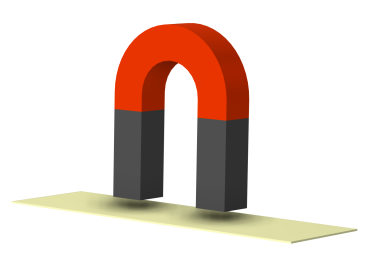
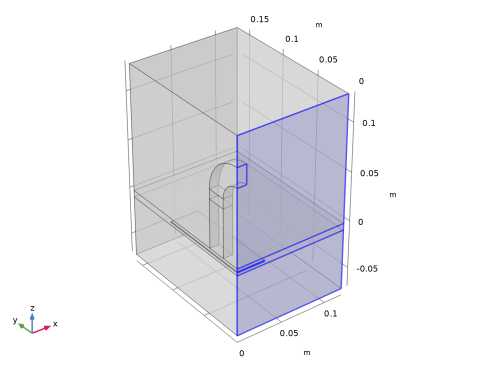
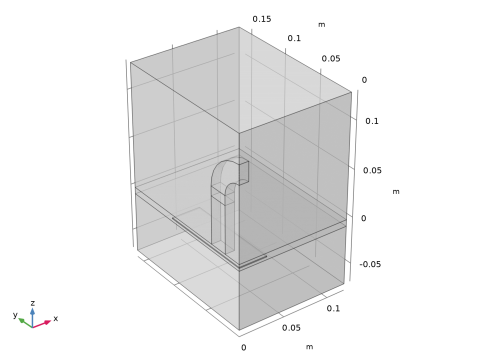
The geometry consists of a permanent magnet and a metal plate surrounded by air.
Figure 1: Full 3D geometry.
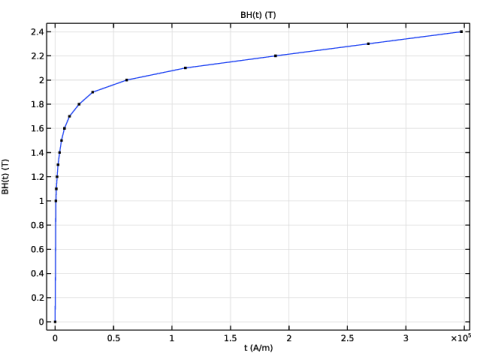
The plate is elastic and made of soft iron with the nonlinear magnetization properties specified as the BH curve shown in Figure 3. The plate initial thickness is 1 mm. Two shorter side boundaries of the plate are fixed and all the other boundaries are free.
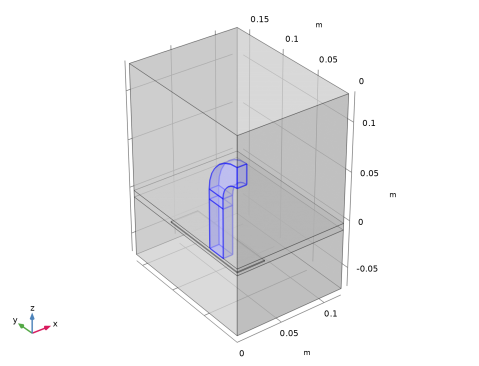
The magnet consists of two rectangular N35 magnets connected by a curved piece of iron as shown in Figure 1. The magnet is fixed in space and is not part of the structural analysis.
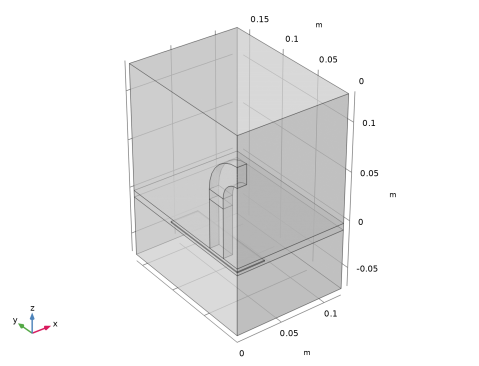
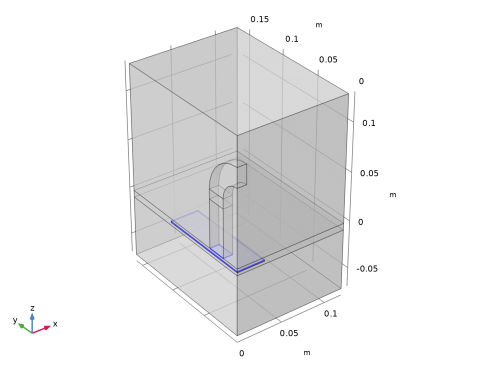
Because of the symmetry, you can model only one quarter of the magnet and plate. In addition, the magnetic field needs to be computed in the surrounding air using a bounding box shown in Figure 2
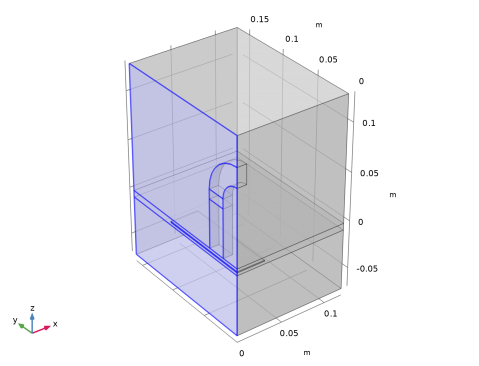
Figure 2: Model geometry.
To include the effect of the change of the distance when the plate is deflected by the magnetic field, you set up a moving mesh in a thin layer surrounding the plate, as can be seen in Figure 2. The mesh is free to deform inside the layer, and it can slide on the symmetry cut boundaries.
For the structural problem and the moving mesh, symmetry conditions are used at both symmetry cut planes. However, the magnetic problem needs a symmetry condition on one of the cut planes (on the left in Figure 2) and an antisymmetry condition on the other one (on the right in Figure 2).
Figure 3: BH curve for soft iron.
Results and Discussion
The magnetic field and plate displacement have been computed for several values of the initial distance, dm, between the plate and the magnet poles.
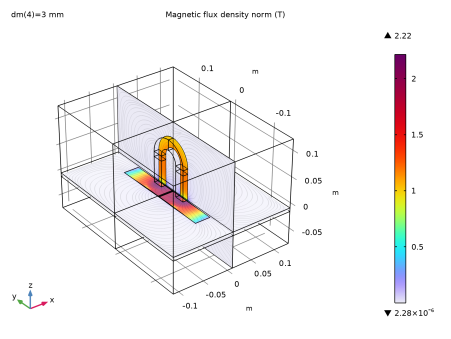
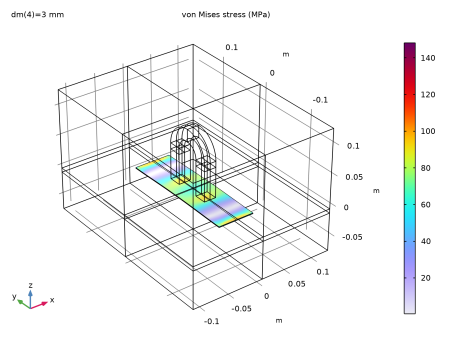
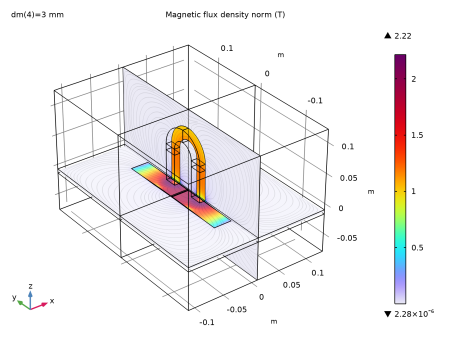
The computation results are visualized for dm = 3 mm for the full geometry in Figure 4Figure 7 by using mirror datasets.
Figure 4 shows that the stress level in the deformed plate is moderate, and it is far below the yield strengths of the material. Figure 6 and Figure 7 show that the magnetic flux density can reach quite significant values, so that certain parts of the plate will be in a magnetization state near the material saturation.
Figure 4: Stress distribution in the plate for the initial distance of 3 mm to the magnet.
Figure 5: Displacement of the plate for the initial distance of 3 mm to the magnet.
Figure 6: Magnetic flux density for the initial distance of 3 mm between the plate and magnet.
Figure 7: Magnetic flux density and magnetic flux streamlines in a slice parallel to the plate upper surface for the initial distance of 3 mm between the plate and magnet.
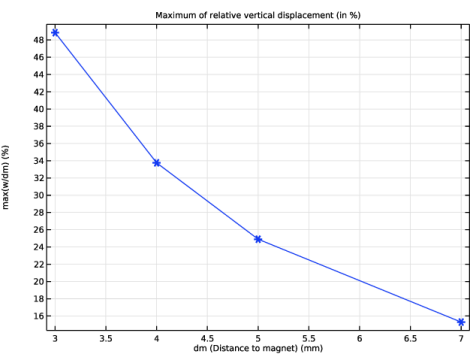
Figure 8 shows that the relative deflection of the plate can be significant, which justifies the need to use the moving mesh when computing the magnetic field in the surrounding air.
Figure 8: Maximum displacement of the plate in percent of the initial distance between the plate and the magnet poles.
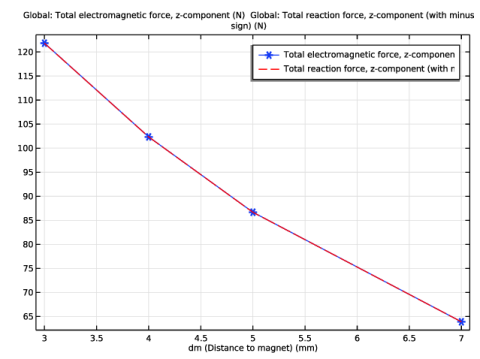
Figure 9 shows very good agreement between the total magnetic pulling force and the total structural reaction force for all studied values of the initial distance between the plate and the magnet poles.
Figure 9: The total pulling magnetic force and the total structural reaction force (re-computed for the full geometry).
Notes About the COMSOL Implementation
The model is set up using the Magnetomechanics, No Currents multiphysics interface. When this interface is added to a model, one Solid Mechanics and one Magnetic Fields, No Currents physics interface are added automatically together with a Magnetomechanics multiphysics coupling feature. Two moving-mesh-related nodes are also added automatically: a Deforming Domain and a Symmetry/Roller boundary condition.
The magnetic body and surface forces acting on the plate are applied automatically by the coupling feature on its selection. Later on in the modeling, you will also add a Force Calculation node under the Magnetic Fields, No Currents physics interface. The node is only used in postprocessing for computing the total force acting on the plate.
Application Library path: ACDC_Module/Electromagnetics_and_Mechanics/plate_deflected_by_magnet
Modeling Instructions
From the File menu, choose New.
New
In the New window, click  Model Wizard.
Model Wizard
1
In the Model Wizard window, click  3D.
2
In the Select Physics tree, select Structural Mechanics > Electromagnetics–Structure Interaction > Magnetomechanics > Magnetomechanics, No Currents, Solid.
3
Click Add.
4
Click  Study.
5
In the Select Study tree, select General Studies > Stationary.
6
Global Definitions
Parameters, geometry
1
In the Model Builder window, under Global Definitions click Parameters 1.
2
In the Settings window for Parameters, type Parameters, geometry in the Label text field.
3
Locate the Parameters section. In the table, enter the following settings:
Geometry 1
Work Plane 1 (wp1)
1
In the Geometry toolbar, click  Work Plane.
Use the work plane to set up one quarter of the magnet geometry.
2
In the Settings window for Work Plane, locate the Plane Definition section.
3
From the Plane list, choose zy-plane.
4
In the x-coordinate text field, type 0.01.
Work Plane 1 (wp1) > Plane Geometry
In the Model Builder window, click Plane Geometry.
Work Plane 1 (wp1) > Circle 1 (c1)
1
In the Work Plane toolbar, click  Circle.
2
In the Settings window for Circle, locate the Size and Shape section.
3
In the Radius text field, type 0.04.
4
In the Sector angle text field, type 90.
5
Locate the Position section. In the xw text field, type 0.06.
Work Plane 1 (wp1) > Circle 2 (c2)
1
Right-click Component 1 (comp1) > Geometry 1 > Work Plane 1 (wp1) > Plane Geometry > Circle 1 (c1) and choose Duplicate.
2
In the Settings window for Circle, locate the Size and Shape section.
3
In the Radius text field, type 0.02.
Work Plane 1 (wp1) > Difference 1 (dif1)
1
In the Work Plane toolbar, click  Booleans and Partitions and choose Difference.
2
3
In the Settings window for Difference, locate the Difference section.
4
Click to select the  Activate Selection toggle button for Objects to subtract.
5
Work Plane 1 (wp1) > Rectangle 1 (r1)
1
In the Work Plane toolbar, click  Rectangle.
2
In the Settings window for Rectangle, locate the Size and Shape section.
3
In the Width text field, type 0.05.
4
In the Height text field, type 0.02.
5
Locate the Position section. In the yw text field, type 0.02.
Work Plane 1 (wp1) > Rectangle 2 (r2)
1
Right-click Component 1 (comp1) > Geometry 1 > Work Plane 1 (wp1) > Plane Geometry > Rectangle 1 (r1) and choose Duplicate.
2
In the Settings window for Rectangle, locate the Size and Shape section.
3
In the Width text field, type 0.01.
4
Locate the Position section. In the xw text field, type 0.05.
5
Click  Build Selected.
Extrude 1 (ext1)
1
In the Model Builder window, under Component 1 (comp1) > Geometry 1 right-click Work Plane 1 (wp1) and choose Extrude.
2
In the Settings window for Extrude, locate the Distances section.
3
Add a block representing one quarter of the plate.
Block 1 (blk1)
1
In the Geometry toolbar, click  Block.
2
In the Settings window for Block, locate the Size and Shape section.
3
In the Width text field, type wp/2.
4
In the Depth text field, type lp/2.
5
In the Height text field, type hp.
6
Locate the Position section. In the z text field, type -(dm+hp).
Finally, set up a bounding box for the geometry, which will define the surrounding air domains.
Block 2 (blk2)
1
In the Geometry toolbar, click  Block.
2
In the Settings window for Block, locate the Size and Shape section.
3
In the Width text field, type 2*wp.
4
In the Depth text field, type lp/2+wp.
5
In the Height text field, type 0.2.
6
Locate the Position section. In the z text field, type -H.
7
Click to expand the Layers section. Specify two layers to define the domain, where a moving mesh will be used.
8
9
Click  Build All Objects.
10
Click the  Transparency button in the Graphics toolbar.
Add Material
1
In the Materials toolbar, click  Add Material to open the Add Material window.
2
Go to the Add Material window.
Add the plate and magnet materials. The plate and the curved handle of the magnet are made of soft iron. The rectangular magnet is made of N35 (Sintered NdFeB).
3
In the tree, select AC/DC > Soft Iron (Without Losses).
4
Right-click and choose Add to Component 1 (comp1).
Materials
Soft Iron (Without Losses) (mat1)
1
In the Model Builder window, under Component 1 (comp1) > Materials click Soft Iron (Without Losses) (mat1).
2
In the Settings window for Material, locate the Geometric Entity Selection section.
3
From the Selection list, choose Manual.
4
Click  Clear Selection.
5
Add Material
1
Go to the Add Material window.
2
In the tree, select AC/DC > Hard Magnetic Materials > Sintered NdFeB Grades (Chinese Standard) > N35 (Sintered NdFeB).
3
Right-click and choose Add to Component 1 (comp1).
Materials
N35 (Sintered NdFeB) (mat2)
1
In the Model Builder window, under Component 1 (comp1) > Materials click N35 (Sintered NdFeB) (mat2).
2
Use air in the surrounding domains.
Add Material
1
Go to the Add Material window.
2
In the tree, select Built-in > Air.
3
Right-click and choose Add to Component 1 (comp1).
4
In the Materials toolbar, click  Add Material to close the Add Material window.
Materials
Air (mat3)
Select Domains 1, 2, and 4 only.
Set up moving mesh in the air domain surrounding the plate.
Moving Mesh
Deforming Domain 1
1
In the Model Builder window, under Component 1 (comp1) > Moving Mesh click Deforming Domain 1.
2
Allow the mesh to slide on the boundaries representing the symmetry cuts.
Symmetry/Roller 1
1
In the Model Builder window, click Symmetry/Roller 1.
2
Perform the structural analysis only in the domain representing the plate.
Solid Mechanics (solid)
1
In the Model Builder window, under Component 1 (comp1) click Solid Mechanics (solid).
2
Fixed Constraint 1
1
In the Physics toolbar, click  Boundaries and choose Fixed Constraint.
One side boundary of the plate is fixed.
2
Two external side boundaries represent the symmetry cuts.
Symmetry 1
1
In the Physics toolbar, click  Boundaries and choose Symmetry.
2
Magnetic Fields, No Currents (mfnc)
Magnetic Flux Conservation in Solids 1
The plate and the curved part connecting the magnet poles are made of iron that has nonlinear magnetization properties, including possible saturation.
1
In the Model Builder window, under Component 1 (comp1) > Magnetic Fields, No Currents (mfnc) click Magnetic Flux Conservation in Solids 1.
2
3
In the Settings window for Magnetic Flux Conservation in Solids, locate the Constitutive Relation B-H section.
4
From the Magnetization model list, choose B-H curve.
Magnetic Flux Conservation, Magnet
1
In the Physics toolbar, click  Domains and choose Magnetic Flux Conservation in Solids.
You model the magnet using the remanent flux density defined by the material.
2
In the Settings window for Magnetic Flux Conservation in Solids, type Magnetic Flux Conservation, Magnet in the Label text field.
3
4
Locate the Constitutive Relation B-H section. From the Magnetization model list, choose Remanent flux density.
5
Specify the e vector as
Next, define the conditions on the boundaries representing the symmetry cuts. Note that two different types of conditions are needed.
Symmetry Plane, Symmetry
1
In the Physics toolbar, click  Boundaries and choose Symmetry Plane.
2
In the Settings window for Symmetry Plane, type Symmetry Plane, Symmetry in the Label text field.
3
Locate the Boundary Selection section. Click  Paste Selection.
4
In the Paste Selection dialog, You can use the Paste Selection dialog to manually specify your selections.
5
type 1, 4, 7, 11, 14, 17, 20, 23 in the Selection text field.
6
Symmetry Plane, Antisymmetry
1
In the Physics toolbar, click  Boundaries and choose Symmetry Plane.
2
In the Settings window for Symmetry Plane, type Symmetry Plane, Antisymmetry in the Label text field.
3
Locate the Symmetry Plane section. From the Symmetry type for the magnetic field list, choose Antisymmetry.
4
Locate the Boundary Selection section. Click  Paste Selection.
5
In the Paste Selection dialog, type 2, 5, 8, 12, 15 in the Selection text field.
6
Materials
Soft Iron (Without Losses) (mat1)
1
In the Model Builder window, under Component 1 (comp1) > Materials click Soft Iron (Without Losses) (mat1).
2
In the Settings window for Material, locate the Material Contents section.
3
Define a few parameters to control the meshing of the geometry.
Global Definitions
Parameters, accuracy
1
In the Home toolbar, click  Parameters and choose Add > Parameters.
2
In the Settings window for Parameters, type Parameters, accuracy in the Label text field.
3
Locate the Parameters section. In the table, enter the following settings:
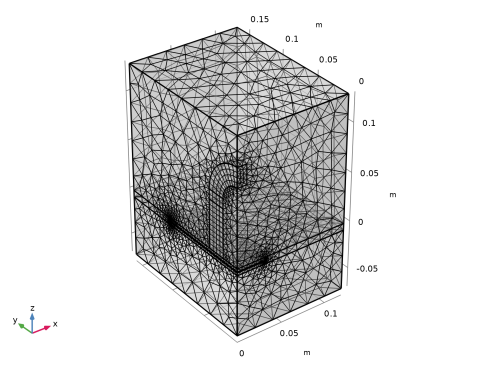
Use swept meshes in the domains representing the plate and magnet. Start by meshing two respective adjacent surfaces.
Mesh 1
Free Triangular 1
1
In the Mesh toolbar, click  More Generators and choose Free Triangular.
2
In the Settings window for Free Triangular, locate the Boundary Selection section.
3
Click  Paste Selection.
4
In the Paste Selection dialog, type 10, 22 in the Selection text field.
5
Size 1
1
Right-click Free Triangular 1 and choose Size.
2
In the Settings window for Size, locate the Element Size section.
3
Click the Custom button.
4
Locate the Element Size Parameters section.
5
Select the Maximum element size checkbox. In the associated text field, type hmax1.
Swept 1
1
In the Mesh toolbar, click  Swept.
The first swept mesh will be applied to the magnet. This will then be adjusted using two distributions applied to the different domains of the magnet.
2
In the Settings window for Swept, locate the Domain Selection section.
3
From the Geometric entity level list, choose Domain.
4
Click  Paste Selection.
5
In the Paste Selection dialog, type 5-7 in the Selection text field.
6
Distribution 1
1
Right-click Swept 1 and choose Distribution.
2
In the Settings window for Distribution, locate the Domain Selection section.
3
4
Click  Remove from Selection.
Only domains 5 and 6 are used for this distribution.
5
Locate the Distribution section. In the Number of elements text field, type 10.
Distribution 2
1
In the Model Builder window, right-click Swept 1 and choose Distribution.
2
3
In the Settings window for Distribution, locate the Distribution section.
4
In the Number of elements text field, type 2.
Swept 2
1
In the Mesh toolbar, click  Swept.
A second swept mesh is then applied to the metal plate.
2
In the Settings window for Swept, locate the Domain Selection section.
3
From the Geometric entity level list, choose Domain.
4
Distribution 1
1
Right-click Swept 2 and choose Distribution.
2
In the Settings window for Distribution, locate the Distribution section.
3
In the Number of elements text field, type 3.
Mesh the rest of the geometry using a free tetrahedral mesh.
Free Tetrahedral 1
In the Mesh toolbar, click  Free Tetrahedral.
Size 1
1
Right-click Free Tetrahedral 1 and choose Size.
2
In the Settings window for Size, locate the Element Size section.
3
Click the Custom button.
4
Locate the Element Size Parameters section.
5
Select the Maximum element size checkbox. In the associated text field, type hmax2.
6
Click  Build All.
Set up a parametric sweep to study cases of several different distances between the plate and magnet.
Study 1
Parametric Sweep
1
In the Study toolbar, click  Parametric Sweep.
2
In the Settings window for Parametric Sweep, locate the Study Settings section.
3
4
Modify the default solver to reduce the solving time and to improve the numerical stability.
Solution 1 (sol1)
1
In the Study toolbar, click  Show Default Solver.
2
In the Model Builder window, expand the Solution 1 (sol1) node.
3
In the Model Builder window, expand the Study 1 > Solver Configurations > Solution 1 (sol1) > Stationary Solver 1 > Segregated 1 node, then click Magnetic Potential.
4
In the Settings window for Segregated Step, locate the General section.
5
From the Linear solver list, choose Direct.
Prepare a plot to be shown during the parametric sweep computation.
6
In the Study toolbar, click  Show Default Plots.
Parametric Sweep
1
In the Model Builder window, under Study 1 click Parametric Sweep.
2
In the Settings window for Parametric Sweep, locate the Output While Solving section.
3
Select the Plot checkbox.
4
In the Study toolbar, click  Compute.
Results
Stress (solid)
Set up datasets to visualize the results for the full geometry. Note that two different types of datasets will be needed to show the magnetic fields and structural quantities.
Mirror 3D, symmetry yz-plane
1
In the Results toolbar, click  More Datasets and choose Mirror 3D.
2
In the Settings window for Mirror 3D, type Mirror 3D, symmetry yz-plane in the Label text field.
3
Locate the Data section. From the Dataset list, choose Study 1/Parametric Solutions 1 (sol2).
Mirror 3D, symmetry xz-plane
1
In the Results toolbar, click  More Datasets and choose Mirror 3D.
2
In the Settings window for Mirror 3D, locate the Data section.
3
From the Dataset list, choose Mirror 3D, symmetry yz-plane.
4
In the Label text field, type Mirror 3D, symmetry xz-plane.
5
Locate the Plane Data section. From the Plane list, choose xz-planes.
Mirror 3D, antisymmetry xz-plane
1
Right-click Mirror 3D, symmetry xz-plane and choose Duplicate.
2
In the Settings window for Mirror 3D, click to expand the Advanced section.
3
Find the Space variables subsection. From the Vector transformation list, choose Antisymmetric.
4
In the Label text field, type Mirror 3D, antisymmetry xz-plane.
Study 1/Parametric Solutions 1 (sol2)
1
In the Model Builder window, click Study 1/Parametric Solutions 1 (sol2).
2
In the Settings window for Solution, locate the Solution section.
3
From the Frame list, choose Material  (X, Y, Z).
Stress (solid)
1
In the Model Builder window, under Results click Stress (solid).
2
In the Settings window for 3D Plot Group, locate the Data section.
3
From the Dataset list, choose Mirror 3D, symmetry xz-plane.
Volume 1
1
In the Model Builder window, expand the Stress (solid) node, then click Volume 1.
2
In the Settings window for Volume, locate the Expression section.
3
From the Unit list, choose MPa.
Deformation 1
1
Right-click Volume 1 and choose Deformation.
2
In the Settings window for Deformation, locate the Scale section.
3
Select the Scale factor checkbox. In the associated text field, type 1.
4
In the Stress (solid) toolbar, click  Plot.
Magnetic Flux Density (mfnc)
1
In the Model Builder window, under Results click Magnetic Flux Density (mfnc).
2
In the Settings window for 3D Plot Group, locate the Data section.
3
From the Dataset list, choose Mirror 3D, antisymmetry xz-plane.
Multislice 1
1
In the Model Builder window, expand the Magnetic Flux Density (mfnc) node, then click Multislice 1.
2
In the Settings window for Multislice, locate the Multiplane Data section.
3
Find the x-planes subsection. In the Coordinates text field, type 0.
4
Find the y-planes subsection. Clear the Coordinates text field.
5
Find the z-planes subsection. In the Coordinates text field, type -dm*1.1.
Streamline Multislice 1
1
In the Model Builder window, click Streamline Multislice 1.
2
In the Settings window for Streamline Multislice, locate the Multiplane Data section.
3
Find the x-planes subsection. In the Coordinates text field, type 0.
4
Find the y-planes subsection. Clear the Coordinates text field.
5
Find the z-planes subsection. In the Coordinates text field, type -dm*1.1.
6
Locate the Streamline Positioning section. In the Density level text field, type 8.5.
7
In the Magnetic Flux Density (mfnc) toolbar, click  Plot.
Plot the structural displacement magnitude in the plate.
Displacement (solid)
1
In the Model Builder window, right-click Stress (solid) and choose Duplicate.
2
In the Settings window for 3D Plot Group, type Displacement (solid) in the Label text field.
Volume 1
1
In the Model Builder window, expand the Displacement (solid) node, then click Volume 1.
2
In the Settings window for Volume, locate the Expression section.
3
In the Expression text field, type solid.disp.
4
From the Unit list, choose mm.
5
Locate the Coloring and Style section. From the Color table list, choose SpectrumLight.
6
In the Displacement (solid) toolbar, click  Plot.
Evaluate the maximum structural displacement and the total force acting on the plate.
Definitions
Maximum 1 (maxop1)
1
In the Definitions toolbar, click  Nonlocal Couplings and choose Maximum.
2
Magnetic Fields, No Currents (mfnc)
Force Calculation, for Postprocessing
1
In the Physics toolbar, click  Domains and choose Force Calculation.
2
In the Settings window for Force Calculation, type Force Calculation, for Postprocessing in the Label text field.
3
4
Locate the Force Calculation section. From the Force calculation method list, choose No force on contact.
Study 1
In the Study toolbar, click  Update Solution.
Results
Maximum displacement
1
In the Results toolbar, click  1D Plot Group.
2
In the Settings window for 1D Plot Group, type Maximum displacement in the Label text field.
3
Locate the Data section. From the Dataset list, choose Study 1/Parametric Solutions 1 (sol2).
4
Click to expand the Title section. From the Title type list, choose Manual.
5
In the Title text area, type Maximum of relative vertical displacement (in %).
6
Locate the Legend section. Clear the Show legends checkbox.
Global 1
1
Right-click Maximum displacement and choose Global.
2
In the Settings window for Global, locate the y-Axis Data section.
3
4
Click to expand the Coloring and Style section. Find the Line markers subsection. From the Marker list, choose Cycle.
5
In the Maximum displacement toolbar, click  Plot.
Total force
1
In the Results toolbar, click  1D Plot Group.
2
In the Settings window for 1D Plot Group, type Total force in the Label text field.
3
Locate the Data section. From the Dataset list, choose Study 1/Parametric Solutions 1 (sol2).
Global 1
1
Right-click Total force and choose Global.
2
In the Settings window for Global, click Replace Expression in the upper-right corner of the y-Axis Data section. From the menu, choose Component 1 (comp1) > Magnetic Fields, No Currents > Mechanical > Electromagnetic force (spatial frame) - N > mfnc.Forcez_1 - Electromagnetic force, z-component.
3
Locate the y-Axis Data section. In the table, enter the following settings:
4
Locate the Coloring and Style section. Find the Line markers subsection. From the Marker list, choose Cycle.
Global 2
1
In the Model Builder window, right-click Total force and choose Global.
2
In the Settings window for Global, click Replace Expression in the upper-right corner of the y-Axis Data section. From the menu, choose Component 1 (comp1) > Solid Mechanics > Reactions > Total reaction force (spatial frame) - N > solid.RFtotalz - Total reaction force, z-component.
3
Locate the y-Axis Data section. In the table, enter the following settings:
4
Locate the Coloring and Style section. Find the Line style subsection. From the Line list, choose Dashed.
5
From the Color list, choose Red.
6
In the Total force toolbar, click  Plot.