PDF

Piezomagnetic Cell Rover
Introduction
A conventional antenna relies on electromagnetic resonance, which means that it must be of a size comparable to the electromagnetic wavelength. This has been a difficulty for the development of smaller, millimeter-sized antennas. This tutorial is intended to show how to model a miniaturized magnetostrictive antenna developed for operating inside living cells, based on the so-called Cell Rover design presented in Ref. 1.
The Cell Rover antenna is ideal for operating inside living systems because of its small size and its relatively low resonance frequency at around 4.5 MHz. To understand the effect of mass loading and viscous damping, the device is studied in air. By exiting the antenna with an AC magnetic field applied along its length, the stress of the antenna, the magnetic flux density, the current density, and the displacement of the tip of the device are investigated.
Model Definition
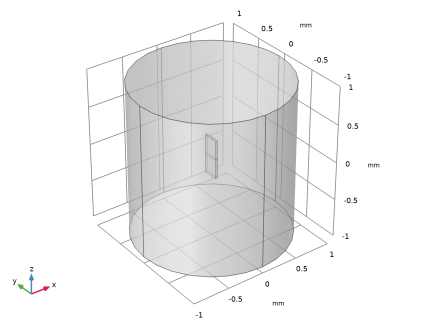
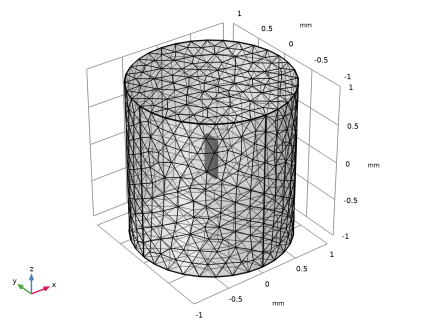
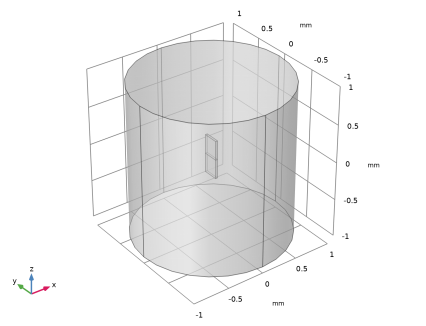
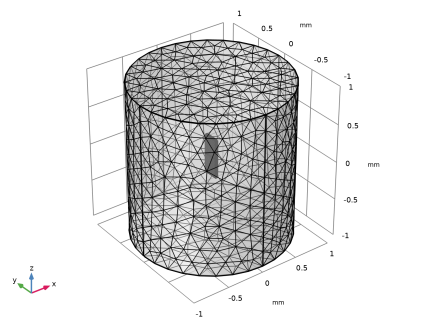
The geometry of the Cell Rover is shown in Figure 1. The model is solved in 3D, and consists of a magnetostrictive antenna made of metglas placed inside a cylinder filled with air. The antenna is excited using a uniform magnetic background field. A relatively fine mesh is used for the antenna, while a coarser mesh is used for the surrounding cylinder. The computational mesh can be seen in Figure 2.
Figure 1: The model geometry.
Figure 2: The mesh used in the model.
The implementation makes use of a predefined multiphysics interface available in COMSOL, called Piezomagnetism. Selecting this interface in the Model Wizard adds the Structural Mechanics and Magnetic Fields interfaces together with the corresponding multiphysics coupling feature, Piezomagnetism.
Parameters
The model uses parameters for the excitation, the quality factor, and the metglas material properties, as given in Table 1. The properties of air are taken from the built-in COMSOL material library.
Results and Discussion
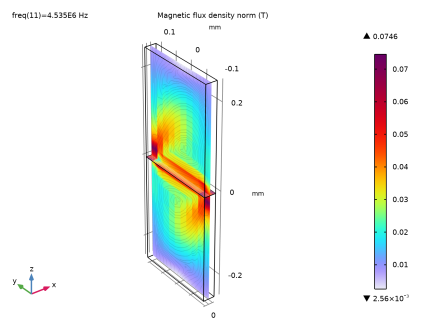
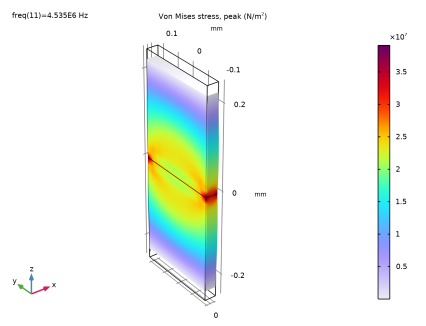
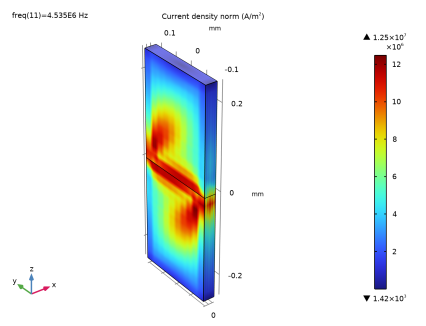
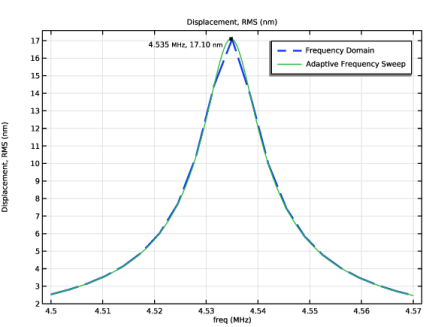
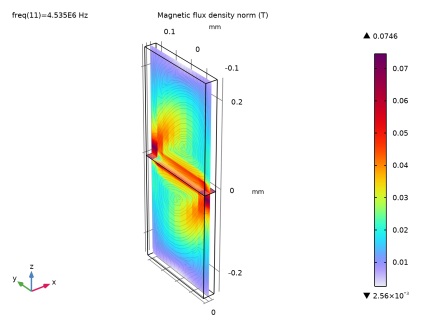
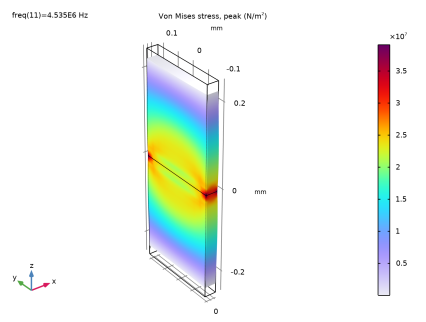
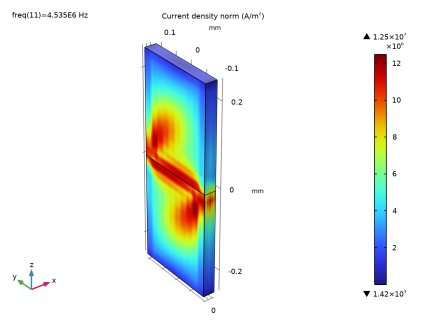
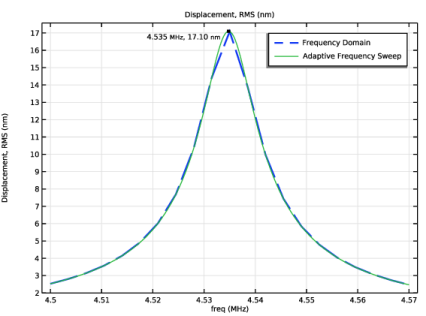
Two studies are performed: a Frequency Domain study and an Adaptive Frequency Sweep study. The plots shown in Figures 3-5 show the solution from the Frequency Domain study at the resonance frequency of 4.535 MHz, while Figure 6 compares the solutions from both studies.
Figure 3 shows the magnetic flux density norm and the magnetic flux density streamlines in a slice of the antenna.
Figure 4 shows the volume plot of the stress distribution in the antenna. 
Figure 5 displays the volume plot of the current density norm in the antenna.
Figure 6 compares the resulting tip displacements of the first and the second study. The Adaptive Frequency Sweep study has a higher resolution output than the Frequency Domain study. The maximum displacement occurs at the resonance frequency of 4.535 MHz and has a value of 17.1 nm.
Figure 3: Magnetic flux density norm at f = 4.535 MHz.
Figure 4: Stress distribution at f = 4.535 MHz.
Figure 5: Current density norm at f = 4.535 MHz.
Figure 6: The tip displacement versus frequency for the Frequency Domain study and the Adaptive Frequency Sweep study.
Reference
1. B. Joy, Y. Cai, D.C. Bono, and others, “Cell Rover — a miniaturized magnetostrictive antenna for wireless operation inside living cells,” Nat. Commun., vol. 13, p. 5210, 2022.
Article available at: www.nature.com/articles/s41467-022-32862-4.
This source is licensed under the Creative Commons Attribution 4.0 International License: creativecommons.org/licenses/by/4.0/.
The Piezomagnetic Cell Rover tutorial model uses the device dimensions and material properties of Metglas® 2826 MB as given by the article, and the magnetic field strength and quality factor are as given for the studies done in air. The model reproduces the resonance frequency in air, as obtained from the article.
Application Library path: ACDC_Module/Electromagnetics_and_Mechanics/piezomagnetic_cell_rover
Modeling Instructions
From the File menu, choose New.
New
In the New window, click  Model Wizard.
Model Wizard
1
In the Model Wizard window, click  3D.
2
In the Select Physics tree, select AC/DC > Electromagnetics and Mechanics > Magnetostriction > Piezomagnetism.
3
Click Add.
4
Click  Study.
5
In the Select Study tree, select General Studies > Frequency Domain.
6
Global Definitions
Parameters 1
1
In the Model Builder window, under Global Definitions click Parameters 1.
2
In the Settings window for Parameters, locate the Parameters section.
3
Click  Load from File.
4
The imported parameters are used for the excitation, the quality factor, and the metglas material properties.
Geometry 1
1
In the Model Builder window, under Component 1 (comp1) click Geometry 1.
2
In the Settings window for Geometry, locate the Units section.
3
From the Length unit list, choose mm.
Cell Rover
1
In the Geometry toolbar, click  Block.
2
In the Settings window for Block, type Cell Rover in the Label text field.
3
Locate the Size and Shape section. In the Width text field, type 0.5.
4
In the Depth text field, type 0.2.
5
In the Height text field, type 0.028.
6
Locate the Position section. From the Base list, choose Center.
7
Locate the Axis section. From the Axis type list, choose x-axis.
8
Click to expand the Layers section. In the table, enter the following settings:
9
Find the Layer position subsection. Select the Left checkbox.
10
Clear the Bottom checkbox.
11
Locate the Selections of Resulting Entities section. Select the Resulting objects selection checkbox.
12
Click  Build Selected.
Cylinder 1 (cyl1)
1
In the Geometry toolbar, click  Cylinder.
2
In the Settings window for Cylinder, locate the Size and Shape section.
3
In the Height text field, type 2.
4
Locate the Position section. In the z text field, type -1.
5
Locate the Selections of Resulting Entities section. Select the Resulting objects selection checkbox.
6
Click  Build Selected.
Form Union (fin)
1
In the Model Builder window, click Form Union (fin).
2
In the Settings window for Form Union/Assembly, click  Build Selected.
Air
1
In the Geometry toolbar, click  Selections and choose Complement Selection.
2
In the Settings window for Complement Selection, type Air in the Label text field.
3
Locate the Input Entities section. Click  Add.
4
In the Add dialog, select Cell Rover in the Selections to invert list.
5
Exterior Boundaries
1
In the Geometry toolbar, click  Selections and choose Adjacent Selection.
2
In the Settings window for Adjacent Selection, type Exterior Boundaries in the Label text field.
3
Locate the Input Entities section. Click  Add.
4
In the Add dialog, select Cylinder 1 in the Input selections list.
5
6
In the Geometry toolbar, click  Build All.
7
Click the  Transparency button in the Graphics toolbar.
8
Click the  Zoom Extents button in the Graphics toolbar.
9
In the Model Builder window, click Geometry 1.
Definitions
Next, create a selection for a point of interest that can used for the stored solution later.
Explicit 1
1
In the Definitions toolbar, click  Explicit.
2
In the Settings window for Explicit, locate the Input Entities section.
3
From the Geometric entity level list, choose Point.
4
Click  Paste Selection.
5
In the Paste Selection dialog, type 3 in the Selection text field.
6
Integration 1 (intop1)
1
In the Model Builder window, expand the Definitions node.
2
Right-click Definitions and choose Nonlocal Couplings > Integration.
3
In the Settings window for Integration, locate the Source Selection section.
4
From the Geometric entity level list, choose Point.
5
Add Material
1
In the Materials toolbar, click  Add Material to open the Add Material window.
2
Go to the Add Material window.
3
In the tree, select Built-in > Air.
4
Click the Add to Component button in the window toolbar.
5
In the Materials toolbar, click  Add Material to close the Add Material window.
Materials
Metglas
1
In the Model Builder window, under Component 1 (comp1) right-click Materials and choose Blank Material.
2
In the Settings window for Material, type Metglas in the Label text field.
3
Locate the Geometric Entity Selection section. From the Selection list, choose Cell Rover.
4
Click to expand the Material Properties section. In the Material properties tree, select Solid Mechanics > Linear Elastic Material > Young’s Modulus and Poisson’s Ratio.
5
Click  Add to Material.
6
Locate the Material Contents section. In the table, enter the following settings:
The warning sign shown in the Material node will disappear when the physics is set up.
Magnetic Fields (mf)
1
In the Model Builder window, under Component 1 (comp1) click Magnetic Fields (mf).
2
In the Settings window for Magnetic Fields, locate the Background Field section.
3
From the Solve for list, choose Reduced field.
4
From the Background field specification list, choose Uniform magnetic flux density.
5
Specify the Bb vector as
6
Click to expand the Discretization section. From the Magnetic vector potential list, choose Linear.
Ampère’s Law, Piezomagnetic 1
1
In the Model Builder window, under Component 1 (comp1) > Magnetic Fields (mf) click Ampère’s Law, Piezomagnetic 1.
2
In the Settings window for Ampère’s Law, Piezomagnetic, locate the Domain Selection section.
3
From the Selection list, choose Cell Rover.
Gauge Fixing for A-Field 1
In the Physics toolbar, click  Domains and choose Gauge Fixing for A-Field.
External Magnetic Vector Potential 1
1
In the Physics toolbar, click  Boundaries and choose External Magnetic Vector Potential.
The External Magnetic Vector Potential feature enforces the chosen background field on the selected boundaries.
2
In the Settings window for External Magnetic Vector Potential, locate the Boundary Selection section.
3
From the Selection list, choose Exterior Boundaries.
Solid Mechanics (solid)
1
In the Model Builder window, under Component 1 (comp1) click Solid Mechanics (solid).
2
In the Settings window for Solid Mechanics, locate the Domain Selection section.
3
From the Selection list, choose Cell Rover.
Fixed Constraint 1
1
In the Physics toolbar, click  Boundaries and choose Fixed Constraint.
2
Drag and drop below Initial Values 1.
3
In the Settings window for Fixed Constraint, locate the Boundary Selection section.
4
Click  Paste Selection.
5
In the Paste Selection dialog, type 10 in the Selection text field.
6
Piezomagnetic Material 1
1
In the Model Builder window, click Piezomagnetic Material 1.
2
In the Settings window for Piezomagnetic Material, locate the Domain Selection section.
3
From the Selection list, choose Cell Rover.
Mechanical Damping 1
1
In the Physics toolbar, click  Attributes and choose Damping.
2
In the Settings window for Mechanical Damping, locate the Damping Settings section.
3
From the ηs list, choose User defined. In the associated text field, type 1/Q.
To make sure that the Air material has updated its properties, click on the Material node to confirm that the warning has disappeared.
Mesh 1
1
In the Model Builder window, under Component 1 (comp1) click Mesh 1.
2
In the Settings window for Mesh, locate the Sequence Type section.
3
From the list, choose User-controlled mesh.
Swept 1
1
In the Mesh toolbar, click  Swept.
2
3
In the Settings window for Swept, locate the Domain Selection section.
4
From the Geometric entity level list, choose Domain.
5
From the Selection list, choose Cell Rover.
Distribution 1
Right-click Swept 1 and choose Distribution.
Size 1
1
In the Model Builder window, right-click Swept 1 and choose Size.
2
In the Settings window for Size, locate the Element Size section.
3
Click the Custom button.
4
Locate the Element Size Parameters section.
5
Select the Maximum element size checkbox. In the associated text field, type 0.02.
6
In the Model Builder window, right-click Mesh 1 and choose Build All.
7
Click the  Zoom Extents button in the Graphics toolbar.
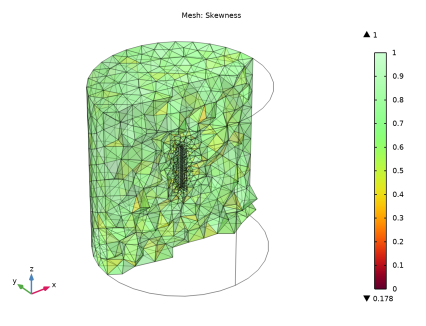
The mesh should look like the figure above.
8
In the Mesh toolbar, click  Plot.
Results
Mesh 1
Click the  Show Grid button in the Graphics toolbar.
Filter 1
1
Right-click Mesh 1 and choose Filter.
2
In the Settings window for Filter, locate the Element Selection section.
3
In the Logical expression for inclusion text field, type y>0.
Mesh Plot 1
1
In the Model Builder window, under Results click Mesh Plot 1.
2
In the Mesh Plot 1 toolbar, click  Plot.
The mesh plot should look like the figure above.
Study 1
Step 1: Frequency Domain
1
In the Model Builder window, under Study 1 click Step 1: Frequency Domain.
2
In the Settings window for Frequency Domain, locate the Study Settings section.
3
In the Frequencies text field, type range(4.5[MHz],(4.57[MHz]-(4.5[MHz]))/20,4.57[MHz]).
4
In the Model Builder window, click Study 1.
5
In the Settings window for Study, type Study 1 Frequency Domain in the Label text field.
Solution 1 (sol1)
1
In the Study toolbar, click  Show Default Solver.
2
In the Model Builder window, expand the Solution 1 (sol1) node.
3
In the Model Builder window, expand the Study 1 Frequency Domain > Solver Configurations > Solution 1 (sol1) > Stationary Solver 1 node.
4
Right-click Study 1 Frequency Domain > Solver Configurations > Solution 1 (sol1) > Stationary Solver 1 and choose Fully Coupled.
5
In the Settings window for Fully Coupled, locate the General section.
6
From the Linear solver list, choose Direct.
7
In the Study toolbar, click  Compute.
Results
Study 1 Frequency Domain/Solution 1 (sol1)
In the Model Builder window, expand the Results > Datasets node, then click Study 1 Frequency Domain/Solution 1 (sol1).
Selection
1
In the Results toolbar, click  Attributes and choose Selection.
2
In the Settings window for Selection, locate the Geometric Entity Selection section.
3
From the Geometric entity level list, choose Domain.
4
From the Selection list, choose Cell Rover.
Magnetic Flux Density Norm (mf)
1
In the Model Builder window, under Results click Magnetic Flux Density (mf).
2
In the Settings window for 3D Plot Group, type Magnetic Flux Density Norm (mf) in the Label text field.
3
Locate the Data section. From the Parameter value (freq (Hz)) list, choose 4.535E6.
Multislice 1
1
In the Model Builder window, expand the Magnetic Flux Density Norm (mf) node, then click Multislice 1.
2
In the Settings window for Multislice, locate the Multiplane Data section.
3
Find the y-planes subsection. From the Entry method list, choose Number of planes.
4
In the Planes text field, type 0.
Streamline Multislice 1
1
In the Model Builder window, click Streamline Multislice 1.
2
In the Settings window for Streamline Multislice, locate the Multiplane Data section.
3
Find the y-planes subsection. From the Entry method list, choose Number of planes.
4
In the Planes text field, type 0.
Magnetic Flux Density Norm (mf)
1
Click the  Zoom Extents button in the Graphics toolbar.
2
In the Model Builder window, click Magnetic Flux Density Norm (mf).
3
In the Settings window for 3D Plot Group, locate the Plot Settings section.
4
From the View list, choose New view.
5
In the Magnetic Flux Density Norm (mf) toolbar, click  Plot.
The plot shows the magnitude of the magnetic flux density norm in the antenna.
Stress (solid)
1
In the Model Builder window, click Stress (solid).
2
In the Settings window for 3D Plot Group, locate the Data section.
3
From the Parameter value (freq (Hz)) list, choose 4.535E6.
4
Locate the Plot Settings section. From the View list, choose View 3D 2.
5
In the Stress (solid) toolbar, click  Plot.
This plot shows the peak von Mises stress in the antenna.
Current Density Norm
1
In the Results toolbar, click  3D Plot Group.
2
In the Settings window for 3D Plot Group, type Current Density Norm in the Label text field.
3
Locate the Data section. From the Parameter value (freq (Hz)) list, choose 4.535E6.
4
Locate the Plot Settings section. From the View list, choose View 3D 2.
5
From the Frame list, choose Spatial  (x, y, z).
6
Locate the Color Legend section. Select the Show maximum and minimum values checkbox.
Volume 1
1
Right-click Current Density Norm and choose Volume.
2
In the Settings window for Volume, locate the Expression section.
3
In the Expression text field, type mf.normJ.
Current Density Norm
1
In the Model Builder window, click Current Density Norm.
2
In the Current Density Norm toolbar, click  Plot.
Finish by plotting the displacement of the tip of the antenna as a function of frequency.
Tip Displacement
1
In the Results toolbar, click  1D Plot Group.
2
In the Settings window for 1D Plot Group, type Tip Displacement in the Label text field.
Point Graph 1
1
Right-click Tip Displacement and choose Point Graph.
2
In the Settings window for Point Graph, locate the Selection section.
3
Click  Paste Selection.
4
In the Paste Selection dialog, type 3 in the Selection text field.
5
6
In the Settings window for Point Graph, locate the y-Axis Data section.
7
In the Expression text field, type solid.disp_rms.
8
From the Unit list, choose nm.
9
Locate the x-Axis Data section. From the Unit list, choose MHz.
10
Click to expand the Coloring and Style section. Find the Line style subsection. From the Line list, choose Dashed.
11
From the Width list, choose 2.
12
Click to expand the Legends section. Select the Show legends checkbox.
13
From the Legends list, choose Manual.
14
Tip Displacement
1
In the Model Builder window, click Tip Displacement.
2
In the Tip Displacement toolbar, click  Plot.
Now add an Adaptive Frequency Sweep study to the model for comparison.
Add Study
1
In the Study toolbar, click  Add Study to open the Add Study window.
2
Go to the Add Study window.
3
Find the Studies subsection. In the Select Study tree, select Empty Study.
4
Click the Add Study button in the window toolbar.
Study 2
Step 1: Adaptive Frequency Sweep
1
In the Study toolbar, click  More Study Steps and choose Frequency Domain > Adaptive Frequency Sweep.
2
In the Settings window for Adaptive Frequency Sweep, locate the Study Settings section.
3
In the Frequencies text field, type range(4.5[MHz],(4.57[MHz]-(4.5[MHz]))/2000,4.57[MHz]).
4
From the AWE expression type list, choose User controlled.
5
Next, set the output selections to a point of interest to reduce the size of the stored solution.
6
Click to expand the Store in Output section. In the table, enter the following settings:
7
Under Selections, click  Add.
8
In the Add dialog, select Explicit 1 in the Selections list.
9
10
In the Model Builder window, click Study 2.
11
In the Settings window for Study, type Study 2 Adaptive Frequency Sweep in the Label text field.
12
Locate the Study Settings section. Clear the Generate default plots checkbox.
13
In the Study toolbar, click  Compute.
Results
Point Graph 2
1
In the Model Builder window, right-click Tip Displacement and choose Point Graph.
2
In the Settings window for Point Graph, locate the Data section.
3
From the Dataset list, choose Study 2 Adaptive Frequency Sweep/Solution 2 (sol2).
4
Locate the Selection section. Click  Paste Selection.
5
In the Paste Selection dialog, type 3 in the Selection text field.
6
7
In the Settings window for Point Graph, locate the y-Axis Data section.
8
In the Expression text field, type solid.disp_rms.
9
From the Unit list, choose nm.
10
Click to expand the Title section. From the Title type list, choose None.
11
Locate the x-Axis Data section. From the Unit list, choose MHz.
12
Locate the Legends section. Select the Show legends checkbox.
13
From the Legends list, choose Manual.
14
Graph Marker 1
1
Right-click Point Graph 2 and choose Graph Marker.
2
In the Settings window for Graph Marker, locate the Display section.
3
From the Display list, choose Max.
4
Locate the Text Format section. Select the Show x-coordinate checkbox.
5
Select the Include unit checkbox.
6
In the Precision text field, type 4.
7
Click to expand the Coloring and Style section. From the Anchor point list, choose Upper right.
8
In the Tip Displacement toolbar, click  Plot.