PDF

Permanent Magnet
Introduction
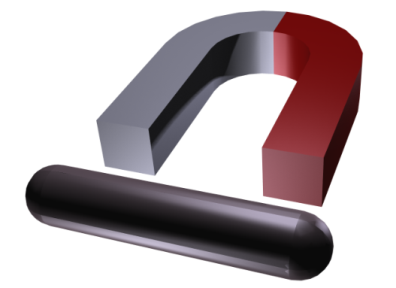
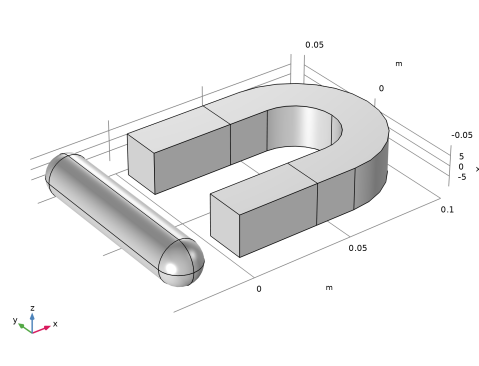
This example shows how to model the magnetic field surrounding a permanent magnet. It also computes the force with which it acts on a nearby iron rod. Thanks to the symmetry of the geometry and the antisymmetry of the magnetic field, only one fourth of the geometry needs to be modeled.
Figure 1: A full 3D view of the geometry. Left-right and top-down symmetry is used to minimize the problem size.
Model Definition
In a current free region, where
it is possible to define the scalar magnetic potential, Vm, from the relation
This is analogous to the definition of the electric potential for static electric fields.
Using the constitutive relation between the magnetic flux density and magnetic field
where Br is the remanent flux density, and together with the equation
you can derive an equation for Vm,
The model uses this equation by selecting the Magnetic Fields, No Currents interface from the AC/DC Module.
Boundary Conditions
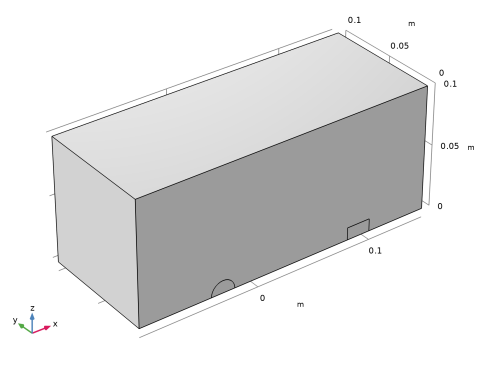
The magnetic field is symmetric with respect to the xy-plane and antisymmetric with respect to the xz-plane. These planes therefore serve as exterior boundaries to the geometry.
On the symmetry plane, the magnetic field is tangential to the boundary. This is described by the Magnetic Insulation condition:
On the antisymmetry plane, the magnetic field is perpendicular to the boundary. This condition is represented by a constant magnetic scalar potential. The model uses the Zero Magnetic Scalar Potential condition.
If the air box is sufficiently large, the boundary condition used on its remaining exterior boundaries has little influence on the field in the vicinity of the magnet. Although an infinite element domain would give the very best results, this model uses the magnetic insulation condition for convenience.
Results and Discussion
The force on the rod is calculated internally as an integral of the surface stress tensor over all boundaries of the rod. The expression for the stress tensor reads
where n1 is the boundary normal pointing out from the rod and T2 the stress tensor of air. The integration gives 3.64 N, which corresponds to one quarter of the rod. The actual force on the rod is therefore four times this value, or 14.6 N.
Application Library path: ACDC_Module/Introductory_Magnetostatics/permanent_magnet
Modeling Instructions
From the File menu, choose New.
New
In the New window, click  Model Wizard.
Model Wizard
1
In the Model Wizard window, click  3D.
2
In the Select Physics tree, select AC/DC > Magnetic Fields, No Currents > Magnetic Fields, No Currents (mfnc).
3
Click Add.
4
Click  Study.
5
In the Select Study tree, select General Studies > Stationary.
6
Geometry 1
Import 1 (imp1)
1
In the Geometry toolbar, click  Import.
2
In the Settings window for Import, locate the Source section.
3
Click  Browse.
4
5
Click  Import.
The imported geometry contains the permanent magnet and the rod that it is acting on. The following instructions show you how to create the air box and delete the part of the geometry that you do not want to include in the model.
Block 1 (blk1)
1
In the Geometry toolbar, click  Block.
2
In the Settings window for Block, locate the Size and Shape section.
3
In the Width text field, type 0.25.
4
In the Depth text field, type 0.1.
5
In the Height text field, type 0.1.
6
Locate the Position section. In the x text field, type -0.1.
7
Right-click Block 1 (blk1) and choose Build Selected.
The air box now covers only the parts of the magnet and the rod that you want to include in the model. Perform a Boolean geometry operation to get rid of the superfluous parts.
Compose 1 (co1)
1
In the Geometry toolbar, click  Booleans and Partitions and choose Compose.
2
Click in the Graphics window and then press Ctrl+A to select both objects.
3
In the Settings window for Compose, locate the Compose section.
4
In the Set formula text field, type blk1+imp1*blk1.
5
Click  Build All Objects.
6
Click the  Zoom Extents button in the Graphics toolbar.
The geometry now contains the air volume and one fourth of the imported objects.
Magnetic Fields, No Currents (mfnc)
Magnetic Flux Conservation in Solids 1
1
In the Physics toolbar, click  Domains and choose Magnetic Flux Conservation in Solids.
2
Materials
Iron
1
In the Model Builder window, under Component 1 (comp1) right-click Materials and choose Blank Material.
2
In the Settings window for Material, type Iron in the Label text field.
3
4
Locate the Material Contents section. In the table, enter the following settings:
Add Material
1
In the Materials toolbar, click  Add Material to open the Add Material window.
2
Go to the Add Material window.
3
In the tree, select AC/DC > Hard Magnetic Materials > Sintered NdFeB Grades (Chinese Standard) > N54 (Sintered NdFeB).
4
Click the Add to Component button in the window toolbar.
5
In the Materials toolbar, click  Add Material to close the Add Material window.
Materials
N54 (Sintered NdFeB) (mat2)
1
In the Settings window for Material, locate the Geometric Entity Selection section.
2
Click  Paste Selection.
3
In the Paste Selection dialog, type 3 in the Selection text field.
4
Magnetic Fields, No Currents (mfnc)
Magnet 1
1
In the Physics toolbar, click  Domains and choose Magnet.
2
North 1
1
In the Model Builder window, click North 1.
2
South 1
1
In the Model Builder window, click South 1.
2
All exterior boundaries are magnetically insulated by default. Use the Symmetry Plane condition on those boundaries where antisymmetry holds.
Symmetry Plane 1
1
In the Physics toolbar, click  Boundaries and choose Symmetry Plane.
2
In the Model Builder window, click Symmetry Plane 1.
3
4
In the Settings window for Symmetry Plane, locate the Symmetry Plane section.
5
From the Symmetry type for the magnetic field list, choose Antisymmetry.
Next, add a force computation on the rod.
Force Calculation 1
1
In the Physics toolbar, click  Domains and choose Force Calculation.
2
3
In the Settings window for Force Calculation, locate the Force Calculation section.
4
In the Force name text field, type rod.
Study 1
Default mesh is sufficient in this case where the force is to be computed only on the rod, and we can directly go to the solution step.
1
In the Model Builder window, click Study 1.
2
In the Settings window for Study, locate the Study Settings section.
3
Clear the Generate default plots checkbox.
4
In the Study toolbar, click  Compute.
Results
3D Plot Group 1
In the Results toolbar, click  3D Plot Group.
Slice 1
1
Right-click 3D Plot Group 1 and choose Slice.
2
In the Settings window for Slice, click Replace Expression in the upper-right corner of the Expression section. From the menu, choose Component 1 (comp1) > Magnetic Fields, No Currents > Magnetic > mfnc.normB - Magnetic flux density norm - T.
3
Locate the Plane Data section. From the Plane list, choose xy-planes.
4
From the Entry method list, choose Coordinates.
5
In the z-coordinates text field, type 0.005.
6
Locate the Coloring and Style section. From the Color table list, choose GrayBody.
7
In the 3D Plot Group 1 toolbar, click  Plot.
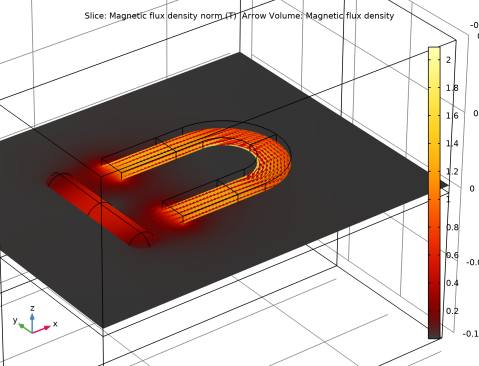
The plot shows the magnitude of the flux density just above the symmetry plane. Add an arrow plot to see its direction.
Magnetic Flux Density
1
In the Model Builder window, under Results click 3D Plot Group 1.
2
In the Settings window for 3D Plot Group, type Magnetic Flux Density in the Label text field.
Arrow Volume 1
1
Right-click Magnetic Flux Density and choose Arrow Volume.
2
In the Settings window for Arrow Volume, click Replace Expression in the upper-right corner of the Expression section. From the menu, choose Component 1 (comp1) > Magnetic Fields, No Currents > Magnetic > mfnc.Bx,...,mfnc.Bz - Magnetic flux density.
3
Locate the Arrow Positioning section. Find the x grid points subsection. In the Points text field, type 100.
4
Find the y grid points subsection. In the Points text field, type 50.
5
Find the z grid points subsection. From the Entry method list, choose Coordinates.
6
In the Coordinates text field, type 0.0051.
7
In the Magnetic Flux Density toolbar, click  Plot.
The plot shows only the quarter of the geometry used for the computation.
Introduce additional mirror datasets to plot the solution in the complete geometry.
Symmetry Condition
1
In the Results toolbar, click  More Datasets and choose Mirror 3D.
2
In the Settings window for Mirror 3D, type Symmetry Condition in the Label text field.
3
Locate the Plane Data section. From the Plane list, choose xy-planes.
Antisymmetry Condition
1
In the Results toolbar, click  More Datasets and choose Mirror 3D.
2
In the Settings window for Mirror 3D, type Antisymmetry Condition in the Label text field.
3
Locate the Data section. From the Dataset list, choose Symmetry Condition.
4
Locate the Plane Data section. From the Plane list, choose zx-planes.
5
Click to expand the Advanced section. Find the Space variables subsection. From the Vector transformation list, choose Antisymmetric.
Magnetic Flux Density
1
In the Model Builder window, under Results click Magnetic Flux Density.
2
In the Settings window for 3D Plot Group, locate the Data section.
3
From the Dataset list, choose Antisymmetry Condition.
4
In the Magnetic Flux Density toolbar, click  Plot.
Arrow Volume 1
1
In the Model Builder window, click Arrow Volume 1.
2
In the Settings window for Arrow Volume, click Replace Expression in the upper-right corner of the Expression section. From the menu, choose Component 1 (comp1) > Magnetic Fields, No Currents > Magnetic > mfnc.Bx,...,mfnc.Bz - Magnetic flux density.
3
In the Magnetic Flux Density toolbar, click  Plot.
Add Global Evaluation under Derived Values to statically store the force on the rod for the default mesh.
Force on Rod (Default Mesh)
1
In the Results toolbar, click  Global Evaluation.
2
In the Settings window for Global Evaluation, click Replace Expression in the upper-right corner of the Expressions section. From the menu, choose Component 1 (comp1) > Magnetic Fields, No Currents > Mechanical > Total electromagnetic force, object rod - N > mfnc.Forcex_rod - Total electromagnetic force, object rod, component x.
The variable containing the force on a quarter of the rod will be added to the Expressions table. Multiply this value by 4 to compute the total force on the rod.
3
In the Expression column, change the expression to mfnc.Forcex_rod*4.
4
In the Description column, type Total force on the rod.
5
In the Label text field, type Force on Rod (Default Mesh).
6
Click  Evaluate.
The total force on the rod evaluates to 15 N.
Now compute the force also on the horse-shoe magnet.
Magnetic Fields, No Currents (mfnc)
Force Calculation 2
1
In the Physics toolbar, click  Domains and choose Force Calculation.
2
3
In the Settings window for Force Calculation, locate the Force Calculation section.
4
In the Force name text field, type horseShoeMagnet.
Boundary Force Calculation 1
1
In the Physics toolbar, click  Boundaries and choose Boundary Force Calculation.
2
3
In the Settings window for Boundary Force Calculation, locate the Force Calculation section.
4
In the Force name text field, type exteriorBoundaries.
Mesh 1
Build the default mesh.
1
In the Model Builder window, under Component 1 (comp1) right-click Mesh 1 and choose Build All.
For the magnet we need a finer mesh near to its sharp corners. Such a mesh can be specified by editing the default mesh.
2
Right-click Component 1 (comp1) > Mesh 1 and choose Edit Physics-Induced Sequence.
Size 2
1
Click the  Wireframe Rendering button in the Graphics toolbar.
2
In the Model Builder window, under Component 1 (comp1) > Mesh 1 click Size 2.
3
In the Settings window for Size, locate the Geometric Entity Selection section.
4
Click  Clear Selection.
5
6
Click to expand the Element Size Parameters section. Locate the Element Size section. Click the Custom button.
7
Locate the Element Size Parameters section.
8
Select the Maximum element size checkbox. In the associated text field, type 0.3[mm].
Size 1
1
In the Model Builder window, click Size 1.
2
In the Settings window for Size, locate the Element Size Parameters section.
3
Select the Maximum element growth rate checkbox. In the associated text field, type 1.1.
Boundary Layer Properties 2
1
In the Model Builder window, expand the Component 1 (comp1) > Mesh 1 > Boundary Layers 1 node, then click Boundary Layer Properties 2.
2
3
In the Settings window for Boundary Layer Properties, locate the Layers section.
4
In the Thickness adjustment factor text field, type 1.
Study 1
In the Study toolbar, click  Compute.
Results
Force Calculation Results
1
In the Results toolbar, click  Evaluation Group.
2
In the Settings window for Evaluation Group, type Force Calculation Results in the Label text field.
Global Evaluation 1
1
Right-click Results and choose Global Evaluation.
Add the forces computed from the Force Calculation features, multiply the relevant ones by 4 to account for symmetries, and compute the forces on the rod and the horse-shoe magnet.
2
In the Settings window for Global Evaluation, click Replace Expression in the upper-right corner of the Expressions section. From the menu, choose Component 1 (comp1) > Magnetic Fields, No Currents > Mechanical > Total electromagnetic force, object rod - N > mfnc.Forcex_rod - Total electromagnetic force, object rod, component x.
3
Click Add Expression in the upper-right corner of the Expressions section. From the menu, choose Component 1 (comp1) > Magnetic Fields, No Currents > Mechanical > Total electromagnetic force, object horseShoeMagnet - N > mfnc.Forcex_horseShoeMagnet - Total electromagnetic force, object horseShoeMagnet, component x.
4
Locate the Expressions section. In the table, enter the following settings:
5
Click Add Expression in the upper-right corner of the Expressions section. From the menu, choose Component 1 (comp1) > Magnetic Fields, No Currents > Mechanical > Total electromagnetic force, object exteriorBoundaries - N > mfnc.Forcex_exteriorBoundaries - Total electromagnetic force, object exteriorBoundaries, component x.
6
In the Force Calculation Results toolbar, click  Evaluate.
Appreciate that the force on the rod is changing just slightly, that the force on the horse-shoe magnet is approximately minus the force on the rod, and that the effect of exterior boundaries is negligible.
Force Calculation Results
Go to the Force Calculation Results window.