
PDF

One-Sided Magnet and Plate
Introduction
One-sided magnets are magnets designed to have both magnetic poles emerging from the same side of the magnet. This results in the magnetic flux being concentrated on one side of the magnet. These kinds of magnets are found in many applications from the common fridge magnet to particle accelerators.
The one-sided flux behavior is obtained by giving the magnet a magnetization that varies in the lateral direction (Ref. 1). As no currents are present, it is possible to model a permanent magnet using a scalar magnetic potential formulation.
This tutorial demonstrates a technique to model a cylindrical one-sided permanent magnet and its influence on a metal plate in close proximity. The plate is modeled using a special technique for thin sheets of high permeability material, which circumvents the difficulty of volumetric meshing of thin structures in 3D.
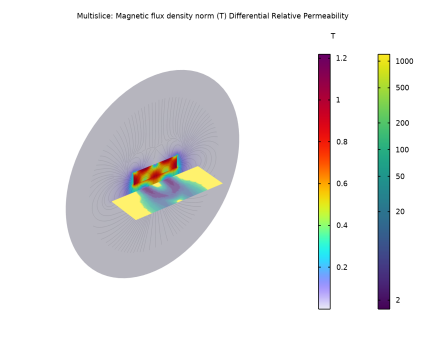
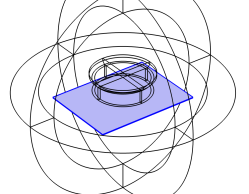
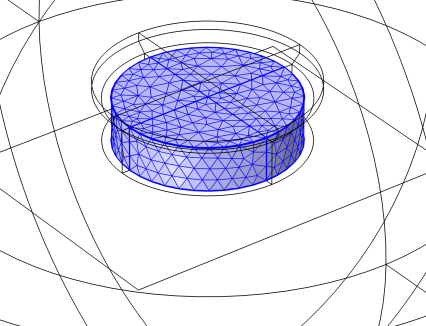
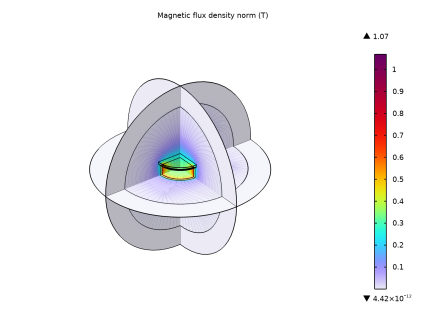
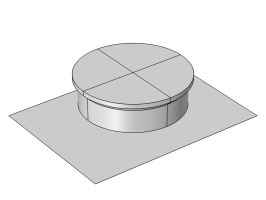
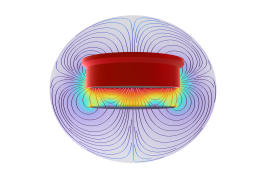
Figure 1: Left, typical use case of a one-sided magnet. Top right, the geometry of the example magnet modeled above a metal plate. Bottom right, a slice of the resultant magnetic flux.
Model Definition
In a current free region, where
(1)
we can define the scalar magnetic potential, Vm, from the relation
(2).
This is analogous to the definition of the electric potential for static electric fields. We can then use the relation between the magnetic flux density and the magnetic field,
(3),
where Br is the remanent flux density and μrec is the recoil permeability. This combines with the relation for magnetic flux conservation,
(4),
and results in the partial differential equation for the magnetic scalar potential, Vm,
(5).
One-sided Magnet
The characteristic one-sided magnet is formed from a spatially rotating magnetization. Typically, this is a repeating pattern known as a Halbach array. This can be implemented by applying a laterally periodic remanent flux density of
(6)
resulting in a magnetic flux that only emerges on one side of the magnet.
Force Calculation
To calculate the force on the plate, we use the surface stress tensor
(7),
where n1 is the boundary normal pointing out from the plate and T2 is the stress tensor for air. In this model, the H and B fields are discontinuous across the plate, which makes it necessary to evaluate the fields on both sides of the plate.
Modeling approach
This tutorial will first construct a textbook uniform magnet to evaluate the force imparted on a nearby metal plate. The metal plate is modeled with a simple linear material with a set relative permeability. The second step will introduce the one-sided magnet to demonstrate the difference in forces on the plate in these different scenarios.
Magnetic saturation effect in the Plate
For many applications, it is important to include magnetic saturation effects. In a final step, the instructions show how to model the plate with a nonlinear magnetic material, soft iron in this case, and plot the magnetic saturation across the plate.
Results and Discussion
First, a comparison shows that the force imparted on a highly permeable metal plate is considerably higher for the case with the one-sided magnetization compared to the case with a uniform magnetization of the same magnitude.
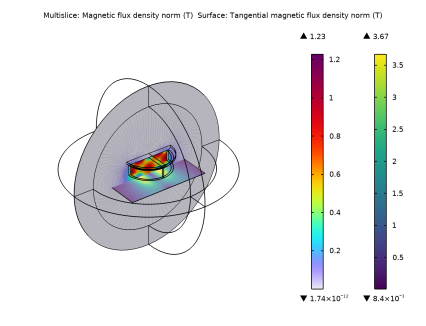
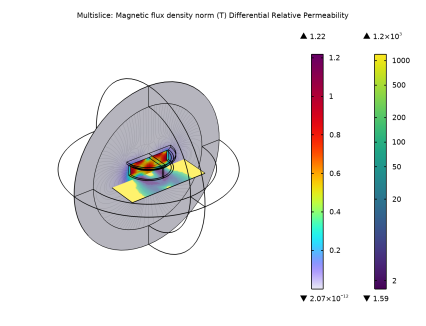
Secondly, the modification of the metal plate material to the more realistic soft iron material shows a small reduction in the imparted force from the magnet as the saturation effects in the plate limit the magnetization of the plate. Figure 2 shows the calculated magnetic flux density and direction for the case of the one-sided magnet near the plate with nonlinear magnetic material. The saturation of the plate is visualized using the differential relative permeability.
Figure 2: The magnetic flux density and direction is plotted in a cross section of the geometry.The one-sided behavior is apparent, as the flux is negligible on the top of the magnet. The differential relative permeability in the plate is shown on a separate scale. It illustrates that the plate is driven well into magnetic saturation.
Reference
1. H.A. Shute, J.C. Mallinson, D.T. Wilton, and D.J. Mapps, “One-Sided Fluxes in Planar, Cylindrical and Spherical Magnetized Structures,” IEEE Transactions on Magnetics, vol. 36, no. 2, pp. 440–451, 2000.
Application Library path: ACDC_Module/Introductory_Magnetostatics/one_sided_magnet
Modeling Instructions
From the File menu, choose New.
New
In the New window, click  Model Wizard.
Model Wizard
1
In the Model Wizard window, click  3D.
2
In the Select Physics tree, select AC/DC > Magnetic Fields, No Currents > Magnetic Fields, No Currents (mfnc).
3
Click Add.
4
Click  Study.
5
In the Select Study tree, select General Studies > Stationary.
6
Geometry 1
1
In the Model Builder window, under Component 1 (comp1) click Geometry 1.
2
In the Settings window for Geometry, locate the Units section.
3
From the Length unit list, choose mm.
Sphere 1 (sph1)
1
In the Geometry toolbar, click  Sphere.
2
In the Settings window for Sphere, locate the Size section.
3
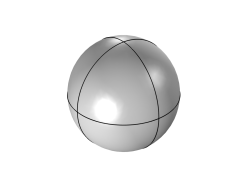
In the Radius text field, type 40.
4
Click to expand the Layers section. In the table, enter the following settings:
5
Locate the Selections of Resulting Entities section. Select the Create layer selections checkbox.
6
Click  Build Selected.
Magnet
1
In the Geometry toolbar, click  Cylinder.
2
In the Settings window for Cylinder, locate the Size and Shape section.
3
In the Radius text field, type 10.
4
In the Height text field, type 5.
5
Click  Build Selected.
6
Click  Highlight Result.
7
In the Label text field, type Magnet.
8
Locate the Selections of Resulting Entities section. Select the Resulting objects selection checkbox.
9
Click the  Wireframe Rendering button in the Graphics toolbar.
10
Click the  Zoom Extents button in the Graphics toolbar.
11
Click the  Zoom In button in the Graphics toolbar.
Work Plane 1 (wp1)
1
In the Geometry toolbar, click  Work Plane.
The plastic cap does not impact the magnetic properties of the simulation but is included for completeness.
2
In the Settings window for Work Plane, locate the Plane Definition section.
3
From the Plane list, choose xz-plane.
Work Plane 1 (wp1) > Plane Geometry
1
In the Model Builder window, click Plane Geometry.
2
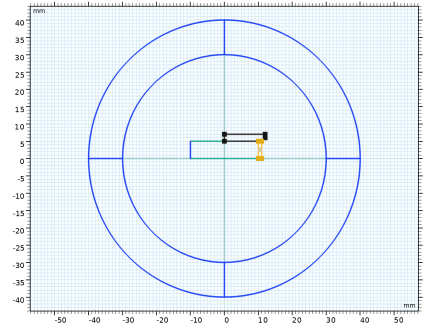
In the Sketch toolbar, click  Polygon.
Work Plane 1 (wp1) > Rectangle 1 (r1)
1
In the Work Plane toolbar, click  Rectangle.
2
In the Settings window for Rectangle, locate the Size and Shape section.
3
In the Width text field, type 12.
4
In the Height text field, type 2.
5
Locate the Position section. In the yw text field, type 5.
6
Click  Build Selected.
Work Plane 1 (wp1) > Chamfer 1 (cha1)
1
In the Work Plane toolbar, click  Chamfer.
2
On the object r1, select Point 2 only.
3
In the Settings window for Chamfer, locate the Distance section.
4
In the Distance from vertex text field, type 1.
5
Click  Build Selected.
Work Plane 1 (wp1) > Rectangle 2 (r2)
1
In the Work Plane toolbar, click  Rectangle.
2
In the Settings window for Rectangle, locate the Size and Shape section.
3
In the Height text field, type 5.
4
Locate the Position section. In the xw text field, type 10.
5
Click  Build Selected.
The axis-symmetric representation can now be revolved around the z-axis.
Cap
1
In the Model Builder window, under Component 1 (comp1) > Geometry 1 right-click Work Plane 1 (wp1) and choose Revolve.
2
In the Settings window for Revolve, type Cap in the Label text field.
3
Locate the Selections of Resulting Entities section. Select the Resulting objects selection checkbox.
4
Locate the Revolution Angles section. Clear the Keep original faces checkbox.
5
Click  Build All Objects.
Plate
1
In the Geometry toolbar, click  Work Plane.
2
In the Settings window for Work Plane, type Plate in the Label text field.
3
Locate the Selections of Resulting Entities section. Select the Resulting objects selection checkbox.
4
Locate the Plane Definition section. In the z-coordinate text field, type -3.
5
Click  Go to Plane Geometry.
Plate (wp2) > Rectangle 1 (r1)
1
In the Work Plane toolbar, click  Rectangle.
2
In the Settings window for Rectangle, locate the Position section.
3
From the Base list, choose Center.
4
Locate the Size and Shape section. In the Width text field, type 40.
5
In the Height text field, type 30.
Sphere 1 (sph1)
In the Model Builder window, under Component 1 (comp1) > Geometry 1 right-click Sphere 1 (sph1) and choose Enable.
Form Union (fin)
1
In the Model Builder window, click Form Union (fin).
2
In the Settings window for Form Union/Assembly, click  Build Selected.
Next, the selections will be defined. These will be used later on when assigning domain features or building the mesh for instance.
Air
1
In the Model Builder window, right-click Geometry 1 and choose Selections > Complement Selection.
2
In the Settings window for Complement Selection, locate the Input Entities section.
3
4
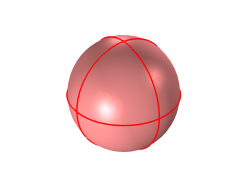
In the Add dialog, in the Selections to invert list, choose Layer 1 (Sphere 1), Core (Sphere 1), Magnet, and Cap.
5
6
In the Settings window for Complement Selection, type Air in the Label text field.
7
Click  Build Selected.
8
Locate the Input Entities section. In the Selections to invert list box, select Layer 1 (Sphere 1).
9
In the Selections to invert list box, select Cap.
10
In the Selections to invert list box, select Magnet.
11
In the Selections to invert list, choose Layer 1 (Sphere 1) and Core (Sphere 1).
12
Click  Delete.
Add Material
1
In the Materials toolbar, click  Add Material to open the Add Material window.
2
Go to the Add Material window.
3
In the tree, select Built-in > Air.
4
Click the Add to Component button in the window toolbar.
Materials
Air (mat1)
1
In the Settings window for Material, locate the Geometric Entity Selection section.
2
From the Selection list, choose Air.
Add Material
1
Go to the Add Material window.
2
In the tree, select Built-in > Acrylic plastic.
3
Click the Add to Component button in the window toolbar.
Materials
Acrylic plastic (mat2)
1
In the Settings window for Material, locate the Geometric Entity Selection section.
2
From the Selection list, choose Cap.
3
Locate the Material Contents section. In the table, enter the following settings:
Add Material
1
Go to the Add Material window.
2
In the tree, select AC/DC > Hard Magnetic Materials > Sintered NdFeB Grades (Chinese Standard) > N28TH (Sintered NdFeB).
3
Click the Add to Component button in the window toolbar.
Materials
N28TH (Sintered NdFeB) (mat3)
1
In the Settings window for Material, locate the Geometric Entity Selection section.
2
From the Selection list, choose Magnet.
Add Material from Library
In the Home toolbar, click  Windows and choose Add Material from Library.
Add Material
1
Go to the Add Material window.
2
In the tree, select AC/DC > Soft Iron (Without Losses).
3
Click the Add to Component button in the window toolbar.
Materials
Soft Iron (Without Losses) (mat4)
1
In the Settings window for Material, locate the Geometric Entity Selection section.
2
From the Geometric entity level list, choose Boundary.
3
From the Selection list, choose Plate.
This soft iron material has a magnetization response that is dependent on the applied magnetic field represented by the B-H curve in the material parameters. Under weak magnetic fields, it behaves in a linear fashion with an effective relative permeability of approximately 1200. However, under stronger fields, the magnetization begins to saturate.
4
Click to expand the Material Properties section. In the Material properties tree, select Basic Properties > Relative Permeability.
5
Click  Add to Material.
6
Locate the Material Contents section. In the table, enter the following settings:
This relative permeability value is chosen to be comparable to the nonlinear material used later in the tutorial.
Definitions
Infinite Element Domain 1 (ie1)
1
In the Definitions toolbar, click  Infinite Element Domain.
2
In the Settings window for Infinite Element Domain, locate the Domain Selection section.
3
From the Selection list, choose Layer 1 (Sphere 1).
4
Locate the Geometry section. From the Type list, choose Spherical.
Modeling Instructions — Two-Sided Magnet, Linear Plate Material
For the first study, set up the physics for the magnet and the plate. Start with a uniform magnetization across the magnet to model a simple two-sided magnet.
Magnetic Fields, No Currents (mfnc)
Two-sided Magnet
1
In the Physics toolbar, click  Domains and choose Magnet.
2
In the Settings window for Magnet, type Two-sided Magnet in the Label text field.
3
Locate the Domain Selection section. From the Selection list, choose Magnet.
4
Locate the Magnet section. From the Direction method list, choose User defined.
5
Specify the e vector as
Linear Shielding Alloy
1
In the Physics toolbar, click  Boundaries and choose Magnetic Shielding.
2
In the Settings window for Magnetic Shielding, type Linear Shielding Alloy in the Label text field.
3
Locate the Boundary Selection section. From the Selection list, choose Plate.
4
Locate the Magnetic Shielding section. In the ds text field, type 0.5[mm].
So far the magnetic potential is not constrained anywhere and the solution can only be computed up to a constant. Add a zero magnetic scalar potential to a point on the surface of the air domain to get a reference point enabling the numerical solver to produce a unique solution.
Zero Magnetic Scalar Potential 1
1
In the Physics toolbar, click  Points and choose Zero Magnetic Scalar Potential.
2
Force Calculation 1
1
In the Physics toolbar, click  Domains and choose Force Calculation.
2
In the Settings window for Force Calculation, locate the Domain Selection section.
3
From the Selection list, choose Magnet.
4
Locate the Force Calculation section. In the Force name text field, type magnet.
Boundary Force Calculation 1
1
In the Physics toolbar, click  Boundaries and choose Boundary Force Calculation.
2
In the Settings window for Boundary Force Calculation, locate the Boundary Selection section.
3
From the Selection list, choose Plate.
4
Locate the Force Calculation section. In the Force name text field, type plate.
Mesh 1
In the Model Builder window, under Component 1 (comp1) right-click Mesh 1 and choose Edit Physics-Induced Sequence.
Free Tetrahedral 1
1
In the Model Builder window, under Component 1 (comp1) > Mesh 1 click Free Tetrahedral 1.
2
In the Settings window for Free Tetrahedral, locate the Domain Selection section.
3
From the Selection list, choose Magnet.
4
Click  Build Selected.
5
In the Model Builder window, click Mesh 1.
6
In the Settings window for Mesh, locate the Sequence Type section.
7
From the list, choose Physics-controlled mesh.
8
Click  Build All.
Two-sided Magnet - Linear
1
In the Model Builder window, click Study 1.
2
In the Settings window for Study, type Two-sided Magnet - Linear in the Label text field.
3
In the Study toolbar, click  Compute.
Results
Magnetic Flux Density (mfnc)
In the Magnetic Flux Density (mfnc) toolbar, click  Plot.
Magnetic Scalar Potential (mfnc)
In the Model Builder window, click Magnetic Scalar Potential (mfnc).
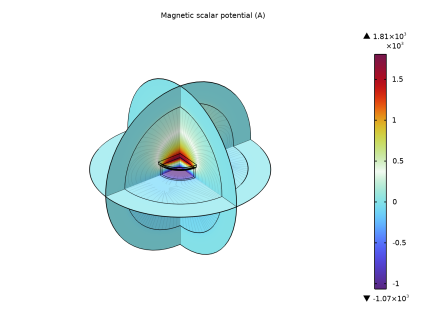
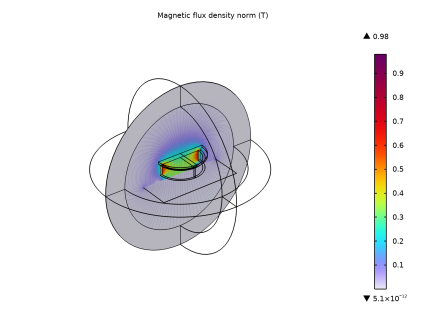
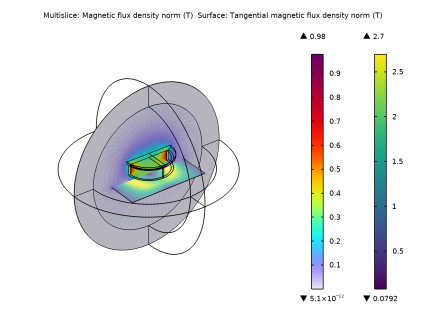
The default plot displays the magnetic flux density with the corresponding field lines in three planes and the magnetic scalar potential. Alter the default plots to display the magnetic flux on the plate.
Two-sided Magnet - Linear
1
In the Model Builder window, under Results click Magnetic Flux Density (mfnc).
2
In the Settings window for 3D Plot Group, type Two-sided Magnet - Linear in the Label text field.
Multislice 1
1
In the Model Builder window, expand the Two-sided Magnet - Linear node, then click Multislice 1.
2
In the Settings window for Multislice, locate the Multiplane Data section.
3
Find the z-planes subsection. Clear the Coordinates text field.
4
Find the x-planes subsection. Clear the Coordinates text field.
Streamline Multislice 1
1
In the Model Builder window, click Streamline Multislice 1.
2
In the Settings window for Streamline Multislice, locate the Multiplane Data section.
3
Find the z-planes subsection. Clear the Coordinates text field.
4
Find the x-planes subsection. Clear the Coordinates text field.
5
In the Two-sided Magnet - Linear toolbar, click  Plot.
Surface 1
1
In the Model Builder window, right-click Two-sided Magnet - Linear and choose Surface.
2
In the Settings window for Surface, locate the Expression section.
3
In the Expression text field, type mfnc.normtB.
4
Locate the Coloring and Style section. From the Color table list, choose Viridis.
5
In the Two-sided Magnet - Linear toolbar, click  Plot.
Now evaluate the force on the plate and the magnet.
Resulting Forces
1
In the Results toolbar, click  Evaluation Group.
2
In the Settings window for Evaluation Group, type Resulting Forces in the Label text field.
3
Locate the Data section. From the Dataset list, choose None.
4
Locate the Transformation section. Select the Transpose checkbox.
Global Evaluation 1
1
Right-click Resulting Forces and choose Global Evaluation.
2
In the Settings window for Global Evaluation, locate the Data section.
3
From the Dataset list, choose Two-sided Magnet - Linear/Solution 1 (sol1).
4
Locate the Expressions section. In the table, enter the following settings:
5
In the Resulting Forces toolbar, click  Evaluate.
The force calculation on the plate for a two-sided magnet yields a result of 9.9 to 10.4 N. The next section implements a Halbach array in the magnet, turning it into a one-sided magnet.
Modeling Instructions — One-Sided Magnet, Linear Plate Material
Global Definitions
Parameters 1
1
In the Model Builder window, under Global Definitions click Parameters 1.
2
In the Settings window for Parameters, locate the Parameters section.
3
Magnetic Fields, No Currents (mfnc)
One-sided Magnet
1
In the Model Builder window, right-click Two-sided Magnet and choose Duplicate.
2
In the Settings window for Magnet, type One-sided Magnet in the Label text field.
3
Locate the Magnet section. Specify the e vector as
The specified magnetization will result in a magnetic flux that only emerges from the lower side of the magnet.
Add a new study for the one-sided magnet. This way you can keep the results of the previous two-sided magnet simulation.
Two-sided Magnet - Linear
Step 1: Stationary
1
In the Model Builder window, under Two-sided Magnet - Linear click Step 1: Stationary.
2
In the Settings window for Stationary, locate the Physics and Variables Selection section.
3
Select the Modify model configuration for study step checkbox.
4
In the tree, select Component 1 (comp1) > Magnetic Fields, No Currents (mfnc) > One-sided Magnet.
5
Add Study
1
In the Home toolbar, click  Add Study to open the Add Study window.
2
Go to the Add Study window.
3
Find the Studies subsection. In the Select Study tree, select General Studies > Stationary.
4
Click the Add Study button in the window toolbar.
5
In the Home toolbar, click  Add Study to close the Add Study window.
One-sided Magnet - Linear
1
In the Settings window for Study, type One-sided Magnet - Linear in the Label text field.
2
Locate the Study Settings section. Clear the Generate default plots checkbox.
3
In the Study toolbar, click  Compute.
Reuse the modified plot to display the data from the new study.
Results
One-sided Magnet - Linear
1
In the Model Builder window, right-click Two-sided Magnet - Linear and choose Duplicate.
2
In the Settings window for 3D Plot Group, type One-sided Magnet - Linear in the Label text field.
3
In the One-sided Magnet - Linear toolbar, click  Plot.
4
Locate the Data section. From the Dataset list, choose One-sided Magnet - Linear/Solution 2 (sol2).
5
In the One-sided Magnet - Linear toolbar, click  Plot.
Global Evaluation 2
1
In the Model Builder window, right-click Resulting Forces and choose Global Evaluation.
2
In the Settings window for Global Evaluation, locate the Data section.
3
From the Dataset list, choose One-sided Magnet - Linear/Solution 2 (sol2).
4
Locate the Expressions section. In the table, enter the following settings:
5
In the Resulting Forces toolbar, click  Evaluate.
The result should be 17.3 N. The one-sidedness of the magnet increases the force by approximately a factor 1.7.
This concludes the part of the application using a linear shielding alloy. The remaining instructions show how to use a nonlinear shielding alloy.
Modeling Instructions — One-Sided Magnet, Nonlinear Plate Material
Magnetic Fields, No Currents (mfnc)
Nonlinear Shielding Alloy
1
In the Model Builder window, right-click Linear Shielding Alloy and choose Duplicate.
2
In the Settings window for Magnetic Shielding, type Nonlinear Shielding Alloy in the Label text field.
3
Locate the Magnetic Shielding section. From the Magnetization model list, choose B-H curve.
Create a new study to store the new set of results produced using the nonlinear plate material.
Add Study
1
In the Home toolbar, click  Add Study to open the Add Study window.
2
Go to the Add Study window.
3
Find the Studies subsection. In the Select Study tree, select General Studies > Stationary.
4
Click the Add Study button in the window toolbar.
5
In the Home toolbar, click  Add Study to close the Add Study window.
One-sided Magnet - Nonlinear
1
In the Settings window for Study, type One-sided Magnet - Nonlinear in the Label text field.
2
Locate the Study Settings section. Clear the Generate default plots checkbox.
3
In the Study toolbar, click  Compute.
One-sided Magnet - Linear
Step 1: Stationary
1
In the Model Builder window, under One-sided Magnet - Linear click Step 1: Stationary.
2
In the Settings window for Stationary, locate the Physics and Variables Selection section.
3
Select the Modify model configuration for study step checkbox.
4
In the tree, select Component 1 (comp1) > Magnetic Fields, No Currents (mfnc) > Nonlinear Shielding Alloy.
5
Two-sided Magnet - Linear
1
In the Model Builder window, under Two-sided Magnet - Linear click Step 1: Stationary.
2
In the Settings window for Stationary, locate the Physics and Variables Selection section.
3
In the tree, select Component 1 (comp1) > Magnetic Fields, No Currents (mfnc) > Nonlinear Shielding Alloy.
4
Results
One-sided Magnet - Nonlinear
1
In the Model Builder window, right-click Two-sided Magnet - Linear and choose Duplicate.
2
In the Settings window for 3D Plot Group, type One-sided Magnet - Nonlinear in the Label text field.
3
Locate the Data section. From the Dataset list, choose One-sided Magnet - Nonlinear/Solution 3 (sol3).
4
In the One-sided Magnet - Nonlinear toolbar, click  Plot.
Global Evaluation 3
1
In the Model Builder window, right-click Resulting Forces and choose Global Evaluation.
2
In the Settings window for Global Evaluation, locate the Data section.
3
From the Dataset list, choose One-sided Magnet - Nonlinear/Solution 3 (sol3).
4
Locate the Expressions section. In the table, enter the following settings:
5
In the Resulting Forces toolbar, click  Evaluate.
Resulting Forces
1
In the Model Builder window, click Resulting Forces.
2
In the Settings window for Evaluation Group, locate the Transformation section.
3
Clear the Transpose checkbox.
4
In the Resulting Forces toolbar, click  Evaluate.
Table 1
In the Resulting Forces toolbar, click  Copy to Table.
Resulting Forces
1
In the Model Builder window, under Results click Resulting Forces.
2
Select the Transpose checkbox.
3
In the Resulting Forces toolbar, click  Evaluate.
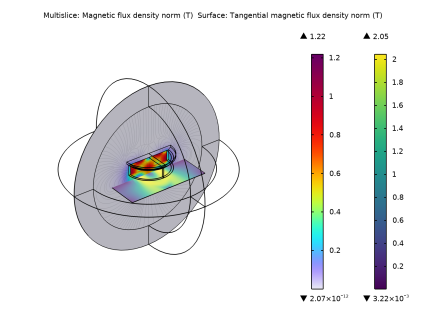
The result should be around 13.4 N. The nonlinear permeability results in a lower field strength in the plate as the material is brought into saturation in localized areas. You can visualize the saturation by plotting the differential permeability (the ratio dB/dH). Add this to a plot overlaying the "Surface: Tangential magnetic flux density" plot.
Differential Relative Permeability
1
In the Model Builder window, expand the One-sided Magnet - Nonlinear node, then click Surface 1.
2
In the Settings window for Surface, type Differential Relative Permeability in the Label text field.
3
Click to expand the Title section. From the Title type list, choose Label.
4
Locate the Expression section. In the Expression text field, type d(comp1.mat4.BHCurve.BH(mfnc.ms2.normtHshield),mfnc.ms2.normtHshield)/mu0_const.
5
Locate the Coloring and Style section. From the Scale list, choose Logarithmic.
Here, comp1.mat4.BHCurve.BHCurve1() refers to the nonlinear magnetic curve for material 4. Since the operator d(y,x) performs the derivative of y with respect to x, the plot shows the differential relative permeability. The maximum value of this differential corresponds to a linear relative permeability of the material of 1200. Where the value of this differential is reduced, the more magnetically saturated the plate material is at that point approaching complete saturation at a value of 1. You can see that the highly saturated regions of the plate correspond to the regions that had the highest tangential magnetic flux density.
Notice that the force calculated using the nonlinear material, 13.4 N, is still close to the linear approximation of 17.3 N. This is because the reluctance is dominated by the air gap between the magnet and the plate. Performing the simulation with the plate closer to the magnet will yield a greater force for both the linear and nonlinear cases as well have a larger discrepancy between the two values. This is left as an exercise for the user.
One-sided Magnet - Nonlinear
1
In the Model Builder window, click One-sided Magnet - Nonlinear.
2
In the Settings window for 3D Plot Group, locate the Color Legend section.
3
Clear the Show maximum and minimum values checkbox.
4
Select the Show units checkbox.
5
Locate the Plot Settings section. Clear the Plot dataset edges checkbox.
6
In the One-sided Magnet - Nonlinear toolbar, click  Plot.