PDF

Multiturn Coil Above an Asymmetric Conductor Plate
Introduction
This model solves the Testing Electromagnetic Analysis Methods (TEAM) problem 7, “Asymmetrical Conductor with a Hole” — a benchmark problem concerning the calculation of eddy currents and magnetic fields produced when an aluminum conductor is placed asymmetrically above a multiturn coil carrying a sinusoidally varying current. The simulation results at specified positions in space are compared with measured data from the literature and agreement is shown.
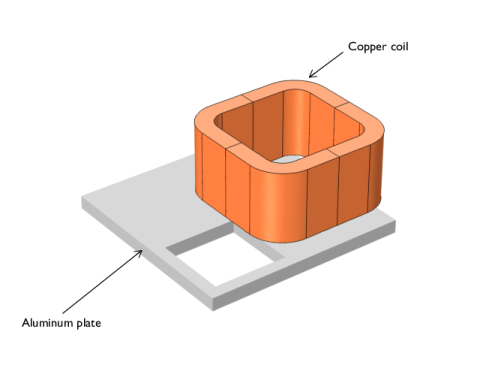
Figure 1: A multiturn coil placed asymmetrically over an aluminum plate with a hole.
Model Definition
Because the geometry has no symmetries, the problem must be solved for the entire geometry. As shown in Figure 1, the geometry consists of a coil placed asymmetrically above a thick aluminum conductor with an eccentric square hole. The coil has 2742 turns and carries a sinusoidally varying current of 1 A/turn. The magnetic field and the eddy currents induced in the conductor for coil currents of frequencies 50 Hz and 200 Hz are calculated, and the simulation results along specified locations in space are compared with experimental data given in Ref. 1.
Results and Discussion
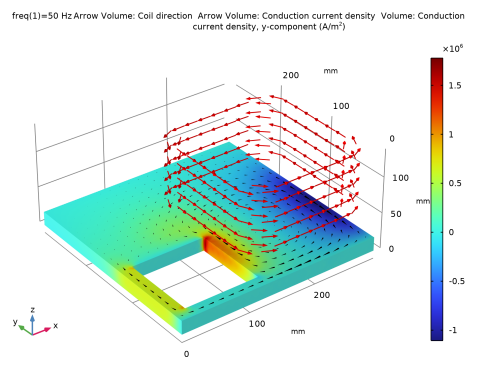
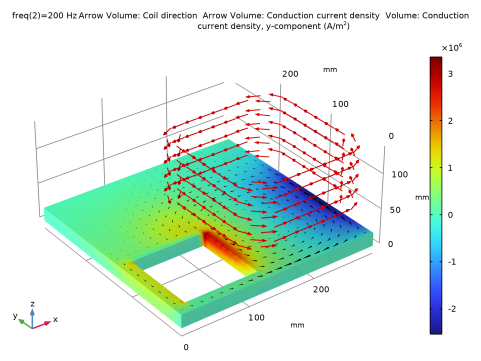
Figure 2 visualizes the induced current at 50 Hz using a combined surface and arrow plot. The black arrows show the current density in the conductor while the red arrows indicate the coil current direction is shown. Figure 3 shows the corresponding results at 200 Hz.
Figure 2: A 3D surface plot of the y-component of the induced current density, Jy (A/m2) in the conductor combined with the arrow volume plots of the coil current direction and the induced current density in the conductor. This simulation results are at 50 Hz.
Figure 3: A 3D surface plot of the y-component of the induced current density in the conductor combined with the arrow volume plots of the coil current direction and the induced current density in the conductor. This simulation results are at 200 Hz.
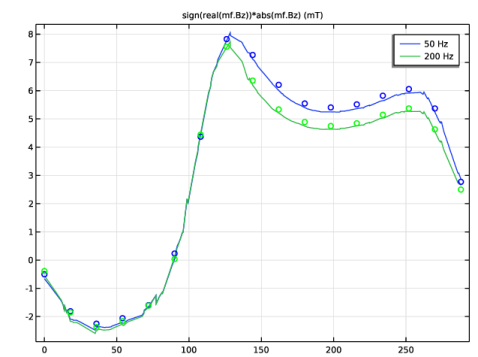
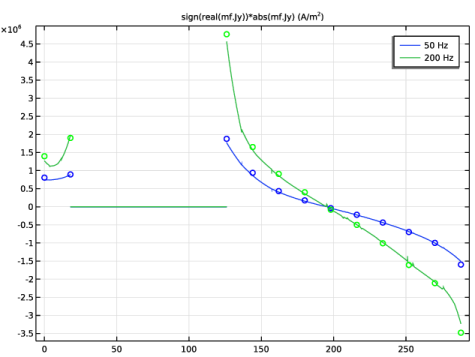
Figure 4 and Figure 5 show comparisons between the simulation and the measured data. In Figure 4, the z-component of the magnetic flux density, Bz (SI unit: mT), at 50 Hz and 200 Hz are compared with measured data from Ref. 1. These results are compared for 0 ≤ x ≤ 288 mm at y = 72 mm and z = 34 mm (a line between the aluminum plate and the copper coil). In Figure 5, similarly, the y-component values of the induced current density, Jy (SI unit: A/m2) at 50 Hz and 200 Hz are compared with the corresponding measured data. This is done at 0 ≤ x ≤ 288 mm, y = 72 mm, and z = 19 mm (a line on the surface of the aluminum plate that crosses the gap). As is evident from the plots, there is close agreement between the simulation results and the measured data.
Figure 4: z-component of the flux density, Bz (mT), at 0  x  288 mm, y = 72 mm, and z = 34 mm for 50 Hz and 200 Hz. The solid lines are simulation results while the circles are the corresponding measured data from Ref. 1.
Figure 5: y-components of the induced current densities, Jy (A/m2) for 0  x  288 mm at y = 72 mm, z = 19 mm for 50 Hz and 200 Hz. The solid lines are simulation results while the circles are the corresponding measured data from Ref. 1.
Notes About the COMSOL Implementation
The direction of the wires in the coil is computed using a Coil feature combined with a Coil Geometry Analysis study step. The eddy currents and the nonuniform magnetic field are computed using a Frequency Domain study step for the frequencies 50 Hz and 200 Hz.
Reference
1. K. Fujiwara and T. Nakata, “Results for Benchmark Problem 7 (Asymmetrical Conductor with a Hole),” Int. J. Comput. and Math. in Electr. and Electron. Eng., vol. 9, no. 3, pp. 137–154, 1990.
Application Library path: ACDC_Module/Verifications/multiturn_coil_asymmetric_conductor
Modeling Instructions
From the File menu, choose New.
New
In the New window, click  Model Wizard.
Model Wizard
1
In the Model Wizard window, click  3D.
2
In the Select Physics tree, select AC/DC > Electromagnetic Fields > Magnetic Fields (mf).
3
Click Add.
4
Click  Study.
5
In the Select Study tree, select Empty Study.
6
Geometry 1
Insert the geometry sequence provided in a separate file.
1
In the Geometry toolbar, click Insert Sequence and choose Insert Sequence.
2
Browse to the model’s Application Libraries folder and double-click the file multiturn_coil_asymmetric_conductor_geom_sequence.mph.
3
In the Geometry toolbar, click  Build All.
4
Click the  Zoom Extents button in the Graphics toolbar.
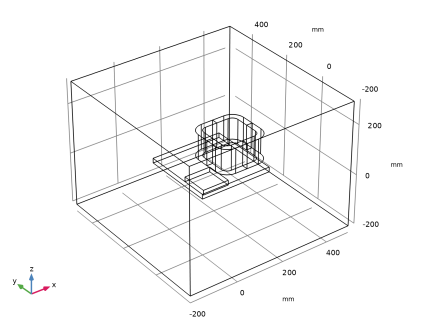
The model geometry is now complete.
5
Click the  Wireframe Rendering button in the Graphics toolbar to get a better view of the interior parts.
6
In the Model Builder window, under Component 1 (comp1) click Geometry 1.
Conductor
Define domain and boundary selections for the coil and the conductor.
1
In the Model Builder window, under Component 1 (comp1) > Geometry 1 click Difference 1 (dif1).
2
In the Settings window for Difference, type Conductor in the Label text field.
3
Locate the Selections of Resulting Entities section. Select the Resulting objects selection checkbox.
Coil
1
In the Model Builder window, under Component 1 (comp1) > Geometry 1 click Extrude 1 (ext1).
2
In the Settings window for Extrude, type Coil in the Label text field.
3
Locate the Selections of Resulting Entities section. Select the Resulting objects selection checkbox.
Hide the outer geometry boundaries to visualize the results only in the coil and the conductor domains.
4
Click the  Click and Hide button in the Graphics toolbar.
5
In the Graphics window toolbar, clicknext to  Select Objects, then choose Select Boundaries.
6
7
Click the  Click and Hide button in the Graphics toolbar.
8
Click the  Zoom Extents button in the Graphics toolbar.
Magnetic Fields (mf)
Now set up the physics. Start by setting Ampère’s Law to the aluminum plate.
Ampère’s Law in Solids 1
1
In the Physics toolbar, click  Domains and choose Ampère’s Law in Solids.
2
In the Settings window for Ampère’s Law in Solids, locate the Domain Selection section.
3
From the Selection list, choose Conductor.
4
In the Model Builder window, right-click Magnetic Fields (mf) and choose Group by Space Dimension.
5
Click the  Zoom Extents button in the Graphics toolbar.
Domain Coil 1
1
In the Physics toolbar, click  Domains and choose Domain Coil.
2
In the Settings window for Domain Coil, locate the Domain Selection section.
3
From the Selection list, choose Coil.
4
Locate the Coil section. From the Conductor model list, choose Homogenized multiturn.
5
Locate the Homogenized Conductor section. In the N text field, type 2742.
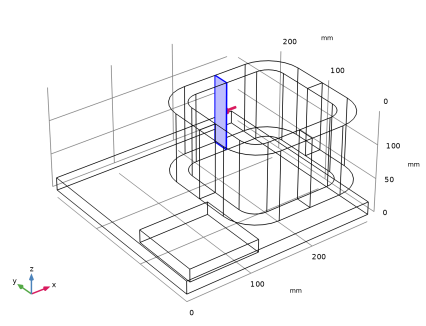
Apply the input on a cross-sectional coil boundary.
Input 1
1
In the Model Builder window, expand the Component 1 (comp1) > Magnetic Fields (mf) > Domains > Domain Coil 1 > Geometry Analysis 1 node, then click Input 1.
2
Materials
Add material for the components.
Add Material
1
In the Materials toolbar, click  Add Material to open the Add Material window.
2
Go to the Add Material window.
3
In the tree, select AC/DC > Copper.
4
Click the Add to Component button in the window toolbar.
5
In the Materials toolbar, click  Add Material to close the Add Material window.
Materials
Copper (mat1)
1
In the Settings window for Material, locate the Geometric Entity Selection section.
2
From the Selection list, choose Coil.
Create a new material for the conductor. This will have the relevant properties of Aluminum
Aluminum
1
In the Model Builder window, right-click Materials and choose Blank Material.
2
In the Settings window for Material, locate the Geometric Entity Selection section.
3
From the Selection list, choose Conductor.
4
Locate the Material Contents section. In the table, enter the following settings:
5
In the Label text field, type Aluminum.
Mesh 1
Use a finer mesh in the aluminum plate to better resolve the eddy currents and obtain a more accurate solution.
Size 1
1
In the Model Builder window, under Component 1 (comp1) right-click Mesh 1 and choose Size.
2
In the Settings window for Size, locate the Geometric Entity Selection section.
3
From the Geometric entity level list, choose Domain.
4
From the Selection list, choose Conductor.
5
Locate the Element Size section. Click the Custom button.
6
Locate the Element Size Parameters section.
7
Select the Maximum element size checkbox. In the associated text field, type 12.
Size 2
1
In the Model Builder window, right-click Mesh 1 and choose Size.
2
In the Settings window for Size, locate the Geometric Entity Selection section.
3
From the Geometric entity level list, choose Domain.
4
From the Selection list, choose Coil.
5
Locate the Element Size section. Click the Custom button.
6
Locate the Element Size Parameters section.
7
Select the Maximum element size checkbox. In the associated text field, type 20.
Free Tetrahedral 1
1
In the Mesh toolbar, click  Free Tetrahedral.
2
In the Settings window for Free Tetrahedral, click  Build Selected.
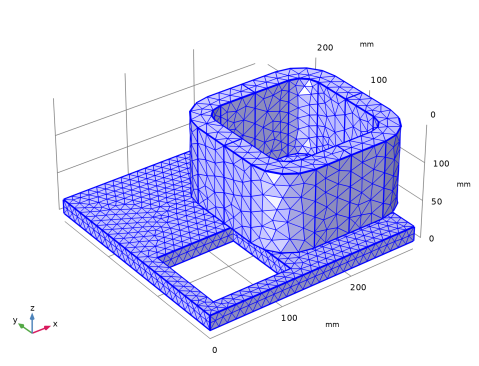
The mesh should look like that shown in the figure below.
Study 1
Next, set up the study. Start by adding a Coil Geometry Analysis preprocessing study step before the Frequency Domain step.
Step 1: Coil Geometry Analysis
1
In the Study toolbar, click  More Study Steps and choose Other > Coil Geometry Analysis.
This study step computes the direction of the wires in the coils.
Add the main Frequency Domain study step. Solve the problem in the frequency domain for 50 Hz and 200 Hz.
Step 2: Frequency Domain
1
In the Study toolbar, click  Frequency Domain.
2
In the Settings window for Frequency Domain, locate the Study Settings section.
3
In the Frequencies text field, type 50 200.
4
In the Model Builder window, click Study 1.
5
In the Settings window for Study, locate the Study Settings section.
6
Clear the Generate default plots checkbox.
7
In the Study toolbar, click  Compute.
Results
To reproduce the plot shown in Figure 2, create a 3D plot group and add an Arrow Volume plot of the coil current direction in the coil domain, computed by the Coil Geometry Analysis step. Add an Arrow Volume plot of the induced current on the conductor surface and a Volume plot of the y component of the induced current density to the same plot group.
Coil Direction and Induced Current Density, 50 Hz
1
In the Model Builder window, expand the Results node.
2
Right-click Results and choose 3D Plot Group.
3
In the Settings window for 3D Plot Group, type Coil Direction and Induced Current Density, 50 Hz in the Label text field.
4
Locate the Data section. From the Parameter value (freq (Hz)) list, choose 50.
Arrow Volume 1
Right-click Coil Direction and Induced Current Density, 50 Hz and choose Arrow Volume.
Selection 1
1
In the Model Builder window, right-click Arrow Volume 1 and choose Selection.
2
In the Settings window for Selection, locate the Selection section.
3
From the Selection list, choose Coil.
Arrow Volume 1
1
In the Model Builder window, click Arrow Volume 1.
2
In the Settings window for Arrow Volume, click Replace Expression in the upper-right corner of the Expression section. From the menu, choose Component 1 (comp1) > Magnetic Fields > Coil parameters > mf.coil1.eCoilx,...,mf.coil1.eCoilz - Coil direction.
3
Locate the Arrow Positioning section. Find the x grid points subsection. In the Points text field, type 10.
4
Find the y grid points subsection. In the Points text field, type 10.
5
Find the z grid points subsection. In the Points text field, type 5.
6
Locate the Coloring and Style section.
7
Select the Scale factor checkbox. In the associated text field, type 20.
Arrow Volume 2
In the Model Builder window, right-click Coil Direction and Induced Current Density, 50 Hz and choose Arrow Volume.
Selection 1
1
In the Model Builder window, right-click Arrow Volume 2 and choose Selection.
2
In the Settings window for Selection, locate the Selection section.
3
From the Selection list, choose Conductor.
Arrow Volume 2
1
In the Model Builder window, click Arrow Volume 2.
2
In the Settings window for Arrow Volume, click Replace Expression in the upper-right corner of the Expression section. From the menu, choose Component 1 (comp1) > Magnetic Fields > Currents and charge > mf.Jix,...,mf.Jiz - Conduction current density.
3
Locate the Arrow Positioning section. Find the x grid points subsection. In the Points text field, type 20.
4
Find the y grid points subsection. In the Points text field, type 20.
5
Find the z grid points subsection. From the Entry method list, choose Coordinates.
6
In the Coordinates text field, type 19.
7
Locate the Coloring and Style section. From the Color list, choose Black.
8
From the Arrow type list, choose Cone.
Volume 1
In the Model Builder window, right-click Coil Direction and Induced Current Density, 50 Hz and choose Volume.
Selection 1
1
In the Model Builder window, right-click Volume 1 and choose Selection.
2
In the Settings window for Selection, locate the Selection section.
3
From the Selection list, choose Conductor.
Volume 1
1
In the Model Builder window, click Volume 1.
2
In the Settings window for Volume, click Replace Expression in the upper-right corner of the Expression section. From the menu, choose Component 1 (comp1) > Magnetic Fields > Currents and charge > Conduction current density - A/m² > mf.Jiy - Conduction current density, y-component.
Coil Direction and Induced Current Density, 50 Hz
1
In the Model Builder window, click Coil Direction and Induced Current Density, 50 Hz.
2
In the Settings window for 3D Plot Group, locate the Plot Settings section.
3
Clear the Plot dataset edges checkbox.
4
In the Coil Direction and Induced Current Density, 50 Hz toolbar, click  Plot.
Duplicate the plot group just created and modify the copy to generate the plot shown in Figure 3. This figure is similar to the Figure 2 except the frequency is 200 Hz.
Coil Direction and Induced Current Density, 200 Hz
1
Right-click Coil Direction and Induced Current Density, 50 Hz and choose Duplicate.
2
In the Settings window for 3D Plot Group, type Coil Direction and Induced Current Density, 200 Hz in the Label text field.
3
Locate the Data section. From the Parameter value (freq (Hz)) list, choose 200.
4
In the Coil Direction and Induced Current Density, 200 Hz toolbar, click  Plot.
To generate the plots shown in Figure 4 and Figure 5, begin by creating two cut line datasets.
Cut Line 3D 1
1
In the Results toolbar, click  Cut Line 3D.
2
In the Settings window for Cut Line 3D, locate the Line Data section.
3
In row Point 1, set y to 72 and z to 34.
4
In row Point 2, set x to 288, y to 72, and z to 34.
Cut Line 3D 2
1
Right-click Cut Line 3D 1 and choose Duplicate.
Specify a value of z slightly below the surface of the conductor.
2
In the Settings window for Cut Line 3D, locate the Line Data section.
3
In row Point 1, set z to 18.99.
4
In row Point 2, set z to 18.99.
Import the experimental data of Bz and Jy in two tables.
Table 1
1
In the Results toolbar, click  Table.
2
In the Settings window for Table, locate the Data section.
3
Click  Import.
4
5
Locate the Column Headers section. In the table, enter the following settings:
Table 2
1
In the Results toolbar, click  Table.
2
In the Settings window for Table, locate the Data section.
3
Click  Import.
4
5
Locate the Column Headers section. In the table, enter the following settings:
Plot the z-component of the magnetic flux density, Bz, along the lines defined by the cut line datasets just created.
1D Plot Group 3
In the Results toolbar, click  1D Plot Group.
Line Graph 1
1
Right-click 1D Plot Group 3 and choose Line Graph.
2
In the Settings window for Line Graph, locate the Data section.
3
From the Dataset list, choose Cut Line 3D 1.
4
From the Solution parameters list, choose From parent.
5
Locate the y-Axis Data section. In the Expression text field, type sign(real(mf.Bz))*abs(mf.Bz).
6
From the Unit list, choose mT.
7
Click to expand the Legends section. Select the Show legends checkbox.
8
From the Legends list, choose Evaluated.
9
In the Legend text field, type eval(freq) Hz.
Bz(x,72,34)
Add a plot for the experimental value of Bz at 50 Hz to the same plot group using a table graph.
1
In the Model Builder window, under Results click 1D Plot Group 3.
2
In the Settings window for 1D Plot Group, type Bz(x,72,34) in the Label text field.
Table Graph 1
1
Right-click Bz(x,72,34) and choose Table Graph.
2
In the Settings window for Table Graph, locate the Data section.
3
From the x-axis data list, choose x [mm].
4
From the Plot columns list, choose Manual.
5
In the Columns list box, select Bz(x,72,34) at 50Hz.
6
Locate the Coloring and Style section. Find the Line style subsection. From the Line list, choose None.
7
From the Color list, choose Blue.
8
Find the Line markers subsection. From the Marker list, choose Circle.
Duplicate the table graph previously created and modify to plot the experimental value of Bz at 200 Hz.
Table Graph 2
1
Right-click Table Graph 1 and choose Duplicate.
2
In the Settings window for Table Graph, locate the Data section.
3
In the Columns list box, select Bz(x,72,34) at 200Hz.
4
Locate the Coloring and Style section. From the Color list, choose Green.
5
In the Bz(x,72,34) toolbar, click  Plot.
Compare the resulting plot with that in Figure 4.
Plot the y-component of the current density on the surface of the conductor, Jy, along the line specified earlier. Use an approach similar to the one used to generate Figure 4.
1D Plot Group 4
In the Results toolbar, click  1D Plot Group.
Line Graph 1
1
Right-click 1D Plot Group 4 and choose Line Graph.
2
In the Settings window for Line Graph, locate the Data section.
3
From the Dataset list, choose Cut Line 3D 2.
4
From the Solution parameters list, choose From parent.
5
Locate the y-Axis Data section. In the Expression text field, type sign(real(mf.Jy))*abs(mf.Jy).
6
Locate the Legends section. Select the Show legends checkbox.
7
From the Legends list, choose Evaluated.
8
In the Legend text field, type eval(freq) Hz.
Jy(x,72,19)
1
In the Model Builder window, under Results click 1D Plot Group 4.
2
In the Settings window for 1D Plot Group, type Jy(x,72,19) in the Label text field.
Table Graph 1
1
Right-click Jy(x,72,19) and choose Table Graph.
2
In the Settings window for Table Graph, locate the Data section.
3
From the Table list, choose Table 2.
4
From the x-axis data list, choose x [mm].
5
From the Plot columns list, choose Manual.
6
In the Columns list box, select Jy(x,72,19) at 50Hz.
7
Locate the Coloring and Style section. Find the Line style subsection. From the Line list, choose None.
8
From the Color list, choose Blue.
9
Find the Line markers subsection. From the Marker list, choose Circle.
Table Graph 2
1
Right-click Table Graph 1 and choose Duplicate.
2
In the Settings window for Table Graph, locate the Data section.
3
In the Columns list box, select Jy(x,72,19) at 200Hz.
4
Locate the Coloring and Style section. From the Color list, choose Green.
5
In the Jy(x,72,19) toolbar, click  Plot. This plot reproduces Figure 5.