PDF

Magnetohydrodynamics Pump
Introduction
When an electrically conducting media is exposed to a time-varying magnetic field, eddy currents are induced that will counteract the change of magnetic flux and create a repelling force on the material. This magnetohydrodynamical principle can be utilized to create pumping action on a conducting liquid in a hermetically sealed column, without having to use moving parts.
Model Definition
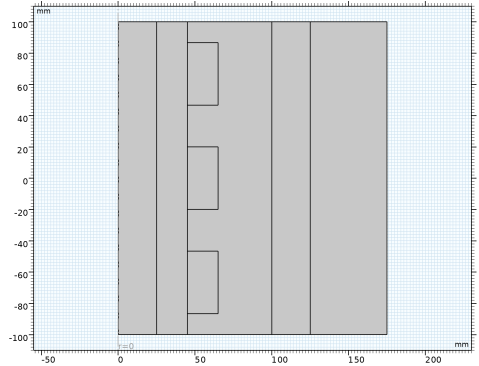
The model is set up in a 2D axisymmetric geometry using the Magnetic Fields and Laminar Flow physics interfaces, coupled via the Magnetohydrodynamics multiphysics interface.
The model coupling relies on separate study types for the two physics interfaces, where the Magnetic Fields is solved in the frequency domain and the Laminar Flow is solved in the stationary domain. The cycle-averaged Lorentz force is employed in the fluid flow, and conversely the phase-dependent electromotive force is employed in the electromagnetic calculation. The cycle-averaged force on the liquid will be in the direction of the phase velocity of the magnetic field, where the latter is induced with a 3-phase coil setup. At both ends of the flow column there is a periodic condition for the pressure, fluid velocity, and magnetic vector potential, emulating an infinitely extended pump setup.
Results
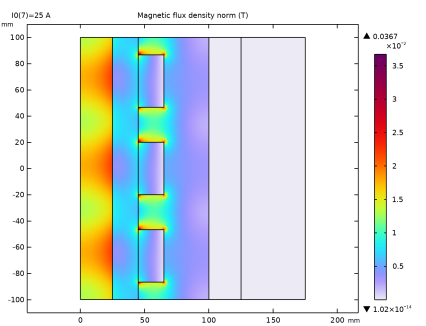
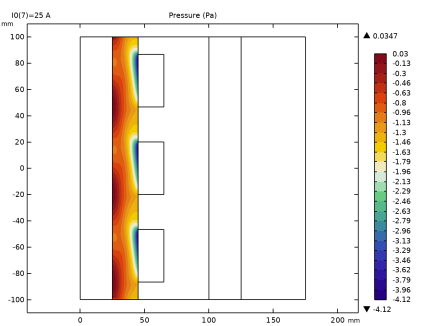
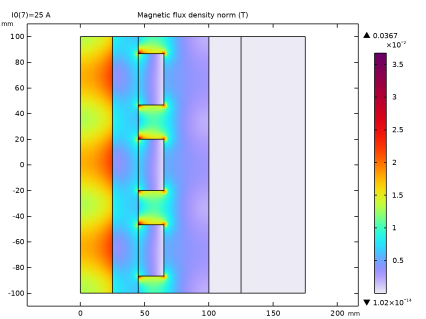
Figure 1 shows the magnetic flux density norm on the 2D axisymmetric cross section of the pump.
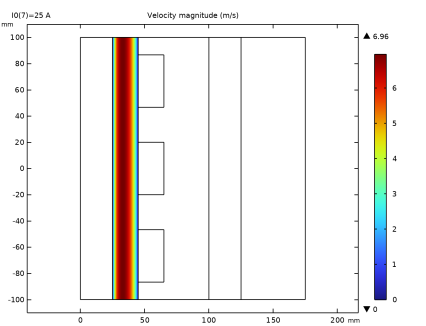
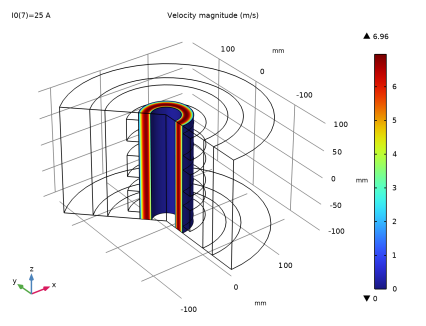
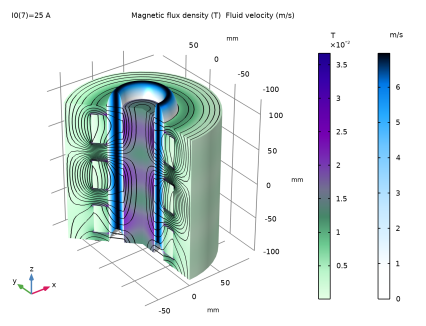
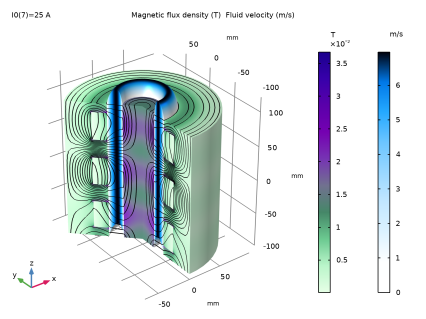
Figure 2 shows the magnetic flux density as well as the fluid velocity norm on the partially revolved 2D axisymmetric geometry, with domain deformation illustrating the magnitude and direction of the fluid flow in the liquid column.
Figure 1: The magnetic flux density norm plotted on the 2D axisymmetric cross section of the pump.
Figure 2: The velocity norm and the magnetic flux density norm plotted on the partially revolved 2D axisymmetric geometry.
Application Library path: ACDC_Module/Electromagnetics_and_Fluids/magnetohydrodynamics_pump
Modeling Instructions
From the File menu, choose New.
New
In the New window, click  Model Wizard.
Model Wizard
1
In the Model Wizard window, click  2D Axisymmetric.
2
In the Select Physics tree, select AC/DC > Electromagnetics and Fluids > Magnetohydrodynamics, Out-of-Plane Currents.
3
Click Add.
4
Click  Study.
5
In the Select Study tree, select Preset Studies for Selected Multiphysics > Frequency–Stationary.
6
Global Definitions
Parameters 1
1
In the Model Builder window, under Global Definitions click Parameters 1.
2
In the Settings window for Parameters, locate the Parameters section.
3
Geometry 1
1
In the Model Builder window, under Component 1 (comp1) click Geometry 1.
2
In the Settings window for Geometry, locate the Units section.
3
From the Length unit list, choose mm.
4
Locate the Advanced section. From the Default repair tolerance list, choose Relative.
Rectangle 1 (r1)
1
In the Geometry toolbar, click  Rectangle.
2
In the Settings window for Rectangle, locate the Size and Shape section.
3
In the Width text field, type 175.
4
In the Height text field, type 200.
5
Locate the Position section. In the z text field, type -100.
6
Click to expand the Layers section. In the table, enter the following settings:
7
Select the Layers to the right checkbox.
8
Clear the Layers on bottom checkbox.
9
Click  Build Selected.
Rectangle 2 (r2)
1
In the Geometry toolbar, click  Rectangle.
2
In the Settings window for Rectangle, locate the Size and Shape section.
3
In the Width text field, type 100.
4
In the Height text field, type 200.
5
Locate the Position section. In the z text field, type -100.
6
Click  Build Selected.
Rectangle 3 (r3)
1
In the Geometry toolbar, click  Rectangle.
2
In the Settings window for Rectangle, locate the Size and Shape section.
3
In the Width text field, type 20.
4
In the Height text field, type 200.
5
Locate the Position section. In the r text field, type 25.
6
In the z text field, type -100.
7
Click  Build Selected.
Rectangle 4 (r4)
1
In the Geometry toolbar, click  Rectangle.
2
In the Settings window for Rectangle, locate the Size and Shape section.
3
In the Width text field, type 20.
4
In the Height text field, type 40.
5
Locate the Position section. From the Base list, choose Center.
6
In the r text field, type 55.
7
Click  Build Selected.
Copy 1 (copy1)
1
In the Geometry toolbar, click  Transforms and choose Copy.
2
3
In the Settings window for Copy, locate the Displacement section.
4
In the z text field, type 2*100/3.
5
Click  Build Selected.
Copy 2 (copy2)
1
In the Geometry toolbar, click  Transforms and choose Copy.
2
3
In the Settings window for Copy, locate the Displacement section.
4
In the z text field, type -2*100/3.
5
Click  Build Selected.
Definitions
Infinite Element Domain 1 (ie1)
1
In the Definitions toolbar, click  Infinite Element Domain.
2
3
In the Settings window for Infinite Element Domain, locate the Geometry section.
4
From the Type list, choose Cylindrical.
Laminar Flow (spf)
1
In the Model Builder window, under Component 1 (comp1) click Laminar Flow (spf).
2
In the Settings window for Laminar Flow, locate the Domain Selection section.
3
Click  Clear Selection.
4
Add Material
1
In the Home toolbar, click  Add Material to open the Add Material window.
2
Go to the Add Material window.
3
In the tree, select Built-in > Copper.
4
Click the Add to Component button in the window toolbar.
Materials
Copper (mat1)
Select Domains 4–6 only.
Iron
1
In the Model Builder window, right-click Materials and choose Blank Material.
2
In the Settings window for Material, type Iron in the Label text field.
3
4
Locate the Material Contents section. In the table, enter the following settings:
Add Material
1
Go to the Add Material window.
2
In the tree, select AC/DC > Liquid Metals > Lithium, 200 °C.
3
Click the Add to Component button in the window toolbar.
4
In the Materials toolbar, click  Add Material to close the Add Material window.
Materials
Lithium, 200 °C (mat3)
Select Domain 2 only.
The Ampère’s Law in Fluids feature is used for the liquid lithium. An Ampère’s Law in Solids feature is then used for the surrounding iron region.
Magnetic Fields (mf)
Ampère’s Law in Fluids 1
1
In the Model Builder window, under Component 1 (comp1) > Magnetic Fields (mf) click Ampère’s Law in Fluids 1.
2
Ampère’s Law in Solids 1
1
In the Physics toolbar, click  Domains and choose Ampère’s Law in Solids.
2
Periodic Condition 1
1
In the Physics toolbar, click  Boundaries and choose Periodic Condition.
2
In the Settings window for Periodic Condition, locate the Boundary Selection section.
3
Click  Paste Selection.
4
In the Paste Selection dialog, type 2, 3, 5, 6, 8, 21, 26, 27, 29, 30 in the Selection text field.
5
Multi- Turn Coil 1
1
In the Physics toolbar, click  Domains and choose Domain Coil.
2
In the Settings window for Domain Coil, type Multi- Turn Coil 1 in the Label text field.
3
Locate the Domain Selection section. Click  Paste Selection.
4
In the Paste Selection dialog, type 6 in the Selection text field.
5
6
In the Settings window for Domain Coil, locate the Coil section.
7
From the Conductor model list, choose Homogenized multiturn.
8
In the Icoil text field, type I1.
9
Locate the Homogenized Conductor section. In the N text field, type N.
Multi- Turn Coil 2
1
Right-click Multi- Turn Coil 1 and choose Duplicate.
2
In the Settings window for Domain Coil, type Multi- Turn Coil 2 in the Label text field.
3
Locate the Domain Selection section. Click  Clear Selection.
4
5
Locate the Coil section. In the Icoil text field, type I2.
Multi- Turn Coil 3
1
Right-click Multi- Turn Coil 2 and choose Duplicate.
2
In the Settings window for Domain Coil, type Multi- Turn Coil 3 in the Label text field.
3
Locate the Domain Selection section. Click  Clear Selection.
4
5
Locate the Coil section. In the Icoil text field, type I3.
Laminar Flow (spf)
Pressure Point Constraint 1
1
In the Physics toolbar, click  Points and choose Pressure Point Constraint.
2
In the Settings window for Pressure Point Constraint, locate the Point Selection section.
3
Click  Paste Selection.
4
In the Paste Selection dialog, type 4 in the Selection text field.
5
Periodic Flow Condition 1
1
In the Physics toolbar, click  Boundaries and choose Periodic Flow Condition.
2
In the Settings window for Periodic Flow Condition, locate the Boundary Selection section.
3
Click  Paste Selection.
4
In the Paste Selection dialog, type 5-6 in the Selection text field.
5
Multiphysics
Magnetohydrodynamics 1 (mhd1)
1
In the Model Builder window, under Component 1 (comp1) > Multiphysics click Magnetohydrodynamics 1 (mhd1).
2
In the Settings window for Magnetohydrodynamics, locate the Domain Selection section.
3
Click  Clear Selection.
4
Mesh 1
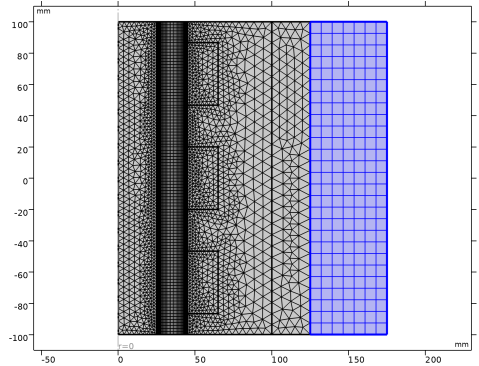
Customize the mesh sequence to get adequate detail in the areas of interest.
1
In the Model Builder window, under Component 1 (comp1) click Mesh 1.
2
In the Settings window for Mesh, locate the Sequence Type section.
3
From the list, choose User-controlled mesh.
Size
1
In the Model Builder window, under Component 1 (comp1) > Mesh 1 click Size.
2
In the Settings window for Size, locate the Element Size section.
3
From the Predefined list, choose Finer.
4
Click  Build Selected.
Size 1
1
In the Model Builder window, click Size 1.
2
In the Settings window for Size, locate the Element Size section.
3
From the Predefined list, choose Extra fine.
4
Click  Build Selected.
Size 2
In the Model Builder window, right-click Size 2 and choose Delete.
Size 3
Right-click Size 3 and choose Delete.
Distribution 1
1
In the Model Builder window, under Component 1 (comp1) > Mesh 1 click Distribution 1.
2
In the Settings window for Distribution, locate the Boundary Selection section.
3
Click  Clear Selection.
4
Click  Paste Selection.
5
In the Paste Selection dialog, type 5-6 in the Selection text field.
6
7
In the Settings window for Distribution, locate the Distribution section.
8
In the Number of elements text field, type 40.
9
In the Element ratio text field, type 25.
10
Select the Symmetric distribution checkbox.
11
Click  Build Selected.
Mapped 2
1
In the Mesh toolbar, click  Mapped.
2
In the Settings window for Mapped, locate the Domain Selection section.
3
From the Geometric entity level list, choose Domain.
4
5
Click to expand the Reduce Element Skewness section. Select the Adjust edge mesh checkbox.
Size 1
1
Right-click Mapped 2 and choose Size.
2
In the Settings window for Size, locate the Element Size section.
3
From the Predefined list, choose Extremely fine.
Corner Refinement 1
In the Model Builder window, under Component 1 (comp1) > Mesh 1 right-click Corner Refinement 1 and choose Delete.
Free Triangular 1
1
In the Settings window for Free Triangular, locate the Domain Selection section.
2
3
Click  Remove from Selection.
4
5
Click  Build Selected.
Mapped 1
1
In the Model Builder window, click Mapped 1.
2
In the Settings window for Mapped, locate the Domain Selection section.
3
From the Geometric entity level list, choose Remaining.
4
Click  Build Selected.
Boundary Layers 1
In the Model Builder window, right-click Boundary Layers 1 and choose Delete.
Mapped 1
Study 1
Step 1: Frequency–Stationary
1
In the Model Builder window, under Study 1 click Step 1: Frequency–Stationary.
2
In the Settings window for Frequency–Stationary, locate the Study Settings section.
3
In the Frequency text field, type 50.
4
Click to expand the Study Extensions section. Select the Auxiliary sweep checkbox.
5
6
7
8
From the Run continuation for list, choose No parameter.
9
From the Reuse solution from previous step list, choose Yes.
This study uses separate segregated steps; one for the magnetic flux and one for the pressure and velocity.
Solution 1 (sol1)
1
In the Study toolbar, click  Show Default Solver.
2
In the Model Builder window, expand the Solution 1 (sol1) node.
3
In the Model Builder window, expand the Study 1 > Solver Configurations > Solution 1 (sol1) > Stationary Solver 1 node.
4
Right-click Study 1 > Solver Configurations > Solution 1 (sol1) > Stationary Solver 1 and choose Segregated.
5
In the Model Builder window, expand the Study 1 > Solver Configurations > Solution 1 (sol1) > Stationary Solver 1 > Segregated 1 node, then click Segregated Step.
6
In the Settings window for Segregated Step, locate the General section.
7
In the Variables list, choose Pressure (comp1.p) and Velocity Field (comp1.u).
8
Under Variables, click  Delete.
9
In the Model Builder window, under Study 1 > Solver Configurations > Solution 1 (sol1) > Stationary Solver 1 right-click Segregated 1 and choose Segregated Step.
10
In the Settings window for Segregated Step, locate the General section.
11
Under Variables, click  Add.
12
In the Add dialog, in the Variables list, choose Pressure (comp1.p) and Velocity Field (comp1.u).
13
14
In the Settings window for Segregated Step, click to expand the Method and Termination section.
15
In the Damping factor text field, type 0.5.
16
In the Study toolbar, click  Compute.
Results
Study 1/Solution 1 (sol1)
1
In the Model Builder window, expand the Results > Datasets node, then click Study 1/Solution 1 (sol1).
2
In the Settings window for Solution, locate the Solution section.
3
From the Frame list, choose Material  (R, PHI, Z).
Magnetic Flux Density (mf)
1
In the Model Builder window, expand the Results > Magnetic Flux Density (mf) node, then click Magnetic Flux Density (mf).
2
In the Settings window for 2D Plot Group, locate the Plot Settings section.
3
From the Frame list, choose Material  (R, PHI, Z).
Streamline 1
In the Model Builder window, right-click Streamline 1 and choose Delete.
Contour 1
Right-click Contour 1 and choose Delete.
Magnetic Flux Density (mf)
1
In the Model Builder window, under Results click Magnetic Flux Density (mf).
2
In the Magnetic Flux Density (mf) toolbar, click  Plot.
3
Click the  Go to Default View button in the Graphics toolbar.
Magnetic Flux Density, Revolved Geometry (mf)
In the Model Builder window, right-click Magnetic Flux Density, Revolved Geometry (mf) and choose Delete.
Velocity (spf)
1
In the Settings window for 2D Plot Group, locate the Color Legend section.
2
Select the Show maximum and minimum values checkbox.
3
In the Velocity (spf) toolbar, click  Plot.
4
Click the  Go to Default View button in the Graphics toolbar.
Pressure (spf)
1
In the Model Builder window, expand the Velocity (spf) node, then click Results > Pressure (spf).
2
In the Settings window for 2D Plot Group, locate the Color Legend section.
3
Select the Show maximum and minimum values checkbox.
4
In the Pressure (spf) toolbar, click  Plot.
5
Click the  Go to Default View button in the Graphics toolbar.
Velocity (spf) 1
1
In the Model Builder window, expand the Pressure (spf) node, then click Results > Velocity, 3D (spf).
2
In the Settings window for 3D Plot Group, type Velocity (spf) 1 in the Label text field.
3
Locate the Color Legend section. Select the Show maximum and minimum values checkbox.
4
In the Velocity (spf) 1 toolbar, click  Plot.
5
Click the  Go to Default View button in the Graphics toolbar.
Velocity and Magnetic Flux Density
1
In the Model Builder window, expand the Velocity (spf) 1 node.
2
Right-click Results > Velocity (spf) 1 and choose 2D Plot Group.
3
In the Settings window for 2D Plot Group, type Velocity and Magnetic Flux Density in the Label text field.
4
Locate the Plot Settings section. Clear the Plot dataset edges checkbox.
5
Locate the Color Legend section. Select the Show maximum and minimum values checkbox.
6
Select the Show units checkbox.
Contour 1
1
Right-click Velocity and Magnetic Flux Density and choose Contour.
2
In the Settings window for Contour, locate the Expression section.
3
In the Expression text field, type r*Aphi.
4
Locate the Levels section. Clear the Round the levels checkbox.
5
Locate the Coloring and Style section. From the Coloring list, choose Uniform.
6
From the Color list, choose Black.
7
Clear the Color legend checkbox.
8
Click to expand the Title section. From the Title type list, choose None.
Arrow Surface 1
1
In the Model Builder window, right-click Velocity and Magnetic Flux Density and choose Arrow Surface.
2
In the Settings window for Arrow Surface, click to expand the Title section.
3
From the Title type list, choose None.
4
Click Replace Expression in the upper-right corner of the Expression section. From the menu, choose Component 1 (comp1) > Laminar Flow > Velocity and pressure > u,w - Velocity field.
5
Locate the Arrow Positioning section. Find the R grid points subsection. From the Entry method list, choose Coordinates.
6
In the Coordinates text field, type range(25.1,18/10,44).
7
Locate the Coloring and Style section. From the Color list, choose Black.
Surface 1
1
Right-click Velocity and Magnetic Flux Density and choose Surface.
2
In the Settings window for Surface, click to expand the Title section.
3
From the Title type list, choose Custom.
4
Find the Type and data subsection. Clear the Type checkbox.
5
Click Replace Expression in the upper-right corner of the Expression section. From the menu, choose Component 1 (comp1) > Laminar Flow > Velocity and pressure > spf.U - Velocity magnitude - m/s.
6
Locate the Coloring and Style section. From the Color table list, choose Traffic.
7
From the Color table transformation list, choose Reverse.
Surface 2
1
Right-click Velocity and Magnetic Flux Density and choose Surface.
2
In the Settings window for Surface, locate the Title section.
3
From the Title type list, choose Custom.
4
Find the Type and data subsection. Clear the Type checkbox.
5
Locate the Coloring and Style section. From the Color table list, choose RainbowLight.
Selection 1
1
Right-click Surface 2 and choose Selection.
2
Surface 3
1
In the Model Builder window, right-click Velocity and Magnetic Flux Density and choose Surface.
2
In the Settings window for Surface, click Replace Expression in the upper-right corner of the Expression section. From the menu, choose Component 1 (comp1) > Magnetic Fields > Currents and charge > Current density - A/m² > mf.Jphi - Current density, phi-component.
3
Locate the Title section. From the Title type list, choose Custom.
4
Find the Type and data subsection. Clear the Type checkbox.
5
Locate the Coloring and Style section. From the Color table list, choose Inferno.
Selection 1
1
Right-click Surface 3 and choose Selection.
2
Velocity and Magnetic Flux Density
1
In the Model Builder window, under Results click Velocity and Magnetic Flux Density.
2
In the Velocity and Magnetic Flux Density toolbar, click  Plot.
3
Click the  Go to Default View button in the Graphics toolbar.
Lorentz Force and Current Density
1
In the Home toolbar, click  Add Plot Group and choose 2D Plot Group.
2
In the Settings window for 2D Plot Group, type Lorentz Force and Current Density in the Label text field.
3
Locate the Color Legend section. Select the Show maximum and minimum values checkbox.
Surface 1
1
Right-click Lorentz Force and Current Density and choose Surface.
2
In the Settings window for Surface, click Replace Expression in the upper-right corner of the Expression section. From the menu, choose Component 1 (comp1) > Magnetic Fields > Currents and charge > Current density - A/m² > mf.Jphi - Current density, phi-component.
3
Locate the Coloring and Style section. From the Scale list, choose Linear symmetric.
4
From the Color table list, choose WaveLight.
Contour 1
1
In the Model Builder window, right-click Lorentz Force and Current Density and choose Contour.
2
In the Settings window for Contour, locate the Expression section.
3
In the Expression text field, type r*Aphi.
4
Locate the Levels section. Clear the Round the levels checkbox.
5
Locate the Coloring and Style section. From the Coloring list, choose Uniform.
6
From the Color list, choose Black.
7
Clear the Color legend checkbox.
8
Locate the Title section. From the Title type list, choose None.
Arrow Surface 1
1
Right-click Lorentz Force and Current Density and choose Arrow Surface.
2
In the Settings window for Arrow Surface, click Replace Expression in the upper-right corner of the Expression section. From the menu, choose Component 1 (comp1) > Magnetic Fields > Mechanical > mf.FLtzavr,mf.FLtzavz - Lorentz force contribution, time average.
3
Locate the Arrow Positioning section. Find the R grid points subsection. From the Entry method list, choose Coordinates.
4
In the Coordinates text field, type range(25.1,18/10,44).
5
Find the Z grid points subsection. In the Points text field, type 30.
6
Locate the Coloring and Style section. From the Arrow length list, choose Logarithmic.
7
From the Color list, choose Black.
Lorentz Force and Current Density
1
Click the  Zoom Extents button in the Graphics toolbar.
2
In the Model Builder window, click Lorentz Force and Current Density.
3
In the Lorentz Force and Current Density toolbar, click  Plot.
4
Click the  Go to Default View button in the Graphics toolbar.
Velocity and Magnetic Flux Density, Revolved Geometry
1
In the Results toolbar, click  3D Plot Group.
2
In the Settings window for 3D Plot Group, type Velocity and Magnetic Flux Density, Revolved Geometry in the Label text field.
3
Locate the Plot Settings section. Clear the Plot dataset edges checkbox.
4
Locate the Color Legend section. Select the Show units checkbox.
Volume 1
1
Right-click Velocity and Magnetic Flux Density, Revolved Geometry and choose Volume.
2
In the Settings window for Volume, locate the Expression section.
3
In the Expression text field, type mf.normB/((dom!=2)*(dom!=8)*(dom!=7)).
4
Click to expand the Title section. From the Title type list, choose Custom.
5
Find the Type and data subsection. Clear the Type checkbox.
6
Locate the Expression section.
7
Select the Description checkbox. In the associated text field, type Magnetic flux density.
8
Locate the Coloring and Style section. From the Color table list, choose AuroraBorealis.
Volume 2
1
In the Model Builder window, right-click Velocity and Magnetic Flux Density, Revolved Geometry and choose Volume.
2
In the Settings window for Volume, locate the Expression section.
3
In the Expression text field, type abs(spf.U).
4
Select the Description checkbox. In the associated text field, type Fluid velocity.
5
Locate the Title section. From the Title type list, choose Custom.
6
Find the Type and data subsection. Clear the Type checkbox.
7
Locate the Coloring and Style section. From the Color table list, choose JupiterAuroraBorealis.
8
From the Color table transformation list, choose Reverse.
Deformation 1
1
Right-click Volume 2 and choose Deformation.
2
In the Settings window for Deformation, locate the Expression section.
3
In the R-component text field, type 0.
4
In the PHI-component text field, type 0.
5
In the Z-component text field, type abs(w).
6
Locate the Scale section.
7
Select the Scale factor checkbox. In the associated text field, type 3.
Contour 1
1
In the Model Builder window, right-click Velocity and Magnetic Flux Density, Revolved Geometry and choose Contour.
2
In the Settings window for Contour, locate the Expression section.
3
In the Expression text field, type Aphi*r.
4
Locate the Levels section. Clear the Round the levels checkbox.
5
Locate the Coloring and Style section. From the Coloring list, choose Uniform.
6
From the Color list, choose Black.
7
Clear the Color legend checkbox.
8
Click to expand the Title section. From the Title type list, choose None.
Velocity and Magnetic Flux Density, Revolved Geometry
1
In the Model Builder window, click Velocity and Magnetic Flux Density, Revolved Geometry.
2
In the Velocity and Magnetic Flux Density, Revolved Geometry toolbar, click  Plot.
3
Click the  Go to Default View button in the Graphics toolbar.