PDF

Iron Sphere in a Magnetic Field — 60 Hz
Introduction
This tutorial is part of a series on modeling an iron sphere in a background magnetic field within the Introduction to Electromagnetics tutorial group. This tutorial focuses on the case of a magnetically permeable iron sphere in a spatially uniform magnetic field where the magnetic field sinusoidally varies in time at a frequency of 60 Hz. At this frequency, the skin depth of the iron used in the model is ~ 0.3 mm, which is larger than the sphere itself.
A factor that requires consideration in this tutorial scenario is the conductivity of air, σair. In practice σair is negligible but setting it to zero leads to numerical difficulties. This tutorial covers two methods of approaching this by using a stabilization conductivity in the Free Space feature or using Gauge Fixing. To assess the performance of these methods, we will look at the magnetic dissipation. Using a stabilization conductivity in Free Space will produce artificial magnetic dissipation in that domain. This will be calculated for the different methods and compared to the larger dissipation in the iron sphere itself.
Model Definition
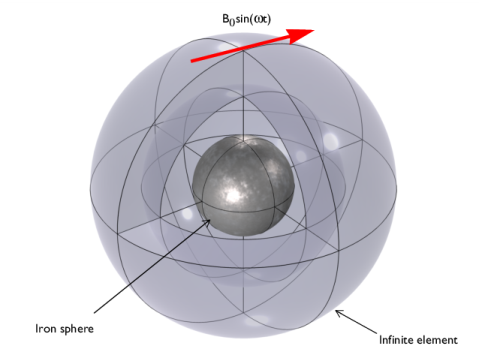
Figure 1: A magnetically permeable iron sphere in a spatially uniform background magnetic field that sinusoidally varies in time with angular frequency, w. The sphere at the center is surrounded by air and enclosed in a region of Infinite Elements.
Each model in this tutorial series uses the same basic structure illustrated in Figure 1. It consists of a 0.25 mm diameter iron sphere, with a relative permeability of, μr = 4000, placed in a spatially uniform background magnetic field of strength B0 = 1 mT. In this case, that magnetic field oscillates at a frequency of 60 Hz.
As discussed in the introduction, the surrounding air normally has an infinite skin depth, which leads to numerical difficulties when solving. We can overcome this in two ways:
1
2
Results and Discussion
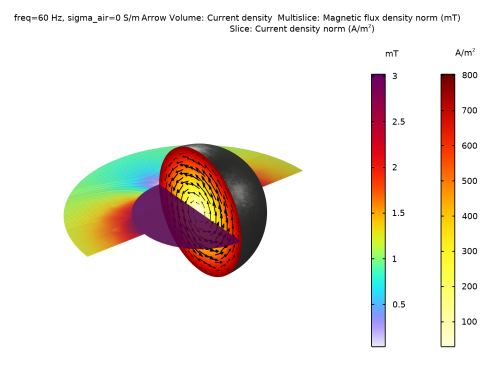
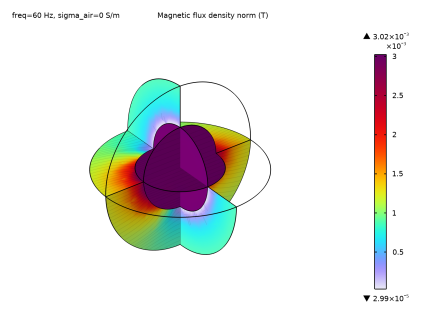
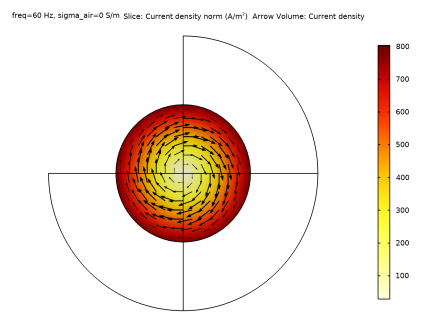
Figure 2: Cross-section of the iron sphere showing the induced current in the sphere and the magnetic flux calculated using gauge fixing.
Figure 2 plots the magnetic field and the induced current density for the model with gauge fixing. Without gauge fixing, a stabilization conductivity of 5000 S/m is used, leading to a skin depth in the air of ~ 0.9 m and a total dissipation in the air of 3.8×10¹⁶ W. When using gauge fixing, the artificial conductivity is not needed and set to 0 S/m. This corresponds to an infinite skin depth in the surrounding air and negligible dissipation. In both cases, the total dissipation in the iron sphere is 9.1×10¹⁴ W. This is the dominating value in this model.
Using gauge fixing increases the solution time and memory needed to solve the problem, and generally only slightly improves the solution. Therefore, it should be used sparingly. It’s important to note, however, that Gauge fixing is sometimes necessary for convergence. For example when solving a stationary problem in the magnetic fields interface using a direct solver1. In any case, it is always recommended to carefully study the effects of artificial conductivity on the relative skin depths in the model and to keep in mind that this is a function of the operating frequency.
Application Library path: ACDC_Module/Introductory_Electromagnetics/iron_sphere_bfield_02_60hz
Modeling Instructions
This tutorial will demonstrate the physics of an iron sphere in a spatially uniform magnetic field sinusoidally varying at 60 Hz. The instructions on the following pages will help you to build, configure, solve, and analyze the model. If anything seems out of order, please retrace your steps. The finalized model — available in the model’s Application Libraries folder — can help you out. You can compare it directly to your current model by means of the Compare option in the Developer toolbar.
Root
The geometry, materials, and selections have been prepared in the Introduction tutorial (chapter 1). They have been saved in the file iron_sphere_bfield_00_introduction.mph. You can start by opening this file and saving it under a new name.
Hint: if you are new to COMSOL Multiphysics, it is worthwhile to check out the Introduction tutorial first.
1
From the File menu, choose Open.
2
3
From the File menu, choose Save As.
4
Magnetic Fields (mf)
Free Space 1
Next, set up the stabilization conductivity of free space using the parameter sigma_air. This allows you to set the desired value in the studies later in this tutorial.
1
In the Model Builder window, expand the Component 1 (comp1) > Magnetic Fields (mf) node, then click Free Space 1.
2
In the Settings window for Free Space, locate the Stabilization section.
3
From the σstab list, choose User defined. In the associated text field, type sigma_air.
Mesh 1
For these simulations, the default Physics controlled mesh with a fine element size is sufficient.
1
In the Model Builder window, under Component 1 (comp1) click Mesh 1.
2
In the Settings window for Mesh, locate the Physics-Controlled Mesh section.
3
From the Element size list, choose Fine.
4
Click  Build All.
5
Click the  Zoom Extents button in the Graphics toolbar.
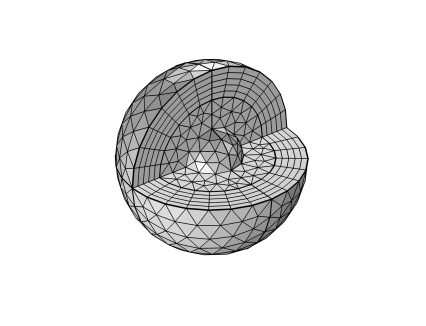
Note: In the introduction modeling steps, the nearest upper quarter sphere was hidden to improve visibility in the result plots. This allows the visibility of the mesh layers of the Infinite Element Domain and the Analysis Domain.
Study 1 - Without Gauge Fixing
1
In the Model Builder window, click Study 1.
2
In the Settings window for Study, type Study 1 - Without Gauge Fixing in the Label text field.
Step 1: Frequency Domain
1
In the Model Builder window, expand the Study 1 - Without Gauge Fixing node, then click Step 1: Frequency Domain.
2
In the Settings window for Frequency Domain, locate the Study Settings section.
3
In the Frequencies text field, type 60.
The first study, which does not use Gauge Fixing, needs a relatively high stabilization conductivity value. This example uses a value of 5000 S/m but you can experiment with lower values.
4
Click to expand the Study Extensions section. Select the Auxiliary sweep checkbox.
5
6
7
In the Study toolbar, click  Compute.
Results
Study 1 - Without Gauge Fixing
1
In the Model Builder window, expand the Results > Datasets node, then click Study 1 - Without Gauge Fixing/Solution 1 (sol1).
2
In the Settings window for Solution, type Study 1 - Without Gauge Fixing in the Label text field.
Selection
1
In the Results toolbar, click  Attributes and choose Selection.
2
In the Settings window for Selection, locate the Geometric Entity Selection section.
3
From the Geometric entity level list, choose Domain.
4
From the Selection list, choose Analysis domain.
Magnetic Flux Density - Without Gauge Fixing
1
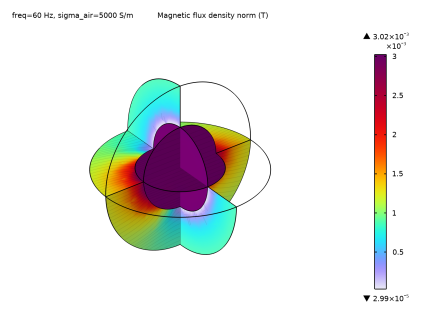
In the Model Builder window, under Results click Magnetic Flux Density (mf).
2
In the Settings window for 3D Plot Group, type Magnetic Flux Density - Without Gauge Fixing in the Label text field.
3
In the Magnetic Flux Density - Without Gauge Fixing toolbar, click  Plot.
4
Click the  Zoom Extents button in the Graphics toolbar.
Next, plot the current induced in the sphere.
Current Density - Without Gauge Fixing
1
In the Results toolbar, click  3D Plot Group.
2
In the Settings window for 3D Plot Group, type Current Density - Without Gauge Fixing in the Label text field.
3
Click to expand the Selection section. From the Geometric entity level list, choose Domain.
4
From the Selection list, choose Iron Sphere.
Slice 1
1
Right-click Current Density - Without Gauge Fixing and choose Slice.
2
In the Settings window for Slice, click Replace Expression in the upper-right corner of the Expression section. From the menu, choose Component 1 (comp1) > Magnetic Fields > Currents and charge > mf.normJ - Current density norm - A/m².
3
Locate the Plane Data section. In the Planes text field, type 1.
4
Locate the Coloring and Style section. From the Color table list, choose Thermal.
5
From the Color table transformation list, choose Reverse.
6
In the Current Density - Without Gauge Fixing toolbar, click  Plot.
Arrow Volume 1
1
In the Model Builder window, right-click Current Density - Without Gauge Fixing and choose Arrow Volume.
2
In the Settings window for Arrow Volume, click Replace Expression in the upper-right corner of the Expression section. From the menu, choose Component 1 (comp1) > Magnetic Fields > Currents and charge > mf.Jx,mf.Jy,mf.Jz - Current density.
3
Locate the Arrow Positioning section. Find the x grid points subsection. In the Points text field, type 1.
4
Find the y grid points subsection. In the Points text field, type 15.
5
Find the z grid points subsection. In the Points text field, type 15.
6
Locate the Coloring and Style section. From the Color list, choose Black.
7
In the Current Density - Without Gauge Fixing toolbar, click  Plot.
8
Click the  Go to YZ View button in the Graphics toolbar.
9
Click the  Go to Default View button in the Graphics toolbar.
The skin depth of each material at this frequency is defined in the introduction. This can be confirmed with the values used in the different domains in the model. The value is uniform throughout the domain so this can be easily evaluated by using the maximum value in the domain.
Skin Depth - Iron Sphere
1
In the Results toolbar, click  More Derived Values and choose Maximum > Volume Maximum.
2
In the Settings window for Volume Maximum, type Skin Depth - Iron Sphere in the Label text field.
3
Locate the Selection section. From the Selection list, choose Iron Sphere.
4
Click Replace Expression in the upper-right corner of the Expressions section. From the menu, choose Component 1 (comp1) > Magnetic Fields > Material properties > mf.deltaS - Skin depth - m.
5
Click  Evaluate.
The skin depth of the iron sphere should be about 0.3 mm.
Skin Depth - Air (Without Gauge Fixing)
1
In the Results toolbar, click  More Derived Values and choose Maximum > Volume Maximum.
2
In the Settings window for Volume Maximum, type Skin Depth - Air (Without Gauge Fixing) in the Label text field.
3
Locate the Selection section. From the Selection list, choose Analysis domain.
4
Click Replace Expression in the upper-right corner of the Expressions section. From the menu, choose Component 1 (comp1) > Magnetic Fields > Material properties > mf.deltaS - Skin depth - m.
5
Click  Evaluate.
The skin depth of air with a stabilization conductivity of 5000 S/m is around 919 mm.
To assess the dissipation in the different domains, integrate over the respective volumes.
Magnetic Dissipation - Iron Sphere
1
In the Results toolbar, click  More Derived Values and choose Integration > Volume Integration.
2
In the Settings window for Volume Integration, type Magnetic Dissipation - Iron Sphere in the Label text field.
3
Locate the Selection section. From the Selection list, choose Iron Sphere.
4
Click Replace Expression in the upper-right corner of the Expressions section. From the menu, choose Component 1 (comp1) > Magnetic Fields > Heating and losses > mf.Qrh - Volumetric loss density, electric - W/m³.
5
Click  Evaluate.
The dissipation in the iron sphere is largest in the simulation, having a value of 9.1e-14 W.
Dissipation - Air (Without Gauge Fixing)
1
In the Results toolbar, click  More Derived Values and choose Integration > Volume Integration.
2
In the Settings window for Volume Integration, type Dissipation - Air (Without Gauge Fixing) in the Label text field.
This integral should be over the air volume in the analysis domain, so we remove the iron sphere domain from the integral volume.
3
Locate the Selection section. From the Selection list, choose Analysis domain.
4
5
Click  Remove from Selection.
6
7
Click Replace Expression in the upper-right corner of the Expressions section. From the menu, choose Component 1 (comp1) > Magnetic Fields > Heating and losses > mf.Qrh - Volumetric loss density, electric - W/m³.
8
Click  Evaluate.
Without using Gauge fixing and using an artificial conductivity of 5000 S/m, the dissipation in the air is 3.8e-16 W.
Magnetic Fields (mf)
That was the results given using the artificially high stabilization conductivity of air. Next, we will investigate the effect of using Gauge Fixing in the simulation. In this case, the stabilization conductivity is not needed so it is set to 0 S/m.
Gauge Fixing for A-Field 1
In the Physics toolbar, click  Domains and choose Gauge Fixing for A-Field.
Study 1 - Without Gauge Fixing
The first study did not use Gauge fixing, this can be disabled in the study setting windows in case the user wishes to rerun the first study.
Step 1: Frequency Domain
1
In the Model Builder window, under Study 1 - Without Gauge Fixing click Step 1: Frequency Domain.
2
In the Settings window for Frequency Domain, locate the Physics and Variables Selection section.
3
Select the Modify model configuration for study step checkbox.
4
In the tree, select Component 1 (comp1) > Magnetic Fields (mf) > Gauge Fixing for A-Field 1.
5
Next, create a second study to investigate the case with Gauge Fixing.
Add Study
1
In the Study toolbar, click  Add Study to open the Add Study window.
2
Go to the Add Study window.
3
Find the Studies subsection. In the Select Study tree, select General Studies > Frequency Domain.
4
Click the Add Study button in the window toolbar.
5
In the Study toolbar, click  Add Study to close the Add Study window.
Study 2 - With Gauge Fixing
1
In the Settings window for Frequency Domain, locate the Study Settings section.
2
In the Frequencies text field, type 60.
3
Locate the Study Extensions section. Select the Auxiliary sweep checkbox.
4
5
6
In the Model Builder window, click Study 2.
7
In the Settings window for Study, type Study 2 - With Gauge Fixing in the Label text field.
8
In the Study toolbar, click  Compute.
Results
Study 2 - With Gauge Fixing
The new results are now plotted in the same manner as the previous study.
1
In the Model Builder window, under Results > Datasets click Study 2 - With Gauge Fixing/Solution 2 (sol2).
2
In the Settings window for Solution, type Study 2 - With Gauge Fixing in the Label text field.
Selection
1
In the Results toolbar, click  Attributes and choose Selection.
2
In the Settings window for Selection, locate the Geometric Entity Selection section.
3
From the Geometric entity level list, choose Domain.
4
From the Selection list, choose Analysis domain.
Magnetic Flux Density - With Gauge Fixing
1
In the Model Builder window, under Results click Magnetic Flux Density (mf).
2
In the Settings window for 3D Plot Group, type Magnetic Flux Density - With Gauge Fixing in the Label text field.
3
In the Magnetic Flux Density - With Gauge Fixing toolbar, click  Plot.
Current Density - With Gauge Fixing
1
In the Model Builder window, right-click Current Density - Without Gauge Fixing and choose Duplicate.
2
In the Settings window for 3D Plot Group, type Current Density - With Gauge Fixing in the Label text field.
3
Locate the Data section. From the Dataset list, choose Study 2 - With Gauge Fixing (sol2).
4
In the Current Density - With Gauge Fixing toolbar, click  Plot.
5
Click the  Go to YZ View button in the Graphics toolbar.
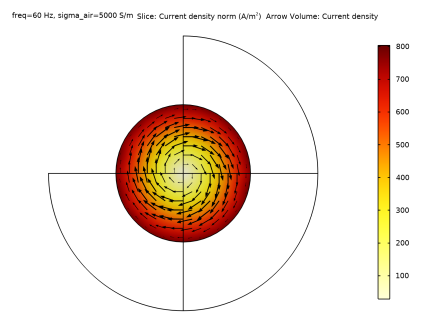
The resultant current induced within the iron is comparable to the results produced without using the gauge fixing, thus demonstrating the applicability of both techniques for modeling the current behavior in the iron sphere.
6
Click the  Go to Default View button in the Graphics toolbar.
For a quantitative comparison, evaluate the skin depth and dissipation in the free space domain.
Skin Depth - Air (With Gauge Fixing)
1
In the Results toolbar, click  More Derived Values and choose Maximum > Volume Maximum.
2
In the Settings window for Volume Maximum, type Skin Depth - Air (With Gauge Fixing) in the Label text field.
3
Locate the Data section. From the Dataset list, choose Study 2 - With Gauge Fixing (sol2).
4
Locate the Selection section. From the Selection list, choose Analysis domain.
5
Click Replace Expression in the upper-right corner of the Expressions section. From the menu, choose Component 1 (comp1) > Magnetic Fields > Material properties > mf.deltaS - Skin depth - m.
6
Click  Evaluate.
This new skin depth should now be infinite.
Dissipation - Air (With Gauge Fixing)
1
In the Results toolbar, click  More Derived Values and choose Integration > Volume Integration.
Again, evaluate over the analysis domain but with the iron sphere removed from the volume integral.
2
In the Settings window for Volume Integration, type Dissipation - Air (With Gauge Fixing) in the Label text field.
3
Locate the Selection section. From the Selection list, choose Analysis domain.
4
5
Click  Remove from Selection.
6
7
Click Replace Expression in the upper-right corner of the Expressions section. From the menu, choose Component 1 (comp1) > Magnetic Fields > Heating and losses > mf.Qrh - Volumetric loss density, electric - W/m³.
8
Locate the Data section. From the Dataset list, choose Study 2 - With Gauge Fixing (sol2).
9
Click  Evaluate.
The dissipation using the gauge fixing and zero stabilization conductivity should be negligible.
Both of the modeling techniques demonstrated in this tutorial produce a comparable result for the current and magnetic flux within the iron sphere. The difference lies in the computational time as the gauge fixing takes longer to compute but requires less adjustment to the stabilization conductivity. The gauge fixing provides a more accurate result and results in three order of magnitude less artificial dissipation in the surrounding free space. The default settings of the Free Space feature estimates an appropriate stabilization conductivity using the model geometry scale and the solver frequency. However, as demonstrated in this tutorial, the stabilization conductivity can be explicitly defined. This allows the user to optimize the stabilization conductivity according to their modeling requirements.

1
For more information about Gauge fixing, see our blog post: www.comsol.com/blogs/how-do-i-use-gauge-fixing-in-comsol-multiphysics.