
PDF

Iron Sphere in a Magnetic Field — Introduction
Introduction
An iron sphere in a magnetic field is an excellent textbook example to demonstrate the effects of a magnetic field interacting with a permeable material. This tutorial series is designed as an introduction to numerically modeling electromagnetic effects with COMSOL. This series will investigate several background magnetic field regimes and the interaction of these fields with the iron sphere. The introduction will cover the base theory and provide the instructions to build the starting model.
Following the introduction, the different background field regimes are split into four models with the associated instructions. These include a static background magnetic field and three sinusoidally time-varying fields of 60 Hz, 20 kHz, and 13.56 MHz. Each of these regimes has unique behavior, underlying assumptions and utilize distinct modeling techniques. The tutorials use the introduction model as a starting point and can be completed in any order.
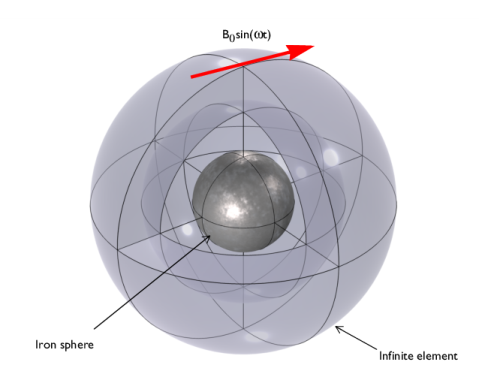
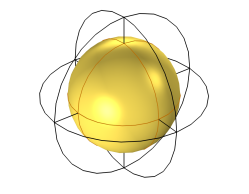
Figure 1: A magnetically permeable iron sphere in a spatially uniform background magnetic field that sinusoidally varies in time with angular frequency, ω. The red arrow shows the direction of the magnetic field vector aligned to the x-axis of the model.The sphere at the center is surrounded by air and enclosed in a region of Infinite Elements. The middle layer is the region of interest and defined as the analysis domain.
Each model uses the same structure illustrated in Figure 1. It consists of a 0.25 mm diameter iron sphere placed in a spatially uniform background magnetic field of strength B0 = 1 mT. At this field strength, it is assumed that saturation effects in the iron are negligible so all material properties are independent of the field strength. In these models, the iron sphere has a relative permittivity of εr = 1 and an electric conductivity of σ = 1.12·107 S/m.
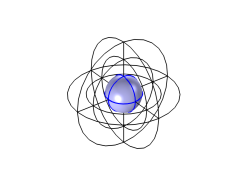
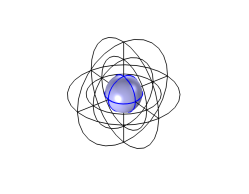
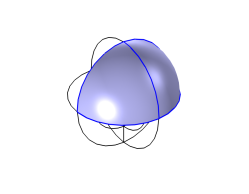
The numerical models consist of three concentric spheres. The innermost is the magnetically permeable iron sphere. The middle spherical shell volume represents free space filled with air, this is set as the analysis domain as is the region of interest investigated in the models. The outside shell volume represents a region extending to infinity, modeled with an Infinite Element Domain. When using Infinite Element Domain features, the boundary condition on the exterior of the modeling domain does not significantly affect the solution.
Theoretical Background
The applied background magnetic field is uniform in space with the origin of the field excluded from the model. This allows for the use of a reduced field formulation where the background field is explicitly defined. This is done by defining the background magnetic vector potential, Ab,
(1)
This is related to the magnetic flux density, B,
(2)
where Ar is the reduced magnetic vector potential.
Static Magnetic Field
The magnetic field in the iron sphere in a static background magnetic field can be described in analytical terms:
(3),
where μr is the relative permeability of the sphere. This parameter is explored in the static field case and varied from μr = 2 to μr = 4000.
Time-Varying Magnetic Field
The sphere properties are kept consistent for all of the time-varying models, which are all solved in the frequency domain. In all of these cases, the iron sphere has a relative permeability of μr = 4000.
Skin Depth — Iron Sphere
For models with time-varying magnetic fields, it is useful to first consider how far the field will permeate into the iron sphere by calculating the skin depth, δ, which is given by:
(4).
The skin depths corresponding to the angular frequencies, ω 2πf, used in this tutorial series are shown in Table 1.
diron
At these operating frequencies, the skin depths relative to the sphere radius, r0, vary significantly.
Skin Depth — Air
In practice, the air surrounding the sphere has the properties; εr = 1, μr 1, and σ = 0 S/m, which means the skin depth of the air is infinite. This leads to numerical difficulties when solving the problem. The Free space feature in the Magnetic Fields interface addresses this by applying a stabilization conductivity to the domain surrounding the sphere.
This stabilization conductivity should be large enough so that the ratio of the largest to smallest skin depth in the model would be around 1000:1. The smaller the artificial conductivity, the more accurate the results, but using an stabilization conductivity that is too small will negatively affect convergence. The frequency study at 60 Hz investigates the effects of the stabilization conductivity of air and alternative approaches to modeling loss-less media.
Tutorial Series Overview
Static B-Field Model — Stationary Study
This tutorial is the time-invariant case where the background magnetic field is uniform in time and space. In this regime, the solution for the magnetic flux density in the sphere can be described in simple analytical terms. The focus of this tutorial is to demonstrate the performance of two numerical simulation methods, namely the scalar potential and the vector potential approach. The results are compared with the analytical solution. The analysis is performed over a range of values for the relative permeability of the iron sphere.
60 Hz Background Magnetic Field
At this operating frequency, the field permeates into the sphere inducing a current in the sphere’s volume. This model focuses on the effects of artificially adjusting the electric conductivity of the air on the simulation results. In this case, a stabilization conductivity for free space of 5000 S/m is used to obtain numerical stability.
An alternative approach, that does not require a stabilization conductivity, is to use gauge fixing. This adds an additional equation to the system of equations being solved, and as a consequence significantly increases the computational effort needed to solve the model, see the AC/DC Module User’s Guide for more information.
This model evaluates the magnetic dissipation in both the iron sphere and the air to assess the effects of these modeling techniques.
20 kHz Background Magnetic Field
In this intermediary case, the signal permeates part-way into the sphere. The solution for this regime has a lot of detail and steep magnetic gradients close to the surface of the sphere. To model this complexity with suitable accuracy, a tailored mesh is utilized to provide sufficient detail in the areas of interest.
13.56 MHz Background Magnetic Field
In this case, the field permeation is minimal, see Table 1. Consequently, it is possible to assume that the induced currents flow only in a thin surface layer with negligible thickness. This phenomenon can be modeled using the Impedance Boundary Condition on the iron sphere surface. The iron sphere volume is not used in the model and is removed from the simulation.
Results and Discussion
An overview of the results is given here. The individual tutorials provide further detail and discussion.
Static Background Electric Field
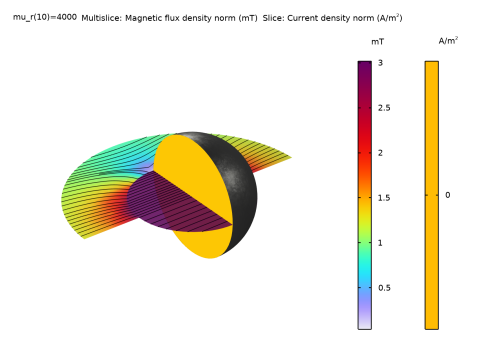
Figure 2: Cross section of the iron sphere in a static magnetic field. The magnetic flux shows the distortion of the background magnetic field caused by the permeable iron sphere. There are no induced currents in this model.
The iron sphere in the static background magnetic field is shown in Figure 2. In this case, the magnetic flux density is uniform inside the sphere and there are no induced currents. The two modeling techniques covered in this tutorial show good agreement with the analytic solution of this configuration. The vector potential approach produces more accurate results with a slightly higher computational cost when compared to using a scalar approach. The vector potential approach also allows for time dependencies in the model and it is the formulation used in the other tutorial models in this series that have a time-varying background magnetic field.
60 Hz Background Magnetic Field
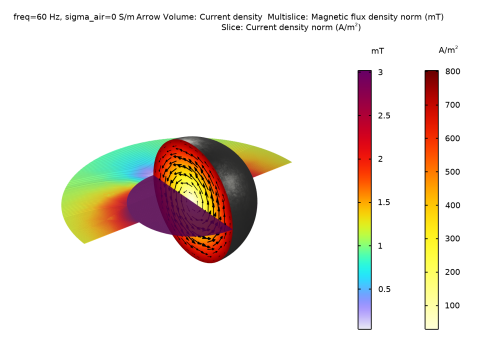
Figure 3: Cross section of the iron sphere in a time varying background magnetic field oscillating at 60 Hz.
Figure 3, shows the magnetic flux density and the induced current within the iron sphere when the background magnetic field oscillates at 60 Hz. The magnetic flux density within the sphere is effectively uniform as the skin depth of the iron sphere at this frequency is larger than the sphere itself. The induced current is also visible throughout the sphere with the stronger current density being located near the surface. The two modeling techniques described in this tutorial produce comparable results. The gauge fixing technique gives a slightly more accurate representation of the system but at the cost of increased computation time. This model also calculates the energy dissipation in the iron sphere as 9.1×10¹⁴ W.
20 kHz Background Magnetic Field
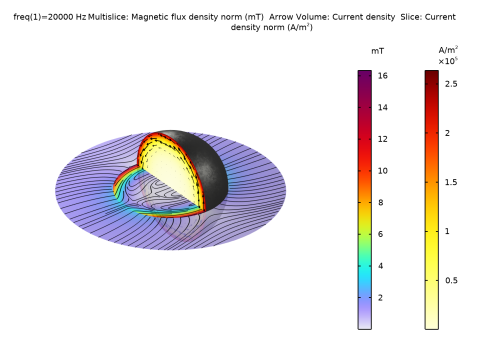
Figure 4: Cross section of the iron sphere in a time varying background magnetic field oscillating at 20 kHz.
The skin depth of iron in the case of a 20 kHz background magnetic field indicates that the field only partially permeates the sphere. This results in both the magnetic flux density and the induced current being concentrated near the surface of the sphere, as shown in Figure 4. The large field gradients in this case are successfully resolved using a tailored mesh with sufficiently thin mesh elements near the areas of interest, while larger elements in the remaining portions of the model were used to optimize computational time. The frequency used in this model results in a large current density and an energy dissipation in the iron sphere of 3.4×10⁹ W. This is five orders of magnitude larger than the dissipation calculated in the 60 Hz model.
13.56 MHz Background Magnetic Field
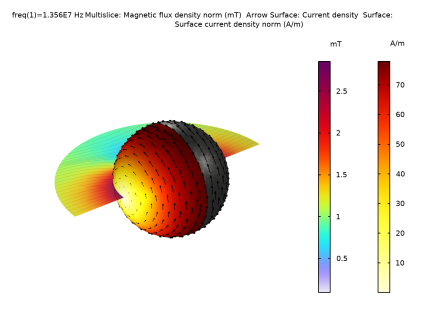
Figure 5: Surface of the iron sphere in a time varying background magnetic field oscillating at 13.56 MHz.
The case with a 13.56 MHz oscillating background magnetic field has negligible skin depth in the sphere and is modeled using a boundary condition applied to the sphere’s exterior surfaces. Figure 5 shows the resultant current and the perturbed background magnetic field. The small interaction area of the background magnetic field and the sphere produces less overall current density than in the cases with the lower frequency magnetic fields.
Model Preparation
The remainder of this introduction covers building the geometry, materials, and selections of the model. It is recommended for new users to follow this process, however, the prepared introductory model can be downloaded and used as a starting point for the other tutorials in this series.
Application Library path: ACDC_Module/Introductory_Electromagnetics/iron_sphere_bfield_00_introduction
Modeling Instructions
From the File menu, choose New.
New
In the New window, click  Model Wizard.
Model Wizard
1
In the Model Wizard window, click  3D.
2
In the Select Physics tree, select AC/DC > Electromagnetic Fields > Magnetic Fields (mf).
3
Click Add.
4
Click  Study.
5
In the Select Study tree, select General Studies > Frequency Domain.
6
Geometry 1
1
In the Model Builder window, under Component 1 (comp1) click Geometry 1.
2
In the Settings window for Geometry, locate the Units section.
3
From the Length unit list, choose mm.
Global Definitions
Parameters 1
1
In the Model Builder window, under Global Definitions click Parameters 1.
2
In the Settings window for Parameters, locate the Parameters section.
3
Geometry 1
Sphere 1 (sph1)
1
In the Geometry toolbar, click  Sphere.
2
In the Settings window for Sphere, locate the Size section.
3
In the Radius text field, type 3*r0.
4
Click to expand the Layers section. In the table, enter the following settings:
5
Click  Build All Objects.
6
Click the  Wireframe Rendering button in the Graphics toolbar.
Definitions
Iron Sphere
1
In the Definitions toolbar, click  Explicit.
2
In the Settings window for Explicit, type Iron Sphere in the Label text field.
3
4
Click the  Zoom Extents button in the Graphics toolbar.
Iron Sphere Surface
1
In the Definitions toolbar, click  Explicit.
2
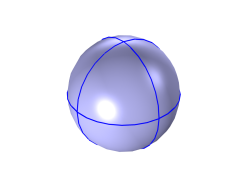
In the Settings window for Explicit, type Iron Sphere Surface in the Label text field.
3
Locate the Input Entities section. From the Geometric entity level list, choose Boundary.
4
Select the Group by continuous tangent checkbox.
5
This selects only the surface of the sphere ready to be used in the high frequency background field case.
6
Click the  Zoom Extents button in the Graphics toolbar.
Infinite Element Domain
1
In the Definitions toolbar, click  Explicit.
2
In the Settings window for Explicit, type Infinite Element Domain in the Label text field.
3
The infinite element domain selection contains all the exterior domains.
Analysis domain
1
In the Definitions toolbar, click  Complement.
Everything in the middle layer will be set as the analysis domain. This is the main area of interest as it contains the both the iron sphere and the surrounding air region that is affected by the presence of the sphere.
2
In the Settings window for Complement, type Analysis domain in the Label text field.
3
Locate the Input Entities section. Under Selections to invert, click  Add.
4
In the Add dialog, select Infinite Element Domain in the Selections to invert list.
5
This selection sets the middle layer of the sphere as the analysis domain.
Infinite Element Domain 1 (ie1)
1
In the Definitions toolbar, click  Infinite Element Domain.
2
In the Settings window for Infinite Element Domain, locate the Domain Selection section.
3
From the Selection list, choose Infinite Element Domain.
4
Locate the Geometry section. From the Type list, choose Spherical.
View 1
Suppress some domains to get a better view when setting up the physics and reviewing the meshed results.
Hide for Physics 1
1
In the Model Builder window, right-click View 1 and choose Hide for Physics.
2
3
In the Settings window for Hide for Physics, click  Show Entities in Selection.
4
Click the  Zoom to Selection button in the Graphics toolbar.
Magnetic Fields (mf)
The background magnetic field is set in the Magnetic Fields (mf) interface.
1
In the Model Builder window, under Component 1 (comp1) click Magnetic Fields (mf).
2
In the Settings window for Magnetic Fields, locate the Background Field section.
3
From the Solve for list, choose Reduced field.
4
Specify the Ab vector as
In the Magnetic Fields (mf) interface, the iron sphere is modeled using Ampère’s Law in Solids.
Ampère’s Law in Solids 1
1
In the Physics toolbar, click  Domains and choose Ampère’s Law in Solids.
2
In the Settings window for Ampère’s Law in Solids, locate the Domain Selection section.
3
From the Selection list, choose Iron Sphere.
Add Material
1
In the Materials toolbar, click  Add Material to open the Add Material window.
2
Go to the Add Material window.
3
In the tree, select Built-in > Air.
4
Click the Add to Component button in the window toolbar.
5
In the tree, select Built-in > Iron.
6
Click the Add to Component button in the window toolbar.
7
In the Materials toolbar, click  Add Material to close the Add Material window.
Materials
Air (mat1)
1
In the Settings window for Material, locate the Material Contents section.
2
This allows you to control the artificial conductivity of the air from the parameters section.
Iron (mat2)
1
In the Model Builder window, click Iron (mat2).
2
In the Settings window for Material, locate the Geometric Entity Selection section.
3
From the Selection list, choose Iron Sphere.
Iron 1 (mat3)
1
Right-click Component 1 (comp1) > Materials > Iron (mat2) and choose Duplicate.
2
In the Settings window for Material, locate the Geometric Entity Selection section.
3
From the Geometric entity level list, choose Boundary.
4
From the Selection list, choose Iron Sphere Surface.
This concludes setting up the basic structure of the model. This will be used for the various modeling regimes in the subsequent demo tutorials.