

PDF

Thermal Analysis of a High-Power IGBT Module
Introduction
The insulated-gate bipolar transistor module (IGBT module) is a popular choice in high-power systems thanks to its capability to resist high voltages and to channel strong currents while switching between the two modes rapidly. This industrial-scale proof-of-concept (POC) model demonstrates how to perform an electric–thermal analysis of a high-power IGBT module. The module has a rated voltage of 1200 V and operates at a nominal current of 1800 A.
The module consists of a number of IGBT dies mounted on top of a copper base plate with a heat sink at the bottom. In the module electric currents generate heat due to resistive loss, which is also known as Joule heating. While the heat sink expels the heat at a relatively constant rate, the switching of the module and subsequent increase and decrease of the current density and the heat source causes the module to heat up and cool down in a cyclic fashion. This repeated thermal expansion and mechanical deformation then leads to mechanical fatigue1, in particular in the attachment points between the bonding wires and the die metalization layer.
In this model the current density distribution, the heat source, and the temperature distribution are investigated under stationary conditions to get a better understanding of this phenomenon and how it is affected by the module’s design.
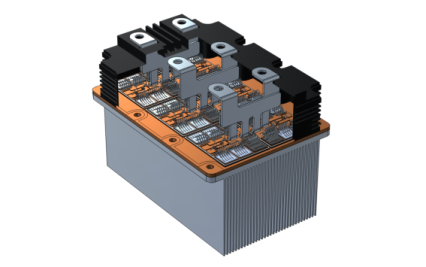
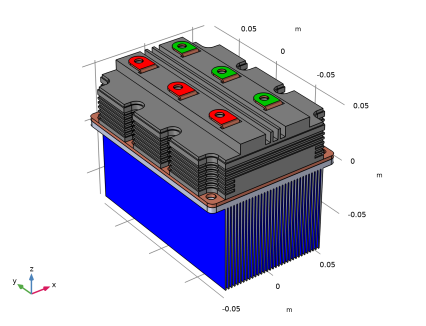
Figure 1: An overview of the IGBT module with parts of the plastic cover removed for visualization purposes. Six terminals are available at the top of the device, at which the current throughput is specified. At the terminals, a fixed temperature is used. At the bottom of the device a heat sink is used with convective heat flux boundary conditions.
Model Definition
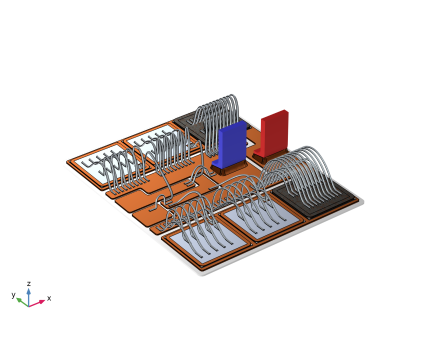
Figure 1 shows an overview of the IGBT module. The module is divided into six sections, with each section organized as in Figure 2. During the numerical analysis, the electric potential and temperature are investigated using the Electric Currents and the Heat Transfer in Solids physics interfaces, respectively. To couple the two physics, the Electromagnetic Heating multiphysics coupling is used.
The electric properties of the semiconductor material have been included as a macroscopic effect: an effective conductivity is applied such that the potential drop across the junction agrees with a predetermined (temperature-dependent) value as given by Ref. 1.
Figure 2: One of six sections of the module. Each section consists of four IGBT chips (silver-colored) and two FWDs (black), connected via aluminum bond wires and copper base plates. The current input and output are marked as red and blue in the figure.
Using a stationary study, the device is modeled in the “on” state, where strong currents pass through the IGBT dies and a relatively small portion of the current is leaking back through the freewheeling diodes (FWDs). The generated heat is dissipated through a heat sink, and both the currents and the temperature profile are evaluated in the semiconductors, the metalization layers, and the bond wires.
The equations for the electric currents are only solved in the electric conductors and the semiconductors, while the heat equation is also solved in the aluminum oxide layer and the heat sink. The heat transfer through the terminals is modeled using a fixed temperature boundary condition and the heat transfer from the heat sink to the air is modeled using a convective heat flux boundary condition:
(1).
Here, h is the heat transfer coefficient, Text = 60°C is the air temperature and n · q is the outward heat flux. The remaining boundaries are assumed to be thermally insulating.
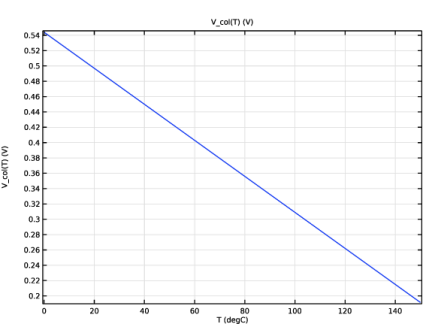
For the semiconductor conductivity, the model uses a measured relation between the temperature of the IGBT die and its collector–emitter voltage in the module’s on state, as given by Ref. 1:
(2)
where Vce is given in volts and T in degrees Celsius. This is implemented using an auxiliary degree of freedom to find the conductivity required to get the measured collector-emitter voltage.
Results and Discussion
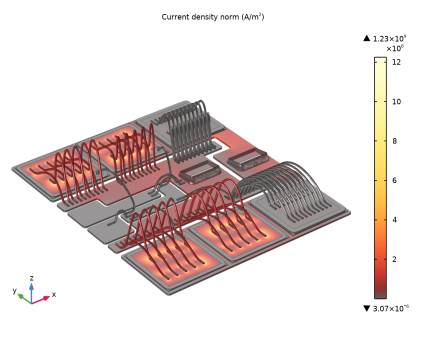
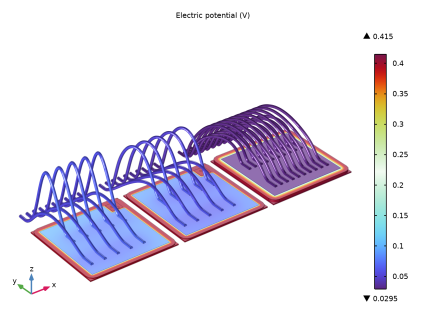
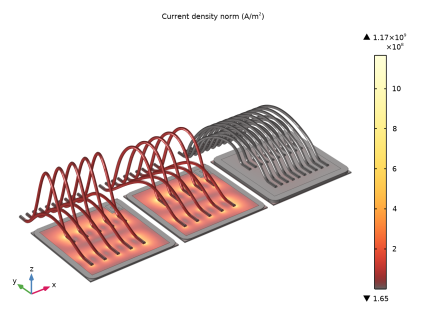
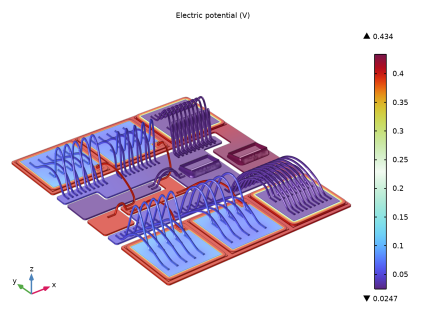
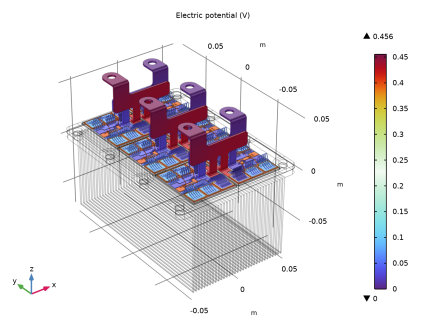
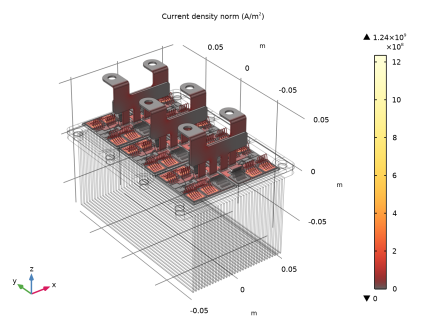
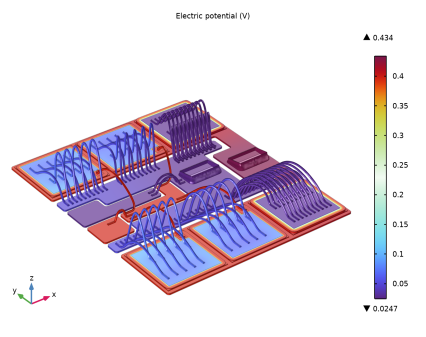
The electric potential of one section of the module is shown in Figure 3. The figure illustrates how the majority of the voltage drop over the current path occurs across the transistor junctions. The corresponding current density distribution is shown in Figure 4, which shows that only a small portion of the current leaks through the FWDs. The highest current densities are reached at the connection points between the metalization layers of the IGBT dies and the bond wires.
Figure 3: Electric potential distribution of one section. The current path goes through the IGBT chips, introducing a voltage drop which is in agreement with the measured value.
Figure 4: Current density distribution of one section. The highest current density is reached at the base of the bond wires. Only a small portion of the current leaks through the FWDs.
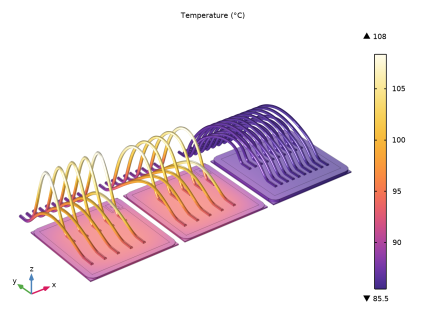
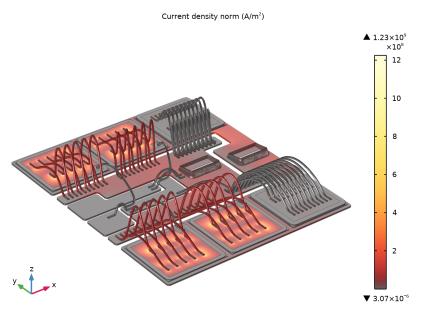
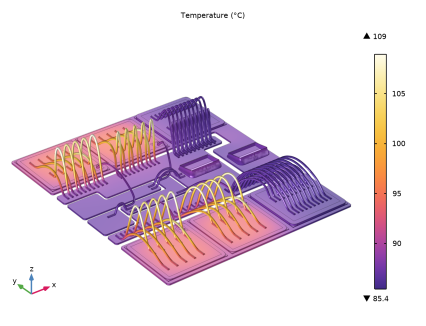
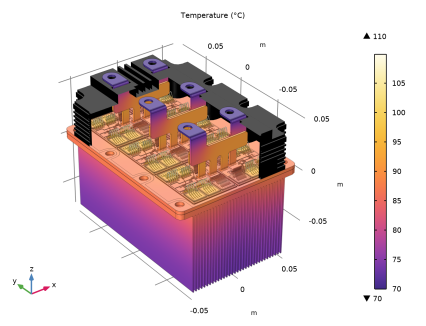
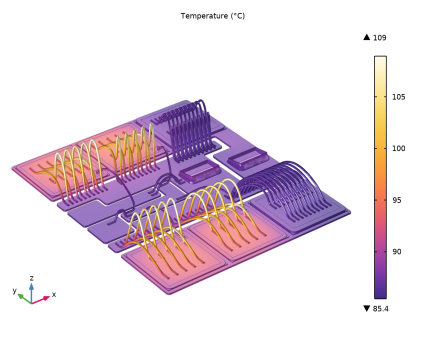
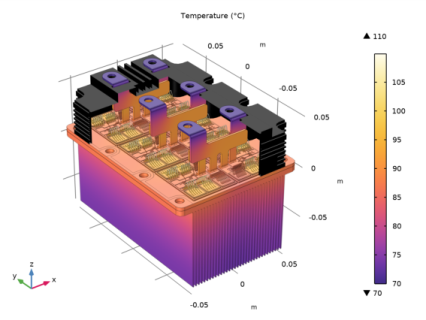
The temperature distribution over the same section is shown in Figure 5. The maximum temperature in the section is approximately 110°C, 50 degrees higher than the external air temperature as defined on the heat sinks and 40 degrees higher than the temperature as defined on the busbar terminal boundaries. The temperature distribution of the entire system is illustrated in Figure 6.
Figure 5: Temperature distribution of one segment in the IGBT module. The maximum temperature is approximately 110°C, and is reached in the wires connecting the IGBT dies with the copper plates.
Table 1 shows some key statistics of the IGBT dies. The average collector–emitter voltage is 324 mV, which makes up the majority of the total voltage drop over the current path. The average junction temperature is 93.5°C.
Figure 6: Temperature distribution of the entire IGBT module. The highest temperature was reached in the bond wires in the middle sections.
Reference
1. A. Tong and others, “Comparative Study of the Parameter Acquisition Methods for the Cauer Thermal Network Model of an IGBT Module,” Electronics, vol. 12, no. 7, art. 1650, 2023.
Article available at: www.mdpi.com/2079-9292/12/7/1650.
This is an open access article distributed under the terms and conditions of the Creative Commons Attribution (CC BY) license: creativecommons.org/licenses/by/4.0/.
The Thermal Analysis of a High-Power IGBT Module tutorial model uses several dimensions, material properties, and the expression for the collector-emitter voltage as given by the article (in particular, as given by Figure 4, Table 2, and Table 4).
Application Library path: ACDC_Module/Electromagnetic_Heating/igbt_joule_heating
Modeling Instructions
At this point, there are two options. One is to go to section Appendix in this tutorial and follow the instructions for building the geometry, selections and mesh there. In case you have limited interest in doing that yourself, start by opening igbt_joule_heating_introduction.mph.
1
From the File menu, choose Open.
2
3
From the File menu, choose Save As.
4
Now, proceed with the setup of the physics interfaces. This model is centered around the Electric Currents and Heat Transfer in Solids interfaces. The two interfaces will be connected using the Electromagnetic Heating multiphysics coupling, feeding the electromagnetic loss as a heat source into the thermal analysis.
Add Physics
1
In the Home toolbar, click  Add Physics to open the Add Physics window.
2
Go to the Add Physics window.
3
In the tree, select AC/DC > Electric Fields and Currents > Electric Currents (ec).
4
Click the Add to Component 1 button in the window toolbar.
Electric Currents (ec)
1
In the Settings window for Electric Currents, locate the Domain Selection section.
2
From the Selection list, choose Electric Current Domains.
3
Click to expand the Discretization section. From the Electric potential list, choose Linear.
Ground 1
1
In the Physics toolbar, click  Boundaries and choose Ground.
2
In the Settings window for Ground, locate the Boundary Selection section.
3
From the Selection list, choose Ground (Import 1).
Boundary Terminal 1
1
In the Physics toolbar, click  Boundaries and choose Boundary Terminal.
2
In the Settings window for Boundary Terminal, locate the Boundary Selection section.
3
From the Selection list, choose Terminal (Import 1).
4
Locate the Terminal section. In the I0 text field, type I_col.
Electric Shielding 1
1
In the Physics toolbar, click  Boundaries and choose Electric Shielding.
2
In the Settings window for Electric Shielding, locate the Boundary Selection section.
3
From the Selection list, choose Aluminum (Metalization).
4
Locate the Thickness section. In the ds text field, type th_met.
Add Physics
1
Go to the Add Physics window.
2
In the tree, select Heat Transfer > Heat Transfer in Solids (ht).
3
Click the Add to Component 1 button in the window toolbar.
Heat Transfer in Solids (ht)
1
In the Settings window for Heat Transfer in Solids, locate the Domain Selection section.
2
From the Selection list, choose Heat Transfer Domains.
3
Click to expand the Discretization section. From the Temperature list, choose Linear.
Initial Values 1
1
In the Model Builder window, under Component 1 (comp1) > Heat Transfer in Solids (ht) click Initial Values 1.
2
In the Settings window for Initial Values, locate the Initial Values section.
3
In the T text field, type T_trm.
Temperature 1
1
In the Physics toolbar, click  Boundaries and choose Temperature.
2
In the Settings window for Temperature, locate the Boundary Selection section.
3
From the Selection list, choose Fixed Temperature.
4
Locate the Temperature section. In the T0 text field, type T_trm.
Heat Flux 1
1
In the Physics toolbar, click  Boundaries and choose Heat Flux.
2
In the Settings window for Heat Flux, locate the Boundary Selection section.
3
From the Selection list, choose Forced Convection (Import 1).
4
Locate the Heat Flux section. From the Flux type list, choose Convective heat flux.
5
In the h text field, type h_air.
6
In the Text text field, type T_air.
Thin Layer 1
1
In the Physics toolbar, click  Boundaries and choose Thin Layer.
2
In the Settings window for Thin Layer, locate the Boundary Selection section.
3
From the Selection list, choose Aluminum (Metalization).
4
Locate the Shell Properties section. From the Shell type list, choose Nonlayered shell. In the Lth text field, type th_met.
5
Locate the Layer Model section. From the Layer type list, choose Thermally thin approximation.
Multiphysics
Electromagnetic Heating 1 (emh1)
In the Physics toolbar, click  Multiphysics Couplings and choose Domain > Electromagnetic Heating.
Now, you have finished setting up the physics. What remains before adding the study is to add an auxiliary degree of freedom to allow COMSOL to determine the semiconductor conductivity required to match the measured temperature dependent collector-emitter voltage as given by Equation 2. Start by including the measured curve in the model.
Global Definitions
Collector-Emitter Voltage IGBT (Open)
1
In the Home toolbar, click  Functions and choose Global > Analytic.
2
In the Settings window for Analytic, type Collector-Emitter Voltage IGBT (Open) in the Label text field.
3
In the Function name text field, type V_col.
4
Locate the Definition section. In the Expression text field, type -0.00235[V/degC]*T+0.544[V].
5
In the Arguments text field, type T.
6
Locate the Units section. In the Function text field, type V.
7
8
Locate the Plot Parameters section. In the table, enter the following settings:
9
Definitions
Add a nonlocal coupling to determine the average current density and the average temperature at the IGBT junction.
Domain Average IGBT
1
In the Definitions toolbar, click  Nonlocal Couplings and choose Average.
2
In the Settings window for Average, type Domain Average IGBT in the Label text field.
3
In the Operator name text field, type av_igbt.
4
Locate the Source Selection section. From the Selection list, choose IGBT Integration Domain.
Now, add a global equation to add a degree of freedom for the average current density in the IGBT.
Add Physics
1
Go to the Add Physics window.
2
In the tree, select Mathematics > ODE and DAE Interfaces > Global ODEs and DAEs (ge).
3
Click the Add to Component 1 button in the window toolbar.
4
In the Home toolbar, click  Add Physics to close the Add Physics window.
Global ODEs and DAEs (ge)
Current Density IGBT
1
In the Settings window for Global Equations, type Current Density IGBT in the Label text field.
2
Locate the Global Equations section. In the table, enter the following settings:
3
Locate the Units section. Click  Select Dependent Variable Quantity.
4
In the Physical Quantity dialog, select Electromagnetics > Current density (A/m^2) in the tree.
5
6
In the Settings window for Global Equations, locate the Units section.
7
Click  Select Source Term Quantity.
8
In the Physical Quantity dialog, select Electromagnetics > Current density (A/m^2) in the tree.
9
Temperature IGBT
1
In the Global ODEs and DAEs toolbar, click  Global Equations.
2
In the Settings window for Global Equations, type Temperature IGBT in the Label text field.
3
Locate the Global Equations section. In the table, enter the following settings:
4
Locate the Units section. Click  Select Dependent Variable Quantity.
5
In the Physical Quantity dialog, select General > Temperature (K) in the tree.
6
7
In the Settings window for Global Equations, locate the Units section.
8
Click  Select Source Term Quantity.
9
In the Physical Quantity dialog, select General > Temperature (K) in the tree.
10
Definitions
Define the collector-emitter voltage at the average junction temperature as well as the effective conductivity.
Effective Conductivity IGBT
1
In the Definitions toolbar, click  Local Variables.
2
In the Settings window for Variables, type Effective Conductivity IGBT in the Label text field.
3
Locate the Variables section. In the table, enter the following settings:
Materials
Now, you will see that COMSOL starts detecting missing material properties. The properties that should be added are listed in the following table. Please check all of them for the correct value, even the ones that are already filled in.
Furthermore, note that material properties marked with an “x” are not used at all (they may be present, but their value is irrelevant). Common practice is to include the unit when typing: “57[W/(m*K)]”.
1
In the Model Builder window, under Component 1 (comp1) > Materials, add the following material properties:
Hide for Geometry 1
1
In the Model Builder window, expand the Component 1 (comp1) > Definitions > View 1 node.
2
Right-click Hide for Geometry 1 and choose Disable.
Add Study
With the physics and the materials ready, it is now time to add a study. The module will be analyzed in its ‘on’ state, which corresponds to a nominal current of 1800 A and a rated voltage of 1200 V. The electric potential and temperature distribution will be computed and global equations are included to find the effective conductivity of the IGBT chips. The study will assume stationary conditions.
1
In the Home toolbar, click  Add Study to open the Add Study window.
2
Go to the Add Study window.
3
Find the Studies subsection. In the Select Study tree, select General Studies > Stationary.
4
Click the Add Study button in the window toolbar.
5
In the Home toolbar, click  Add Study to close the Add Study window.
Now, edit the default solver to improve convergence speed and robustness.
Study 1
Solution 1 (sol1)
1
In the Study toolbar, click  Show Default Solver.
2
In the Model Builder window, expand the Solution 1 (sol1) node.
3
In the Model Builder window, expand the Study 1 > Solver Configurations > Solution 1 (sol1) > Stationary Solver 1 > Segregated 1 node, then click Electric Currents.
4
In the Settings window for Segregated Step, click to expand the Method and Termination section.
5
In the Damping factor text field, type 1.
6
In the Model Builder window, under Study 1 > Solver Configurations > Solution 1 (sol1) > Stationary Solver 1 > Segregated 1 click Temperature.
7
In the Settings window for Segregated Step, locate the Method and Termination section.
8
In the Damping factor text field, type 1.
9
Right-click Study 1 > Solver Configurations > Solution 1 (sol1) > Stationary Solver 1 > Segregated 1 > Temperature and choose Move Up.
10
Right-click Study 1 > Solver Configurations > Solution 1 (sol1) > Stationary Solver 1 > Segregated 1 > Lower Limit 1 and choose Move Up.
11
In the Model Builder window, click Study 1.
12
In the Settings window for Study, locate the Study Settings section.
13
Clear the Generate default plots checkbox.
14
In the Study toolbar, click  Compute.
Results
1
In the Model Builder window, click Results.
2
In the Settings window for Results, locate the Update of Results section.
3
Select the Only plot when requested checkbox, since the resulting plots will take a while to evaluate.
The results will be divided into three node groups, one for a single set of dies, one for a section of the module, and one for the entire model. Create and modify three datasets corresponding to these groups.
4
In the Model Builder window, expand the Results node.
Study 1/Solution 1 (2) (sol1)
1
In the Model Builder window, expand the Results > Datasets node.
2
Right-click Results > Datasets > Study 1/Solution 1 (sol1) and choose Duplicate.
Study 1/Solution 1 (3) (sol1)
In the Model Builder window, right-click Study 1/Solution 1 (2) (sol1) and choose Duplicate.
Selection
1
In the Results toolbar, click  Attributes and choose Selection.
2
In the Settings window for Selection, locate the Geometric Entity Selection section.
3
From the Geometric entity level list, choose Domain.
4
From the Selection list, choose Set of Dies (Domain).
Study 1/Solution 1 (2) (sol1)
In the Model Builder window, under Results > Datasets click Study 1/Solution 1 (2) (sol1).
Selection
1
In the Results toolbar, click  Attributes and choose Selection.
2
In the Settings window for Selection, locate the Geometric Entity Selection section.
3
From the Geometric entity level list, choose Domain.
4
From the Selection list, choose Module Section (Domain).
Electric Potential (ec)
1
In the Results toolbar, click  3D Plot Group.
2
In the Settings window for 3D Plot Group, type Electric Potential (ec) in the Label text field.
3
Locate the Plot Settings section. Clear the Plot dataset edges checkbox.
4
Locate the Color Legend section. Select the Show maximum and minimum values checkbox.
5
Click to expand the Quality section. From the Smoothing list, choose Inside geometry domains.
Surface 1
1
Right-click Electric Potential (ec) and choose Surface.
2
In the Settings window for Surface, locate the Coloring and Style section.
3
From the Color table list, choose Dipole.
4
From the Color table transformation list, choose Nonlinear symmetric.
5
In the Color calibration parameter text field, type 0.8.
Line 1
1
In the Model Builder window, right-click Electric Potential (ec) and choose Line.
2
In the Settings window for Line, locate the Expression section.
3
In the Expression text field, type 0.
4
Click to expand the Title section. From the Title type list, choose None.
5
Locate the Coloring and Style section. From the Coloring list, choose Uniform.
6
From the Color list, choose Black.
7
Click to expand the Quality section. From the Evaluation settings list, choose Manual.
Transparency 1
1
Right-click Line 1 and choose Transparency.
2
In the Settings window for Transparency, locate the Transparency section.
3
Find the Transparency subsection. In the Transparency text field, type 0.75.
4
Click the  Show More Options button in the Model Builder toolbar.
5
In the Show More Options dialog, select Results > Views in the tree.
6
7
View 3D 2
In the Model Builder window, under Results right-click Views and choose View 3D.
Camera
1
Click the  Show Grid button in the Graphics toolbar.
2
Click the  Zoom Extents button in the Graphics toolbar.
3
In the Model Builder window, expand the View 3D 2 node, then click Camera.
4
In the Settings window for Camera, click  Update.
Electric Potential (ec)
1
In the Model Builder window, under Results click Electric Potential (ec).
2
In the Settings window for 3D Plot Group, locate the Plot Settings section.
3
From the View list, choose View 3D 2.
4
In the Electric Potential (ec) toolbar, click  Plot.
5
Click the  Go to Default View button in the Graphics toolbar.
Current Density Norm (ec)
1
In the Results toolbar, click  3D Plot Group.
2
In the Settings window for 3D Plot Group, type Current Density Norm (ec) in the Label text field.
3
Locate the Plot Settings section. Clear the Plot dataset edges checkbox.
4
Locate the Color Legend section. Select the Show maximum and minimum values checkbox.
5
Locate the Quality section. From the Smoothing list, choose Inside geometry domains.
Surface 1
1
Right-click Current Density Norm (ec) and choose Surface.
2
In the Settings window for Surface, locate the Expression section.
3
In the Expression text field, type ec.normJ.
4
Locate the Coloring and Style section. From the Color table list, choose GrayBodyLight.
5
From the Color table transformation list, choose Nonlinear.
6
In the Color calibration parameter text field, type -0.8.
7
Click to expand the Quality section. From the Evaluation settings list, choose Manual.
Selection 1
1
Right-click Surface 1 and choose Selection.
2
In the Settings window for Selection, locate the Selection section.
3
From the Selection list, choose Set of Dies (Not Metalization).
Surface 2
1
In the Model Builder window, right-click Current Density Norm (ec) and choose Surface.
2
In the Settings window for Surface, locate the Expression section.
3
In the Expression text field, type ec.normJs/th_met.
4
Click to expand the Title section. From the Title type list, choose None.
5
Locate the Quality section. From the Evaluation settings list, choose Manual.
6
Click to expand the Inherit Style section. From the Plot list, choose Surface 1.
Selection 1
1
Right-click Surface 2 and choose Selection.
2
In the Settings window for Selection, locate the Selection section.
3
From the Selection list, choose Set of Dies (Metalization).
Line 1
1
In the Model Builder window, right-click Current Density Norm (ec) and choose Line.
2
In the Settings window for Line, locate the Expression section.
3
In the Expression text field, type 0.
4
Locate the Title section. From the Title type list, choose None.
5
Locate the Coloring and Style section. From the Coloring list, choose Uniform.
6
From the Color list, choose Black.
7
Locate the Quality section. From the Evaluation settings list, choose Manual.
Transparency 1
1
Right-click Line 1 and choose Transparency.
2
In the Settings window for Transparency, locate the Transparency section.
3
Find the Transparency subsection. In the Transparency text field, type 0.75.
Current Density Norm (ec)
1
In the Model Builder window, under Results click Current Density Norm (ec).
2
In the Settings window for 3D Plot Group, locate the Plot Settings section.
3
From the View list, choose View 3D 2.
4
In the Current Density Norm (ec) toolbar, click  Plot.
5
Click the  Zoom Extents button in the Graphics toolbar.
Note that only a small portion of the current leaks through the freewheeling diodes.
Temperature (ht)
1
In the Home toolbar, click  Add Plot Group and choose 3D Plot Group.
2
In the Settings window for 3D Plot Group, type Temperature (ht) in the Label text field.
3
Locate the Plot Settings section. Clear the Plot dataset edges checkbox.
4
Locate the Color Legend section. Select the Show maximum and minimum values checkbox.
5
Locate the Quality section. From the Smoothing list, choose Inside geometry domains.
Surface 1
1
Right-click Temperature (ht) and choose Surface.
2
In the Settings window for Surface, locate the Expression section.
3
In the Expression text field, type T.
4
From the Unit list, choose °C.
5
Locate the Coloring and Style section. From the Color table list, choose HeatCameraLight.
6
From the Color table transformation list, choose Nonlinear.
7
In the Color calibration parameter text field, type -0.8.
8
Locate the Quality section. From the Evaluation settings list, choose Manual.
Line 1
1
In the Model Builder window, right-click Temperature (ht) and choose Line.
2
In the Settings window for Line, locate the Expression section.
3
In the Expression text field, type 0.
4
Locate the Title section. From the Title type list, choose None.
5
Locate the Coloring and Style section. From the Coloring list, choose Uniform.
6
From the Color list, choose Black.
7
Locate the Quality section. From the Evaluation settings list, choose Manual.
Transparency 1
1
Right-click Line 1 and choose Transparency.
2
In the Settings window for Transparency, locate the Transparency section.
3
Find the Transparency subsection. In the Transparency text field, type 0.75.
Temperature (ht)
1
In the Model Builder window, under Results click Temperature (ht).
2
In the Settings window for 3D Plot Group, locate the Plot Settings section.
3
From the View list, choose View 3D 2.
4
In the Temperature (ht) toolbar, click  Plot.
5
Click the  Zoom Extents button in the Graphics toolbar.
The plot shows that the highest temperatures are reached in the bond wires.
Current Density Norm (ec), Electric Potential (ec), Temperature (ht)
Now, group the plots for better readability.
1
In the Model Builder window, under Results, Ctrl-click to select Electric Potential (ec), Current Density Norm (ec), and Temperature (ht).
2
Set of Dies
In the Settings window for Group, type Set of Dies in the Label text field.
The following steps will help you to set up a new set of plots, similar to the previous ones, but showing larger parts of the module.
Module Section
1
Right-click Set of Dies and choose Duplicate.
2
In the Model Builder window, click Set of Dies 1.
3
In the Settings window for Group, type Module Section in the Label text field.
Electric Potential (ec) 1
1
In the Model Builder window, click Electric Potential (ec) 1.
2
In the Settings window for 3D Plot Group, locate the Data section.
3
From the Dataset list, choose Study 1/Solution 1 (2) (sol1).
4
In the Electric Potential (ec) 1 toolbar, click  Plot.
View 3D 3
In the Model Builder window, under Results right-click Views and choose View 3D.
Camera
1
Click the  Show Grid button in the Graphics toolbar.
2
Click the  Zoom Extents button in the Graphics toolbar.
3
In the Model Builder window, expand the View 3D 3 node, then click Camera.
4
In the Settings window for Camera, click  Update.
Electric Potential (ec) 1
1
In the Model Builder window, under Results > Module Section click Electric Potential (ec) 1.
2
In the Settings window for 3D Plot Group, locate the Plot Settings section.
3
From the View list, choose View 3D 3.
4
In the Electric Potential (ec) 1 toolbar, click  Plot.
5
Click the  Go to Default View button in the Graphics toolbar.
Current Density Norm (ec) 1
1
In the Model Builder window, click Current Density Norm (ec) 1.
2
In the Settings window for 3D Plot Group, locate the Data section.
3
From the Dataset list, choose Study 1/Solution 1 (2) (sol1).
4
In the Model Builder window, expand the Current Density Norm (ec) 1 node.
Selection 1
1
In the Model Builder window, expand the Results > Module Section > Current Density Norm (ec) 1 > Surface 1 node, then click Selection 1.
2
In the Settings window for Selection, locate the Selection section.
3
From the Selection list, choose Module Section (Not Metalization).
Selection 1
1
In the Model Builder window, expand the Results > Module Section > Current Density Norm (ec) 1 > Surface 2 node, then click Selection 1.
2
In the Settings window for Selection, locate the Selection section.
3
From the Selection list, choose Module Section (Metalization).
Current Density Norm (ec) 1
1
In the Model Builder window, under Results > Module Section click Current Density Norm (ec) 1.
2
In the Settings window for 3D Plot Group, locate the Plot Settings section.
3
From the View list, choose View 3D 3.
4
In the Current Density Norm (ec) 1 toolbar, click  Plot.
5
Click the  Zoom Extents button in the Graphics toolbar.
The figure suggests that the highest current densities occur in proximity to the bonding wires’ attachment points. This explains why these areas are of interest when it comes to analyzing the long term effects of heat generation and temperature in an IGBT module.
Temperature (ht) 1
1
In the Model Builder window, click Temperature (ht) 1.
2
In the Settings window for 3D Plot Group, locate the Data section.
3
From the Dataset list, choose Study 1/Solution 1 (2) (sol1).
4
Locate the Plot Settings section. From the View list, choose View 3D 3.
5
In the Temperature (ht) 1 toolbar, click  Plot.
6
Click the  Zoom Extents button in the Graphics toolbar.
All Domains
1
In the Model Builder window, right-click Set of Dies and choose Duplicate.
2
In the Settings window for Group, type All Domains in the Label text field.
Electric Potential (ec) 2
1
In the Model Builder window, expand the All Domains node, then click Electric Potential (ec) 2.
2
In the Settings window for 3D Plot Group, locate the Data section.
3
From the Dataset list, choose Study 1/Solution 1 (3) (sol1).
Selection 1
1
In the Model Builder window, expand the Electric Potential (ec) 2 node.
2
Right-click Surface 1 and choose Selection.
3
In the Settings window for Selection, locate the Selection section.
4
From the Geometric entity level list, choose Domain.
5
From the Selection list, choose Electric Current Domains.
Selection 1
1
In the Model Builder window, expand the Results > All Domains > Electric Potential (ec) 2 > Line 1 node.
2
Right-click Line 1 and choose Selection.
3
In the Settings window for Selection, locate the Selection section.
4
From the Geometric entity level list, choose Domain.
5
From the Selection list, choose Heat Transfer Domains.
Electric Potential (ec) 2
1
In the Model Builder window, under Results > All Domains click Electric Potential (ec) 2.
2
In the Settings window for 3D Plot Group, locate the Plot Settings section.
3
From the View list, choose Automatic.
4
In the Electric Potential (ec) 2 toolbar, click  Plot.
5
Click the  Go to Default View button in the Graphics toolbar.
Current Density Norm (ec) 2
1
In the Model Builder window, click Current Density Norm (ec) 2.
2
In the Settings window for 3D Plot Group, locate the Data section.
3
From the Dataset list, choose Study 1/Solution 1 (3) (sol1).
4
In the Model Builder window, expand the Current Density Norm (ec) 2 node.
Selection 1
1
In the Model Builder window, expand the Results > All Domains > Current Density Norm (ec) 2 > Surface 1 node, then click Selection 1.
2
In the Settings window for Selection, locate the Selection section.
3
From the Selection list, choose All Domains (EC, Not Metalization).
Selection 1
1
In the Model Builder window, expand the Results > All Domains > Current Density Norm (ec) 2 > Surface 2 node, then click Selection 1.
2
In the Settings window for Selection, locate the Selection section.
3
From the Selection list, choose All Domains (EC, Metalization).
Selection 1
1
In the Model Builder window, expand the Results > All Domains > Current Density Norm (ec) 2 > Line 1 node.
2
Right-click Line 1 and choose Selection.
3
In the Settings window for Selection, locate the Selection section.
4
From the Geometric entity level list, choose Domain.
5
From the Selection list, choose Heat Transfer Domains.
Current Density Norm (ec) 2
1
In the Model Builder window, under Results > All Domains click Current Density Norm (ec) 2.
2
In the Settings window for 3D Plot Group, locate the Plot Settings section.
3
From the View list, choose Automatic.
4
In the Current Density Norm (ec) 2 toolbar, click  Plot.
5
Click the  Zoom Extents button in the Graphics toolbar.
Temperature (ht) 2
1
In the Model Builder window, click Temperature (ht) 2.
2
In the Settings window for 3D Plot Group, locate the Data section.
3
From the Dataset list, choose Study 1/Solution 1 (3) (sol1).
Selection 1
1
In the Model Builder window, expand the Temperature (ht) 2 node.
2
Right-click Surface 1 and choose Selection.
3
In the Settings window for Selection, locate the Selection section.
4
From the Geometric entity level list, choose Domain.
5
From the Selection list, choose Heat Transfer Domains.
Surface 2
1
Right-click Surface 1 and choose Duplicate.
2
In the Settings window for Surface, locate the Expression section.
3
In the Expression text field, type 0.
4
Locate the Title section. From the Title type list, choose None.
Selection 1
1
In the Model Builder window, expand the Surface 2 node, then click Selection 1.
2
In the Settings window for Selection, locate the Selection section.
3
From the Selection list, choose Plastic Enclosure (Import 1).
Filter 1
1
In the Model Builder window, right-click Surface 2 and choose Filter.
2
In the Settings window for Filter, locate the Element Selection section.
3
In the Logical expression for inclusion text field, type y>0.045.
Material Appearance 1
1
Right-click Surface 2 and choose Material Appearance.
2
In the Settings window for Material Appearance, locate the Appearance section.
3
From the Appearance list, choose Custom.
4
From the Color list, choose Black.
Surface 3
Right-click Surface 2 and choose Duplicate.
Filter 1
1
In the Model Builder window, expand the Surface 3 node, then click Filter 1.
2
In the Settings window for Filter, locate the Element Selection section.
3
In the Logical expression for inclusion text field, type x>0.022.
Selection 1
1
In the Model Builder window, expand the Results > All Domains > Temperature (ht) 2 > Line 1 node.
2
Right-click Line 1 and choose Selection.
3
In the Settings window for Selection, locate the Selection section.
4
From the Geometric entity level list, choose Domain.
5
From the Selection list, choose Heat Transfer Domains.
Temperature (ht) 2
1
In the Model Builder window, under Results > All Domains click Temperature (ht) 2.
2
In the Settings window for 3D Plot Group, locate the Plot Settings section.
3
From the View list, choose Automatic.
4
In the Temperature (ht) 2 toolbar, click  Plot.
5
Click the  Zoom Extents button in the Graphics toolbar.
Evaluation Group 1
In the Results toolbar, click  Evaluation Group.
Global Evaluation 1
1
Right-click Evaluation Group 1 and choose Global Evaluation.
2
In the Settings window for Global Evaluation, locate the Expressions section.
3
Evaluation Group 1
1
In the Model Builder window, click Evaluation Group 1.
2
In the Settings window for Evaluation Group, locate the Transformation section.
3
Select the Transpose checkbox.
4
In the Evaluation Group 1 toolbar, click  Evaluate.
This should result in a current density of 526 kA/m2, a junction temperature of 93.5°C, a voltage drop of 324 mV, and a conductivity of 227 S/m. Your values may vary slightly. The derived conductivity for the semiconductor explains why a majority of the current passes through the IGBT chips instead of the FWDs which, for reference, had a conductivity defined at 10 S/m. Note also that the collector–emitter voltage makes up the majority of the total voltage drop over the current path.
Appendix
The following steps show how to create the geometry, the selections, and the mesh. The geometry is rather involved and is not the main focus of this tutorial. Thus, it is imported from a CAD file. Geometry selections are made based on the output objects of the file.
From the File menu, choose New.
New
In the New window, click  Model Wizard.
Model Wizard
1
In the Model Wizard window, click  3D.
For this introductory model, we will not select any physics.
2
Global Definitions
Start by adding global parameters. These are used later for setting up and generalizing the physics.
Parameters 1
1
In the Model Builder window, under Global Definitions click Parameters 1.
2
In the Settings window for Parameters, locate the Parameters section.
3
The metalization thickness is used in boundary layer features and the IGBT die thickness is used to calculate the effective conductivity.
Geometry 1
1
In the Model Builder window, under Component 1 (comp1) click Geometry 1.
2
In the Settings window for Geometry, locate the Cleanup section.
3
Clear the Automatic detection of small details checkbox.
4
Locate the Advanced section. From the Geometry representation list, choose CAD kernel.
5
Select the Design Module Boolean operations checkbox.
Import 1 (imp1)
Import the geometry from igbt_joule_heating_geom.step.
1
In the Geometry toolbar, click  Import.
2
In the Settings window for Import, locate the Source section.
3
From the Source list, choose 3D CAD file.
4
Click  Browse.
5
6
Click  Import.
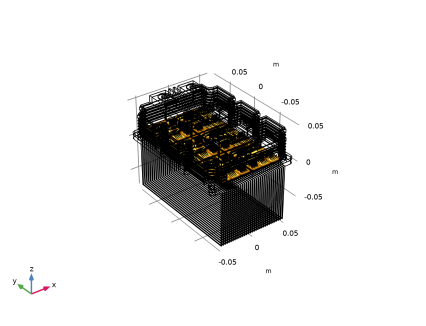
The imported CAD file already contains many selections for this model. These can be found in the Import settings window. Inspect these selections and provide labels for them.
7
Click the  Wireframe Rendering button in the Graphics toolbar.
8
Click to expand the Object Selections section. Select the Show names from file checkbox.
9
Next, do the same for the five boundary selections.
10
Click to expand the Boundary Selections section. Select the Show names from file checkbox.
11
Disable the wireframe to make the assigned colors visible.
12
Click the  Wireframe Rendering button in the Graphics toolbar.
13
In the Model Builder window, click Geometry 1.
IGBT Integration Domain
1
In the Geometry toolbar, click  Extrude.
2
In the Settings window for Extrude, type IGBT Integration Domain in the Label text field.
3
Locate the General section. From the Input faces list, choose IGBT Upper Electrode (Import 1).
4
From the Input object handling list, choose Keep.
5
Locate the Distances section. In the table, enter the following settings:
6
Select the Reverse direction checkbox.
7
Locate the Selections of Resulting Entities section. Select the Resulting objects selection checkbox.
8
Locate the Selections on Input Objects section. Clear the Propagate selections to resulting objects checkbox.
Form Union (fin)
In the Geometry toolbar, click  Build All, this might take a few minutes.
The following instructions show how to create geometry selections for the model. This will simplify the workflow considerably.
Aluminum (Metalization)
1
In the Geometry toolbar, click  Selections and choose Union Selection.
2
In the Settings window for Union Selection, type Aluminum (Metalization) in the Label text field.
3
Locate the Geometric Entity Level section. From the Level list, choose Boundary.
4
Locate the Input Entities section. Click  Add.
5
In the Add dialog, in the Selections to add list, choose IGBT Upper Electrode (Import 1) and Remaining Electrodes (Import 1).
6
Copper
1
In the Geometry toolbar, click  Selections and choose Union Selection.
2
In the Settings window for Union Selection, type Copper in the Label text field.
3
Locate the Input Entities section. Click  Add.
4
In the Add dialog, in the Selections to add list, choose DCB Bottom Cu Layer (Import 1), DCB Upper Cu Layer (Import 1), Collector Busbar (Import 1), Emitter Busbar (Import 1), and Backing Plate (Import 1).
5
Solder (SnAgCu305)
1
In the Geometry toolbar, click  Selections and choose Union Selection.
2
In the Settings window for Union Selection, type Solder (SnAgCu305) in the Label text field.
3
Locate the Input Entities section. Click  Add.
4
In the Add dialog, in the Selections to add list, choose DCB Solder (Import 1), Diode Solder (Import 1), IGBT Solder (Import 1), and Busbar Solder (Import 1).
5
Aluminum
1
In the Geometry toolbar, click  Selections and choose Union Selection.
2
In the Settings window for Union Selection, type Aluminum in the Label text field.
3
Locate the Input Entities section. Click  Add.
4
In the Add dialog, in the Selections to add list, choose Bond Wires (Import 1) and Heat Sink (Import 1).
5
Aluminum (Metalization) (unisel1) — Aluminum (unisel4)
1
In the Model Builder window, under Component 1 (comp1) > Geometry 1, ctrl-click to select all nodes from Aluminum (Metalization) (unisel1) to Aluminum (unisel4).
2
Materials Selections
1
In the Model Builder window, under Component 1 (comp1) > Geometry 1 click Group 1.
2
In the Settings window for Group, type Materials Selections in the Label text field.
3
In the Model Builder window, collapse the Materials Selections node.
Electric Current Domains
1
In the Geometry toolbar, click  Selections and choose Union Selection.
2
In the Settings window for Union Selection, type Electric Current Domains in the Label text field.
3
Locate the Input Entities section. Click  Add.
4
In the Add dialog, in the Selections to add list, choose IGBT Die (Import 1), Diode Die (Import 1), Bond Wires (Import 1), DCB Upper Cu Layer (Import 1), Collector Busbar (Import 1), Emitter Busbar (Import 1), Diode Solder (Import 1), IGBT Solder (Import 1), and Busbar Solder (Import 1).
5
Heat Transfer Domains
1
In the Geometry toolbar, click  Selections and choose Complement Selection.
2
In the Settings window for Complement Selection, type Heat Transfer Domains in the Label text field.
3
Locate the Input Entities section. Click  Add.
4
In the Add dialog, select Plastic Enclosure (Import 1) in the Selections to invert list.
5
Fixed Temperature
1
In the Geometry toolbar, click  Selections and choose Union Selection.
2
In the Settings window for Union Selection, type Fixed Temperature in the Label text field.
3
Locate the Geometric Entity Level section. From the Level list, choose Boundary.
4
Locate the Input Entities section. Click  Add.
5
In the Add dialog, in the Selections to add list, choose Ground (Import 1) and Terminal (Import 1).
6
Electric Current Domains (unisel5) — Fixed Temperature (unisel6)
1
In the Model Builder window, under Component 1 (comp1) > Geometry 1, ctrl-click to select all nodes from Electric Current Domains (unisel5) to Fixed Temperature (unisel6).
2
Physics Selections
1
In the Model Builder window, under Component 1 (comp1) > Geometry 1 click Group 2.
2
In the Settings window for Group, type Physics Selections in the Label text field.
3
In the Model Builder window, collapse the Physics Selections node.
DCB Base Layers
1
In the Geometry toolbar, click  Selections and choose Union Selection.
2
In the Settings window for Union Selection, type DCB Base Layers in the Label text field.
3
Locate the Input Entities section. Click  Add.
4
In the Add dialog, in the Selections to add list, choose DCB Bottom Cu Layer (Import 1), DCB Aluminum Oxide Layer (Import 1), and DCB Solder (Import 1).
5
Busbars
1
In the Geometry toolbar, click  Selections and choose Union Selection.
2
In the Settings window for Union Selection, type Busbars in the Label text field.
3
Locate the Input Entities section. Click  Add.
4
In the Add dialog, in the Selections to add list, choose Collector Busbar (Import 1) and Emitter Busbar (Import 1).
5
IGBT and Diode Solder
1
In the Geometry toolbar, click  Selections and choose Union Selection.
2
In the Settings window for Union Selection, type IGBT and Diode Solder in the Label text field.
3
Locate the Input Entities section. Click  Add.
4
In the Add dialog, in the Selections to add list, choose Diode Solder (Import 1) and IGBT Solder (Import 1).
5
IGBT and Diode Die
1
In the Geometry toolbar, click  Selections and choose Union Selection.
2
In the Settings window for Union Selection, type IGBT and Diode Die in the Label text field.
3
Locate the Input Entities section. Click  Add.
4
In the Add dialog, in the Selections to add list, choose IGBT Die (Import 1) and Diode Die (Import 1).
5
IGBT and Diode Die and Solder
1
In the Geometry toolbar, click  Selections and choose Union Selection.
2
In the Settings window for Union Selection, type IGBT and Diode Die and Solder in the Label text field.
3
Locate the Input Entities section. Click  Add.
4
In the Add dialog, in the Selections to add list, choose IGBT and Diode Solder and IGBT and Diode Die.
5
Busbars and Solder
1
In the Geometry toolbar, click  Selections and choose Union Selection.
2
In the Settings window for Union Selection, type Busbars and Solder in the Label text field.
3
Locate the Input Entities section. Click  Add.
4
In the Add dialog, in the Selections to add list, choose DCB Upper Cu Layer (Import 1), Busbar Solder (Import 1), and Busbars.
5
Swept 2
1
In the Geometry toolbar, click  Selections and choose Union Selection.
2
In the Settings window for Union Selection, type Swept 2 in the Label text field.
3
Locate the Input Entities section. Click  Add.
4
In the Add dialog, in the Selections to add list, choose Thermal Paste (Import 1) and DCB Base Layers.
5
Adjacent Selection 1 (adjsel1)
1
In the Geometry toolbar, click  Selections and choose Adjacent Selection.
2
In the Settings window for Adjacent Selection, locate the Input Entities section.
3
From the Geometric entity level list, choose Boundary.
4
5
In the Add dialog, select Bond Wires (Import 1) in the Input selections list.
6
7
In the Settings window for Adjacent Selection, locate the Resulting Selection section.
8
From the Show in physics list, choose Off.
Adjacent Selection 2 (adjsel2)
1
In the Geometry toolbar, click  Selections and choose Adjacent Selection.
2
In the Settings window for Adjacent Selection, locate the Input Entities section.
3
From the Geometric entity level list, choose Boundary.
4
5
In the Add dialog, select Adjacent Selection 1 in the Input selections list.
6
7
In the Settings window for Adjacent Selection, locate the Resulting Selection section.
8
From the Show in physics list, choose Off.
Adjacent Selection 3 (adjsel3)
1
In the Geometry toolbar, click  Selections and choose Adjacent Selection.
2
In the Settings window for Adjacent Selection, locate the Input Entities section.
3
4
In the Add dialog, select IGBT and Diode Die in the Input selections list.
5
6
In the Settings window for Adjacent Selection, locate the Resulting Selection section.
7
From the Show in physics list, choose Off.
Free Triangular 1
1
In the Geometry toolbar, click  Selections and choose Logical Expression Selection.
2
In the Settings window for Logical Expression Selection, type Free Triangular 1 in the Label text field.
3
Locate the Geometric Entity Level section. From the Level list, choose Boundary.
4
Locate the Expression section. In the Logical expression text area, type adjsel1 || (adjsel2 && adjsel3 && !imp1_Color_4).
5
Click the  Wireframe Rendering button in the Graphics toolbar.
Compare the selection with the figure below.
Boundary Layers 1
1
In the Geometry toolbar, click  Selections and choose Difference Selection.
2
In the Settings window for Difference Selection, type Boundary Layers 1 in the Label text field.
3
Locate the Geometric Entity Level section. From the Level list, choose Boundary.
4
Locate the Input Entities section. Click the  Add button for Selections to add.
5
In the Add dialog, select Free Triangular 1 in the Selections to add list.
6
7
In the Settings window for Difference Selection, locate the Input Entities section.
8
Click the  Add button for Selections to subtract.
9
In the Add dialog, select Adjacent Selection 1 in the Selections to subtract list.
10
Boundary Layer Properties
1
In the Geometry toolbar, click  Selections and choose Adjacent Selection.
2
In the Settings window for Adjacent Selection, type Boundary Layer Properties in the Label text field.
3
Locate the Input Entities section. From the Geometric entity level list, choose Boundary.
4
5
In the Add dialog, select Free Triangular 1 in the Input selections list.
6
7
In the Settings window for Adjacent Selection, locate the Output Entities section.
8
From the Geometric entity level list, choose Adjacent edges.
9
From the Exterior edges list, choose None.
10
Select the Interior edges checkbox.
Free Tetrahedral 3: Size 1
1
In the Geometry toolbar, click  Selections and choose Box Selection.
2
In the Settings window for Box Selection, type Free Tetrahedral 3: Size 1 in the Label text field.
3
Locate the Geometric Entity Level section. From the Level list, choose Boundary.
4
Locate the Box Limits section. In the x minimum text field, type -0.05.
5
In the x maximum text field, type 0.05.
6
In the y minimum text field, type -0.09.
7
In the y maximum text field, type 0.09.
8
In the z minimum text field, type -0.001.
9
In the z maximum text field, type 0.001.
10
Locate the Output Entities section. From the Include entity if list, choose All vertices inside box.
DCB Base Layers (unisel7) — Free Tetrahedral 3: Size 1 (boxsel1)
1
In the Model Builder window, under Component 1 (comp1) > Geometry 1, ctrl-click to select all nodes from DCB Base Layers (unisel7) to Free Tetrahedral 6: Size 2 (boxsel1).
2
Mesh Selections
1
In the Model Builder window, under Component 1 (comp1) > Geometry 1 click Group 3.
2
In the Settings window for Group, type Mesh Selections in the Label text field.
3
In the Model Builder window, collapse the Mesh Selections node.
Set of Dies (Domain)
1
In the Geometry toolbar, click  Selections and choose Box Selection.
2
In the Settings window for Box Selection, type Set of Dies (Domain) in the Label text field.
3
Locate the Box Limits section. In the x minimum text field, type -0.0465.
4
In the x maximum text field, type 0.
5
In the y minimum text field, type -0.085.
6
In the y maximum text field, type -0.06.
7
In the z minimum text field, type 0.009.
8
In the z maximum text field, type 0.02.
9
Locate the Output Entities section. From the Include entity if list, choose All vertices inside box.
Set of Dies (Boundary)
1
In the Geometry toolbar, click  Selections and choose Adjacent Selection.
2
In the Settings window for Adjacent Selection, type Set of Dies (Boundary) in the Label text field.
3
Locate the Input Entities section. Click  Add.
4
In the Add dialog, select Set of Dies (Domain) in the Input selections list.
5
6
In the Settings window for Adjacent Selection, locate the Output Entities section.
7
Select the Interior boundaries checkbox.
Set of Dies (Not Metalization)
1
In the Geometry toolbar, click  Selections and choose Difference Selection.
2
In the Settings window for Difference Selection, type Set of Dies (Not Metalization) in the Label text field.
3
Locate the Geometric Entity Level section. From the Level list, choose Boundary.
4
Locate the Input Entities section. Click the  Add button for Selections to add.
5
In the Add dialog, select Set of Dies (Boundary) in the Selections to add list.
6
7
In the Settings window for Difference Selection, locate the Input Entities section.
8
Click the  Add button for Selections to subtract.
9
In the Add dialog, select Aluminum (Metalization) in the Selections to subtract list.
10
Set of Dies (Metalization)
1
In the Geometry toolbar, click  Selections and choose Intersection Selection.
2
In the Settings window for Intersection Selection, type Set of Dies (Metalization) in the Label text field.
3
Locate the Geometric Entity Level section. From the Level list, choose Boundary.
4
Locate the Input Entities section. Click  Add.
5
In the Add dialog, in the Selections to intersect list, choose Aluminum (Metalization) and Set of Dies (Boundary).
6
Module Section (Domain)
1
In the Geometry toolbar, click  Selections and choose Box Selection.
2
In the Settings window for Box Selection, type Module Section (Domain) in the Label text field.
3
Locate the Box Limits section. In the x minimum text field, type -0.0465.
4
In the x maximum text field, type 0.
5
In the y minimum text field, type -0.085.
6
In the y maximum text field, type -0.0275.
7
In the z minimum text field, type 0.009.
8
In the z maximum text field, type 0.02.
9
Locate the Output Entities section. From the Include entity if list, choose All vertices inside box.
Module Section (Boundary)
1
In the Geometry toolbar, click  Selections and choose Adjacent Selection.
2
In the Settings window for Adjacent Selection, type Module Section (Boundary) in the Label text field.
3
Locate the Input Entities section. Click  Add.
4
In the Add dialog, select Module Section (Domain) in the Input selections list.
5
6
In the Settings window for Adjacent Selection, locate the Output Entities section.
7
Select the Interior boundaries checkbox.
Module Section (Not Metalization)
1
In the Geometry toolbar, click  Selections and choose Difference Selection.
2
In the Settings window for Difference Selection, type Module Section (Not Metalization) in the Label text field.
3
Locate the Geometric Entity Level section. From the Level list, choose Boundary.
4
Locate the Input Entities section. Click the  Add button for Selections to add.
5
In the Add dialog, select Module Section (Boundary) in the Selections to add list.
6
7
In the Settings window for Difference Selection, locate the Input Entities section.
8
Click the  Add button for Selections to subtract.
9
In the Add dialog, select Aluminum (Metalization) in the Selections to subtract list.
10
Module Section (Metalization)
1
In the Geometry toolbar, click  Selections and choose Intersection Selection.
2
In the Settings window for Intersection Selection, type Module Section (Metalization) in the Label text field.
3
Locate the Geometric Entity Level section. From the Level list, choose Boundary.
4
Locate the Input Entities section. Click  Add.
5
In the Add dialog, in the Selections to intersect list, choose Aluminum (Metalization) and Module Section (Boundary).
6
All Domains (Not EC)
1
In the Geometry toolbar, click  Selections and choose Difference Selection.
2
In the Settings window for Difference Selection, type All Domains (Not EC) in the Label text field.
3
Locate the Input Entities section. Click the  Add button for Selections to add.
4
In the Add dialog, select Heat Transfer Domains in the Selections to add list.
5
6
In the Settings window for Difference Selection, locate the Input Entities section.
7
Click the  Add button for Selections to subtract.
8
In the Add dialog, select Electric Current Domains in the Selections to subtract list.
9
All Domains (EC, Boundary)
1
In the Geometry toolbar, click  Selections and choose Adjacent Selection.
2
In the Settings window for Adjacent Selection, type All Domains (EC, Boundary) in the Label text field.
3
Locate the Input Entities section. Click  Add.
4
In the Add dialog, select Electric Current Domains in the Input selections list.
5
All Domains (EC, Not Metalization)
1
In the Geometry toolbar, click  Selections and choose Difference Selection.
2
In the Settings window for Difference Selection, type All Domains (EC, Not Metalization) in the Label text field.
3
Locate the Geometric Entity Level section. From the Level list, choose Boundary.
4
Locate the Input Entities section. Click the  Add button for Selections to add.
5
In the Add dialog, select All Domains (EC, Boundary) in the Selections to add list.
6
7
In the Settings window for Difference Selection, locate the Input Entities section.
8
Click the  Add button for Selections to subtract.
9
In the Add dialog, select Aluminum (Metalization) in the Selections to subtract list.
10
All Domains (EC, Metalization)
1
In the Geometry toolbar, click  Selections and choose Intersection Selection.
2
In the Settings window for Intersection Selection, type All Domains (EC, Metalization) in the Label text field.
3
Locate the Geometric Entity Level section. From the Level list, choose Boundary.
4
Locate the Input Entities section. Click  Add.
5
In the Add dialog, in the Selections to intersect list, choose Aluminum (Metalization) and All Domains (EC, Boundary).
6
Set of Dies (Domain) (boxsel2) — All Domains (EC, Metalization) (intsel3)
1
In the Model Builder window, under Component 1 (comp1) > Geometry 1, ctrl-click to select all nodes from Set of Dies (Domain) (boxsel2) to All Domains (EC, Metalization) (intsel3).
2
Results Selections
1
In the Model Builder window, under Component 1 (comp1) > Geometry 1 click Group 4.
2
In the Settings window for Group, type Results Selections in the Label text field.
Geometry 1
1
In the Model Builder window, collapse the Component 1 (comp1) > Geometry 1 > Results Selections node.
With this step, all selections are now in order. Continue by removing unnecessary details and hiding the plastic container to get a better view of the geometry.
Remove Details 1 (rmd1)
1
In the Geometry toolbar, click  Virtual Operations and choose Remove Details.
2
In the Settings window for Remove Details, locate the Entities to Process section.
3
From the Entities list, choose Selection.
4
From the Selection list, choose Bond Wires (Import 1).
5
Locate the Details to Remove section. Clear the Vertices with continuous tangent checkbox.
6
Clear the Short edges checkbox.
7
Clear the Small faces checkbox.
8
Clear the Sliver faces checkbox.
9
Clear the Thin domains checkbox.
10
Locate the Parameters section. From the Detail size list, choose Absolute.
11
In the Maximum absolute size text field, type 1.70005E-5.
12
Click  Build Selected.
Definitions
View 1
In the Model Builder window, expand the Component 1 (comp1) > Definitions node, then click View 1.
Hide for Geometry 1
1
In the View 1 toolbar, click  Hide.
2
In the Settings window for Hide for Geometry, locate the Selection section.
3
From the Geometric entity level list, choose Domain.
4
From the Selection list, choose Plastic Enclosure (Import 1).
Materials
Next, assign materials to the different selections. The material properties will be defined later after having set up the physics.
Solder (SnAgCu305)
1
In the Model Builder window, under Component 1 (comp1) right-click Materials and choose Blank Material.
2
In the Settings window for Material, type Solder (SnAgCu305) in the Label text field.
3
Locate the Geometric Entity Selection section. From the Selection list, choose Solder (SnAgCu305).
Copper (Internal)
1
Right-click Materials and choose Blank Material.
2
In the Settings window for Material, type Copper (Internal) in the Label text field.
3
Locate the Geometric Entity Selection section. From the Selection list, choose Copper.
Aluminium (Metalization)
1
Right-click Materials and choose Blank Material.
2
In the Settings window for Material, type Aluminium (Metalization) in the Label text field.
3
Locate the Geometric Entity Selection section. From the Geometric entity level list, choose Boundary.
4
From the Selection list, choose Aluminum (Metalization).
Diode (Closed)
1
Right-click Materials and choose Blank Material.
2
In the Settings window for Material, type Diode (Closed) in the Label text field.
3
Locate the Geometric Entity Selection section. From the Selection list, choose Diode Die (Import 1).
IGBT (Open)
1
Right-click Materials and choose Blank Material.
2
In the Settings window for Material, type IGBT (Open) in the Label text field.
3
Locate the Geometric Entity Selection section. From the Selection list, choose IGBT Die (Import 1).
Aluminum
1
Right-click Materials and choose Blank Material.
2
In the Settings window for Material, type Aluminum in the Label text field.
3
Locate the Geometric Entity Selection section. From the Selection list, choose Aluminum.
Aluminum Oxide
1
Right-click Materials and choose Blank Material.
2
In the Settings window for Material, type Aluminum Oxide in the Label text field.
3
Locate the Geometric Entity Selection section. From the Selection list, choose DCB Aluminum Oxide Layer (Import 1).
Thermal Paste
1
Right-click Materials and choose Blank Material.
2
In the Settings window for Material, type Thermal Paste in the Label text field.
3
Locate the Geometric Entity Selection section. From the Selection list, choose Thermal Paste (Import 1).
Mesh 1
Next, create the mesh. It needs to take into consideration the large variation between different scales of the model and what domains are of interest.
1
In the Model Builder window, under Component 1 (comp1) click Mesh 1.
2
In the Settings window for Mesh, locate the Sequence Type section.
3
From the list, choose User-controlled mesh.
Size
1
In the Model Builder window, under Component 1 (comp1) > Mesh 1 click Size.
2
In the Settings window for Size, locate the Element Size Parameters section.
3
In the Minimum element size text field, type 0.1288[mm].
Size 1
In the Model Builder window, right-click Size 1 and choose Delete.
Free Tetrahedral 1
1
In the Settings window for Free Tetrahedral, locate the Domain Selection section.
2
From the Geometric entity level list, choose Domain.
3
From the Selection list, choose Bond Wires (Import 1).
Size 1
1
Right-click Free Tetrahedral 1 and choose Size.
2
In the Settings window for Size, locate the Element Size section.
3
Click the Custom button.
4
Locate the Element Size Parameters section.
5
Select the Minimum element size checkbox. In the associated text field, type 0.009[mm].
Free Triangular 1
1
In the Mesh toolbar, click  More Generators and choose Free Triangular.
2
In the Settings window for Free Triangular, locate the Boundary Selection section.
3
From the Selection list, choose Free Triangular 1.
Size 1
1
Right-click Free Triangular 1 and choose Size.
2
In the Settings window for Size, locate the Element Size section.
3
Click the Custom button.
4
Locate the Element Size Parameters section.
5
Select the Maximum element size checkbox. In the associated text field, type 1[mm].
6
Select the Maximum element growth rate checkbox. In the associated text field, type 1.15.
Boundary Layers 1
1
In the Mesh toolbar, click  Boundary Layers.
2
In the Settings window for Boundary Layers, locate the Geometric Entity Selection section.
3
From the Geometric entity level list, choose Boundary.
4
From the Selection list, choose Boundary Layers 1.
Boundary Layer Properties
1
In the Model Builder window, click Boundary Layer Properties.
2
In the Settings window for Boundary Layer Properties, locate the Edge Selection section.
3
From the Selection list, choose Boundary Layer Properties.
4
Locate the Layers section. In the Number of layers text field, type 3.
5
From the Thickness specification list, choose First layer.
6
In the Thickness text field, type 0.05[mm].
Swept 1
1
In the Mesh toolbar, click  Swept.
2
In the Settings window for Swept, locate the Domain Selection section.
3
From the Geometric entity level list, choose Domain.
4
From the Selection list, choose IGBT and Diode Die and Solder.
5
Locate the Mesh Generation section. From the Elements list, choose Prisms.
Distribution 1
1
In the Mesh toolbar, click  Distribution.
2
In the Settings window for Distribution, locate the Distribution section.
3
From the Distribution type list, choose Predefined.
4
In the Number of elements text field, type 3.
5
In the Element ratio text field, type 3.
Distribution 2
1
In the Mesh toolbar, click  Distribution.
2
In the Settings window for Distribution, locate the Domain Selection section.
3
From the Selection list, choose IGBT and Diode Solder.
4
Locate the Distribution section. In the Number of elements text field, type 2.
Free Tetrahedral 2
1
In the Mesh toolbar, click  Free Tetrahedral.
2
In the Settings window for Free Tetrahedral, locate the Domain Selection section.
3
From the Geometric entity level list, choose Domain.
4
From the Selection list, choose Busbars and Solder.
Size 1
1
Right-click Free Tetrahedral 2 and choose Size.
2
In the Settings window for Size, locate the Geometric Entity Selection section.
3
From the Selection list, choose Busbars.
4
Locate the Element Size section. Click the Custom button.
5
Locate the Element Size Parameters section.
6
Select the Maximum element size checkbox. In the associated text field, type 1[mm].
Size 2
1
In the Model Builder window, right-click Free Tetrahedral 2 and choose Size.
2
In the Settings window for Size, locate the Geometric Entity Selection section.
3
From the Selection list, choose Busbar Solder (Import 1).
4
Locate the Element Size section. Click the Custom button.
5
Locate the Element Size Parameters section.
6
Select the Maximum element growth rate checkbox. In the associated text field, type 2.
7
Select the Curvature factor checkbox. In the associated text field, type 0.8.
Swept 2
1
In the Mesh toolbar, click  Swept.
2
In the Settings window for Swept, locate the Domain Selection section.
3
From the Geometric entity level list, choose Domain.
4
From the Selection list, choose Swept 2.
5
Locate the Mesh Generation section. From the Elements list, choose Prisms.
Size 1
1
Right-click Swept 2 and choose Size.
2
In the Settings window for Size, locate the Geometric Entity Selection section.
3
From the Selection list, choose DCB Base Layers.
4
Locate the Element Size section. Click the Custom button.
5
Locate the Element Size Parameters section.
6
Select the Maximum element size checkbox. In the associated text field, type 1[mm].
7
Select the Minimum element size checkbox. In the associated text field, type 0.4[mm].
Size 2
1
In the Model Builder window, right-click Swept 2 and choose Size.
2
In the Settings window for Size, locate the Element Size section.
3
Click the Custom button.
4
Locate the Element Size Parameters section.
5
Select the Maximum element size checkbox. In the associated text field, type 3[mm].
6
Locate the Geometric Entity Selection section. From the Selection list, choose Thermal Paste (Import 1).
Distribution 1
1
In the Mesh toolbar, click  Distribution.
2
In the Settings window for Distribution, locate the Domain Selection section.
3
From the Selection list, choose DCB Base Layers.
4
Locate the Distribution section. In the Number of elements text field, type 3.
Free Tetrahedral 3
In the Mesh toolbar, click  Free Tetrahedral.
Size 1
1
Right-click Free Tetrahedral 3 and choose Size.
2
In the Settings window for Size, locate the Geometric Entity Selection section.
3
From the Geometric entity level list, choose Boundary.
4
From the Selection list, choose Free Tetrahedral 3: Size 1.
5
Locate the Element Size section. Click the Custom button.
6
Locate the Element Size Parameters section.
7
Select the Minimum element size checkbox. In the associated text field, type 0.5[mm].
8
Select the Curvature factor checkbox. In the associated text field, type 0.1.
Size 2
1
In the Model Builder window, right-click Free Tetrahedral 3 and choose Size.
2
In the Settings window for Size, locate the Geometric Entity Selection section.
3
From the Geometric entity level list, choose Domain.
4
From the Selection list, choose Heat Sink (Import 1).
5
Locate the Element Size section. From the Predefined list, choose Coarser.
6
In the Model Builder window, right-click Mesh 1 and choose Build All, this might take a few minutes.
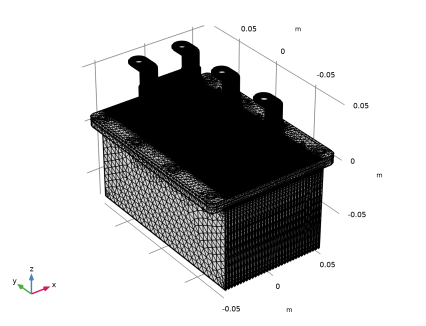
You have now finished building the geometry and generating the mesh. Continue to Modeling Instructions to set up the physics and run the study.
 

1
Note that other effects include thermal ratcheting, creep, delamination, cracking, electromigration.