PDF

Position Optimization of Grading Rings
Introduction
This model extends the model High Voltage Insulator in the AC/DC Module Application Library by adding an Optimization study node. The Optimization study is aimed at finding the optimum position of the grading rings to obtain the highest flashover voltage.
Model Definition
In this model, a boundary probe defining the maximum value of the vertical component of the tangential electric field of the high voltage insulator is first created. The boundary probe is then set as the Objective Function. The control variables are the diameter of the grading ring and the distance from the end.
Results and Discussion
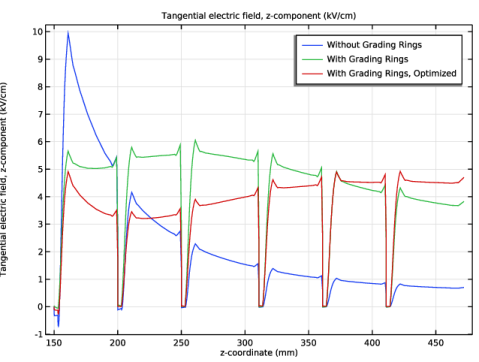
Figure 1 compares the vertical component of the tangential electric field along the first six sheds from the line end under different conditions. It is shown that the maximum of the tangential electric field is further reduced with the use of the Optimization study.
Figure 1: Comparison of the z-component of the tangential electric field along the surface of the first six sheds from the line end in different cases.
Application Library path: ACDC_Module/Electromagnetics_and_Optimization/grading_ring_optimization
Modeling Instructions
Root
In this model version you determine the optimum position of the grading rings by using an Optimization study node.
Application Libraries
1
From the File menu, choose Application Libraries.
2
In the Application Libraries window, select ACDC Module > Devices, Capacitive > high_voltage_insulator in the tree.
3
Add Study
1
In the Home toolbar, click  Add Study to open the Add Study window.
2
Go to the Add Study window.
3
Find the Studies subsection. In the Select Study tree, select General Studies > Stationary.
4
Click the Add Study button in the window toolbar.
5
In the Home toolbar, click  Add Study to close the Add Study window.
Study 3
Parameter Optimization
In the Study toolbar, click  Optimization and choose Parameter Optimization.
Component 1 (comp1)
In the Model Builder window, expand the Component 1 (comp1) node.
Definitions
Boundary Probe 1 (bnd1)
1
In the Model Builder window, expand the Component 1 (comp1) > Definitions node.
2
Right-click Definitions and choose Probes > Boundary Probe.
3
In the Settings window for Boundary Probe, locate the Probe Type section.
4
From the Type list, choose Maximum.
5
Locate the Source Selection section. From the Selection list, choose Shed Surface.
6
Locate the Expression section. In the Expression text field, type es.tEz.
7
In the Table and plot unit field, type kV/cm.
Study 3
Parameter Optimization
1
In the Model Builder window, under Study 3 click Parameter Optimization.
2
In the Settings window for Parameter Optimization, locate the Optimization Solver section.
3
From the Method list, choose Nelder–Mead.
4
Click Add Expression in the upper-right corner of the Objective Function section. From the menu, choose Component 1 (comp1) > Definitions > comp1.bnd1 - Boundary Probe 1 - V/m.
5
Locate the Control Parameters section. Click  Add twice.
6
7
In the Study toolbar, click  Compute.
Objective Table 3
1
Go to the Objective Table 3 window.
2
Click the Display Probe Table 1 button in the window toolbar.
Results
With Grading Rings, Optimized
1
In the Model Builder window, expand the Results > Tangential Electric Field, z-Component node.
2
Right-click With Grading Rings and choose Duplicate.
3
In the Settings window for Line Graph, type With Grading Rings, Optimized in the Label text field.
4
Locate the Data section. From the Dataset list, choose Study 3/Parametric Solutions 1 (sol4).
5
From the Parameter selection (D, d) list, choose From list.
6
Locate the Selection section. From the Selection list, choose Shed Surface.
7
In the Tangential Electric Field, z-Component toolbar, click  Plot.
Tangential Electric Field, z-Component
1
In the Model Builder window, click Tangential Electric Field, z-Component.
2
3
Click the  Zoom Extents button in the Graphics toolbar.