PDF

Magnet Falling Through Copper Tube
Introduction
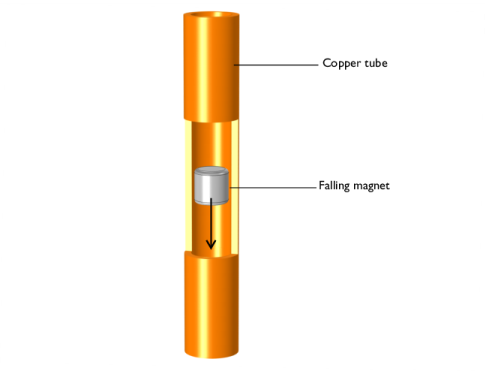
This application illustrates the phenomenon of eddy current braking. A cylindrical magnet falling through a copper tube induces eddy currents on the tube walls. The eddy currents, in turn, create a magnetic field that opposes the magnetic field of the magnet and induces a braking force that opposes the motion of the magnet. This opposing force increases with increasing velocity. Thus, there is a terminal velocity at which the magnetic braking force equals the force of gravity. The model computes the velocity of the magnet after it is dropped as it reaches its terminal velocity.
Figure 1: Model illustration of the magnet falling through the copper tube.
Model Definition
Set up the problem in a 2D axisymmetric modeling space. Solve the problem in a moving reference frame, where the origin moves with the magnet. Include the velocity of the magnet inside the copper cylinder as a Lorentz term in Ampère’s law. The use of the Lorentz term to include the motion is a valid approach in situations when the moving domains do not contain magnetic sources such as currents or magnetization (fixed or induced) that move along with the material, and when the moving domains are invariant in the direction of motion. A falling magnet in an infinitely long tube is therefore a good example of the correct use of Lorentz terms provided that the model is in a frame where the magnet is fixed and the pipe is moving.
Neglecting the aerodynamic drag force on the magnet and the eddy currents inside the magnet, the equation of motion for the magnet becomes
(1)
where v is the magnet velocity, Fg is the force due to gravity on the magnet, m is the magnet mass, and Fz is the magnetic force.
Results and Discussion
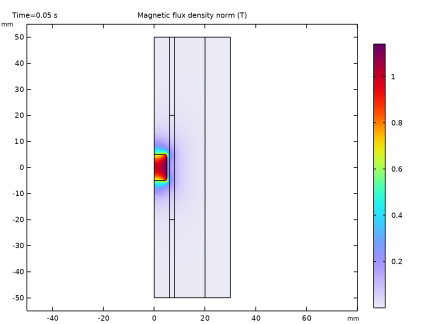
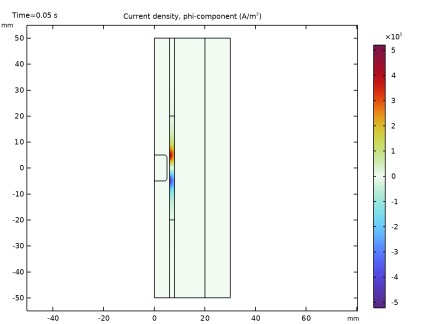
In this application, a time-domain study is performed to investigate the eddy current effect on the falling magnet through a copper tube. Figure 2 and Figure 3 display a surface plot of the magnetic flux density norm and the current density norm at t = 50 ms, respectively.
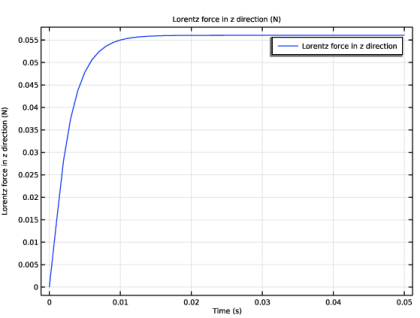
Figure 4 illustrates the braking force produced by the eddy currents on the copper tube as a function of time. The force is calculated by the volume integration of the Lorentz force in the copper tube. The force is acting upward on the magnet.
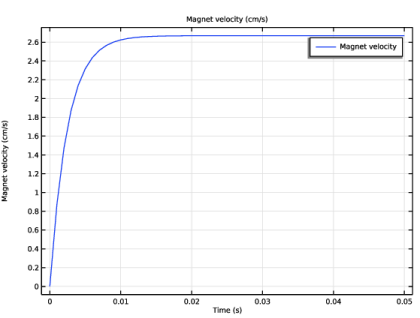
Figure 5 shows the velocity of the magnet as a function of time. It shows that the magnet is falling at a constant velocity of about 2.6 cm/s after t = 20 ms.
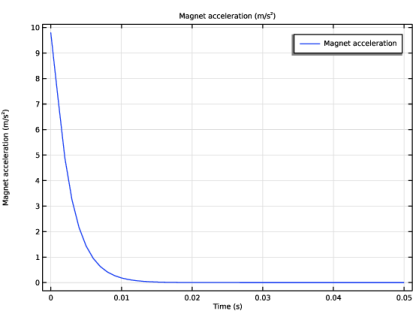
Finally, Figure 6 displays the acceleration of the magnet as a function of time. In this figure, the magnet is initially at the acceleration equal to the acceleration due to gravity 9.81 m/s2. The acceleration decreases and becomes zero after 20 ms which corresponds to a constant velocity as shown in Figure 5.
Figure 2: Magnetic flux density norm at t = 50ms.
Figure 3: Current density norm at t = 50 ms.
Figure 4: Total force acting on the magnet versus time. The positive force indicates that the force is acting upward on the magnet.
Figure 5: Terminal velocity of the falling magnet versus time.
Figure 6: Acceleration of the falling magnet versus time.
Notes About the COMSOL Implementation
Use the Magnetic Fields interface to model the magnetic field, including a Velocity (Lorentz Term) in the copper tube domain. Calculate the Lorentz force as a volume integral over the copper tube. Furthermore, use an Infinite Element Domain feature to model the region of free space surrounding the copper tube, and implement the equation of motion for the falling magnet using a Global ODEs and DAEs interface. Solve the model using two study steps. First, a Stationary study step computes the vector potential field inside and around the stationary permanent magnet. Then, using this stationary solution as an initial condition, a Time Dependent study step determines the terminal velocity and acceleration of the falling magnet.
Application Library path: ACDC_Module/Devices,_Transducers_and_Actuators/falling_magnet
Modeling Instructions
From the File menu, choose New.
New
In the New window, click  Model Wizard.
Model Wizard
1
In the Model Wizard window, click  2D Axisymmetric.
2
In the Select Physics tree, select AC/DC > Electromagnetic Fields > Magnetic Fields (mf).
3
Click Add.
4
In the Select Physics tree, select Mathematics > ODE and DAE Interfaces > Global ODEs and DAEs (ge).
5
Click Add.
6
Click  Study.
7
In the Select Study tree, select General Studies > Stationary.
8
Global Definitions
Define all the required parameters.
Parameters 1
1
In the Model Builder window, under Global Definitions click Parameters 1.
2
In the Settings window for Parameters, locate the Parameters section.
3
Geometry 1
1
In the Model Builder window, under Component 1 (comp1) click Geometry 1.
2
In the Settings window for Geometry, locate the Units section.
3
From the Length unit list, choose mm.
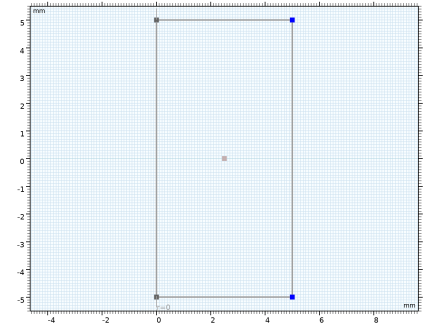
Use the following instructions to construct the model geometry. First, create the magnet.
Rectangle 1 (r1)
1
In the Geometry toolbar, click  Rectangle.
2
In the Settings window for Rectangle, locate the Size and Shape section.
3
In the Width text field, type mr.
4
In the Height text field, type mh.
5
Locate the Position section. In the z text field, type -mh/2.
6
Click  Build Selected.
Fillet 1 (fil1)
1
In the Geometry toolbar, click  Fillet.
2
On the object r1, select Points 2 and 3 only.
3
In the Settings window for Fillet, locate the Radius section.
4
In the Radius text field, type 1.
5
Click  Build Selected.
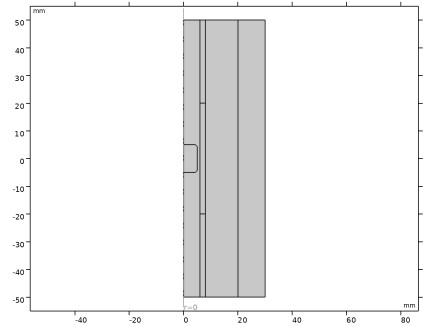
Create the geometry of the copper tube.
Rectangle 2 (r2)
1
In the Geometry toolbar, click  Rectangle.
2
In the Settings window for Rectangle, locate the Size and Shape section.
3
In the Width text field, type r_o-r_i.
4
In the Height text field, type 100.
5
Locate the Position section. In the r text field, type r_i.
6
In the z text field, type -50.
7
Click  Build Selected.
8
Click the  Zoom Extents button in the Graphics toolbar.
Rectangle 3 (r3)
1
In the Geometry toolbar, click  Rectangle.
2
In the Settings window for Rectangle, locate the Size and Shape section.
3
In the Width text field, type r_o-r_i.
4
In the Height text field, type 40.
5
Locate the Position section. In the r text field, type r_i.
6
In the z text field, type -20.
7
Click  Build Selected.
Finish the geometry by creating the outer boundary.
Rectangle 4 (r4)
1
In the Geometry toolbar, click  Rectangle.
2
In the Settings window for Rectangle, locate the Size and Shape section.
3
In the Width text field, type 30.
4
In the Height text field, type 100.
5
Locate the Position section. In the z text field, type -50.
6
Click to expand the Layers section. Select the Layers to the right checkbox.
7
Clear the Layers on bottom checkbox.
8
9
Click  Build Selected.
Form Union (fin)
1
In the Model Builder window, click Form Union (fin).
2
In the Settings window for Form Union/Assembly, click  Build Selected.
Definitions
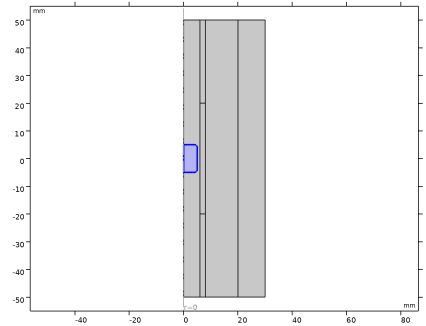
Define domain selections for the magnet and the copper tube before setting up the physics. First, create a selection for the magnet domain.
Magnet
1
In the Definitions toolbar, click  Explicit.
2
3
In the Settings window for Explicit, type Magnet in the Label text field.
Add a selection for the copper tube domain.
Copper Tube
1
In the Definitions toolbar, click  Explicit.
2
3
In the Settings window for Explicit, type Copper Tube in the Label text field.
Define an integration variable for the magnet domain.
Integration over Magnet
1
In the Definitions toolbar, click  Nonlocal Couplings and choose Integration.
2
In the Settings window for Integration, type intmag in the Operator name text field.
3
Locate the Source Selection section. From the Selection list, choose Magnet.
4
Locate the Advanced section. Clear the Compute integral in revolved geometry checkbox.
5
In the Label text field, type Integration over Magnet.
Add variables for the mass and the gravitational force of the magnet.
Variables 1
1
In the Definitions toolbar, click  Local Variables.
2
In the Settings window for Variables, locate the Variables section.
3
Here, g_const is a predefined constant for the acceleration of gravity near the surface of the Earth.
Add a nonlocal integration coupling to integrate on the tube domain.
Integration over Tube
1
In the Definitions toolbar, click  Nonlocal Couplings and choose Integration.
2
In the Settings window for Integration, type inttube in the Operator name text field.
3
Locate the Source Selection section. From the Selection list, choose Copper Tube.
4
Locate the Advanced section. Clear the Compute integral in revolved geometry checkbox.
5
In the Label text field, type Integration over Tube.
Define a variable for the Lorentz force and acceleration of the magnet.
Variables 2
1
In the Definitions toolbar, click  Local Variables.
2
In the Settings window for Variables, locate the Variables section.
3
Here, the mf. prefix identifies variables defined by the Magnetic Fields interface.
Infinite Element Domain 1 (ie1)
1
In the Definitions toolbar, click  Infinite Element Domain.
2
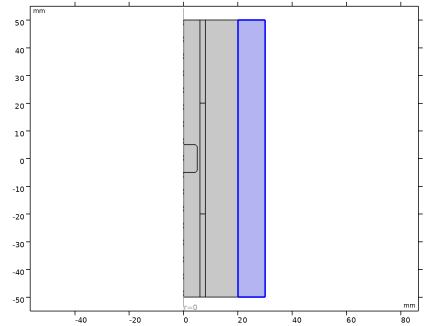
3
In the Settings window for Infinite Element Domain, locate the Geometry section.
4
From the Type list, choose Cylindrical.
Global ODEs and DAEs (ge)
Global Equations 1 (ODE1)
Implement the differential equation for the velocity of the magnet (Equation 1) as a global equation.
1
In the Model Builder window, under Component 1 (comp1) > Global ODEs and DAEs (ge) click Global Equations 1 (ODE1).
2
In the Settings window for Global Equations, locate the Global Equations section.
3
4
Locate the Units section. Click  Select Dependent Variable Quantity.
5
In the Physical Quantity dialog, type velocity in the text field.
6
In the tree, select General > Velocity (m/s).
7
8
In the Settings window for Global Equations, locate the Units section.
9
Click  Select Source Term Quantity.
10
In the Physical Quantity dialog, type acceleration in the text field.
11
In the tree, select General > Acceleration (m/s^2).
12
Magnetic Fields (mf)
Now, set up the physics for the magnetic field. Apply Ampère’s Law in the magnet and copper tube.
1
In the Model Builder window, under Component 1 (comp1) click Magnetic Fields (mf).
Ampère’s Law - Magnet
1
In the Physics toolbar, click  Domains and choose Ampère’s Law in Solids.
2
In the Settings window for Ampère’s Law in Solids, type Ampère's Law - Magnet in the Label text field.
3
Locate the Domain Selection section. From the Selection list, choose Magnet.
4
Locate the Constitutive Relation B-H section. From the Magnetization model list, choose Remanent flux density.
5
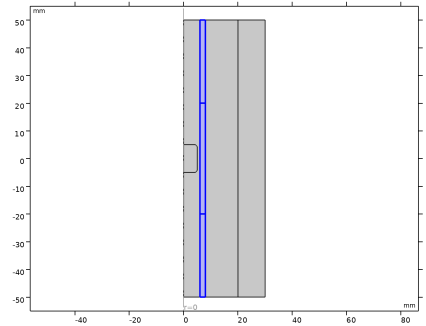
Specify the e vector as
Ampère’s Law - Copper Tube
1
In the Physics toolbar, click  Domains and choose Ampère’s Law in Solids.
2
In the Settings window for Ampère’s Law in Solids, type Ampère's Law - Copper Tube in the Label text field.
3
Locate the Domain Selection section. From the Selection list, choose Copper Tube.
Specify the velocity for the copper tube domain using a Lorentz term.
Velocity (Lorentz Term) 1
1
In the Physics toolbar, click  Domains and choose Velocity (Lorentz Term).
2
In the Settings window for Velocity (Lorentz Term), locate the Domain Selection section.
3
From the Selection list, choose Copper Tube.
4
Locate the Velocity (Lorentz Term) section. Specify the v vector as
Perfect Magnetic Conductor 1
1
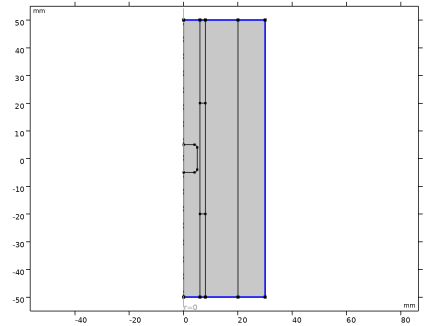
In the Physics toolbar, click  Boundaries and choose Perfect Magnetic Conductor.
2
Materials
Next, set the materials for the magnet and the copper tube.
Add Material
1
In the Materials toolbar, click  Add Material to open the Add Material window.
2
Go to the Add Material window.
3
In the tree, select AC/DC > Copper.
4
Right-click and choose Add to Component 1 (comp1).
5
In the tree, select AC/DC > Hard Magnetic Materials > Sintered NdFeB Grades (Chinese Standard) > N50 (Sintered NdFeB).
6
Right-click and choose Add to Component 1 (comp1).
7
In the Materials toolbar, click  Add Material to close the Add Material window.
Materials
Copper (mat1)
1
In the Settings window for Material, locate the Geometric Entity Selection section.
2
From the Selection list, choose Copper Tube.
N50 (Sintered NdFeB) (mat2)
1
In the Model Builder window, click N50 (Sintered NdFeB) (mat2).
2
In the Settings window for Material, locate the Geometric Entity Selection section.
3
From the Selection list, choose Magnet.
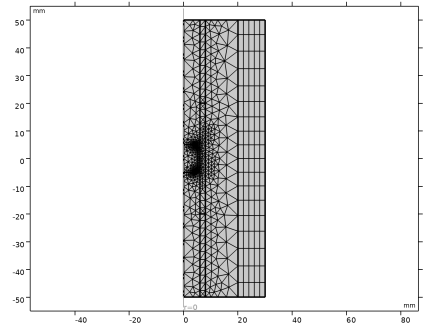
Let Physics-Controlled Mesh generate a proper mesh which should look like the figure below.
Mesh 1
In the Model Builder window, under Component 1 (comp1) right-click Mesh 1 and choose Build All.
Study 1
First, set up the Stationary step that computes the vector potential field before the permanent magnet is dropped.
1
In the Model Builder window, click Study 1.
2
In the Settings window for Study, locate the Study Settings section.
3
Clear the Generate default plots checkbox.
Step 1: Stationary
1
In the Model Builder window, under Study 1 click Step 1: Stationary.
2
In the Settings window for Stationary, locate the Physics and Variables Selection section.
3
In the Solve for column of the table, under Component 1 (comp1), clear the checkbox for Global ODEs and DAEs (ge).
Now, add a Time Dependent study step and solve the problem in time domain from 0 to 50 milliseconds. The Time Dependent study will automatically use the stationary solution as the initial condition for the vector potential.
Step 2: Time Dependent
1
In the Study toolbar, click  Time Dependent.
2
In the Settings window for Time Dependent, locate the Study Settings section.
3
In the Output times text field, type range(0,0.001,0.05).
4
From the Tolerance list, choose User controlled.
5
In the Relative tolerance text field, type 0.001.
6
In the Study toolbar, click  Compute.
Results
Use the following steps to generate a plot of the magnetic flux density norm as shown in Figure 2.
Magnetic Flux Density
1
In the Results toolbar, click  2D Plot Group.
2
In the Settings window for 2D Plot Group, type Magnetic Flux Density in the Label text field.
Surface 1
1
Right-click Magnetic Flux Density and choose Surface.
2
In the Settings window for Surface, locate the Coloring and Style section.
3
From the Color table list, choose Prism.
4
In the Magnetic Flux Density toolbar, click  Plot.
Follow the steps below to reproduce the current density norm plot shown in Figure 3.
Current Density
1
In the Results toolbar, click  2D Plot Group.
2
In the Settings window for 2D Plot Group, type Current Density in the Label text field.
Surface 1
1
Right-click Current Density and choose Surface.
2
In the Settings window for Surface, click Replace Expression in the upper-right corner of the Expression section. From the menu, choose Component 1 (comp1) > Magnetic Fields > Currents and charge > Current density - A/m² > mf.Jphi - Current density, phi-component.
3
Locate the Coloring and Style section. From the Color table list, choose Dipole.
4
In the Current Density toolbar, click  Plot.
Next, plot the z-component of the Lorentz force on the magnet.
Lorentz Force, Fz
1
In the Results toolbar, click  1D Plot Group.
2
In the Settings window for 1D Plot Group, type Lorentz Force, Fz in the Label text field.
Global 1
1
Right-click Lorentz Force, Fz and choose Global.
2
In the Settings window for Global, click Replace Expression in the upper-right corner of the y-Axis Data section. From the menu, choose Component 1 (comp1) > Definitions > Variables > Fz - Lorentz force in z direction - N.
3
In the Lorentz Force, Fz toolbar, click  Plot.
Compare the resulting plot with Figure 4.
4
Plot the terminal velocity of the magnet using the following instructions. The plot is as shown in Figure 5.
Terminal Velocity
1
In the Results toolbar, click  1D Plot Group.
2
In the Settings window for 1D Plot Group, type Terminal Velocity in the Label text field.
Global 1
1
Right-click Terminal Velocity and choose Global.
2
In the Settings window for Global, locate the y-Axis Data section.
3
4
In the Terminal Velocity toolbar, click  Plot.
Finally, plot the acceleration of the magnet. The plot is as shown in Figure 6.
Magnet acceleration
1
In the Results toolbar, click  1D Plot Group.
2
In the Settings window for 1D Plot Group, type Magnet acceleration in the Label text field.
Global 1
1
Right-click Magnet acceleration and choose Global.
2
In the Settings window for Global, click Replace Expression in the upper-right corner of the y-Axis Data section. From the menu, choose Component 1 (comp1) > Definitions > Variables > a - Magnet acceleration - m/s².
3
In the Magnet acceleration toolbar, click  Plot.