PDF

E-Core Transformer
Introduction
Transformers are electrical components that are used for power transmission. Most transformers work on the principle of electromagnetic induction. A typical transformer consists of a primary coil, a secondary coil, and a ferromagnetic core. The primary coil receives the AC electrical input signal. As a result of mutual induction, an induced voltage is obtained across the secondary coil. The ferromagnetic core serves the purpose of a magnetic flux concentrator thereby minimizing losses due to flux leakage.
Commercial transformers use several types of cores, which are named based on their geometric shapes, for example, I-core, U-core, E-core, pot core, toroidal, and planar. This application uses a pair of E-cores for magnetic flux concentration.
This example demonstrates how to perform transient simulations of a single-phase E-core transformer. Including the effect of a nonlinear B-H curve in the soft-iron core, the model computes the spatial distribution of the magnetic and electric fields, the magnetic saturation effect, the transient response, and the flux leakage to the surroundings. Two different versions of the transformer are simulated: the first one with a turn ratio of unity and the second one with a turn ratio of 1000.
Model Definition
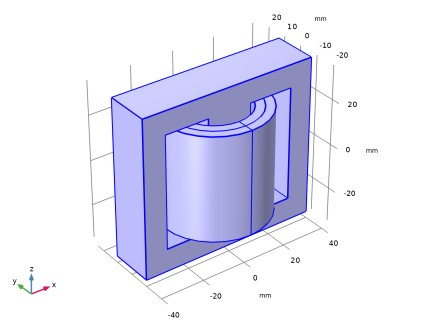
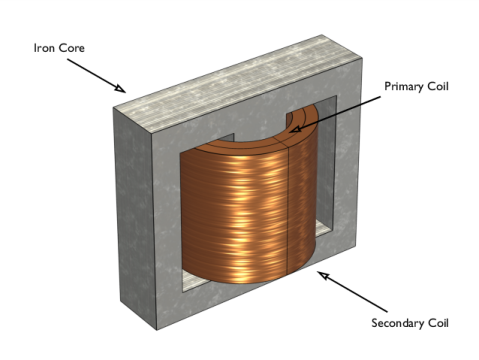
The core of the single-phase E-core transformer considered here consists of a pair of E-cores, which form a closed magnetic flux path. The primary and secondary coils in the transformer are placed around the central leg of the core as shown in Figure 1.
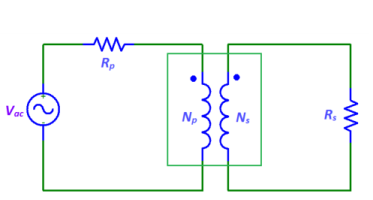
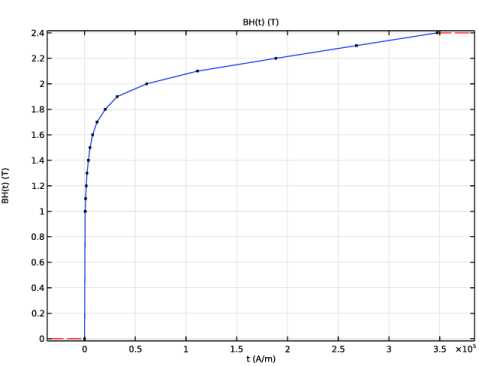
A nonlinear B-H curve that includes saturation effects is used to simulate the magnetic behavior of the soft-iron core. Hysteresis effects in the core are neglected. The model assumes that the primary and secondary windings are made of thin wire and have multiple turns. Using the assumption that the wire diameter is less than the skin depth and that there are many turns, these windings are modeled with Coil features. Furthermore, the model does not account for eddy currents in the individual turns of the coil. The primary winding is connected to a primary resistor, Rp, and the AC voltage source, Vac, while the secondary winding is connected to the secondary load resistor, Rs as shown in Figure 2.
Figure 1: Model illustration of an E-core transformer.
Figure 2: A transformer connected to an external circuit with voltage source and resistors.
The model is solved in the time domain for a line frequency of 50 Hz. Several important design parameters such as the magnitude of the input voltage, the line frequency, the number of turns in the coils, and the coil resistance are parameterized and can therefore easily be changed. The models also demonstrate how to use the Loss Calculation feature combined with the Time to Frequency Losses study to compute electromagnetic losses.
A transformer works by the principle of Faraday’s law of induction, which states that the induced voltage (Vin) in a coil is proportional to the rate of change of magnetic flux (ϕ) and the number of turns (N) in a coil, as shown in Equation 1.
(1)
If two coils are coupled, Equation 1 can be used to deduce that the induced voltage in the secondary coil (Vs) is proportional to the induced voltage in the primary coil (Vp):
(2)
Here Ns and Np are the number of turns in the secondary and primary coils, respectively. Np/Ns is known as the turn ratio.
The two versions of the transformer are simulated in Case 1 and Case 2, respectively. The two different groups of the parameters are defined in two Variables nodes such that the model can be easily configured in the Physics and Variables Selection of the Study.
Results and Discussion
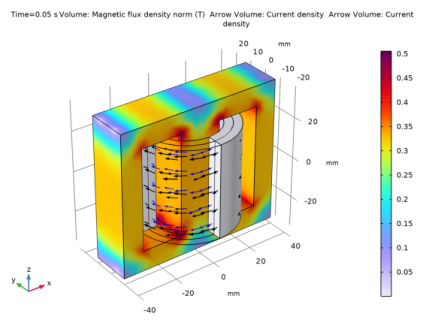
Figure 3 shows the surface plot of the magnetic flux density norm distribution and the arrow plots of the currents in the windings at t = 50 ms for Case 1.
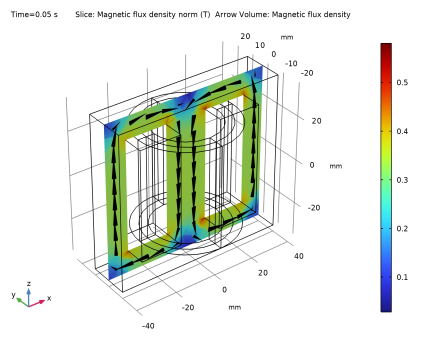
Figure 4 shows the slice and the arrow plot of the magnetic flux density norm in the core at t = 50 ms for Case 1.
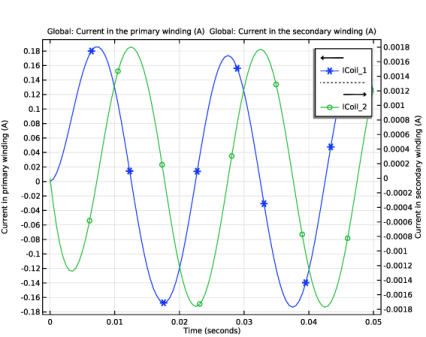
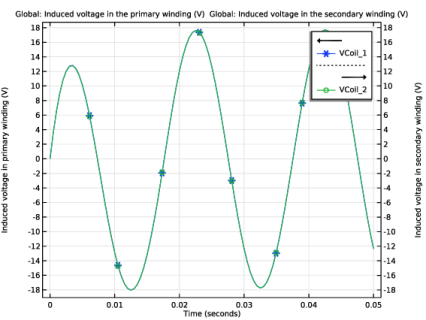
Figure 5 compares the induced voltage in the primary and secondary windings for Case 1. Since the number of turns on each winding is equal, the induced voltage in both windings is the same as given by Equation 2. The currents flowing through the primary and secondary windings are shown in Figure 6.
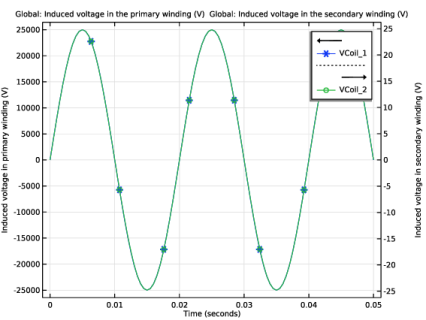
Figure 7 displays the voltage induced in the primary and secondary winding for a step-down transformer with a turn ratio of Np/Ns = 1000 and a supply voltage of 25 kV (Case 2). This induced voltage is 1000 times smaller compared to the voltage in the primary winding.
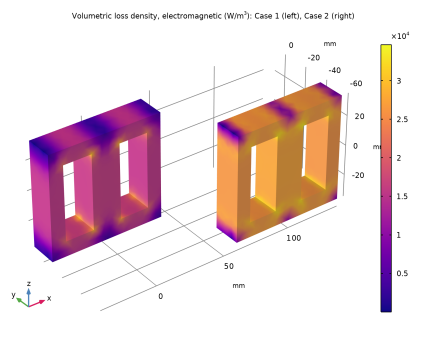
Figure 8 compares the iron loss power density in the magnetic core of the transformers for Case 1 and Case 2. With the use of Volume Integration, the total iron loss power is computed to be about 1.1 W and 1.9 W, respectively, for Case 1 and Case 2.
Figure 3: Magnetic flux density norm and the currents in the windings at t = 50 ms, Case 1.
Figure 4: Magnetic flux density inside the transformer core at t = 50 ms, Case 1.
Figure 5: The induced voltage in the windings versus time, Case 1.
Figure 6: Current in the windings versus time, Case 1.
Figure 7: The induced voltage in the windings versus time, Case 2.
Figure 8: The iron loss power density in the magnetic core of the transformer.
Notes About the COMSOL Implementation
Use the Magnetic Fields interface to model the magnetic fields of the transformer. Model the primary and secondary windings with Coil features. Connect the primary and secondary windings to an external circuit with the AC voltage source and resistors using an Electrical Circuit interface. Add a Coil Geometry Analysis study step to calculate the current in the coils. Perform a Time Dependent study to determine the voltage and currents in both the primary and secondary windings. Add the Loss Calculation subfeatures in the Windings and Core and perform a Time to Frequency Losses study to compute the corresponding losses.
Application Library path: ACDC_Module/Devices,_Inductive/ecore_transformer
Modeling Instructions
From the File menu, choose New.
New
In the New window, click  Model Wizard.
Model Wizard
1
In the Model Wizard window, click  3D.
2
In the Select Physics tree, select AC/DC > Electromagnetic Fields > Magnetic Fields (mf).
3
Click Add.
4
Click  Study.
5
In the Select Study tree, select Preset Studies for Selected Physics Interfaces > Coil Geometry Analysis.
6
Global Definitions
Define all the required parameters.
Parameters 1
1
In the Model Builder window, under Global Definitions click Parameters 1.
2
In the Settings window for Parameters, locate the Parameters section.
3
Definitions
Variables, Case 1
1
In the Model Builder window, under Component 1 (comp1) right-click Definitions and choose Variables.
2
In the Settings window for Variables, type Variables, Case 1 in the Label text field.
Set the variables for the first case study.
3
Locate the Variables section. In the table, enter the following settings:
Variables, Case 2
1
Right-click Variables, Case 1 and choose Duplicate.
2
In the Settings window for Variables, type Variables, Case 2 in the Label text field.
Set the variables for the second case study. Note that you need to disable one of the two sets of variables before solving.
3
Locate the Variables section. In the table, enter the following settings:
Geometry 1
Insert the geometry sequence from the ecore_transformer_geom_sequence.mph file.
1
In the Geometry toolbar, click Insert Sequence and choose Insert Sequence.
2
Extrude 1 (ext1)
Define the selections for the core and the windings and create a selection for the core domain.
1
In the Model Builder window, under Component 1 (comp1) > Geometry 1 click Extrude 1 (ext1).
2
In the Settings window for Extrude, locate the Selections of Resulting Entities section.
3
Find the Cumulative selection subsection. Click New.
4
In the New Cumulative Selection dialog, type Core in the Name text field.
5
Specify then a selection for the primary winding.
Primary Winding
1
In the Geometry toolbar, click  Selections and choose Explicit Selection.
2
In the Settings window for Explicit Selection, type Primary Winding in the Label text field.
3
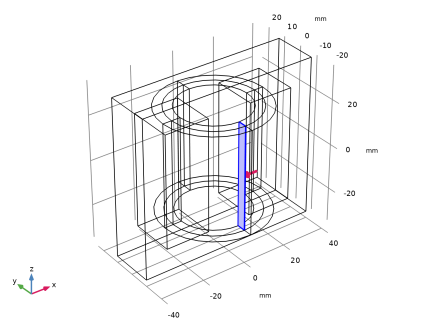
On the object fin, select Domains 5, 6, 8, and 9 only.
4
Locate the Resulting Selection section. Find the Cumulative selection subsection. Click New.
5
In the New Cumulative Selection dialog, type Windings in the Name text field.
6
Add a selection for the secondary winding.
Secondary Winding
1
In the Geometry toolbar, click  Selections and choose Explicit Selection.
2
In the Settings window for Explicit Selection, type Secondary Winding in the Label text field.
3
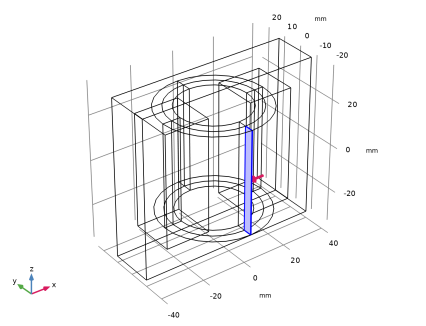
On the object fin, select Domains 3, 4, 7, and 10 only.
4
Locate the Resulting Selection section. Find the Cumulative selection subsection. From the Contribute to list, choose Windings.
Form Union (fin)
1
In the Geometry toolbar, click  Build All.
2
Click the  Zoom Extents button in the Graphics toolbar.
Choose wireframe rendering to get a better view of the interior parts.
3
Click the  Wireframe Rendering button in the Graphics toolbar.
4
In the Model Builder window, click Form Union (fin).
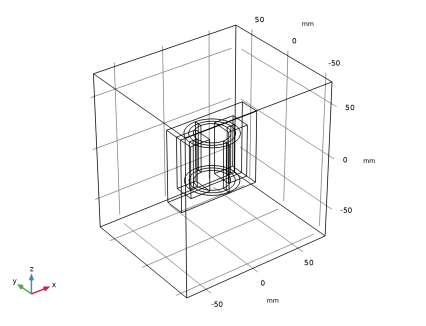
The geometry should look like the one in the figure above.
Now set up the physics for the magnetic fields. Start by hiding the outer boundaries to visualize the results only in the transformer core and windings.
Definitions
Hide for Physics 1
1
In the Model Builder window, right-click View 1 and choose Hide for Physics.
2
In the Settings window for Hide for Physics, locate the Geometric Entity Selection section.
3
From the Geometric entity level list, choose Boundary.
4
Magnetic Fields (mf)
1
In the Model Builder window, under Component 1 (comp1) click Magnetic Fields (mf).
Choose linear curl elements for discretizing the magnetic vector potential. This will make the model computationally efficient. Typically, the default quadratic elements are recommended.
2
In the Settings window for Magnetic Fields, click to expand the Discretization section.
3
From the Magnetic vector potential list, choose Linear.
Free Space 1
1
In the Model Builder window, under Component 1 (comp1) > Magnetic Fields (mf) click Free Space 1.
2
In the Settings window for Free Space, locate the Stabilization section.
3
Find the Typical frequency subsection. In the ffllb text field, type nu.
Model the soft iron core using a Laminated Core node.
Laminated Core 1
1
In the Physics toolbar, click  Domains and choose Laminated Core.
2
In the Settings window for Laminated Core, locate the Domain Selection section.
3
From the Selection list, choose Core.
4
Locate the Lamination Model section. From the Lamination model list, choose Direction based.
5
Specify the d vector as
This models the laminate layers perpendicular to the y axis.
6
Locate the Loss Model section. In the kh text field, type 1000.
7
In the α text field, type 1.
8
In the β text field, type 1.5.
9
Locate the Stabilization section. Find the Typical frequency subsection. In the ffllb text field, type nu.
Add Coil features to model the primary and the secondary windings using the Homogenized multiturn conductor model.
Domain Coil 1
1
In the Physics toolbar, click  Domains and choose Domain Coil.
2
In the Settings window for Domain Coil, locate the Material Type section.
3
From the Material type list, choose Solid.
4
Locate the Domain Selection section. From the Selection list, choose Primary Winding.
5
Locate the Coil section. From the Conductor model list, choose Homogenized multiturn.
6
From the Coil excitation list, choose Circuit (current).
7
Locate the Homogenized Conductor section. In the N text field, type Np.
8
From the Coil wire cross-section area list, choose User defined.
9
Find the High-frequency effective loss subsection. Clear the Include harmonic loss checkbox.
Loss Calculation 1
In the Physics toolbar, click  Attributes and choose Loss Calculation.
Input 1
1
In the Model Builder window, expand the Component 1 (comp1) > Magnetic Fields (mf) > Domain Coil 1 > Geometry Analysis 1 node, then click Input 1.
2
Domain Coil 2
1
In the Model Builder window, under Component 1 (comp1) > Magnetic Fields (mf) right-click Domain Coil 1 and choose Duplicate.
2
In the Settings window for Domain Coil, locate the Domain Selection section.
3
From the Selection list, choose Secondary Winding.
4
Locate the Homogenized Conductor section. In the N text field, type Ns.
5
In the Model Builder window, expand the Domain Coil 2 node.
Input 1
1
In the Model Builder window, expand the Component 1 (comp1) > Magnetic Fields (mf) > Domain Coil 2 > Geometry Analysis 1 node, then click Input 1.
2
In the Settings window for Input, locate the Boundary Selection section.
3
Click  Clear Selection.
4
Domain Coil 1
Add the external circuit elements to the primary and the secondary side of the transformer as shown in Figure 2.
1
In the Model Builder window, under Component 1 (comp1) > Magnetic Fields (mf) click Domain Coil 1.
2
In the Settings window for Domain Coil, locate the Coil section.
3
Click Add Electrical Circuit Connection.
4
In the Add Electrical Circuit Connection dialog, click OK.
Electrical Circuit (cir)
In the Model Builder window, under Component 1 (comp1) click Electrical Circuit (cir).
Voltage Source 1 (V1)
1
In the Electrical Circuit toolbar, click  Voltage Source.
2
In the Settings window for Voltage Source, locate the Node Connections section.
3
4
Locate the Device Parameters section. From the Source type list, choose Sine source.
5
In the vsrc text field, type Vac.
6
In the f text field, type nu.
Resistor 1 (R1)
1
In the Electrical Circuit toolbar, click  Resistor.
2
In the Settings window for Resistor, locate the Node Connections section.
3
4
Locate the Device Parameters section. In the R text field, type Rp.
Magnetic Fields (mf)
Domain Coil 2
1
In the Model Builder window, under Component 1 (comp1) > Magnetic Fields (mf) click Domain Coil 2.
2
In the Settings window for Domain Coil, locate the Coil section.
3
Click Add Electrical Circuit Connection.
4
In the Add Electrical Circuit Connection dialog, click OK.
Electrical Circuit (cir)
External I vs. U 2 (IvsU2)
1
In the Model Builder window, under Component 1 (comp1) > Electrical Circuit (cir) click External I vs. U 2 (IvsU2).
2
In the Settings window for External I vs. U, locate the Node Connections section.
3
Resistor 2 (R2)
1
In the Electrical Circuit toolbar, click  Resistor.
2
In the Settings window for Resistor, locate the Node Connections section.
3
4
Locate the Device Parameters section. In the R text field, type Rs.
Materials
Assign materials for the model. Begin by selecting copper. Initially, this will be assigned to all domains. No material will be assigned to the domain surrounding the windings and core since this is modeled by the Free Space node in the magnetic field interface which requires no material parameters.
Add Material
1
In the Materials toolbar, click  Add Material to open the Add Material window.
2
Go to the Add Material window.
3
In the tree, select Built-in > Copper.
4
Click the Add to Component button in the window toolbar.
Materials
Copper (mat1)
1
In the Settings window for Material, locate the Geometric Entity Selection section.
2
From the Selection list, choose Windings.
Next, assign the soft iron (without losses) material. This will be used for the core.
Add Material
1
Go to the Add Material window.
2
In the tree, select AC/DC > Soft Iron (Without Losses).
3
Click the Add to Component button in the window toolbar.
4
In the Materials toolbar, click  Add Material to close the Add Material window.
Materials
Soft Iron (Without Losses) (mat2)
1
In the Settings window for Material, locate the Geometric Entity Selection section.
2
From the Selection list, choose Core.
Optionally, use the following steps to visualize the nonlinear B-H curve of the soft iron. Note that the extrapolation of the B-H curve is set to ’constant’ only for visualization purpose. When solving the model, the extrapolation has to be changed to ’linear’.
3
In the Model Builder window, expand the Soft Iron (Without Losses) (mat2) node.
Interpolation 1 (BH, BH_inv, BH_prim)
1
In the Model Builder window, expand the Component 1 (comp1) > Materials > Soft Iron (Without Losses) (mat2) > B-H Curve (BHCurve) node, then click Interpolation 1 (BH, BH_inv, BH_prim).
2
In the Settings window for Interpolation, locate the Interpolation and Extrapolation section.
3
From the Extrapolation list, choose Constant.
4
5
From the Extrapolation list, choose Linear.
Mesh 1
Free Tetrahedral 1
1
In the Mesh toolbar, click  Free Tetrahedral.
2
In the Settings window for Free Tetrahedral, locate the Domain Selection section.
3
From the Geometric entity level list, choose Entire geometry.
Size 1
1
Right-click Free Tetrahedral 1 and choose Size.
2
In the Settings window for Size, locate the Geometric Entity Selection section.
3
From the Geometric entity level list, choose Domain.
4
Click  Paste Selection.
5
In the Paste Selection dialog, type 2-10 in the Selection text field.
6
7
In the Settings window for Size, locate the Element Size section.
8
Click the Custom button.
9
Locate the Element Size Parameters section.
10
Select the Maximum element size checkbox. In the associated text field, type 6.
11
Click  Build All.
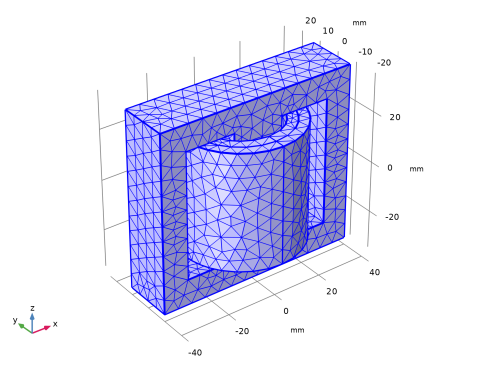
After adjusting the hiding settings by clicking on the View Unhidden Only button, the mesh should look like that shown in the figure above. A coarse mesh is used here to solve the model quickly. For real simulations, you are recommended to use a finer mesh.
Study 1
Step 1: Coil Geometry Analysis
1
In the Model Builder window, under Study 1 click Step 1: Coil Geometry Analysis.
2
In the Settings window for Coil Geometry Analysis, locate the Physics and Variables Selection section.
3
Select the Modify model configuration for study step checkbox.
4
In the tree, select Component 1 (comp1) > Definitions > Variables, Case 2.
5
6
In the Model Builder window, click Study 1.
7
In the Settings window for Study, locate the Study Settings section.
8
Clear the Generate default plots checkbox.
Solve the Coil Geometry Analysis study step for the analysis of the geometry of the primary and the secondary windings which will be necessary for the next transient studies.
9
In the Study toolbar, click  Compute.
Add Study
1
In the Study toolbar, click  Add Study to open the Add Study window.
2
Go to the Add Study window.
3
Find the Studies subsection. In the Select Study tree, select General Studies > Time Dependent.
4
Click the Add Study button in the window toolbar.
5
In the Study toolbar, click  Add Study to close the Add Study window.
Study 2, Case 1
1
In the Settings window for Study, type Study 2, Case 1 in the Label text field.
2
Locate the Study Settings section. Clear the Generate default plots checkbox.
Step 1: Time Dependent
Solve the problem in time domain from 0 to 50 milliseconds.
1
In the Model Builder window, under Study 2, Case 1 click Step 1: Time Dependent.
2
In the Settings window for Time Dependent, locate the Study Settings section.
3
In the Output times text field, type range(0,5e-4,0.05).
4
Locate the Physics and Variables Selection section. Select the Modify model configuration for study step checkbox.
5
In the tree, select Component 1 (comp1) > Definitions > Variables, Case 2.
6
7
Click to expand the Values of Dependent Variables section. Follow the steps given below to tune the solver. Such tuning is typically necessary in order to successfully use a realistic nonlinear B-H curve in a large time-dependent model. As the equations are nonlinear the solver needs to be robust enough to handle such nonlinearities.
8
Find the Values of variables not solved for subsection. From the Settings list, choose User controlled.
9
From the Method list, choose Solution.
10
From the Study list, choose Study 1, Coil Geometry Analysis.
Solution 2 (sol2)
1
In the Study toolbar, click  Show Default Solver.
2
In the Model Builder window, expand the Solution 2 (sol2) node, then click Dependent Variables 1.
3
In the Settings window for Dependent Variables, locate the Scaling section.
4
From the Method list, choose None.
5
In the Model Builder window, expand the Study 2, Case 1 > Solver Configurations > Solution 2 (sol2) > Time-Dependent Solver 1 node, then click Fully Coupled 1.
6
In the Settings window for Fully Coupled, click to expand the Method and Termination section.
7
From the Jacobian update list, choose On every iteration.
8
In the Maximum number of iterations text field, type 25.
9
In the Study toolbar, click  Compute.
Results
In the Model Builder window, expand the Results node.
Study 2, Case 1/Solution 2 (sol2)
Use the following steps to generate a surface plot of the magnetic flux density norm on core and coils and an arrow plot of the current in the windings. The figure should look like that shown in Figure 3. Since the current magnitude in the secondary winding is much smaller than in the primary, two separate arrow plots (with different scales) will be used.
1
In the Model Builder window, expand the Results > Datasets node, then click Study 2, Case 1/Solution 2 (sol2).
Selection
1
In the Results toolbar, click  Attributes and choose Selection.
2
In the Settings window for Selection, locate the Geometric Entity Selection section.
3
From the Geometric entity level list, choose Domain.
4
Magnetic Flux Density and Current
1
In the Results toolbar, click  3D Plot Group.
2
In the Settings window for 3D Plot Group, type Magnetic Flux Density and Current in the Label text field.
3
Locate the Data section. From the Dataset list, choose Study 2, Case 1/Solution 2 (sol2).
4
Click the  Zoom Extents button in the Graphics toolbar.
Volume 1
1
Right-click Magnetic Flux Density and Current and choose Volume.
2
In the Settings window for Volume, locate the Coloring and Style section.
3
From the Color table list, choose Prism.
Selection 1
1
Right-click Volume 1 and choose Selection.
2
3
In the Magnetic Flux Density and Current toolbar, click  Plot.
Arrow Volume 1
1
In the Model Builder window, right-click Magnetic Flux Density and Current and choose Arrow Volume.
2
In the Settings window for Arrow Volume, click Replace Expression in the upper-right corner of the Expression section. From the menu, choose Component 1 (comp1) > Magnetic Fields > Currents and charge > mf.Jx,mf.Jy,mf.Jz - Current density.
3
Locate the Arrow Positioning section. Find the x grid points subsection. In the Points text field, type 10.
4
Find the y grid points subsection. In the Points text field, type 10.
5
Find the z grid points subsection. In the Points text field, type 5.
6
Locate the Coloring and Style section. From the Color list, choose Blue.
Selection 1
1
Right-click Arrow Volume 1 and choose Selection.
2
In the Settings window for Selection, locate the Selection section.
3
From the Selection list, choose Primary Winding.
Arrow Volume 2
1
In the Model Builder window, under Results > Magnetic Flux Density and Current right-click Arrow Volume 1 and choose Duplicate.
2
In the Settings window for Arrow Volume, locate the Coloring and Style section.
3
From the Color list, choose Black.
Selection 1
1
In the Model Builder window, expand the Arrow Volume 2 node, then click Selection 1.
2
In the Settings window for Selection, locate the Selection section.
3
From the Selection list, choose Secondary Winding.
4
Click the  Zoom Extents button in the Graphics toolbar.
5
In the Magnetic Flux Density and Current toolbar, click  Plot.
The plot is as shown in Figure 3.
Follow the steps below to reproduce the magnetic flux density norm plot as shown in Figure 4.
Magnetic Flux Density in the Core
1
In the Results toolbar, click  3D Plot Group.
2
In the Settings window for 3D Plot Group, type Magnetic Flux Density in the Core in the Label text field.
3
Locate the Data section. From the Dataset list, choose Study 2, Case 1/Solution 2 (sol2).
4
Click to expand the Selection section. From the Geometric entity level list, choose Domain.
5
From the Selection list, choose Core.
Slice 1
1
Right-click Magnetic Flux Density in the Core and choose Slice.
2
In the Settings window for Slice, locate the Plane Data section.
3
From the Plane list, choose zx-planes.
4
In the Planes text field, type 1.
Arrow Volume 1
1
In the Model Builder window, right-click Magnetic Flux Density in the Core and choose Arrow Volume.
2
In the Settings window for Arrow Volume, locate the Arrow Positioning section.
3
Find the x grid points subsection. In the Points text field, type 10.
4
Find the y grid points subsection. In the Points text field, type 1.
5
Find the z grid points subsection. In the Points text field, type 10.
6
Locate the Coloring and Style section. From the Arrow type list, choose Cone.
7
Select the Scale factor checkbox. In the associated text field, type 30.
8
From the Color list, choose Black.
Magnetic Flux Density in the Core
1
In the Model Builder window, click Magnetic Flux Density in the Core.
2
In the Magnetic Flux Density in the Core toolbar, click  Plot.
The plot is as shown in Figure 4.
Next, plot the induced voltage in the primary winding.
Induced Voltage in the Windings, Case 1
1
In the Results toolbar, click  1D Plot Group.
2
In the Settings window for 1D Plot Group, type Induced Voltage in the Windings, Case 1 in the Label text field.
3
Locate the Data section. From the Dataset list, choose Study 2, Case 1/Solution 2 (sol2).
4
Locate the Plot Settings section. Select the Two y-axes checkbox.
5
Select the x-axis label checkbox. In the associated text field, type Time (seconds).
6
Select the y-axis label checkbox. In the associated text field, type Induced voltage in primary winding (V).
7
Select the Secondary y-axis label checkbox. In the associated text field, type Induced voltage in secondary winding (V).
Global 1
1
Right-click Induced Voltage in the Windings, Case 1 and choose Global.
2
In the Settings window for Global, click Replace Expression in the upper-right corner of the y-Axis Data section. From the menu, choose Component 1 (comp1) > Magnetic Fields > Coil parameters > mf.VCoil_1 - Coil voltage - V.
3
Locate the y-Axis Data section. In the table, enter the following settings:
4
Click to expand the Coloring and Style section. Find the Line markers subsection. From the Marker list, choose Cycle.
5
From the Positioning list, choose Interpolated.
6
Click to expand the Legends section. From the Legends list, choose Manual.
7
Global 2
1
Right-click Global 1 and choose Duplicate.
2
In the Settings window for Global, locate the y-Axis Data section.
3
4
Locate the y-Axis section. Select the Plot on secondary y-axis checkbox.
5
Locate the Legends section. In the table, enter the following settings:
6
In the Induced Voltage in the Windings, Case 1 toolbar, click  Plot.
The plot is as shown in Figure 5.
Plot the current in the windings and compare them.
Current in the Windings, Case 1
1
In the Results toolbar, click  1D Plot Group.
2
In the Settings window for 1D Plot Group, type Current in the Windings, Case 1 in the Label text field.
3
Locate the Data section. From the Dataset list, choose Study 2, Case 1/Solution 2 (sol2).
4
Locate the Plot Settings section. Select the Two y-axes checkbox.
5
Select the x-axis label checkbox. In the associated text field, type Time (seconds).
6
Select the y-axis label checkbox. In the associated text field, type Current in primary winding (A).
7
Select the Secondary y-axis label checkbox. In the associated text field, type Current in secondary winding (A).
Global 1
1
Right-click Current in the Windings, Case 1 and choose Global.
2
In the Settings window for Global, click Replace Expression in the upper-right corner of the y-Axis Data section. From the menu, choose Component 1 (comp1) > Magnetic Fields > Coil parameters > mf.ICoil_1 - Coil current - A.
3
Locate the y-Axis Data section. In the table, enter the following settings:
4
Locate the Coloring and Style section. Find the Line markers subsection. From the Marker list, choose Cycle.
5
From the Positioning list, choose Interpolated.
6
Locate the Legends section. From the Legends list, choose Manual.
7
Global 2
1
Right-click Global 1 and choose Duplicate.
2
In the Settings window for Global, locate the y-Axis Data section.
3
4
Locate the y-Axis section. Select the Plot on secondary y-axis checkbox.
5
Locate the Legends section. In the table, enter the following settings:
6
In the Current in the Windings, Case 1 toolbar, click  Plot.
The plot is as shown in Figure 6.
Add Study
1
In the Home toolbar, click  Add Study to open the Add Study window.
2
Go to the Add Study window.
3
Find the Studies subsection. In the Select Study tree, select General Studies > Time Dependent.
4
Click the Add Study button in the window toolbar.
5
In the Home toolbar, click  Add Study to close the Add Study window.
Study 3, Case 2
1
In the Settings window for Study, type Study 3, Case 2 in the Label text field.
2
Locate the Study Settings section. Clear the Generate default plots checkbox.
Step 1: Time Dependent
1
In the Model Builder window, under Study 3, Case 2 click Step 1: Time Dependent.
2
In the Settings window for Time Dependent, locate the Study Settings section.
3
In the Output times text field, type range(0,5e-4,0.05).
4
Locate the Physics and Variables Selection section. Select the Modify model configuration for study step checkbox.
5
In the tree, select Component 1 (comp1) > Definitions > Variables, Case 1.
6
7
Locate the Values of Dependent Variables section. Find the Values of variables not solved for subsection. From the Settings list, choose User controlled.
8
From the Method list, choose Solution.
9
From the Study list, choose Study 1, Coil Geometry Analysis.
Solution 3 (sol3)
1
In the Study toolbar, click  Show Default Solver.
2
In the Model Builder window, expand the Solution 3 (sol3) node.
3
In the Model Builder window, expand the Study 3, Case 2 > Solver Configurations > Solution 3 (sol3) > Time-Dependent Solver 1 node, then click Study 3, Case 2 > Solver Configurations > Solution 3 (sol3) > Dependent Variables 1.
4
In the Settings window for Dependent Variables, locate the Scaling section.
5
From the Method list, choose None.
6
In the Model Builder window, under Study 3, Case 2 > Solver Configurations > Solution 3 (sol3) click Time-Dependent Solver 1.
7
In the Settings window for Time-Dependent Solver, click to expand the Time Stepping section.
8
From the Maximum step constraint list, choose Constant.
9
In the Maximum step text field, type 2.5e-4.
10
In the Model Builder window, under Study 3, Case 2 > Solver Configurations > Solution 3 (sol3) > Time-Dependent Solver 1 click Fully Coupled 1.
11
In the Settings window for Fully Coupled, locate the Method and Termination section.
12
From the Jacobian update list, choose On every iteration.
13
In the Maximum number of iterations text field, type 25.
14
In the Study toolbar, click  Compute.
Results
Induced Voltage in the Windings, Case 2
1
In the Model Builder window, right-click Induced Voltage in the Windings, Case 1 and choose Duplicate.
2
In the Settings window for 1D Plot Group, type Induced Voltage in the Windings, Case 2 in the Label text field.
3
Locate the Data section. From the Dataset list, choose Study 3, Case 2/Solution 3 (sol3).
4
In the Induced Voltage in the Windings, Case 2 toolbar, click  Plot.
The plot is as shown in Figure 7.
Next, compute the losses.
Add Study
1
In the Home toolbar, click  Add Study to open the Add Study window.
2
Go to the Add Study window.
3
Find the Studies subsection. In the Select Study tree, select Preset Studies for Some Physics Interfaces > Time-to-Frequency Losses.
4
Click the Add Study button in the window toolbar twice. That is, add two more studies.
5
In the Study toolbar, click  Add Study to close the Add Study window.
Loss Calculation, Case 1
1
In the Settings window for Study, type Loss Calculation, Case 1 in the Label text field.
2
Locate the Study Settings section. Clear the Generate default plots checkbox.
Loss Calculation, Case 2
1
In the Model Builder window, click Study 5.
2
In the Settings window for Study, type Loss Calculation, Case 2 in the Label text field.
3
Locate the Study Settings section. Clear the Generate default plots checkbox.
Loss Calculation, Case 1
Step 1: Time-to-Frequency Losses
1
In the Model Builder window, under Loss Calculation, Case 1 click Step 1: Time-to-Frequency Losses.
2
In the Settings window for Time-to-Frequency Losses, locate the Study Settings section.
3
From the Input study list, choose Study 2, Case 1, Time Dependent.
4
Locate the Physics and Variables Selection section. Select the Modify model configuration for study step checkbox.
5
In the tree, select Component 1 (comp1) > Definitions > Variables, Case 2.
6
7
In the Study toolbar, click  Compute.
Loss Calculation, Case 2
1
In the Model Builder window, under Loss Calculation, Case 2 click Step 1: Time-to-Frequency Losses.
2
In the Settings window for Time-to-Frequency Losses, locate the Study Settings section.
3
From the Input study list, choose Study 3, Case 2, Time Dependent.
4
Locate the Physics and Variables Selection section. Select the Modify model configuration for study step checkbox.
5
In the tree, select Component 1 (comp1) > Definitions > Variables, Case 1.
6
7
In the Study toolbar, click  Compute.
Results
Cycle Averaged Losses in the Core
1
In the Results toolbar, click  3D Plot Group.
2
In the Settings window for 3D Plot Group, type Cycle Averaged Losses in the Core in the Label text field.
3
Locate the Plot Settings section. Clear the Plot dataset edges checkbox.
4
Click to expand the Title section. From the Title type list, choose Manual.
5
In the Title text area, type Volumetric loss density, electromagnetic (W/m<sup>3</sup>): Case 1 (left), Case 2 (right).
Volume 1
1
Right-click Cycle Averaged Losses in the Core and choose Volume.
2
In the Settings window for Volume, locate the Data section.
3
From the Dataset list, choose Loss Calculation, Case 1/Solution 4 (sol4).
4
Locate the Expression section. In the Expression text field, type mf.Qh.
Selection 1
1
Right-click Volume 1 and choose Selection.
2
In the Settings window for Selection, locate the Selection section.
3
From the Selection list, choose Core.
Volume 1
1
In the Model Builder window, click Volume 1.
2
In the Settings window for Volume, locate the Coloring and Style section.
3
From the Color table list, choose Plasma.
Volume 2
1
Right-click Results > Cycle Averaged Losses in the Core > Volume 1 and choose Duplicate.
2
In the Settings window for Volume, locate the Data section.
3
From the Dataset list, choose Loss Calculation, Case 2/Solution 6 (sol6).
4
Click to expand the Inherit Style section. From the Plot list, choose Volume 1.
Transformation 1
1
Right-click Volume 2 and choose Transformation.
2
In the Settings window for Transformation, locate the Transformation section.
3
In the x text field, type 100.
4
In the y text field, type -50.
Cycle Averaged Losses in the Core
1
In the Model Builder window, under Results click Cycle Averaged Losses in the Core.
2
In the Cycle Averaged Losses in the Core toolbar, click  Plot.
The plot is as shown in Figure 8.
Volume Integration 1
1
In the Results toolbar, click  More Derived Values and choose Integration > Volume Integration.
2
In the Settings window for Volume Integration, locate the Data section.
3
From the Dataset list, choose Loss Calculation, Case 1/Solution 4 (sol4).
4
Locate the Selection section. From the Selection list, choose Core.
5
Locate the Expressions section. In the table, enter the following settings:
Compute the total iron loss power in the core.
6
Click  Evaluate.
7
Locate the Data section. From the Dataset list, choose Loss Calculation, Case 2/Solution 6 (sol6).
8
Click  Evaluate.
The next step shows how to calculate the power loss at different frequencies.
Volume Integration 2
1
In the Results toolbar, click  More Derived Values and choose Integration > Volume Integration.
2
In the Settings window for Volume Integration, locate the Data section.
3
From the Dataset list, choose Loss Calculation, Case 1/Solution Store 1 (sol5).
4
Locate the Selection section. From the Selection list, choose Core.
5
Locate the Expressions section. In the table, enter the following settings:
6
Click  Evaluate.
7
Locate the Data section. From the Dataset list, choose Loss Calculation, Case 2/Solution Store 2 (sol7).
8
Click  Evaluate.