PDF

Cell Membrane Electroporation
Introduction
Electroporation is a technique that employs localized electric fields to generate pores in cell membranes via the rearrangement of the lipid bilayer, improving the cell permeability for ions and pharmaceuticals. High-intensity, nanosecond-short, electric pulses have been shown capable of generating transient nanometric pores onto cell membranes with minimal side effects for the cell. A nanosecond short pulse carries a spectral content in the GHz regime of the frequency domain. Around this frequency, cell membranes are subjected to another concurrent relevant phenomenon called dielectric dispersion, which has been shown to contribute to electroporation efficacy. Both effects are accounted for in this tutorial.
This Cell Membrane Electroporation tutorial model shows the electroporation phenomenon on a standard spherical cell both in the Time Domain and in the Frequency Domain. The model uses an analytical formulation for the electroporation contribution whose parameter values are taken from Ref. 1. In particular, the electroporation effect is accounted for by considering a time-varying conductivity for the membrane:
(1)
where σm0 is the static baseline membrane conductivity, N(t, Vm(t)) is the time-dependent and transmembrane voltage-dependent pore density generation, σp is the pore conductivity, rp is the pore radius, and K is a term proportional to the entrance length and energy barrier of the pore.
On the other hand, the dielectric dispersion is included in this tutorial model by means of a multiple Debye poles dispersion model:
(2)
where εr(f) is the frequency-dependent relative permittivity, ε is the relative permittivity at the high frequency limit, Δεm is the mth relative permittivity contribution, τvm is the relaxation time corresponding to the mth relative permittivity contribution, and N is the number of poles. These dispersive material quantities are taken from Ref. 2 and Ref. 3.
Results such as the electric field, transmembrane voltage, pore density, and membrane conductivity are investigated. They are comparable with the results shown in Ref. 4.
Model Definition
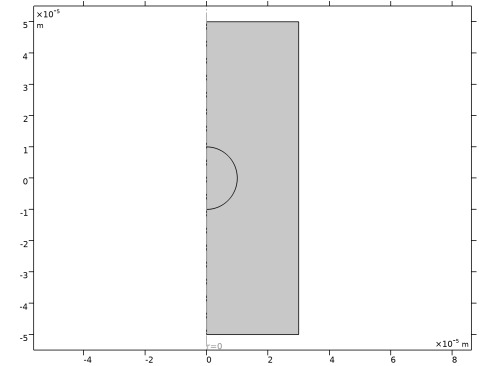
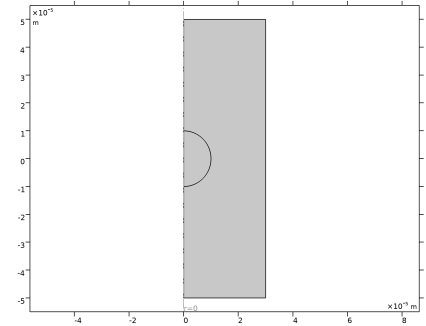
Figure 1 shows the geometry of the cell membrane. The model is solved in 2D axisymmetry, and consists of a spherical cell (that is, a thin insulating spherical membrane layer confining a conductive intracellular domain) placed inside a conductive extracellular domain cylinder. The excitation for electroporation is exerted from the top face of the cylinder whilst the bottom face is grounded.
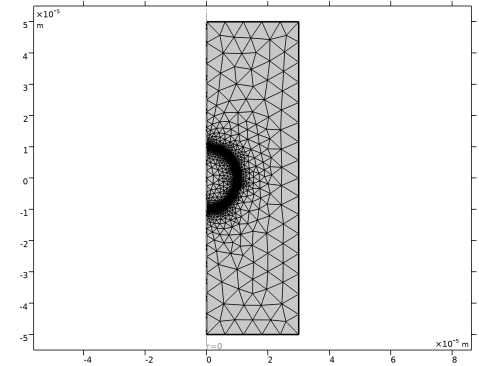
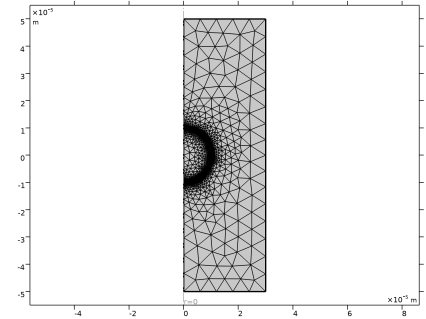
Figure 2 shows the mesh. It is built using a distribution of elements along the membrane’s boundaries for a lighter, yet accurate, mesh in the proximity of the thin membrane domain. This saves computational costs without penalizing the accuracy of the simulation.
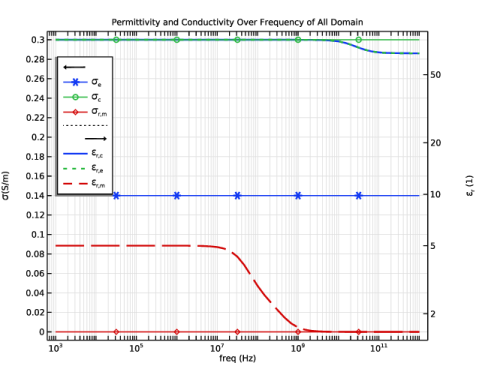
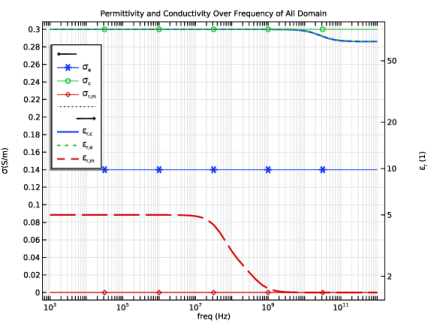
The implementation requires the Electric Currents interface and the Boundary ODEs and DAEs interface. The former interface models the dielectric dispersion of the materials using a multiple Debye poles dispersion subfeature. This effect is shown in Figure 3 by the red dashed line for the membrane, and by the blue solid/green dotted lines for the extra/intracellular domains. The latter interface allows to incorporate on the cell membrane the electroporation-induced conductivity increase (see the Results and Discussion section for details).
Figure 1: 2D axisymmetric geometry of the spherical cell surrounded by the extracellular domain. The cell membrane domain is not visible given its small thickness.
Figure 2: Computational mesh used in this tutorial.
Figure 3: Electrical conductivity (left axis) and relative permittivity (right axis) spectra of all materials used in the model.
Results and Discussion
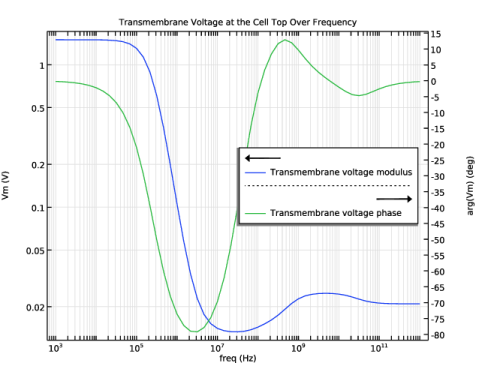
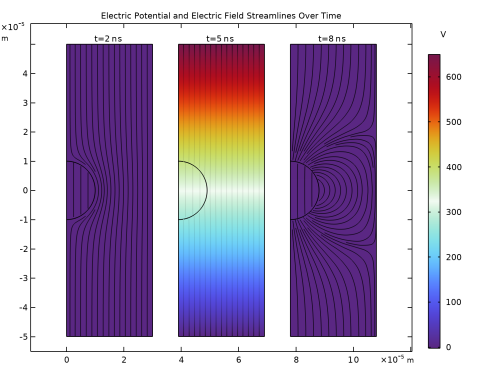
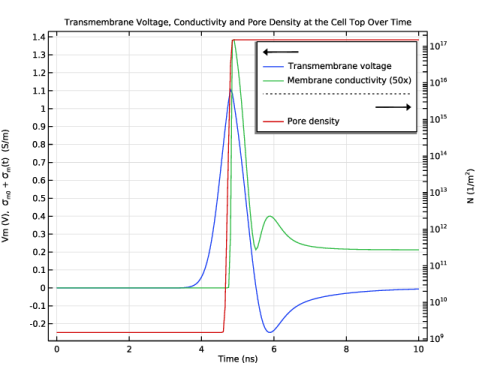
Two studies are performed in this tutorial: a Small-Signal Analysis, Frequency Domain Perturbation study and a Time Dependent study. Both studies include a first Stationary study step to initialize all variables. Figure 4 and Figure 5 show the frequency response of the system to a 10 V AC perturbation between 1 kHz and 1 THz. Figure 6Figure 10 show the transient response of the system to a 650 V Gaussian pulse centered at t = 5 ns.
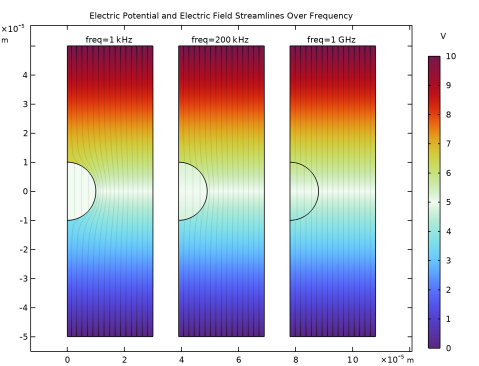
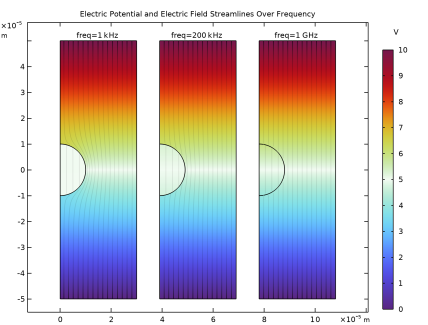
Figure 4 shows the 2D axisymmetric electric potential surface plots and streamlines at three different frequencies. At low frequency (1000 kHz, left inset) the membrane behaves like as a DC capacitor and a relatively small excitation signal couples to the inside of the cell. At large frequency (1 GHz, right inset) the membrane behaves like as an AC capacitor and the excitation signal strongly couples to the intracellular domain. The central inset shows an intermediate condition between small and large frequencies.
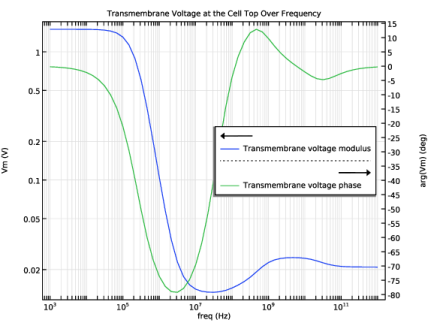
Figure 5 displays the transmembrane voltage modulus and phase spectra at a point located at the top of the cell.
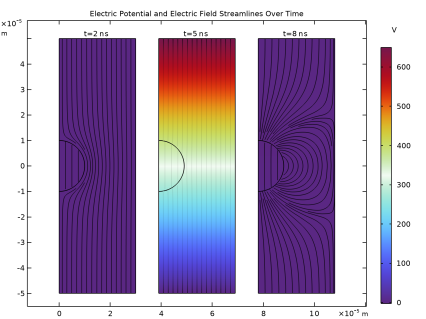
Figure 6 depicts the same quantities as Figure 4 but for three time instants. It confirms that a nanosecond short pulse reproduces the qualitative behavior of a high-frequency AC excitation (Figure 4, right inset).
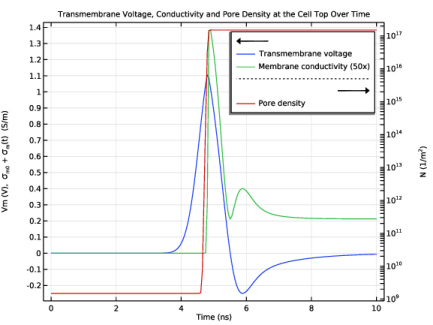
Figure 7 shows the transmembrane voltage, the membrane conductivity, and the pore density at a point located at the top of the cell. The increase of the transmembrane voltage due to the charging of the capacitive membrane triggers an exponential increase in the pore density. This translates into a significant increase in the membrane conductivity that in turn creates a conductive path for the potential built onto the external membrane boundary toward the intracellular domain. As a result, the transmembrane potential drops.
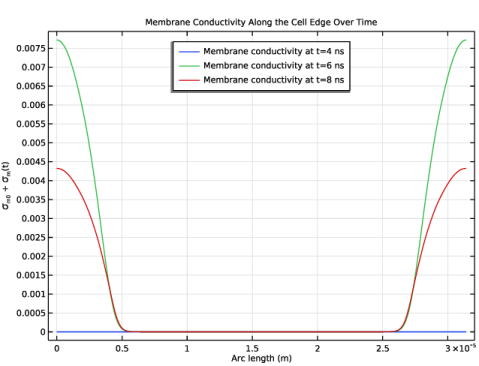
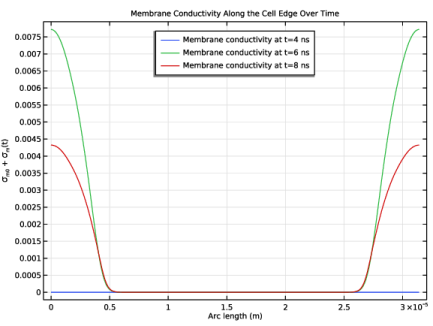
Figure 8 shows the membrane conductivity along the cell’s edge at three time instants. Before 5 ns, the membrane conductivity remains close to a small static value. After 5 ns, the membrane conductivity at the cell’s poles increase significantly and remain to high values for a few more nanoseconds.
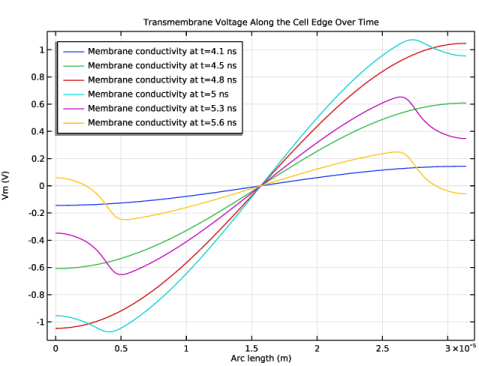
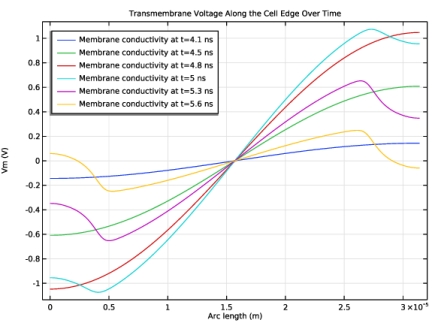
Figure 9 is similar to Figure 8 but it displays the transmembrane voltage. After 5 ns, the transmembrane voltage at the cell’s poles drops due to the locally increased membrane conductivity.
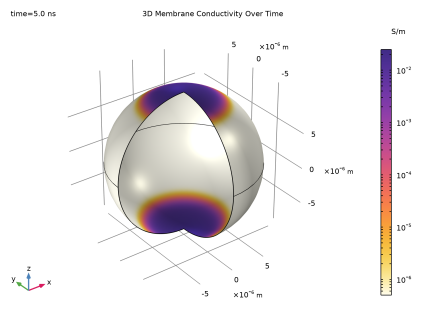
Figure 10 shows the 2D-revolved view of the membrane conductivity at the peak vale of the pulse, remarking that the maximum increase of conductivity occurs at the cell’s poles.
Figure 4: 2D electric potential surface plots and streamlines at different frequencies.
Figure 5: Left axis: transmembrane voltage modulus. Right axis: phase spectra.
Figure 6: 2D electric field surface plot and streamlines at different time instants.
Figure 7: Left axis: transmembrane voltage and membrane conductivity (magnified 50 times for better visualization). Right axis: pore density.
Figure 8: Membrane conductivity profile along the cell’s edge at different time instants.
Figure 9: Transmembrane voltage profile along the cell’s edge at different time instants.
Figure 10: 2D-revolved view of the membrane conductivity at the peak value of the pulse.
References
1. G. Pucihar, D. Miklavcic, and T. Kotnik, “A Time-Dependent Numerical Model of Transmembrane Voltage Inducement and Electroporation of Irregularly Shaped Cells,” in IEEE Transactions on Biomedical Engineering, vol. 56, no. 5, pp. 1491–1501, 2009.
2. R. Büchner, G.T. Hefter, and P.M. May, “Dielectric Relaxation of Aqueous NaCl Solutions,” J. Phys. Chem. A, vol. 103, no. 1, pp. 1–9, 1999.
3. B. Klösgen, C. Reichle, S. Kohlsmann, and K.D. Kramer, “Dielectric Spectroscopy as a Sensor of Membrane Headgroup Mobility and Hydration,” J. Biophys., vol. 71, no. 6, pp. 3251–3260, 1996.
4. E. Salimi, Nanosecond Pulse Electroporation of Biological Cells: The Effect of Membrane Dielectric Relaxation, master’s thesis, Dept. Electrical and Computer Eng., Univ. Manitoba, Winnipeg, 2011.
The parameter values of this tutorial model were taken from Ref. 1 with the permission of the authors’ research group (Laboratory of Biocybernetics, Department of Biomedical Engineering, Faculty of Electrical Engineering, University of Ljubljana, Slovenia), as well as from Ref. 2 and Ref. 3. The results of the present model are in agreement with those shown in Ref. 4.
Application Library path: ACDC_Module/Devices,_Resistive/cell_membrane_electroporation
Modeling Instructions
From the File menu, choose New.
New
In the New window, click  Model Wizard.
Model Wizard
1
In the Model Wizard window, click  2D Axisymmetric.
2
In the Select Physics tree, select AC/DC > Electric Fields and Currents > Electric Currents (ec).
3
Click Add.
4
In the Select Physics tree, select Mathematics > ODE and DAE Interfaces > Boundary ODEs and DAEs (bode).
5
Click Add.
6
Click  Study.
7
In the Select Study tree, select Preset Studies for Selected Physics Interfaces > Electric Currents > Small-Signal Analysis, Frequency Domain.
8
First, define the geometric and physical parameters of the model.
Global Definitions
Geometric Parameters
1
In the Model Builder window, under Global Definitions click Parameters 1.
2
In the Settings window for Parameters, type Geometric Parameters in the Label text field.
3
Locate the Parameters section. In the table, enter the following settings:
Physical Parameters
1
In the Home toolbar, click  Parameters and choose Add > Parameters.
2
In the Settings window for Parameters, type Physical Parameters in the Label text field.
3
Locate the Parameters section. In the table, enter the following settings:
Study Parameters
1
In the Home toolbar, click  Parameters and choose Add > Parameters.
2
In the Settings window for Parameters, type Study Parameters in the Label text field.
3
Locate the Parameters section. In the table, enter the following settings:
Build the geometry following these steps.
Geometry 1
Cell
1
In the Model Builder window, expand the Component 1 (comp1) > Geometry 1 node.
2
Right-click Geometry 1 and choose Circle.
3
In the Settings window for Circle, locate the Size and Shape section.
4
In the Radius text field, type r_cell.
5
In the Sector angle text field, type 180.
6
Locate the Rotation Angle section. In the Rotation text field, type -90.
7
In the Label text field, type Cell.
8
Click to expand the Layers section. In the table, enter the following settings:
Cellular Domains
1
In the Geometry toolbar, click  Rectangle.
2
In the Settings window for Rectangle, type Cellular Domains in the Label text field.
3
Locate the Size and Shape section. In the Width text field, type r_dom.
4
In the Height text field, type h_dom.
5
Locate the Position section. In the z text field, type -h_dom/2.
Form Union (fin)
1
In the Model Builder window, click Form Union (fin).
2
In the Settings window for Form Union/Assembly, click  Build Selected.
3
Click the  Zoom Extents button in the Graphics toolbar.
Define useful selections under the Geometry node.
Membrane
1
In the Geometry toolbar, click  Selections and choose Explicit Selection.
2
In the Settings window for Explicit Selection, type Membrane in the Label text field.
3
On the object fin, select Domains 2 and 4 only.
Intracellular Domain
1
In the Geometry toolbar, click  Selections and choose Explicit Selection.
2
On the object fin, select Domain 3 only.
3
In the Settings window for Explicit Selection, type Intracellular Domain in the Label text field.
4
Click  Build Selected.
Extracellular Domain
1
In the Geometry toolbar, click  Selections and choose Explicit Selection.
2
On the object fin, select Domain 1 only.
3
In the Settings window for Explicit Selection, type Extracellular Domain in the Label text field.
Intra/Extracellular Domains
1
In the Geometry toolbar, click  Selections and choose Explicit Selection.
2
On the object fin, select Domains 1 and 3 only.
3
In the Settings window for Explicit Selection, type Intra/Extracellular Domains in the Label text field.
Membrane Boundary Intra
1
In the Geometry toolbar, click  Selections and choose Explicit Selection.
2
In the Settings window for Explicit Selection, locate the Entities to Select section.
3
From the Geometric entity level list, choose Boundary.
4
In the Label text field, type Membrane Boundary Intra.
5
On the object fin, select Boundaries 12 and 13 only.
Membrane Boundary Extra
1
In the Geometry toolbar, click  Selections and choose Explicit Selection.
2
In the Settings window for Explicit Selection, locate the Entities to Select section.
3
From the Geometric entity level list, choose Boundary.
4
In the Label text field, type Membrane Boundary Extra.
5
On the object fin, select Boundaries 11 and 14 only.
Terminal Boundary
1
In the Geometry toolbar, click  Selections and choose Explicit Selection.
2
In the Settings window for Explicit Selection, locate the Entities to Select section.
3
From the Geometric entity level list, choose Boundary.
4
On the object fin, select Boundary 8 only.
5
In the Label text field, type Terminal Boundary.
Ground Boundary
1
In the Geometry toolbar, click  Selections and choose Explicit Selection.
2
In the Settings window for Explicit Selection, locate the Entities to Select section.
3
From the Geometric entity level list, choose Boundary.
4
In the Label text field, type Ground Boundary.
5
On the object fin, select Boundary 2 only.
Set up two general extrusions to map the potential between membrane boundaries; use them to define the membrane potential difference.
Definitions
Mapping from Intracellular to Extracellular
1
In the Model Builder window, expand the Component 1 (comp1) > Definitions node.
2
Right-click Definitions and choose Nonlocal Couplings > General Extrusion.
3
In the Settings window for General Extrusion, type Mapping from Intracellular to Extracellular in the Label text field.
4
In the Operator name text field, type in2out.
5
Locate the Source Selection section. From the Geometric entity level list, choose Boundary.
6
From the Selection list, choose Membrane Boundary Intra.
7
Locate the Destination Map section. In the r-expression text field, type r/sqrt(r^2+z^2)*(r_cell-t_m).
8
In the z-expression text field, type z/sqrt(r^2+z^2)*(r_cell-t_m).
9
Locate the Source section. Select the Use source map checkbox.
Mapping from Extracellular to Intracellular
1
In the Definitions toolbar, click  Nonlocal Couplings and choose General Extrusion.
2
In the Settings window for General Extrusion, type Mapping from Extracellular to Intracellular in the Label text field.
3
In the Operator name text field, type out2in.
4
Locate the Source Selection section. From the Geometric entity level list, choose Boundary.
5
From the Selection list, choose Membrane Boundary Extra.
6
Locate the Destination Map section. In the r-expression text field, type r/sqrt(r^2+z^2)*r_cell.
7
In the z-expression text field, type z/sqrt(r^2+z^2)*r_cell.
8
Locate the Source section. Select the Use source map checkbox.
Transmembrane Potential
1
Right-click Definitions and choose Variables.
2
In the Settings window for Variables, type Transmembrane Potential in the Label text field.
3
Locate the Geometric Entity Selection section. From the Geometric entity level list, choose Boundary.
4
From the Selection list, choose Membrane Boundary Intra.
5
Locate the Variables section. In the table, enter the following settings:
Membrane Variables
1
Right-click Definitions and choose Variables.
2
In the Settings window for Variables, locate the Geometric Entity Selection section.
3
From the Geometric entity level list, choose Domain.
4
From the Selection list, choose Membrane.
5
In the Label text field, type Membrane Variables.
6
Locate the Variables section. In the table, enter the following settings:
Gaussian Pulse
1
In the Definitions toolbar, click  More Functions and choose Gaussian Pulse.
2
In the Settings window for Gaussian Pulse, type Gaussian Pulse in the Label text field.
3
Locate the Parameters section. In the Location text field, type t_end/2.
4
In the Standard deviation text field, type t_end/25.
5
From the Normalization list, choose Peak value.
6
In the Peak value text field, type V_td.
Use the following settings for the Electric Current interface and the Boundary ODE interface.
Electric Currents (ec)
Current Conservation - Membrane
1
In the Model Builder window, under Component 1 (comp1) > Electric Currents (ec) click Current Conservation in Solids 1.
2
In the Settings window for Current Conservation in Solids, type Current Conservation - Membrane in the Label text field.
3
Locate the Constitutive Relation D-E section. From the Dielectric model list, choose Dispersion.
Dispersion 1
1
In the Model Builder window, click Dispersion 1.
2
In the Settings window for Dispersion, locate the Dispersion Model section.
3
From the Material model list, choose Multipole Debye.
4
From the Material property list, choose From material.
5
In the N text field, type 2.
Current Conservation - Intra/Extracellular
1
In the Physics toolbar, click  Domains and choose Current Conservation in Solids.
2
In the Settings window for Current Conservation in Solids, type Current Conservation - Intra/Extracellular in the Label text field.
3
Locate the Constitutive Relation D-E section. From the Dielectric model list, choose Dispersion.
4
Locate the Domain Selection section. From the Selection list, choose Intra/Extracellular Domains.
Dispersion 1
1
In the Model Builder window, click Dispersion 1.
2
In the Settings window for Dispersion, locate the Dispersion Model section.
3
From the Material model list, choose Multipole Debye.
4
From the Material property list, choose From material.
5
In the N text field, type 1.
Ground 1
1
In the Physics toolbar, click  Boundaries and choose Ground.
2
In the Settings window for Ground, locate the Boundary Selection section.
3
From the Selection list, choose Ground Boundary.
Terminal for Small-Signal Analysis, Frequency Domain
1
In the Physics toolbar, click  Boundaries and choose Boundary Terminal.
2
In the Settings window for Boundary Terminal, type Terminal for Small-Signal Analysis, Frequency Domain in the Label text field.
3
Locate the Terminal section. From the Terminal type list, choose Voltage.
4
Locate the Boundary Selection section. From the Selection list, choose Terminal Boundary.
Harmonic Perturbation 1
1
In the Physics toolbar, click  Attributes and choose Harmonic Perturbation.
2
In the Settings window for Harmonic Perturbation, locate the Terminal section.
3
In the V0 text field, type V_fd.
Terminal for Stationary Before Time Dependent
1
In the Physics toolbar, click  Boundaries and choose Boundary Terminal.
2
In the Settings window for Boundary Terminal, locate the Boundary Selection section.
3
From the Selection list, choose Terminal Boundary.
4
Locate the Terminal section. From the Terminal type list, choose Voltage.
5
In the V0 text field, type 1e-9.
6
In the Label text field, type Terminal for Stationary Before Time Dependent.
Terminal for Time Dependent
1
In the Physics toolbar, click  Boundaries and choose Boundary Terminal.
2
In the Settings window for Boundary Terminal, type Terminal for Time Dependent in the Label text field.
3
Locate the Boundary Selection section. From the Selection list, choose Terminal Boundary.
4
Locate the Terminal section. From the Terminal type list, choose Voltage.
5
In the V0 text field, type gp1(t).
Boundary ODEs and DAEs (bode)
1
In the Model Builder window, under Component 1 (comp1) click Boundary ODEs and DAEs (bode).
2
In the Settings window for Boundary ODEs and DAEs, locate the Boundary Selection section.
3
From the Selection list, choose Membrane Boundary Intra.
4
Locate the Units section. Click  Define Dependent Variable Unit.
5
In the Dependent variable quantity table, enter the following settings:
6
In the Source term quantity table, enter the following settings:
7
Click to expand the Dependent Variables section. In the Field name (1/m²) text field, type N.
8
In the Dependent variables (1/m²) table, enter the following settings:
Distributed ODE 1
1
In the Model Builder window, under Component 1 (comp1) > Boundary ODEs and DAEs (bode) click Distributed ODE 1.
2
In the Settings window for Distributed ODE, locate the Source Term section.
3
In the f text field, type alpha*exp((Vm/Vep)^2)*(1-N/N0*exp(-q*(Vm/Vep)^2)).
Initial Values 1
1
In the Model Builder window, click Initial Values 1.
2
In the Settings window for Initial Values, locate the Initial Values section.
3
In the N text field, type N0.
Add one blank material per domain and link the corresponding dielectric dispersion properties.
Materials
Cell Membrane
1
In the Model Builder window, under Component 1 (comp1) right-click Materials and choose Blank Material.
2
In the Settings window for Material, locate the Geometric Entity Selection section.
3
From the Selection list, choose Membrane.
4
In the Label text field, type Cell Membrane.
5
Locate the Material Contents section. In the table, enter the following settings:
Intracellular Domain
1
Right-click Materials and choose Blank Material.
2
In the Settings window for Material, locate the Geometric Entity Selection section.
3
From the Selection list, choose Intracellular Domain.
4
In the Label text field, type Intracellular Domain.
5
Locate the Material Contents section. In the table, enter the following settings:
Extracellular Domain
1
Right-click Materials and choose Blank Material.
2
In the Settings window for Material, locate the Geometric Entity Selection section.
3
From the Selection list, choose Extracellular Domain.
4
In the Label text field, type Extracellular Domain.
5
Locate the Material Contents section. In the table, enter the following settings:
Cell Membrane (mat1)
1
In the Model Builder window, click Cell Membrane (mat1).
2
In the Settings window for Material, locate the Material Contents section.
3
Intracellular Domain (mat2)
1
In the Model Builder window, click Intracellular Domain (mat2).
2
In the Settings window for Material, locate the Material Contents section.
3
Extracellular Domain (mat3)
1
In the Model Builder window, click Extracellular Domain (mat3).
2
In the Settings window for Material, locate the Material Contents section.
3
Build the computational mesh.
Mesh 1
Edge 1
1
In the Mesh toolbar, click  More Generators and choose Edge.
2
Distribution 1
1
Right-click Edge 1 and choose Distribution.
2
In the Settings window for Distribution, locate the Distribution section.
3
In the Number of elements text field, type 200.
4
Select the Equidistant checkbox.
Free Triangular 1
1
In the Mesh toolbar, click  Free Triangular.
2
In the Model Builder window, right-click Mesh 1 and choose Build All.
3
Click the  Zoom Extents button in the Graphics toolbar.
Finally, add two studies with the following settings and then compute.
Study 1
1
In the Model Builder window, click Study 1.
2
In the Settings window for Study, locate the Study Settings section.
3
Clear the Generate default plots checkbox.
Step 1: Stationary
1
In the Model Builder window, under Study 1 click Step 1: Stationary.
2
In the Settings window for Stationary, locate the Physics and Variables Selection section.
3
Select the Modify model configuration for study step checkbox.
4
In the tree, select Component 1 (comp1) > Electric Currents (ec) > Terminal for Stationary Before Time Dependent and Component 1 (comp1) > Electric Currents (ec) > Terminal for Time Dependent.
5
Click  Disable.
Step 2: Frequency-Domain Perturbation
1
In the Model Builder window, click Step 2: Frequency-Domain Perturbation.
2
In the Settings window for Frequency-Domain Perturbation, locate the Study Settings section.
3
In the Frequencies text field, type 10^{range(log10(1.e3),1/6,log10(1.0e12))}.
4
Locate the Physics and Variables Selection section. Select the Modify model configuration for study step checkbox.
5
In the tree, select Component 1 (comp1) > Electric Currents (ec) > Terminal for Stationary Before Time Dependent and Component 1 (comp1) > Electric Currents (ec) > Terminal for Time Dependent.
6
Click  Disable.
7
In the Study toolbar, click  Compute.
Add Study
1
In the Home toolbar, click  Windows and choose Add Study.
2
Go to the Add Study window.
3
Find the Studies subsection. In the Select Study tree, select General Studies > Stationary.
4
Click the Add Study button in the window toolbar.
Study 2
Step 1: Stationary
1
In the Settings window for Stationary, locate the Physics and Variables Selection section.
2
Select the Modify model configuration for study step checkbox.
3
In the tree, select Component 1 (comp1) > Electric Currents (ec) > Terminal for Time Dependent.
4
Click  Disable.
Step 2: Time Dependent
1
In the Study toolbar, click  Time Dependent.
2
In the Settings window for Time Dependent, locate the Study Settings section.
3
In the Output times text field, type range(0,t_end/200,t_end).
Solution 3 (sol3)
1
In the Study toolbar, click  Show Default Solver.
2
In the Model Builder window, expand the Solution 3 (sol3) node.
3
In the Model Builder window, under Study 2 > Solver Configurations > Solution 3 (sol3) click Time-Dependent Solver 1.
4
In the Settings window for Time-Dependent Solver, click to expand the Time Stepping section.
5
From the Steps taken by solver list, choose Intermediate.
6
In the Model Builder window, click Study 2.
7
In the Settings window for Study, locate the Study Settings section.
8
Clear the Generate default plots checkbox.
9
In the Study toolbar, click  Compute.
Results
In the Model Builder window, expand the Results node.
Cut Point 2D 1
1
In the Model Builder window, expand the Results > Datasets node.
2
Right-click Results > Datasets and choose Cut Point 2D.
3
In the Settings window for Cut Point 2D, locate the Point Data section.
4
In the r text field, type 0.
5
In the z text field, type r_cell-t_m/2.
Revolution 2D 1
1
In the Results toolbar, click  More Datasets and choose Revolution 2D.
2
In the Settings window for Revolution 2D, locate the Data section.
3
From the Dataset list, choose Study 2/Solution 3 (sol3).
4
Click to expand the Revolution Layers section. In the Start angle text field, type -90.
5
In the Revolution angle text field, type 270.
Selection
1
In the Results toolbar, click  Attributes and choose Selection.
2
In the Settings window for Selection, locate the Geometric Entity Selection section.
3
From the Geometric entity level list, choose Domain.
4
From the Selection list, choose Membrane.
Permittivity and Conductivity Spectra
1
In the Results toolbar, click  1D Plot Group.
2
In the Settings window for 1D Plot Group, type Permittivity and Conductivity Spectra in the Label text field.
3
Click to expand the Title section. From the Title type list, choose Manual.
4
In the Title text area, type Permittivity and Conductivity Over Frequency of All Domain.
5
Click to collapse the Title section. Locate the Plot Settings section. Select the x-axis label checkbox.
6
Select the y-axis label checkbox.
7
Select the Two y-axes checkbox.
8
In the x-axis label text field, type freq (Hz).
9
In the y-axis label text field, type \sigma (S/m).
10
Select the Secondary y-axis label checkbox. In the associated text field, type \varepsilon<SUB>r</SUB> (1).
Point Graph 1
1
Right-click Permittivity and Conductivity Spectra and choose Point Graph.
2
3
In the Settings window for Point Graph, locate the y-Axis Data section.
4
In the Expression text field, type ec.cucns2.epsilonPrimRR.
5
Locate the y-Axis section. Select the Plot on secondary y-axis checkbox.
6
Click to expand the Coloring and Style section. From the Width list, choose 2.
7
Find the Line style subsection. From the Line list, choose Cycle.
8
Click to expand the Legends section. Select the Show legends checkbox.
9
From the Legends list, choose Manual.
10
Point Graph 2
1
In the Model Builder window, right-click Permittivity and Conductivity Spectra and choose Point Graph.
2
In the Settings window for Point Graph, locate the Data section.
3
From the Dataset list, choose Cut Point 2D 1.
4
Locate the y-Axis Data section. In the Expression text field, type ec.cucns1.epsilonPrimRR.
5
Locate the y-Axis section. Select the Plot on secondary y-axis checkbox.
6
Locate the Coloring and Style section. Find the Line style subsection. From the Line list, choose Cycle.
7
From the Width list, choose 2.
8
Locate the Legends section. Select the Show legends checkbox.
9
From the Legends list, choose Manual.
10
11
In the Permittivity and Conductivity Spectra toolbar, click  Plot.
12
Click the  Secondary y-Axis Log Scale button in the Graphics toolbar.
Point Graph 3
1
Right-click Permittivity and Conductivity Spectra and choose Point Graph.
2
In the Settings window for Point Graph, locate the Selection section.
3
Click to select the  Activate Selection toggle button.
4
5
Locate the y-Axis Data section. In the Expression text field, type ec.sigmaRR.
6
Locate the Coloring and Style section. Find the Line markers subsection. From the Marker list, choose Cycle.
7
From the Positioning list, choose Interpolated.
8
Set the Number value to 5.
9
From the Color list, choose Cycle (reset).
10
Locate the Legends section. From the Legends list, choose Manual.
11
Select the Show legends checkbox.
12
Point Graph 4
1
Right-click Permittivity and Conductivity Spectra and choose Point Graph.
2
In the Settings window for Point Graph, locate the Data section.
3
From the Dataset list, choose Cut Point 2D 1.
4
Locate the y-Axis Data section. In the Expression text field, type ec.sigmaRR.
5
Locate the Coloring and Style section. Find the Line markers subsection. From the Marker list, choose Cycle.
6
From the Positioning list, choose Interpolated.
7
Set the Number value to 5.
8
Locate the Legends section. Select the Show legends checkbox.
9
From the Legends list, choose Manual.
10
11
In the Permittivity and Conductivity Spectra toolbar, click  Plot.
12
Click the  x-Axis Log Scale button in the Graphics toolbar.
Permittivity and Conductivity Spectra
1
In the Model Builder window, click Permittivity and Conductivity Spectra.
2
In the Settings window for 1D Plot Group, locate the Legend section.
3
From the Position list, choose Manual.
4
In the y-position text field, type 0.9.
5
In the x-position text field, type 0.
6
In the Permittivity and Conductivity Spectra toolbar, click  Plot.
7
Click the  Zoom Extents button in the Graphics toolbar.
Electric Potential (Frequency Domain)
1
In the Results toolbar, click  2D Plot Group.
2
In the Settings window for 2D Plot Group, type Electric Potential (Frequency Domain) in the Label text field.
3
Click to expand the Title section. From the Title type list, choose Manual.
4
In the Title text area, type Electric Potential and Electric Field Streamlines Over Frequency.
5
Clear the Parameter indicator text field.
6
Locate the Color Legend section. Select the Show units checkbox.
7
Click to expand the Plot Array section. From the Array type list, choose Linear.
Surface 1
1
Right-click Electric Potential (Frequency Domain) and choose Surface.
2
In the Settings window for Surface, locate the Data section.
3
From the Dataset list, choose Study 1/Solution 1 (sol1).
4
From the Parameter value (freq (Hz)) list, choose 1000.
5
Locate the Coloring and Style section. From the Color table list, choose Dipole.
6
Click to expand the Plot Array section. Select the Manual indexing checkbox.
Streamline 1
1
In the Model Builder window, right-click Electric Potential (Frequency Domain) and choose Streamline.
2
In the Settings window for Streamline, locate the Expression section.
3
In the r-component text field, type ec.ER.
4
In the z-component text field, type ec.EZ.
5
Locate the Data section. From the Dataset list, choose Study 1/Solution 1 (sol1).
6
From the Parameter value (freq (Hz)) list, choose 1000.
7
Locate the Streamline Positioning section. From the Positioning list, choose Uniform density.
8
In the Density level text field, type 7.77.
9
Click to expand the Plot Array section. Select the Manual indexing checkbox.
10
Click to expand the Inherit Style section. From the Plot list, choose Surface 1.
11
Clear the Color checkbox.
Color Expression 1
1
Right-click Streamline 1 and choose Color Expression.
2
In the Settings window for Color Expression, locate the Coloring and Style section.
3
Clear the Color legend checkbox.
4
From the Color table list, choose DipoleDark.
Filter 1
1
In the Model Builder window, right-click Streamline 1 and choose Filter.
2
In the Settings window for Filter, locate the Element Selection section.
3
In the Logical expression for inclusion text field, type !isScalingSystemDomain.
Surface 2
1
In the Model Builder window, under Results > Electric Potential (Frequency Domain) right-click Surface 1 and choose Duplicate.
2
In the Settings window for Surface, locate the Data section.
3
From the Parameter value (freq (Hz)) list, choose 2.1544E5.
4
Locate the Plot Array section. In the Index text field, type 1.
5
Click to expand the Inherit Style section. From the Plot list, choose Surface 1.
Streamline 2
1
In the Model Builder window, under Results > Electric Potential (Frequency Domain) right-click Streamline 1 and choose Duplicate.
2
In the Settings window for Streamline, locate the Data section.
3
From the Parameter value (freq (Hz)) list, choose 2.1544E5.
4
Locate the Plot Array section. In the Index text field, type 1.
Surface 3
1
In the Model Builder window, under Results > Electric Potential (Frequency Domain) right-click Surface 2 and choose Duplicate.
2
In the Settings window for Surface, locate the Data section.
3
From the Parameter value (freq (Hz)) list, choose 1E9.
4
Locate the Plot Array section. In the Index text field, type 2.
Streamline 3
1
In the Model Builder window, under Results > Electric Potential (Frequency Domain) right-click Streamline 2 and choose Duplicate.
2
In the Settings window for Streamline, locate the Data section.
3
From the Parameter value (freq (Hz)) list, choose 1E9.
4
Locate the Plot Array section. In the Index text field, type 2.
Annotation 1
In the Model Builder window, right-click Electric Potential (Frequency Domain) and choose Annotation.
Electric Potential (Frequency Domain)
In the Model Builder window, collapse the Electric Potential (Frequency Domain) node.
Annotation 1
1
In the Model Builder window, expand the Electric Potential (Frequency Domain) node, then click Annotation 1.
2
In the Settings window for Annotation, locate the Annotation section.
3
In the Text text field, type freq=1 kHz.
4
Locate the Position section. In the r text field, type 1.45*r_cell.
5
In the z text field, type 5.2e-5.
6
Locate the Coloring and Style section. From the Anchor point list, choose Center.
7
Click to expand the Plot Array section. Select the Manual indexing checkbox.
8
Locate the Coloring and Style section. Clear the Show point checkbox.
9
In the Electric Potential (Frequency Domain) toolbar, click  Plot.
Annotation 2
1
Right-click Results > Electric Potential (Frequency Domain) > Annotation 1 and choose Duplicate.
2
In the Settings window for Annotation, locate the Plot Array section.
3
In the Index text field, type 1.
4
Locate the Annotation section. In the Text text field, type freq=200 kHz.
Annotation 3
1
Right-click Annotation 2 and choose Duplicate.
2
In the Settings window for Annotation, locate the Plot Array section.
3
In the Index text field, type 2.
4
Locate the Annotation section. In the Text text field, type freq=1 GHz.
5
In the Electric Potential (Frequency Domain) toolbar, click  Plot.
6
Click the  Zoom Extents button in the Graphics toolbar.
Transmembrane Voltage Spectra
1
In the Results toolbar, click  1D Plot Group.
2
In the Settings window for 1D Plot Group, click to expand the Title section.
3
From the Title type list, choose Label.
4
In the Label text field, type Transmembrane Voltage Spectra.
5
Locate the Title section. From the Title type list, choose Manual.
6
In the Title text area, type Transmembrane Voltage at the Cell Top Over Frequency.
7
Locate the Plot Settings section. Select the Two y-axes checkbox.
8
Select the x-axis label checkbox.
9
Select the y-axis label checkbox.
10
Select the Secondary y-axis label checkbox.
11
In the x-axis label text field, type freq (Hz).
12
In the y-axis label text field, type Vm (V).
13
In the Secondary y-axis label text field, type arg(Vm) (deg).
14
Locate the Axis section. Select the x-axis log scale checkbox.
15
Select the y-axis log scale checkbox.
16
Locate the Legend section. From the Position list, choose Middle right.
Point Graph 1
1
Right-click Transmembrane Voltage Spectra and choose Point Graph.
2
In the Settings window for Point Graph, locate the Selection section.
3
Click to select the  Activate Selection toggle button.
4
5
Locate the y-Axis Data section. In the Expression text field, type Vm.
6
Locate the Legends section. From the Legends list, choose Manual.
7
8
Select the Show legends checkbox.
Point Graph 2
1
In the Model Builder window, right-click Transmembrane Voltage Spectra and choose Point Graph.
2
3
In the Settings window for Point Graph, locate the y-Axis Data section.
4
In the Expression text field, type arg(Vm).
5
In the Unit field, type deg.
6
Locate the Legends section. From the Legends list, choose Manual.
7
8
Select the Show legends checkbox.
9
Locate the y-Axis section. Select the Plot on secondary y-axis checkbox.
10
In the Transmembrane Voltage Spectra toolbar, click  Plot.
11
Click the  Zoom Extents button in the Graphics toolbar.
Electric Potential (Time Dependent)
1
In the Results toolbar, click  2D Plot Group.
2
In the Settings window for 2D Plot Group, type Electric Potential (Time Dependent) in the Label text field.
3
Locate the Title section. From the Title type list, choose Manual.
4
In the Title text area, type Electric Potential and Electric Field Streamlines Over Time.
5
Clear the Parameter indicator text field.
6
Locate the Data section. From the Dataset list, choose Study 2/Solution 3 (sol3).
7
Locate the Color Legend section. Select the Show units checkbox.
8
Locate the Plot Array section. From the Array type list, choose Linear.
Surface 1
1
Right-click Electric Potential (Time Dependent) and choose Surface.
2
In the Settings window for Surface, locate the Plot Array section.
3
Select the Manual indexing checkbox.
4
Locate the Coloring and Style section. From the Color table list, choose Dipole.
5
Locate the Data section. From the Dataset list, choose Study 2/Solution 3 (sol3).
6
From the Time (s) list, choose 2E-9.
7
In the Electric Potential (Time Dependent) toolbar, click  Plot.
Streamline 1
1
In the Model Builder window, right-click Electric Potential (Time Dependent) and choose Streamline.
2
In the Settings window for Streamline, locate the Data section.
3
From the Dataset list, choose Study 2/Solution 3 (sol3).
4
From the Time (s) list, choose 2E-9.
5
Locate the Expression section. In the r-component text field, type ec.ER.
6
In the z-component text field, type ec.EZ.
7
Locate the Streamline Positioning section. From the Positioning list, choose Uniform density.
8
In the Density level text field, type 7.77.
9
Click to collapse the Inherit Style section. Click to expand the Inherit Style section. From the Plot list, choose Surface 1.
10
Clear the Color checkbox.
11
Locate the Plot Array section. Select the Manual indexing checkbox.
Color Expression 1
1
Right-click Streamline 1 and choose Color Expression.
2
In the Settings window for Color Expression, locate the Coloring and Style section.
3
Clear the Color legend checkbox.
4
From the Color table list, choose DipoleDark.
Filter 1
1
In the Model Builder window, right-click Streamline 1 and choose Filter.
2
In the Settings window for Filter, locate the Element Selection section.
3
In the Logical expression for inclusion text field, type !isScalingSystemDomain.
4
In the Electric Potential (Time Dependent) toolbar, click  Plot.
Surface 2
1
In the Model Builder window, under Results > Electric Potential (Time Dependent) right-click Surface 1 and choose Duplicate.
2
In the Settings window for Surface, locate the Data section.
3
From the Time (s) list, choose 5E-9.
4
Locate the Inherit Style section. From the Plot list, choose Surface 1.
5
Locate the Plot Array section. In the Index text field, type 1.
Streamline 2
1
In the Model Builder window, under Results > Electric Potential (Time Dependent) right-click Streamline 1 and choose Duplicate.
2
In the Settings window for Streamline, locate the Data section.
3
From the Time (s) list, choose 5E-9.
4
Locate the Plot Array section. In the Index text field, type 1.
Surface 3
1
In the Model Builder window, under Results > Electric Potential (Time Dependent) right-click Surface 1 and choose Duplicate.
2
In the Settings window for Surface, locate the Data section.
3
From the Time (s) list, choose 8E-9.
4
Locate the Inherit Style section. From the Plot list, choose Surface 1.
5
Locate the Plot Array section. In the Index text field, type 2.
Streamline 3
1
In the Model Builder window, under Results > Electric Potential (Time Dependent) right-click Streamline 1 and choose Duplicate.
2
In the Settings window for Streamline, locate the Data section.
3
From the Time (s) list, choose 8E-9.
4
Locate the Plot Array section. In the Index text field, type 2.
Annotation 1, Annotation 2, Annotation 3
1
In the Model Builder window, under Results > Electric Potential (Frequency Domain), Ctrl-click to select Annotation 1, Annotation 2, and Annotation 3.
2
Electric Potential (Time Dependent)
In the Model Builder window, under Results right-click Electric Potential (Time Dependent) and choose Paste Multiple Items.
Annotation 1
1
In the Settings window for Annotation, locate the Annotation section.
2
In the Text text field, type t=2 ns.
Annotation 2
1
In the Model Builder window, click Annotation 2.
2
In the Settings window for Annotation, locate the Annotation section.
3
In the Text text field, type t=5 ns.
Annotation 3
1
In the Model Builder window, click Annotation 3.
2
In the Settings window for Annotation, locate the Annotation section.
3
In the Text text field, type t=8 ns.
4
In the Electric Potential (Time Dependent) toolbar, click  Plot.
5
Click the  Zoom Extents button in the Graphics toolbar.
Voltage, Conductivity and Pore Density
1
In the Results toolbar, click  1D Plot Group.
2
In the Settings window for 1D Plot Group, type Voltage, Conductivity and Pore Density in the Label text field.
3
Locate the Data section. From the Dataset list, choose Study 2/Solution 3 (sol3).
4
Locate the Title section. From the Title type list, choose Manual.
5
In the Title text area, type Transmembrane Voltage, Conductivity and Pore Density at the Cell Top Over Time.
6
Locate the Plot Settings section. Select the x-axis label checkbox.
7
Select the y-axis label checkbox.
8
Select the Two y-axes checkbox.
9
Select the Secondary y-axis label checkbox.
10
In the x-axis label text field, type Time (ns).
11
In the y-axis label text field, type Vm (V), \sigma <SUB>m0</SUB> + \sigma <SUB>m</SUB>(t) (S/m).
12
In the Secondary y-axis label text field, type N (1/m<sup>2</sup>).
13
Locate the Axis section. Select the Secondary y-axis log scale checkbox.
Point Graph 1
1
Right-click Voltage, Conductivity and Pore Density and choose Point Graph.
2
3
In the Settings window for Point Graph, locate the y-Axis Data section.
4
In the Expression text field, type Vm.
5
Locate the x-Axis Data section. From the Unit list, choose ns.
6
Locate the Legends section. Select the Show legends checkbox.
7
From the Legends list, choose Manual.
8
Point Graph 2
1
In the Model Builder window, right-click Voltage, Conductivity and Pore Density and choose Point Graph.
2
3
In the Settings window for Point Graph, locate the y-Axis Data section.
4
In the Expression text field, type 50*(sigma_m+sigma_m_t).
5
Locate the x-Axis Data section. From the Unit list, choose ns.
6
Locate the Legends section. Select the Show legends checkbox.
7
From the Legends list, choose Manual.
8
Point Graph 3
1
Right-click Voltage, Conductivity and Pore Density and choose Point Graph.
2
3
In the Settings window for Point Graph, locate the y-Axis Data section.
4
In the Expression text field, type N.
5
Locate the x-Axis Data section. From the Unit list, choose ns.
6
Locate the y-Axis section. Select the Plot on secondary y-axis checkbox.
7
Locate the Legends section. From the Legends list, choose Manual.
8
9
Select the Show legends checkbox.
10
In the Voltage, Conductivity and Pore Density toolbar, click  Plot.
11
Click the  Zoom Extents button in the Graphics toolbar.
Membrane Conductivity Profile
1
In the Results toolbar, click  1D Plot Group.
2
In the Settings window for 1D Plot Group, type Membrane Conductivity Profile in the Label text field.
3
Locate the Title section. From the Title type list, choose Manual.
4
In the Title text area, type Membrane Conductivity Along the Cell Edge Over Time.
5
Locate the Data section. From the Dataset list, choose Study 2/Solution 3 (sol3).
6
From the Time selection list, choose Manual.
7
In the Time indices (1-201) text field, type 81 121 161.
8
Locate the Plot Settings section. Select the x-axis label checkbox.
9
Select the y-axis label checkbox.
10
In the x-axis label text field, type Arc length (m).
11
In the y-axis label text field, type \sigma <SUB>m0</SUB> + \sigma <SUB>m</SUB>(t).
12
Locate the Legend section. From the Position list, choose Upper middle.
Line Graph 1
1
Right-click Membrane Conductivity Profile and choose Line Graph.
2
3
In the Settings window for Line Graph, locate the y-Axis Data section.
4
In the Expression text field, type sigma_m+sigma_m_t.
5
Click to expand the Legends section. Select the Show legends checkbox.
6
From the Legends list, choose Evaluated.
7
In the Legend text field, type Membrane conductivity at t=eval(t,ns,2) ns.
8
In the Membrane Conductivity Profile toolbar, click  Plot.
9
Click the  Zoom Extents button in the Graphics toolbar.
Transmembrane Voltage Profile
1
In the Results toolbar, click  1D Plot Group.
2
In the Settings window for 1D Plot Group, type Transmembrane Voltage Profile in the Label text field.
3
Locate the Title section. From the Title type list, choose Manual.
4
In the Title text area, type Transmembrane Voltage Along the Cell Edge Over Time.
5
Locate the Data section. From the Dataset list, choose Study 2/Solution 3 (sol3).
6
From the Time selection list, choose Manual.
7
In the Time indices (1-201) text field, type 84 91 96 100 107 112.
8
Locate the Plot Settings section. Select the x-axis label checkbox.
9
Select the y-axis label checkbox.
10
In the x-axis label text field, type Arc length (m).
11
In the y-axis label text field, type Vm (V).
12
Locate the Legend section. From the Position list, choose Upper left.
Line Graph 1
1
Right-click Transmembrane Voltage Profile and choose Line Graph.
2
3
In the Settings window for Line Graph, locate the y-Axis Data section.
4
In the Expression text field, type Vm.
5
Locate the Legends section. Select the Show legends checkbox.
6
From the Legends list, choose Evaluated.
7
In the Legend text field, type Membrane conductivity at t=eval(t,ns,2) ns.
8
In the Transmembrane Voltage Profile toolbar, click  Plot.
9
Click the  Zoom Extents button in the Graphics toolbar.
3D Membrane Conductivity
1
In the Results toolbar, click  3D Plot Group.
2
In the Settings window for 3D Plot Group, type 3D Membrane Conductivity in the Label text field.
3
Click to expand the Title section. From the Title type list, choose Manual.
4
In the Title text area, type 3D Membrane Conductivity Over Time.
5
In the Parameter indicator text field, type time=5.0 ns.
6
Locate the Data section. From the Time (s) list, choose 5E-9.
7
Locate the Color Legend section. Select the Show units checkbox.
Volume 1
1
Right-click 3D Membrane Conductivity and choose Volume.
2
In the Settings window for Volume, locate the Expression section.
3
In the Expression text field, type sigma_m+sigma_m_t.
4
Locate the Coloring and Style section. From the Color table list, choose HeatCameraLight.
5
From the Color table transformation list, choose Reverse.
6
From the Scale list, choose Logarithmic.
7
In the 3D Membrane Conductivity toolbar, click  Plot.
8
Click the  Zoom Extents button in the Graphics toolbar.
9
Click the  Collapse All button in the Model Builder toolbar.