PDF

Transient Modeling of a Capacitor in a Circuit
Introduction
This example solves a transient model of a capacitor in combination with an external electrical circuit. The finite element model of the capacitor is combined with a circuit model of a voltage source and a resistor. A step change in voltage is applied, and the transient current through the capacitor is computed and compared to the analytical result.
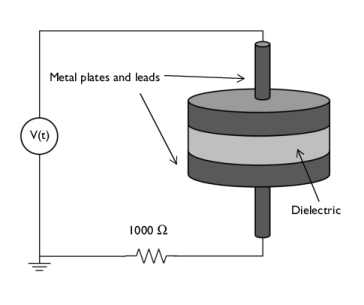
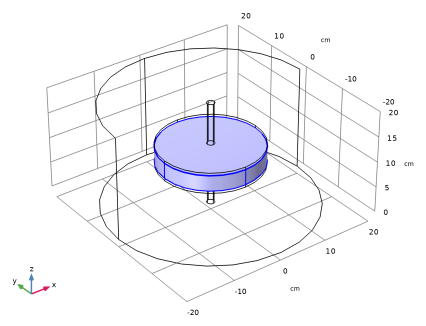
Figure 1: A simple capacitor composed of a disk of dielectric with metal plates on either side and lead wires is connected to a circuit model of a voltage source and a resistor.
Model Definition
The modeled capacitor consists of two metal disks with leads separated by a disk of quartz glass with a relative permittivity εr = 4.2 and a small electric conductivity σ = 10-14 S/m (Figure 1). The model includes a region of surrounding air (εr = 1.0, σ = 5·10-15 S/m) to account for the fringing fields. The capacitor is connected to an external circuit composed of a voltage source and a resistor. Initially, the capacitor is in an equipotential state, with no potential difference between the plates. The voltage across the system is turned on instantaneously, and the potential fields and current through the device are computed.
Assume that the capacitor plates themselves are highly conductive, so that their total effective resistivity is much lower than that of the external resistor. Under this assumption, the electric potential in each of the plates is uniform at any instant in time.
A separate electrostatic analysis can be used to compute the capacitance of the device with the result C = 43.4 pF. The external resistor has a resistance of R = 1000 Ω. The analytic solution for the current through a resistor and capacitor in series is
where V0 is the applied voltage.
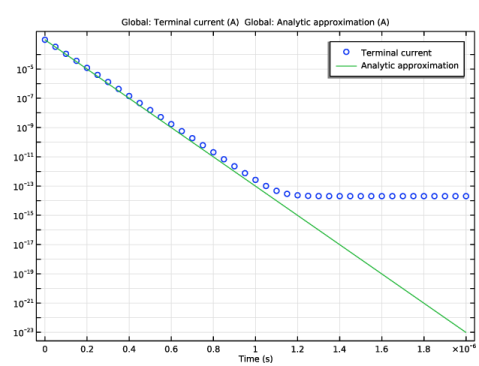
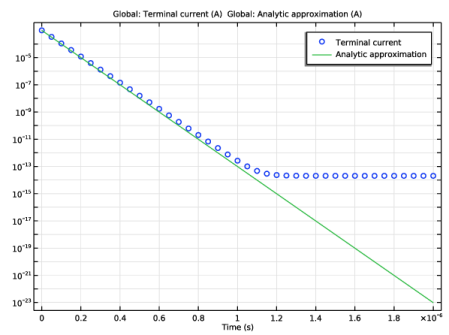
Since the quartz and the air have a low conductivity, displacement currents will be dominant in the beginning of the transient for about 1 μs. After that, conduction currents become significant and the model deviates from the analytic approximation. Because both displacement and conduction currents are significant in this model, the Electric Currents interface is used.
When solving a finite element model and a circuit model in combination, it is sometimes necessary to adjust the solver settings. Here, a coupled direct solver is employed. This is the most robust solver combination, but also the most memory intensive one.
Results and Discussion
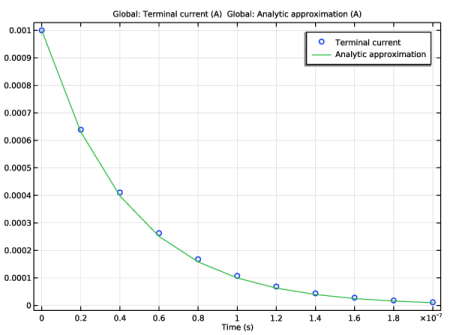
Figure 2 compares the model result for the current through the capacitor as a function of time for a unit change in the applied voltage with the analytic solution. As the figure shows, the agreement is very good.
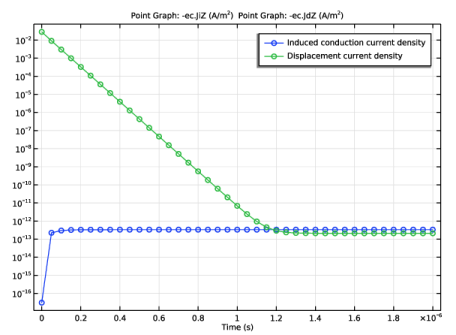
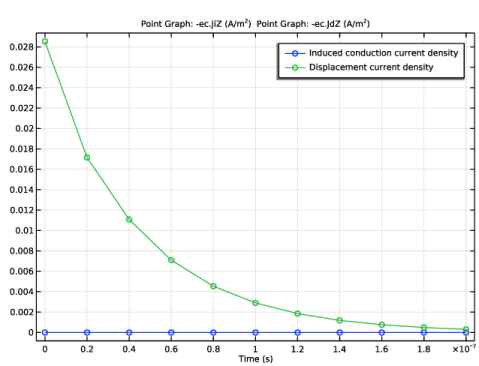
The displacement and conduction current densities at a point midway between the capacitor plates are plotted in Figure 3. While the displacement current density drops off to zero, the conduction current density rises in time to a steady-state value. At first, the magnitude of the displacement current density is much higher than the magnitude of the conduction current density, which means that the device has only small leakage currents and losses at these time scales.
Finally, Figure 4 compares the model to the analytical approximation on a longer time scale. The analytical approximation can be improved by adding a lumped resistor, parallel to the capacitor, representing the nonzero conductivity of the insulators.
Figure 2: The current through the capacitor after a change in voltage is applied across the system.
Figure 3: The induced conduction and displacement current densities in the quartz dielectric.
Figure 4: The current through the capacitor. After about 1 μs the model starts to deviate from the analytic solution.
Application Library path: ACDC_Module/Devices,_Capacitive/capacitor_transient
Modeling Instructions
From the File menu, choose New.
New
In the New window, click  Model Wizard.
Model Wizard
1
In the Model Wizard window, click  3D.
2
In the Select Physics tree, select AC/DC > Electric Fields and Currents > Electric Currents (ec).
3
Click Add.
4
Click  Study.
5
In the Select Study tree, select General Studies > Time Dependent.
6
Global Definitions
Parameters 1
1
In the Model Builder window, under Global Definitions click Parameters 1.
2
In the Settings window for Parameters, locate the Parameters section.
3
Geometry 1
1
In the Model Builder window, under Component 1 (comp1) click Geometry 1.
2
In the Settings window for Geometry, locate the Units section.
3
From the Length unit list, choose cm.
First, create a cylinder for the model domain.
Cylinder 1 (cyl1)
1
In the Geometry toolbar, click  Cylinder.
2
In the Settings window for Cylinder, locate the Size and Shape section.
3
In the Radius text field, type 20.
4
In the Height text field, type 20.
5
Click  Build Selected.
Choose wireframe rendering to get a better view of the interior parts.
6
Click the  Wireframe Rendering button in the Graphics toolbar.
Then, add a cylinder for the disc of dielectric with the two metal plates.
Cylinder 2 (cyl2)
1
In the Geometry toolbar, click  Cylinder.
2
In the Settings window for Cylinder, locate the Size and Shape section.
3
In the Radius text field, type 10.
4
In the Height text field, type 4.
5
Locate the Position section. In the z text field, type 8.
6
Click to expand the Layers section. In the table, enter the following settings:
7
Clear the Layers on side checkbox.
8
Select the Layers on bottom checkbox.
9
Select the Layers on top checkbox.
10
Click  Build Selected.
Finish the geometry by adding two cylinders for the leads.
Cylinder 3 (cyl3)
1
In the Geometry toolbar, click  Cylinder.
2
In the Settings window for Cylinder, locate the Size and Shape section.
3
In the Radius text field, type 0.75.
4
In the Height text field, type 8.
Cylinder 4 (cyl4)
1
Right-click Cylinder 3 (cyl3) and choose Duplicate.
2
In the Settings window for Cylinder, locate the Position section.
3
In the z text field, type 12.
4
Click  Build All Objects.
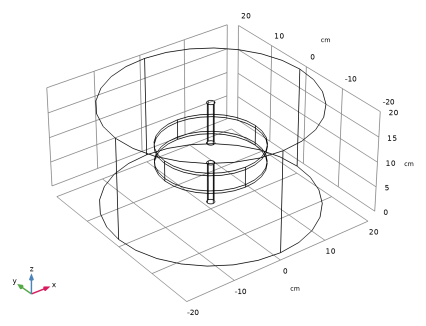
The result should look like the image above.
Electric Currents (ec)
The model is composed of a disc of dielectric material with metal plates on either side and two lead wires. To get a better view, hide some of the boundaries. Begin by selecting the Electric Currents interface, then add a Hide node.
Definitions
Hide for Physics 1
1
In the Model Builder window, expand the Component 1 (comp1) > Definitions node.
2
Right-click View 1 and choose Hide for Physics.
3
In the Settings window for Hide for Physics, locate the Geometric Entity Selection section.
4
From the Geometric entity level list, choose Boundary.
5
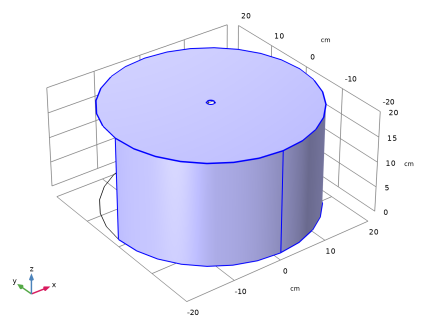
Apply a ground condition to all boundaries surrounding the lower electrode. This makes the solution inside the electrode trivial, and the corresponding domains should thus be deselected.
Explicit 1
1
In the Definitions toolbar, click  Explicit.
2
3
In the Settings window for Explicit, locate the Output Entities section.
4
From the Output entities list, choose Adjacent boundaries.
Electric Currents (ec)
1
In the Model Builder window, under Component 1 (comp1) click Electric Currents (ec).
2
Ground 1
1
In the Physics toolbar, click  Boundaries and choose Ground.
2
In the Settings window for Ground, locate the Boundary Selection section.
3
From the Selection list, choose Explicit 1.
Add a couple of terminals to the Electric Currents interface and connect them to the circuit and ground.
Domain Terminal 1
1
In the Physics toolbar, click  Domains and choose Domain Terminal.
2
3
In the Settings window for Domain Terminal, locate the Terminal section.
4
From the Terminal type list, choose Circuit.
5
Click Add Electrical Circuit Connection.
6
In the Add Electrical Circuit Connection dialog, click OK.
Create a lumped Resistor and a Voltage Source, and put them in series with the capacitor model.
Electrical Circuit (cir)
In the Model Builder window, under Component 1 (comp1) click Electrical Circuit (cir).
Resistor 1 (R1)
1
In the Electrical Circuit toolbar, click  Resistor.
2
In the Settings window for Resistor, locate the Node Connections section.
3
4
Locate the Device Parameters section. In the R text field, type R.
Voltage Source 1 (V1)
1
In the Electrical Circuit toolbar, click  Voltage Source.
2
In the Settings window for Voltage Source, locate the Node Connections section.
3
4
Locate the Device Parameters section. In the vsrc text field, type V0.
External I vs. U 1 (IvsU1)
1
In the Model Builder window, click External I vs. U 1 (IvsU1).
2
In the Settings window for External I vs. U, locate the Node Connections section.
3
Next, assign material properties to the model. Begin by specifying Air for all domains. Adjust its conductivity to 5e-15[S/m].
Add Material
1
In the Home toolbar, click  Add Material to open the Add Material window.
2
Go to the Add Material window.
3
In the tree, select Built-in > Air.
4
Click the Add to Component button in the window toolbar.
Materials
Air (mat1)
1
In the Settings window for Material, locate the Material Contents section.
2
Override the dielectric disc with glass (quartz).
Add Material
1
Go to the Add Material window.
2
In the tree, select Built-in > Glass (quartz).
3
Click the Add to Component button in the window toolbar.
4
In the Materials toolbar, click  Add Material to close the Add Material window.
Materials
Glass (quartz) (mat2)
Select Domain 3 only.
Mesh 1
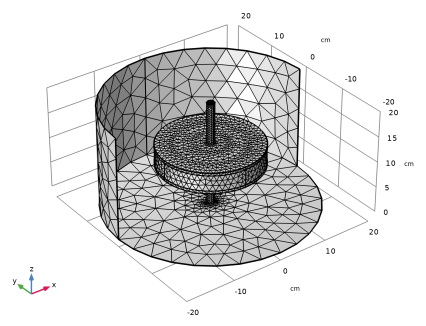
In the Model Builder window, under Component 1 (comp1) right-click Mesh 1 and choose Build All.
Study 1
1
In the Model Builder window, click Study 1.
2
In the Settings window for Study, locate the Study Settings section.
3
Clear the Generate default plots checkbox.
Step 1: Time Dependent
1
In the Model Builder window, under Study 1 click Step 1: Time Dependent.
2
In the Settings window for Time Dependent, locate the Study Settings section.
3
Click  Range.
4
In the Range dialog, type 2e-8 in the Step text field.
5
In the Stop text field, type 2e-7.
6
Click Replace.
To increase robustness, apply a direct solver and Exclude Algebraic from the error estimate. This is appropriate for many time dependent problems. As this option may relax some decisions of the time stepping algorithm, a maximum time step is added, and the maximum BDF order is decreased. This preserves accuracy of variables even when currents are nearly zero.
Solution 1 (sol1)
1
In the Study toolbar, click  Show Default Solver.
2
In the Model Builder window, expand the Solution 1 (sol1) node.
3
Right-click Study 1 > Solver Configurations > Solution 1 (sol1) > Time-Dependent Solver 1 and choose Fully Coupled.
4
Right-click Study 1 > Solver Configurations > Solution 1 (sol1) > Time-Dependent Solver 1 > Direct and choose Enable.
5
In the Model Builder window, under Study 1 > Solver Configurations > Solution 1 (sol1) click Time-Dependent Solver 1.
6
In the Settings window for Time-Dependent Solver, click to expand the Time Stepping section.
7
Find the Algebraic variable settings subsection. From the Error estimation list, choose Exclude algebraic.
8
From the Maximum BDF order list, choose 1.
9
From the Maximum step constraint list, choose Constant.
10
In the Maximum step text field, type 5e-9.
11
In the Study toolbar, click  Compute.
Results
Cut Point 3D 1
1
In the Model Builder window, expand the Results node.
2
Right-click Results > Datasets and choose Cut Point 3D.
3
In the Settings window for Cut Point 3D, locate the Point Data section.
4
In the x text field, type 0.
5
In the y text field, type 0.
6
In the z text field, type 10.
3D Plot Group 1
In the Results toolbar, click  3D Plot Group.
Slice 1
1
Right-click 3D Plot Group 1 and choose Slice.
2
In the Settings window for Slice, locate the Plane Data section.
3
In the Planes text field, type 1.
4
In the 3D Plot Group 1 toolbar, click  Plot.
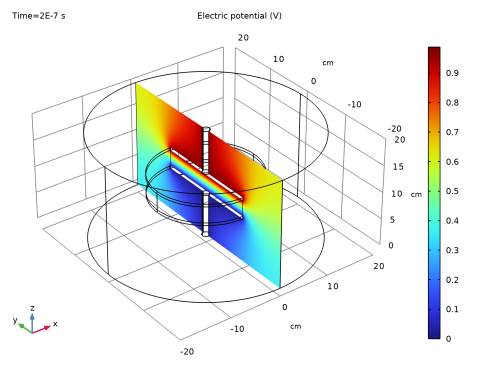
The electric potential should be constant in the metallic domains. To better visualize the electric potential profile in the air, exclude those domains from the dataset.
Study 1/Solution 1 (sol1)
In the Model Builder window, under Results > Datasets click Study 1/Solution 1 (sol1).
Selection
1
In the Results toolbar, click  Attributes and choose Selection.
2
In the Settings window for Selection, locate the Geometric Entity Selection section.
3
From the Geometric entity level list, choose Domain.
4
3D Plot Group 1
1
In the Model Builder window, under Results click 3D Plot Group 1.
2
In the 3D Plot Group 1 toolbar, click  Plot.
1D Plot Group 2
In the Results toolbar, click  1D Plot Group.
Global 1
1
Right-click 1D Plot Group 2 and choose Global.
2
In the Settings window for Global, click Replace Expression in the upper-right corner of the y-Axis Data section. From the menu, choose Component 1 (comp1) > Electric Currents > Terminals > ec.I0_1 - Terminal current - A.
3
Click to expand the Coloring and Style section. Find the Line style subsection. From the Line list, choose None.
4
Find the Line markers subsection. From the Marker list, choose Circle.
Global 2
1
In the Model Builder window, right-click 1D Plot Group 2 and choose Global.
2
In the Settings window for Global, locate the y-Axis Data section.
3
4
In the 1D Plot Group 2 toolbar, click  Plot.
Compare the resulting plot with Figure 2. The model and the analytic approximation show good correspondence.
1D Plot Group 3
1
In the Results toolbar, click  1D Plot Group.
2
In the Settings window for 1D Plot Group, locate the Data section.
3
From the Dataset list, choose Cut Point 3D 1.
Point Graph 1
1
Right-click 1D Plot Group 3 and choose Point Graph.
2
In the Settings window for Point Graph, locate the y-Axis Data section.
3
In the Expression text field, type -ec.JiZ.
4
Click to expand the Coloring and Style section. Find the Line markers subsection. From the Marker list, choose Circle.
5
Click to expand the Legends section. Select the Show legends checkbox.
6
From the Legends list, choose Manual.
7
8
In the 1D Plot Group 3 toolbar, click  Plot.
Point Graph 2
1
Right-click Point Graph 1 and choose Duplicate.
2
In the Settings window for Point Graph, locate the y-Axis Data section.
3
In the Expression text field, type -ec.JdZ.
4
Locate the Legends section. In the table, enter the following settings:
5
In the 1D Plot Group 3 toolbar, click  Plot.
The resulting plot shows a conduction current that is negligible, when compared to the displacement current.
Now, check if the analytic approximation still holds on a longer time scale, when the conduction and displacement currents are of the same order.
Study 1
Step 1: Time Dependent
1
In the Model Builder window, under Study 1 click Step 1: Time Dependent.
2
In the Settings window for Time Dependent, locate the Study Settings section.
3
In the Output times text field, type range(0,5e-8,2e-6).
4
In the Study toolbar, click  Compute.
Results
1D Plot Group 3
Switch to log-scale, to better see the currents close to zero.
1
Click the  y-Axis Log Scale button in the Graphics toolbar.
2
In the Model Builder window, under Results click 1D Plot Group 3.
3
In the 1D Plot Group 3 toolbar, click  Plot.
The reproduced plot should look like Figure 3. The conduction current starts becoming significant after about one microsecond.
Finish the result analysis by reproducing Figure 4.
1D Plot Group 2
1
Click the  y-Axis Log Scale button in the Graphics toolbar.
2
In the Model Builder window, click 1D Plot Group 2.
3
In the 1D Plot Group 2 toolbar, click  Plot.
The analytic approximation starts to fail as soon as the conduction currents through the air and the quartz become significant.