Tutorial Model — Nonisothermal Mixer
This model demonstrates how to obtain the temperature distribution in a simplified tabletop lab mixer using the Rotating Machinery, Nonisothermal Flow branch in the Mixer Module. The key instructive element is a demonstration of the Frozen Rotor method, which substantially reduces the computational time for a mixing study.
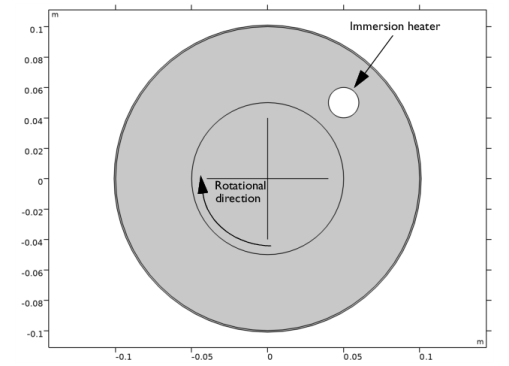
The model geometry is shown in Figure 1-3. It represents a cross-section of a tabletop lab mixer. Small mixers are not always baffled. Instead, one or several rods are inserted through the mixer lid and function as baffles. The rods typically contain equipment to measure, for example, the temperature or pH level. In this model, the mixer is baffled by a simplified immersion heater, which has a constant surface temperature of 60°C.
Figure 1-3: Tabletop lab mixer geometry, showing the rotational direction of the impeller and the location of the immersion heater.
The mixer tank is filled with water which is agitated by the impeller rotating clockwise (as indicated in Figure 1-3) with 20 revolutions per minute (rpm). In this model the thickness of the impeller blades is significantly smaller than the diameter of the tank, and the impeller blades are therefore modeled as infinitely thin.
The tank is made of steel and is subjected to cooling by natural convection on the outside of the mixer vessel. The surrounding conditions corresponds to a temperature of 20°C and a pressure of 1 atmosphere. The total height of the reactor is 0.2 m. These conditions are needed as input for the natural convection correlations, which are used to calculate the heat transfer coefficient from the tank wall to the surroundings.
Model Setup
The Reynolds number for a mixer is commonly calculated as
(1-1)
where N is the number of rotations per second, Da the impeller diameter, and ν the kinematic viscosity. A high Reynolds number means that the flow has a tendency to become turbulent. Evaluating Equation 1-1 using ν at 60 °C gives Re 6944. This Reynolds number indicates that the flow is at least partly turbulent. For simplicity in this instructional model, the flow is assumed to be two-dimensional and no turbulence model is used. Possible extensions of the model includes to resolve it using the full three dimensional geometry, and also to apply a turbulence model to investigate the effect of turbulent structures occurring in the flow.
The objective of this model is to obtain the temperature distribution at operating conditions. One way to get there would be to start from zero velocity and a homogeneous temperature distribution and to simulate the startup of the mixer. This approach is simple but requires a relatively long computation time.
A computationally more efficient method is to first simulate the flow using the frozen-rotor approach. The frozen-rotor approach is a modeling concept that treats the rotor as fixed, or frozen in space. The flow in the rotating domain is assumed to be stationary in terms of a rotating coordinate system. The effect of the rotation is then accounted for by Coriolis and centrifugal forces. The flow in the nonrotating parts is also assumed to be stationary, but in a nonrotating coordinate system (see Frozen Rotor in the CFD Module User’s Guide for more information). The result of a frozen-rotor simulation is an approximation to the flow induced by the impeller. The result depends on the angular position of the impeller and cannot represent transient effects. However, it is still a very good starting point to reach operating conditions.
Here the frozen-rotor result is used as input to a time-dependent simulation and the progress toward the operating conditions is monitored using probe plots.
Results and Discussion
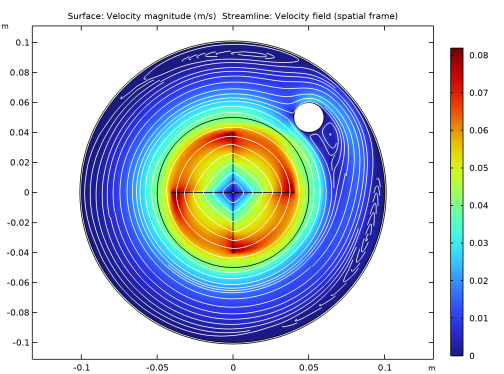
Figure 1-4 shows the velocity distribution obtained from the frozen-rotor simulation. As expected, the highest velocity magnitude is found at the tip of the mixer blades. Three recirculation zones can be identified: one downstream of the immersion heater, one along the top wall, and one along the bottom wall.
Figure 1-4: Velocity field obtained from the frozen rotor simulation.
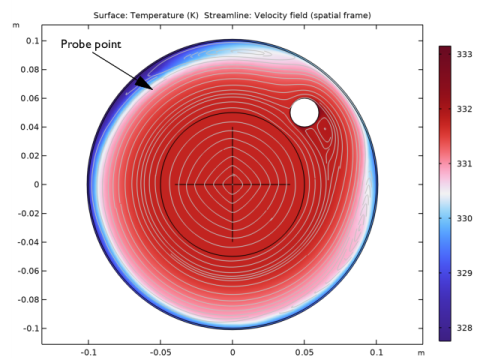
Figure 1-5 shows the temperature distribution obtained from the frozen-rotor simulation. Streamlines are also included to visualize the flow field. The temperature is relatively homogeneous throughout the mixer. There are some cold spots in connection to the recirculation zones adjacent to the outer wall. This is expected because the fluid there has a longer residence time close to the solid wall, and therefore has less contact with the heated fluid closer to the center of the mixer.
Figure 1-5: Temperature distribution obtained from the frozen-rotor simulation.
The progress of a solution can be monitored using probes (see Probes in the COMSOL Multiphysics Reference Manual). The velocity magnitude and temperature are probed at (x,y) = (−0.05,0.065). The location is indicated in Figure 1-5, just outside the recirculation zone along the top wall.
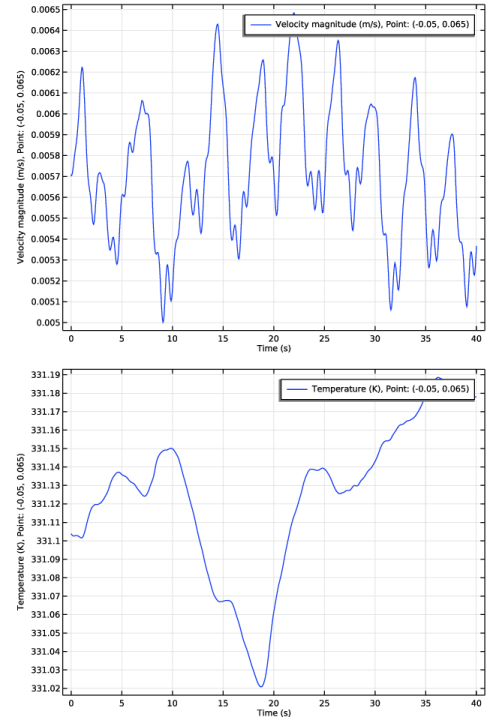
The probe plots produced during the time-dependent simulation are shown in Figure 1-6. The velocity probe plot shows that the flow pattern, after an initial transient, oscillates around the frozen-rotor result with an amplitude of about 10%. The deviations in temperature are much smaller.
The velocity probe plot exhibits quasi-periodic structure. A discrete Fourier analysis produces a peak at a frequency 1.33 Hz which corresponds to the passing of the blades. Several other frequencies can be identified, the most pronounced peaks are at 0.125 Hz, 0.25 Hz, 0.42 Hz and 1.07 Hz. Evaluating the Strouhal frequency for the immersion heater (for a typical value of the Strouhal number, St = 0.2) gives a value of about 1.48 Hz. Hence, oscillations in the mixer, which include the intermittent boundary-layer separation, cannot be completely explained as being driven by the frequency of the rotating blades and the main frequency of the Kármán vortex street behind the heater. Probably, some more intricate mechanisms are involved. The temperature variations are within the tolerance set in the default solver sequence.
Figure 1-6: Probe plots of velocity and temperature in the mixer from the time-dependent simulation.
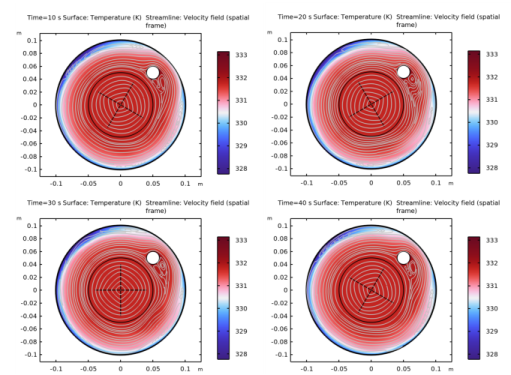
A more complete picture of the progress from the frozen-rotor solution toward the operating conditions can be seen through an animation. Figure 1-7 shows four snapshots from such an animation. The time runs from top left to lower-right. The most notable changes occur in the recirculation zones. The recirculation zone behind the immersion heater has two vortices which appear to be oscillating. This has no effect on the local temperature, but it significantly influences the size of the recirculation zones adjacent to the outer wall.
Looking at Figure 1-5, it can be seen that the recirculation zone along the top wall contains a single, large vortex. As the simulation progresses (t = 20 s to t 40 s), the size and strength and position of the vortices along the top wall varies as a result of the interaction between the disturbance, produced by the immersion heater, and the outer wall.
Figure 1-7: Evolution of the temperature field from frozen rotor solution toward operating conditions.
The results obtained in this model are typical for rotating-machinery models: The frozen-rotor approach can, with minimal computational effort, deliver a decent approximation of the flow and temperature fields. But transient effects can only be captured with a time-dependent simulation, and these effects can change local temperature and velocity values significantly.
The remainder of this section consists of step-by-step instructions on setting up, solving, and analyzing the model using both analysis types.
Model Wizard
The first step to build a model is to open COMSOL Multiphysics, then select the physics interface and specify the type of analysis you want to do — in this case, a frozen-rotor analysis using a Rotating Machinery, Nonisothermal Laminar Flow interface.
1
Open COMSOL Multiphysics. In the New window, click Model Wizard . Then click the 2D button .
2
In the Select Physics tree, under Fluid Flow > Nonisothermal Flow > Rotating Machinery, Nonisothermal Flow click Laminar Flow .
3
Click the Add button.
4
Click the Study button .
5
In the Select Study tree, select Preset Studies for Selected Physics Interfaces > Frozen Rotor .
6
Click the Done button .
CREATE the Geometry
To simplify this step, insert a prepared geometry sequence.
1
In the Geometry toolbar, select Insert Sequence .
2
3
Go to the Home toolbar and select Build All . The Home toolbar refers to the specific set of controls near the top of the Desktop.
4
Click the Zoom Extents button in the Graphics toolbar.
Note that the boundary between the rotating and the nonrotating domain is an assembly boundary so that the parts can move relative to each other in the time-dependent simulation.
Materials
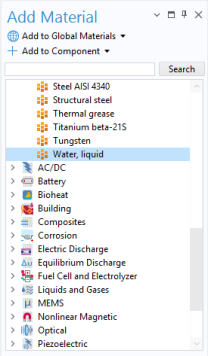
In the Home toolbar, click Add Material  to open the Add Material window.
Water, liquid
1
Go to the Add Material window.
2
In the tree, select Built-In > Water, liquid.
3
In the Add Material window, click Add to Component .
Steel AISI 4340
1
Go to the Add Material window.
2
In the tree, select Built-In > Steel AISI 4340.
3
In the Add Material window, click Add to Component .
4
In the Home toolbar, click Add Material  again to close the Add Material window.
5
In the Model Builder window, under Component 1 (comp1) > Materials click Steel AISI 4340.
6
In the settings window for Steel AISI 4340, locate the Geometric Entity Selection section. Select Domain 1, the circular outer rim of the mixer, only.
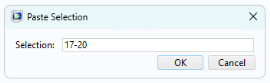
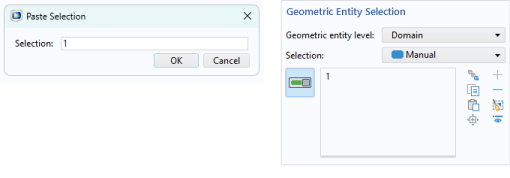
There are many ways to select geometric entities. When you know the domain to add, such as in this exercise, you can click the Paste Selection button  and enter the information in the Selection text field. In this example, enter 1 in the Paste Selection window. For more information about selecting geometric entities in the Graphics window, see the COMSOL Multiphysics Reference Manual.
definitions
Rotating Domain 1
1
In the Model Builder window, under Component 1 (comp1) > Moving Mesh click Rotating Domain 1.
1
In the Settings window for Rotating Domain, locate the Domain Selection section.
2
3
Click Remove from Selection . Only domain 3, the impeller domain, is selected.
4
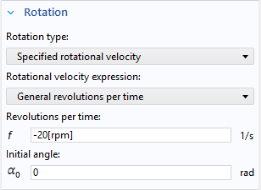
In the Settings window for Rotating Domain, locate the Rotation section.
5
In the Revolutions per time text field f, type -20[rpm].
Laminar Flow (spf)
1
In the Model Builder window, under Component 1 (comp1) click Laminar Flow (spf).
2
In the Settings window for Laminar Flow, locate the Domain Selection section.
3
4
Click Remove from Selection . Only domains 2 and 3, the fluid domains, are selected.
Interior Wall 1
1
In the Physics toolbar, click Boundaries  and choose Interior Wall .
2
Pressure Point Constraint 1
1
In the Physics toolbar, click Points  and select Pressure Point Constraint .
2
Heat Transfer in Fluids (ht)
In the Model Builder window, under Component 1 (comp1) click Heat Transfer in Fluids (ht).
Solid 1
1
In the Physics toolbar, click Domains  and choose Solid .
2
Temperature 1
1
In the Physics toolbar, click Boundaries  and select Temperature .
2
3
In the Settings window for Temperature, locate the Temperature section.
4
In the T0 text field, type 60[degC].
Heat Flux 1
1
In the Physics toolbar, click Boundaries  and choose Heat Flux .
2
3
In the Settings window for Heat Flux, locate the Heat Flux section.
4
From the Flux type list, click the Convective heat flux button.
5
From the Heat transfer coefficient list, choose External natural convection.
6
In the L text field, type 0.2[m].
Mesh 1
1
In the Model Builder window, under Component 1 (comp1) click Mesh 1 .
2
In the Settings window for Mesh, locate the Physics-Controlled Mesh section.
3
From the Element size list, choose Fine.
The default mesh generates isotropic mesh elements across the thin vessel wall. Edit the Physics-controlled mesh settings to increase the element size in the circumferential direction of the solid domain.
1
Go to the Mesh toolbar and click Edit  .
2
In the Model Builder window, under Component 1 (comp1) > Mesh 1 click Size .
3
In the Settings window for Size, locate the Element Size section.
4
From the Predefined list, choose Coarse.
To avoid unnecessarily small elements in the mixer vessel wall, add a separate Size node with reduced resolution in narrow regions.
Size 1
1
Right-click Component 1 (comp1) > Mesh 1 > Free Triangular 1  and choose Size .
2
In the Settings window for Size, locate the Geometric Entity Selection section.
3
From the Geometric entity level list, choose Domain.
4
5
Locate the Element Size section. Click the Custom button.
6
Locate the Element Size Parameters section. Select the Resolution of narrow regions checkbox.
7
Build the Free Triangular 1 mesh node in order to inspect the mesh at this point.
8
In the Settings window for Size 1, click the Build Selected button 
Now add the mesh boundary layers as well. Use boundary layer mesh also in the solid domain to increase the resolution there.
Boundary Layers 1
1
In the Model Builder window, under Component 1 (comp1) > Mesh 1 click Boundary Layers 1 .
2
In the Settings window for Boundary Layers, locate the Domain Selection section.
3
From the Selection list, choose All domains.
4
In the Settings window for Boundary Layers, click the Build Selected button .
Now that the physics is defined and the geometry is meshed, solve the model using the frozen rotor approach.
Study 1
In the Home toolbar, click Compute .
Results
Re-create Figure 1-4 using the following steps.
Velocity (spf)
1
In the Model Builder window, under Results , click the Velocity (spf) node.
2
Right-click Velocity (spf) and choose Streamline .
3
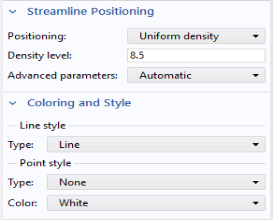
In the Settings window for Streamline, locate the Streamline Positioning section.
4
From the Positioning list, choose Uniform density.
5
In the Density level text field, type 8.5.
6
Locate the Coloring and Style section. Find the Point style subsection. From the Color list, choose White.
7
In the Velocity (spf) toolbar, click Plot .
8
Click the Zoom Extents button in the Graphics toolbar.
Temperature (ht)
Figure 1-5 can be created by the following steps.
1
In the Model Builder window, expand the Results > Temperature (ht) node, then click Surface .
2
In the Settings window for Surface, locate the Coloring and Style section.
3
In the Color Table dialog, select Wave > Wave in the tree.
4
Go to the Temperature (ht) toolbar and select Streamline .
5
In the Settings window for Streamline, locate the Streamline Positioning section.
6
From the Positioning list, choose Uniform density.
7
In the Density level text field, type 8.5.
8
Locate the Coloring and Style section. Find the Point style subsection. From the Color list, choose Gray.
9
In the Temperature (ht) toolbar, click Plot .
Add a probe to follow the development of the flow during the time-dependent simulation.
Definitions
Domain Point Probe 1
1
In the Definitions toolbar, click Probes  and choose Domain Point Probe .
2
In the Settings window for Domain Point Probe, locate the Point Selection section.
3
In the Coordinates text field, set x to -0.05[m].
4
In the Coordinates text field, set y to 0.065[m].
The probe is located at the outer edge of the recirculation zone that is positioned along the upper wall. By default the flow field velocity magnitude is tracked by the probe.
5
In the Model Builder window, expand the Domain Point Probe 1 node .
6
Right-click Point Probe Expression 1 (ppb1)  and choose Duplicate.
7
In the Settings window for Point Probe Expression, locate the Expression section.
8
In the Expression text field, type T, in order to track the temperature variable.
9
Click to expand the Table and Window Settings section. From the Plot window list, choose New window.
Add a Time Dependent study in order to perform a transient simulation, using the previous solution as initial condition.
Add Study
1
In the Home toolbar, click Add Study  to open the Add Study window.
2
Go to the Add Study window.
3
In the tree, select General Studies > Time Dependent .
4
In the Add Study window, click Add Study .
5
In the Home toolbar, click Add Study  again to close the Add Study window.
Study 2
Step 1: Time Dependent
1
In the Model Builder window, under Study 2 click Step 1: Time Dependent .
2
In the Settings window for Time Dependent, locate the Study Settings section.
3
In the Output times text field, type range(0,0.5,40).
This means that the solution will be computed from t = 0 to 40 s, and the solution will be stored every 0.5 seconds.
Now, apply the solution from the previous frozen rotor analysis as initial condition for the transient simulation.
4
Click to expand the Values of Dependent Variables section. Find the Initial values of variables solved for subsection. From the Settings list, choose User controlled.
5
From the Method list, choose Solution.
6
From the Study list, choose Study 1, Frozen Rotor.
For the transient simulation, add a restriction on the time step. This will make sure that the impeller rotation in each time step is bounded, and that a high accuracy is maintained throughout the simulation. First generate the solver sequence.
Solution 2
1
In the Study toolbar, click Show Default Solver .
2
In the Model Builder window, expand the Solution 2 (sol2) node, then click Time-Dependent Solver 1 .
Apply a maximum time step of 0.05 s. This is equivalent to an impeller rotation of 6º.
3
In the Settings window for Time-Dependent Solver, click to expand the Time Stepping section.
4
From the Maximum step constraint list, choose Constant.
5
In the Maximum step text field, type 0.05.
6
In the Study toolbar, click Compute .
Two probe plots are automatically displayed when you start the calculation.
Results
The following steps create an animation that contains the plots in Figure 1-7.
Temperature (ht) 1
1
In the Model Builder window, under Results , click Temperature (ht) 1 .
2
In the Settings window for 2D Plot Group, locate the Plot Settings section.
Plot the dataset edges in the spatial frame to make them follow the rotation.
3
From the Frame list, choose Spatial (x, y, z).
Surface
1
In the Model Builder window, expand the Temperature (ht) 1  node, then click Surface .
2
In the Settings window for Surface, locate the Coloring and Style section.
3
In the Color Table dialog, select Wave > Wave in the tree.
Streamline 1
1
Go to the Temperature (ht) 1 toolbar and choose Streamline .
2
In the Settings window for Streamline, locate the Streamline Positioning section.
3
From the Positioning list, choose Uniform density.
4
In the Density level text field, type 8.5.
5
Locate the Coloring and Style section. Find the Point style subsection. From the Color list, choose Gray.
Animation 1
1
Go to the Results toolbar, click Animation  and choose File .
2
In the Settings window for Animation, locate the Target section.
3
From the Target list, choose Player.
4
Locate the Scene section. From the Subject list, choose Temperature (ht) 1.
5
Locate the Frames section. From the Frame selection list, choose All.
6
Locate the Playing section. In the Display each frame for text field, type 0.25.
7
In the Graphics window, click Play .