|
1
|
|
3
|
In the Paste Selection dialog, type 1 3 5 6 7 8 11 12 13 14 15 17 18 19 20 21 22 24 26 27 in the Selection text field.
|
|
2
|
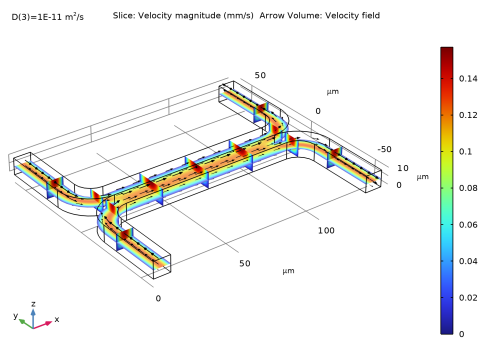
In the Settings window for 3D Plot Group, type Velocity (Uncoupled Flow) in the Label text field.
|
|
2
|
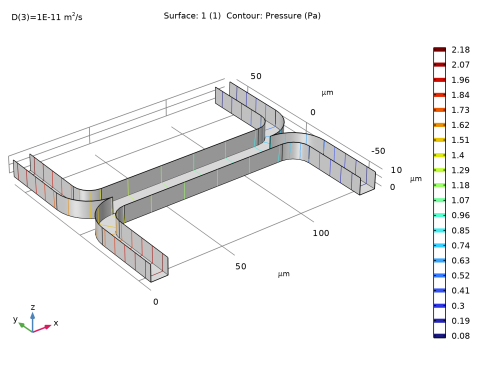
In the Settings window for 3D Plot Group, type Pressure (Uncoupled Flow) in the Label text field.
|
|
2
|
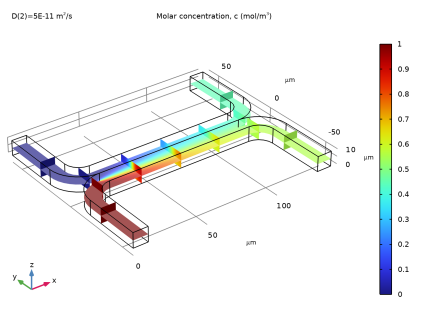
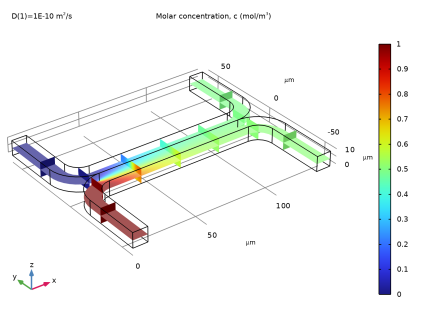
In the Label text field, type Concentration (Uncoupled Flow).
|
|
2
|
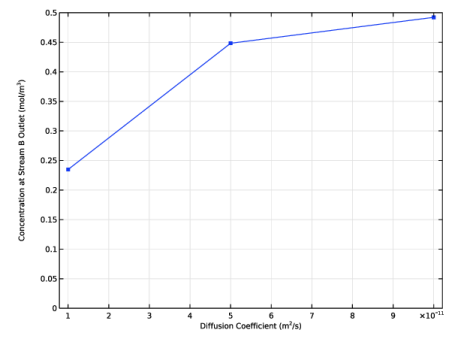
In the Settings window for 1D Plot Group, type Output Concentration (Uncoupled Flow) in the Label text field.
|
|
-
|
Select the x-axis label checkbox. In the associated text field, enter Diffusion Coefficient (m<sup>2</sup>/s).
|
|
-
|
Select the y-axis label checkbox. In the associated text field, enter Concentration at Stream B Outlet (mol/m<sup>3</sup>).
|
|
12
|
 and choose Surface
  .
. .
. .
. and choose Slice
  .
. and choose Slice
  .
.  , right-click Slice 2
  and choose Duplicate
  .
. and choose Arrow Volume.
 .
. and choose 3D Plot Group
  .
. and choose Surface
  .
. and choose Contour
  .
. in the upper-right corner of the Expression section. From the menu, choose Component 1 (comp1) > Creeping Flow > Velocity and pressure > p – Pressure – Pa.
 .
.
 and choose Duplicate
  .
. .
. in the upper-right corner of the Expression section. From the menu, choose Component 1 (comp1) > Transport of Diluted Species > Species c > c – Molar concentration, c – mol/m
 .
.  in the upper-right corner of the Expression section. From the menu, choose c – Molar concentration, c – mol/m
 .
. and choose Disable
  .
. .
. after each selection.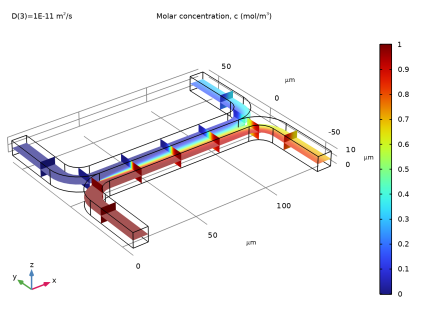
 and choose 1D Plot Group
  .
. .
. in the upper-right corner of the y-Axis Data section. From the menu, choose Component 1 > Transport of Diluted Species > Outflow 2 > tds.out2.c0_avg_c - Average concentration - mol/m
 .
. .
.