Mesh 1
Next set up a structured mesh to solve the problem on.
Mapped 1
1
In the Model Builder window, under Component 1 (comp1) right-click Mesh 1
and choose Boundary Generator > Mapped
.
2
Select Boundaries 3, 16, and 32 only.
Size 1
Set a maximum element size on the sensor diaphragm.
1
Right-click Mapped 1
and choose Size
.
2
In the Settings window for Size locate the Element Size section. Click the Custom button.
3
Locate the Element Size Parameters section. Select the Maximum element size checkbox. In the associated text field, enter
50[um]
.
4
Locate the Geometric Entity Selection section. The boundaries 3, 16, and 32 are preselected. Change the selection to Boundary 3 only by clicking on the unwanted number and then pressing the Delete key on the keyboard(16, and then 32).
5
Click the Build All button
.
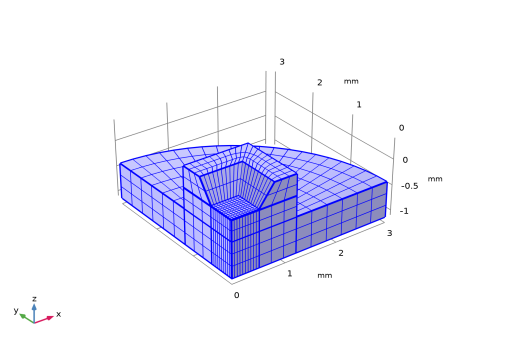
Sweep the surface mesh through the structure.
Swept 1
1
Right-click Mesh 1
and choose Swept
.
2
Click Build All
.
 and choose Boundary Generator > Mapped
  .
. and choose Size
  .
. .
. and choose Swept
  .
. .
.