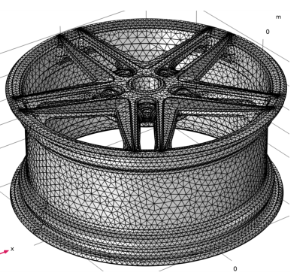
Generating a Tetrahedral Mesh
Now that the defeaturing is completed, create a volume mesh for the wheel rim.
1
In the Model Builder window, under Component 1 click Mesh 1.
The Geometry Cleanup dialog appears since narrow face regions, which are not removed by the Repair operation, remain in the wheel rim geometry.
2
In the Geometry Cleanup dialog that opens, click Clean up Automatically to automatically clean up the geometry.
The Remove Details 1 and Cleanup Log nodes are added to the model tree. In the Information section of the Remove Details 1 node you can see that some face regions were collapsed by the operation.
3
In the Model Builder, click Mesh 1, and in the Settings change the Element size to Extra coarse.
4
Click Build Mesh
.
5
To restore the view of the mesh, in the Graphics toolbar, click the Go to Default View
button.
The mesh contains approximately 164,000 tetrahedral elements.
 .
. button.