Geometry Cleanup
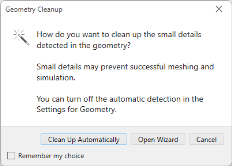
When leaving the geometry branch of the model tree, the geometry is automatically analyzed for small details.
1
In the Model Builder window, under Component 1 click Mesh 1.
2
In the Geometry Cleanup dialog that opens, click Open Wizard to open the Cleanup Wizard, to review the detected details and cleanup steps, and to modify the used tolerance.
The Cleanup can identify narrow face regions, sliver faces, small faces, short edges, narrow domain regions, and gaps. These issues are highlighted in the Graphics when the Remaining details section is active. Since this geometry has sector symmetry, the same small details are present around all of the spokes.
Increase the Detail size used for the cleanup to detect more details to remove.
3
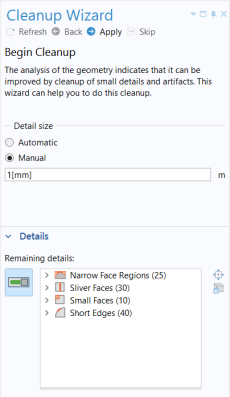
Go to the Cleanup Wizard window and click the Manual button.
4
In Detail size text field, type
1[mm]
.
5
Click the Refresh
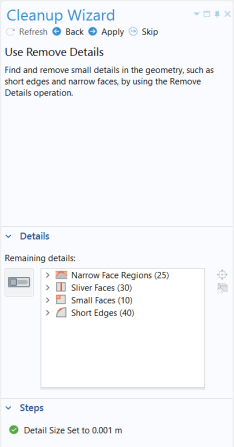
button in the window toolbar. Zoom in and rotate the rim to see some of the detected details around two of the spokes, as in the view below.
There are four types of details in the geometry: narrow face regions, sliver faces, small faces, and short edges.
6
Expand the sections corresponding to the detected detail types in the list. It is now possible to select the details to highlight them on the screen.
7
In the tree, select Sliver Faces (30) > Face 406 (3.1E-4 m) and click
Zoom to selection to zoom in on this face for a closer inspection.
Before proceeding with the cleanup process, mesh the geometry to observe the effects of the cleanup later.
8
Go to Mesh 1 and click Build All
.
9
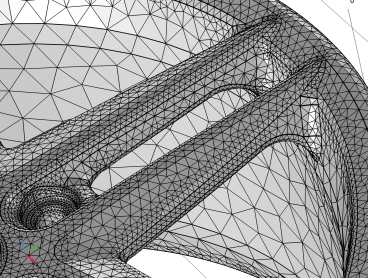
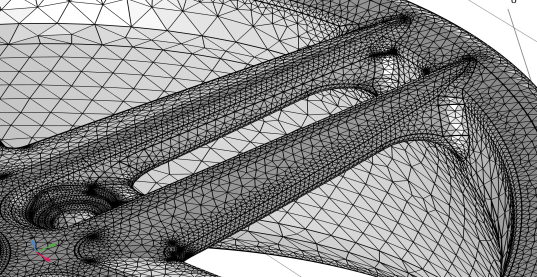
Zoom out to see the mesh around the two spokes as in the figure below.
The mesh resolves well the small geometric details but it is quite large with close to 600,000 domain elements. Notice the dense mesh regions that appear as dark spots at the location of small details. Changing the element size to a coarser setting can reduce the number of elements, but this usually also leads to lower mesh element quality due to the presence of the small geometric details.
10
In the settings window for Mesh, locate the Physics Controlled Mesh section. From the Element size list, choose Extra coarse and click Build All
.
This results in a mesh with about 200,000 tetrahedral elements, but the dense mesh regions remain as the mesh generator tries to resolve the details even with this coarser setting. The two information nodes that appear below the Mesh 1 node indicate that some edges and faces are much smaller than the minimum elements size setting.
Return to the Cleanup Wizard to see how the mesh can be improved by removing the small details.
11
Go to the Cleanup Wizard window and click Apply in the window toolbar to apply the specified detail size.
This opens the next page in the wizard that suggests to add a Remove Details operation to handle the detected details.
12
Click the Apply button again in the window toolbar to add and build the Remove Details node.
The Remove Details operation is a collection of virtual operations that simplify the geometry for meshing. How this is done by the sequence of operations added under Remove Details is explored in the next section of this tutorial.
The cleanup is now completed and all detected small details have been removed.
13
Click Done in the toolbar to close the Cleanup Wizard window.
14
A Cleanup Log
node is added last in the geometry sequence, and it becomes selected with its Settings window open.
This is where you can find information about the actions performed by the geometry cleanup process. In this case, it only added a Remove Details operation, but for more complex geometries, this list can be longer. When selecting a modification in the list you can use the buttons under the table to easily go to the node in the model tree to review the changes, and to revert some or all of the modifications. Restarting the Cleanup Wizard can also be done with the button in the window toolbar.
15
In the Model Builder window, click on Mesh 1 and choose Build All
.
Notice that the dense mesh regions no longer appear in this mesh of approximately 160,000 domain elements. The information nodes do not appear either under the Mesh 1 node, implying that mesh element quality has improved compared to the previous mesh.
 button in the window toolbar. Zoom in and rotate the rim to see some of the detected details around two of the spokes, as in the view below.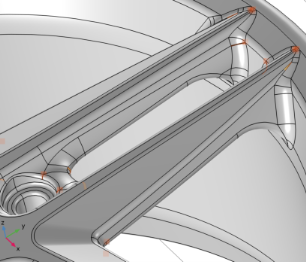
 Zoom to selection to zoom in on this face for a closer inspection.
 .
.
 .
.
 node is added last in the geometry sequence, and it becomes selected with its Settings window open.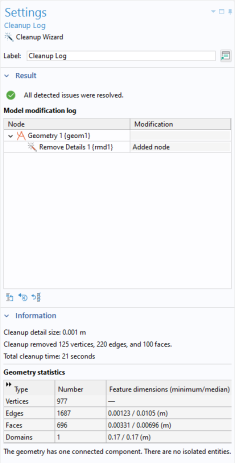
 .
.