Working With the Model After the Cosimulation
Once you have performed the solution in Simulink, you may want to postprocess the solution of the full COMSOL model and not only on the variables you have access to from the Simulink diagram.
After the Simulink simulation is completed the model used for the cosimulation is still loaded on the COMSOL Multiphysics Server. You can launch the COMSOL Desktop from MATLAB to view and postprocess the model.
1
Switch to MATLAB.
2
At the MATLAB prompt enter
mphlaunch
to launch the COMSOL Desktop that automatically loads the model object from the COMSOL Multiphysics server.
Note:
By default the model is loaded every time you run a simulation, so the modification you make to the model in the COMSOL Desktop will not affect the Simulink simulation unless you have saved the model MPHÂ file.
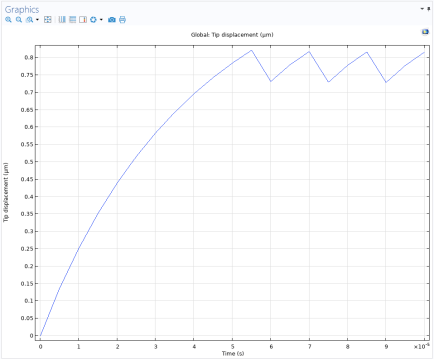
Continue in the COMSOL Desktop and plot the tip displacement.
3
Under the Results node select the 1D Plot group 7
Note:
If you plan to run a new Simulink simulation with the current model, it is recommended that you close the COMSOL Desktop first. Closing COMSOL Desktop leads to a smoother and often faster cosimulation.