Adding the COMSOL Cosimulation Block
1
This starts a COMSOL Multiphysics server and the MATLAB prompt, where the LiveLink for Simulink welcome message is displayed.
Before you start Simulink make sure that the folder where you have just saved the model MPH file is set in MATLAB.
2
3
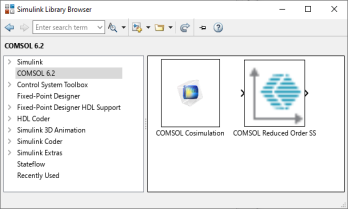
Proceed by adding a COMSOL Cosimulation block to the diagram.
4
5
6
7
8
Note: If the cosimulation file is stored in folder, which path is set in MATLAB, you only need to enter the name of the file in the Filename field.
9
In the Communication step size field enter: 5e-6. This means that COMSOL and Simulink will communicate every 5 μs.
10
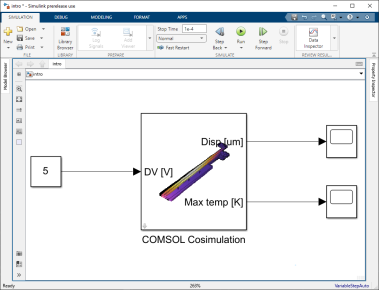
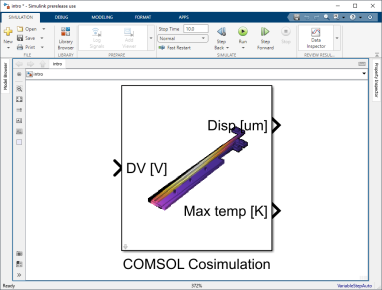
The block is now updated according to the cosimulation file settings. Here we recognize the single input parameter DV, and the two outputs named disp and max temp.
Between bracket you can see the units for the block input and outputs. These are for information purpose to let you the input of the expected input value and the returning output values.
Note: There is no support unit transformation inside the COMSOL Cosimulation block.
11
12
13
In the Stop Time text field, enter 1e-4. This sets the simulation time to 10 ms. The diagram should now look like one in the image below: