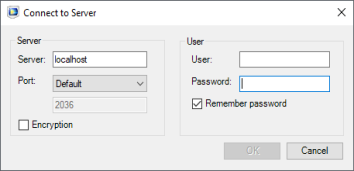
Connecting to a COMSOL Server™
To log in to a COMSOL Server™ interface, on the COMSOL Multiphysics tab in Revit® click the COMSOL Server () button.
For accessing a remote server use the computer name and domain, or the IP address, instead of localhost. If the port number 2036 is taken, then COMSOL Server will use the next available port number: 2136, 2236, and so on. Log in to COMSOL Server with your username and password. After you click OK the COMSOL Server interface is displayed embedded in the Revit® user interface. Here you can view the apps available in the Application Library.
To launch an app click the Launch button below its icon. The app is launched in a separate COMSOL Client window. The first time you start the COMSOL Client you will need to log in to the COMSOL Server.
As an alternative to connecting to the COMSOL Server interface from Revit®, you can also start the COMSOL Client from the Windows® Desktop or Start menu, and log in to the COMSOL Server to launch apps.
Note: Applications that use LiveLink™ for Revit® require a COMSOL Client installation as they are not supported to be run from a web browser.