Defeaturing the Geometry
1
2
3
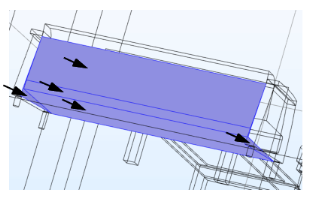
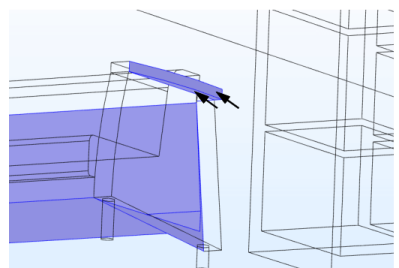
The 18 sliver faces that are detected are displayed in the Sliver face selection list.
4
Select for example Sliver face 8 from the list, then click Zoom Selected next to the list to find the face in the Graphics window.
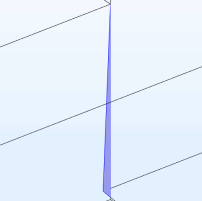
A sliver face is a face with a high aspect ratio. If it is not removed from the geometry it may cause problems during meshing. Remaining sliver faces in the list are located on the bezel of the flat screen TV, and some other on the two couches.
5
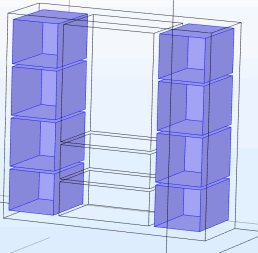
Continue with deleting some larger faces to further simplify the geometry, and also to create new faces on the front of the bookshelf.
6
7
The Delete Faces tool can delete faces from an object, and cover the resulting wound by growing (or shrinking) adjacent faces.
8
9
10
11
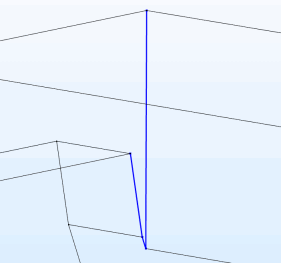
The last step before meshing is to find and delete spikes that still remain in the geometry. Similarly to a sliver face, a spike is a region in a face that has a high aspect ratio.
12
13
14
15
The tool detected 4 spikes. Select Spike 4 and click Zoom Selected to zoom in on the edges that comprise the spike.
16
17