Configuring the Synchronization
1
In Revit Architecture open the file house.rvt, which is found in your COMSOL installation directory, under the folder applications/LiveLink_for_Revit/Tutorials,_LiveLink_Interface.
The example house project contains several rooms. In the following you set up the synchronization of the living room together with the elements within the room.
2
3
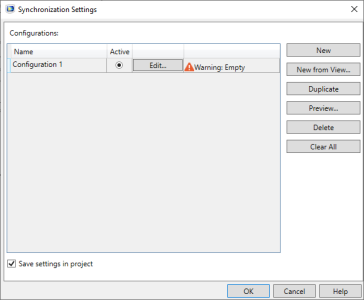
When you open the Synchronization Settings dialog for the first time in a project an empty synchronization configuration is automatically added to the Configurations table. To enable synchronization of the project there needs to be at least one configuration with content.
4
5
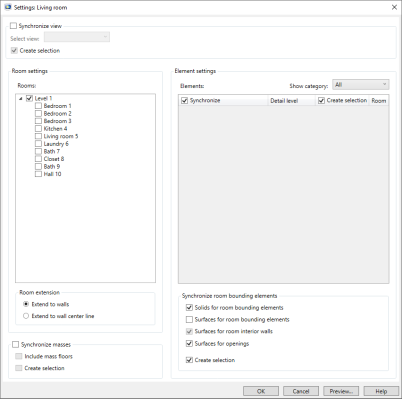
The Rooms list to the left contains the rooms defined in the project. To include the geometry of a room in the synchronization select its checkbox.
6
According to the default setting in the Room extension section, the solid object generated for the room volume extends to the walls, and from the floor to the roof or ceiling.
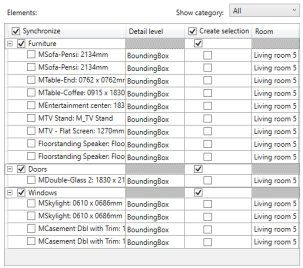
The elements belonging to selected rooms are automatically displayed in the Elements table.
Here you select the elements to include in the synchronization, and their geometrical representation (Detail level), for which two choices are available:
There is also a choice in the table for creating a selection for the element in the COMSOL model during synchronization.
7
8
Finally, change the element representation to the original geometry for all furniture elements.
9
The synchronization of solids for the room bounding elements, such as the walls, roofs, and floors is turned on by default in the Synchronize room bounding elements section. Here you also see that surfaces are going to be generated for openings such as doors and windows. These elements are useful due to the associated selections that can be used in the model set up after synchronization.
10
In the Synchronization Settings dialog the Living room configuration is no longer empty, and can be used for synchronization.
11