Connecting to COMSOL Server™
When using a COMSOL Multiphysics installation with LiveLink for MATLAB, the connection is made between MATLAB and a COMSOL Multiphysics server. It is also possible to connect MATLAB to a COMSOL Server™ if a COMSOL Server™ is available with a LiveLink for MATLAB license.
When using LiveLink for MATLAB with COMSOL Server™ this way, MATLAB is installed on the local computer where the user is running commands, and COMSOL Server™ will most often be on another computer that is handled by an IT department.
In order to be able to connect from MATLAB to a COMSOL Server™ without having COMSOL Multiphysics installed, some files must be installed on the computer where MATLAB is installed. This is handled by using the COMSOL Server™ Client installer.
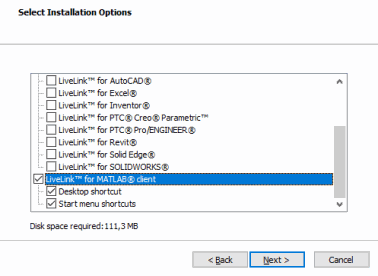
When installing the COMSOL Server™ Client, it is important to select LiveLink™ for MATLAB
©
in the installation window.
It is recommended to install Desktop and Start menu shortcuts. If these are not installed, the only way to create a link between MATLAB and COMSOL Server™ is to use the
mphstart
command as described
Connecting MATLAB to a COMSOL Multiphysics Server
.
After the installation a shortcut is available.
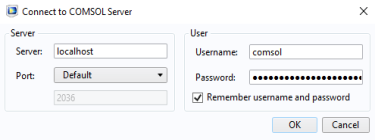
When clicking on this shortcut, MATLAB will start and a dialog appears that makes it possible to connect to a COMSOL Server™ that is assumed to be running.
Fill in the missing information and click
OK
to connect.
After a connection has been made, the LiveLink interface works in the same way as when it is connected to a COMSOL Multiphysics server with these exceptions:
•
Some graphical user interfaces that are included in a regular COMSOL Multiphysics license do not work.
•
A few utility functions that are mainly used when developing new models are not supported (for example,
mphlaunch
and
mphmodel
).
•
Plot on the server is not supported; instead use
mphplot
to plot using a MATLAB figure.