Images and Interpolation Data
This section describes how to generate geometry from a set of data points by using interpolation curves and how to create geometry from image data.
Creating a Geometry Using Curve Interpolation
Use the interpolation spline feature to import a set of data points that describe a 2D geometry. To create an interpolation spline feature, enter:
model.geom(<geomtag>).feature.create(<ftag>,'InterpolationCurve')
Then specify data points in a table:
ftag.set('table', <data>)
where ftag is the curve interpolation node and <data> can either be a 2-by-N cell array or a 2-by-N array.
Control the type of geometry generated by the operation with the command:
ftag.set('type', type)
where type can either be 'solid' to generate a solid object, 'closed' to generate a closed curve or 'open' to generate an open curve.
Example: Curve Interpolation
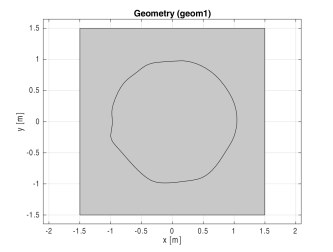
Create a set of data points in MATLAB, then use these to construct a 2D geometry.
1
phi = 0:0.2:2*pi;
phi([1 3 6 7 10 20 21 25 28 32]) = [];
p = [cos(phi);sin(phi)];
2
randn('state',17)
p = p+0.02*randn(size(p));
3
model = ModelUtil.create('Model');
4
comp1 = model.component.create('comp1', true);
geom1 = comp1.geom.create('geom1', 2);
 
sq1 = geom1.feature.create('sq1', 'Square');
sq1.set('base', 'center');
sq1.set('size', '3');
5
ic1 = geom1.feature.create('ic1', 'InterpolationCurve');
6
Use the variable p for the data points:
ic1.set('table', p');
7
ic1.set('type', 'closed');
8
mphgeom(model)
Code for use with MATLAB®
model = ModelUtil.create('Model');
comp1 = model.component.create('comp1', true);
geom1 = comp1.geom.create('geom1', 2);
sq1 = geom1.feature.create('sq1', 'Square');
sq1.set('base', 'center');
sq1.set('size', '3');
phi = 0:0.2:2*pi;
phi([1 3 6 7 10 20 21 25 28 32]) = [];
p = [cos(phi);sin(phi)];
randn('state',17)
p = p+0.02*randn(size(p));
ic1 = geom1.feature.create('ic1', 'InterpolationCurve');
ic1.set('table', p');
ic1.set('type', 'closed');
mphgeom(model);
Creating Geometry from Image Data
Use the function mphimage2geom to create geometry from image data. The image data format can be M-by-N array for a grayscale image or M-by-N-by-3 array for a true color image. This section also includes an example (see Example: Convert Image Data to Geometry).
Use the MATLAB function imread to read image data from an image file.
If you specify the image data and the level value that represents the geometry contour you want to extract, the function mphimage2geom returns a model object with the desired geometry:
model = mphimage2geom(<imagedata>, <level>)
where imagedata is a C array containing the image data, and level is the contour level value used to generate the geometry contour.
Specify the type of geometry object generated:
model = mphimage2geom(<imagedata>, <level>, 'type', type)
where type is 'solid' and generates a solid object, 'closed' generates a closed curve object, or 'open' generates an open curve geometry object.
Use the property curvetype to specify the type of curve used to generate the geometry object:
model = mphimage2geom(<imagedata>, <level>, 'curvetype', curvetype)
where curvetype can be set to 'polygon' to use a polygon curve. The default curve type creates a geometry with the best suited geometrical primitives. For interior curves it uses interpolation curves, while for curves that are touching the perimeter of the image a polygon curve is used.
To scale the geometry use the scale property where scale is a double value:
model = mphimage2geom(<imagedata>, <level>, 'scale', scale)
Set the minimum distance (in pixels) between coordinates in curve with the mindist property where mindist is a double value:
model = mphimage2geom(<imagedata>, <level>, 'mindist', mindist)
Set the minimum area (in square pixels) for interior curves where minarea is a double value:
model = mphimage2geom(<imagedata>, <level>, 'minarea', minarea)
In case of overlapping solids, the function mphimage2geom automatically creates a Compose node in the model object. If you do not want this geometry feature, set the property compose to off:
model = mphimage2geom(<imagedata>, <level>, 'compose', 'off')
To create a rectangle domain surrounding the object generated use the property rectangle:
model = mphimage2geom(<imagedata>, <level>, 'rectangle', 'on')
mphimage2geom returns a model object with the created geometry stored in a geometry node. The default geometry node has the tag geom1, to specify manually the geometry tag use the function as below:
model = mphimage2geom(<imagedata>, <level>, 'geom', <geomtag>)
where <geomtag> is a string corresponding to the tag of the geometry node.
It is also possible to create a geometry object and include it in an existing model object, to proceed use the command below:
mphimage2geom(<imagedata>, <level>, 'geom', <geomnode>)
where <geomnode> is the geometry node object where to include the newly generated geometry.
To manually specify the tag of the model object created in the COMSOL server use the command below:
model = mphimage2geom(<imagedata>, <level>, 'modeltag', <Modeltag>)
where <Modeltag> is a string defining the tag of the model object in the COMSOL server.
Example: Convert Image Data to Geometry
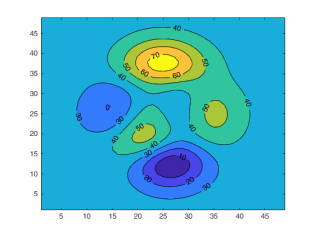
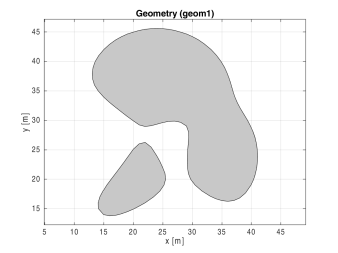
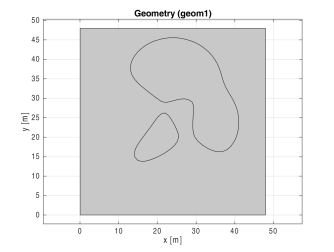
This example shows how to create geometry based on gray scale image data. First generate the image data in MATLAB and display the contour in a figure. Then, create a model object including the geometry represented by the contour value 40.
At the MATLAB prompt enter these commands:
p = (peaks+7)*5;
[c,h] = contourf(p);
clabel(c, h);
model = mphimage2geom(p, 40);
figure(2)
mphgeom(model)
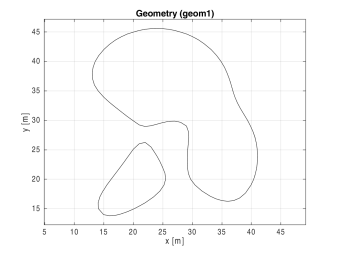
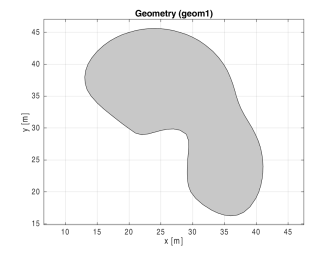
Use the property type to create closed or open curves. For example, to create a geometry following contour 40 with closed curves, enter:
model = mphimage2geom(p, 40, 'type', 'closed');
mphgeom(model)
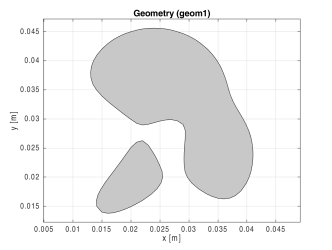
To scale the geometry, use the scale property. Using the current model scale the geometry with a factor of 0.001 (1e-3):
model = mphimage2geom(p, 40, 'scale', 1e-3);
mphgeom(model)
To insert a rectangle in the geometry that has an outer domain surrounding the created contour, set the property rectangle to on:
model = mphimage2geom(p, 40, 'rectangle', 'on');
mphgeom(model)
Only include the interior curves with an area larger than 100 square pixels:
model = mphimage2geom(p, 40, 'minarea', 100);
mphgeom(model)
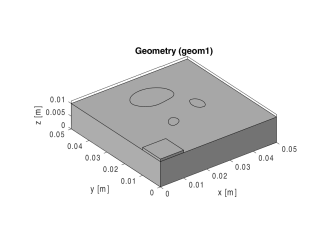
Insert the geometry in an existing geometry object:
model = mphopen('model_tutorial_llmatlab');
geom1 = model.component('comp1').geom('geom1');
wp1 = geom1.feature.create('wp1', 'WorkPlane');
wp1.set('quickz',1e-2);
mphimage2geom(p, 50, 'scale', 1e-3, 'geom', wp1.geom);
mphgeom(model)
Code for use with MATLAB®
p = (peaks+7)*5;
[c,h] = contourf(p);
clabel(c, h);
model = mphimage2geom(p, 40);
figure(2)
mphgeom(model)
model = mphimage2geom(p, 40, 'type', 'closed');
mphgeom(model)
model = mphimage2geom(p, 40, 'scale', 1e-3);
mphgeom(model)
model = mphimage2geom(p, 40, 'rectangle', 'on');
mphgeom(model)
model = mphimage2geom(p, 40, 'minarea', 100);
mphgeom(model)
model = mphopen('model_tutorial_llmatlab');
geom1 = model.component('comp1').geom('geom1');
wp1 = geom1.feature.create('wp1', 'WorkPlane');
wp1.set('quickz',1e-2);
mphimage2geom(p, 50, 'scale', 1e-3, 'geom', wp1.geom);
mphgeom(model)