Getting Help
COMSOL Multiphysics and LiveLink™ for MATLAB® have several sources of help and information.
The Introduction to LiveLink™ for MATLAB®
To get started with LiveLink™, it is recommended that you read the Introduction to LiveLinkfor MATLAB®. It contains detailed examples about how to get you started with the product.
Online Documentation and Other Resources
The COMSOL Multiphysics Programming Reference Manual contains reference documentation that describes the methods in the model object.
You can access the online documentation directly at the MATLAB prompt using the function mphdoc.
To open the COMSOL Documentation Help Desk enter:
mphdoc
To open the help window for a specific entry node enter:
mphdoc(node)
where node is the model object node (for instance, model.geom).
To view the help of a specific feature of a node enter:
mphdoc(node,<fname>)
where <fname> is a string defining the feature name in the COMSOL API, for example, mphdoc(model,'Rectangle').
It is of course also possible to use MATLAB’s own help function such as
help mphinterp
and
doc mphinterp
M-Files
You can save COMSOL Multiphysics models as M-files. Use the COMSOL Desktop to get your first model implemented using the COMSOL API.
Set up the model using the graphical user interface, then save the model as an M-file. Next go to the File menu and select Save, in the save window locate Save as type list and select Model File for MATLAB (*.m). This generates an M-function that can be run using COMSOL with MATLAB.
Since version 5.3 a new syntax closer to the structure in the Model Builder is available. This new syntax includes the component node as in the example below:
model.component(<cTag>).geom(<geomTag>)
In the previous syntax to access the geometry node you need to enter:
model.geom(<geomTag>)
Both versions are fully supported, and the new syntax is used by default when saving a model in the M-file format. To save a model M-file using the old syntax, you need to change the preference settings as described in the steps below:
1
In the COMSOL Desktop, go to the File menu and click Preferences.
2
In the Preferences window, click Methods. In the Code generation settings clear the option Use component syntax.
3
At the MATLAB prompt use mphsave to save the model object model in the *.m format as in the command below:
mphsave(model,<filename.m>)
where <filename.m> is the name of the file with the *.m extension.
To save the model object in the *.m format using the component syntax enter:
mphsave(model,<filename.m>,'component','on');
Autocompletion for Wrapper Function
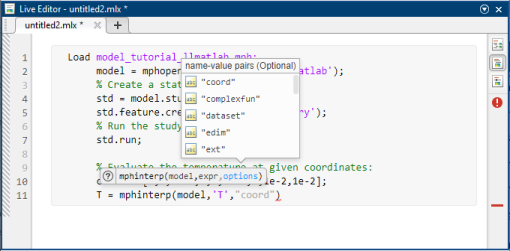
Autocompletion using the Tab key is available for the wrapper functions provided by LiveLink for MATLAB wherever you can enter a command: the Command Window, the regular Editor, and Live Editor for Live Scripts. The autocompletion helps you to find the wrapper function and the available property names and values where applicable. In the Command Window or a Live Editor, autocompletion provides a list of the available arguments as well as their values where applicable. For example, 'on' or 'off' for properties that only take these two values.
Note: Autocompletion will suggest property names and property values surrounded by double quotation marks, for example "on", whereas this documentation uses single quotation marks such as in 'on'. The wrapper functions will accept both types of strings. Wrapper functions always return strings as character arrays (that is, strings that use single quotation marks).
The Application Libraries Window
Study the LiveLink™ for MATLAB® Application Library
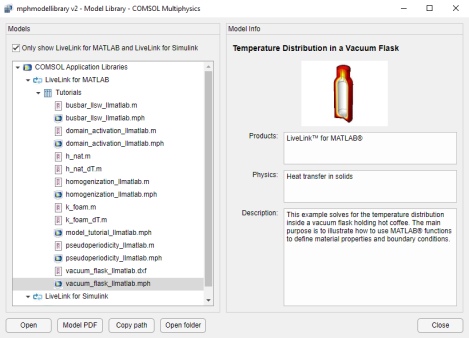
LiveLink™ for MATLAB® includes an Application Library with detailed example models. Use the mphapplicationlibraries function at the command line to start a UI for viewing the Application Libraries.
User defined library can also be listed in this window. Such a library has to be added using the COMSOL Desktop.
The following are some models that can help you get started.
Model Examples
Learn how to activate and deactivate domains alternatively during a transient analysis. See the model Domain Activation and Deactivation (model name domain_activation_llmatlab).
Homogenization in a Chemical Reactor (model name homogenization_llmatlab) shows how to simulate a periodic homogenization process in a space-dependent chemical reactor model. This homogenization removes concentration gradients in the reactor at a set time interval.
Convective Heat Transfer with Pseudoperiodicity (model name pseudoperiodicity_llmatlab) simulates convective heat transfer in a channel filled with water. To reduce memory requirements, the model is solved repeatedly on a pseudo-periodic section of the channel. Each solution corresponds to a different section, and before each solution step the temperature at the outlet boundary from the previous solution is mapped to the inlet boundary.
Temperature Distribution in a Vacuum Flask (model name vacuum_flask_llmatlab) shows how to use the MATLAB function callback. This example solves for the temperature distribution inside a vacuum flask with hot coffee.
Electrical Heating of a Busbar Solved with LiveLink™ for SOLIDWORKS® and LiveLink™ for MATLAB® (model name busbar_llsw_llmatlab) performs geometry optimization using COMSOL Multiphysics, MATLAB, and SOLIDWORKS®.