Using MATLAB® Variables in the COMSOL Model
Use the set method described in the previous section to define the feature properties using MATLAB variables. It is important to make sure that the value of the MATLAB variable is consistent with the units used in the model. Before beginning, make sure that the busbar model used in the previous section is loaded into MATLAB.
First, change the length of the busbar, described by the parameter L.
1
Create a MATLAB variable L0 equal to 9e-2:
L0 = 9e-2;
2
Update the value of the parameter L with the variable L0:
mphsetparam(model,'L',L0);
The parameter L (in the COMSOL model) is now assigned with the value of L0.
Note: In contrast to this command, setting a value using an expression from within the model object requires the second argument to be a string expression, as shown in Updating Model Settings.
3
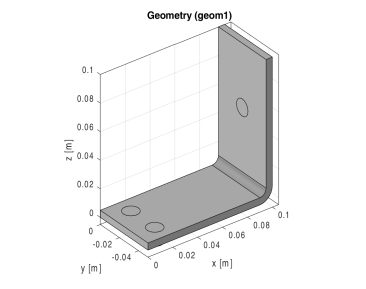
mphgeom(model)
Working with parameters is convenient, since there is only one place where you need to go to view or modify the current configuration of the model. The next step uses a different method, where a feature node is edited to modify its properties. For example, to modify the busbar geometry, the rectangles r1 and r2 generated in the work plane wp1 are edited.
4
Create links to the geometry features r1 and r2 by entering the commands:
r1 = model.geom('geom1').feature('wp1').geom.feature('r1');
r2 = model.geom('geom1').feature('wp1').geom.feature('r2');
Note: The function mphnavigator can be used to get a list of properties and values for feature nodes of a model, as well as its API command. See Obtaining Model Information for more details.
5
H1 = 0.2;
H2 = 0.195;
6
Set the height of rectangles r1 and r2 using the variables H1 and H2, respectively.
r1.set('ly', H1);
r2.set('ly', H2);
7
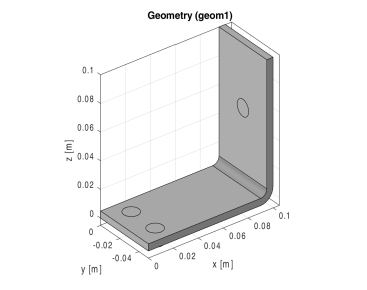
mphgeom(model);
There is a third option when defining property values for features, which is to combine MATLAB variables with parameters or variables defined within the COMSOL model object. To do this, the MATLAB variable needs to be converted to a string.
These final steps demonstrate the method by changing the heights of rectangles r1 and r2 to L0 and L0-tbb, respectively, where L0 is a MATLAB variable.
8
L0 = 0.1;
9
Modify the ly property of rectangles r1 and r2:
r1.set('ly',L0);
r2.set('ly',[num2str(L0) '-tbb']);
10
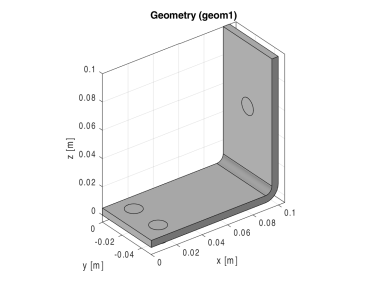
mphgeom(model);
Code for Use with MATLAB®
mphopen busbar
L0 = 9e-2;
mphsetparam(model,'L',L0);
mphgeom(model)
r1 = model.geom('geom1').feature('wp1').geom.feature('r1');
r2 = model.geom('geom1').feature('wp1').geom.feature('r2');
H1 = 0.2;
H2 = 0.195;
r1.set('ly', H1);
r2.set('ly', H2);
mphgeom(model)
L0 = 0.1;
r1.set('ly',L0);
r2.set('ly',[num2str(L0) '-tbb']);
mphgeom(model)