Updating and Solving a Model Using Excel® Macros
In this section you will find several examples that illustrate some of the possible work flows when using the COMSOL API for VBA.
This example reuses the worksheet described in the section Working with COMSOL® Models in Excel® in the Introduction to LiveLink™ for Excel® manual. The steps below show how to write commands that automatically update the model with the settings in the worksheet, compute the solution and update the results data extracted in the worksheet.
When writing a subroutine in VBA the cell comment generated using the COMSOL toolbar are not usable. Enter the full command using the COMSOL API to reproduce the same behavior.
To get ready with the examples follow the steps below.
1
Start Excel, in the File tab, click Open.
2
3
Select the file busbar_llexcel.xlsx and click the Open button.
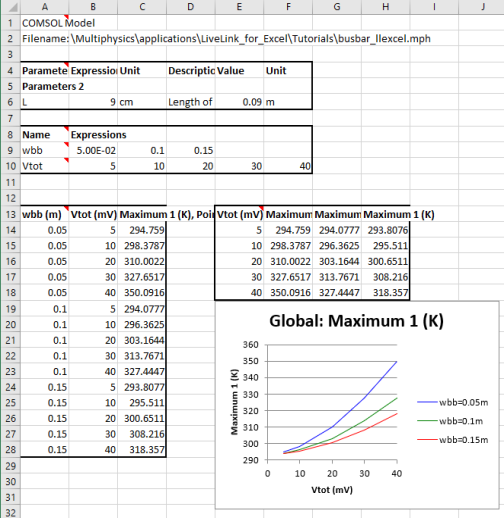
You can see in cell range B2, the full name of the model MPH file that is linked to the workbook. In the first worksheet you can assign value to model parameters and parameters sweep. It also contains the value of the maximum temperature in the busbar for the different parameter sweep values. The second worksheet contains the joule heating data interpolated at point coordinates defined in cell range A3 to C20.
4
Go to the Excel File menu and select COMSOL. In the COMSOL backstage view click Open button and select Open linked . You will be asked if you want to replace the contents of the destination cell, click OK.
Note: When opening the linked model for this file, COMSOL will automatically search for the model busbar_llexcel.mph in the Application Library folder. If you do not have this model you need to specify the location. Find the folder applications/LiveLink_for_Excel/Tutorials. Select the file busbar_llexcel.mph and click the Open button.
The COMSOL Multiphysics server starts and loads the model file busbar_llexcel.mph that is linked to the worksheet.
5
6
In the VBA editor, go to Insert menu and select Module.
7
Sub busbarUpdate()
and press Enter key to get the end subroutine line automatically added to the script.
To run the macro a convenient way is to create a button. To proceed you need first to enable the Developer tab in the Excel ribbon.
8
In Excel, go to the File tab and select Options.
9
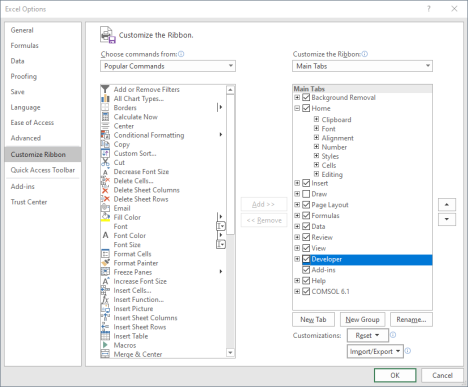
In the Excel Options window, select Customize Ribbon and on the right side of the window under Main Tabs select Developer.
10
11
Go to the Developer tab and click Insert.
12
Under Form Controls select Button (Form Control) and draw the button in the worksheet.
13
In the Assign Macro window that just pops-up, under the Macro name list select busbarUpdate. Click OK.
14
The worksheet including the full example code is available at XLSM-format in the LiveLink™ for Excel® Application Library LiveLink_for_Excel/Tutorials/busbar_llexcel.xlsm
In order to work with a COMSOL model it is necessary to use the class ModelUtil, which is part of the COMSOL API. In addition to ModelUtil there is a new object that is part of LiveLink™ for Excel®, which is called ComsolUtil. This object provides extra utilities - such as the ability to start a COMSOL Multiphysics server and create the RibbonUtil object where you can access the ribbon functionalities.
15
Type the command at the line after the subroutine declaration line Sub busbarUpdate().
16
Dim ModelUtil As ModelUtil
Dim ComsolUtil As ComsolUtil
Dim RibbonUtil As IRibbonUtil
 
Set ModelUtil = CreateObject("comsolcom.modelutil")
Set ComsolUtil = CreateObject("comsolcom.comsolutil")
Set RibbonUtil = ComsolUtil.GetRibbonUtil
17
ComsolUtil.TimeOuthandler True
18
If Not RibbonUtil.IsConnected Then
RibbonUtil.OpenLinkedModel
End If
19
Set a link with the model, with the tag Model, available on the COMSOL server.
Set Model = ModelUtil.model("Model")
The cell range A6 to D6 define both the value and the unit for the model parameter L.
20
Sheets("Sheet1").Activate
Range("A4").Select
RibbonUtil.UpdateDefinitions
The worksheet contains values for the busbar width (wbb) and the applied voltage (Vtot) as sweep parameter. In this example, the sweep parameters cannot have more than 5 value each.
21
Range("G9:J10").Clear
22
Range("A8").Select
RibbonUtil.Sweep "std1", ,True
23
ModelUtil.ShowProgress True
Model.get_study("std1").Run
24
Model.get_result("pg3").Run
Range("L4").Select
RibbonUtil.InsertGraphics "pg3"
25
RibbonUtil.UpdateAllResults
In the step below, you will implement the code to perform the interpolation operation as it is currently done in Sheet2.
26
Vtot = Range("B10:F10").Value
For I = 0 To 4
If Not IsEmpty(Range("B9").Offset(, I).Value) Then
wbbLength = I + 1
End If
If Not IsEmpty(Range("B10").Offset(, I).Value) Then
VtotLength = I + 1
End If
Next
wbb = Range(Cells(9, 2), Cells(9, 2 + wbbLength)).Value
Vtot = Range(Cells(10, 2), Cells(10, 2 + VtotLength)).Value
27
Sheets("Sheet2").Activate
Range("D1:AB21").Delete
28
For I = 0 To wbbLength - 1
Range("D4").Offset(, I * VtotLength).Select
RibbonUtil.ResultsInterpolation "dset2", "ht.Qtot", "A4:C21", , "wbb", wbb(1, I + 1)
Next
29
Cells(1, 4) = "Qtot [W]"
Cells(1, 4).Font.Bold = True
Cells(1, 4).HorizontalAlignment = xlCenter
Cell2 = 4 + VtotLength * wbbLength - 1
Range(Cells(1, 4), Cells(1, Cell2)).Merge
For I = 0 To wbbLength - 1
Idx = I * wbbLength
Title = "wbb = " & wbb(1, I + 1) & "[m]"
Cell1 = 4 + VtotLength * I
Cell2 = 4 + (I + 1) * VtotLength - 1
Cells(2, Cell1) = Title
Cells(2, Cell1).Font.Bold = True
Cells(2, Cell1).HorizontalAlignment = xlCenter
Range(Cells(2, Cell1), Cells(2, Cell2)).Merge
Range(Cells(2, Cell1), Cells(2, Cell2)).Borders.Weight = xlThick
For j = 1 To VtotLength
Idx2 = I * VtotLength + j - 1
Title = "Vtot = " & Vtot(1, j) & "[mV]"
Range("D3").Offset(, Idx2).Value = Title
Range("D3").Offset(, Idx2).Font.Bold = True
Range("D3").Offset(, Idx2).Borders.Weight = xlThick
Next
Next
30
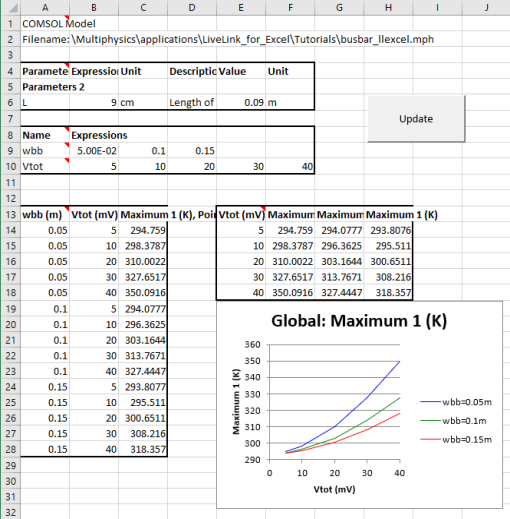
You can now close the Microsoft Visual Basic for Applications window and test to run the subroutine by editing the model parameter L, cell B6, or the sweep parameters wbb and Vtot, cell B9 to F9 and B10 to F10, respectively. Click the Update button to update the workbook with the current solution.
Code for use with VBA
Below you find the complete VBA code; feel free to copy and paste it to the VBA editor.
Sub busbarUpdate()
 
Dim ModelUtil As ModelUtil
Dim ComsolUtil As ComsolUtil
Dim RibbonUtil As IRibbonUtil
 
Set ModelUtil = CreateObject("comsolcom.modelutil")
Set ComsolUtil = CreateObject("comsolcom.comsolutil")
Set RibbonUtil = ComsolUtil.GetRibbonUtil
 
ComsolUtil.TimeOuthandler True
 
If Not RibbonUtil.IsConnected Then
RibbonUtil.OpenLinkedModel
End If
 
Set Model = ModelUtil.Model("Model")
 
Sheets("Sheet1").Activate
Range("A4").Select
RibbonUtil.UpdateDefinitions
 
Range("G9:J10").Clear
 
Range("A8").Select
RibbonUtil.Sweep "std1", , True
 
ModelUtil.ShowProgress True
Model.get_study("std1").Run
 
 
Model.get_result("pg3").Run
Range("L4").Select
RibbonUtil.InsertGraphics "pg3"
 
 
RibbonUtil.UpdateAllResults
 
Vtot = Sheets("Sheet1").Range("B10:F10").Value
For I = 0 To 4
If Not IsEmpty(Sheets("Sheet1").Range("B9").Offset(, I).Value) Then
wbbLength = I + 1
End If
If Not IsEmpty(Sheets("Sheet1").Range("B10").Offset(, I).Value) Then
VtotLength = I + 1
End If
Next
wbb = Sheets("Sheet1").Range(Cells(9, 2), Cells(9, 2 + wbbLength)).Value
Vtot = Sheets("Sheet1").Range(Cells(10, 2), Cells(10, 2 + VtotLength)).Value
 
Sheets("Sheet2").Activate
Range("D1:AB21").Delete
 
For I = 0 To wbbLength - 1
Range("D4").Offset(, I * VtotLength).Select
RibbonUtil.ResultsInterpolation "dset2", "ht.Qtot", "A4:C21", , "wbb", wbb(1, I + 1)
Next
 
Cells(1, 4) = "Qtot [W]"
Cells(1, 4).Font.Bold = True
Cells(1, 4).HorizontalAlignment = xlCenter
Cell2 = 4 + VtotLength * wbbLength - 1
Range(Cells(1, 4), Cells(1, Cell2)).Merge
For I = 0 To wbbLength - 1
Idx = I * wbbLength
Title = "wbb = " & wbb(1, I + 1) & "[m]"
Cell1 = 4 + VtotLength * I
Cell2 = 4 + (I + 1) * VtotLength - 1
Cells(2, Cell1) = Title
Cells(2, Cell1).Font.Bold = True
Cells(2, Cell1).HorizontalAlignment = xlCenter
Range(Cells(2, Cell1), Cells(2, Cell2)).Merge
Range(Cells(2, Cell1), Cells(2, Cell2)).Borders.Weight = xlThick
For j = 1 To VtotLength
Idx2 = I * VtotLength + j - 1
Title = "Vtot = " & Vtot(1, j) & "[mV]"
Range("D3").Offset(, Idx2).Value = Title
Range("D3").Offset(, Idx2).Font.Bold = True
Range("D3").Offset(, Idx2).Borders.Weight = xlThick
Next
Next
 
End Sub