Click Settings (

) in the
Material group to open the
Material Export. Specify the material and the properties to export to a COMSOL material library format. The material export procedure depends on the data format in the worksheet; the data can be defined as constant or as field variables.
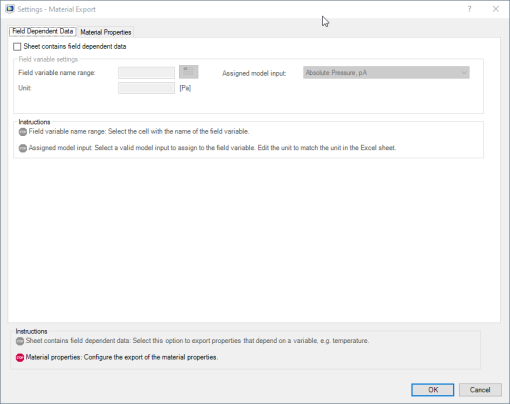
In the Field dependent data tab, specify the data format in the worksheet. If the worksheet contains only constant data formats, make sure that
Sheet contains field dependent data checkbox is not selected.
In the Material properties tab, specify the material and the properties to be included in the export.
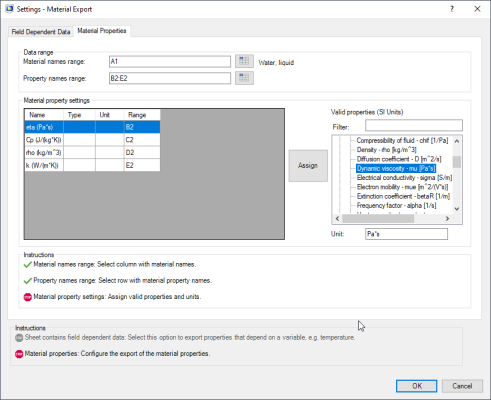
In Material names range select the cell range that contains the material names. The material names have to be stored in a column in the worksheet.
In Property names range select the cell range that contains the property names. The property names have to be stored in a row in the worksheet.
In the Material property settings section you assign properties recognized by COMSOL to the properties in the worksheet. Select a property name from the
Name column, then select a property from the
Valid properties (SI Units) list.
Click Assign to assign the selected valid property to the select name from the current worksheet.
In the Filter field you can enter a text that is used to filter the valid properties list, for instance, ‘thermal conductivity’ or ‘sigma’ in order to access the thermal conductivity or the electric conductivity, respectively.
In the Unit column specify the unit in which the data is defined for the property. The default is SI units for all material properties.
Under the Instructions section you can follow the number of unassigned material properties for the selection. When you have completed the configuration all steps are marked with the icon

. If you have unassigned properties they will be indicated using the icon

.
Click OK to save the settings and to close the window.
In the Field dependent data tab select the
Sheet contains field dependent data checkbox to specify the field variable settings.
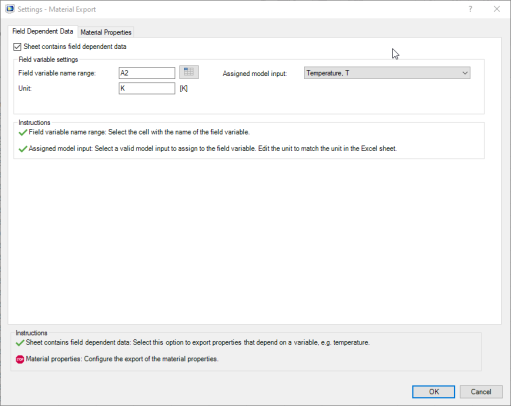
In Field variable name range enter the cell number that contains the name of the field variable. The default data selection includes all data below the selected cell. You can manually specify the data cell range later in the
Material Properties tab.
Once the field variable name is selected in the worksheet, in Assigned model input list select the model input in the COMSOL model that corresponds to the selected field variable name in the worksheet. The field dependent data is always stored in a single column. The field dependent data can correspond to the norm of the model input, for instance with the following model input: the current density, the electric field, the magnetic field, the magnetic flux density, the stress tensor, and the velocity field.
In the Unit field enter the unit used in the worksheet if it differs from the default settings.
In the Material properties tab specify the material and the properties to be included in the export.
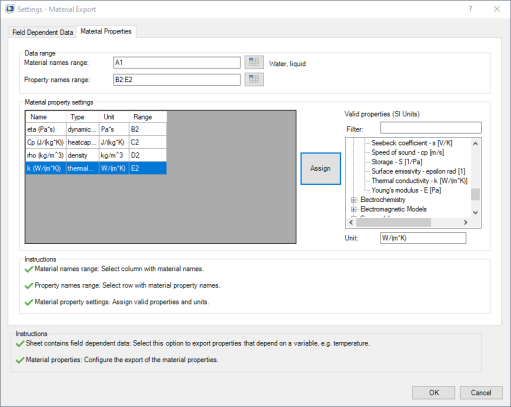
In Material names range select the cell range that contains the material names. The material names have to be stored in a column in the worksheet.
In Property names range select the cell range that contains the property names. The property names have to be stored in a row in the worksheet.
In the Material property settings section assign properties recognized by COMSOL to the properties in the worksheet. Select a property name from the
Name column, then select a property from the
Valid properties (SI Units) list.
Click Assign to assign the selected valid property to the select name from the current worksheet.
In the Filter field you can enter a text that is used to filter the valid properties list, for instance ‘thermal conductivity’ or ‘sigma’ in order to access the thermal conductivity or the electric conductivity, respectively.
In the Unit column specify the unit in which the data is defined for the property. The default is SI units for all material properties.
In the Constant column, select the radio button for the property you want to export as constant. If you select constant the value in the selected cell range in Property name value is used as property data to export in the material library.
In the Range column, enter the property data cell range to export. For constant data export select a unique cell. For field dependent data export specify the list of the data cell to export. The cell range has to be a unique column.
Under the Instructions section you can follow the number of unassigned material properties for the selection. When the configuration is completed, all steps are marked with the icon

.
Click OK to save the settings and close the window.
 .
.