With LiveLink™ for Excel® you can evaluate and insert simulation results into a worksheet. The tools needed for this are grouped under
Numerical Results on the
COMSOL tab in the Excel user interface. To perform the evaluations at least one solution dataset needs to be present in the model.
To evaluate data found in the Derived Value nodes defined in the model, select a cell in the worksheet, then click the Derived Values (

)button and select the Derived Values node to import the data from. The evaluated data is inserted to the right and down from the selected cell. A link to the model, represented by a comment inserted in the selected cell, assures that the evaluation can be updated with changes to the model solution.
To evaluate expressions on specified geometry vertices select a cell in the worksheet and click the Point Evaluation (

) button. In the
Point Evaluation window, select the solution dataset, one or more points, and specify the expression to evaluate. Click
OK to insert the evaluated data to the right and down from the selected cell. A link to the model, represented by a comment inserted in the selected cell, assures that the point evaluation can be updated with changes to the model solution.
In the Particles window, select a valid particle tracing solution dataset. Then specify the time for data evaluation in the
Time list. Under the
Evaluate section select what to extract to the worksheet: the
Position, the
Velocity, and an
Expression, which you can enter in the text field. Finally you can define the number of particles for which you want to perform the evaluation. The amount of particles in the particle dataset is available in the
Info field, under the
Dataset list.
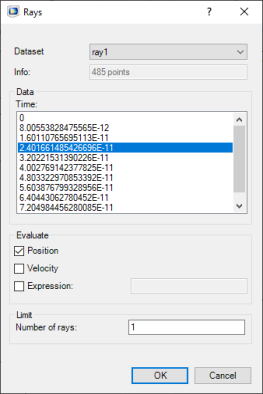
In the Rays dialog, select a valid ray tracing solution dataset. Then specify the time for data evaluation in the
Time list. Under
Evaluate, you select what to extract in the worksheet: the position, the velocity, and a specified expression. Finally, you can define the number of rays for which you want to perform the evaluation. The amount of rays in the Ray dataset is available in the
Info field under the
Dataset list.
To extract data from tables defined in the model, select a cell in the worksheet, click the Tables (

) button, and select the table to insert into the worksheet. The evaluated data is inserted to the right and down from the selected cell. A link to the model, represented by a comment inserted in the selected cell, ensures that the point evaluation can be updated with changes to the model solution.
 to open the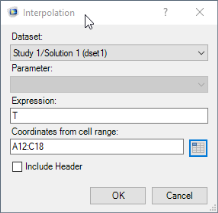
 ) button.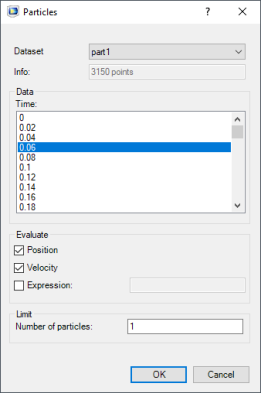
 ) button.