Use the Report group to generate a report using the current model and write it in a given format.
Under Report (

), select the type of report you want to generate. It can be a brief, intermediate, or complete report, depending the level of detail you want.
If the model already contains reports, click Report >
Regenerate (

) and select the report to update with the current model settings.
Click Report >
Write (

) to open the
Write Report windows where you can set the file and image format of the report.
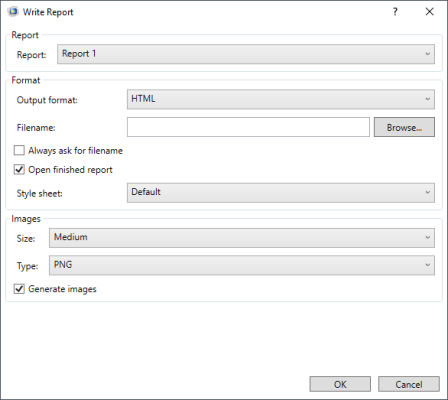
In the Report section, select which report to write. The settings in the window are automatically updated from the selected report properties.
In the Format section, you can choose between HTML and Microsoft Word
® (.docx) format as output format.
In the Filename field, enter the name of the report file. You can also browse to a folder to specify where to save the file. If no path is defined in the filename, the model path is used.
Select Open finished report if you want to visualize the report just after being generated.
You can choose between default and customized style sheets in the corresponding Style sheet list. When using a custom style sheet, browse to the style-sheet file, in the .css format, to use it.
In the Images section, you specify the images format to be included in the report. You can choose between five sizes, from extra small to extra large; the default image size is set to medium. In the
Type list, you specify the image format to generate. You can choose between PNG, JPEG, or BMP.

 ), and select a template for the report.