The Study group provides access to parametric sweep settings, and makes it possible to compute the solution for a selected study from the model.
Click Compute (

) to solve the model linked to the current workbook. By default, this action computes the first study node in the model.
Click Study (

) then select a study node from the model for computation. Selecting the study computes the solution.
Click Update Solution (

) to update all solutions in the model linked to the current workbook.
Click Sweep (

) to open the
Sweep window where you can view the parametric sweep settings in the model.
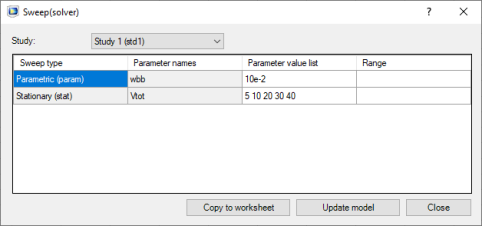
From the Study list select the Study node for which you want to see the parametric sweeps. The list contains all sweep parameters and their values as defined in the selected Study node, including Auxiliary sweeps.
Click Copy to Worksheet to insert the parameter names and values into the current worksheet. The data will be inserted at the selected cell, and a link to the model, in form of a comment, is automatically added to the cells.
See Sweep for information about the corresponding VBA command.