The Definitions group includes functionality for inserting model definitions, for example, parameters, variables, and functions, into the current worksheet. When inserting the data, a link, which keeps the data associated to the model, is also added in a form of a comment on a cell. You can edit the data in linked cells, and update the model definitions from data from the worksheet.
Click Parameters (

) to insert into the worksheet all global parameters from the open model. Parameters are added to the worksheet starting at the currently active cell, where a comment is also inserted linking the cell range to the model and the parameters nodes.
Click Parameters >
Parameters Nodes (

) to only insert into the worksheet parameters listed in a selected Parameters node. This way you can easily limit the parameters you would like to expose in the worksheet.
See Parameters for information about the corresponding VBA command.
Click Variables (

) to insert into the worksheet all variables from the open model. Variables are added to the worksheet starting at the currently active cell, where a comment is also inserted linking the cell range to the model and the variables nodes.
Click Variables >
Variables Nodes (

) to import only variables from a selected variables node in the model.
See Variables for information about the corresponding VBA command.
Click Functions (

) to insert function definitions from the open model. Functions are added to the worksheet starting at the currently active cell, where a comment is also inserted linking the cell range to the model and the function nodes.
See Functions for information about the corresponding VBA command.
Click Update (

) to update the open model with definitions found in the range of cells including the selected cell. The update requires that there is a link to the model within the cell range. The model is not updated if the open model does not correspond to the model referenced in the link. Using this button you can update parameters, variables, and functions.
See UpdateDefinitions for information about the corresponding VBA command.
Click Update >
Update All (

) to update the model with all model definitions found in the current worksheet. Only cell ranges containing a link to a model are used for the update.
See UpdateAllDefinitions for information about the corresponding VBA command.
Click Update >
Select (

) to open the
Update Multiple window where you can select the cell ranges (linked to parameters nodes) to update.
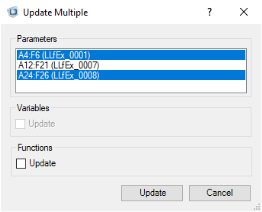
In the Parameters section, select the cell ranges with parameters to be updated in the model. If you have edited functions or variables inserted into the worksheet, you can also select the corresponding
Update checkboxes to update the model with the values from the worksheet. Click
Update to apply the changes to the model definition in the open model, and to close the window. Click
Cancel to close the window without updating the model.
