LiveLink™ also supports workbook exchange with the model in the Application Builder using either a Table form object or dedicated Language Elements.
When running the application to load data from an Excel workbook click Load from file button and select Microsoft Excel Workbook (*.xlsx) as File format. Once you have selected the file to import, the Excel Load window pops-up.
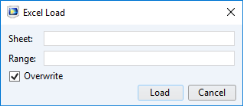
This is where you specify the worksheet and range where to import the data. In the Range field enter the top-left cell number or the cell range to load only the specified data within the cell range.
Clear Overwrite if you want to keep the data in the current table.
To save the data available in the table, click Save to file button and select Microsoft Excel Workbook (*.xlsx) as File format. Once you have selected the file where to save, the Excel Save window pops-up.
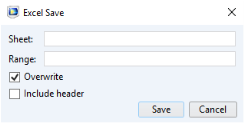
This is where you specify the worksheet and range where to export the data. In the Range field enter the top-left cell number or the cell range to save only the data that fit the specified cell range.
Clear Overwrite if you want to keep the nonempty cell in the file.
Select Include header if you want also to include the table header in the workbook.
The strings set in data can defines number, text, or Excel formulas as in the example below:


