Interacting with a Model from a Worksheet
Figure 1-1: The COMSOL ribbon tab.
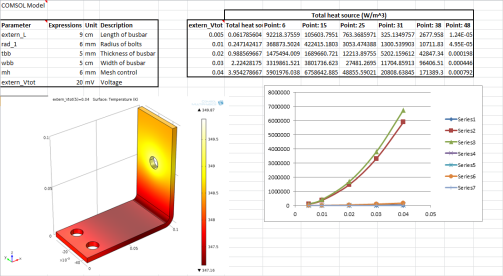
Using the tools on the COMSOL tab in the Excel® user interface (Figure 1-1) you can extract or modify model definitions, extract simulation results, and recompute a simulation. This allows you, for instance, to implement a simplified interface to a model (Figure 1-2) where you can access only the most important simulation parameters, and results from Excel.

Figure 1-2: Overview of a worksheet linked to a COMSOL model.
While you work with COMSOL models you can still interact with 3D graphics in a separate dedicated window. You can insert COMSOL graphics into your worksheet as graphics images. This makes it possible to share your workbooks with people who do not have access to COMSOL Multiphysics.
As soon as you open a model in Excel, a COMSOL Multiphysics server starts in graphics mode where the model is loaded. The data transfer between Excel and the COMSOL Multiphysics server is performed using a TCP/IP communication protocol.
Linking a Workbook to a Model
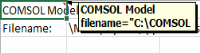
When importing information from a model to a workbook in Excel, there are links placed in certain cells to ensure that data can be kept associated to the appropriate nodes in the COMSOL model. These links are represented in the Excel worksheet by a comment on the cell, visible as a red mark at the top right cell corner. Hold the cursor over the cell comment to get a short description of the link.
Removing an automatically generated comment breaks the link between that cell range and the associated model feature.