Computing and Displaying the Solution
As a last step, compute the solution that reflects the changes you have applied to the model. But before you will add a maximum operator for postprocessing purpose and a Parametric Sweep node to prepare the model to show how you can link parametric and auxiliary sweep with a spreadsheet when running a model from within Excel. See the section
Running Model in Sweep
.
1
In the Definitions toolbar, click Nonlocal Couplings
and select Maximum
.
2
In the Maximum 1 settings windows, select Domain 1.
3
In the Study toolbar, click Parametric Sweep
.
4
In the Parametric Sweep node window settings, click Add
and select the parameter wbb (Width of busbar). In the Parameter value list text field enter
10e-2
.
5
In the Study 1 node Settings window, under Study Settings, clear Generate default plots to avoid duplicate plot groups when computing the solution with the parametric sweep.
6
In the Study toolbar, click Compute
.
7
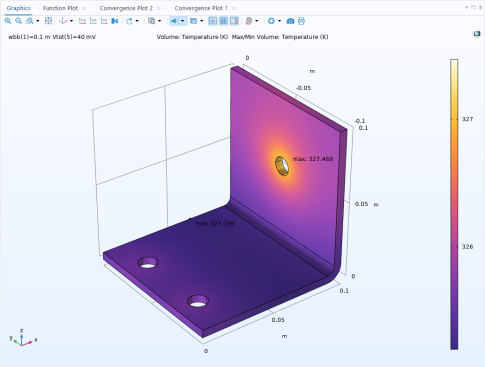
To view the temperature distribution in the busbar only, you need to add a selection to the solution dataset. Under Results > Datasets, right-click Study 1/Parametric Solutions 1 and select Selection.
8
In the Settings window for Selection set the Geometric entity level to Domain, and select Domain 1.
9
To see the temperature distribution in the busbar for the last parameter value (40 mV), select the Temperature (ht) node. In the 3D plot Group settings window, in the Dataset list, select Study 1/parametric Solutions 1.
10
Expand the Temperature (ht) node, and select Surface. In the Surface node settings windows, expands the Range section and clear Manual color range.
11
In the Results toolbar click 1D Plot Group
.
12
In the 1D Plot Group settings window, in Dataset list select Study 1/Parametric Solutions 1.
13
In the 1D Plot Group 6 toolbar, click Global
and in the Global settings window, enter
maxop1(T)
in the Expression field.
14
Click Plot
.